Survey setting options
Customize Participant Experience With Survey Setting Options
Within the Survey Builder, there are many options to choose from to customize the participant experience.
To open the settings within the Builder, click the "Options" button in the survey builder's top toolbar (on smaller screens, it is under the "⋮" menu).

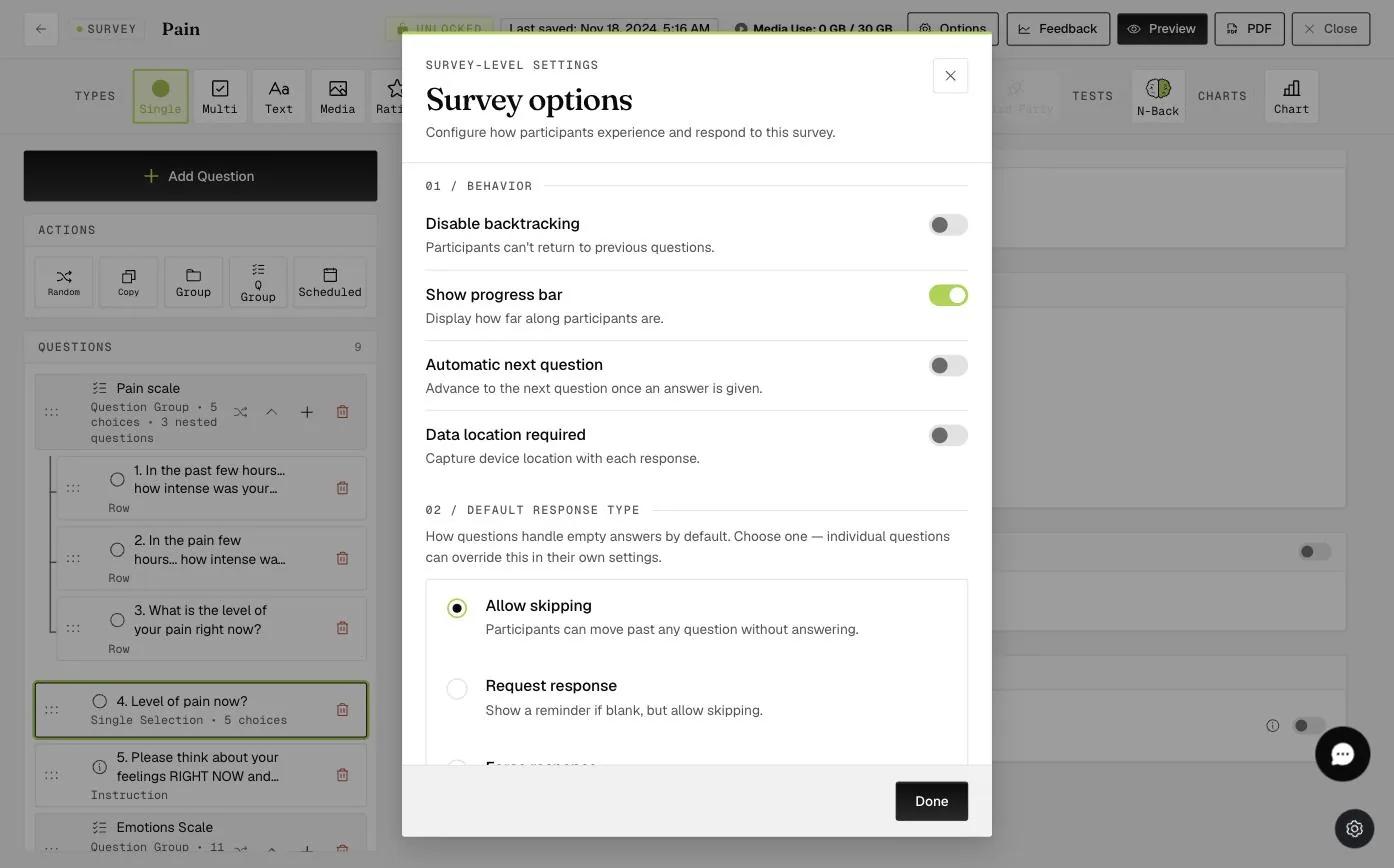
This will display a panel with the following survey customization options:
-
Disable backtracking: This option prevents participants from returning to previously answered questions within the survey. This option is useful when you do not want participants to change their answers to past questions.
-
Show progress bar: This option allows your participants to see the progress bar while answering the surveys.
-
Automatic next question: This option removes the "Next" button at the bottom of the survey screen and sends participants to the next question after selecting a response. This option is especially useful for long surveys or when you would like to speed up the survey for participants. Because participants do not need to click on the "Next" button once they select their options, it saves both clicks and time.
Researchers have had good success using this for long surveys of up to even 300+ questions.
- Data location required: Choose this option to obtain GPS location data from participants as they take the surveys.
Participants will have to agree to provide their data location to the ExpiWell mobile app. If participants do not agree to share their location, they will not be able to do this specific survey.
-
Allow skipping: By default, participants are allowed to skip your questions.
-
Request response: Participants will receive a prompt requesting them to answer the questions when they try to skip.
-
Force response: Participants must answer all the questions.
To learn more about the different response types, please visit here: RESPONSE TYPES