Scheduled group
What is a Scheduled Group?
A Scheduled Group decides which cluster of questions a participant receives at each scheduled survey session. You can let ExpiWell choose the group at random, or assign each session yourself. Randomizing varies what participants see from session to session, which helps keep responses from settling into a pattern.
For example, a survey with four question groups — A, B, C, and D — scheduled once a day for four days might play out like this:
Participant 1
Day 1 - Group B
Day 2 - Group A
Day 3 - Group D
Day 4 - Group C
Participant 2
Day 1 - Group D
Day 2 - Group C
Day 3 - Group A
Day 4 - Group B
Setting up a Scheduled Group
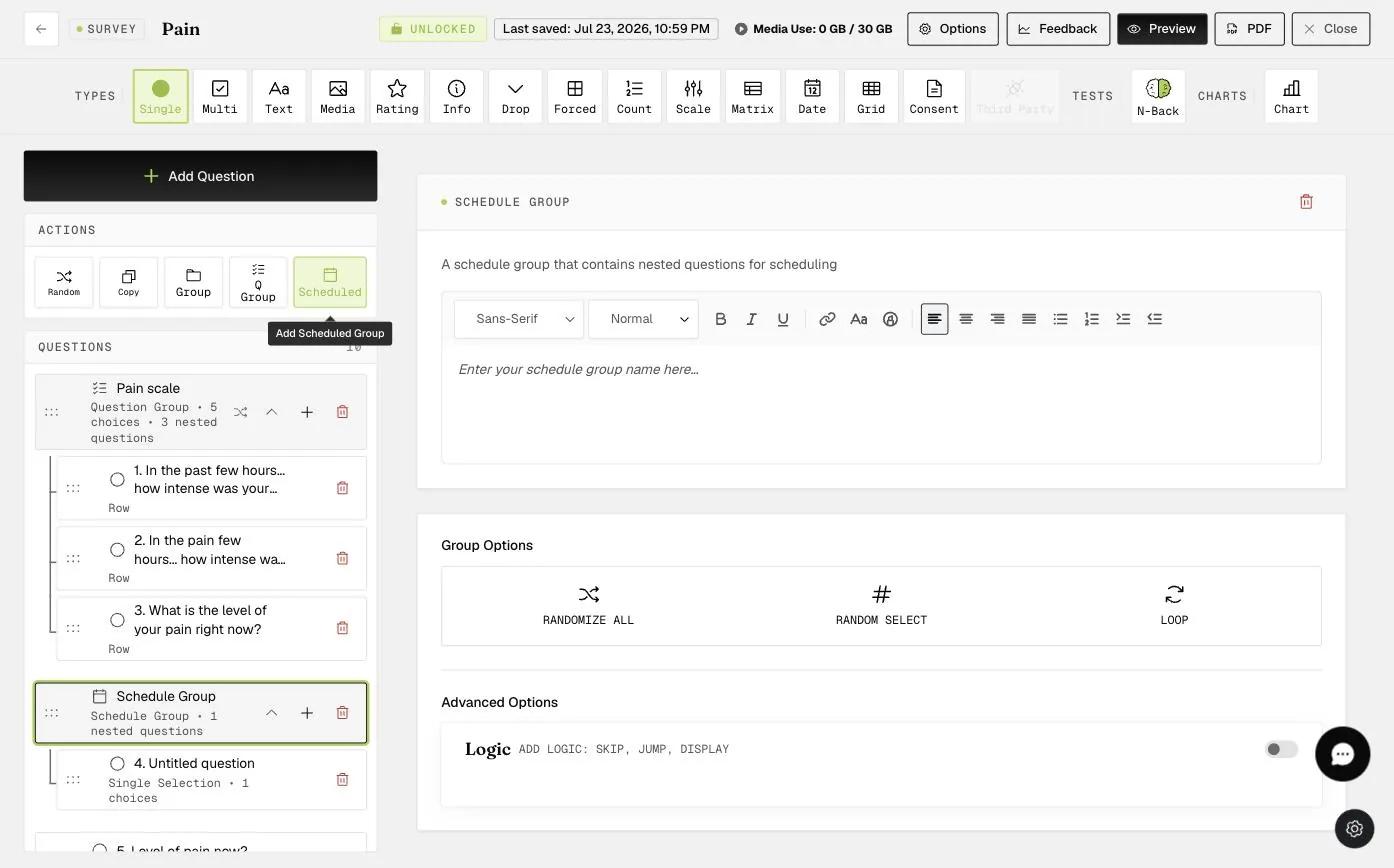
To set this up, open the survey builder and click Scheduled in the Actions row. This adds a Schedule Group to your survey, which you can name and fill with nested questions. Create as many groups as you need.
Assigning Groups on the Scheduling Page
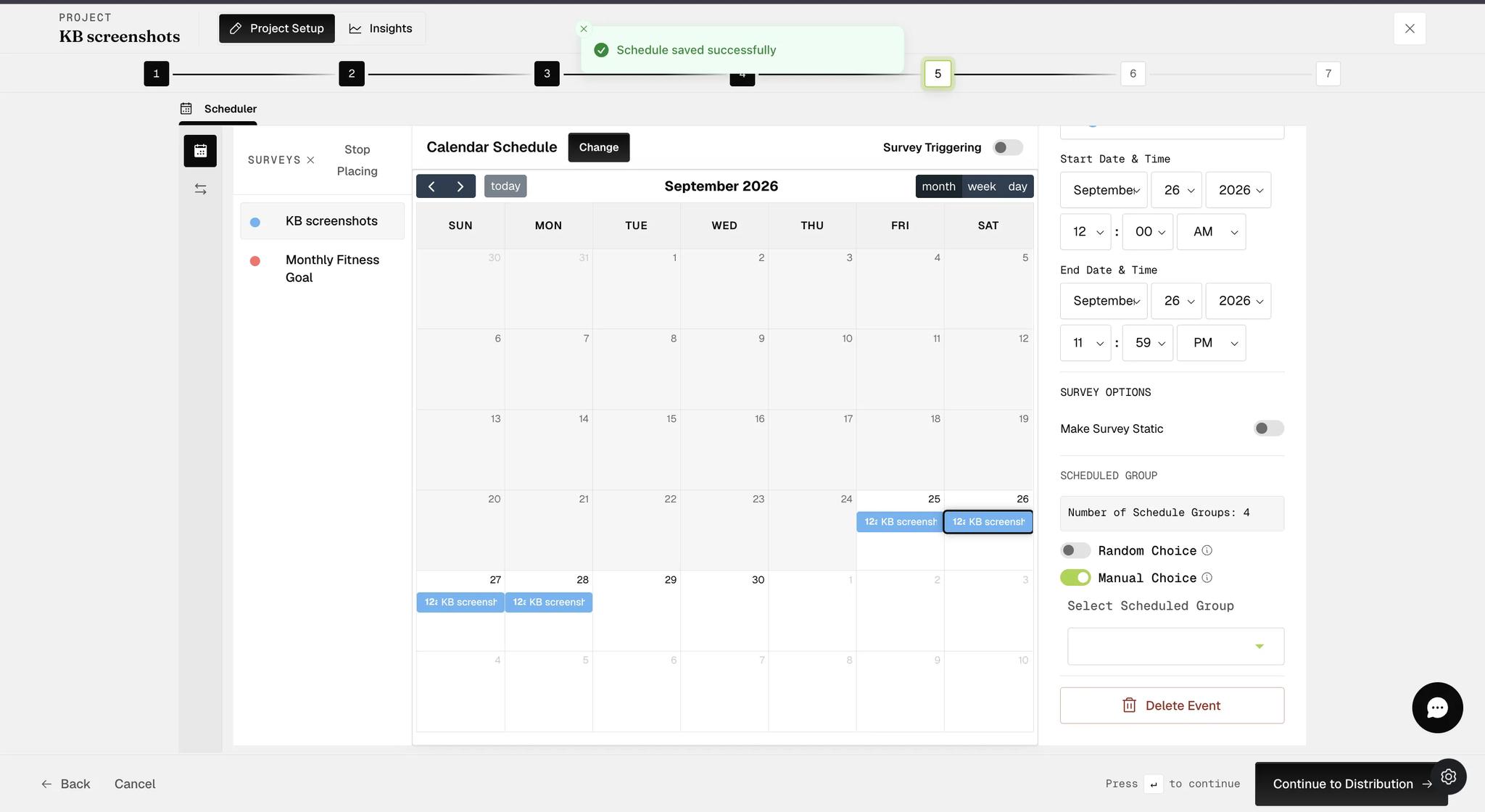
Once your Schedule Groups exist, open the project's Scheduler and select a scheduled survey event on the calendar. The panel on the right shows a Scheduled Group section listing how many groups the survey contains, along with two mutually exclusive options: Random Choice and Manual Choice. Turning one on turns the other off.
Scheduled Groups need a schedule with more than one session, so choose a Calendar or Rolling schedule type. A Static schedule is a one-time study, so there are no repeat sessions to assign groups to and these options will not appear.
Random Choice
Turn on Random Choice to let ExpiWell pick the group for each session. Randomly Choose sets how many groups a participant receives at each prompt, and With Replacement controls whether a group can be selected again later.
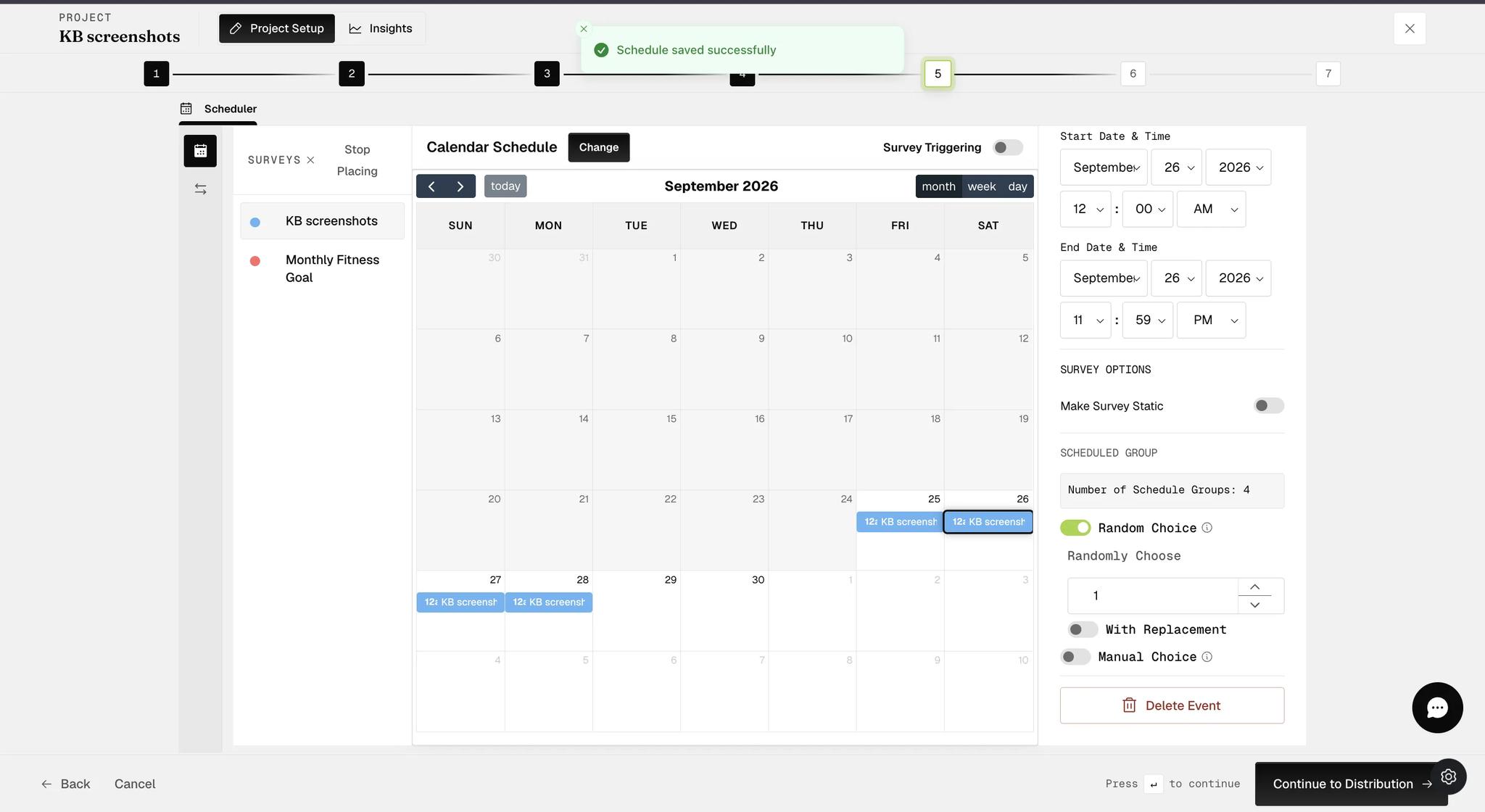
When Random Choice runs without replacement, keep Randomly Choose at 1. ExpiWell warns that higher values will not behave correctly without replacement.
Here are some examples using Random Choice across four groups (A, B, C, D):
-
Scheduled 4 times, with replacement (Randomly Choose = 1): A, B, A, C — groups can repeat.
-
Scheduled 4 times, without replacement (Randomly Choose = 1): A, C, D, B — each group is used once.
-
Scheduled 4 times, with replacement (Randomly Choose = 2): AC, DB, BC, AD — two groups per session, repeats allowed.
Manual Choice
Turn on Manual Choice when you want to decide the group yourself rather than leave it to chance. A Select Scheduled Group dropdown appears, and whichever group you pick is the one that session delivers. Repeat this for each scheduled event to build a fixed sequence.
FAQs
What is with or without replacement?
-
With Replacement: Survey groups are randomly selected from an available pool and then returned, allowing the same group to be chosen multiple times. This keeps the probability of selecting each group constant throughout the process.
-
Without Replacement: Survey groups are randomly selected from an available pool but are not returned, ensuring that each group is chosen only once. This changes the probability of selecting each group with each draw as the pool decreases after each selection.
For further inquiries, please reach out to help@expiwell.com