En construction

Vous nous avez échantillonnés en plein chantier.

Ces guides portent sur la nouvelle plateforme ExpiWell (v2) et sont encore en cours d’écriture, de relecture et de réorganisation — pardonnez les échafaudages : les pages peuvent bouger ou changer d’une visite à l’autre. Toujours sur l’ancienne app ? Sa documentation reste sur l’ancien portail d’assistance.

Ouvrir l’ancien portail d’assistance
Base de connaissances  /  Par l’équipe ExpiWell

Comment pouvons-nous vous aider ?

Des guides pour chaque étape de votre étude — du premier projet à l’export final des données. La base de connaissances ExpiWell pour la plateforme web chercheur et l’app mobile participant.

102 guides dans 29 catégories · Mis à jour par l’équipe ExpiWell
Help CenterBuildSurvey Creation

Participants viewing past responses

Build · Survey Creation
Updated 27 septembre 2026

Review Past Responses

Participants can be shown their own answers from earlier submissions of the same survey. In experience sampling and ecological momentary assessment studies this helps keep people engaged, since they can see what they reported before rather than answering into a void.

In the survey builder, click Feedback in the top bar. The Participant Feedback modal opens, and the first section is Questions to show back.

Tick the questions whose answers you want participants to see — the Select all button takes every question at once. Then click Save changes.
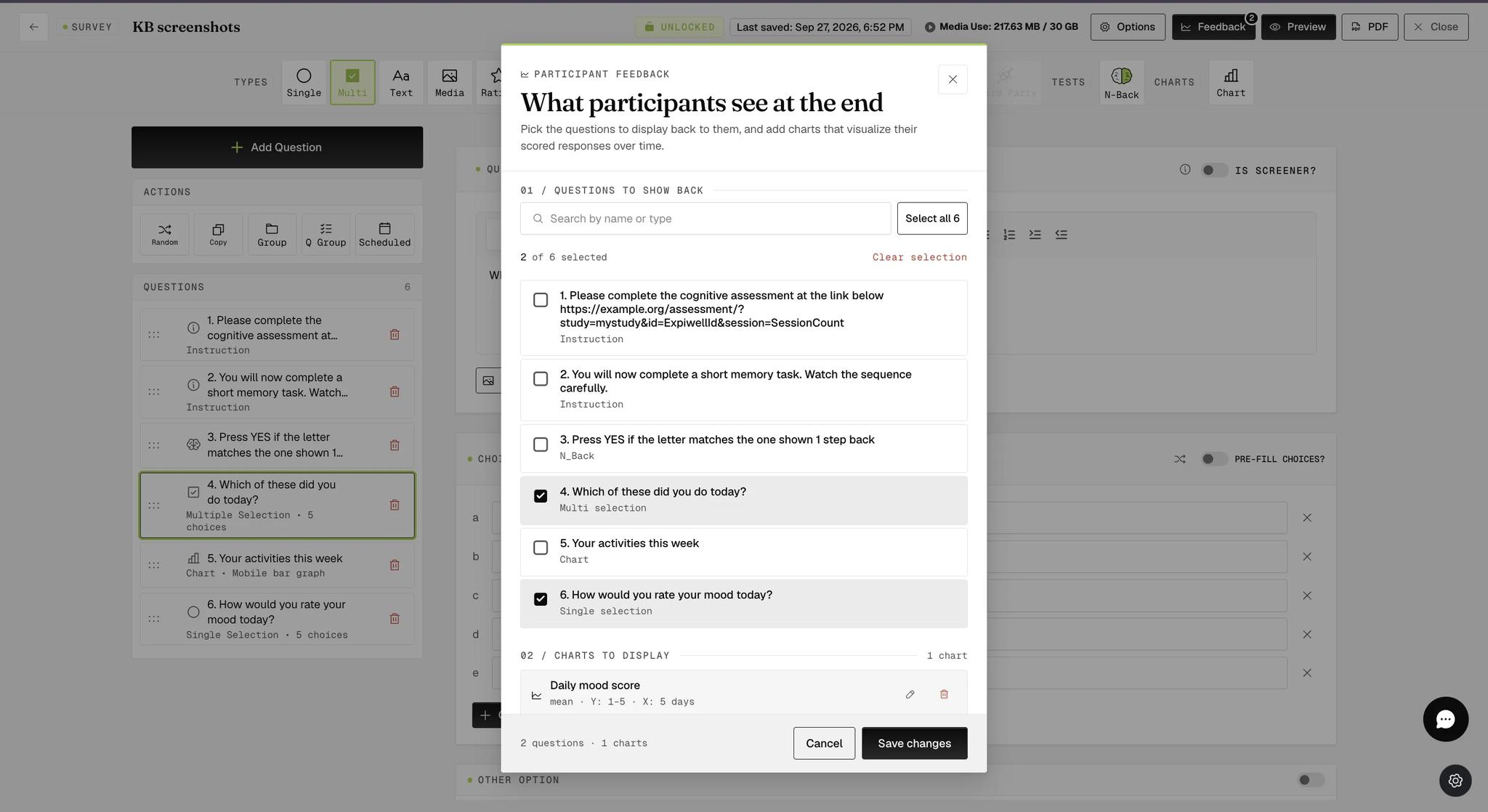
The Participant Feedback modal with two of the survey's six questions ticked under Questions to show back, a count reading 2 of 6 selected, and a Save changes button below
Note

Only questions that record an answer are worth showing back, since an Instruction question has nothing to display. If the survey is locked, these settings are visible but read-only — unlock the survey first.

What Participants See

On the mobile app, participants open the survey card's three-dot menu and tap Show Previous Responses.
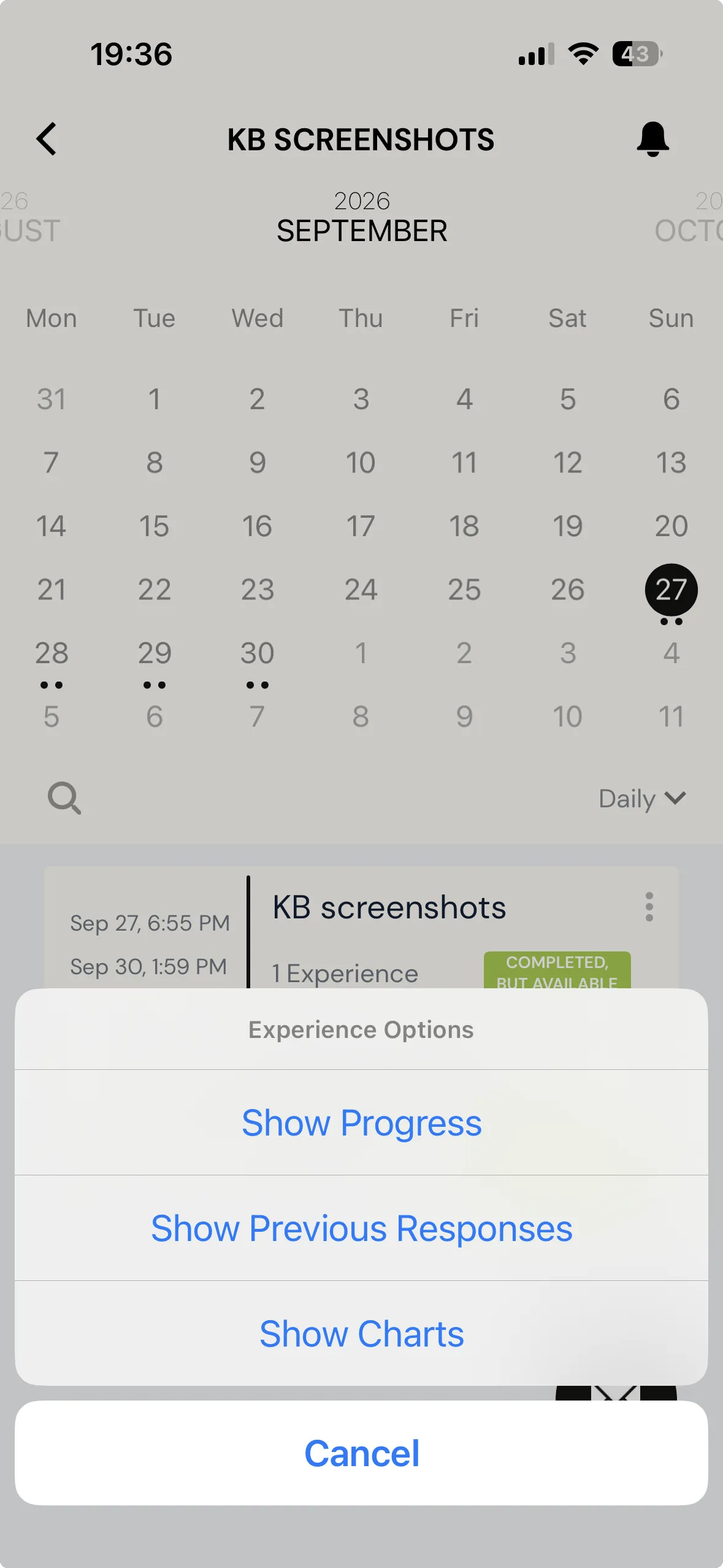
The ExpiWell mobile app with an Experience Options menu open over the survey card, offering Show Progress, Show Previous Responses, and Show Charts

Each past submission is listed with when it started and ended, followed by the questions you selected and the answer given each time.
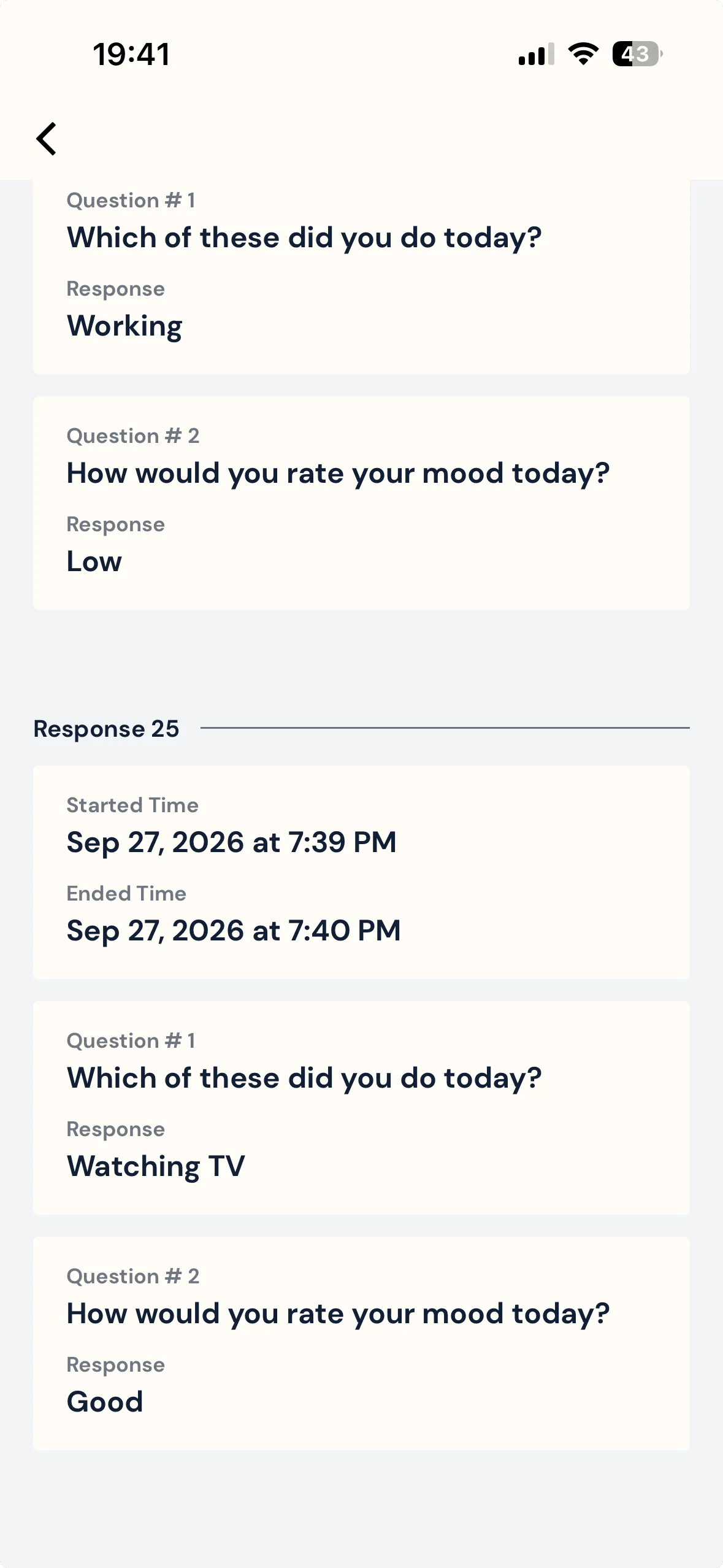
The previous responses screen on the mobile app, showing a submission's start and end times above the two selected questions, each with the answer the participant gave
Note

Only submissions made after you select the questions will show answers. Anything submitted earlier still appears in the list, but with its start and end times alone and nothing beneath them.

For further inquiries, please reach out to help@expiwell.com

Was this helpful?
Start today

Parlez à un humain de l’équipe ExpiWell.

Toujours bloqué ? Notre équipe de chercheurs répond aussi bien aux questions techniques qu’aux questions de design d’étude.