Making changes to a survey
Editing and Duplicating Surveys
You can edit a survey without deactivating the project. Two things to know before you start:
-
Changes reach participants the next time they open the survey, not immediately.
-
Editing questions can affect the data already collected. Download any CSV exports you need before making changes.
Opening a Survey
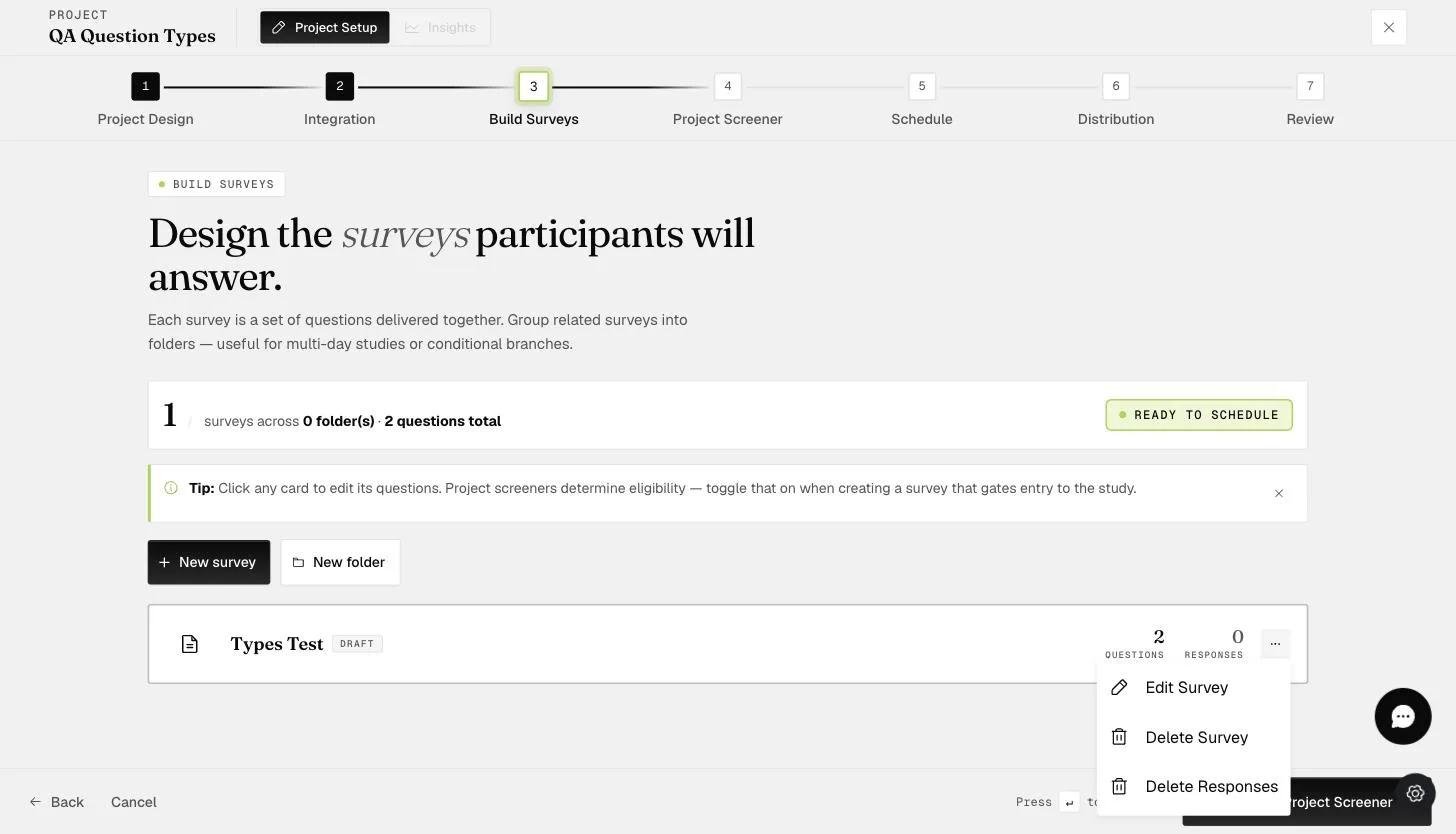
Go to the Build Surveys step, click the three dots on the survey you want to change, and choose Edit Survey. The same route serves both renaming and editing content.
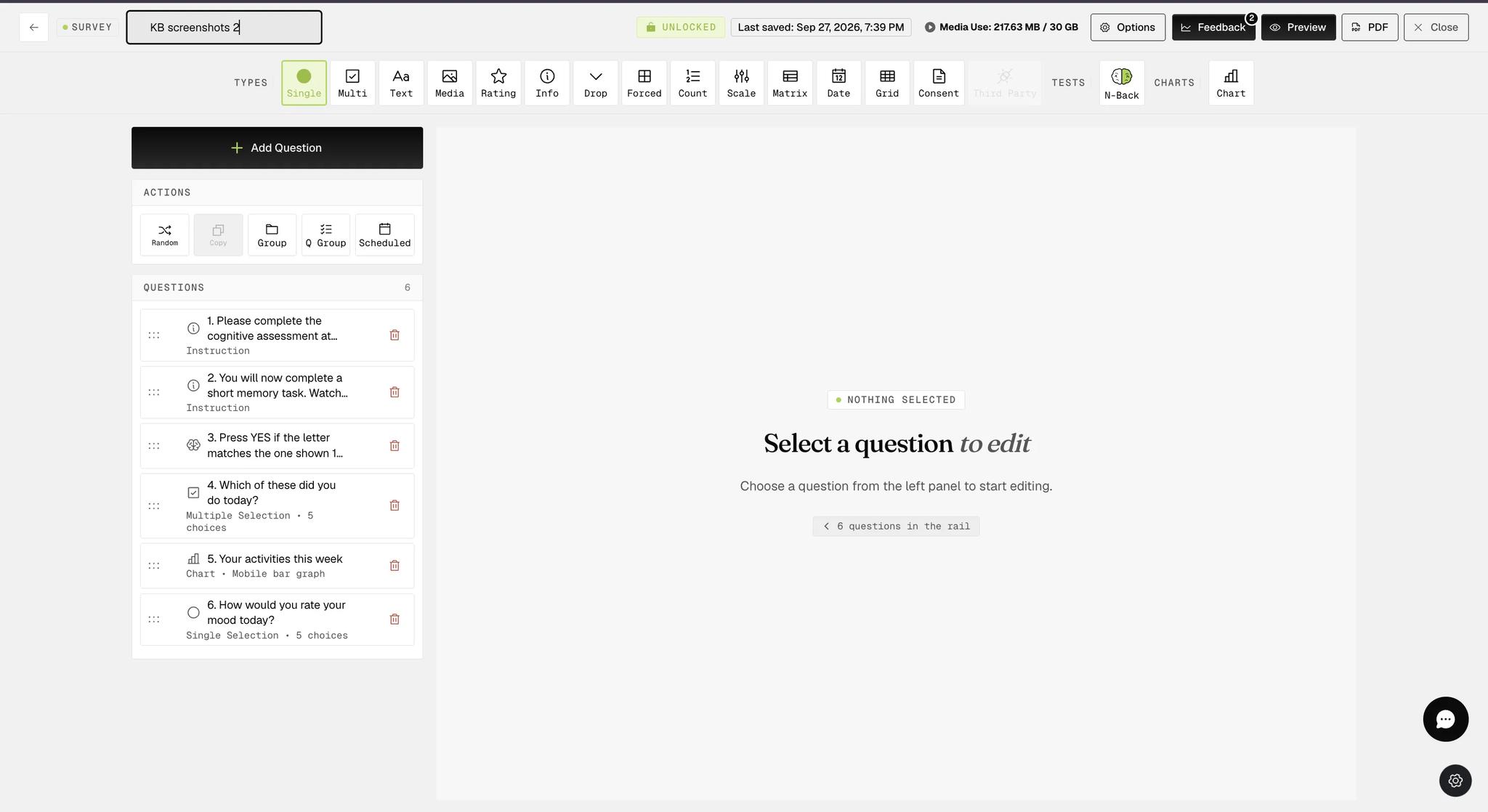
To rename it, click the survey name in the top left of the builder and type the new name. It updates on the Build Surveys step once saved.
Duplicating a Survey
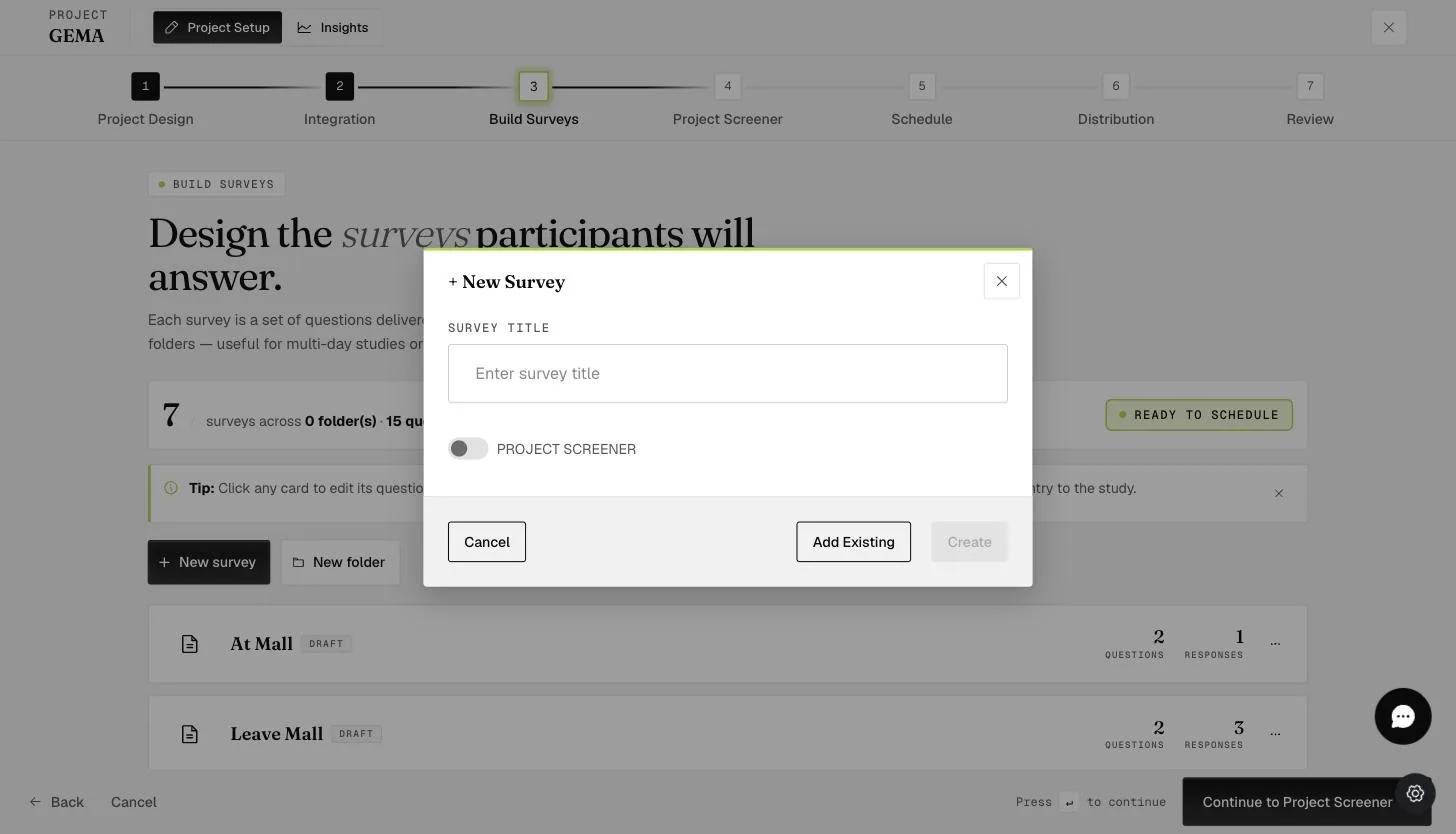
To reuse a survey, go to Build Surveys, click New survey, and choose Add Existing.
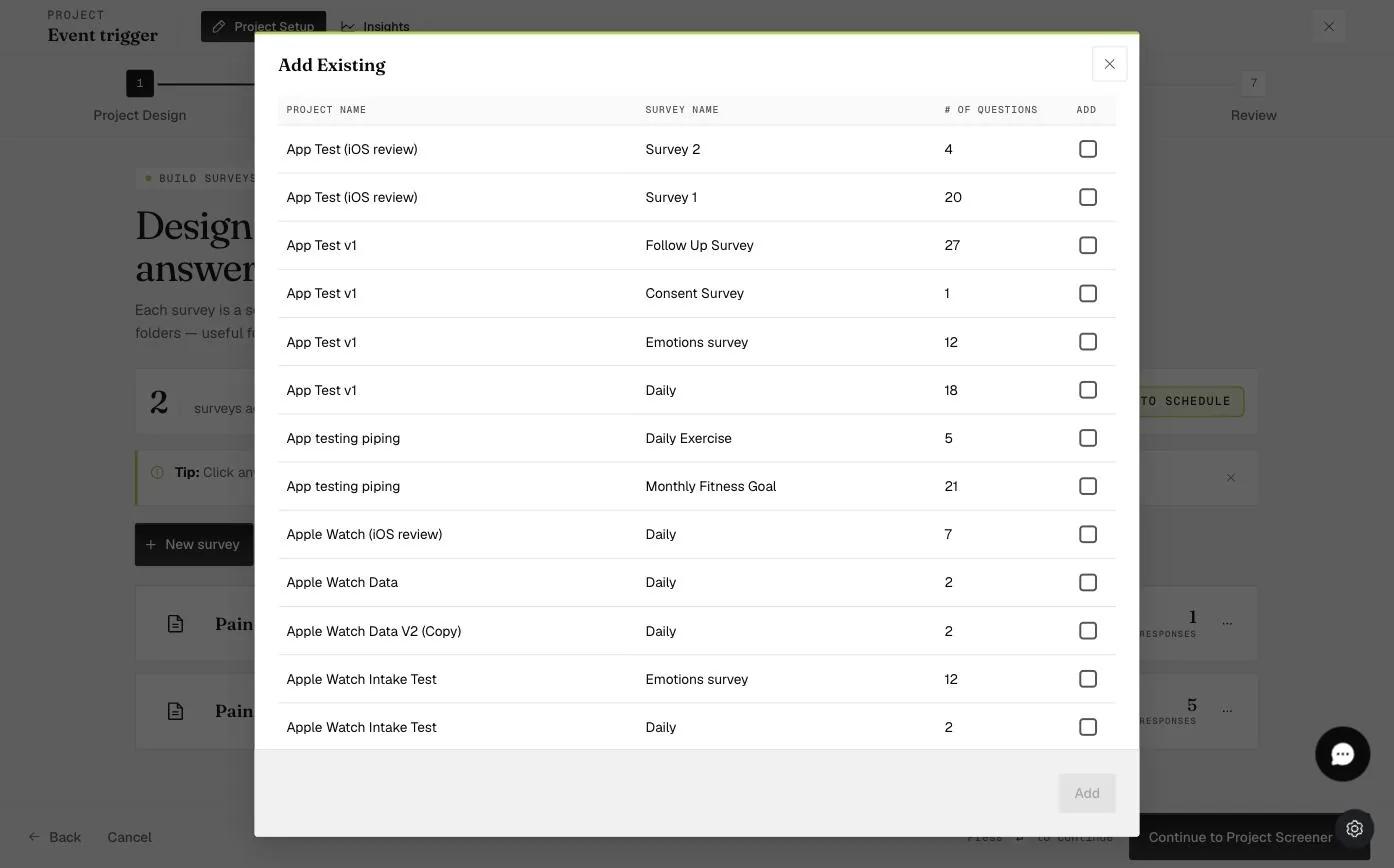
Pick the survey you want and click Add. The list covers every project you have access to, so you can copy a survey in from elsewhere as well as duplicate one from this project.
The copy lands in your project and can be renamed and edited independently — useful when a Day 2 survey should start out identical to Day 1.
Locked and Unlocked Surveys
A survey you open in the builder is either locked or unlocked, and the header chip tells you which.
If the project has not been activated and no participants have joined, the survey stays unlocked and you can edit it freely.
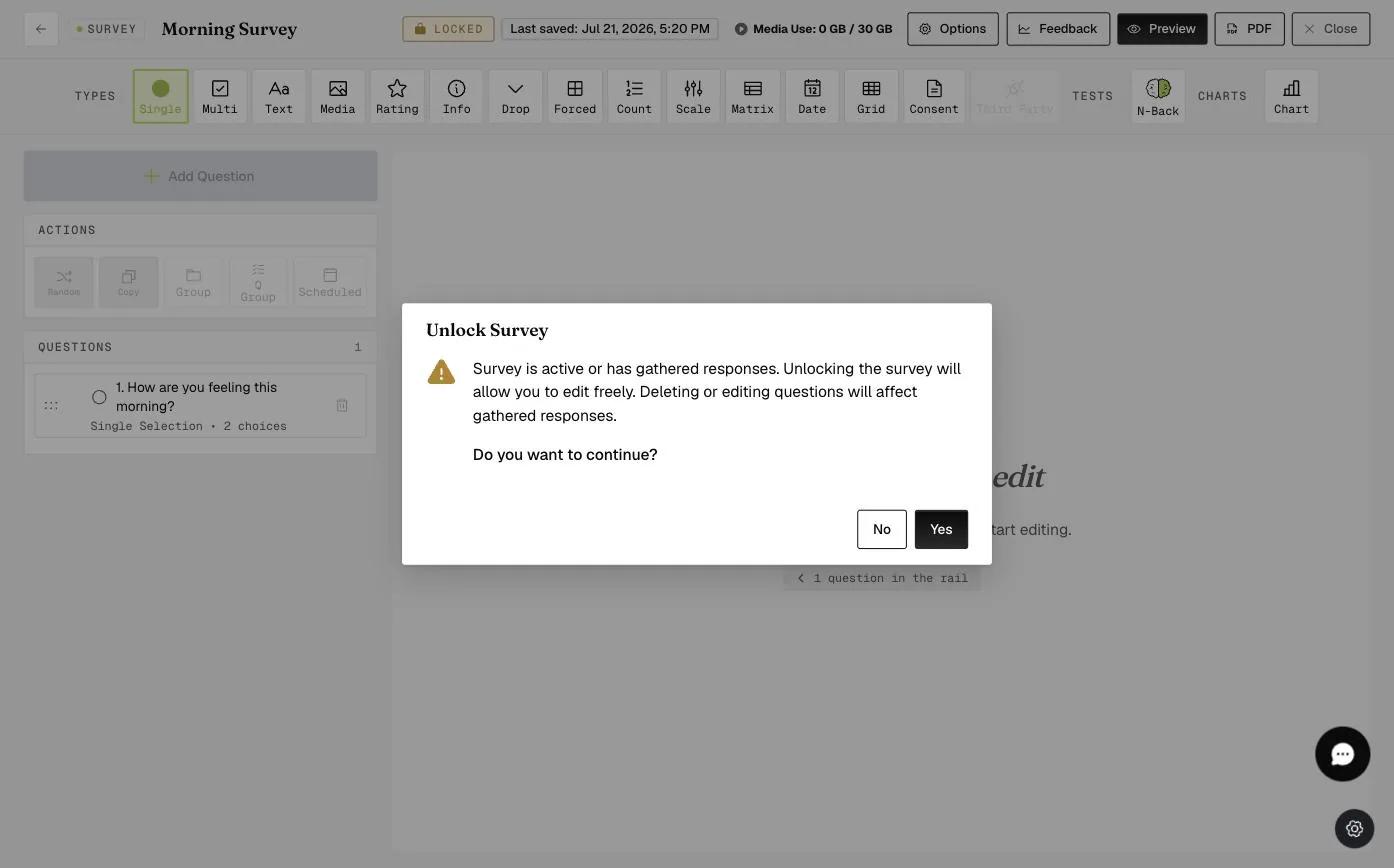
Once the project is active or participants have joined, the survey is locked to protect the data already collected. Click the LOCKED chip to unlock it.

Two dialogs follow. The first explains that editing or deleting questions will affect responses already gathered — click Yes to continue.
The second warns that changing response choices affects the numeric values already recorded against them. If you need that data in its current form, export it before you edit. Click Okay to dismiss it.
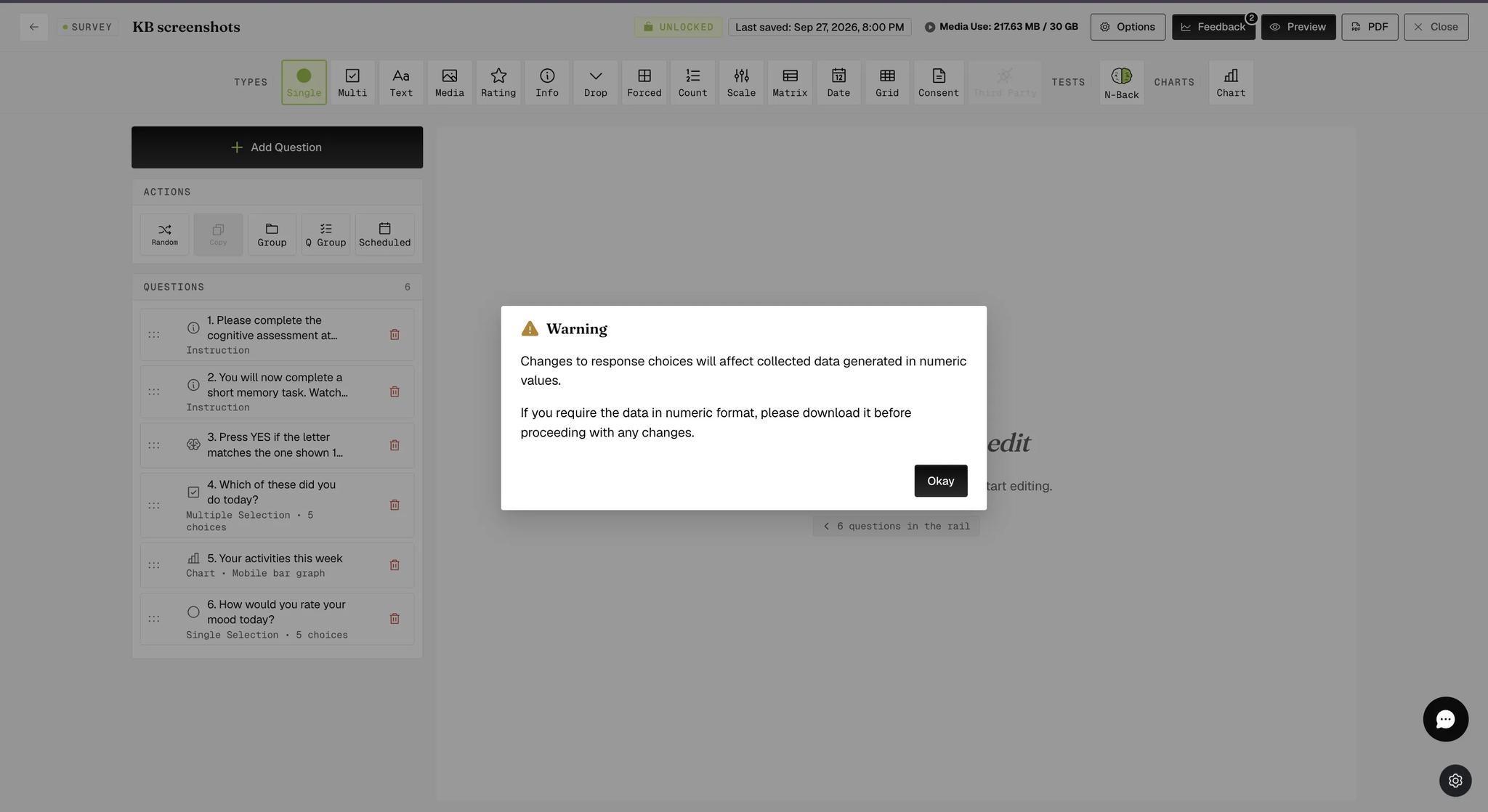
The chip reads UNLOCKED once you accept the first dialog, and the survey can be edited.
Unlocking changes nothing by itself. It is the edits afterwards that matter — particularly to response choices, since those carry the scores your collected data was coded against.
For further inquiries, please reach out to help@expiwell.com