Ways to group questions
Two Ways to Group Questions
ExpiWell surveys can organize questions into blocks using two types of groups: Group and Question Group. Both support randomization within the block.
Group
A Group wraps a set of questions together, regardless of their question type. The questions inside can be any mix of formats — single selection, text entry, multimedia, instructions, and so on.
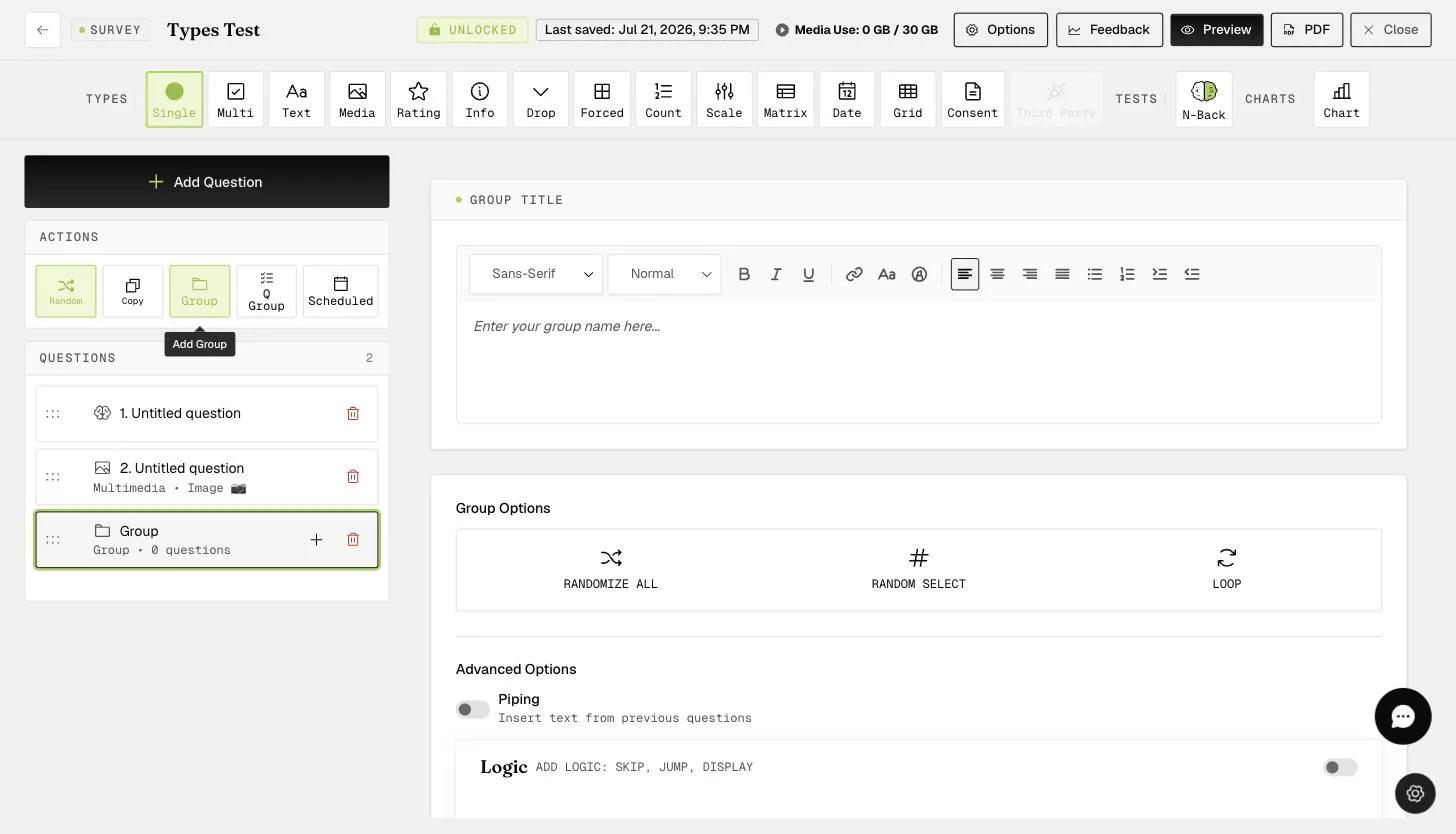
To create a Group, click Group in the "Actions" row. This adds a Group box to your survey. You can then drag existing questions into it or click the "+" button to add new ones.
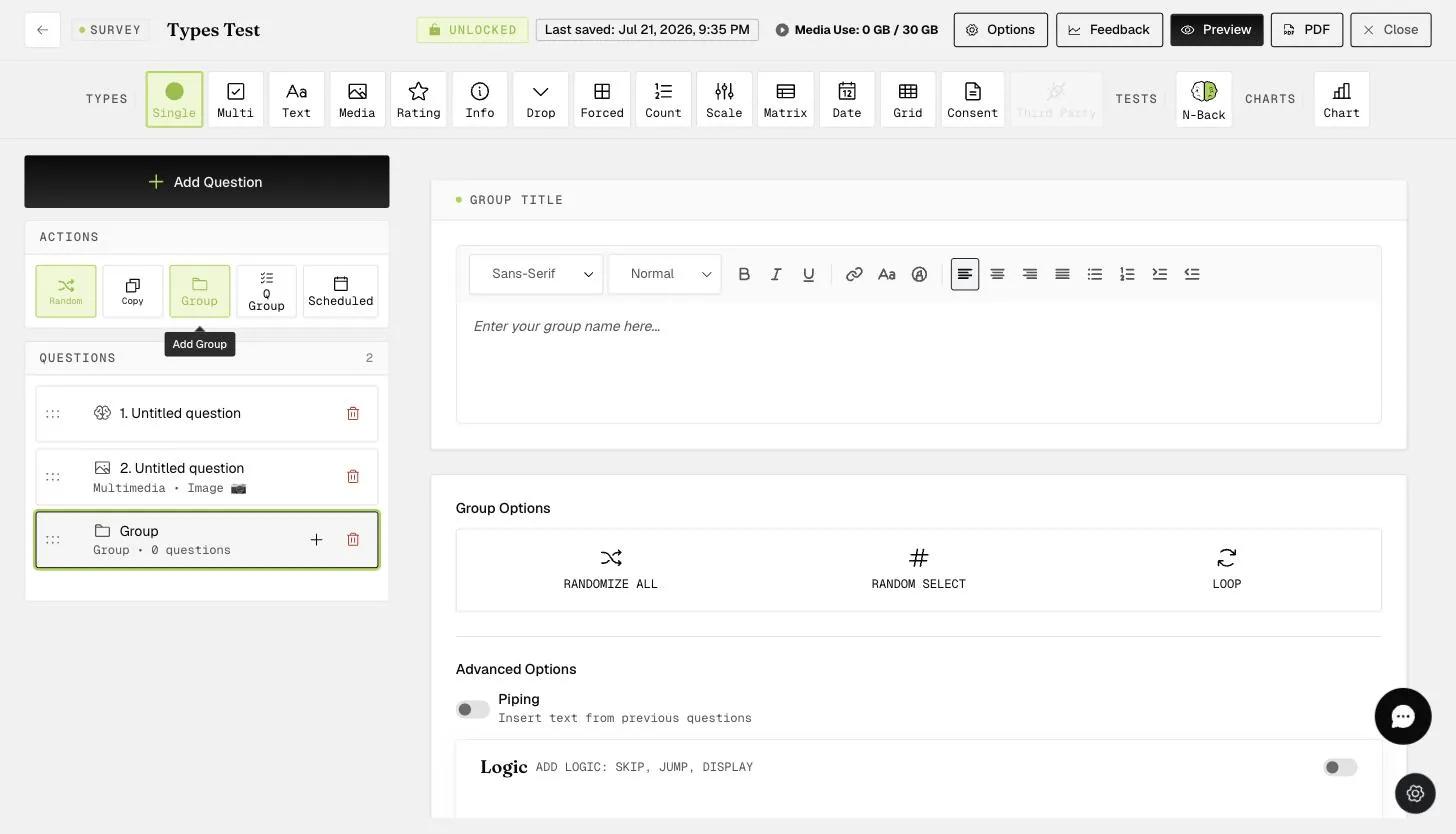
With a Group, you can randomize the questions inside it independently of the rest of the survey. This means you can keep a fixed order within the Group even when questions outside it are randomized, or vice versa.
Question Group
A Question Group works differently: all questions inside it must share the same response format. This is the key difference from a regular Group. Researchers typically use Question Groups for Likert-style scales — for example, asking participants to rate statements from "Strongly Agree" to "Strongly Disagree" on topics like personality, attitudes, or emotions.
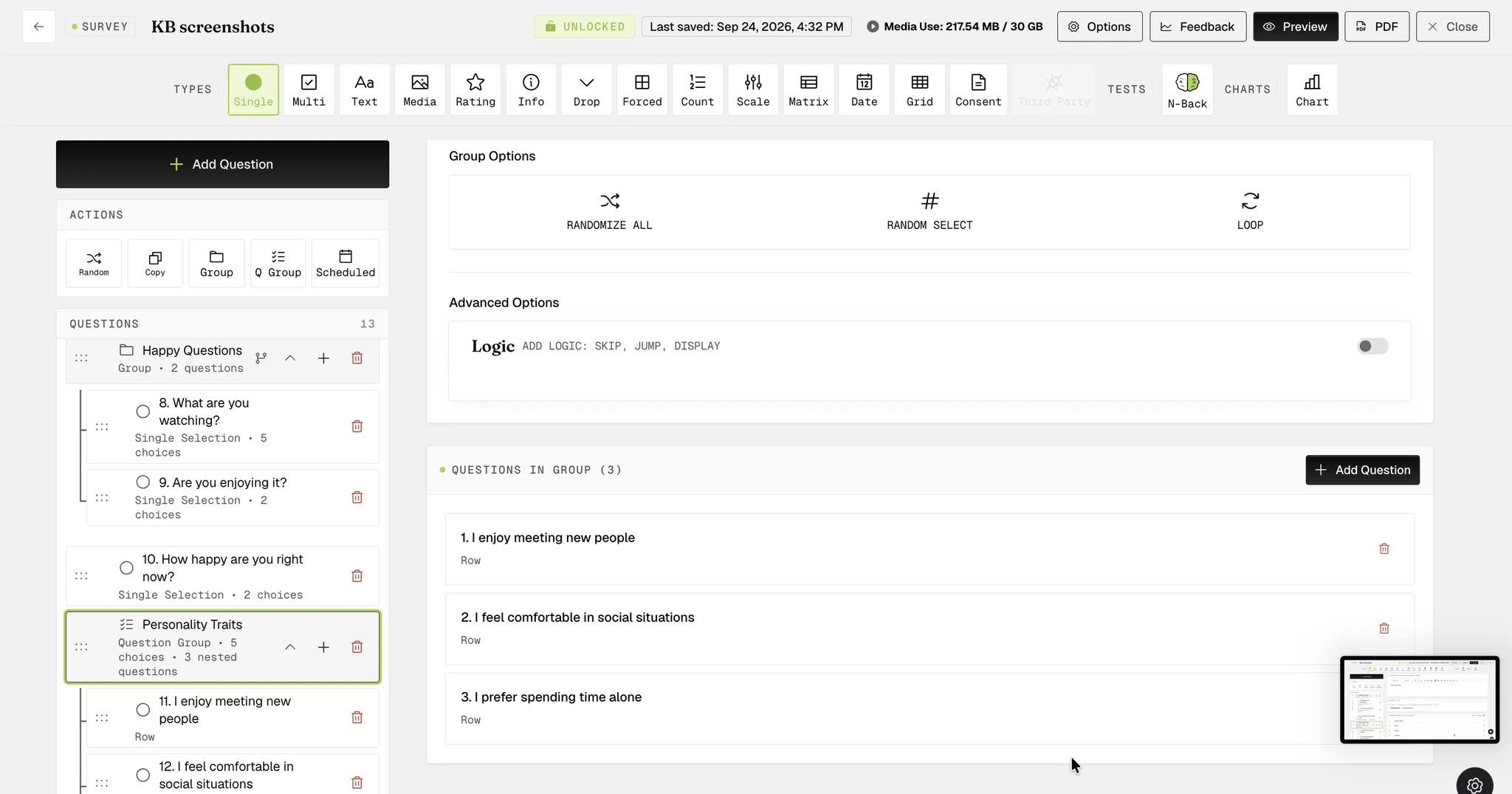
To create a Question Group, click Q Group in the "Actions" row. You can then enter a name for the group, choose the question type (e.g., single selection), and set the default response choices. These choices apply to every question in the group, so you only define them once.
After setting up the group, you can start adding questions. Each question inherits the shared response format and choices. Like a regular Group, you can also randomize the questions within a Question Group.
For further inquiries, please reach out to help@expiwell.com