Survey logic & branching
Three Logic Functions You Need to Know
There are several logic functions you can use to manage the flow of your ecological momentary assessment (EMA) and experience sampling method (ESM) surveys. The three logic functions are:
Skip Logic: Participants skip to another specific question based on their response to the current question.
Jump Logic: Participants jump to a specific question.
Display Logic: The current question is displayed when participants respond in a specific way to a previous question.
Before we tackle the different logic functions, it is essential to know that all the logic applied will be disabled when you decide to randomize your survey questions.
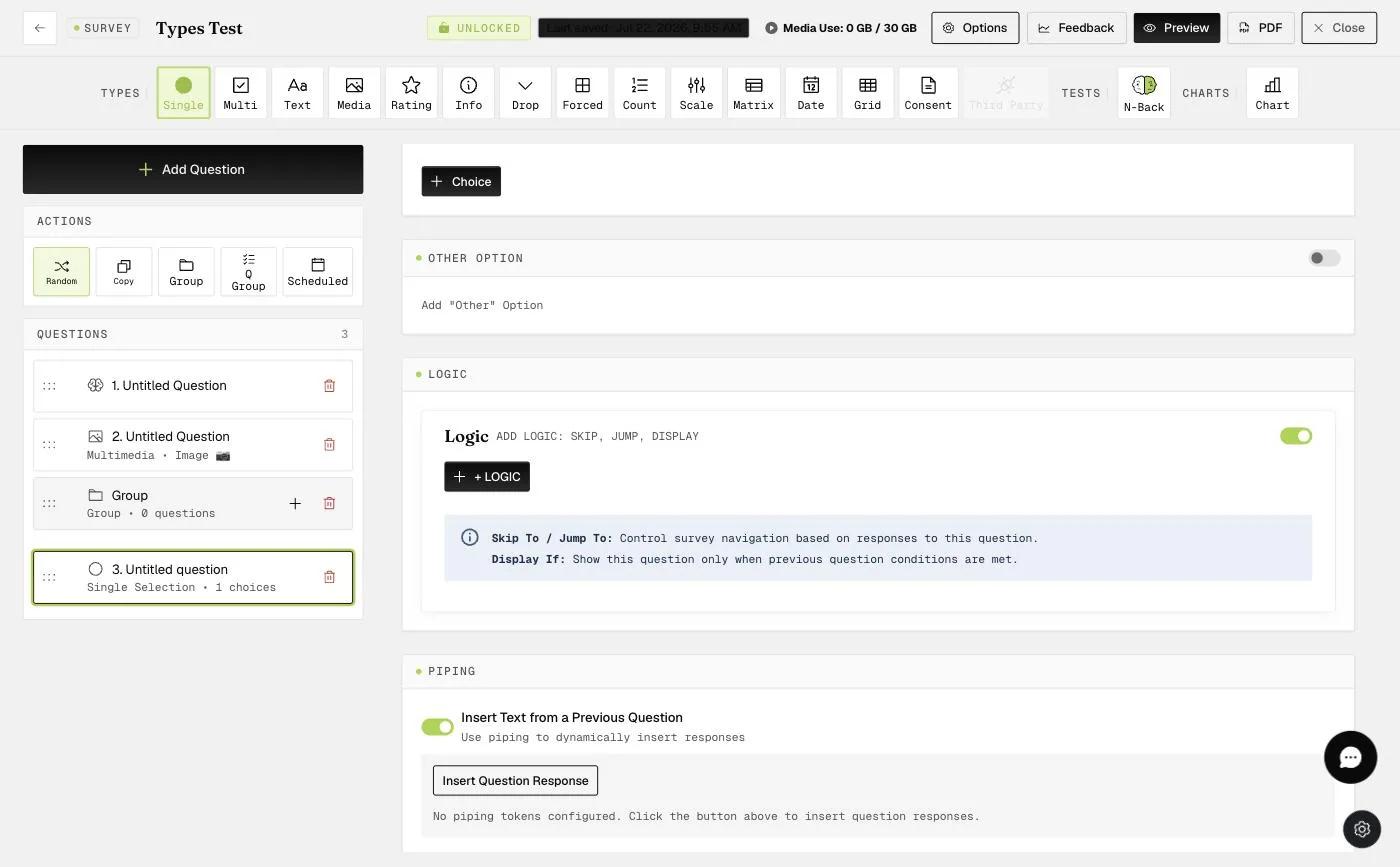
When toggling the logic button while your survey questions are in random order, you will receive this prompt, and you can click 'Ok' to proceed.
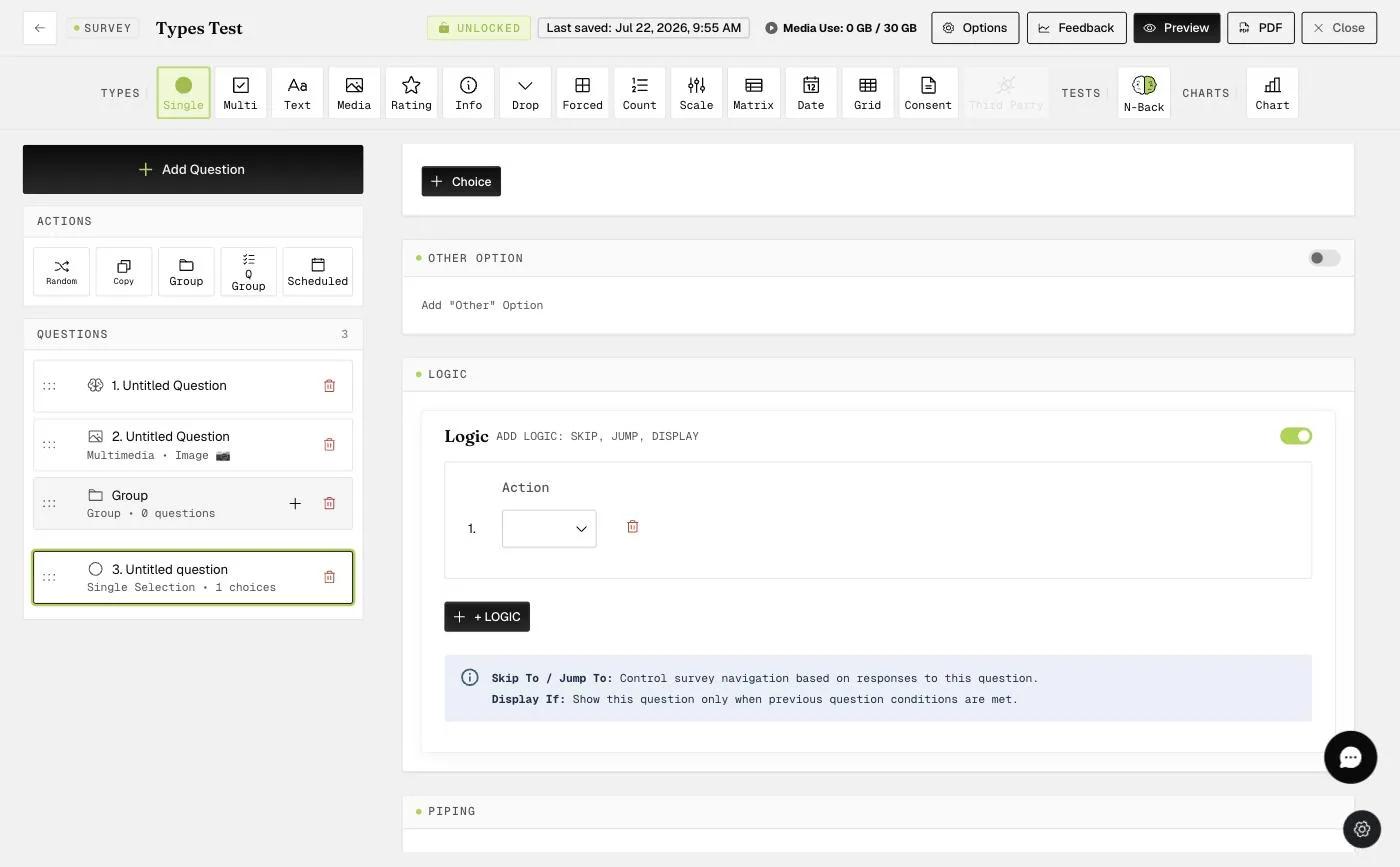
When you click the "Randomize questions" button while logic functions are applied, you will receive this prompt, and you can click 'Remove Logic & Enable Randomization' to proceed.
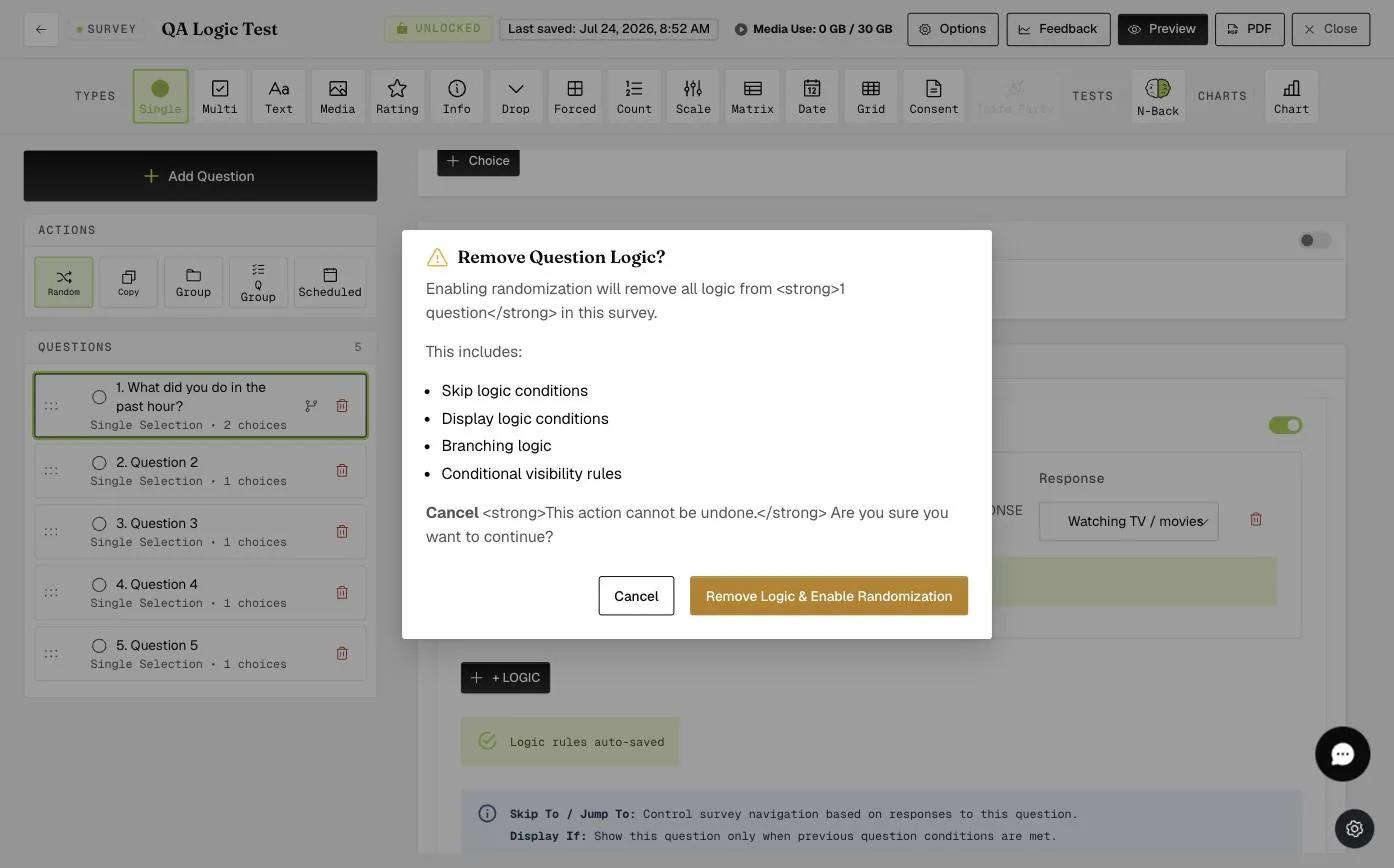
Skip Logic
The skip logic function allows you to have participants skip forward to another part of the survey when they respond with a specific option in the current question.
For example, you can implement skip logic in a single-selection question where participants select one option out of multiple choices.
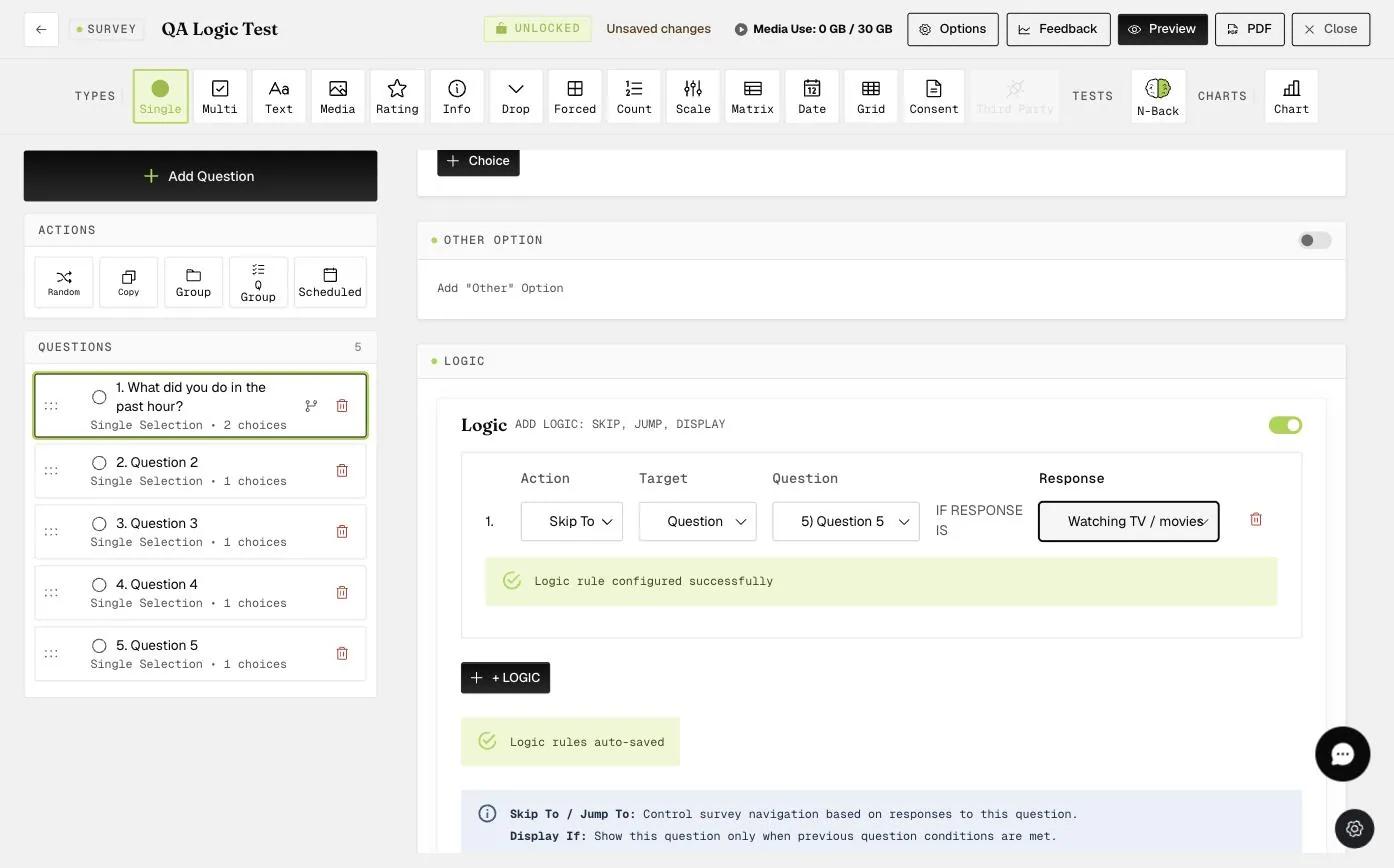
"Logic" does not display if there are no other questions in the survey or if the single-selection question is the last question in the survey (as there must be something to skip forward to). You must add more questions before being allowed to enable the skip logic function.
In the example above, SKIP logic is applied to question 2. The logic is set so that from question 2, it will skip to question 5 IF the response is watching TV / movies. Otherwise, the questions proceed in order.
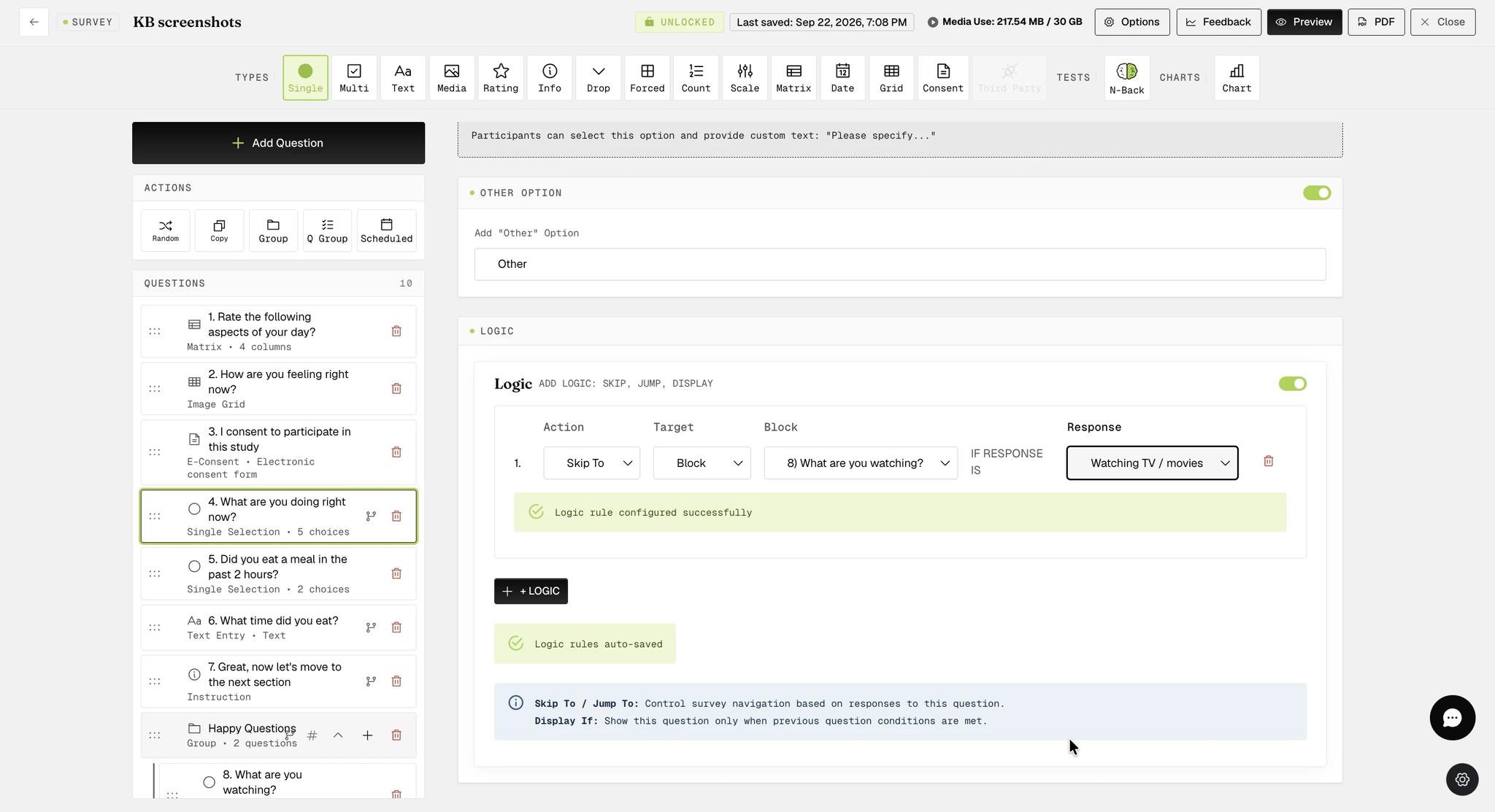
You can also skip to a block of questions. As seen below, you can choose the specific block of questions to skip forward to by selecting "Block".
The first question in the block represents the entire block. In this example, the block starts at question 8.
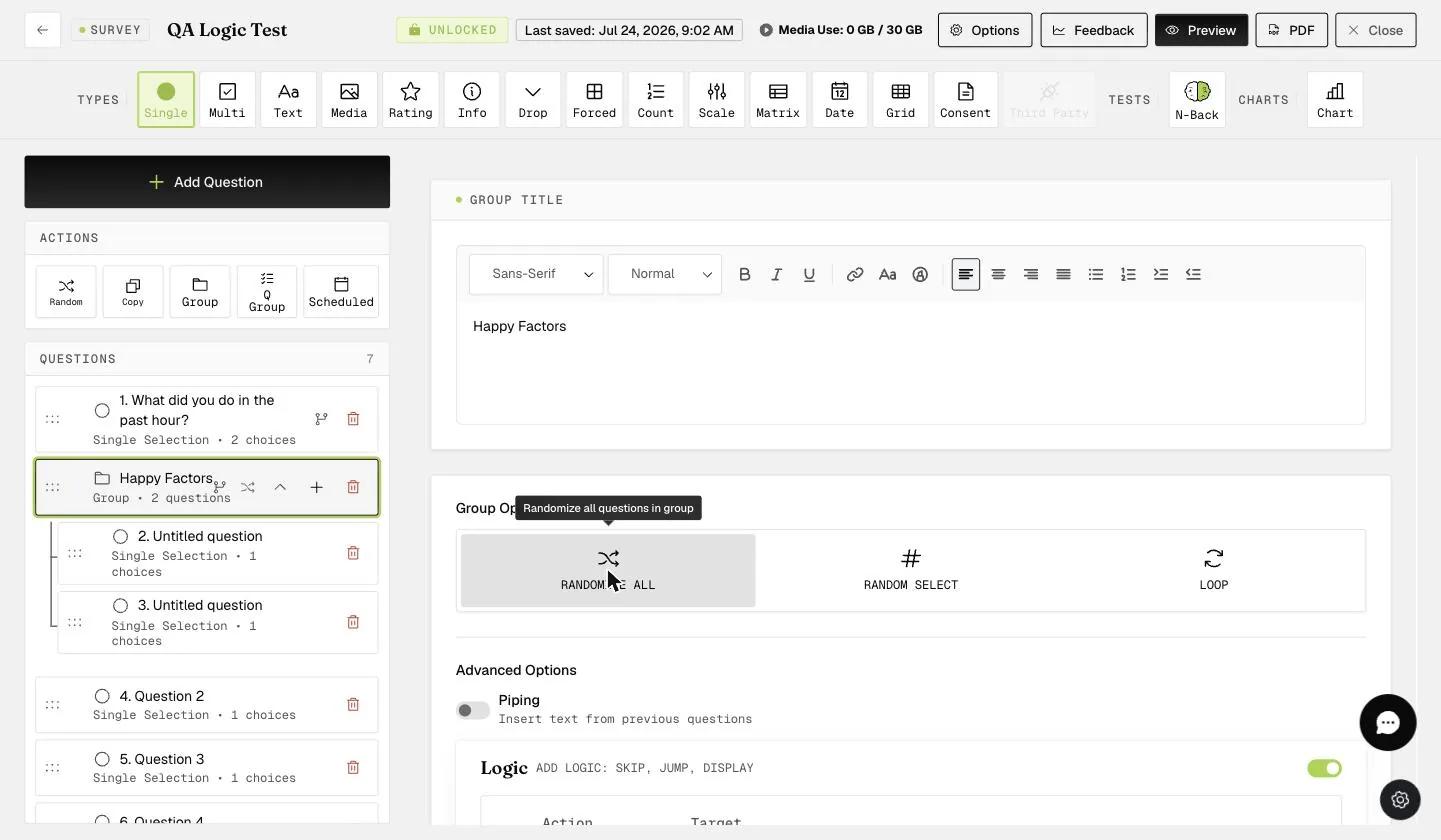
You can also randomize the questions within the block.
In general, it is recommended that "Force Response" be enabled with "Skip Logic" so that participants will need to respond to the question.
Jump Logic
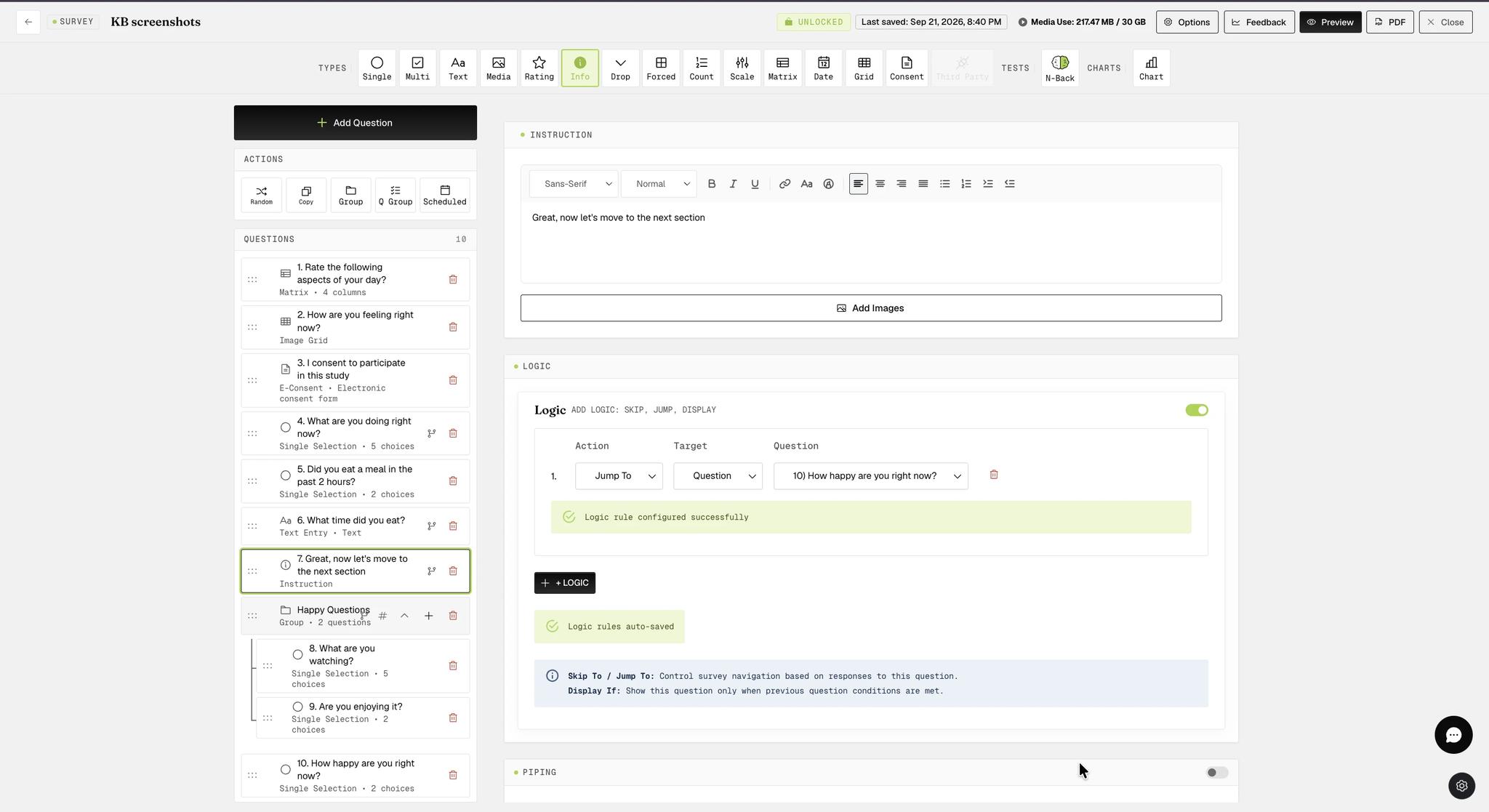
For instance, if participants encounter an instruction question, they can skip ahead to a designated section of the survey.
For example, placing the instruction question after a question block allows participants to advance to a different survey section after completing that block, as illustrated below.
Display Logic
Another way to manage the flow within the survey is by using the "Display Logic" function. The display logic function displays certain questions based on participants' responses to previous questions in the survey.
This is particularly useful when you have a set of questions that only needs to be answered if participants encountered a specific event (e.g., ate a meal) or had an interaction (e.g., interacted with a friend). Otherwise, the questions will not be displayed.
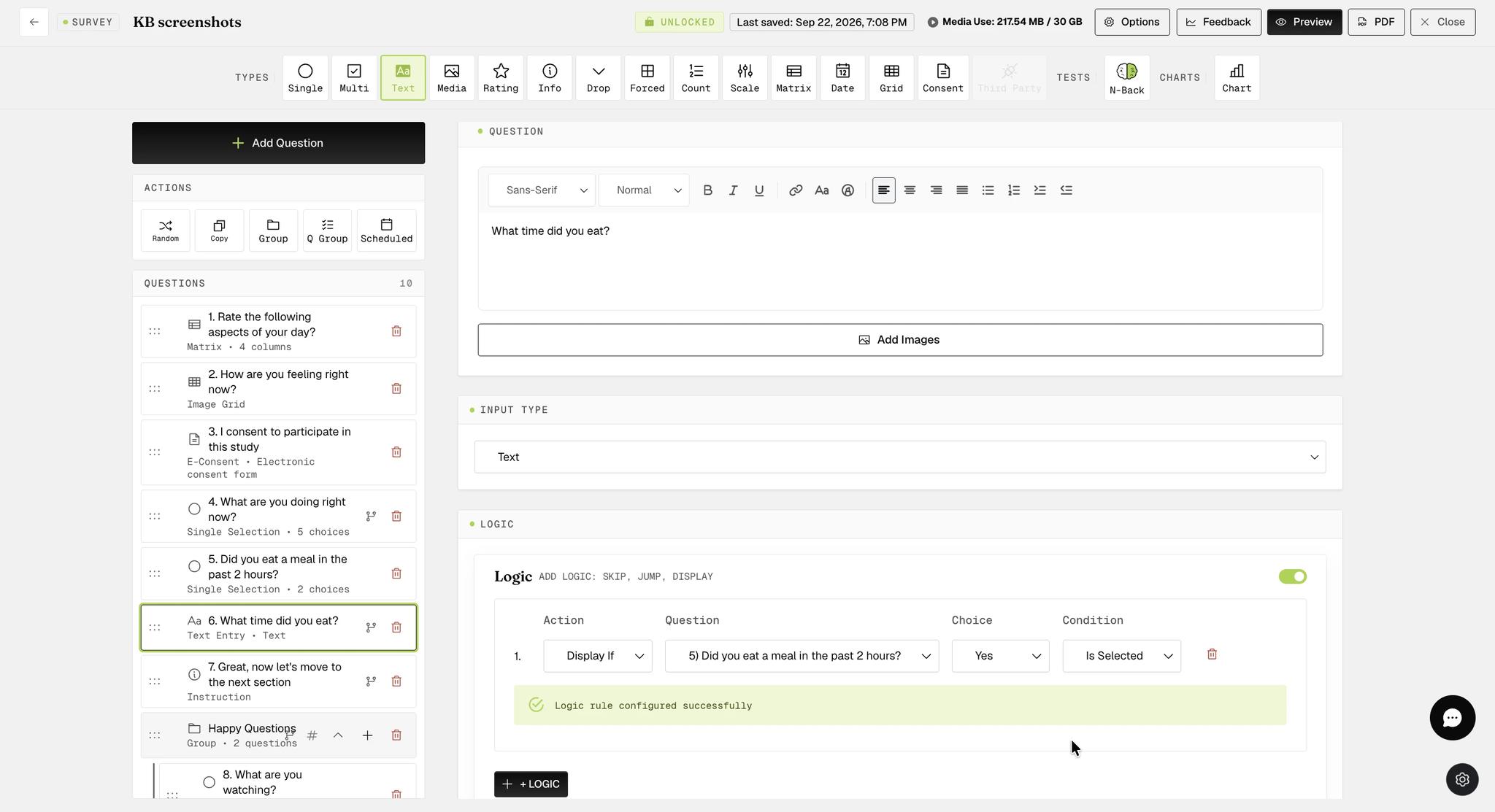
For the first illustration, you may only want to ask the time when a participant ate a meal, but only if they did eat a meal previously. To implement this, select the "Add Logic" function on the question that is optionally displayed. Then, create the "Display if" condition to display the question.
You can also apply "Display Logic" to a group of questions — see Block Display Logic below.
In general, it is recommended to enable "Force Response" in the survey along with "Display Logic". This ensures that participants must respond to the previous questions on which the 'Display Logic' is contingent. If a participant does not answer these earlier questions, the contingent question will not appear.
Advanced Block Logic
In general, two types of logic can be applied to a block of questions (a Question Group or a Group):
-
Jump Logic: allowing the question block to jump to a specific block, question, or end of survey
-
Display Logic: allowing the question block to be displayed if a specific response choice was selected for a previous question
Block Jump Logic
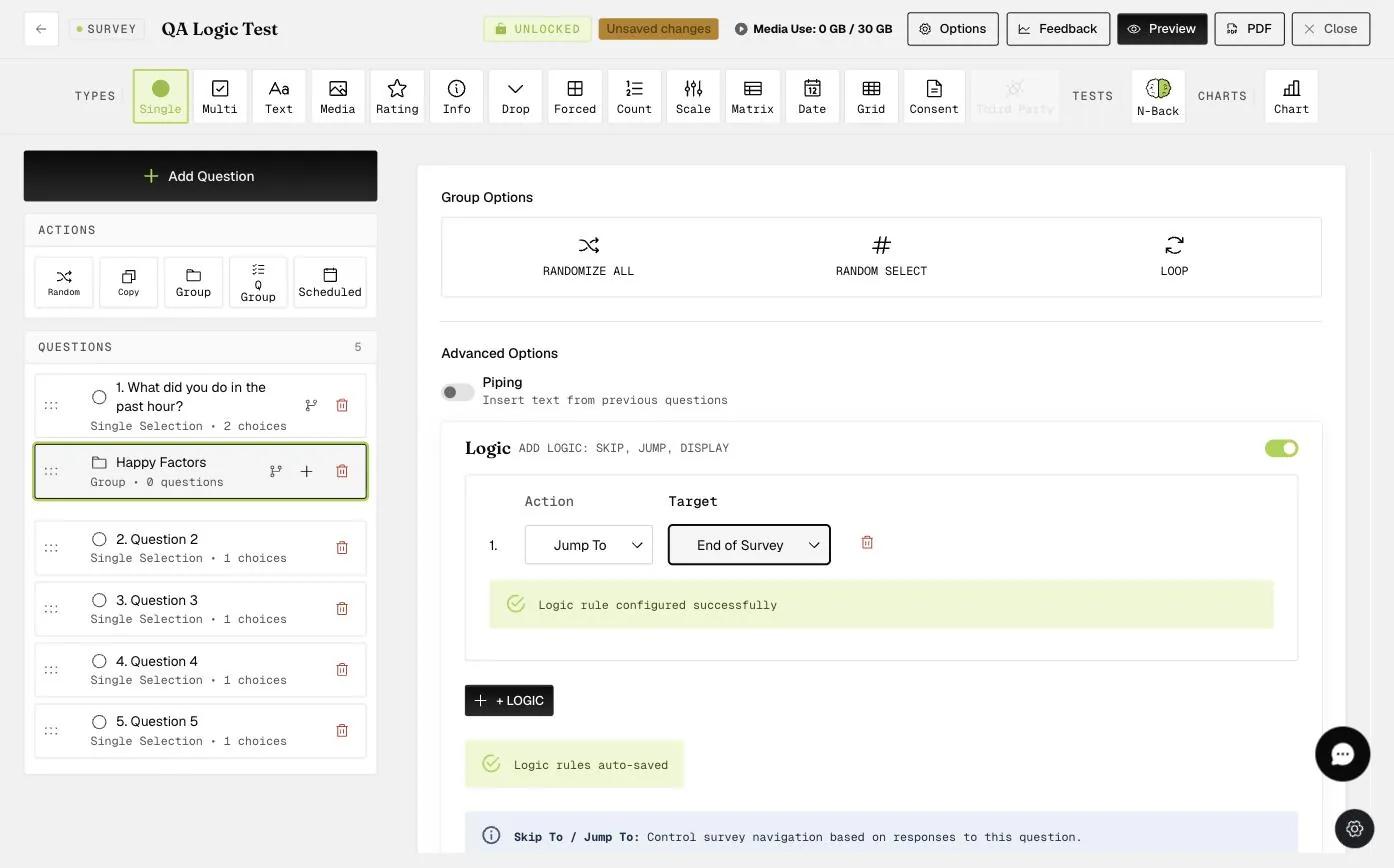
In this example, if you would like the participant who finishes answering this question group titled 'Happy Questions' to end the survey as the following questions are irrelevant to them, you can apply the jump logic so that they will finish the survey after this question block.
Block Display Logic
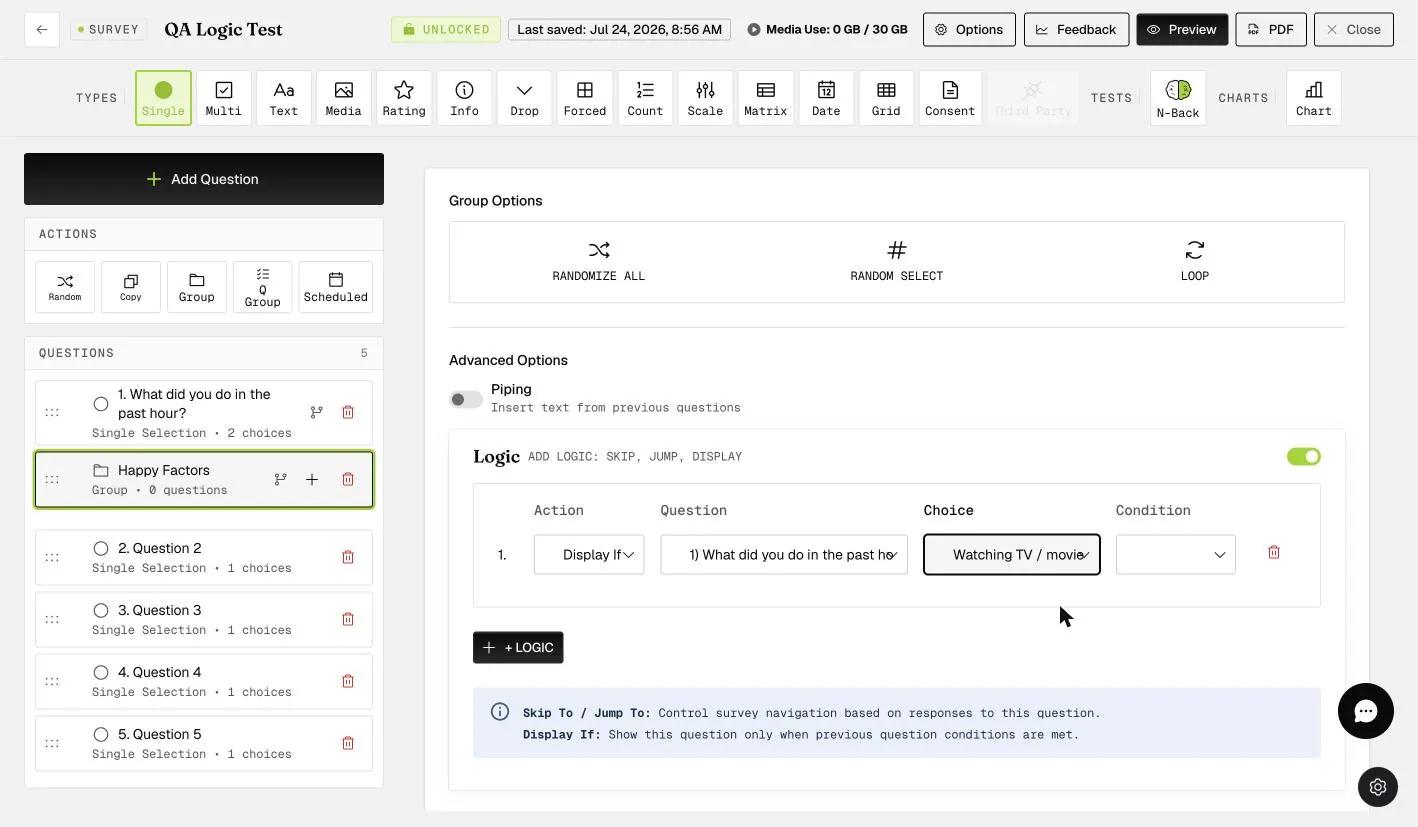
Here, we have an example of a block display logic, where a question block titled 'Happy Questions' is displayed only if the response to question 4 is 'Watching TV / movies'.
Block Logic with Random Selection Applied
To create diversity in messaging, you can display only a selected number of randomized questions within a question block (more details on the random selection feature can be found here). With this feature applied, jump and/or display block logic can still be used, allowing greater flexibility and variability in your survey creation.
If you have a question group with similar messaging (for example, a set of happy questions with the same meaning but just phrased differently), you can choose to randomly select one of the questions to display to participants. Based on the block response choice, block skip logic can be applied to direct participants to different blocks within the survey.
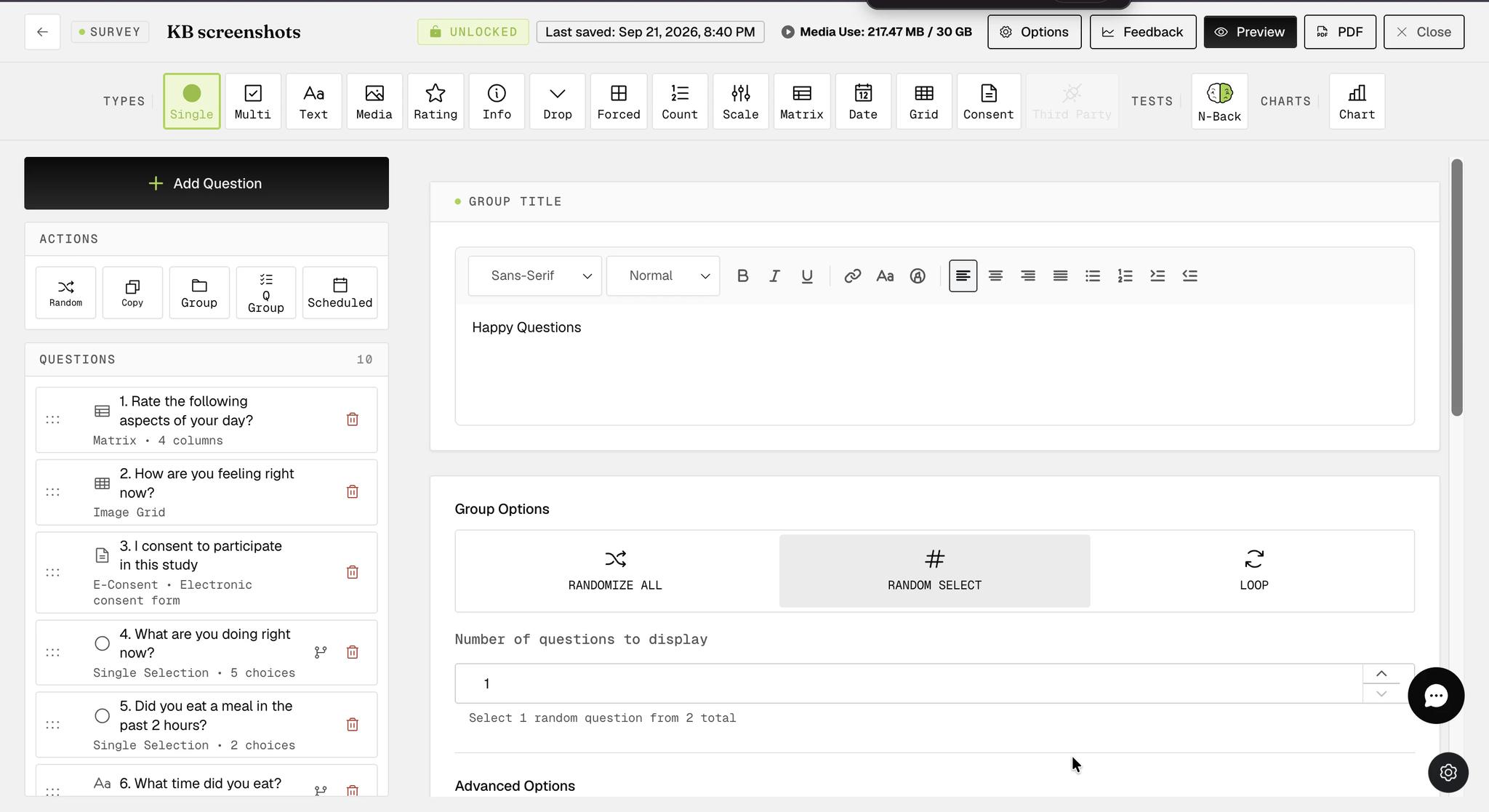
Block skip logic will only appear if the random selection of only one question is applied to a question group. Only two block skip logic conditions can be applied, so this is only recommended for a single-selection question group with only two block response choices.
Hence, participants will only see one random question displayed from the group. On the mobile app, the logic runs automatically — participants simply see the next relevant question without any visible indication that a skip or jump occurred.
For further inquiries, please reach out to help@expiwell.com