قيد الإنشاء

لقد أخذتَ عيّنة منا في منتصف البناء.

تغطي هذه الأدلة منصة ExpiWell الجديدة (v2) وما زالت قيد الكتابة والمراجعة وإعادة الترتيب — نعتذر عن السقالات: قد تنتقل الصفحات أو تتغيّر بين زيارة وأخرى. ما زلت تستخدم التطبيق السابق؟ تبقى وثائقه على بوابة الدعم القديمة.

فتح بوابة الدعم القديمة
قاعدة المعرفة  /  من فريق ExpiWell

كيف يمكننا مساعدتك؟

أدلة لكل خطوة في دراستك — من مشروعك الأول إلى تصدير بياناتك النهائي. قاعدة معارف ExpiWell لمنصة الباحث على الويب وتطبيق المشاركين للهاتف.

102 دليلاً في 29 فئة · يُحدّثها فريق ExpiWell
Help CenterBuildSurvey Creation

Automatic next question

Build · Survey Creation
Updated 25 سبتمبر 2026

How to Use Automatic Next Question

In Ecological Momentary Assessment and Experience Sampling research, efficiency matters once a survey runs long. Every extra tap is effort a participant has to spend, and reducing that effort helps keep completion rates up.

The Automatic next question setting removes one tap per question: as soon as a participant answers, the survey moves on by itself.

1 - Click the "Options" button in the survey builder.
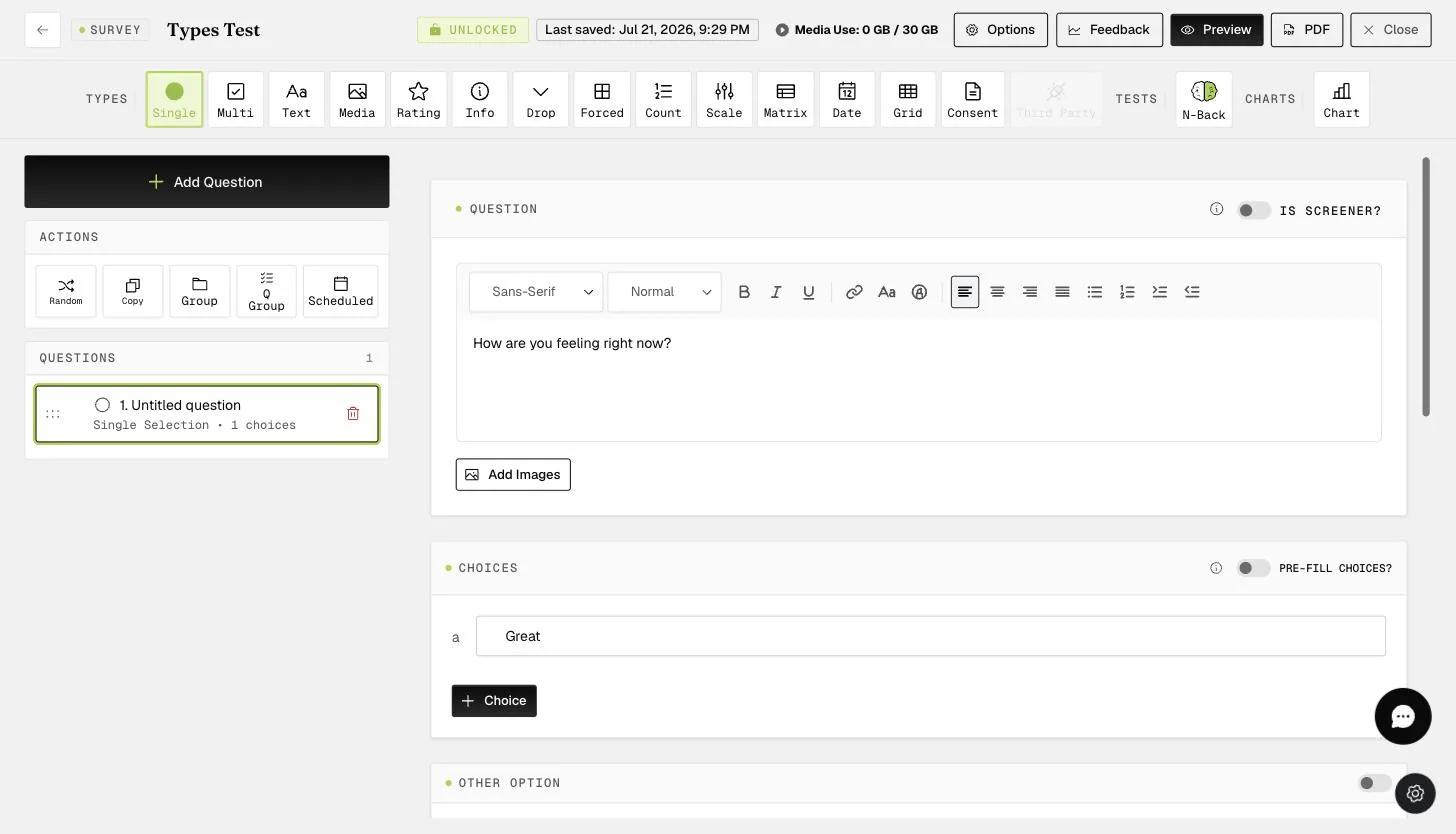
The KB Screenshots survey builder with the question list in the left rail and the Options button in the top bar, which opens the survey-level settings

2 - Toggle "Automatic next question".
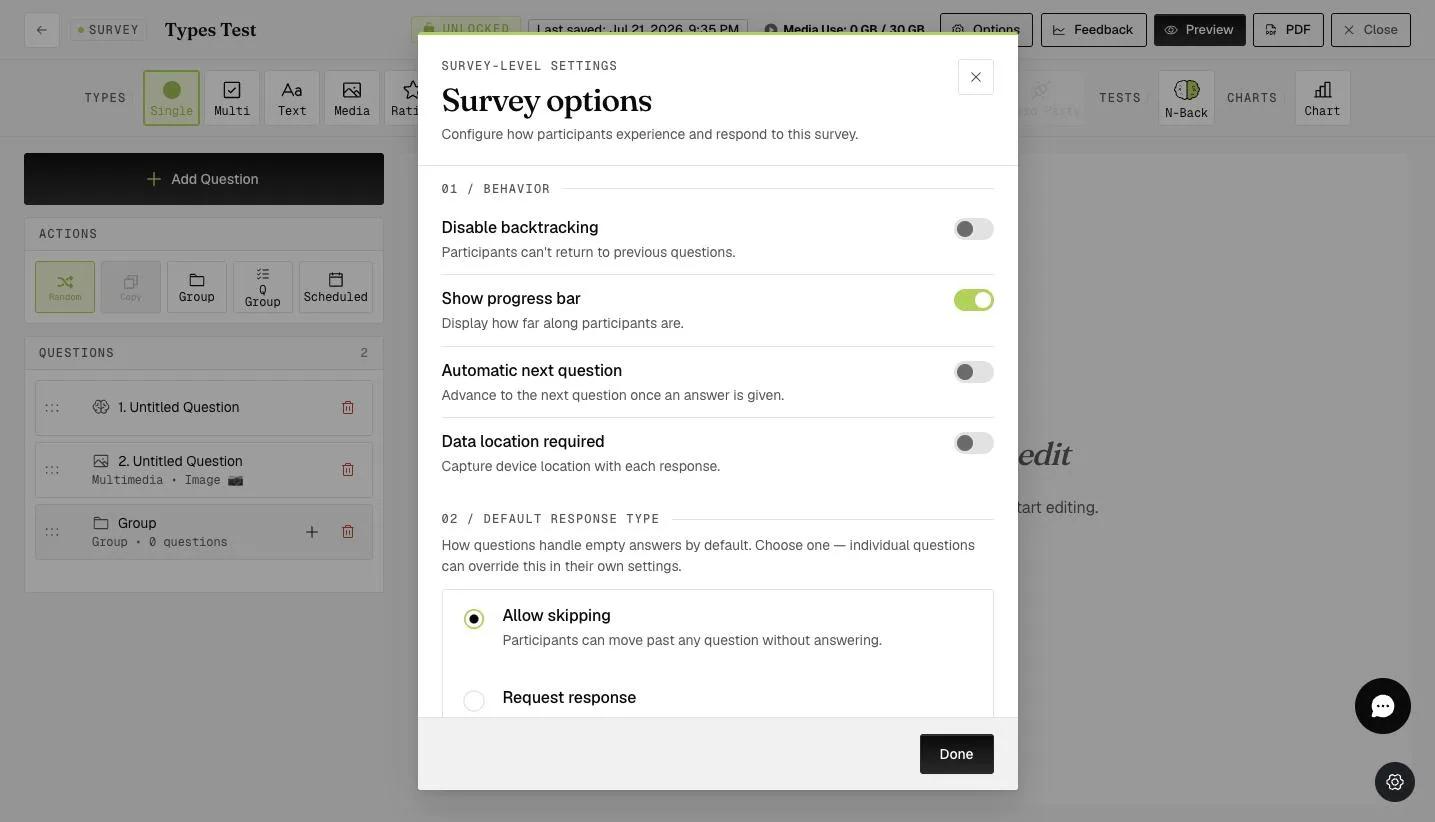
The Survey options modal open on the Behavior section with Automatic next question switched on, described as Advance to the next question once an answer is given
Note

On the mobile app, participants no longer tap "next" to move forward. Once they select a response, the survey advances on its own.

One saved tap per question adds up quickly, which makes this especially worthwhile on surveys running to hundreds of questions.

For further inquiries, please reach out to help@expiwell.com

Was this helpful?
Start today

تحدّث إلى إنسان من فريق ExpiWell.

ما زلت عالقاً؟ فريقنا من الباحثين يجيب عن الأسئلة التقنية وأسئلة تصميم الدراسات على السواء.