Dynamic link
What a Dynamic Link Does
A dynamic link is one URL template that ExpiWell fills in per participant. Everyone sees the same link, but the values differ — their study ID, their ExpiWell participant ID, and the session they are on.
That matters when an ecological momentary assessment (EMA) or experience sampling method (ESM) study sends participants to an external tool such as Qualtrics or Many Brains. The values ride along in the URL's query string, the external site records them with the response, and you can match its data back to your ExpiWell records.
Example: Many Brains
Many Brains hosts open-access cognitive assessments. A dynamic link is what keeps its data lined up with yours: each participant follows a link carrying their Study ID, ExpiWell anonymized participant ID, and Session ID.
https://studies.testmybrain.org/yourstudy/?study=yourstudy&id=anonid&session=1
Each part of that link does a different job:
-
Study ID (
study=yourstudy) — the unique study name assigned by Many Brains. This is a static parameter: it is the same for every participant. -
Participant ID (
id=anonid) — a dynamic parameter carrying the anonymized ExpiWell participant ID. It is stored alongside the cognitive testing data, so the research team can re-identify the participant when Many Brains returns the data. -
Session ID (
session=1) — a dynamic parameter telling Many Brains which session the participant is on, so their assessment data can be matched to the right ExpiWell session.
Creating a Dynamic Link in ExpiWell
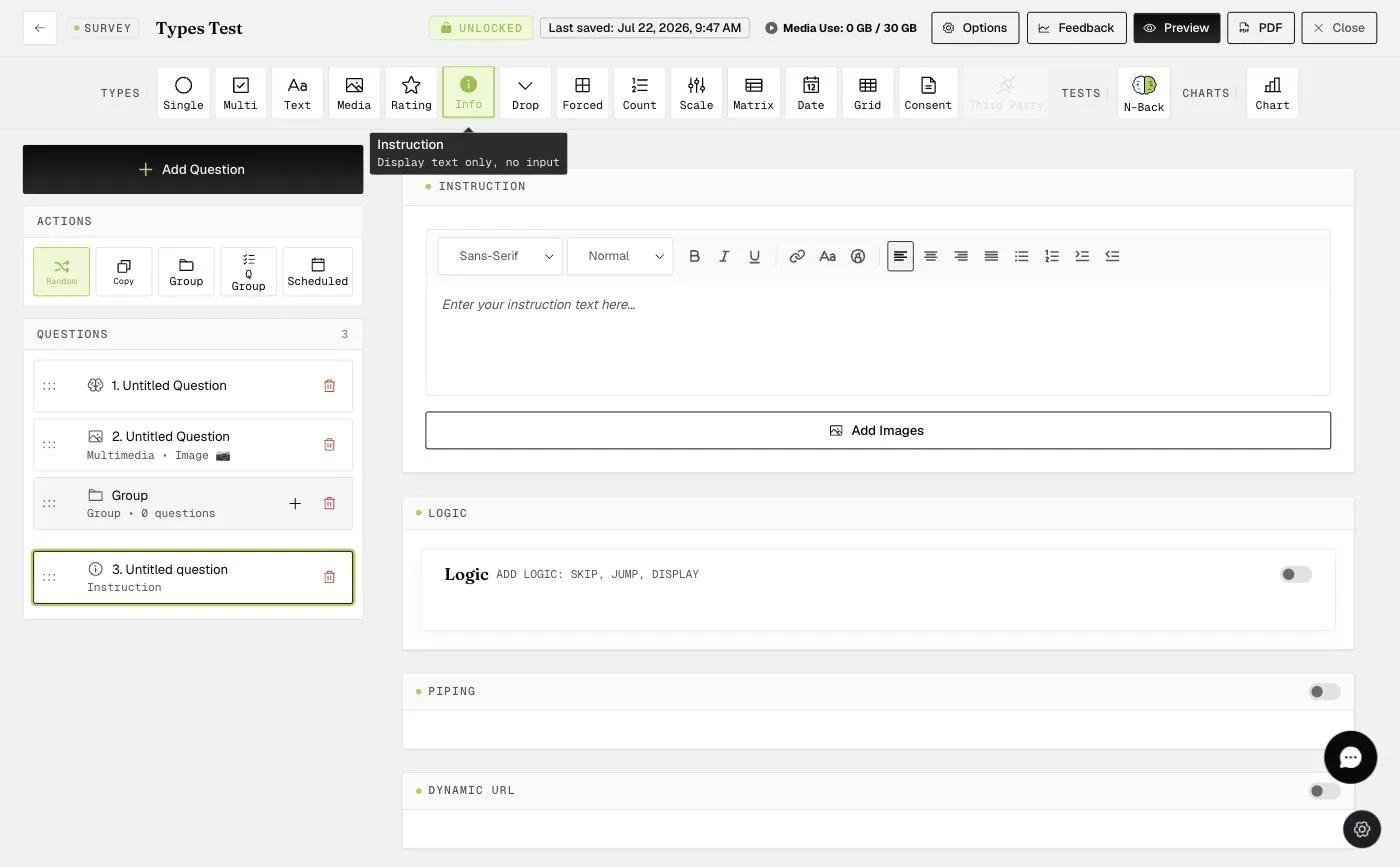
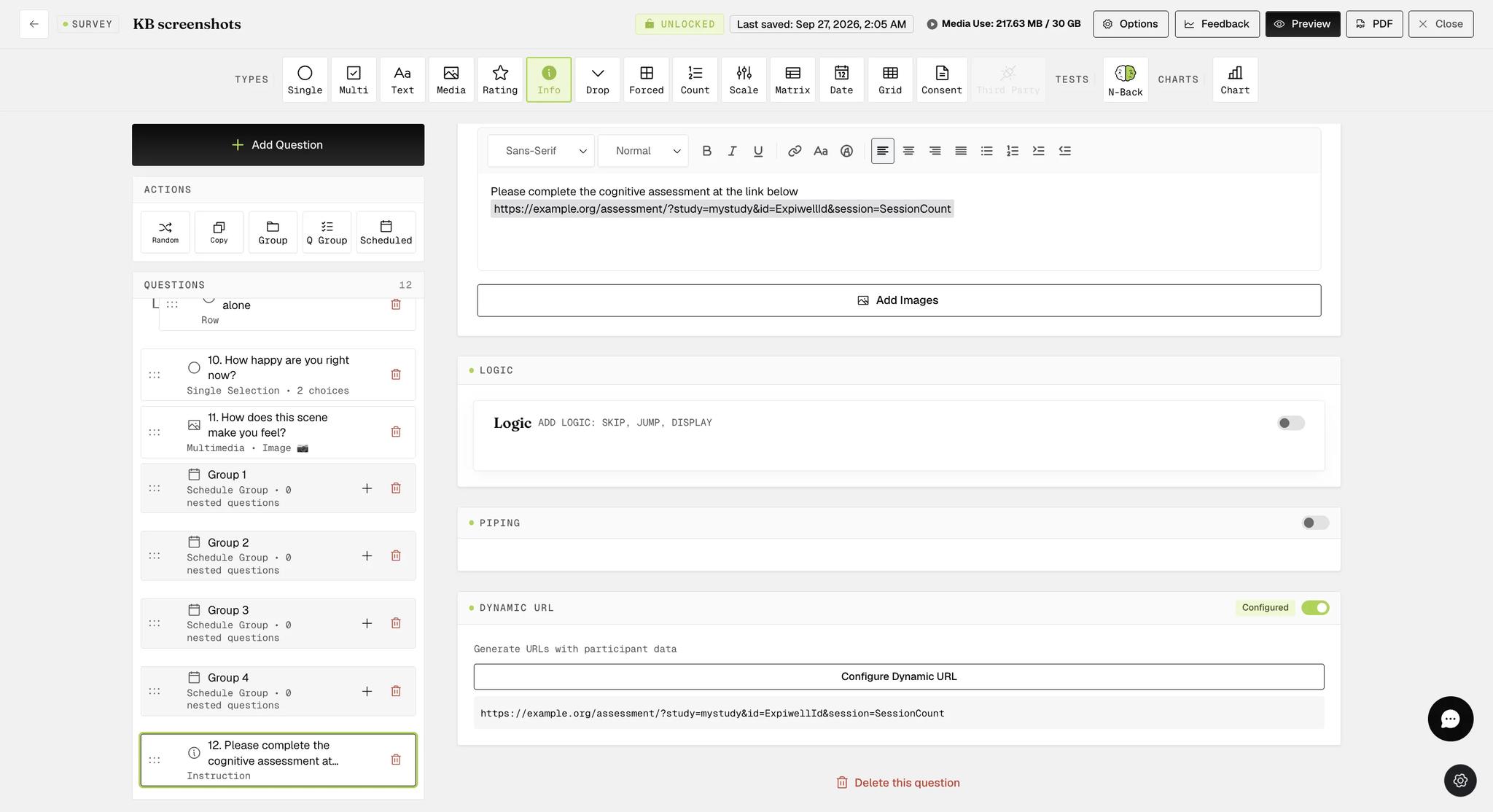
The dynamic link is created in an Instruction question in the survey builder. Toggle on Dynamic URL, then click Configure Dynamic URL.
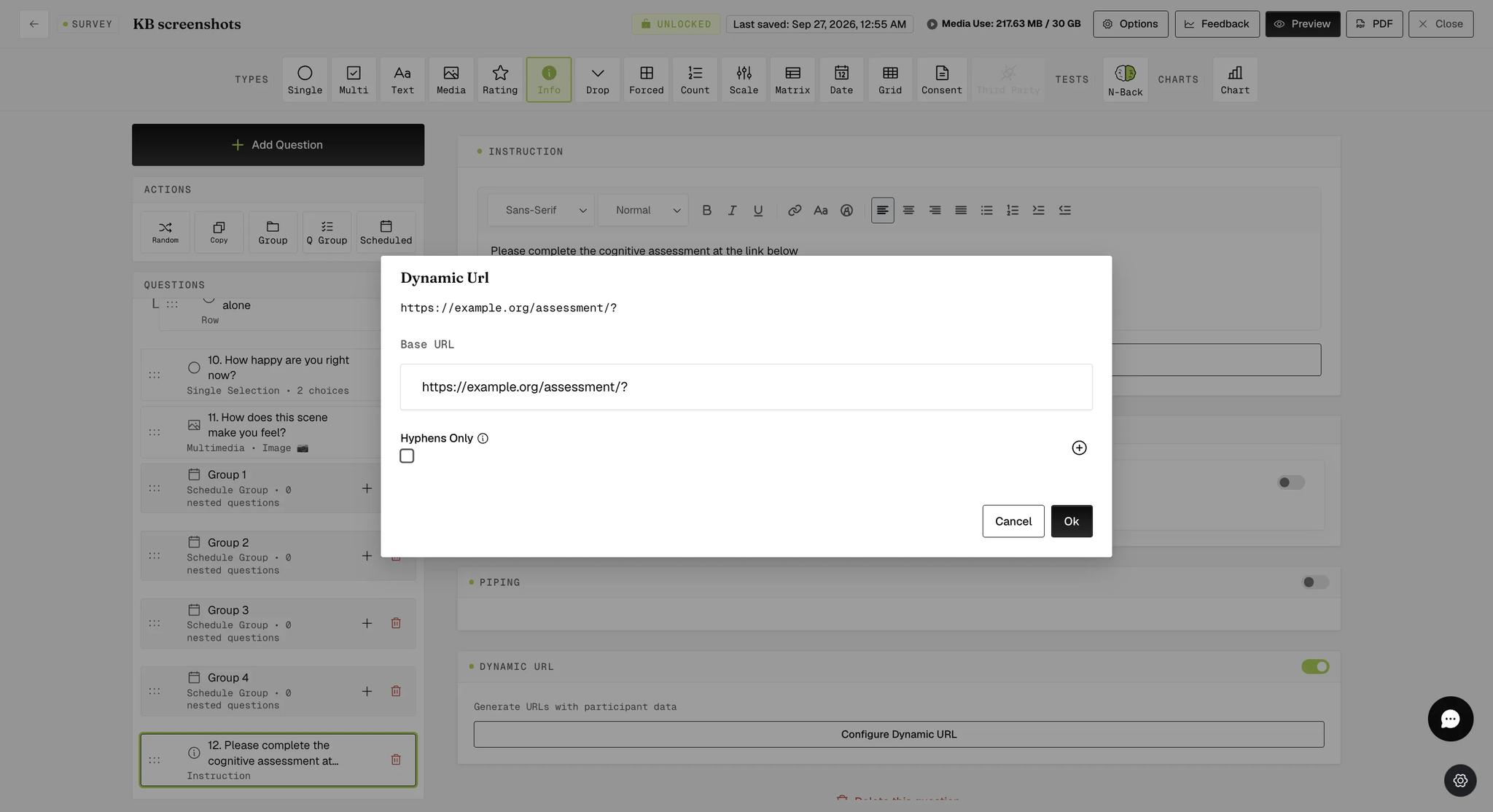
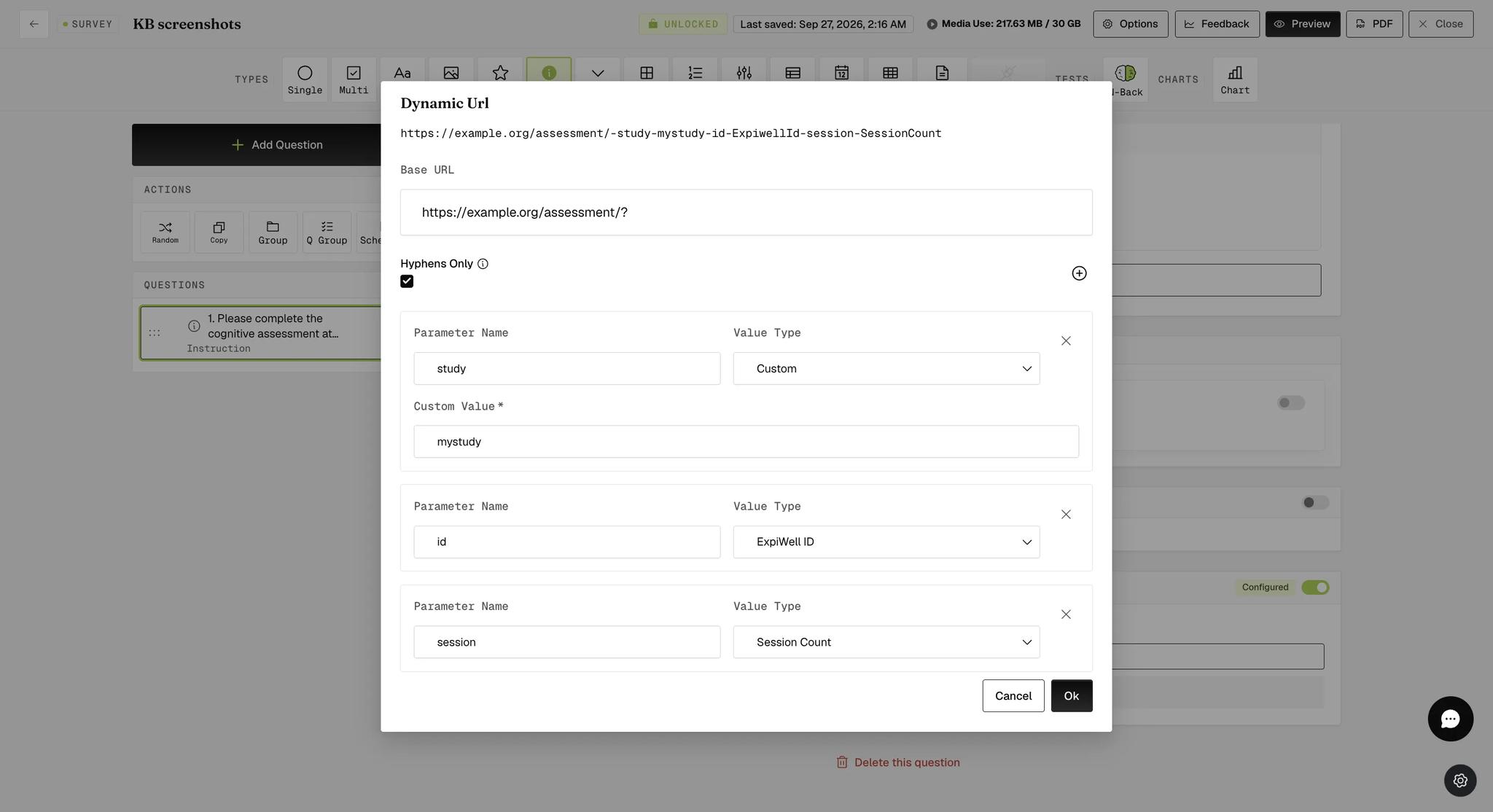
A modal opens. Enter your link up to and including the ? into the Base URL field — everything before the parameters.
Add each parameter with the + button.
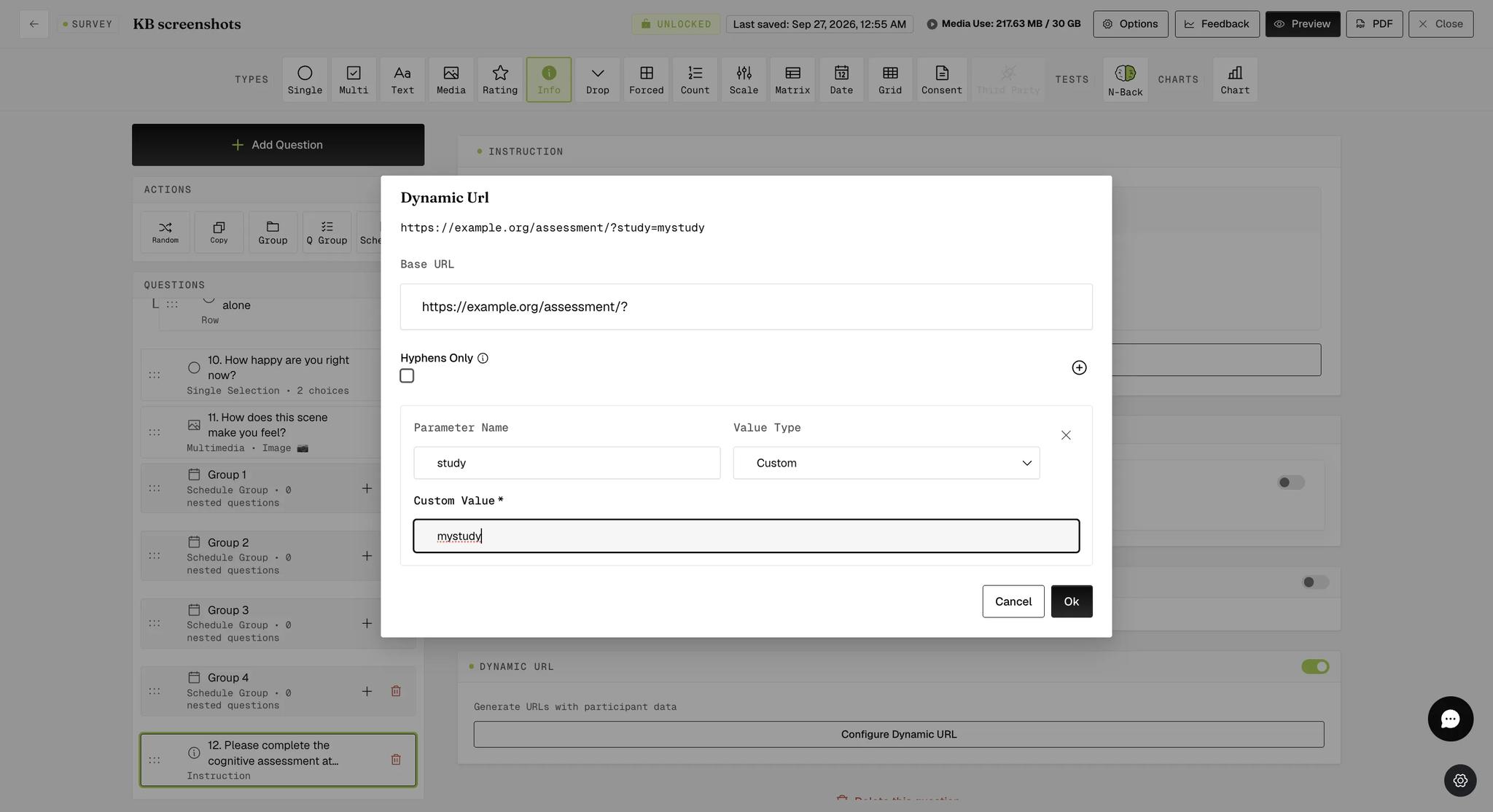
Each parameter takes two settings:
Parameter Name — the name that appears in the link (for example study, id, or session).
Value Type — what that parameter should be filled with:
-
Custom — a fixed value you type yourself, such as your study name.
-
ExpiWell ID — the unique ExpiWell participant ID.
-
Session Count — a count that increases each time the participant is scheduled to click the link.
With all three parameters added, the preview at the top of the modal shows the finished link.
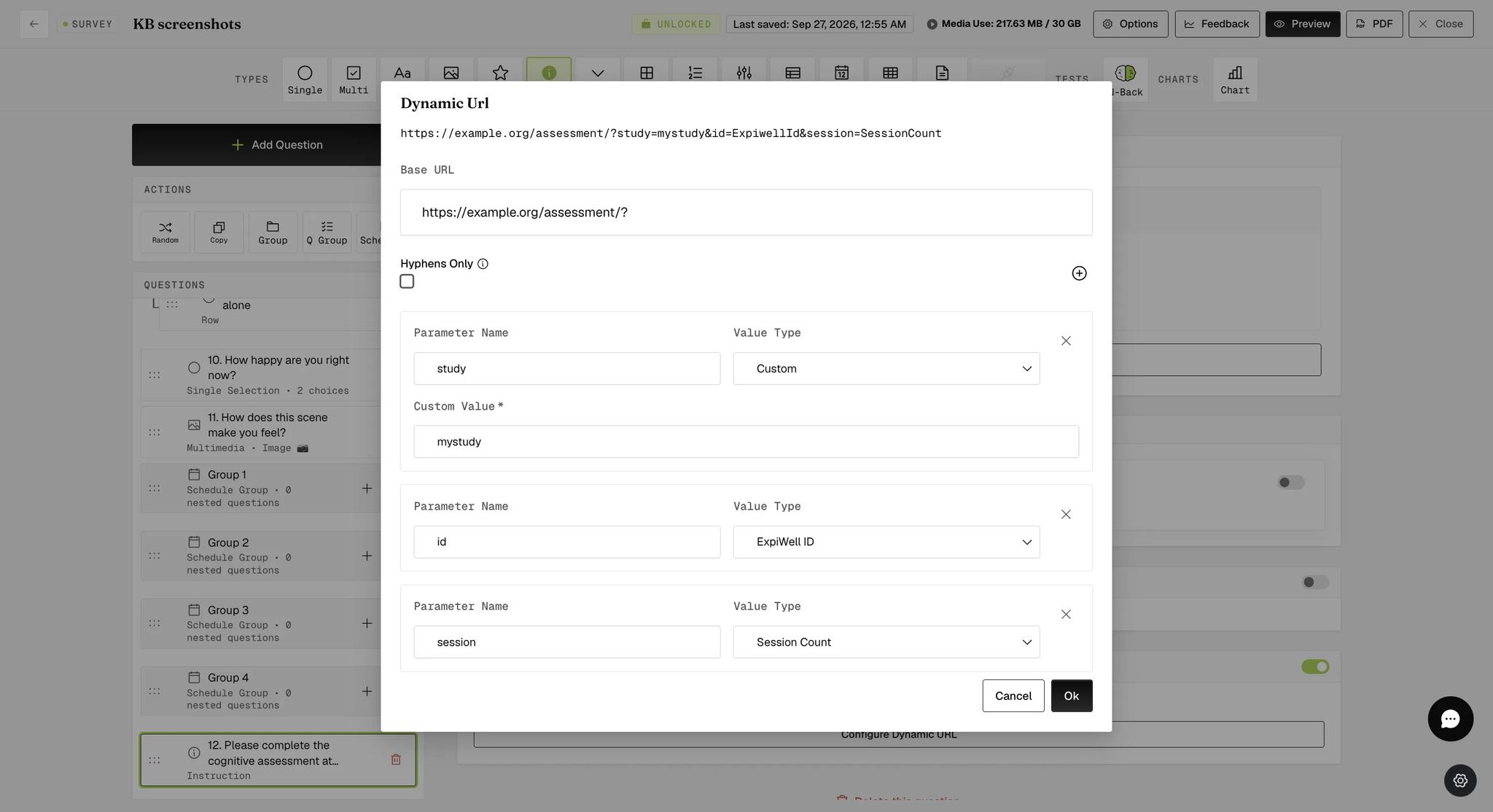
Click Ok. The link is inserted into the instruction question, and the Dynamic URL section is marked Configured.
On the mobile app the participant sees the finished link, with the placeholders already replaced by their own ID and session number:
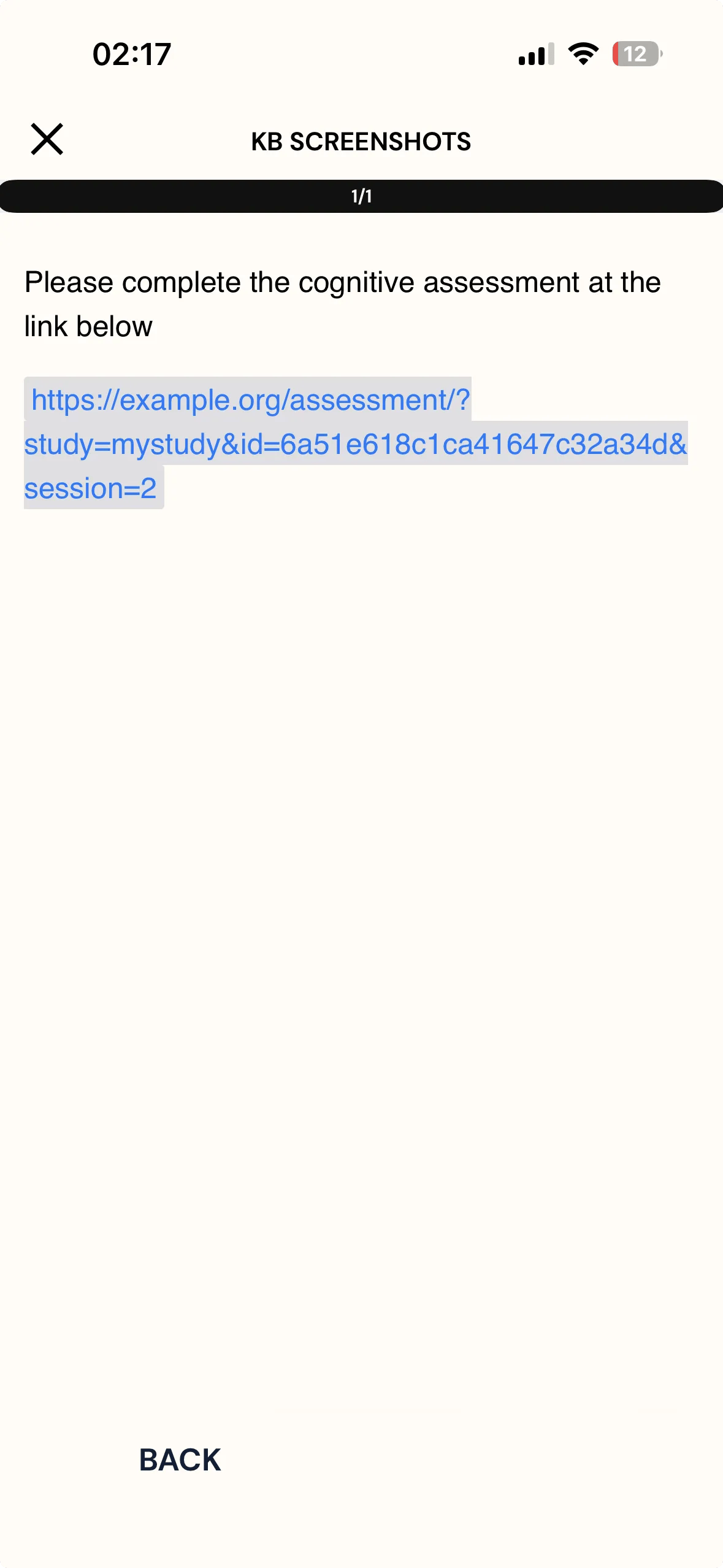
When the participant opens that link, the external site reads the values from the query string and stores them with their response. They appear as columns in that site's own data export — one per parameter you defined — so id and session can be matched back to the corresponding ExpiWell records.
Hyphens Only Dynamic Link
Some external sites cannot handle the special characters a query string normally uses — ?, = and &. For those, tick Hyphens Only in the Dynamic Url modal: the parameters are then joined with hyphens instead.
The parameter names and values stay the same — only the separators change. The link built above becomes:
https://example.org/assessment/-study-mystudy-id-ExpiwellId-session-SessionCount
FAQ
How does the Session Count increase?
It increases once per scheduled survey, so a participant on their third scheduled survey receives session=3.
Do I need to complete the ExpiWell survey for the data to be embedded in my external survey?
No. The values are already in the link, so they reach the external tool the moment a participant clicks it — finishing the ExpiWell survey is not required. Finishing the external survey is, though, if you want anything beyond the values the link itself carried.
For further inquiries, please reach out to help@expiwell.com