Question looping
What is Question Looping?
Question looping presents the same set of questions repeatedly until the participant has finished reporting.
One example of how this functionality can be used is food waste research, where participants need to record the type, weight, and other details for every kind of food waste. Researchers can set up a looping question set, allowing participants to answer the same set of questions for each type of food waste until all kinds have been reported.
How to Enable Question Looping
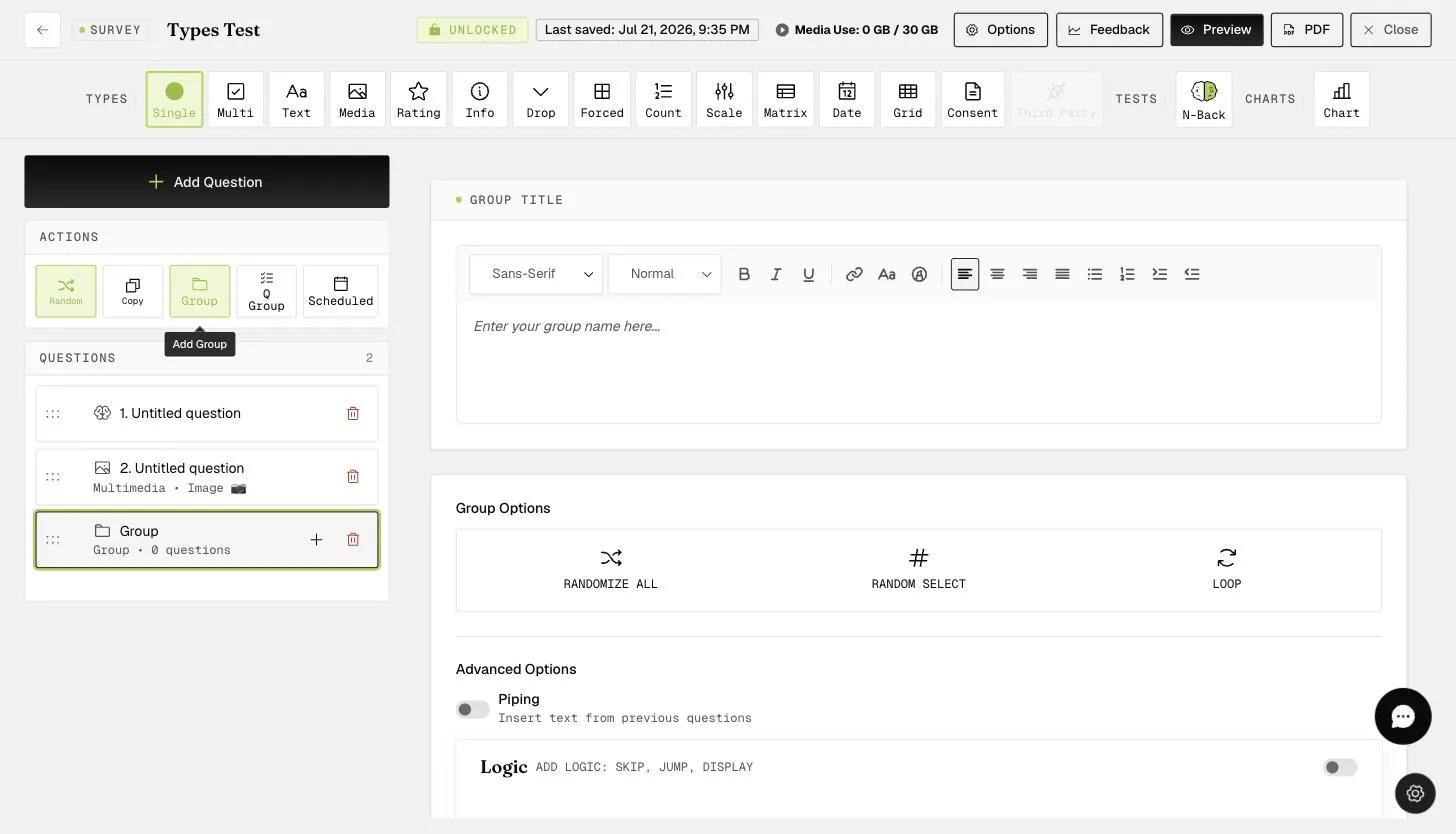
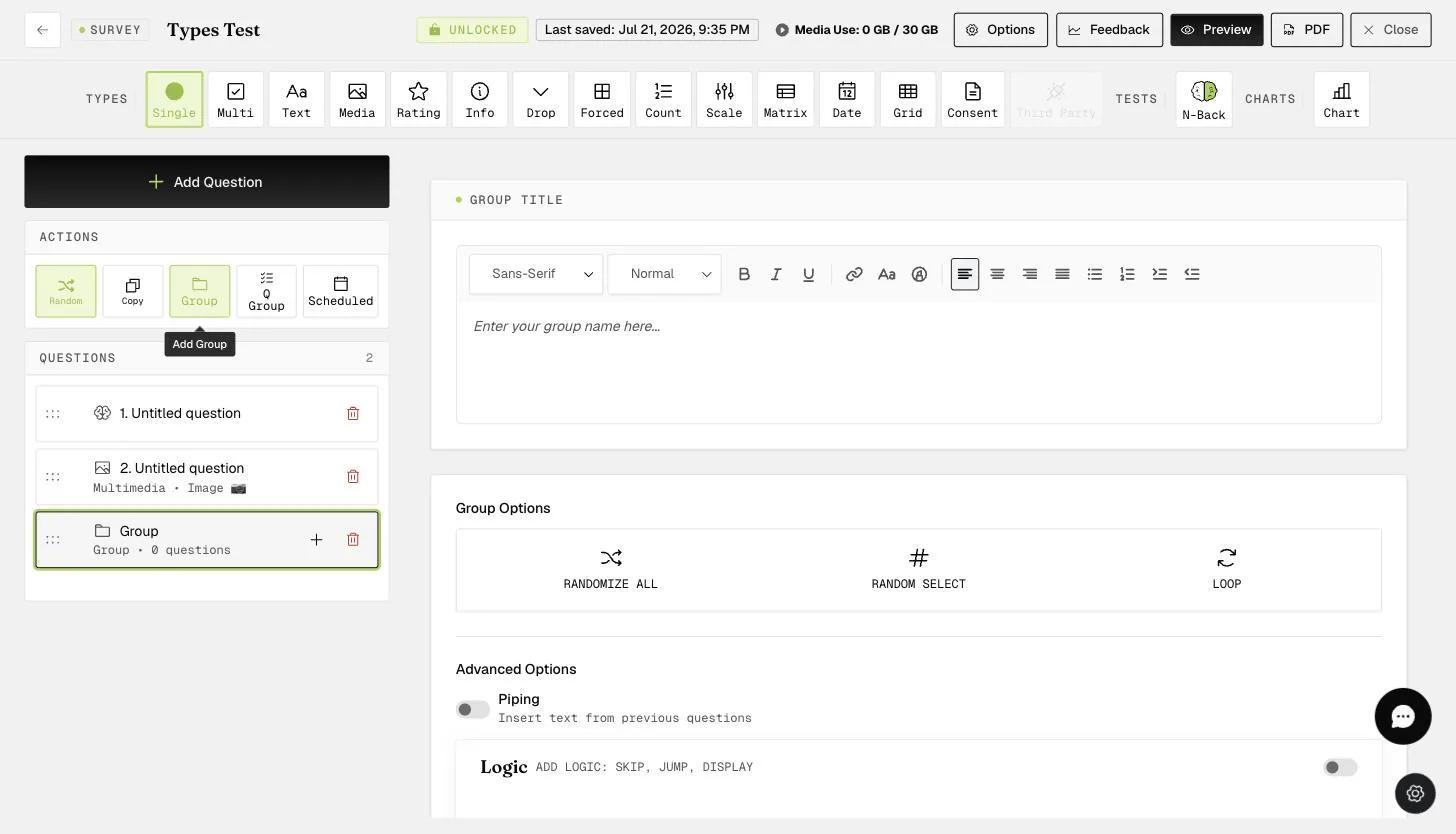
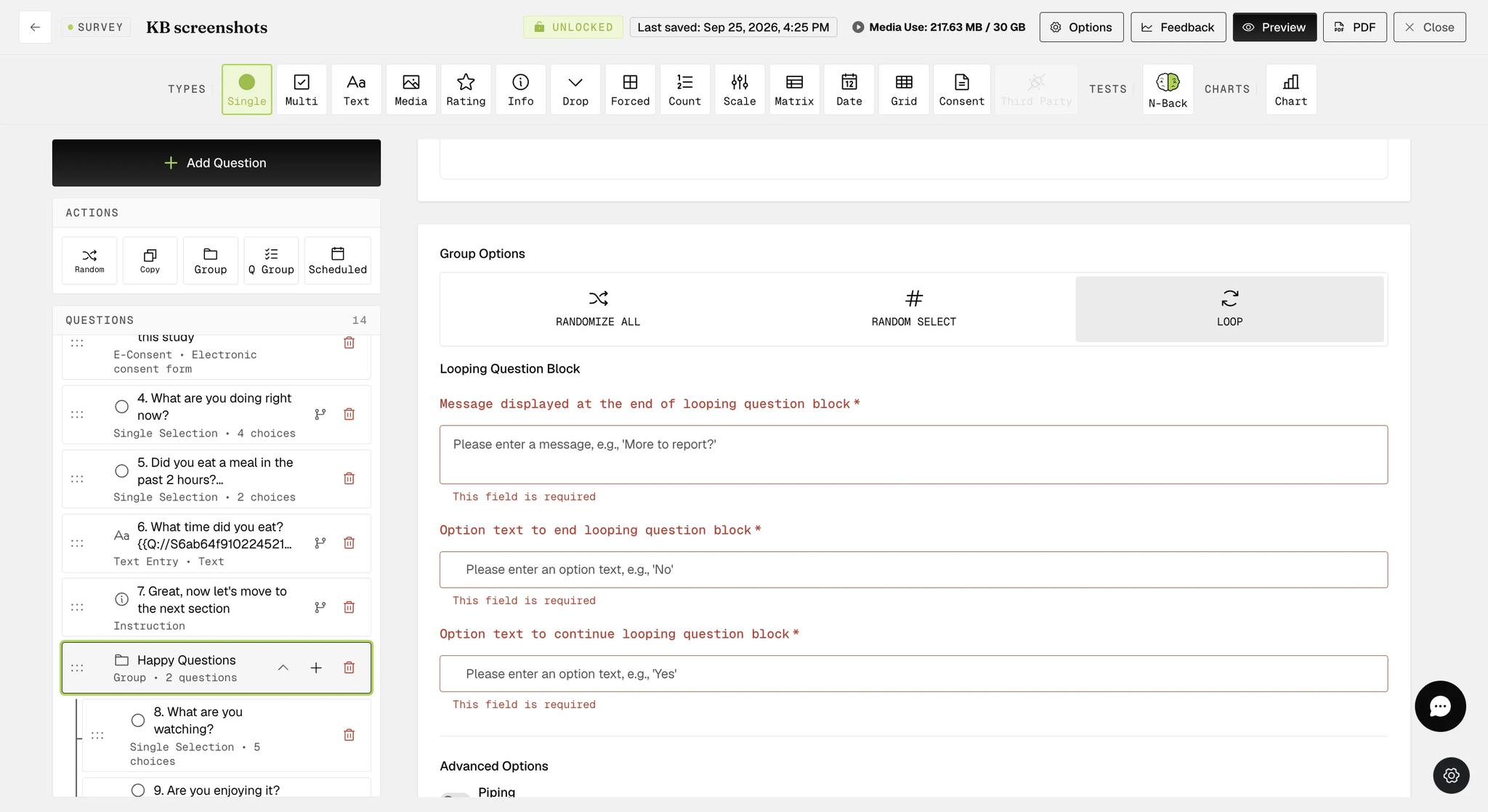
You can enable question looping for a block of questions (either a Group or a Question Group) by clicking Loop under Group Options. Once enabled, the Loop option is highlighted and a Looping Question Block panel appears below it, where you configure the message and option text.
Question looping will not be enabled if the message and option text are left empty.
The Looping Question Block panel asks for three values: the message participants see at the end of each pass through the block, the option text that ends the loop, and the option text that continues it. Once these are filled in, looping is active for that block.
Media question types (image, audio, video) cannot be included in a looping question block.
Changing an existing question inside the block to a media type produces an error message.
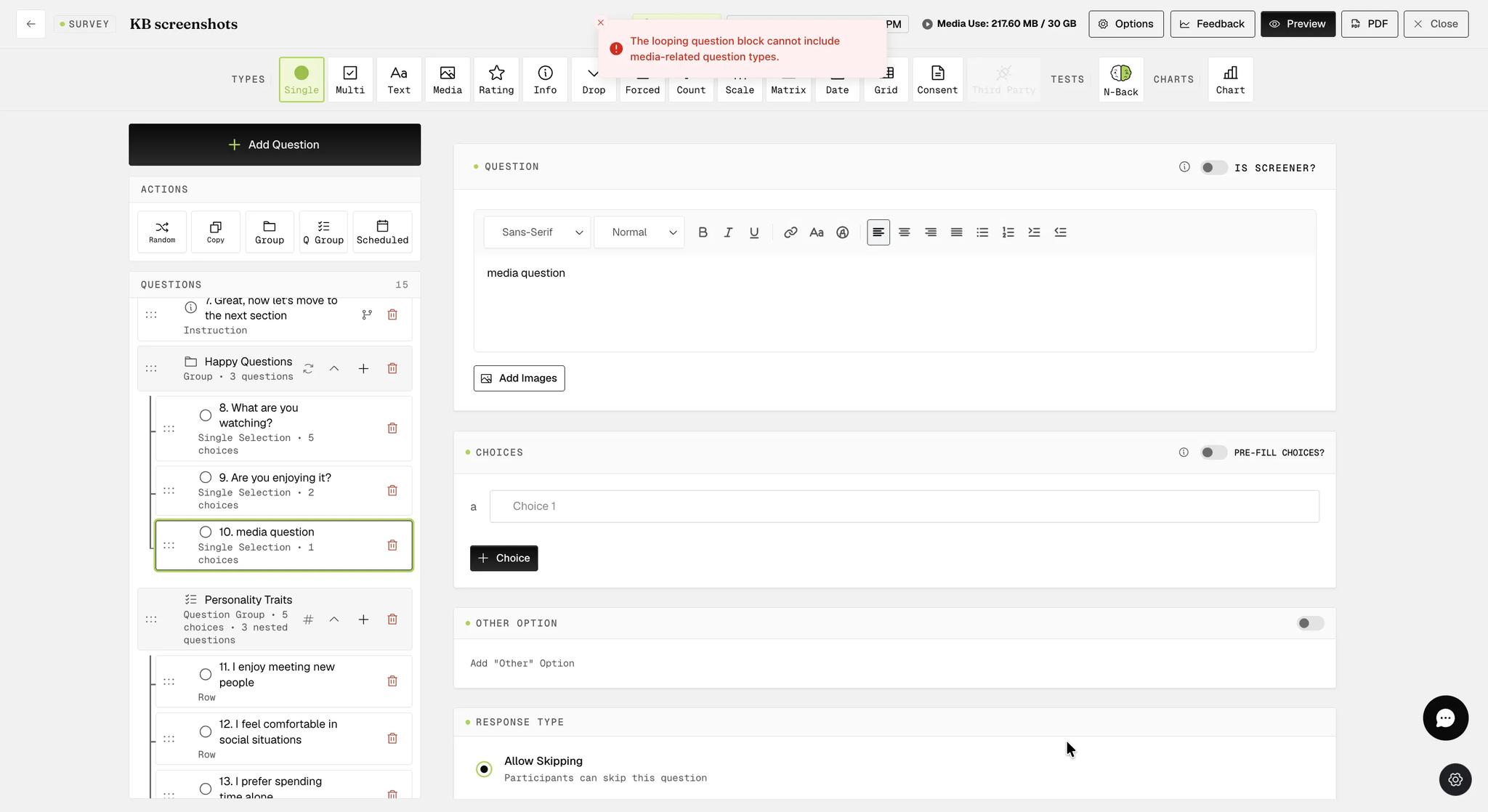
Dragging a media question into an existing looping block produces the same error, and the media question is moved to the bottom of the survey instead.
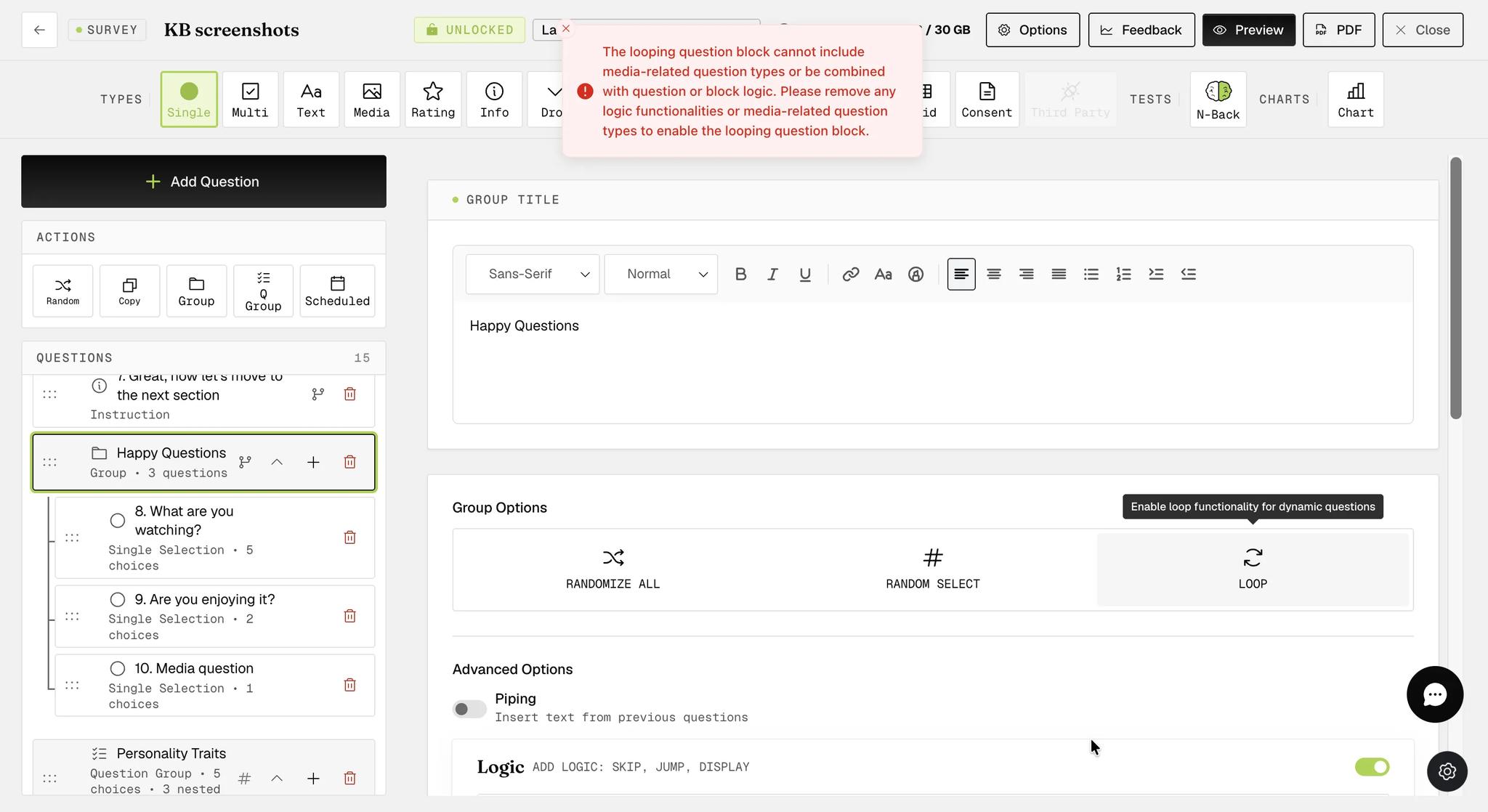
Looping also cannot be combined with question or block logic. What blocks it is a configured logic rule, not the Logic section itself — a block with the Logic section switched on but no rules in it can still loop. If a media question or a logic rule is present when you enable looping, ExpiWell blocks it and explains what needs to be removed.
Loop, Randomize All, and Random Select are mutually exclusive on the same block. Selecting one turns the others off.
Each of the three fields is marked required. If you leave the builder with any of them blank, looping is simply left switched off for that block.
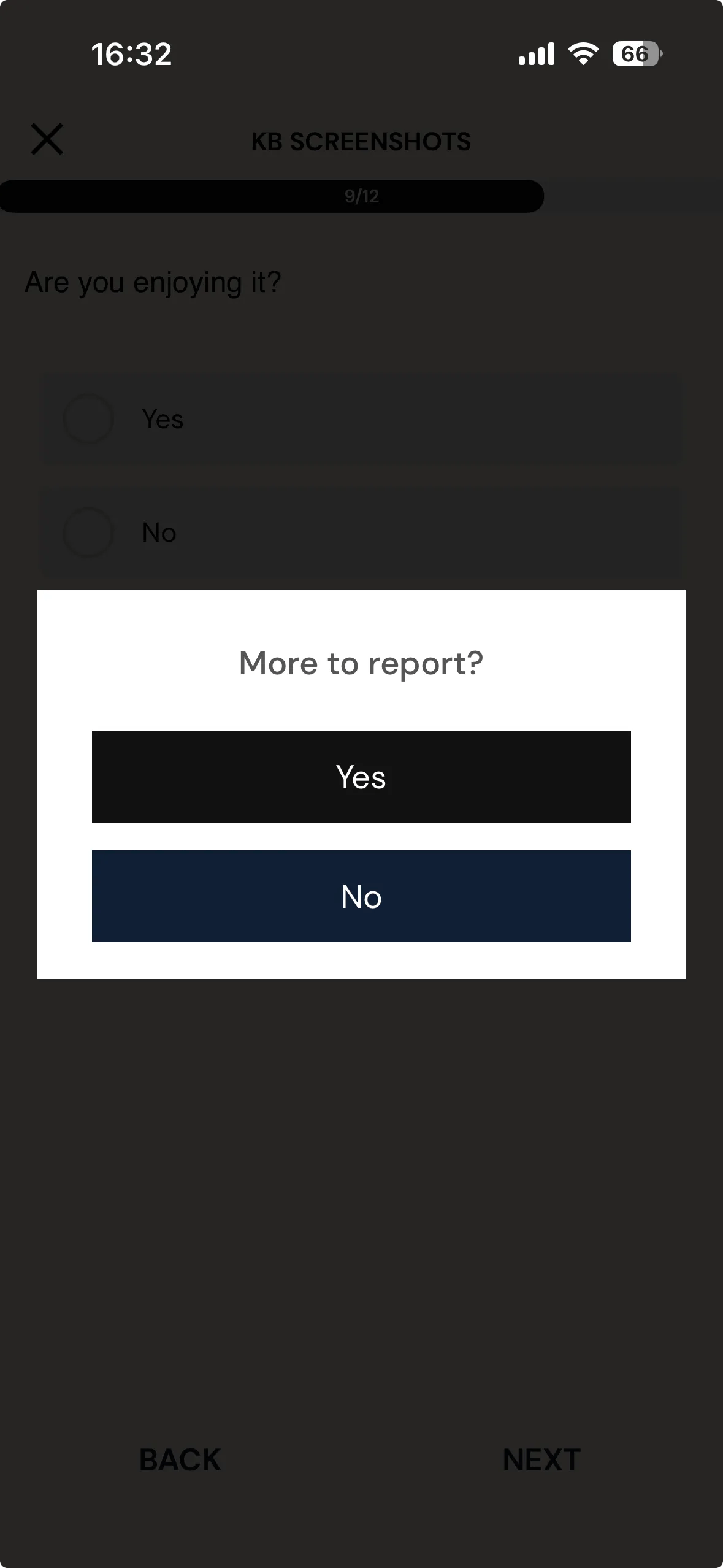
Participant's Mobile View
After completing one pass through the block, participants see the message you configured. Choosing the continue option repeats the same set of questions; choosing the end option moves them on to the next part of the survey.
The message and both option labels are whatever you entered during setup, so they can be worded to suit your study.
For further inquiries, please reach out to help@expiwell.com