Under construction

You've sampled us mid-build.

These guides cover the new ExpiWell platform (v2) and are still being written, checked, and rearranged — pardon the scaffolding: pages may move or change between visits. Still on the legacy app? Its documentation remains on the old support portal.

Open the legacy support portal
Knowledge base  /  From the ExpiWell team

How can we help?

Guides for every step of your study — from your first project to your final data export. The ExpiWell knowledge base for the researcher web platform and the participant mobile app.

102 guides across 29 categories · Updated by the ExpiWell team
Help CenterBuildSurvey Creation

Randomize response choices

Build · Survey Creation
Updated September 23, 2026

Randomize Response Choices

In experience sampling and ecological momentary assessments, participants who see response choices in the same order tend to fall into patterns. Randomizing choice order helps reduce this bias.

This feature is available for Single Selection and Multiple Selection question types, including questions within Groups and Question Groups.

To enable it, open any Single or Multiple Selection question and click the shuffle icon next to the Choices header. When enabled, the icon turns green and the tooltip reads "Randomization enabled." The response choices will appear in a different random order each time a participant takes the survey.
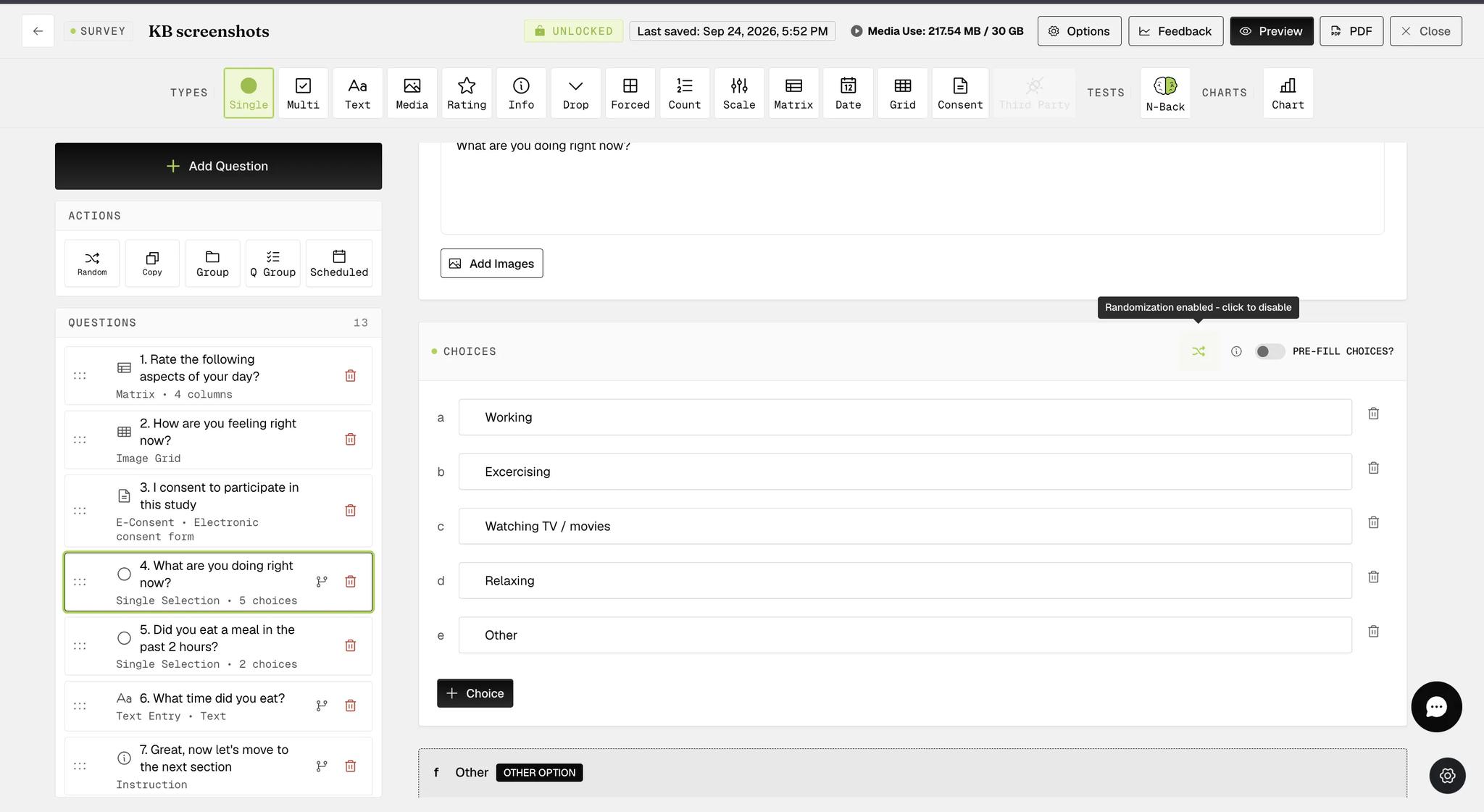
A Single Selection question with the Randomize Choices shuffle icon enabled (green) next to the Choices header, showing the tooltip Randomization enabled - click to disable
Note

If a question includes "Other" or "None of the above" options, those will always appear at the bottom of the list regardless of randomization.

For further inquiries, please reach out to help@expiwell.com

Was this helpful?
Start today

Talk to a human on the ExpiWell team.

Still stuck? Our team of researchers answers technical and study-design questions alike.