Under construction

You've sampled us mid-build.

These guides cover the new ExpiWell platform (v2) and are still being written, checked, and rearranged — pardon the scaffolding: pages may move or change between visits. Still on the legacy app? Its documentation remains on the old support portal.

Open the legacy support portal
Knowledge base  /  From the ExpiWell team

How can we help?

Guides for every step of your study — from your first project to your final data export. The ExpiWell knowledge base for the researcher web platform and the participant mobile app.

102 guides across 29 categories · Updated by the ExpiWell team
Help CenterBuildSurvey Creation

Automatic next question

Build · Survey Creation
Updated September 25, 2026

How to Use Automatic Next Question

In Ecological Momentary Assessment and Experience Sampling research, efficiency matters once a survey runs long. Every extra tap is effort a participant has to spend, and reducing that effort helps keep completion rates up.

The Automatic next question setting removes one tap per question: as soon as a participant answers, the survey moves on by itself.

1 - Click the "Options" button in the survey builder.
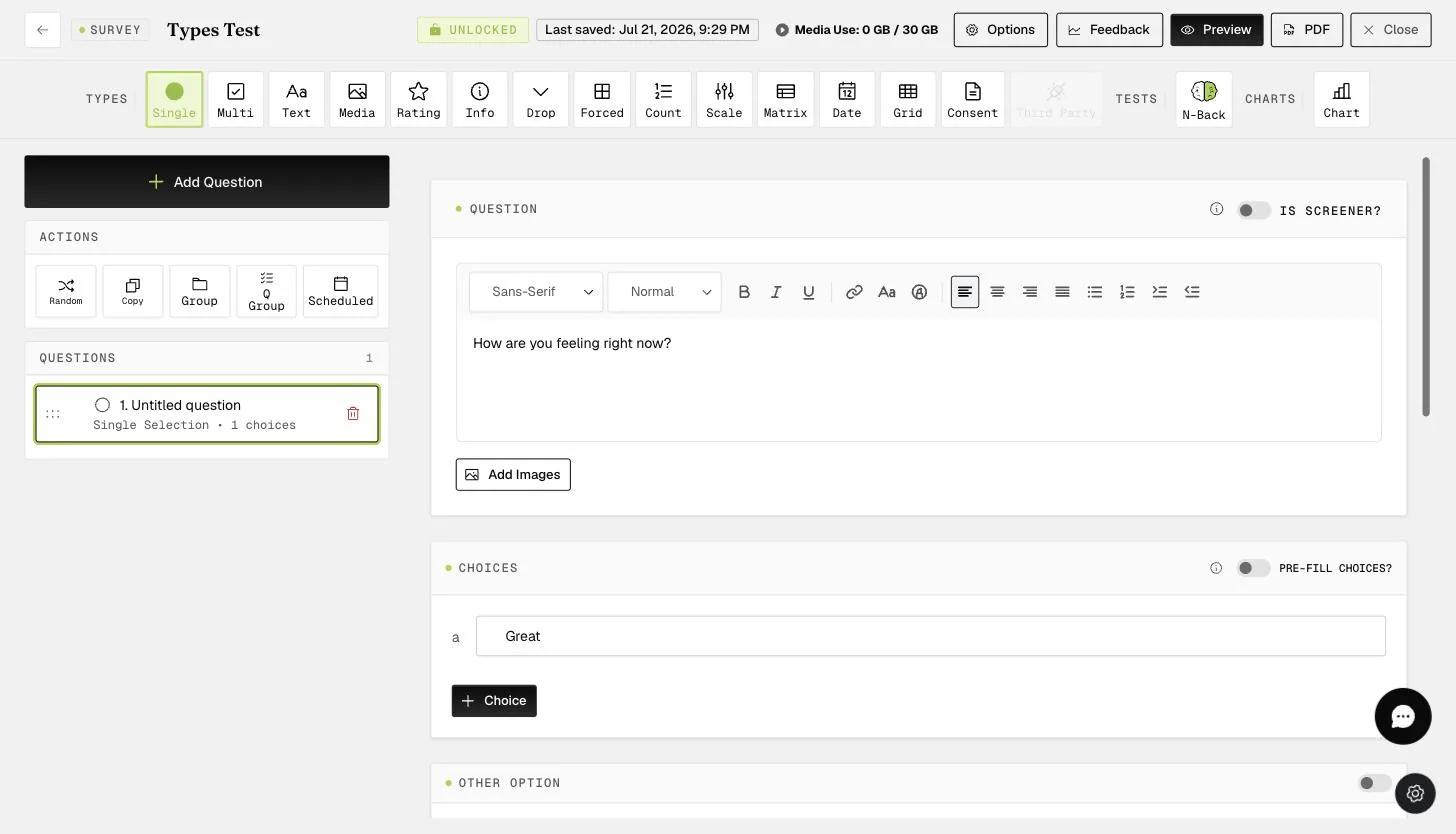
The KB Screenshots survey builder with the question list in the left rail and the Options button in the top bar, which opens the survey-level settings

2 - Toggle "Automatic next question".
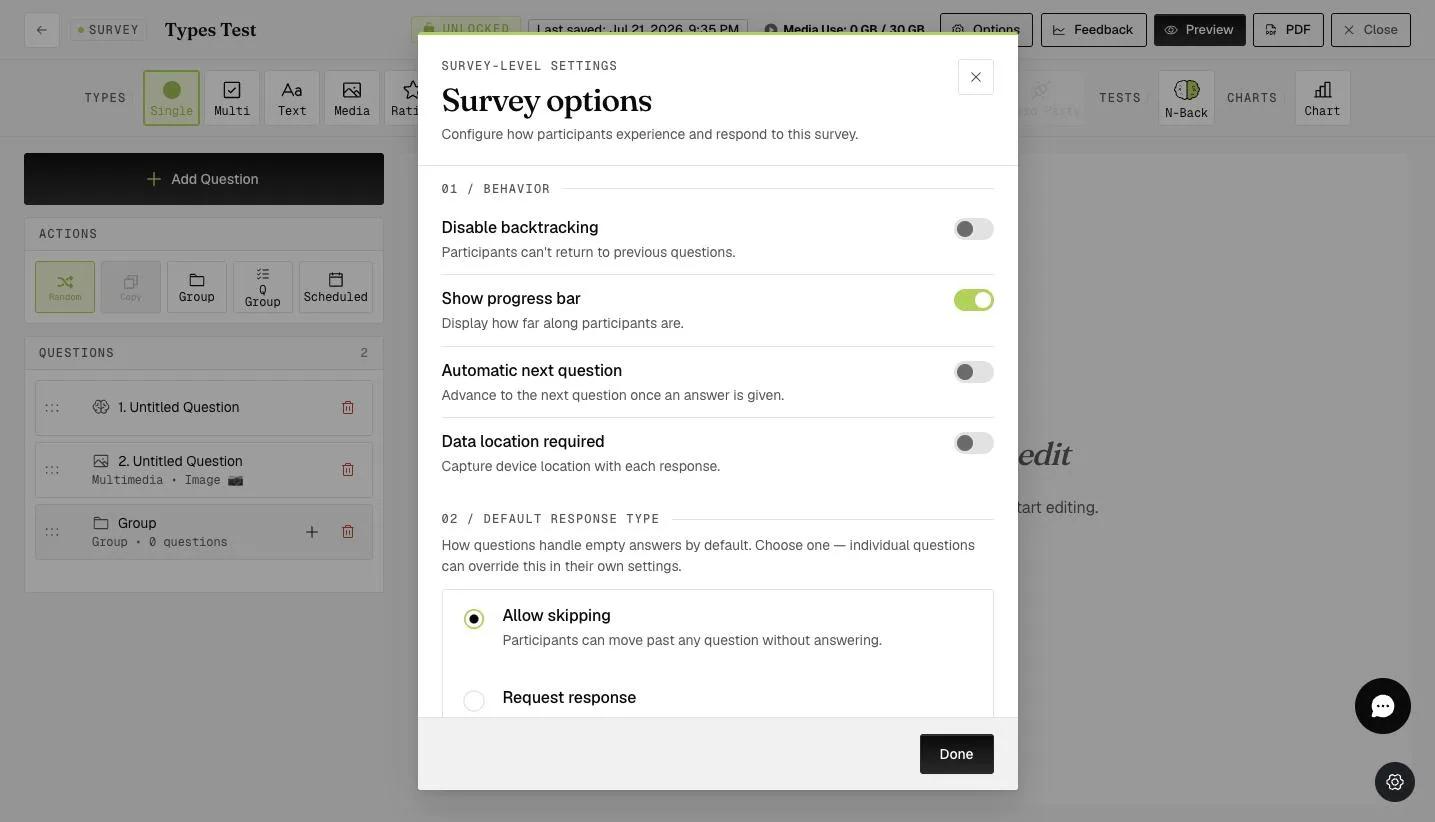
The Survey options modal open on the Behavior section with Automatic next question switched on, described as Advance to the next question once an answer is given
Note

On the mobile app, participants no longer tap "next" to move forward. Once they select a response, the survey advances on its own.

One saved tap per question adds up quickly, which makes this especially worthwhile on surveys running to hundreds of questions.

For further inquiries, please reach out to help@expiwell.com

Was this helpful?
Start today

Talk to a human on the ExpiWell team.

Still stuck? Our team of researchers answers technical and study-design questions alike.