Embed media in surveys
How to Embed Media for Your Surveys
ExpiWell lets you embed images, audio, or video directly into survey questions. This is useful for presenting stimuli, increasing participant engagement, or creating questions that rely on visual or audio content.
To get started, add a Media question from the question type bar. This creates a Multimedia question with an Add Images button below the text area.
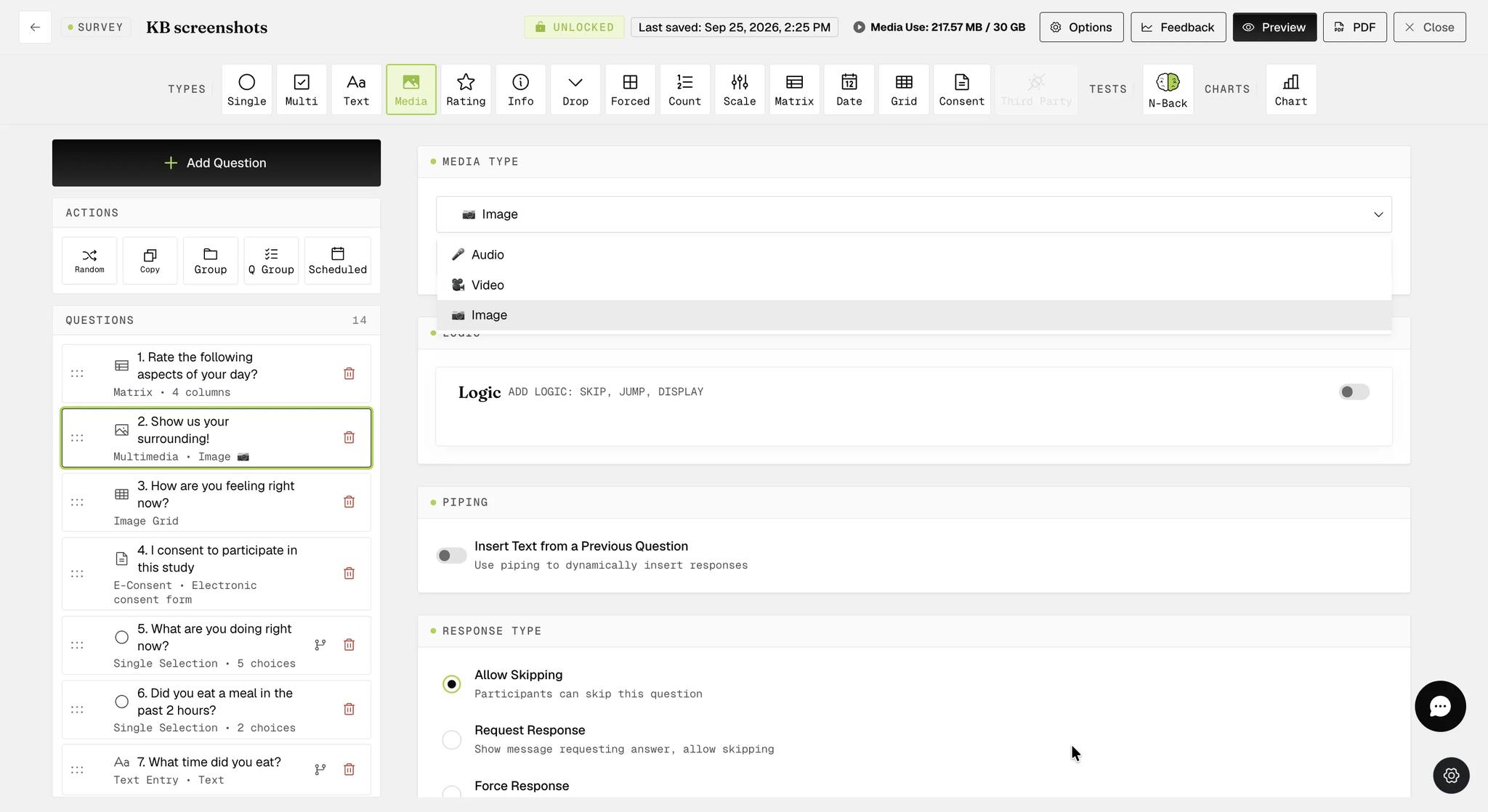
The Media Type selector below the question lets you choose between Image, Audio, or Video.
Uploading Media
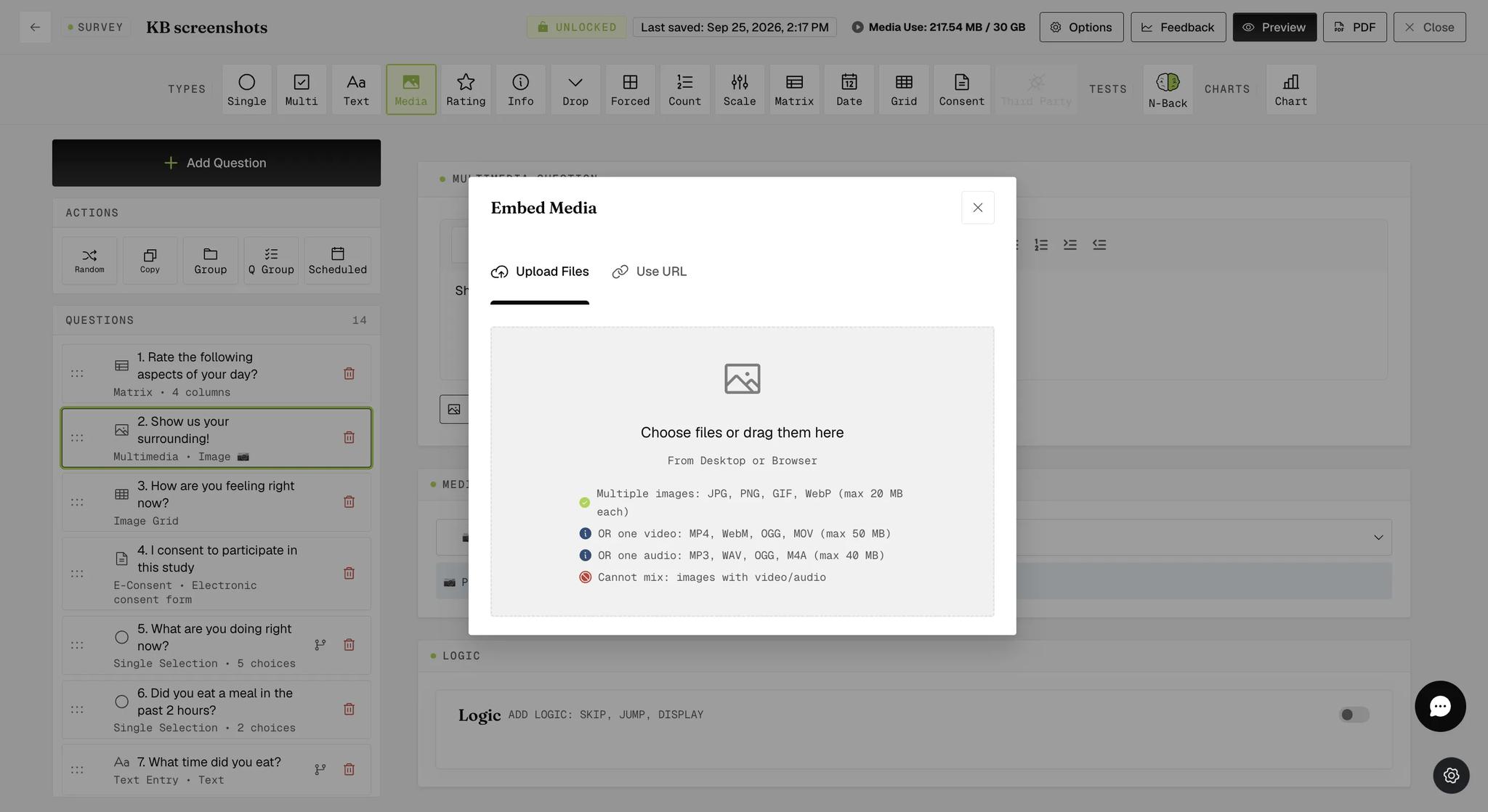
Click Add Images to open the Embed Media modal. You can drag and drop files or browse from your computer.
You can add multiple images (up to 10) to a single question, provided each image file is less than 20 MB. For rich media, you can embed only one video or audio file per question. Video files must be less than 50 MB, and audio files must be less than 40 MB.
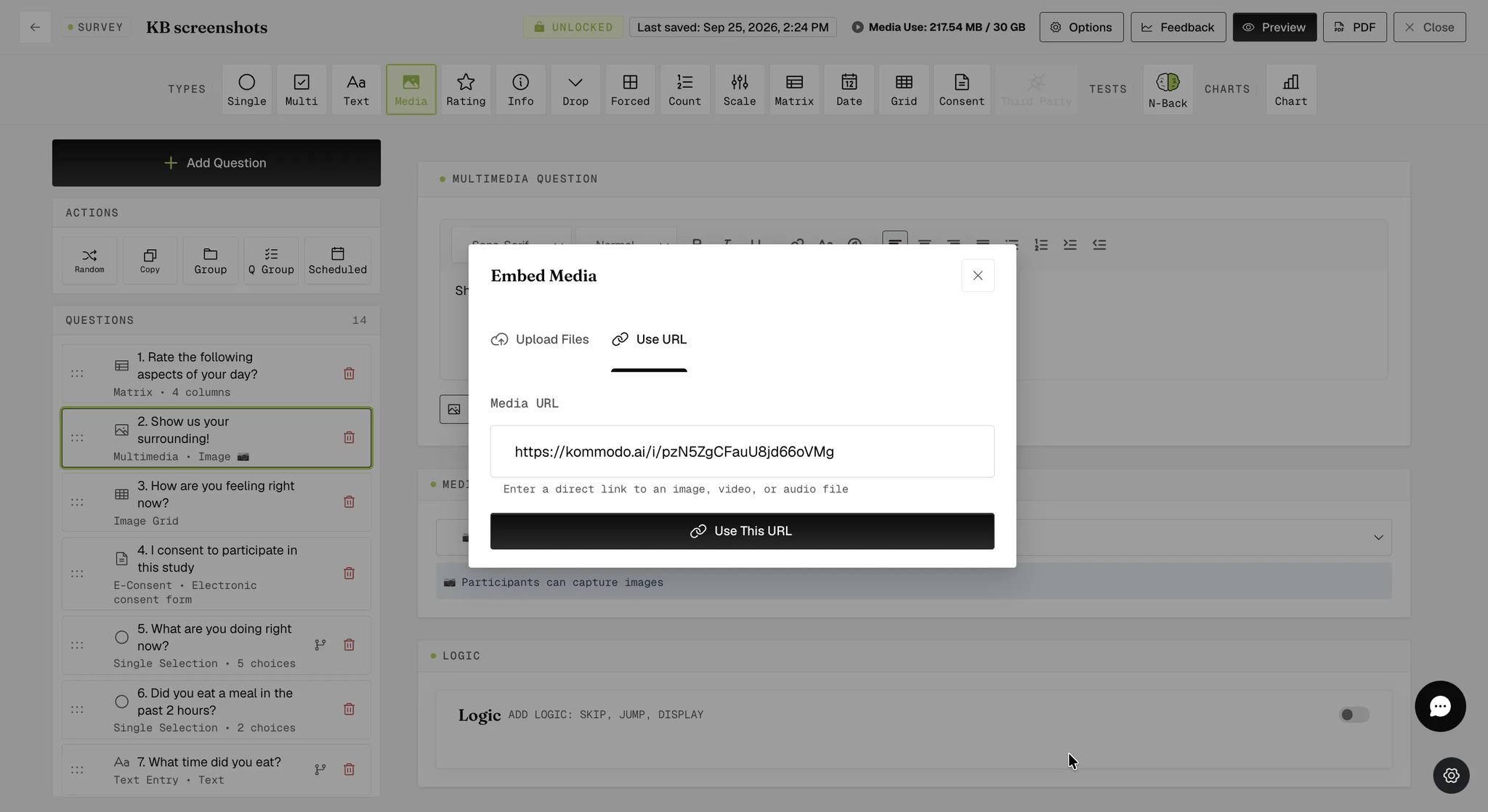
You can also switch to the Use URL tab to paste a direct link to an image, video, or audio file.
After selecting a file, a preview appears with file details (size, dimensions). Click Upload Media to confirm.
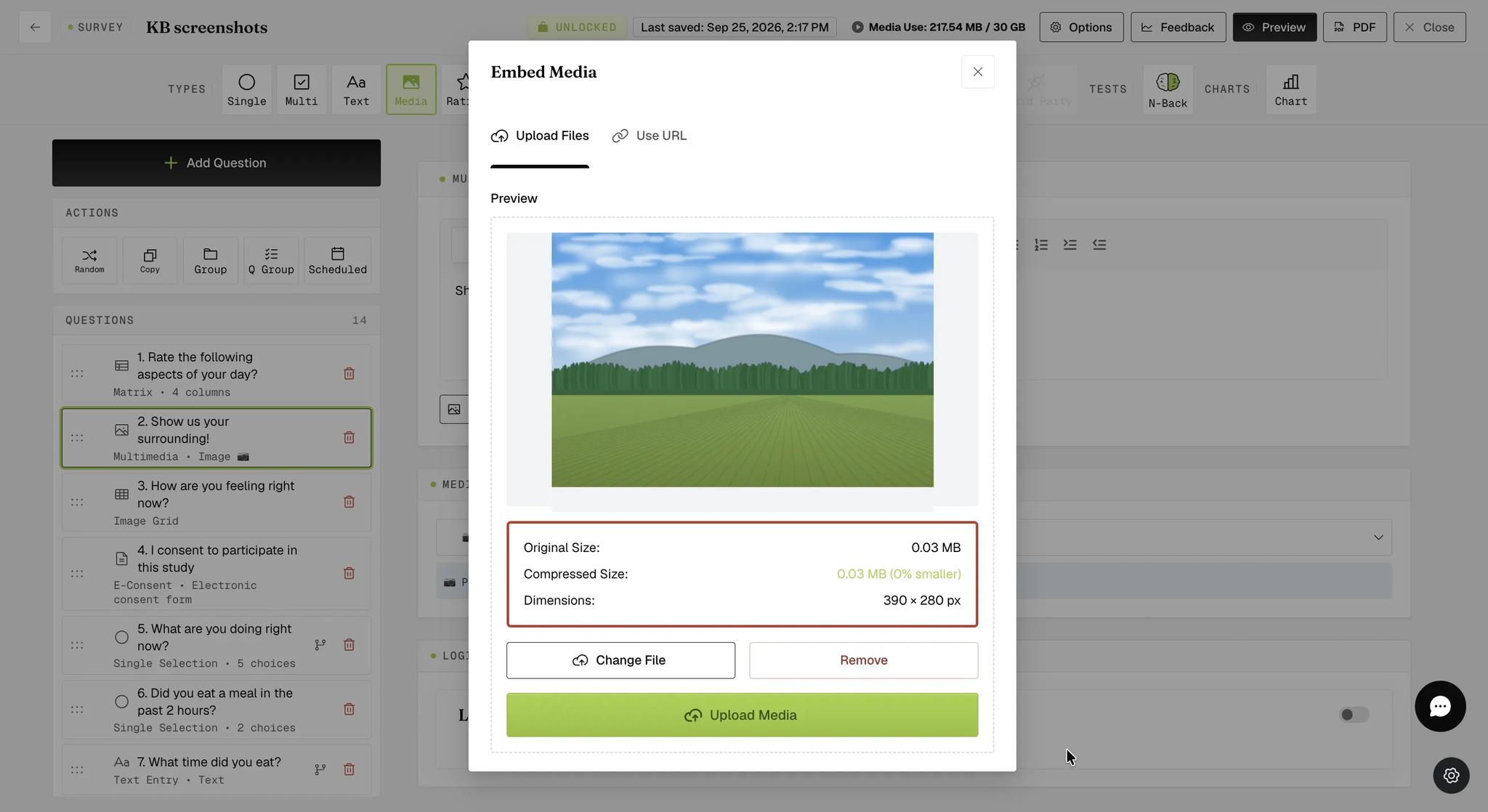
The display of media within the survey builder may differ slightly from the final experience. The presentation on the mobile app will be optimized and correctly formatted.
Positioning Images
Once uploaded, images appear in the Images panel below the question text. The counter shows how many are attached (up to 10), and you can add more by clicking + Add Media.
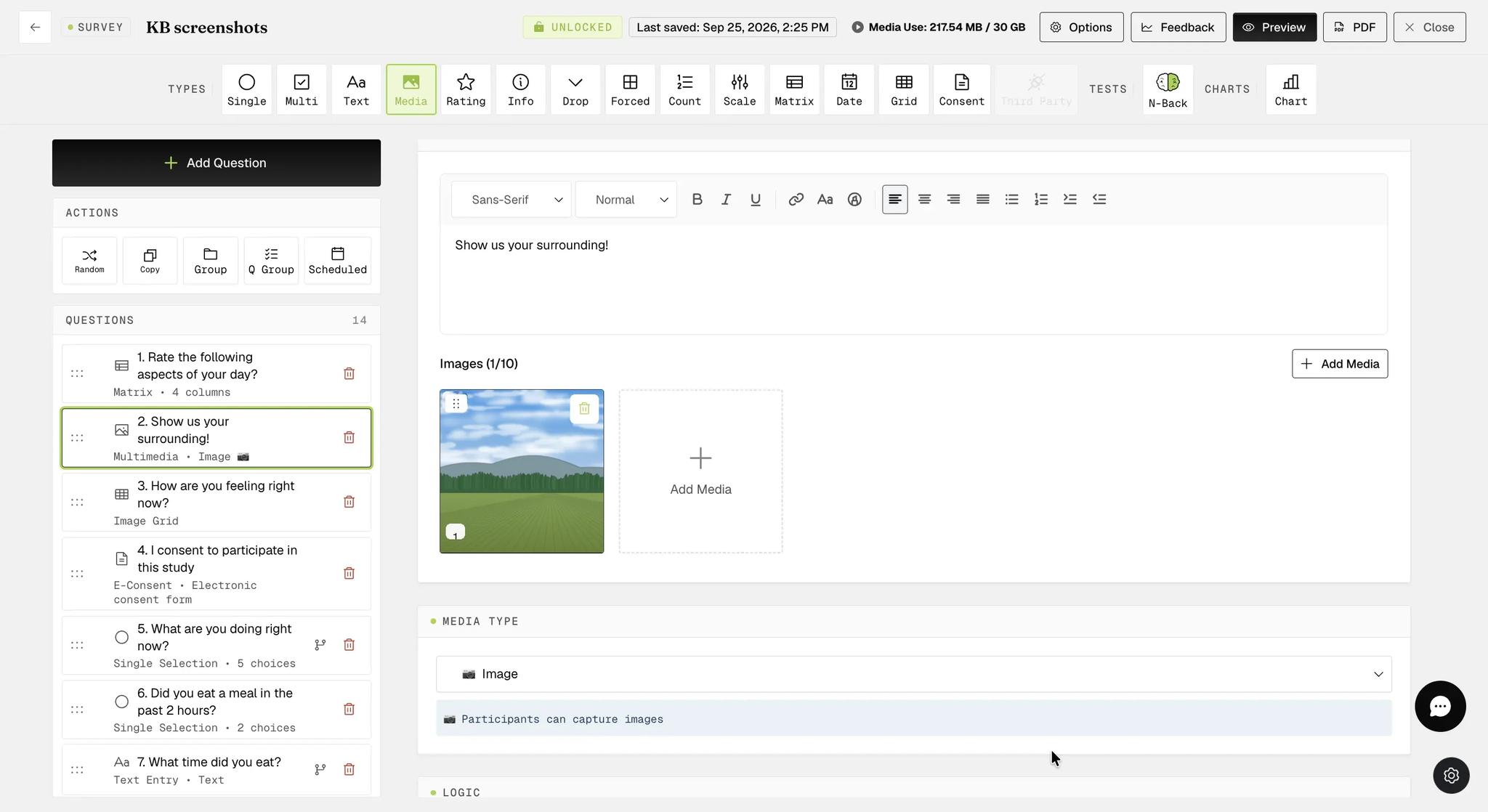
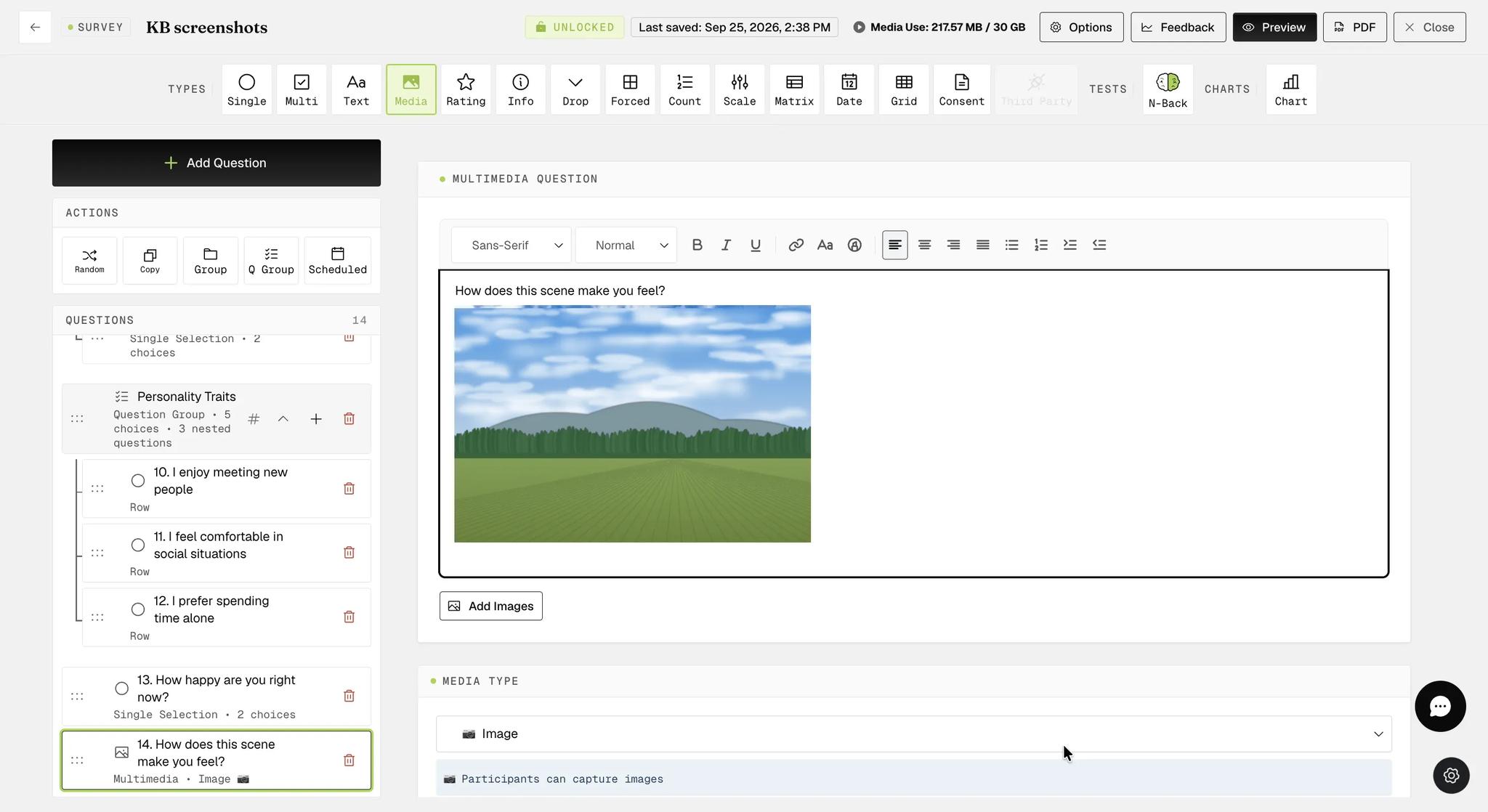
To position an image within the question, drag it from the Images panel into the question text area. Images can be placed anywhere in the text.
Audio or Video Upload
For audio or video, select the corresponding Media Type (Audio or Video) and upload your file through the same Embed Media modal. You can embed only one audio or video file per question.
On the mobile app, images display in the position you set within the question text. Audio or video files appear at the bottom of the question.
For further inquiries, please reach out to help@expiwell.com