Randomize survey questions
Why Randomize Survey Questions?
In experience sampling and ecological momentary assessments, participants who see the same question order repeatedly tend to fall into response patterns. Randomizing question order helps reduce this bias and keeps responses more thoughtful.
ExpiWell offers two ways to randomize: Randomized Presentation and Randomized Selection.
Randomized Presentation
Presents questions in a random order, either across the entire survey or within a specific question block.
-
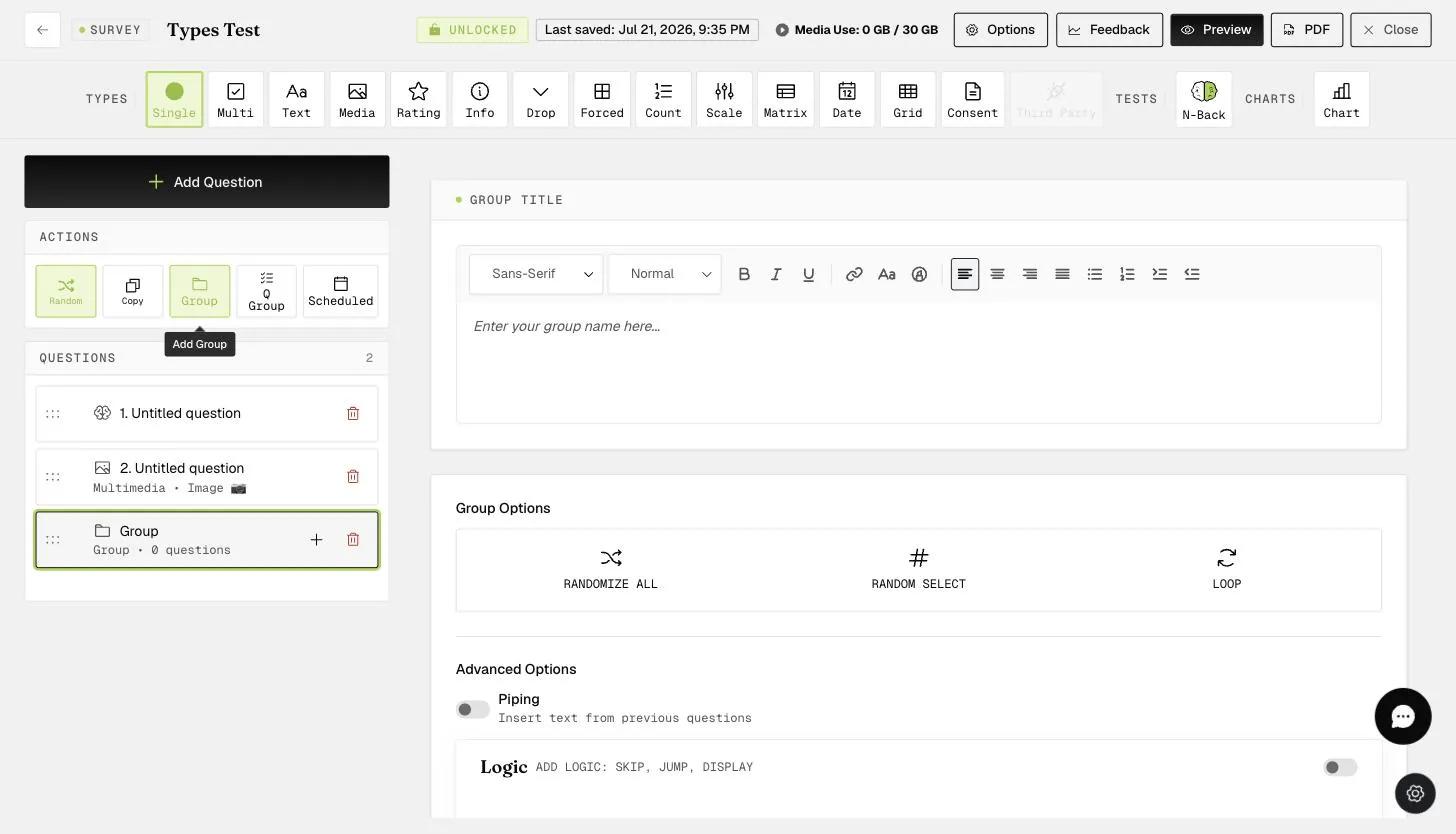
Survey-level: Randomizes all questions across the entire survey.
-
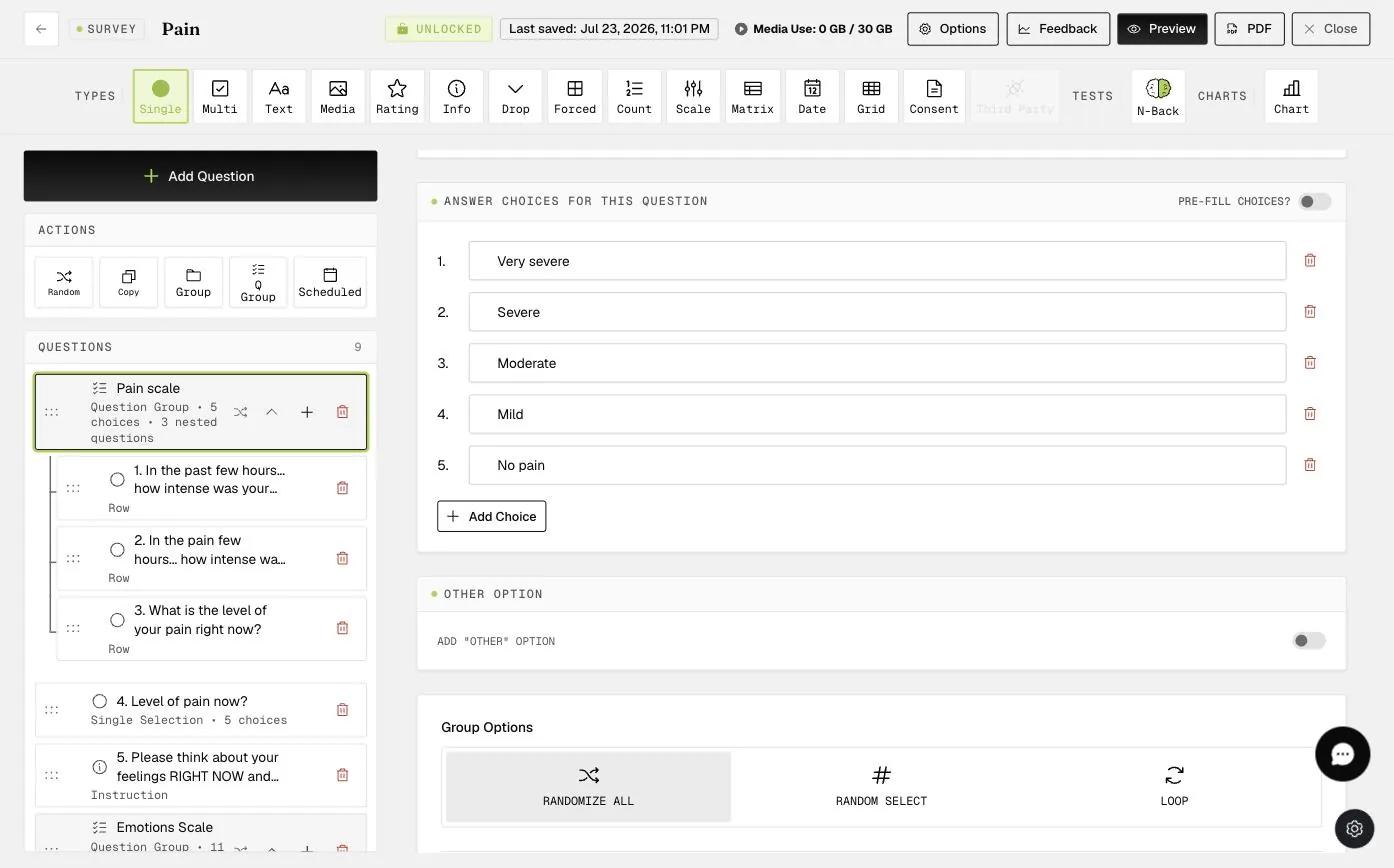
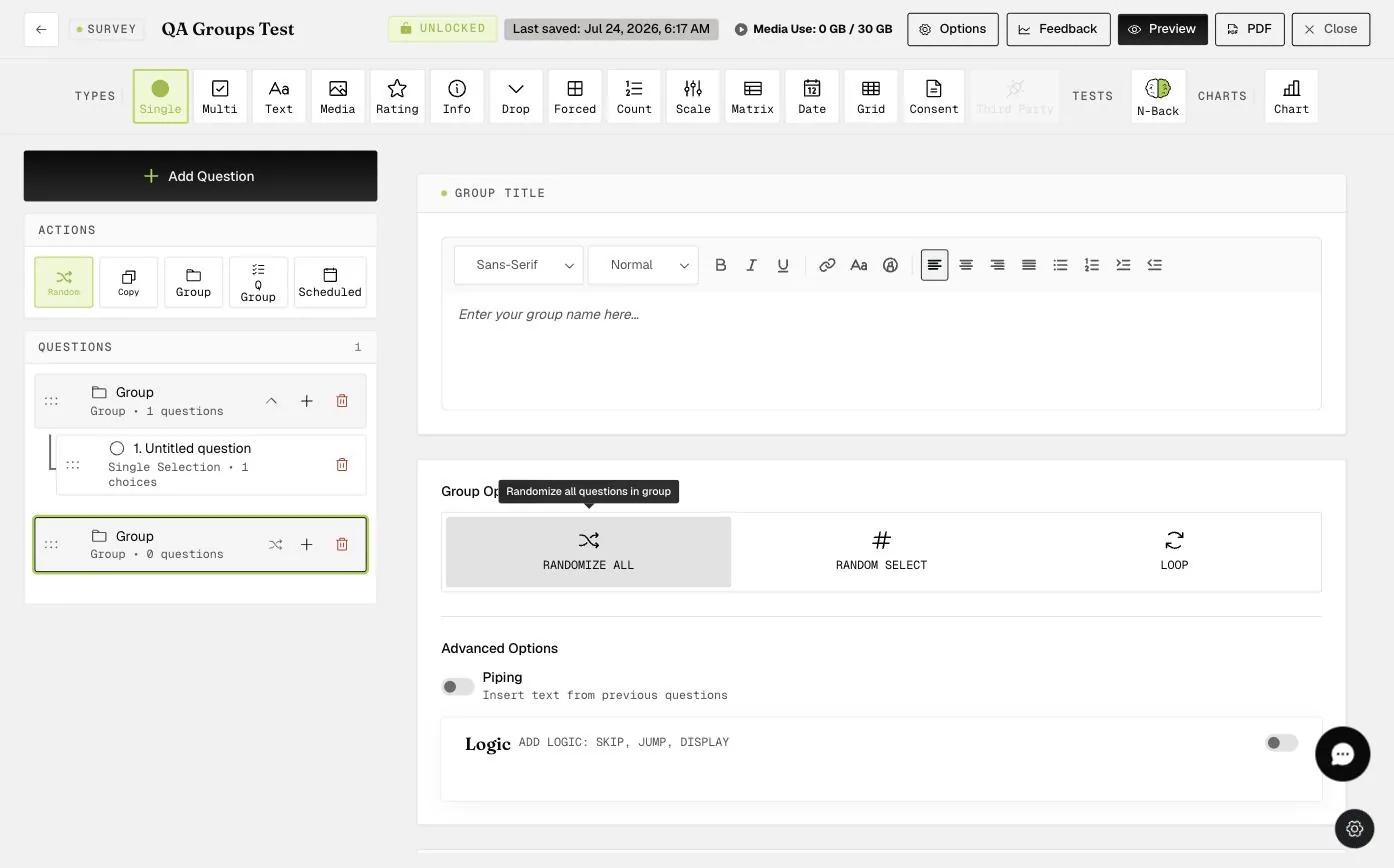
Block-level: Randomizes only the questions within a specific Group or Question Group. Toggle "Randomize All" in the block's Group Options to enable this.
Randomized Selection
Displays only a subset of questions from a block, chosen at random each time.
- Random Select: Set how many questions each participant will see from a block. For example, if a group has five questions and Random Select is set to 2, each participant sees only two of the five, chosen at random.
Randomize All and Random Select cannot be used at the same time on the same block. Enabling one will disable the other.
How to Enable Randomized Presentation
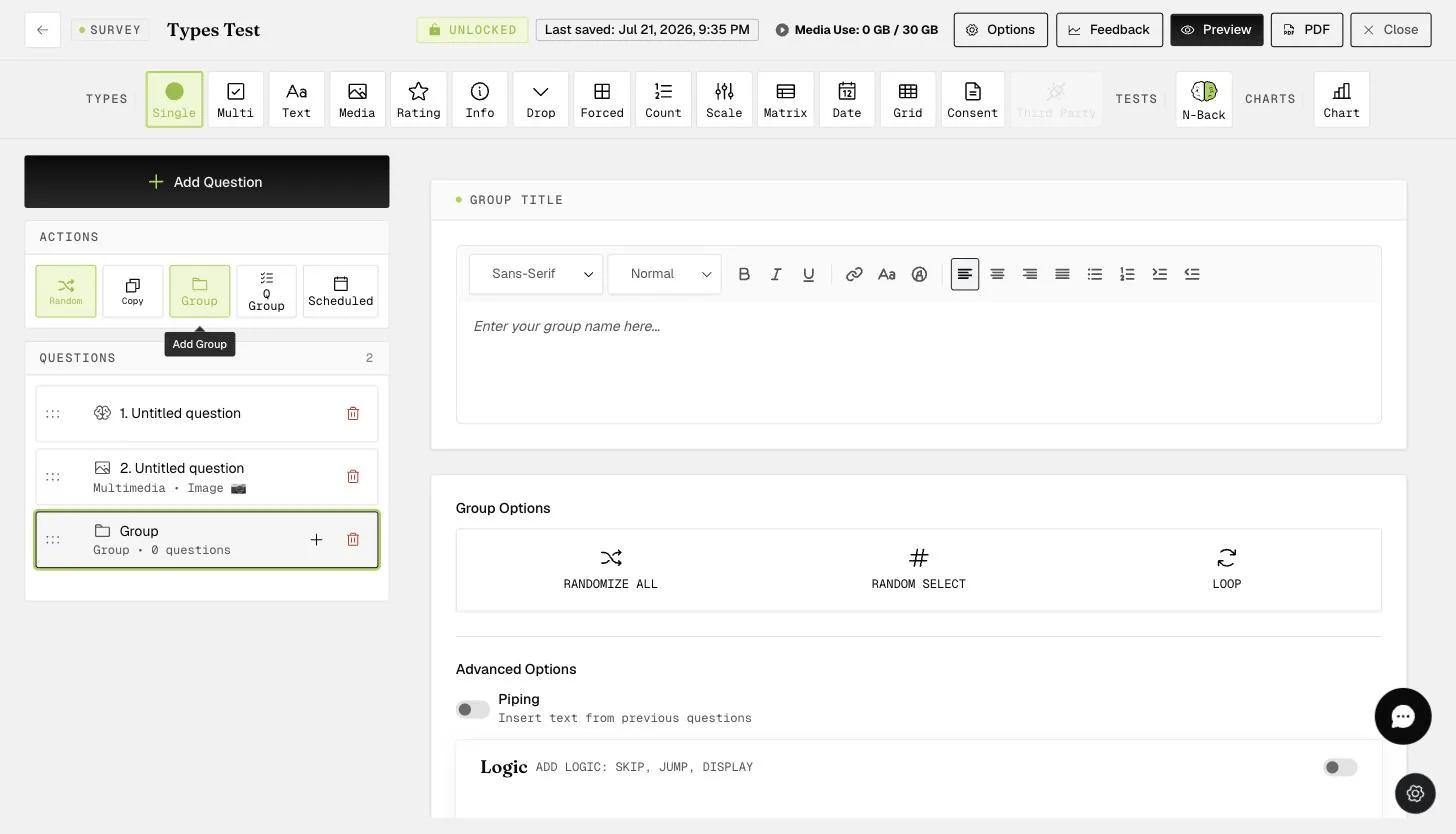
For survey-level randomization, click the Random button in the Actions row. For block-level randomization, open the group and toggle Randomize All under Group Options. When enabled, the option appears highlighted.
Advanced Randomization
You can combine groups and randomization at multiple levels for more control.
Multiple Groups: Create several groups in your survey, each with its own set of questions.
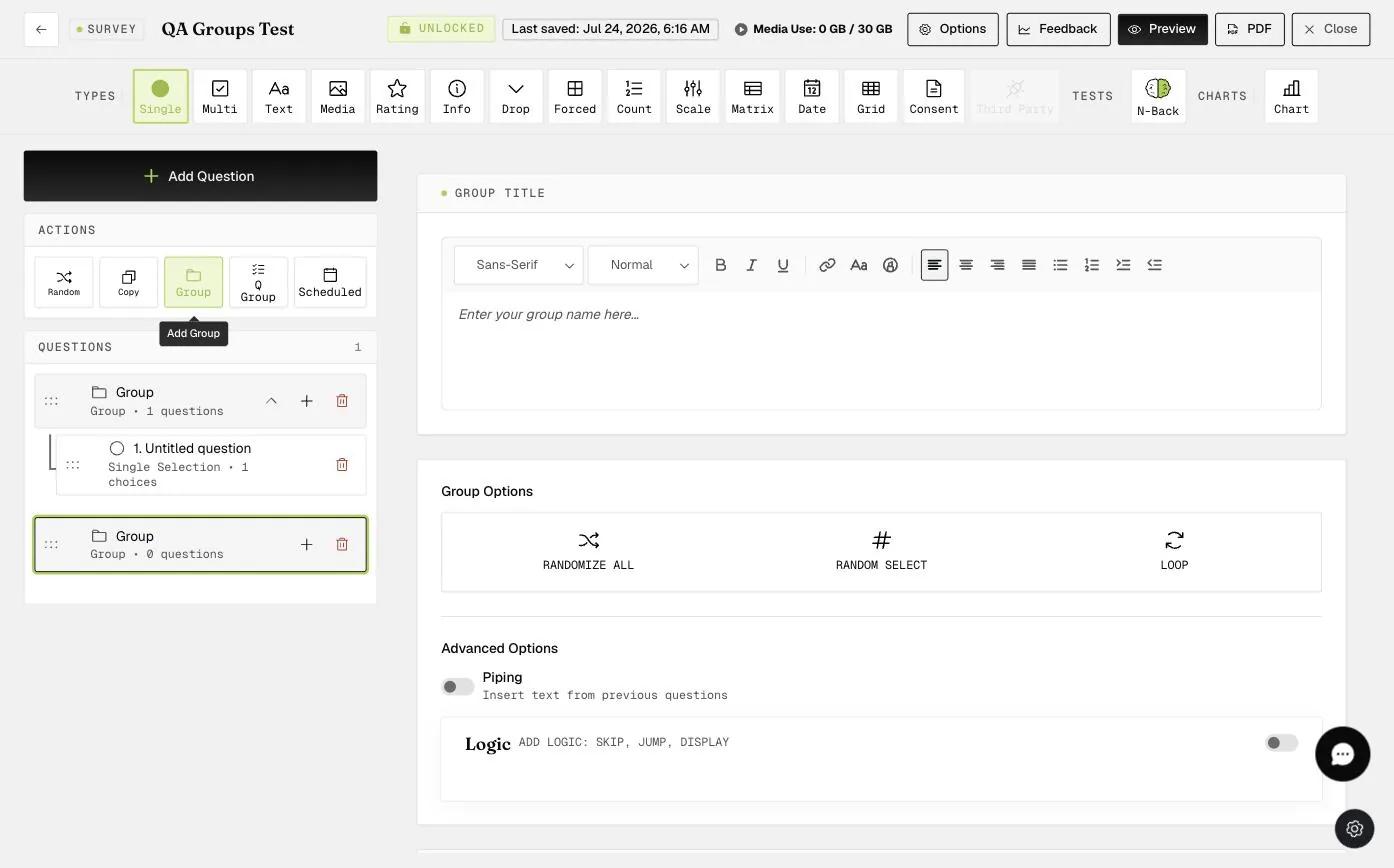
Nested Groups: Place a group inside another group to create a hierarchy. The outer group acts as a container, and you can randomize at each level independently — shuffle the order of inner groups, the questions within each group, or both.
How to Enable Randomized Selection
Random Select can be applied to either a Group or a Question Group. Enter the number of questions you want each participant to see, and ExpiWell will randomly pick that many from the block each time.
In this example, two randomly selected questions from the group will be displayed in each survey:
In this example, one randomly selected question from the Question Group will be displayed in each survey:
For further inquiries, please reach out to help@expiwell.com