建设中

你的这次采样正好赶上我们施工。

这些指南面向新版 ExpiWell 平台(v2),仍在撰写、校对和调整中——请谅解眼前的脚手架:页面可能在两次访问之间移动或更改。仍在使用旧版应用?其文档仍保留在旧的支持门户上。

打开旧版支持门户
知识库  /  来自 ExpiWell 团队

我们能你什么?

覆盖研究每一步的指南——从第一个项目到最终的数据导出。ExpiWell 知识库,服务于研究者网页平台与参与者移动应用。

28 个类别下共 97 篇指南 · 由 ExpiWell 团队维护更新
Help CenterBuildSurvey Creation

Automatic next question

Build · Survey Creation
Updated 2026年7月20日

How to Utilize Automatic Next Question

When conducting Ecological Momentary Assessments, or Experience Sampling Research, it is crucial to consider efficiency when your surveys consist of many questions. Long surveys can be very exhausting at times, and by decreasing your participants' effort, you could have a higher completion rate.

With ExpiWell, you can use the "Automatic Next Question" feature, as your participants will save time and reduce their efforts in answering your surveys.

1 - Click the "Options" button in the survey builder.
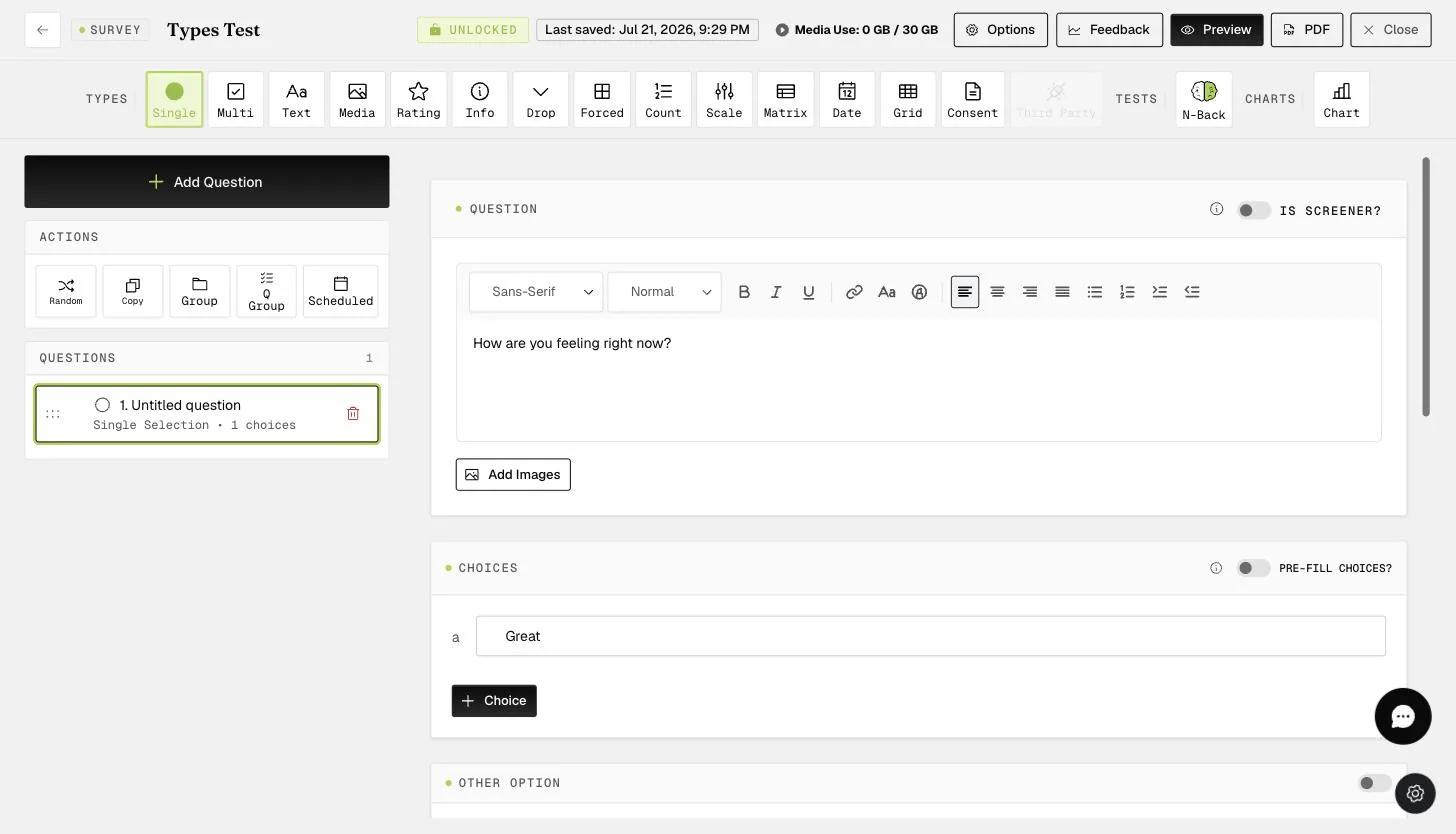
The survey builder where survey-level options like Automatic next question are configured

2 - Toggle "Automatic next question".
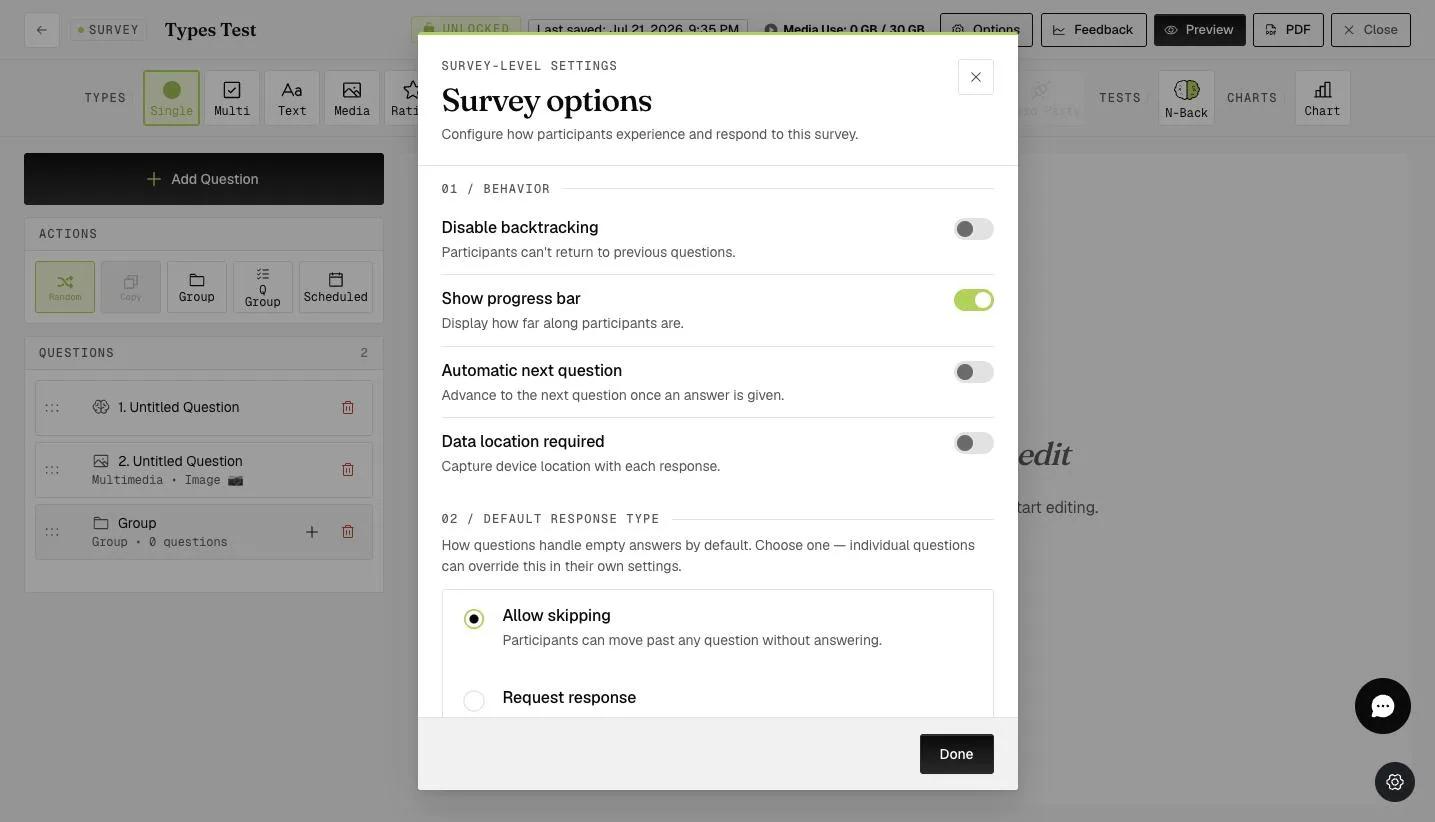
The Survey options modal with the Automatic next question toggle under Behavior settings
Note

In the participant's mobile app, they do not need to click the "next" button every time they want to move to the next question. Once they select a response, it will automatically go to the next question.

Screenshot — Mobile app view

The cumulative time spent on clicking the "next" button can save a considerable amount of time. This is very helpful if you have a survey with hundreds of questions.

This walkthrough was recorded in the earlier ExpiWell interface — an updated video for the new dashboard is coming.

Was this helpful?
Start today

与 ExpiWell 团队的真人交流。

还没解决?我们的研究者团队既解答技术问题,也解答研究设计问题。