Payment methods
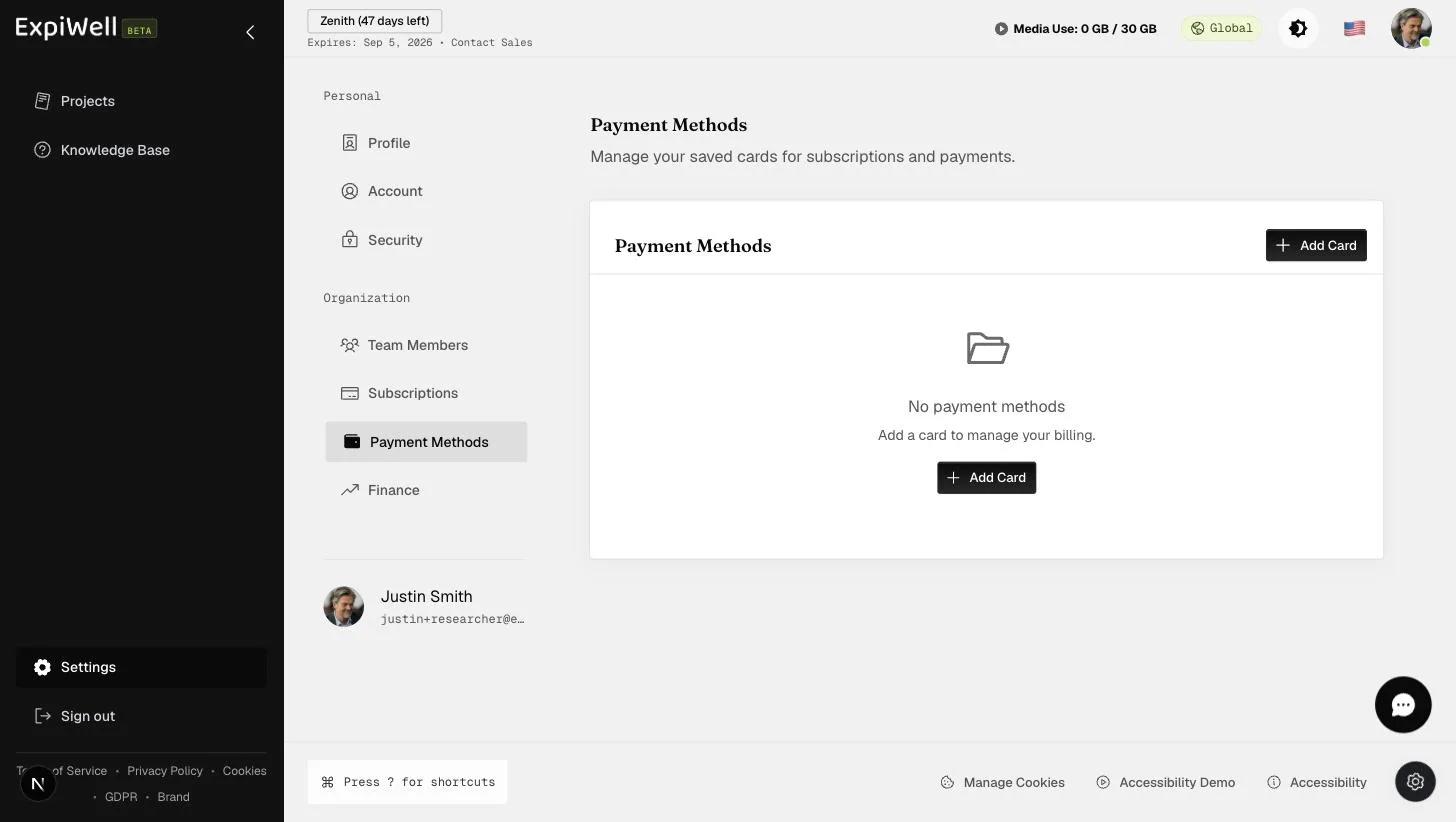
Saved cards live at Settings → Payment Methods (under Organization). They're used to add funds to your participant-payment balance.
Payment methods are for participant payments only, not subscriptions. A saved card is charged only when you add funds — never automatically, and never for a subscription renewal. The heading on that page still reads "for subscriptions and payments"; that wording is being corrected.
Each saved card shows its brand, its last four digits, the expiry date and whether it is a credit or debit card. One card is marked Default — that is the one offered first when you add funds.
Adding a card
- Open Settings → Payment Methods and click Add Card.
- Enter the card details. They go straight to Stripe, which processes them — ExpiWell never stores the number.
- Your first card becomes the default automatically — the dialog tells you so, and there is nothing to tick. On any card after that, tick Set as default payment method if you want ExpiWell to use the new one instead.
- Click Add Card. It appears in the list immediately.
Choosing New Credit or Debit Card when adding funds charges that card without saving it here. To keep a card on file, add it on this page.
Changing the default
Use Set as default on any other card. The Default badge moves across, and ExpiWell confirms the change.
Removing a card
Click the bin icon beside a card. You'll be asked to confirm by name — Remove Visa ending in 4242? — and removal cannot be undone.
Two rules limit what you can remove:
- You cannot remove your only card. The account always keeps one on file, and the bin icon is disabled with a note saying so.
- You cannot remove the default card while others exist. Set another card as the default first, then remove it.