Geographic Ecological Momentary Assessment (GEMA)
What GEMA is
Geographic Ecological Momentary Assessment (GEMA) is EMA with location attached. Participants report in the moment as they normally would — mood, stress, symptoms — and their location is recorded alongside it, so an answer carries the place it was given in.
That is the whole point: a stress rating from a crowded office and the same rating from a quiet park are different findings, and retrospective recall cannot tell them apart. GEMA lets you see which environments a pattern belongs to, and design interventions around them.
Geofencing
A geofence is an invisible boundary drawn around a real place. When a participant's phone crosses it — entering, leaving, or staying inside for a set time — ExpiWell can send them a survey automatically.
This is what makes a GEMA study active rather than merely observational: instead of sampling at fixed times and hoping the interesting moments fall inside them, you ask the question at the place it is about.
Before you start
Three things have to be true before any of this is reachable.
- Continuous location tracking is on. It lives in the Integration step, and switching it on shows how often your plan samples location.
- Your surveys exist. A geofencing task fires a survey you have already built; you cannot create one from here.
- The project is not active. Triggers are part of the Schedule step and lock once a study is running — see below.
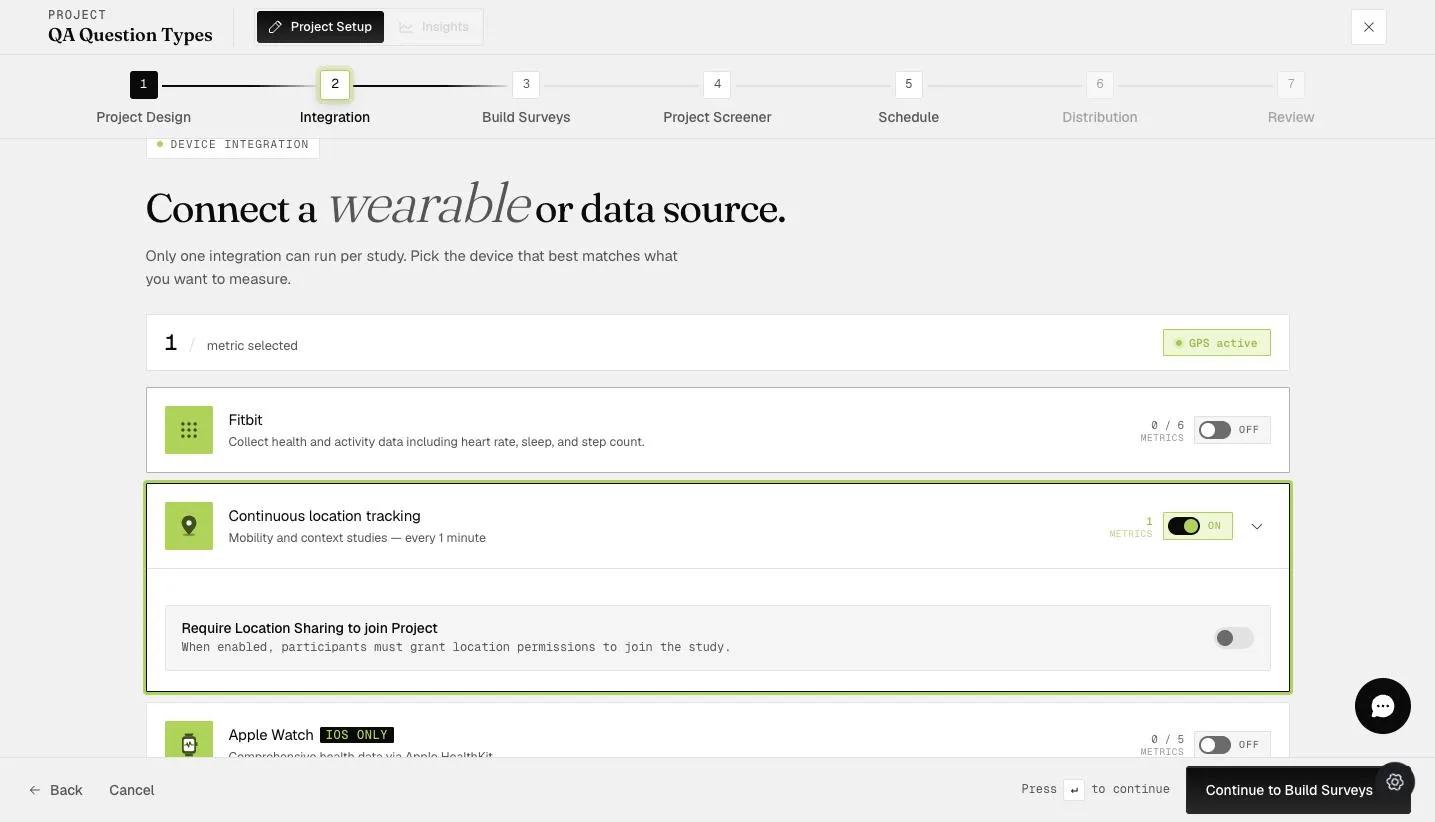
Require Location Sharing to join Project appears underneath once tracking is on, as a separate toggle. Switch it on and participants must grant location permission before they can join at all — worth it for a study that is meaningless without location, unnecessary otherwise.
Only one integration runs per study. Turning on location tracking rules out Fitbit, Apple Watch and SensorKit for the same project.
Creating a geolocation event
An event is a container. Inside it you add one or more tasks, each one a geofenced area with its own survey and rules.
Open Project Setup → Schedule, then switch to Event Triggers using the second icon in the narrow rail down the left.
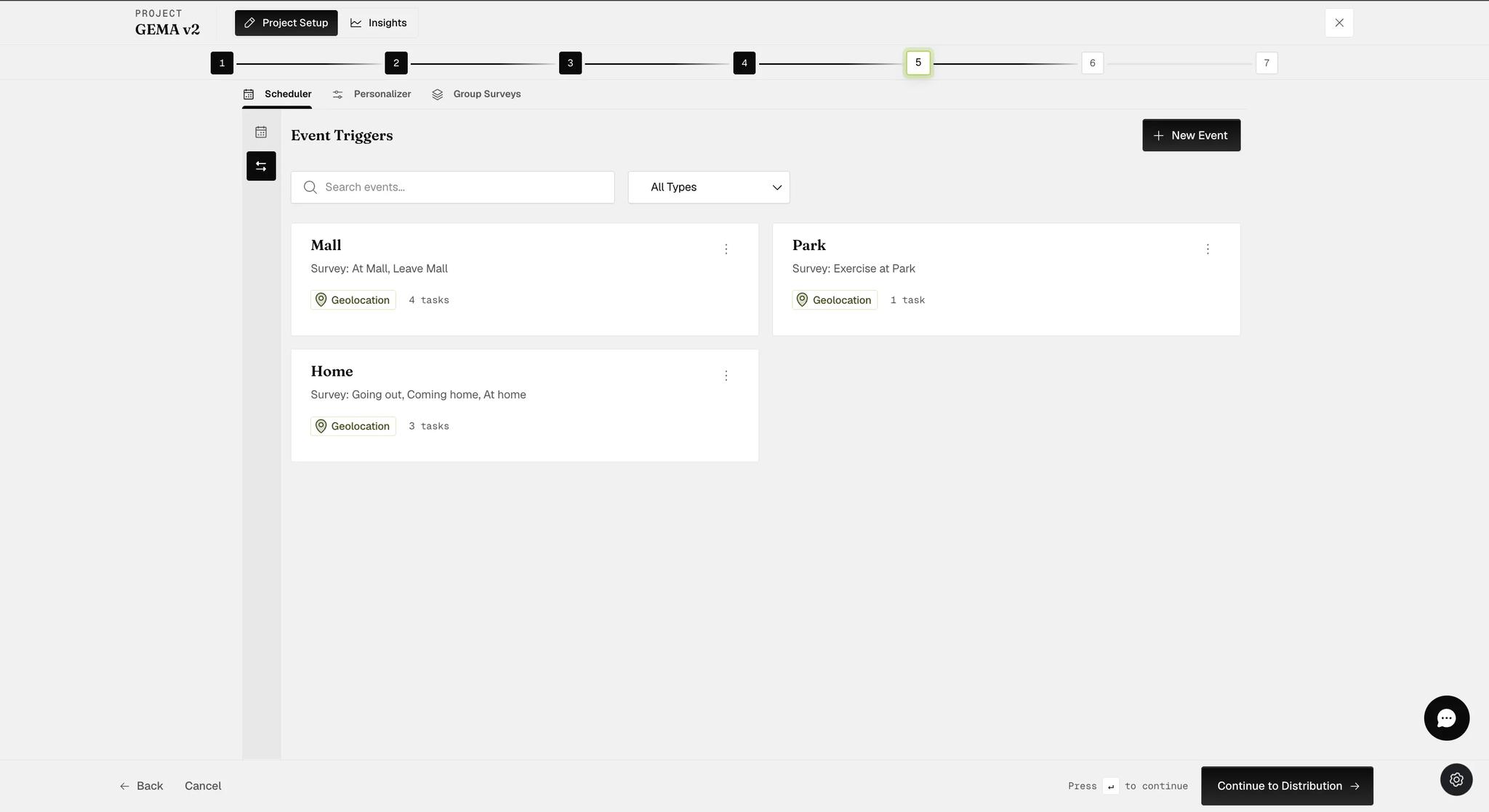
Each card names the surveys it fires, its type, and how many tasks it holds.
Triggers cannot be changed while the project is active. A banner says so across the top and New Event grays out. Set your geofences up before you activate, or deactivate the project to change them — the same rule the Integration step follows.
Click New Event, name it, and choose what to base it on. Four types are offered; Geolocation is the one that fires by place. Create stays disabled until a type is picked.
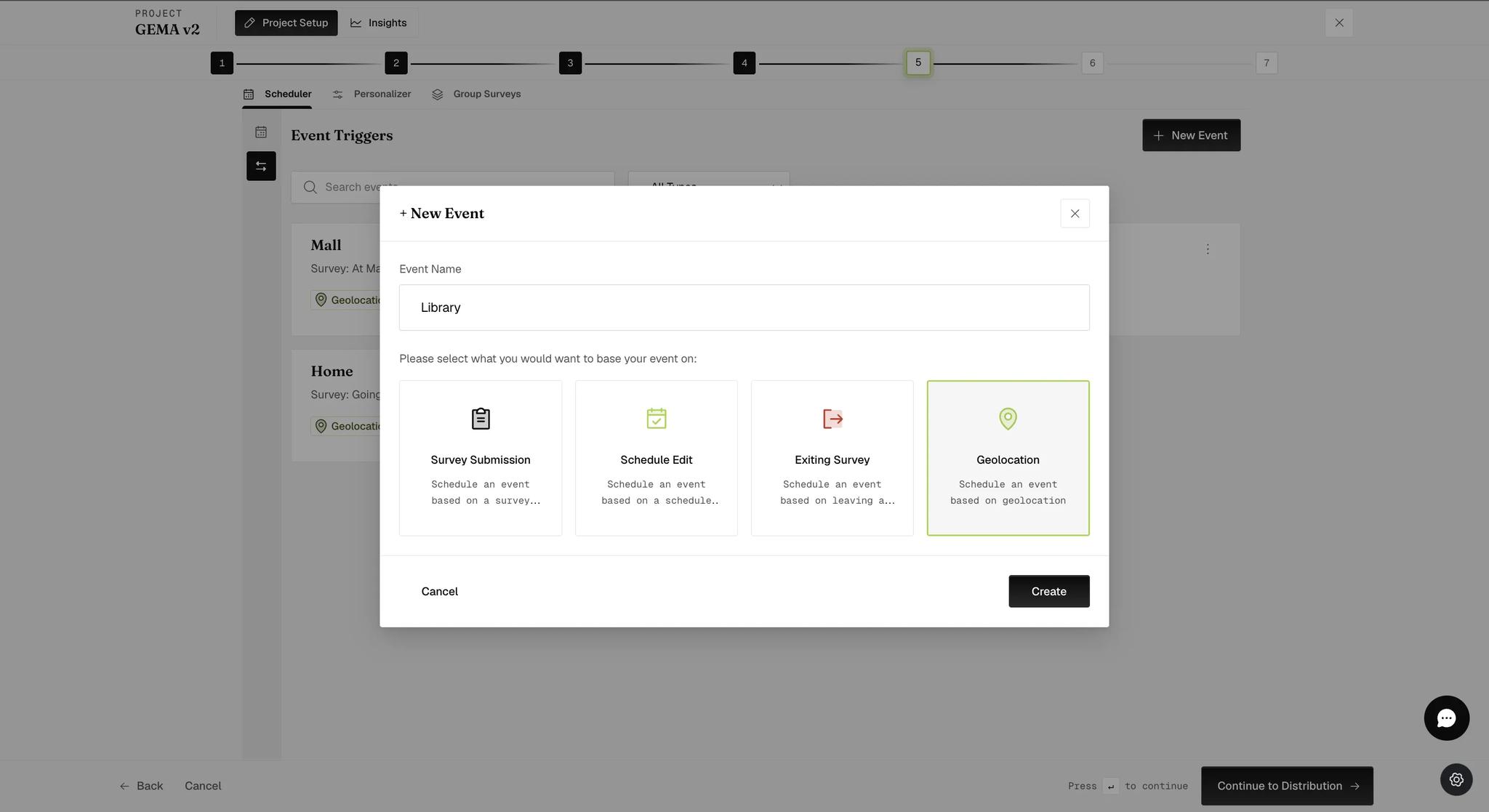
The other three fire on something a participant does rather than somewhere they go; see Event triggering.
Drawing the area
The Geolocation Triggers page opens on a world map — it does not center on you, and nothing asks for your location. Zoom to the place you care about first.
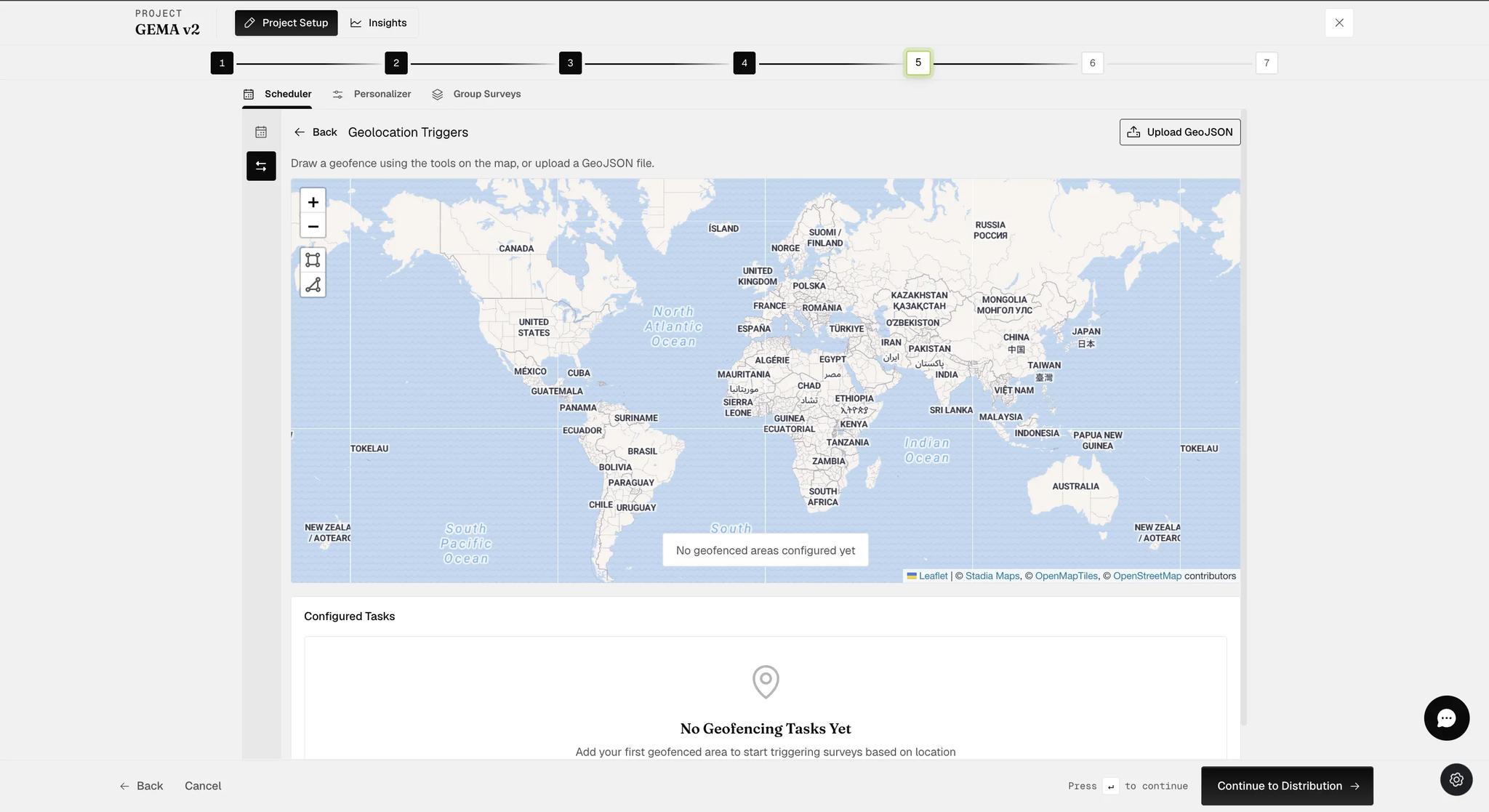
Use the rectangle or polygon tool on the left of the map to draw the boundary. Finishing the shape opens the Configure Geofencing Task dialog.
You do not need an external tool to draw a boundary. Upload GeoJSON is for a polygon someone has already defined elsewhere — a campus outline from a facilities team, say. For anything you are defining yourself, drawing it on the map is the shorter path.
Configuring the task
The dialog has six groups. Stay Time is the only field marked required, and only when the trigger type calls for it. The label and the survey are yours to fill; the timing, rate-limiting and scheduling fields all arrive with working defaults.
Location Label and Area Color
A name for the area and the color it takes on the map. Both appear in the task list afterwards, so a color per site is worth the two seconds.
Survey Configuration
- Survey to Trigger — which survey fires.
- Trigger Type — Entering Location, Staying in Location, or Leaving Location.
Timing Configuration
- Survey Window — how long the triggered survey stays available, in minutes.
- Start After Trigger — minutes to wait before sending it; 0 for immediate.
- Stay Time — how long they must remain inside before it fires. Only appears for Staying in Location, and is required when it does.
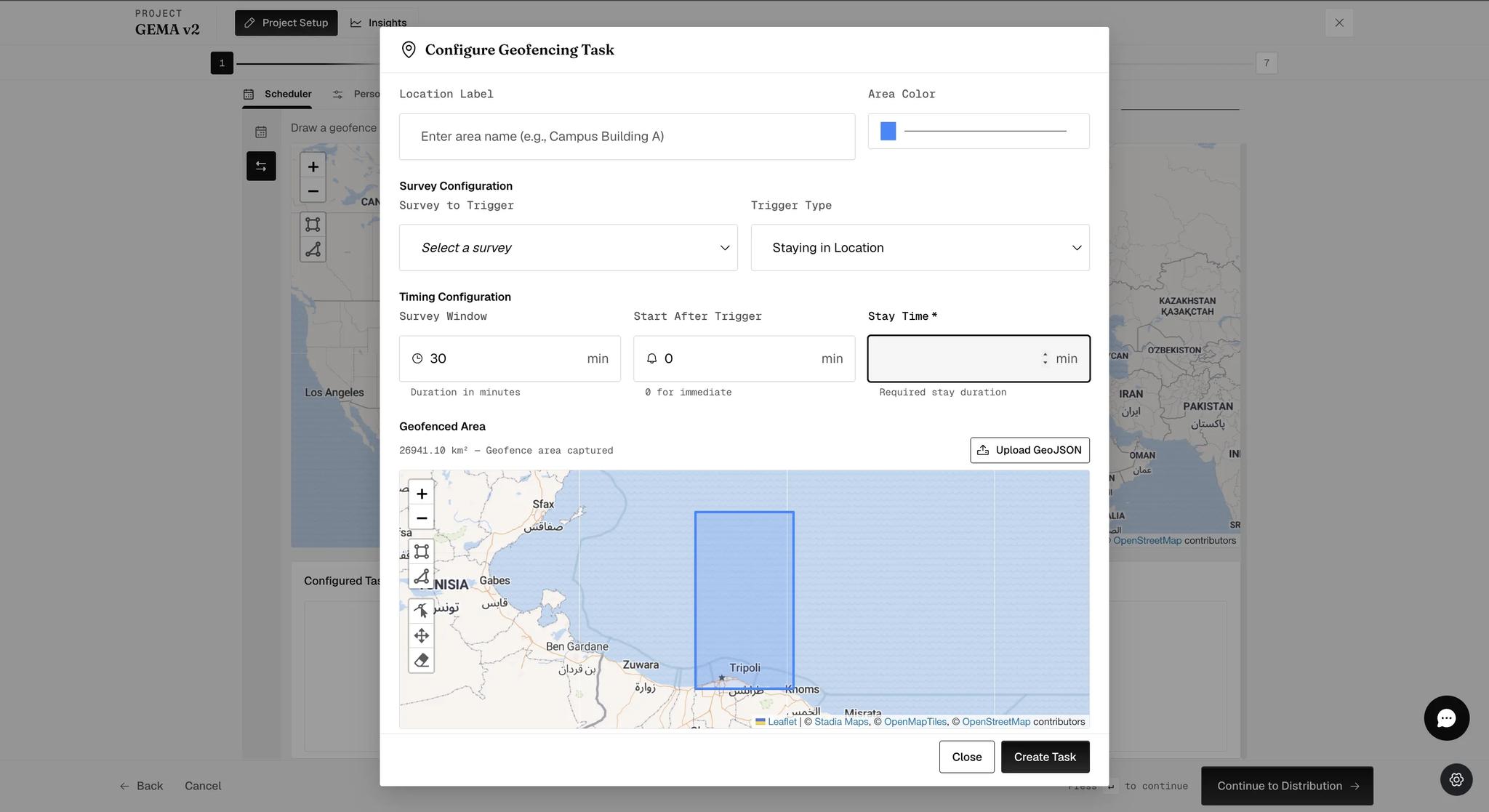
Geofenced Area
The shape you drew, on its own map with edit, move and erase tools if you need to adjust it. The dialog reports the area it captured in km², which is worth a glance — it is easy to draw something far larger than you meant.
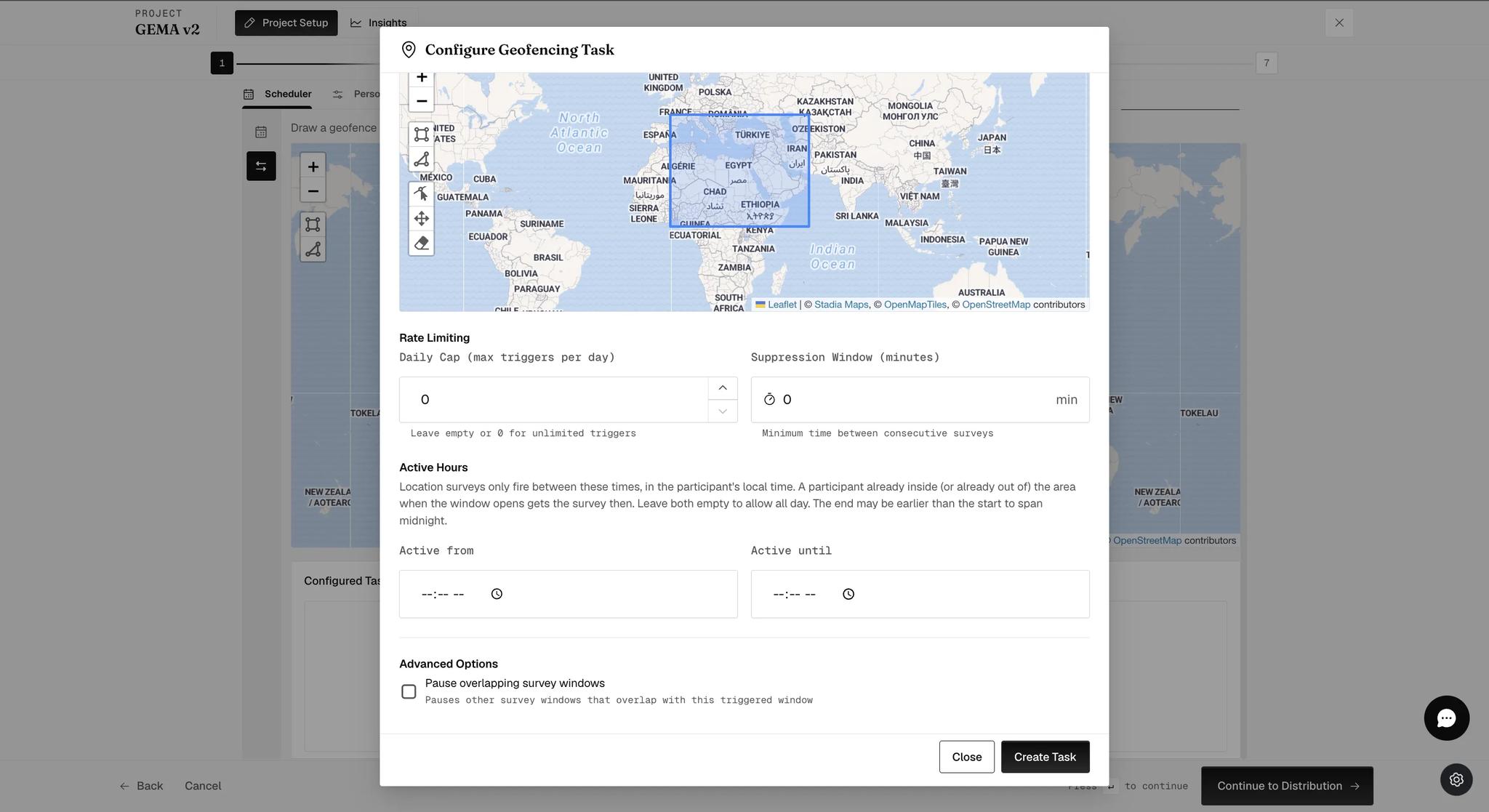
Rate Limiting
- Daily Cap (max triggers per day) — leave empty or 0 for unlimited.
- Suppression Window (minutes) — the minimum gap between consecutive surveys; 0 for none.
Set these before you run a location study. A participant who works inside your geofence crosses it repeatedly, and without a cap every crossing is another survey. The daily cap bounds the total; the suppression window stops a cluster of them arriving in one afternoon.
Active Hours
Active from and Active until restrict firing to a window in the participant's local time. Leave both empty to allow all day.
Two behaviors worth knowing: someone already inside — or already out of — the area when the window opens gets the survey then, rather than having to cross the boundary again. And the end time may be earlier than the start — that is how you span midnight.
Advanced Options
Pause overlapping survey windows pauses other survey windows that overlap the one this trigger opens, so a location survey does not land on top of a scheduled one. Switching it on reveals Surveys to Pause.
After the task is created
The area appears on the map with its label and color, and Configured Tasks lists it with everything you set, plus controls to edit or delete it.
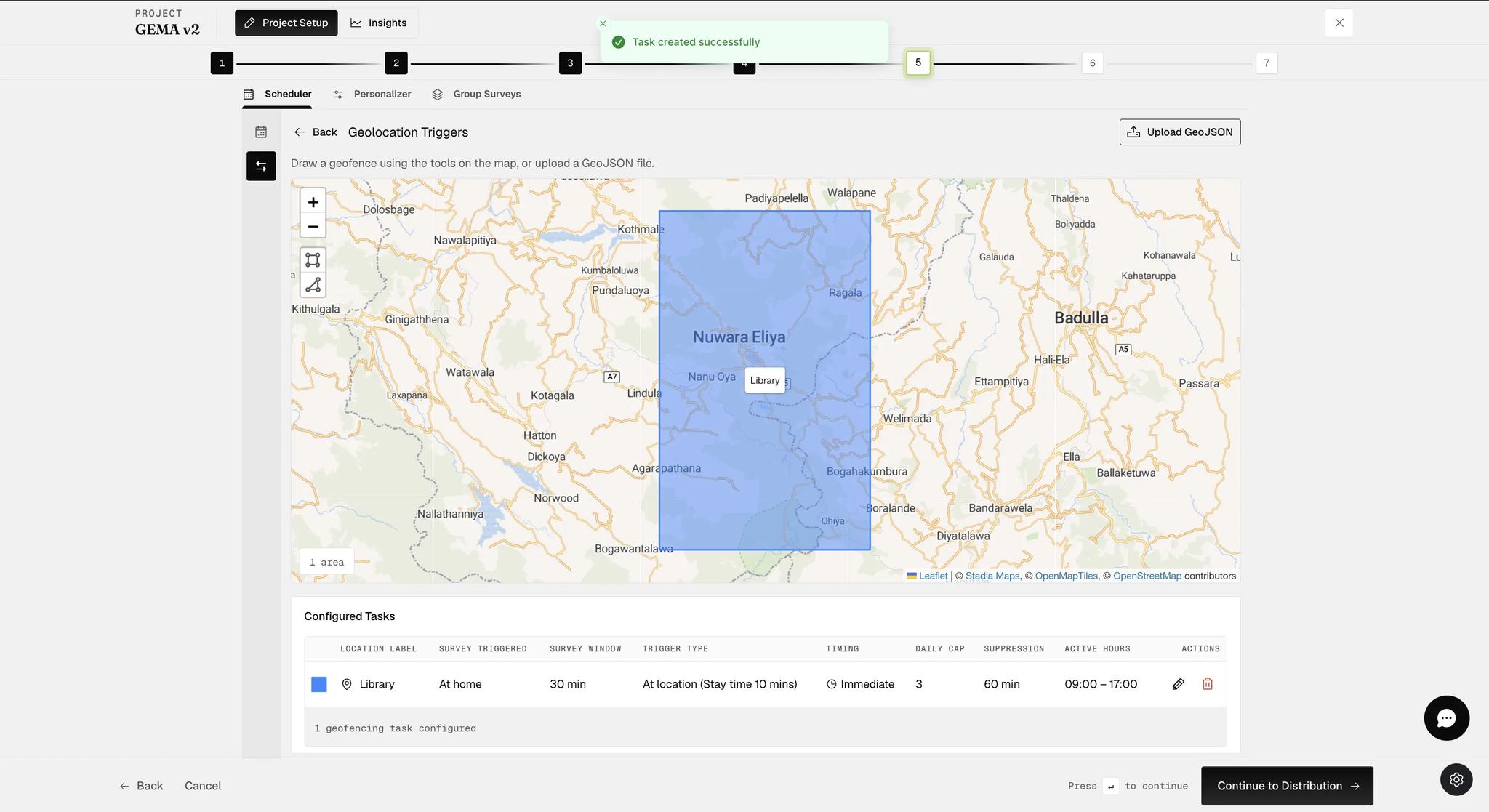
One event can hold several areas and several tasks — draw again to add another.
The table words the trigger differently from the dialog. A task set to Staying in Location is listed as At location (Stay time 10 mins). Same setting, two phrasings — go by the stay time rather than the name.
Reusing a survey across tasks
Assign a survey that another geofencing task already uses and a Survey Conflict Detected advisory explains why not: if the two conditions fire close together — entering and leaving the same place, say, within about ten minutes — the deliveries can overlap and interfere.
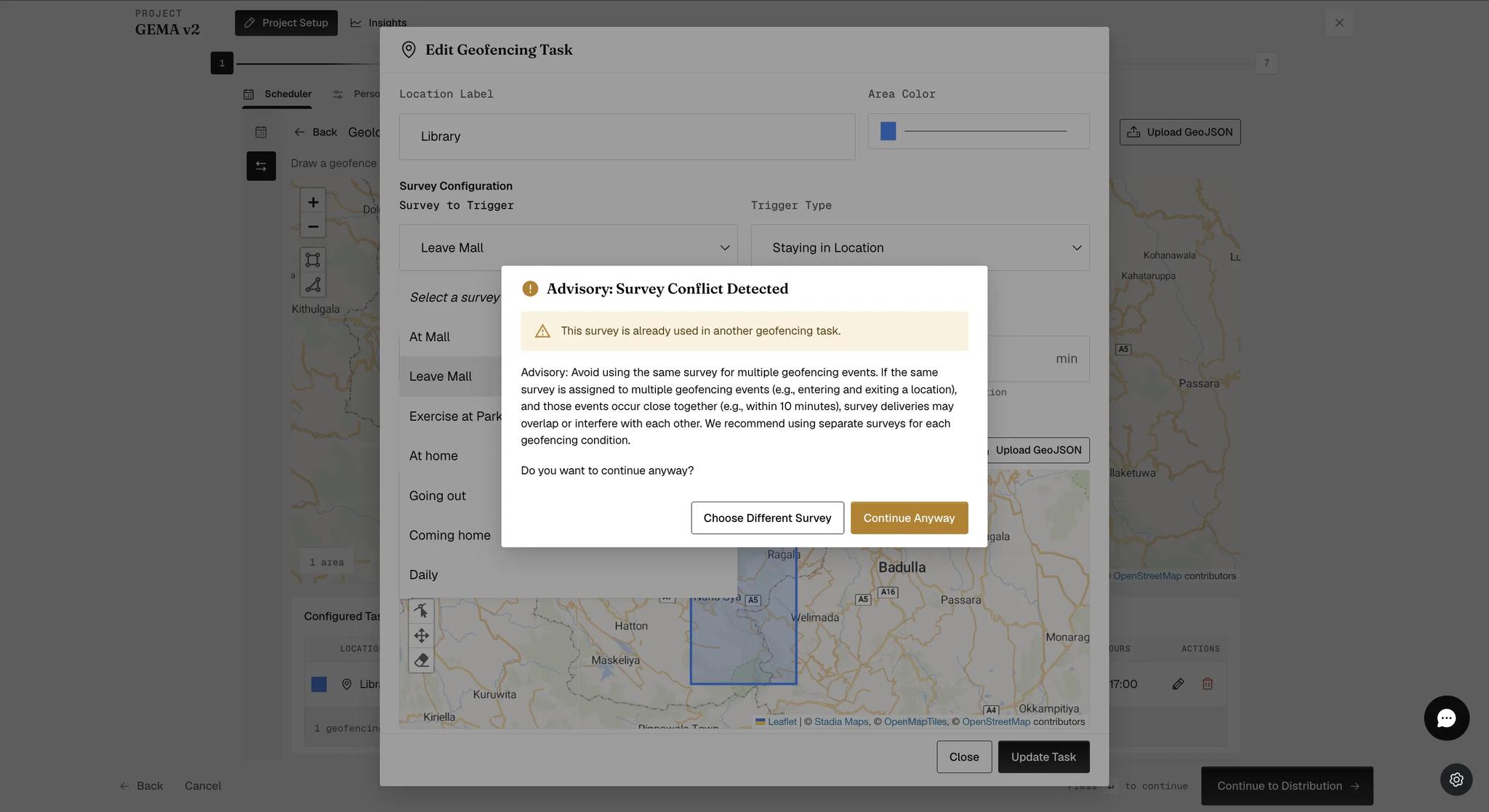
Choose Different Survey or Continue Anyway — it is a warning, not a block. Give each condition its own survey unless you have a reason not to.
What participants have to do
Once the project starts, participants must set the ExpiWell app's location permission to Always Allow. Anything less and the app stops reporting location in the background, which is where almost all of it happens.
iOS suspends background apps. iOS participants should open ExpiWell periodically — particularly around geofenced areas — or the system may stop it reporting and the trigger never fires.
How often location is sampled depends on your plan. The default is every 5 minutes; GEMA, GEMA+ and Zenith plans — including their trial variants — sample every 1 minute. The Integration step states the figure for your own plan next to Continuous location tracking. Either way there is some delay between crossing a boundary and the survey arriving, so do not design a study that depends on an instant response.