Event-triggering for EMA & ESM
The Role of Event-Triggering for EMA and ESM
When you create your ecological momentary assessment (EMA) and experience sampling method (ESM) project, you may want to change the study parameters (e.g., survey timings, additional messages to be sent, or changes to surveys) based on how participants respond. In other words, the study and surveys can change based on participant behavior.
Event-Triggering Features and Applications
Event-triggering enables researchers to have one participant action prompt the change, addition, or subtraction of another action in the study. On our platform, an event can be prompted by:
-
A survey (response) submission
-
A schedule change via the personalizer
-
A participant exiting the survey
-
A participant's geolocation
Event triggering is available for both Rolling and Calendar schedules.
Here are some examples of event-triggering applications:
Example 1: When a participant completes a morning survey, an afternoon survey is triggered to be sent exactly 4 hours later.
Example 2: A participant selects a survey response that she did not eat breakfast this morning. Thus, the follow-up survey set for an hour later (on what she ate for breakfast) is removed from the schedule as it is no longer relevant.
Example 3: When a participant completes the baseline survey, an extra notification is triggered to confirm their submission and welcome them to the study.
Before You Start
Event triggering is not included on every plan. Where a subscription does not cover it, the controls are shown but locked.
Three things about the feature that are easier to know up front than to discover:
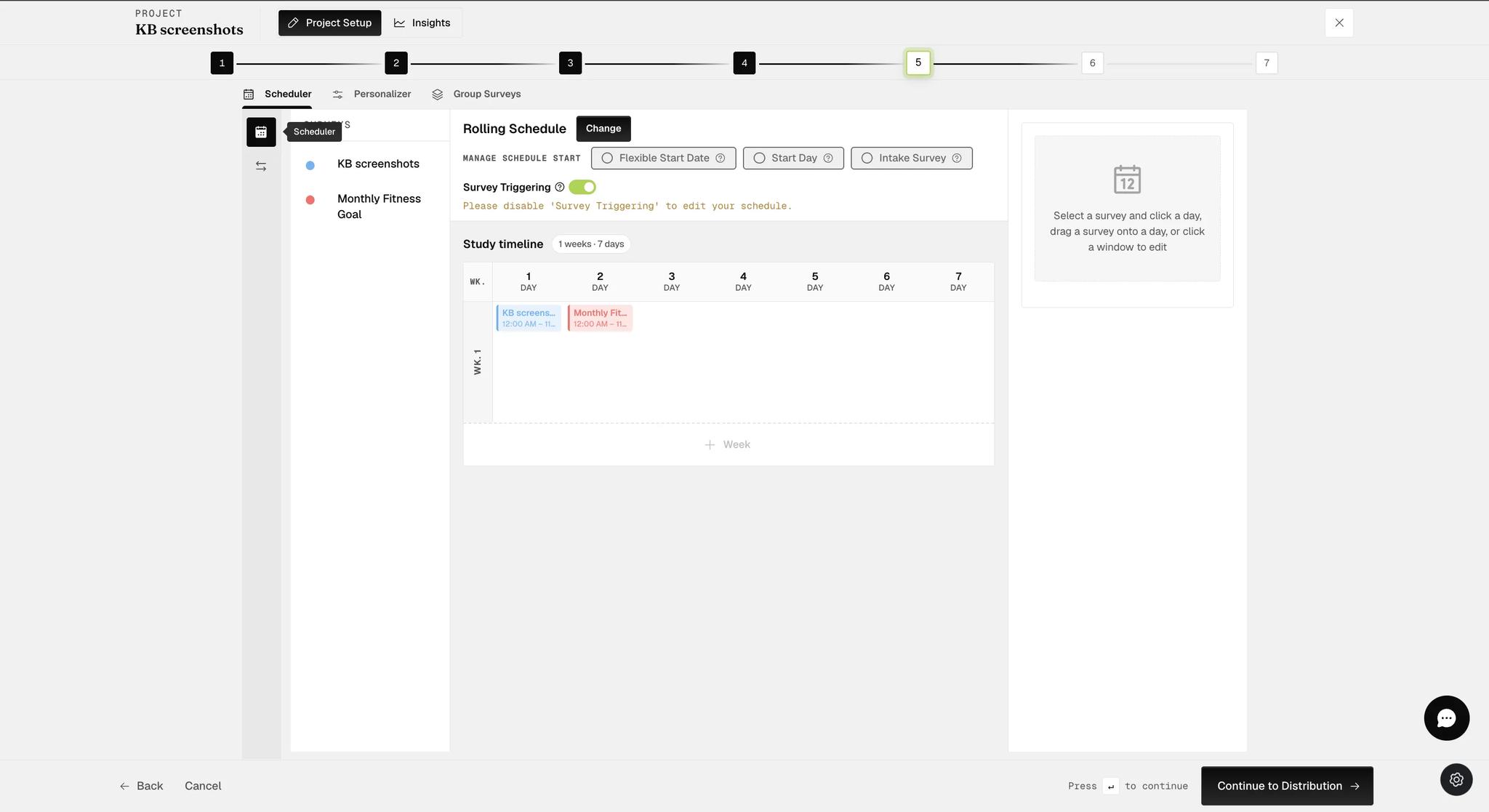
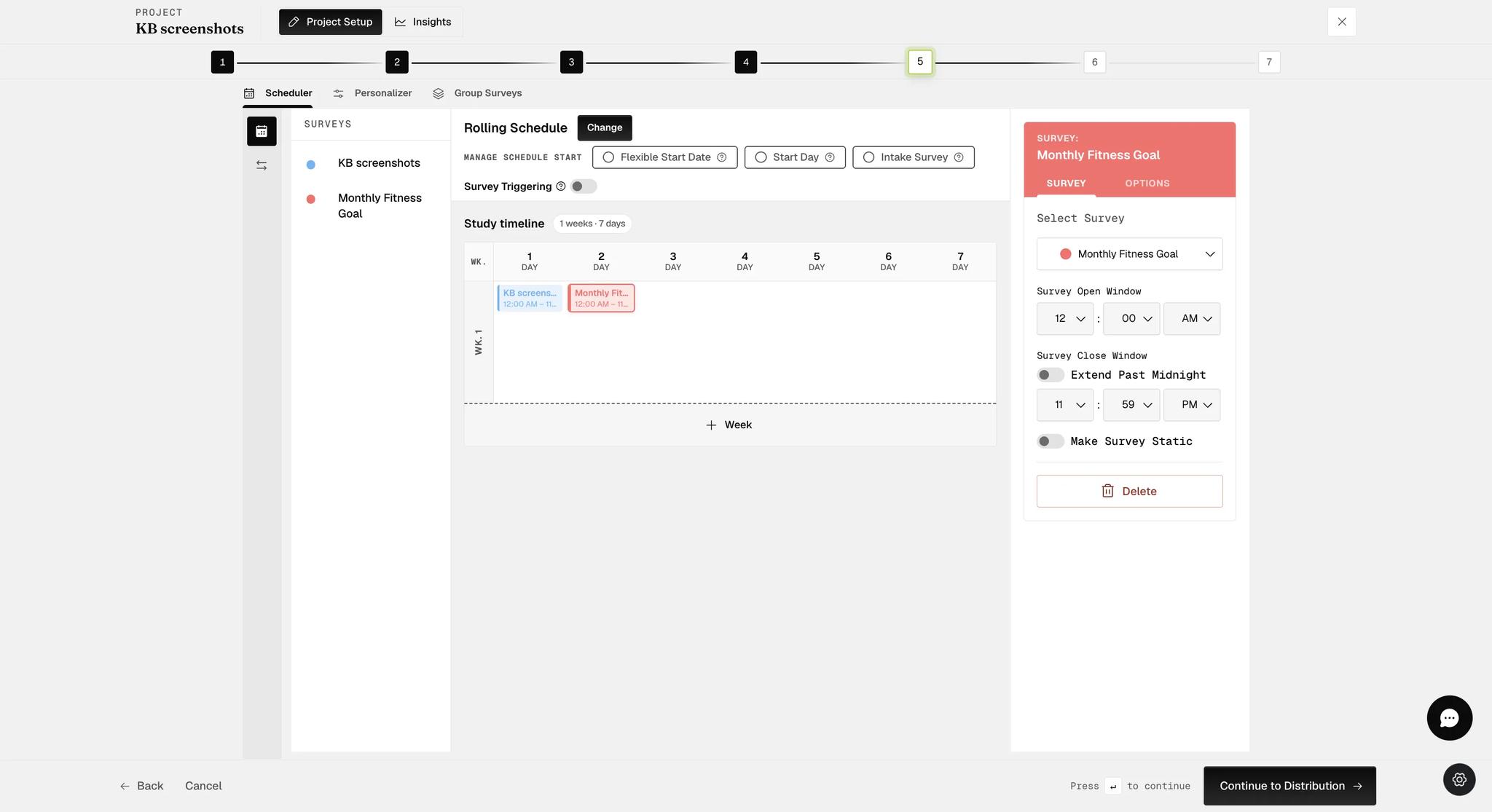
- Finalize your schedule first. Switching triggering on asks "Survey triggering can only be added after you finalize your schedule. Is your schedule finalized?" — and once it is on, the schedule itself is locked: "Please disable 'Survey Triggering' to edit your schedule." Build the windows first, because going back to change them means switching triggering off, which costs you the triggers.
-
Switching it back off deletes every trigger you have built. The confirmation says so: "Disabling survey triggering will remove all your current triggers."
-
Triggering and static surveys are mutually exclusive. Making a survey static while triggering is on is refused — "Please disable Survey Triggering to make a survey static" — and the same applies in reverse.
Setting up Event-Triggering
Step 1. In the Survey Builder, enter all surveys, including any you want to trigger. Then, proceed to the Schedule step.
Step 2. Create the basic schedule (i.e., the schedule that will serve as the base for the event-triggering actions). The example below shows that the basic schedule is the Rolling schedule, with a "Daily" survey scheduled every morning from 9 a.m. to 12 p.m.
Step 3. On the vertical bar to the left of the schedule, the second icon down opens the event-triggering view. The top icon takes you back to the basic schedule at any time.
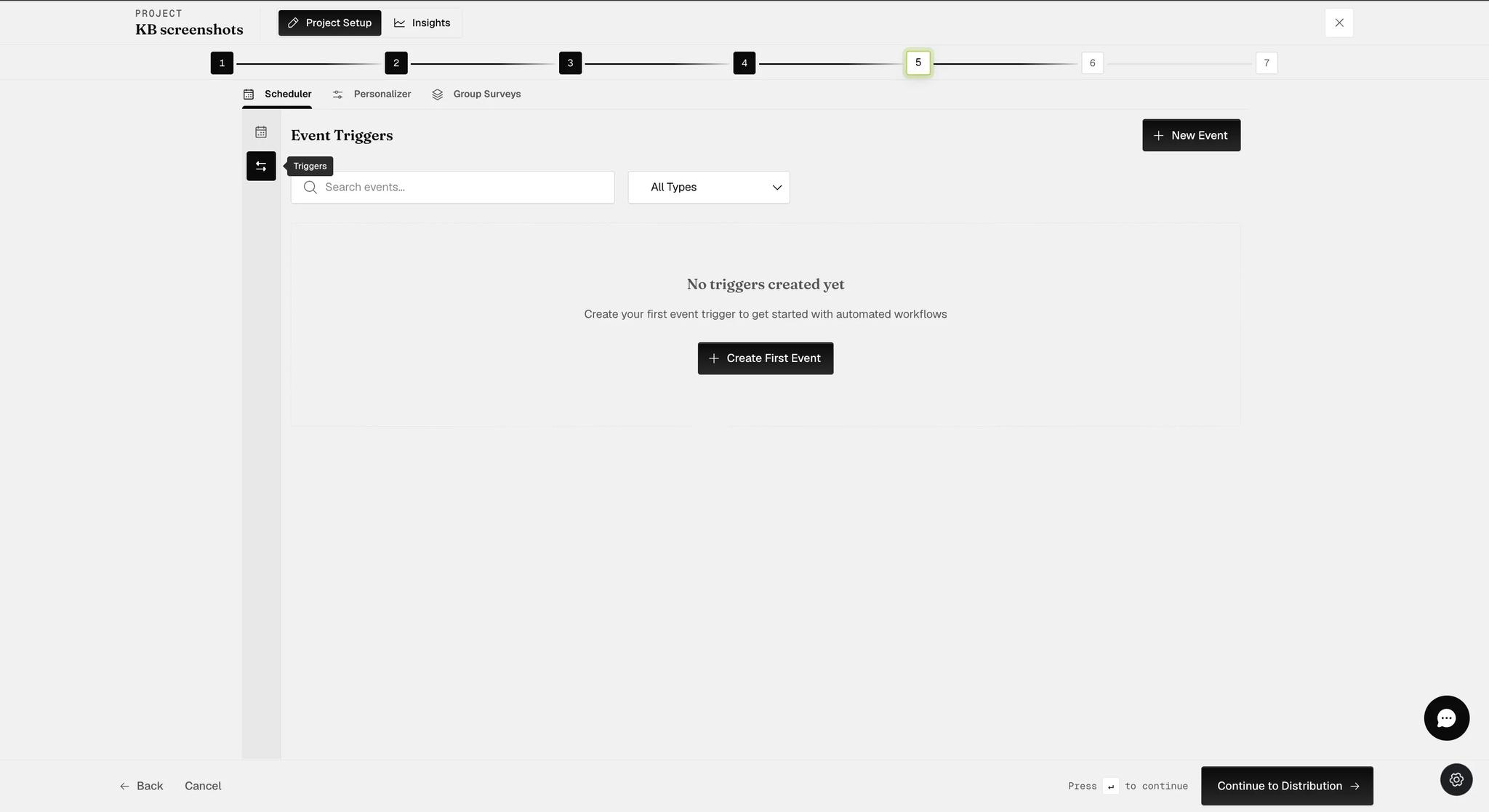
Step 4. Select New Event. Name it, then choose what the event watches for:
- Survey Submission — the participant sends a particular survey response.
- Schedule Edit — the participant changes their own survey schedule.
- Exiting Survey — the participant leaves a survey.
- Geolocation — the participant entering, leaving or staying inside a geofence. Setting one up has its own guide: GEMA and geofencing.
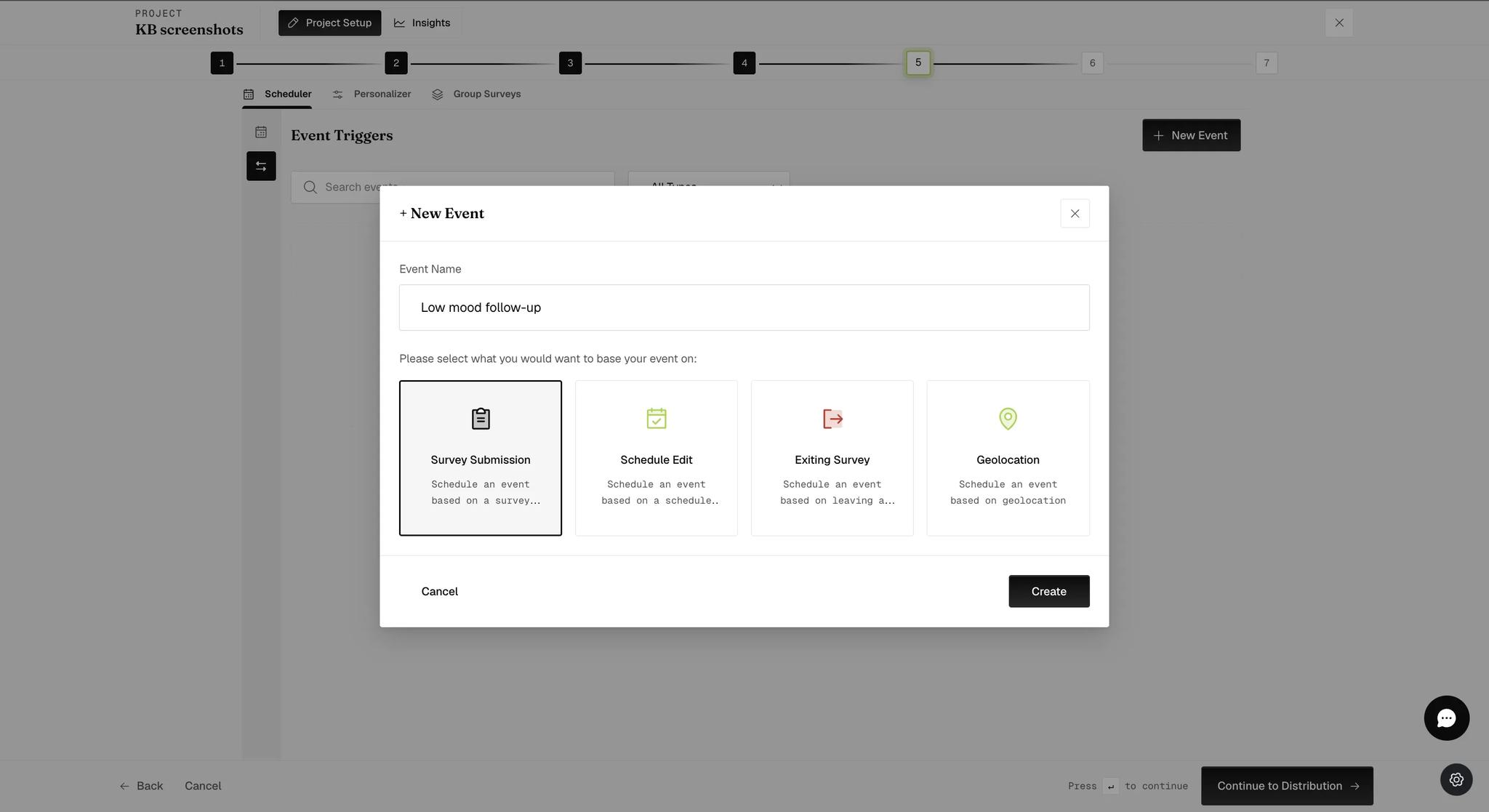
Step 5. The setup for a new series will be divided into three main sections: the primary event, the conditions, and the resulting triggered action.
- Survey Response is the survey the event watches. Pick the one whose answers decide whether the trigger fires.
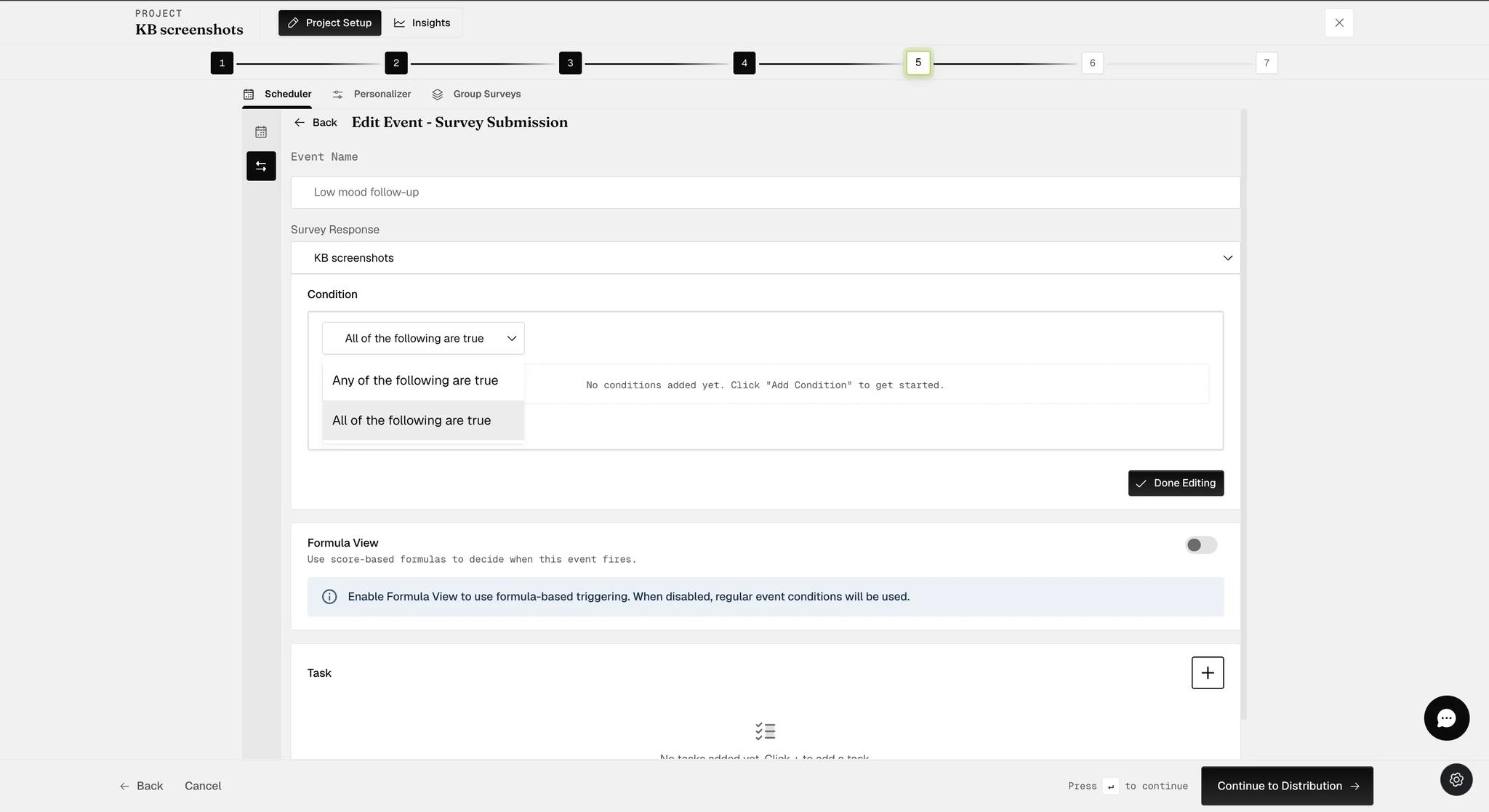
Three things live on this screen beyond the survey picker:
- Match logic — whether all of the conditions must be true or any one of them.
- Formula View — score-based triggering instead of plain conditions. That is its own guide: Email triggering based on response scoring.
- Task — what happens when the condition is met, covered below.
- A Condition narrows that down to the answer you are watching for. Click Add Condition and set its three parts: the question, the choice, and whether that choice Is Selected or Is Not Selected — so a trigger can fire on an answer being avoided as readily as on it being given.
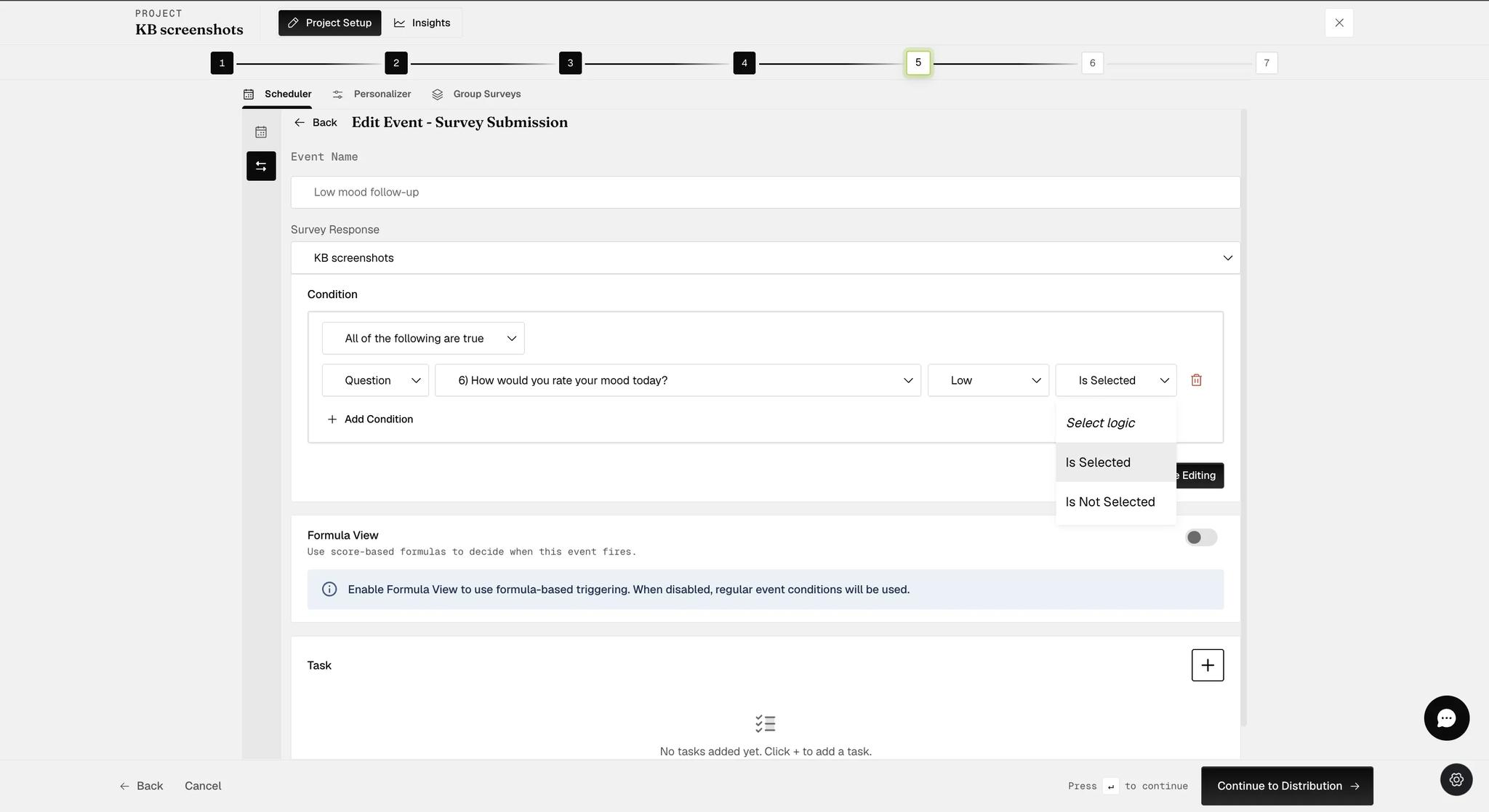
Only some question types can carry a condition, so the question dropdown lists fewer than the survey contains. If the one you want is missing, check its type in the survey builder.
Add as many conditions as you need — the match logic at the top of the section decides whether all of them must hold or any one is enough.
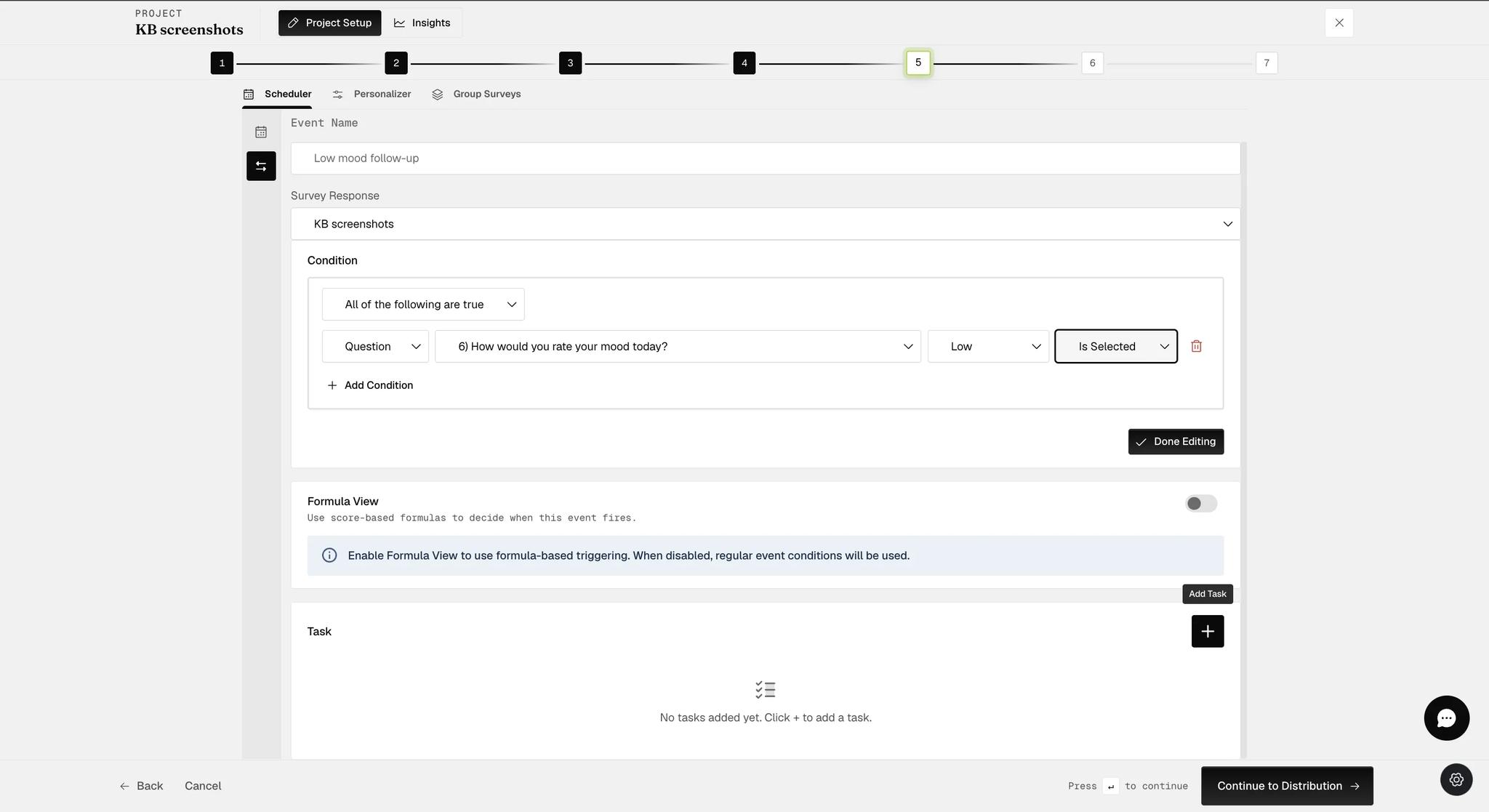
With the condition set, add the task it triggers. A pop-up offers four kinds:
Adjust Schedule adds, edits or deletes windows in the participant's schedule. It is the most flexible of the four: you can open a new survey window on a submission, remove one if they answer a particular way, or shift other surveys around a response — useful where the schedule follows a participant's own rhythm, such as their bedtime.
Schedule Notification sends a custom push notification. Good for a reminder when someone leaves a survey unfinished, or a confirmation when they complete one.
Send Email sends an email to an address you choose, based on a response or a submission.
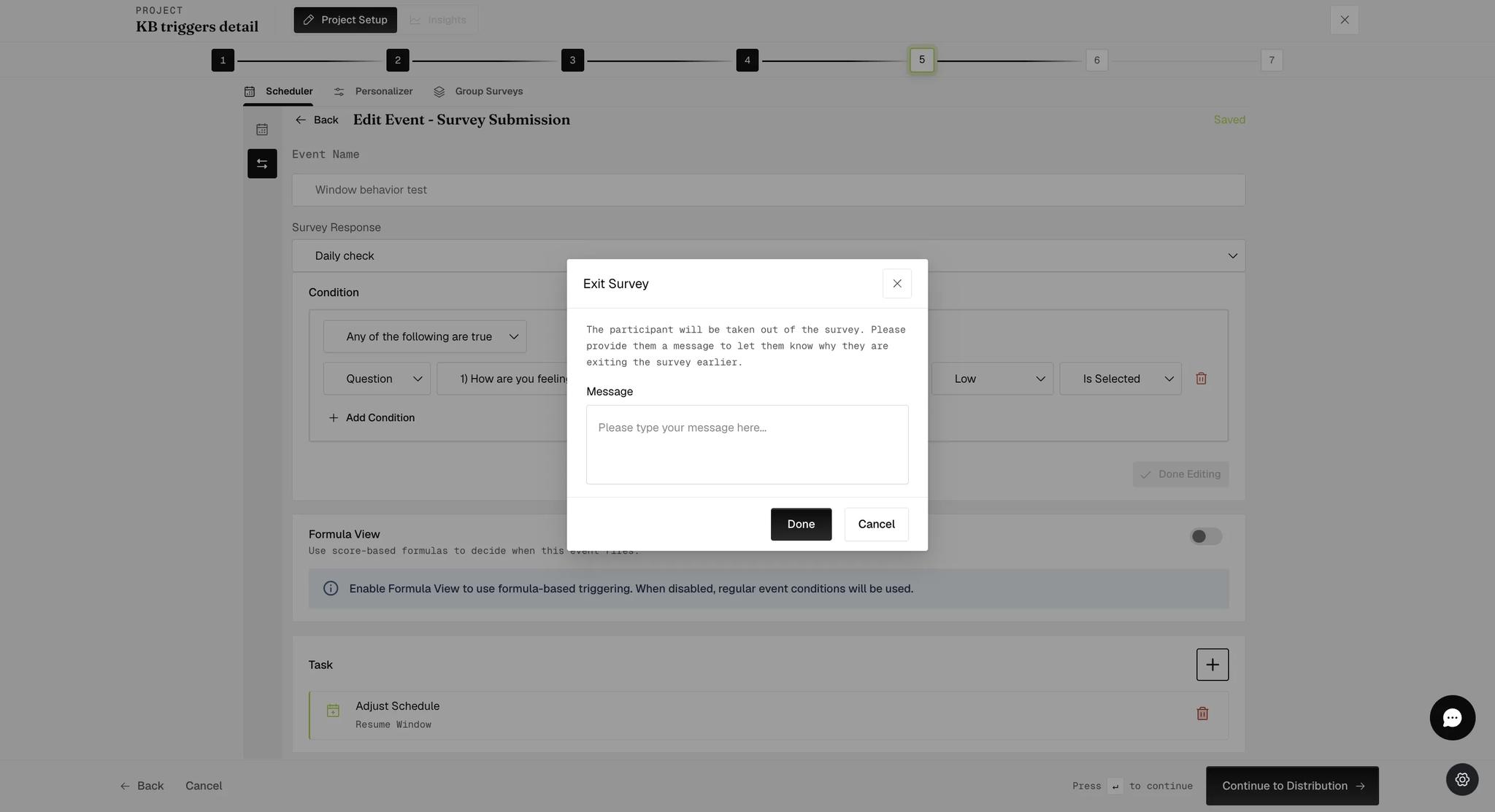
Exit Survey takes the participant out of the survey they are in, and requires a Message explaining why — the panel asks you to "provide them a message to let them know why they are exiting the survey earlier". It is an ejection with a reason attached, not a silent removal.
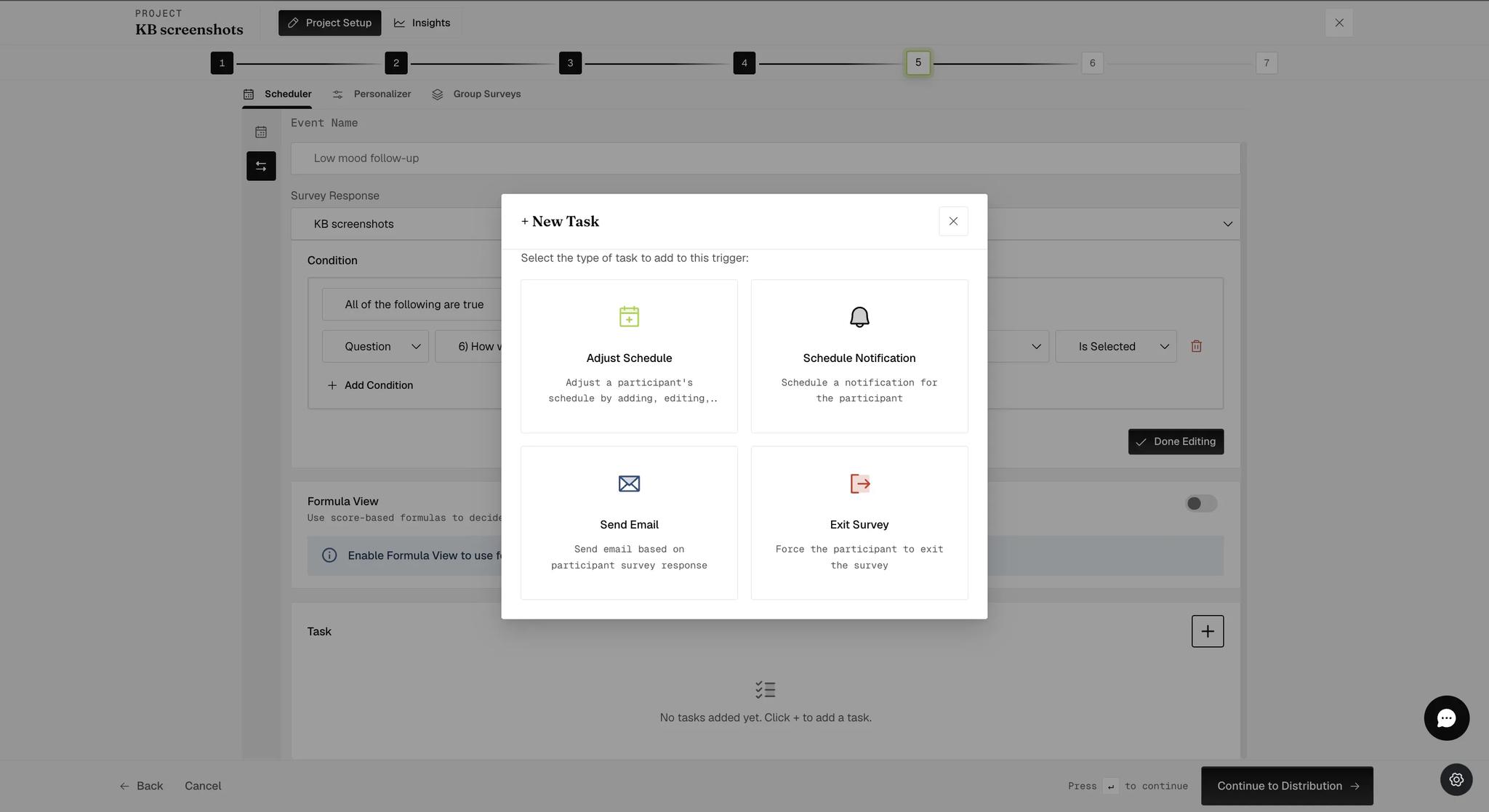
All four are offered to a Survey Submission event. The other event types get fewer. The pop-up simply shows what that event is allowed, so a task you used once may not be there the next time — see Which tasks each event type allows.
One condition can carry several tasks. A single response can schedule a survey, send a notification and email someone, all at once — each is listed under Task with a summary of what it does.
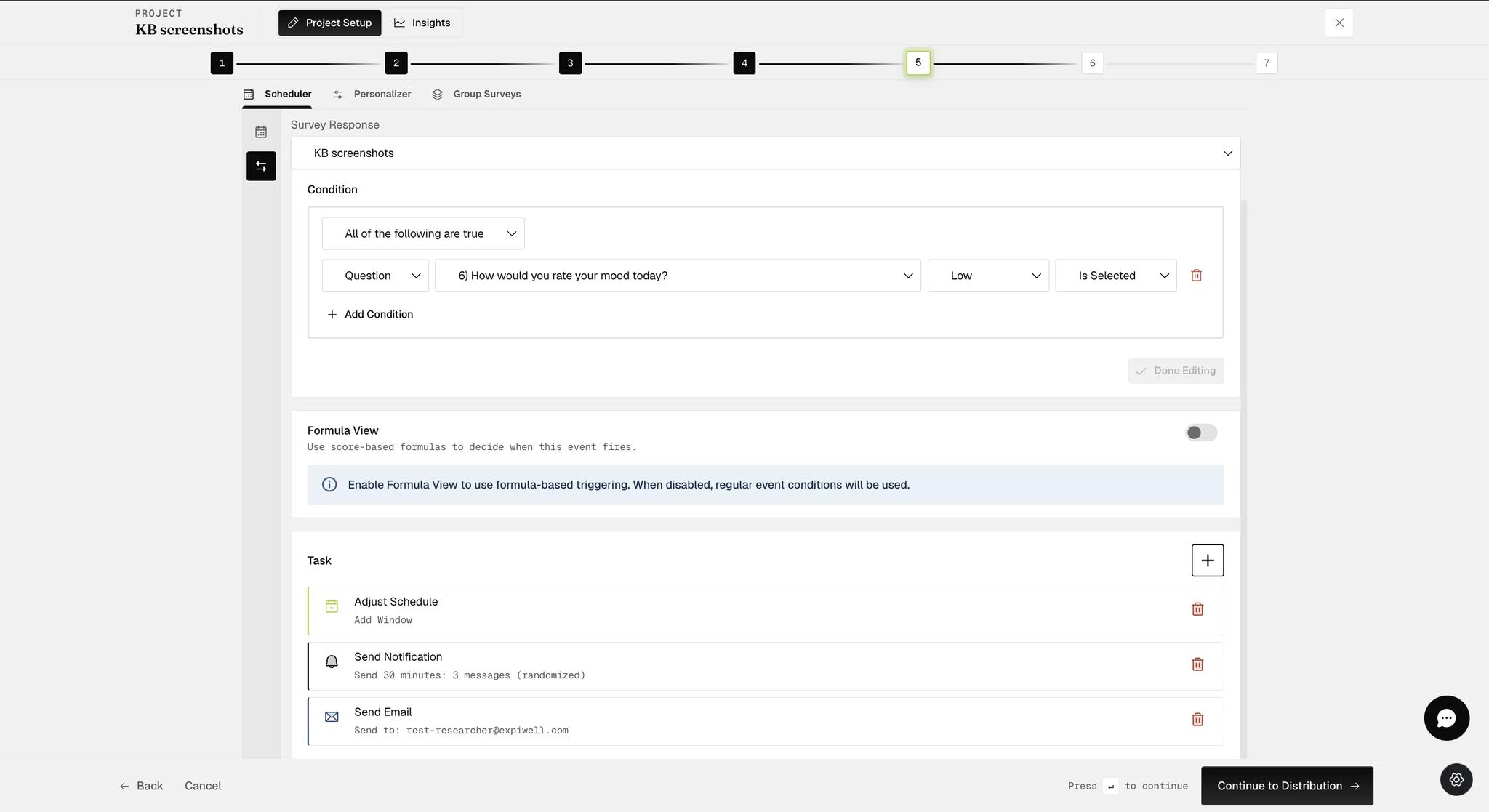
Done Editing grays out once everything is saved, not when something is wrong. Each task saves as you close its own modal, so by the time the last one is added there is nothing left for that button to do.
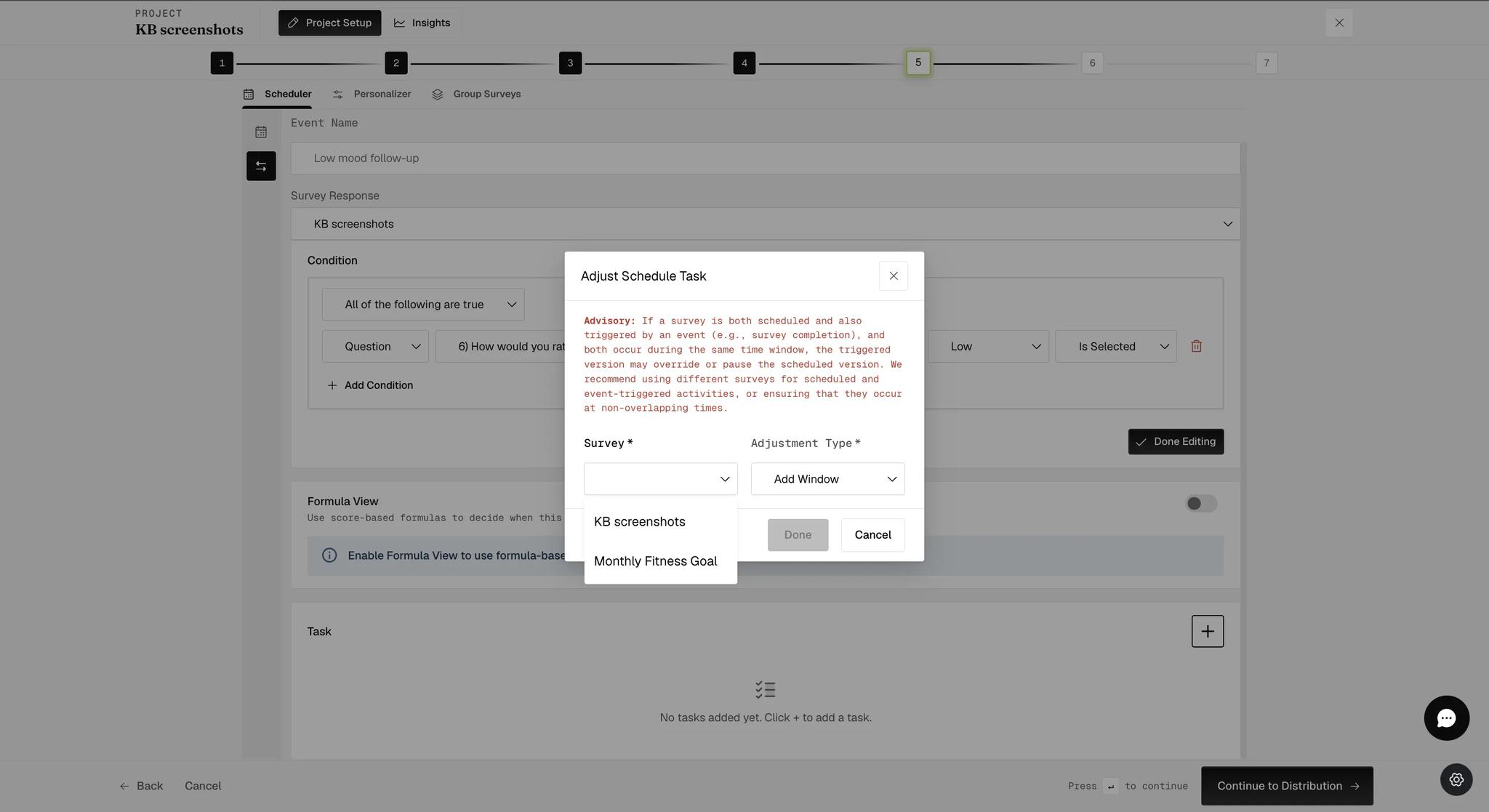
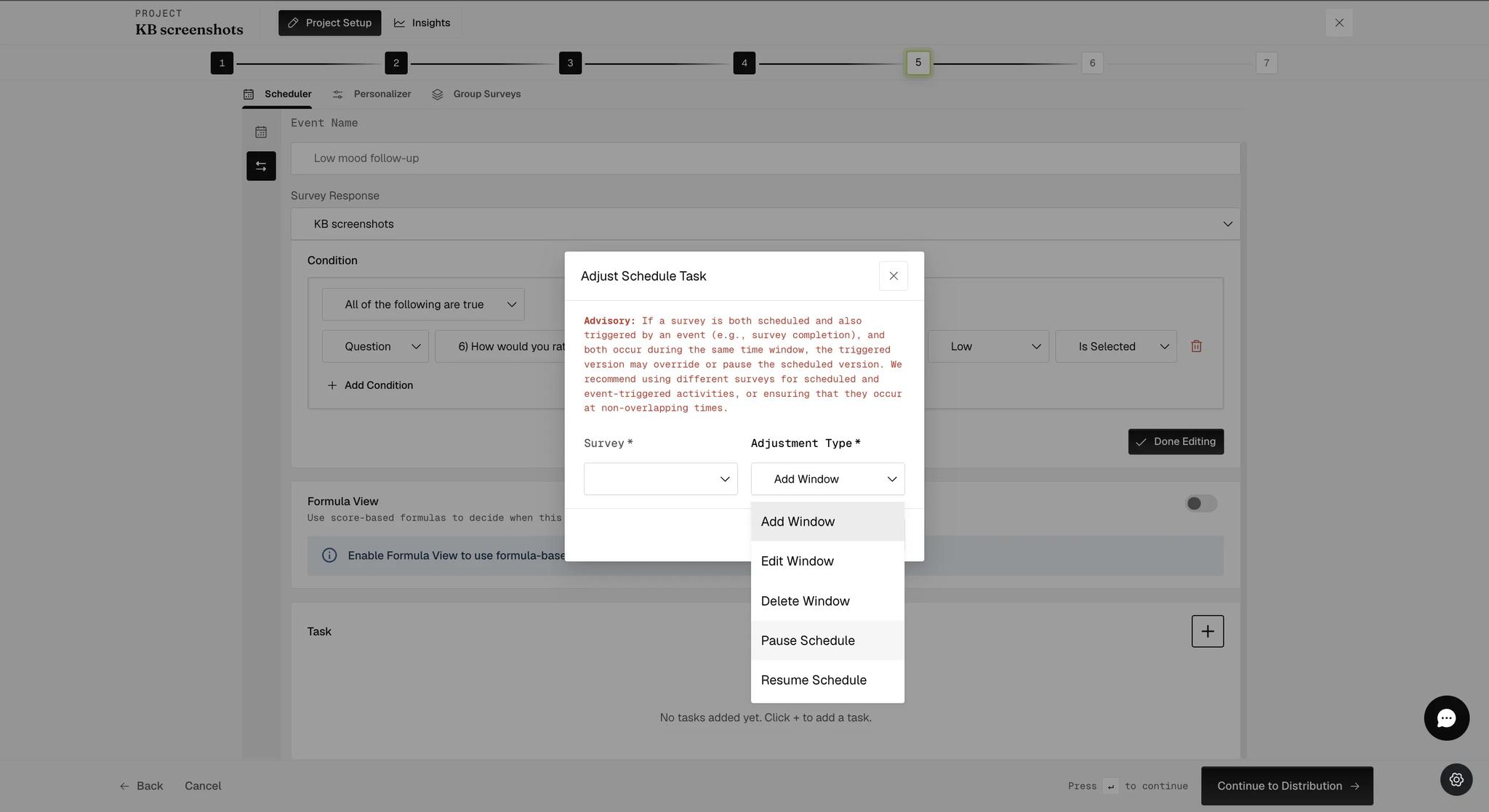
- Choosing Adjust Schedule opens its own panel. Pick the Survey the task acts on — it must already exist in Build Surveys — then an Adjustment Type:
- Add Window — open a new window for that survey.
- Edit Window — shift an existing window's start or end.
- Delete Window — remove that survey from a day, or from the rest of the study.
- Pause Schedule / Resume Schedule — suspend that survey's schedule and bring it back.
Pausing is offered at schedule level only — there is no Pause Window or Resume Window in this dropdown. To suppress a single window rather than all of them, use Pause overlapping surveys on an Add Window task instead — see Survey pause.
A saved task may not use the name you picked. Choose Resume Schedule and the task list summarizes it as "Adjust Schedule — Resume Window". It is the same task; only the wording differs between the dropdown and the summary. Go by the expression in the dropdown, not the label on the card.
Edit Window
Edit Window does not let you drag a window to a new time. It offsets one, and it is built from three fields:
- Reference Point — Start of Window or End of Window, the edge you are moving.
- When to Offset — Before or After that point.
- Offset Amount — how many minutes.
So the four combinations are: start earlier, start later, end earlier, end later. Moving the start later without touching the end shortens the window; moving it earlier lengthens it.
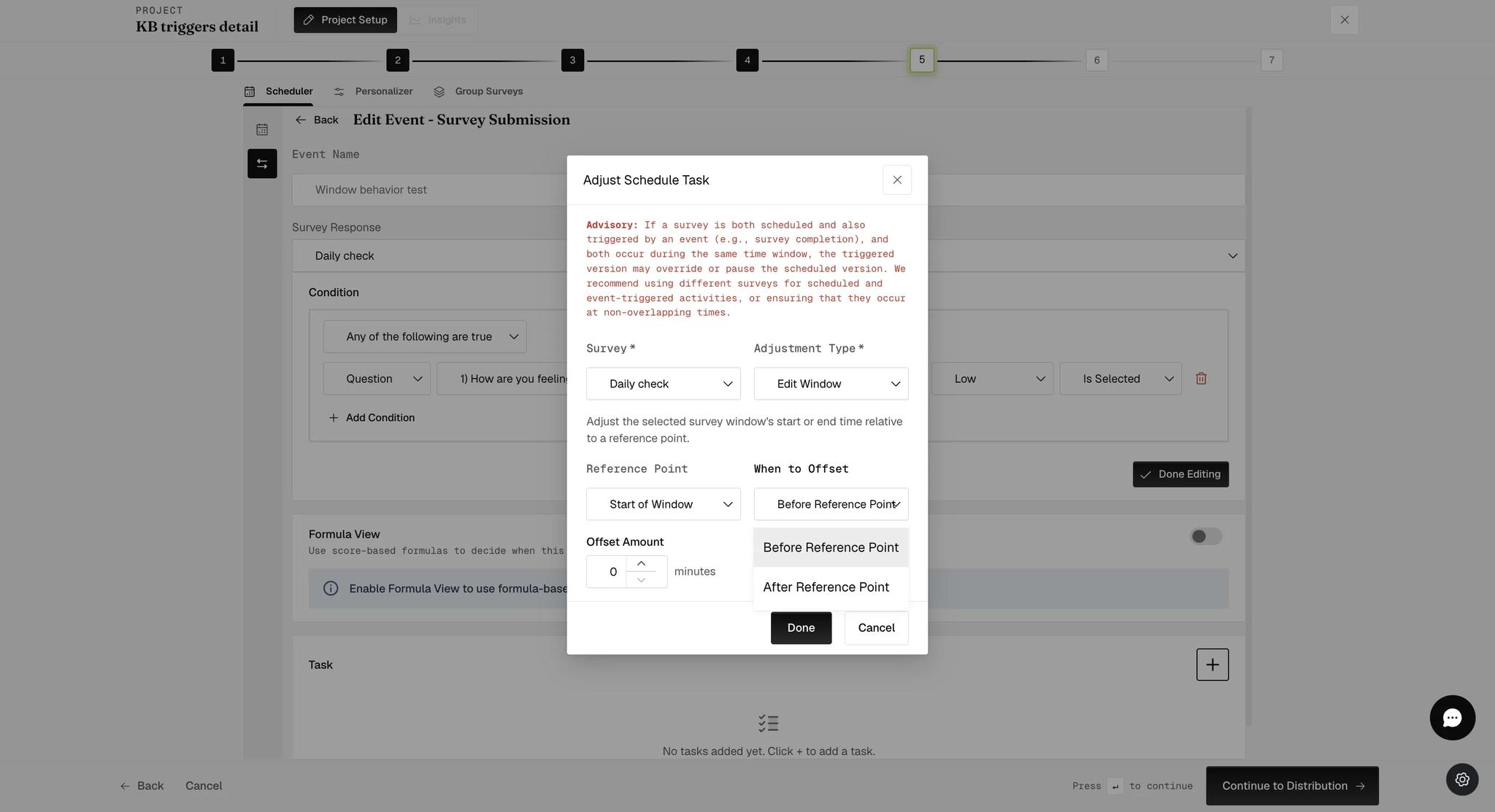
There is no control for which window. You pick a survey, and if the participant has several windows of it the panel gives you no way to say which one the offset applies to.
Delete Window
A When setting decides the reach: Same Day, Next Day, or Entire Schedule.
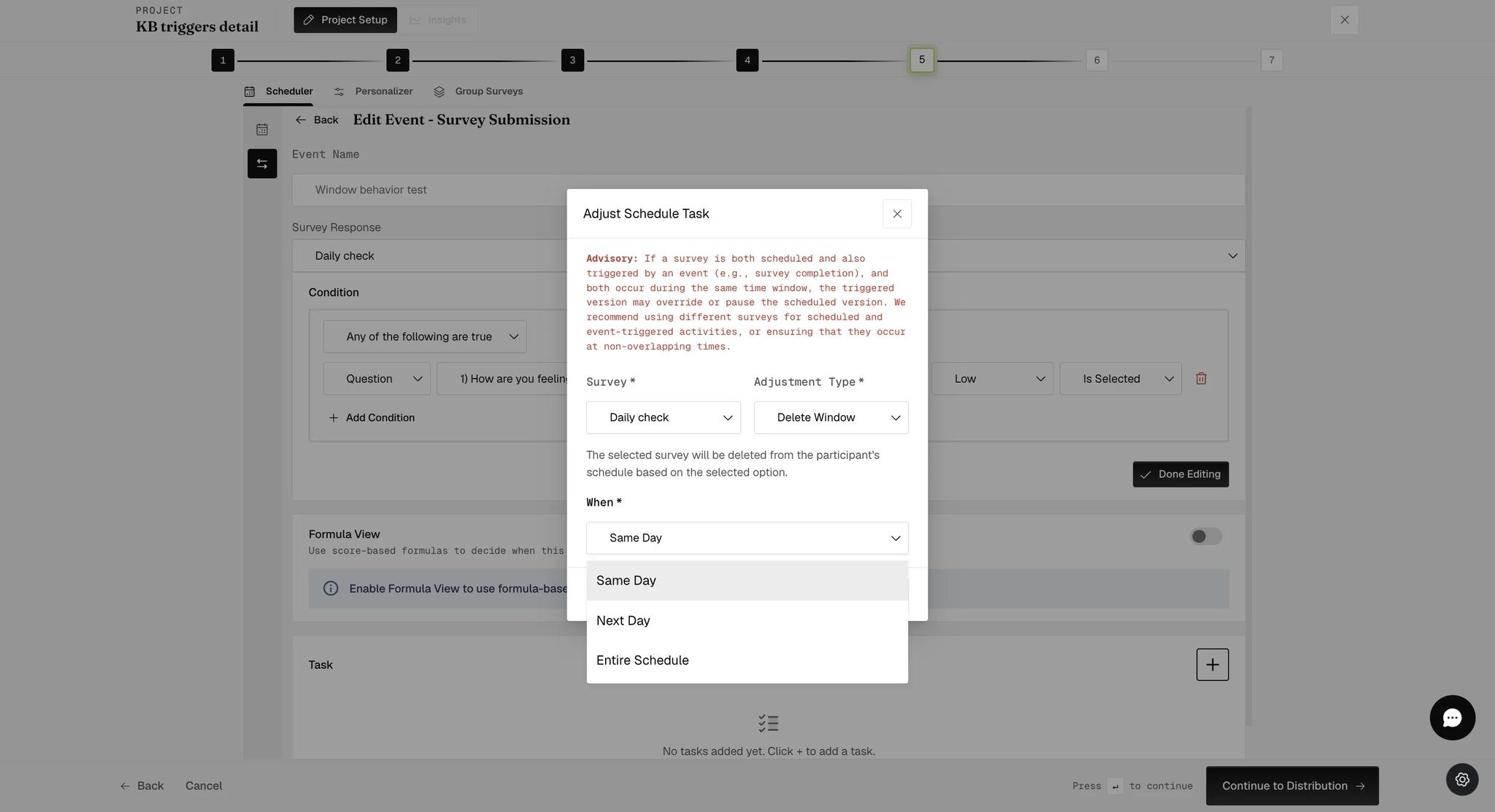
This works per day, not per window — a day holding three windows of that survey loses all three. And Entire Schedule removes the survey from the rest of the participant's study, not just from one day. Neither is undone by anything else on this screen.
Pause Schedule and Resume Schedule
Both carry the same When options — Same Day, Next Day, Entire Schedule — and both act on the survey you selected, not on everything the participant has.
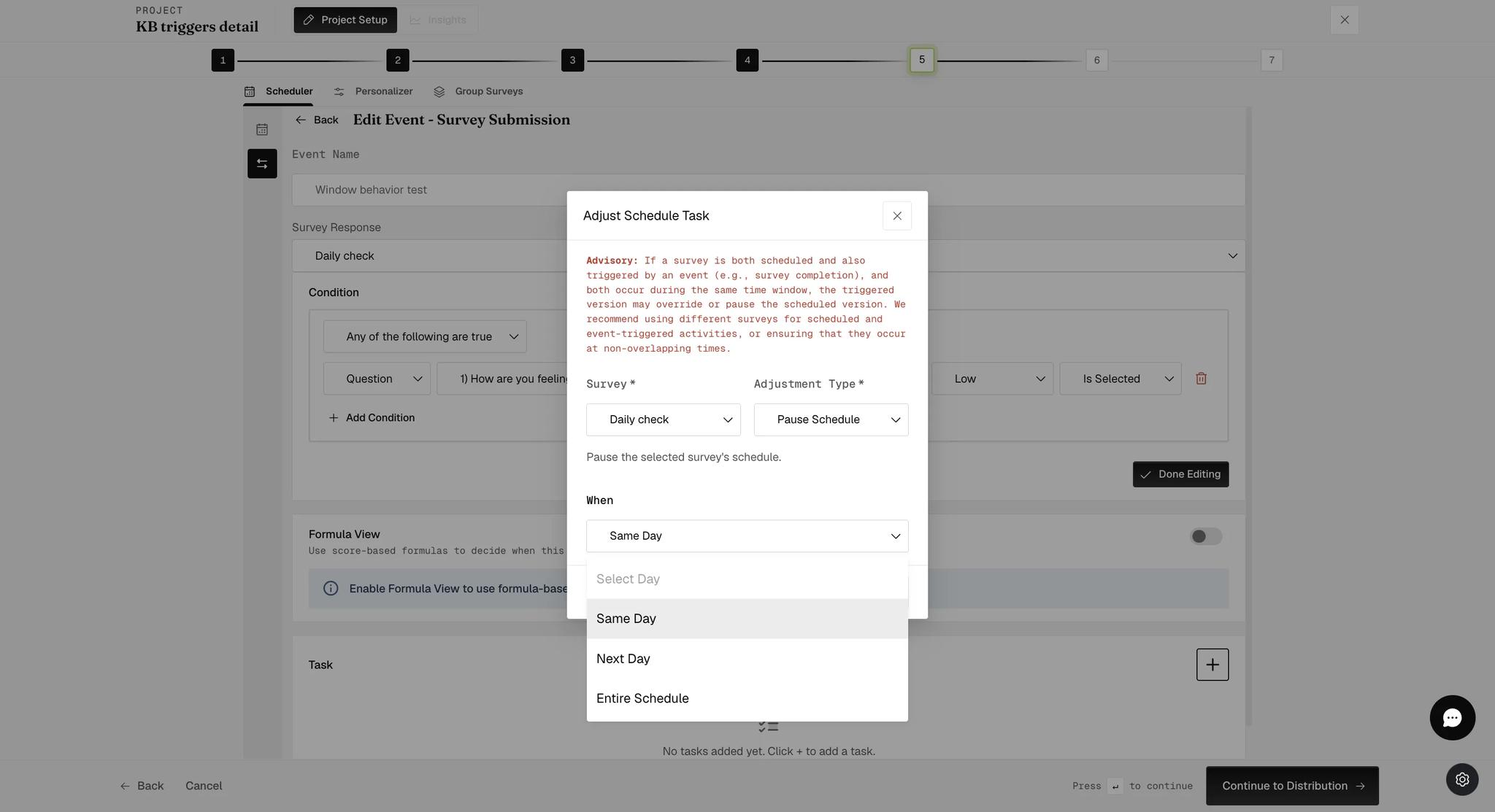
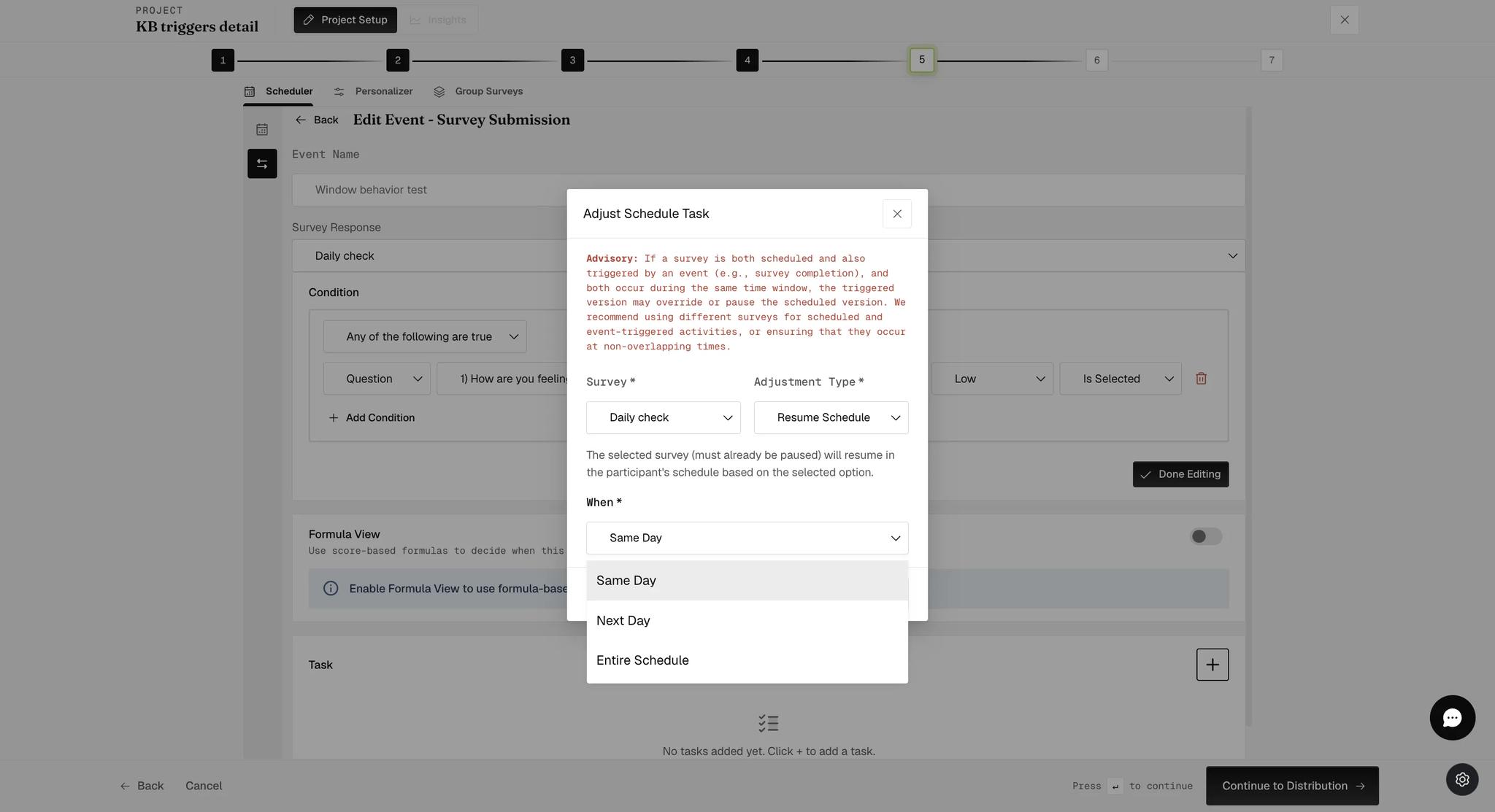
Resume only works on something already paused — the panel says so: "The selected survey (must already be paused) will resume." An event that resumes without a matching pause does nothing at all, so the two are designed as a pair.
Then set when the window should fall. Two dropdowns do that, and between them they decide whether the window is pinned to the clock or to the participant's own moment.
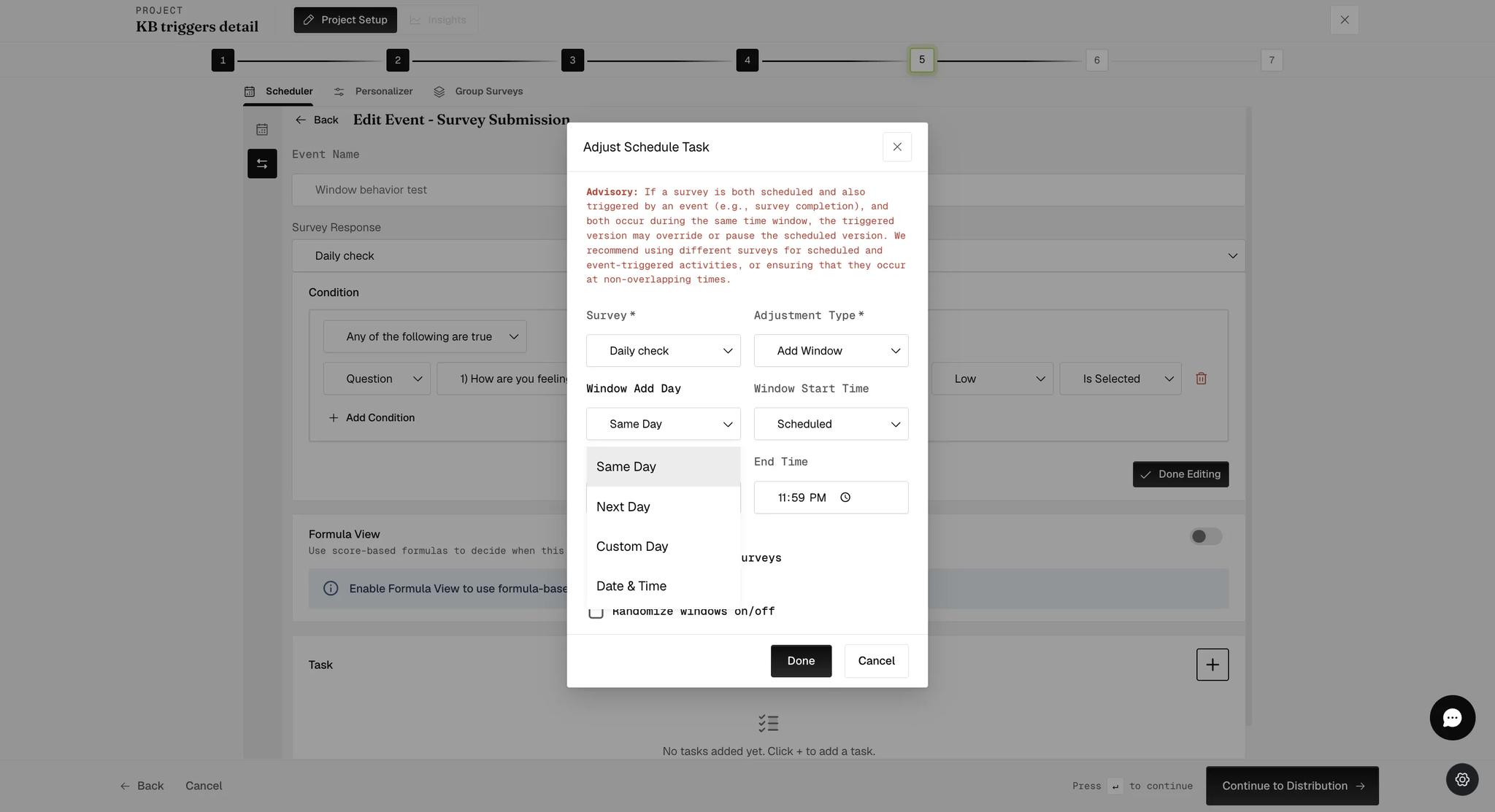
Window Add Day picks which day it lands on:
- Same Day — the day the condition was met.
- Next Day — the day after.
- Custom Day — a run of days counted from the condition, set with two steppers.
- Date & Time — a moment the participant themselves supplied, read from a date question.
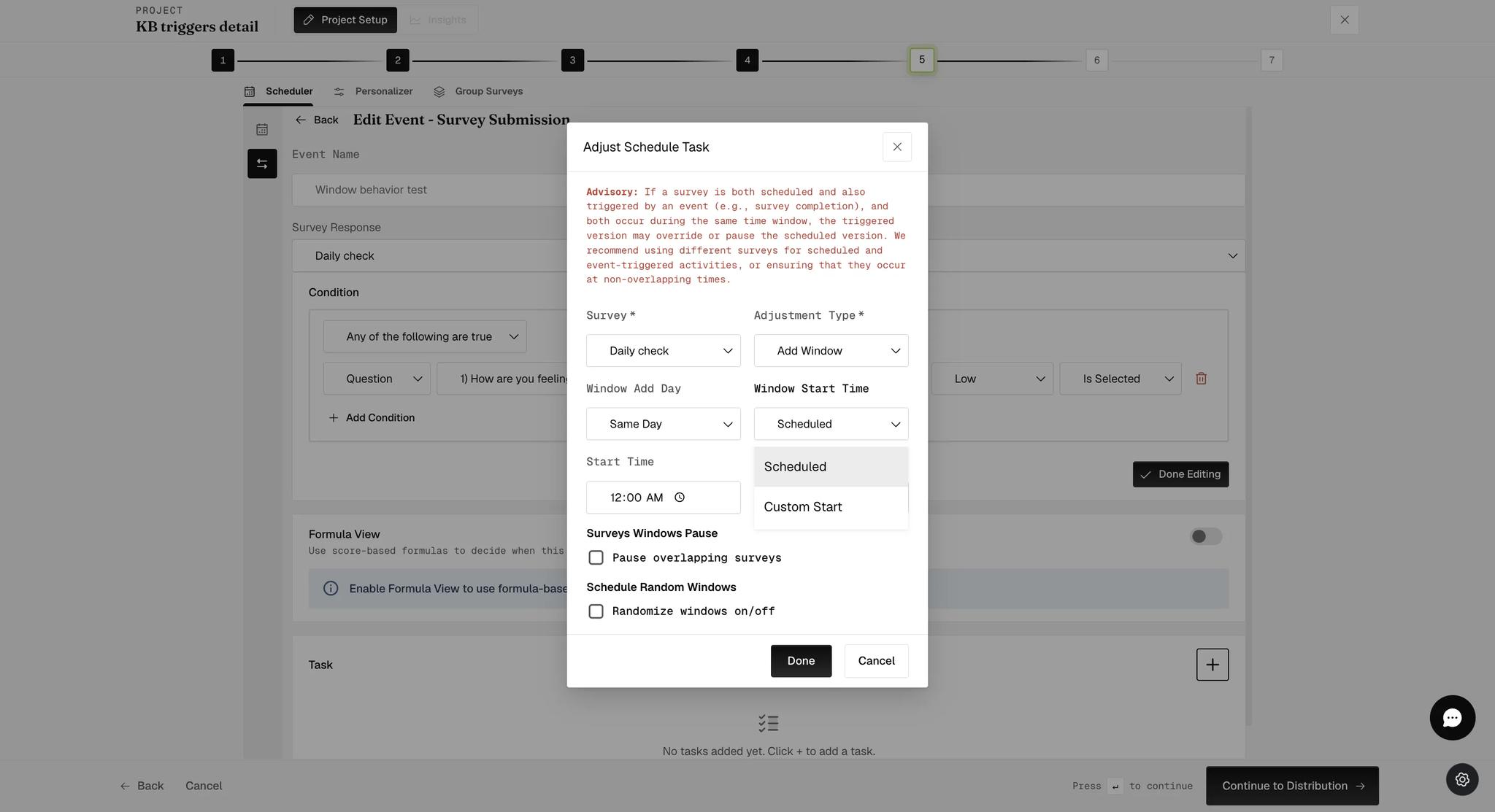
Window Start Time then decides what the two time fields beneath it mean:
- Scheduled — they are clock times. Start Time 12:00 AM to End Time 11:59 PM is a window that opens and closes at those hours.
- Custom Start — they become offsets. Start Time is counted in "minutes after condition is met", End Time in "minutes after start time".
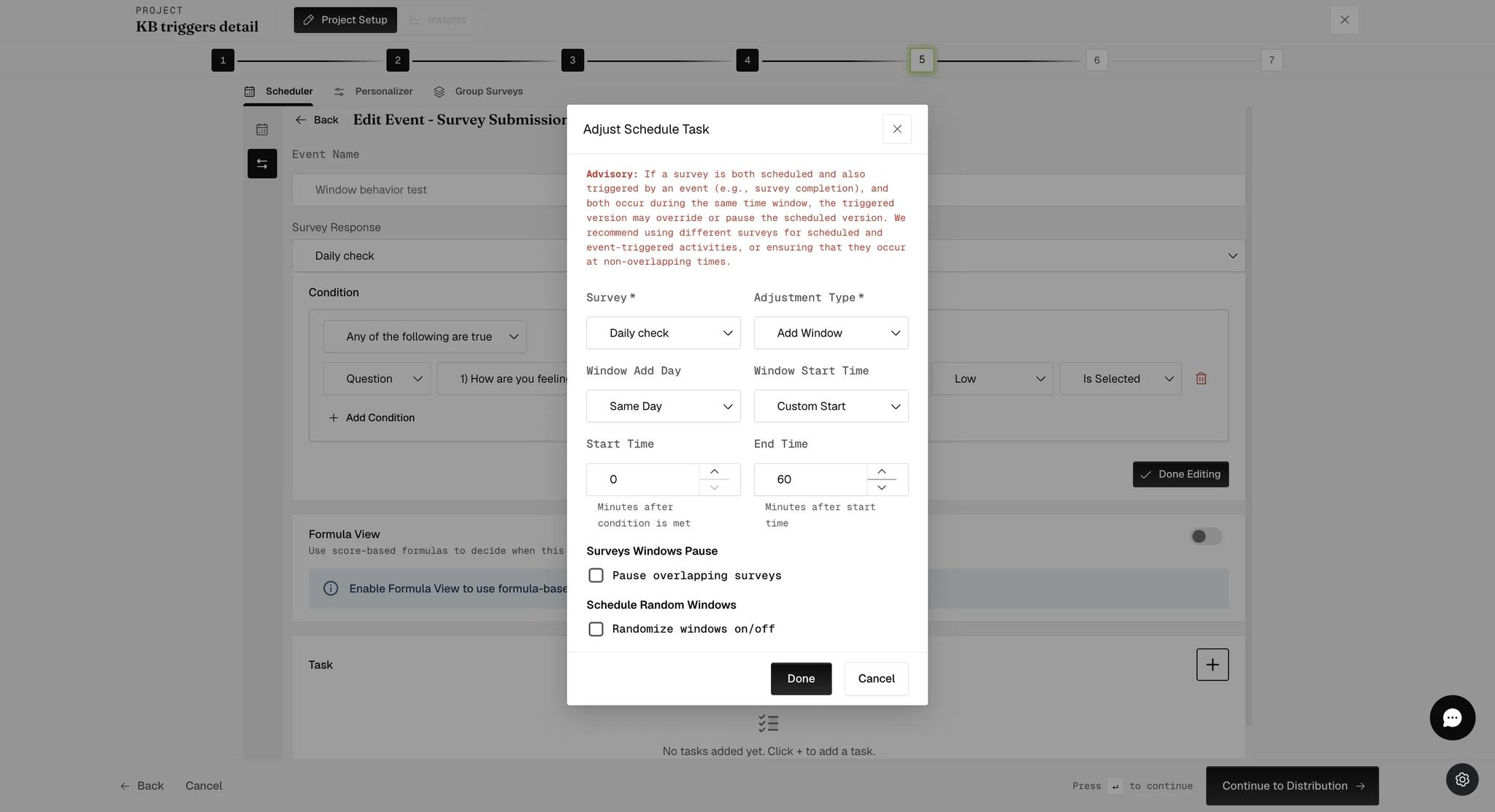
This is the difference between "open at 2pm" and "open thirty minutes after they answer". Custom Start is what makes a follow-up track the participant's own moment, and it is the setting behind the relative windows described in Survey pause.
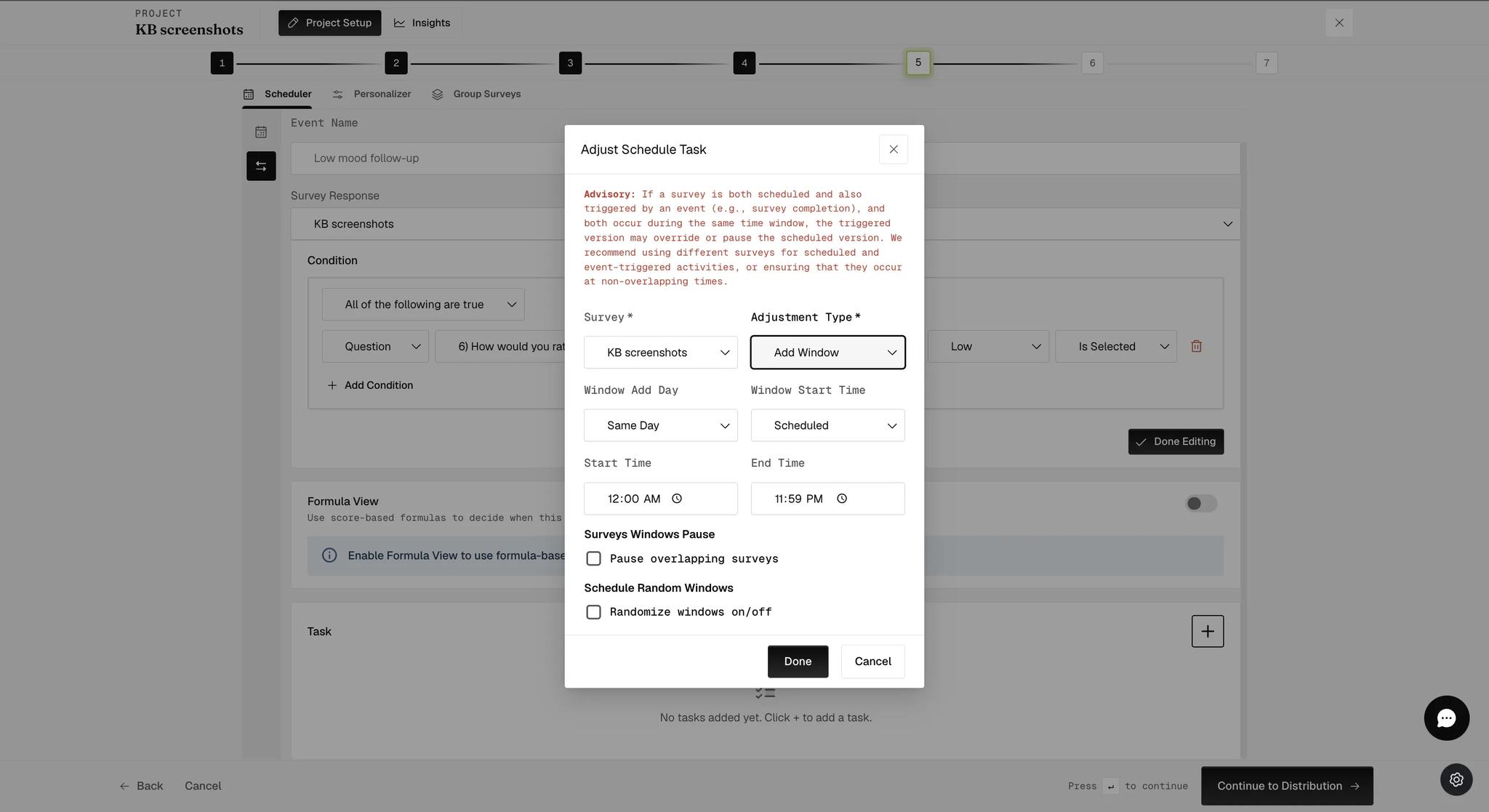
Two settings sit under the timing:
- Pause overlapping surveys suppresses any scheduled survey whose window clashes with this one — see Survey pause.
- Schedule Random Windows scatters the window rather than fixing it, in the same way a signal-contingent schedule does. See Triggering Multiple Surveys within a Period of Time for its settings.
The panel carries an advisory worth heeding: if a survey is both scheduled and triggered, and the two windows overlap, the triggered version may override or pause the scheduled one. Use different surveys for scheduled and triggered activity, or keep their windows apart. See Survey pause for the setting that governs this deliberately.
Pick the same survey the event is watching, and ExpiWell says so outright, because it is a configuration that cannot work as written:
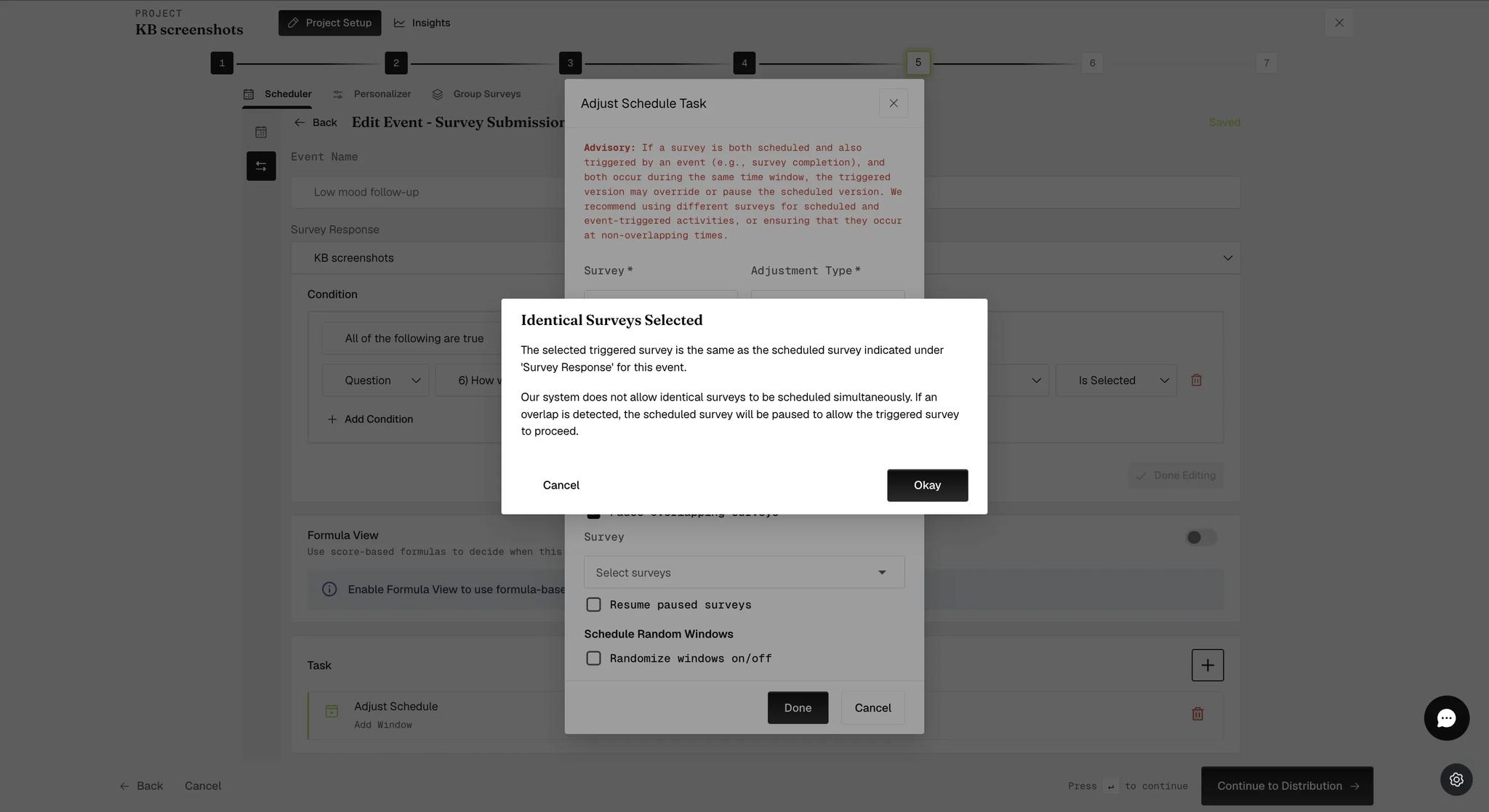
It does not block you, and it says what it will do instead: "If an overlap is detected, the scheduled survey will be paused to allow the triggered survey to proceed." A survey cannot end up competing with itself.
Which tasks each event type allows
The four task types are not available everywhere. Each event type permits a different subset, and the New Task pop-up shows only what that event allows — with no explanation of what is missing.
| Event type | Adjust Schedule | Schedule Notification | Send Email | Exit Survey |
|---|---|---|---|---|
| Survey Submission | Yes | Yes | Yes | Yes |
| Schedule Edit | Yes | Yes | — | — |
| Exiting Survey | — | Yes | — | — |
Survey Submission is the only one with the full set, which is why it carries most of this guide.
Schedule Edit drops the email and the exit, keeping the two that act on the participant's schedule. Its Adjust Schedule task is identical to the one described above — same five adjustment types, same timing options.
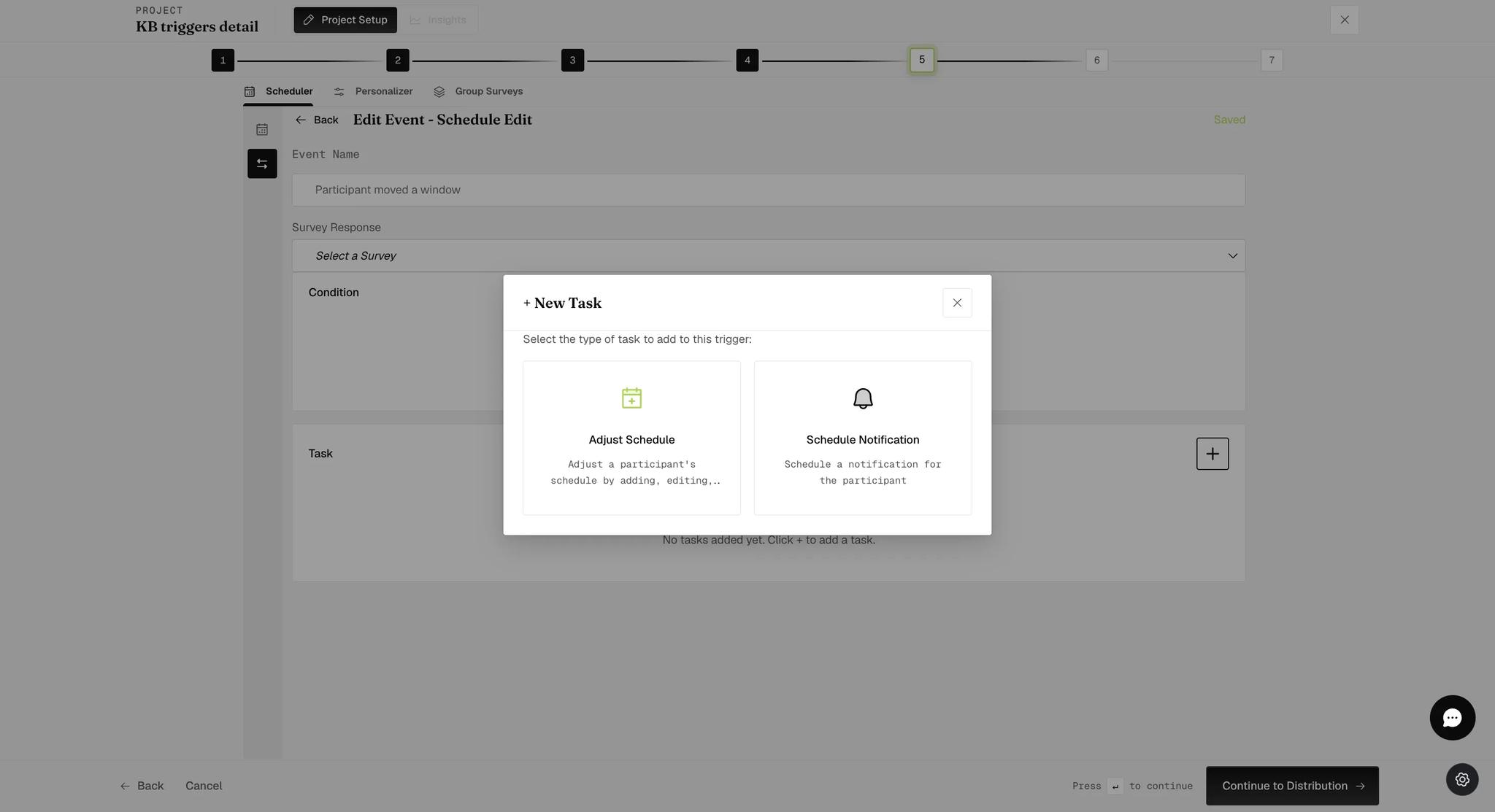
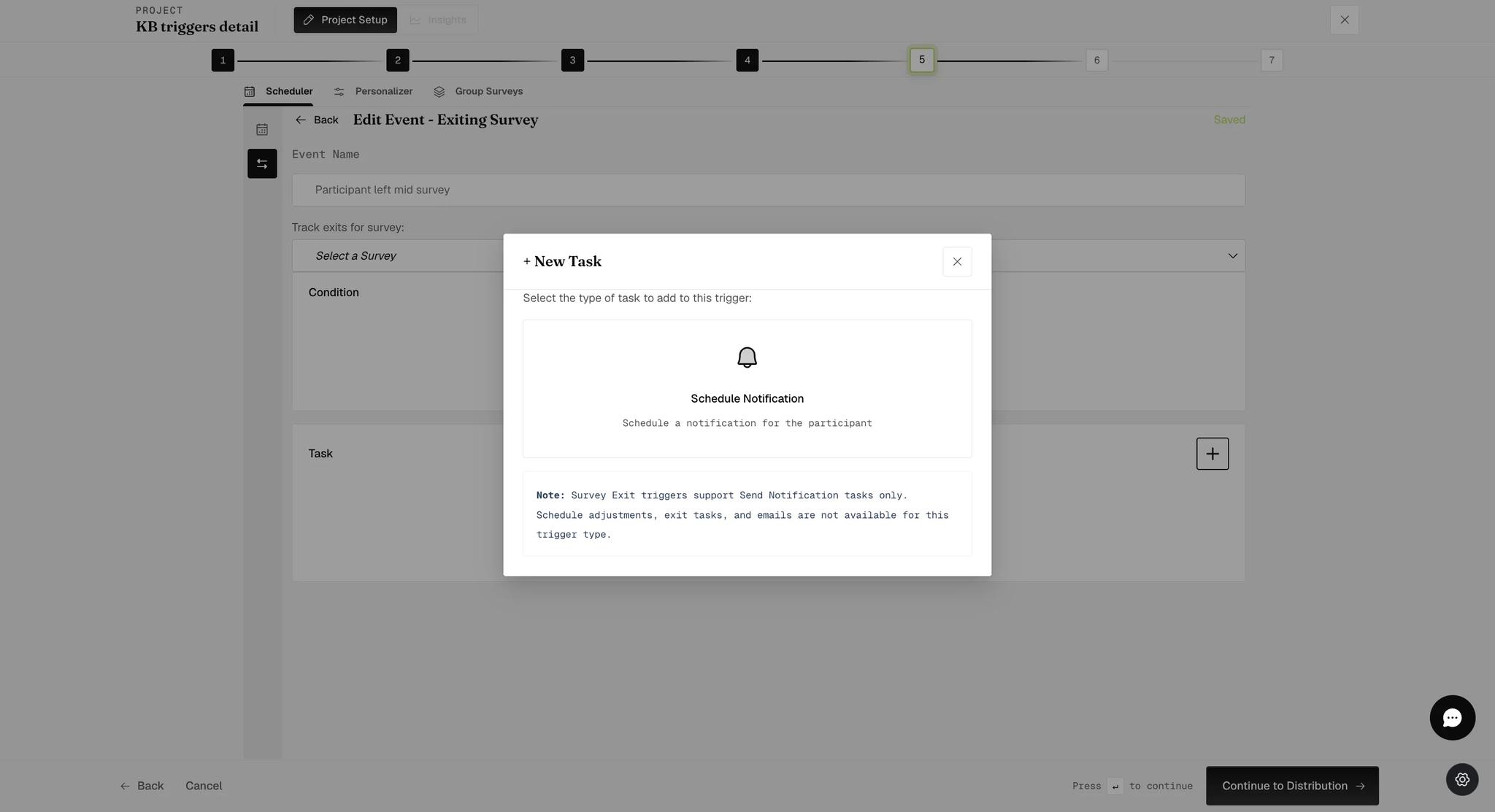
Exiting Survey allows one task only, and says so outright: "Survey Exit triggers support Send Notification tasks only. Schedule adjustments, exit tasks, and emails are not available for this trigger type."
Geolocation is not in the table because it does not work this way at all. It opens a map rather than an event editor, and its tasks attach to geofenced areas instead of to the event — see GEMA and geofencing.
Events That Watch Something Other Than a Submission
Everything above is written around Survey Submission, but the editor it describes is shared. Two more event types use the same screen — a survey picker, a condition, a task — and differ only in what they watch for.
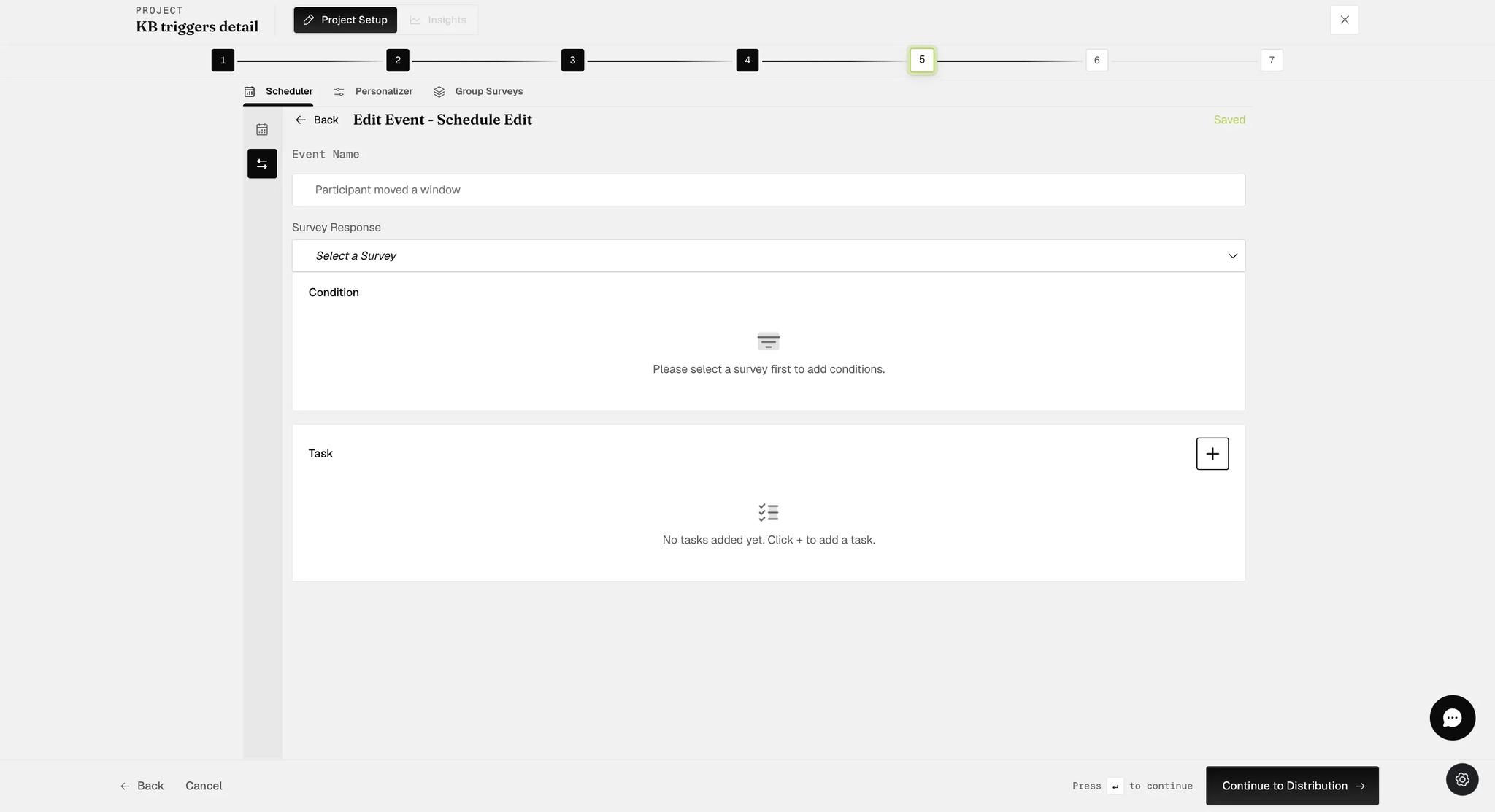
Schedule Edit
Fires when a participant changes their own schedule — which is only possible if you have given them that power through the Personalizer. Without it, nothing can trigger this event.
The editor is the Survey Submission editor: a survey picker, a condition built from that survey's questions, and a task.
Exiting Survey
Fires when a participant abandons a survey before completing it. The creation dialog defines it: "Survey Exit triggers fire when a participant exits a survey before completing it. You can send notifications about the early exit."
Its survey picker is labeled Track exits for survey: rather than Survey Response, but it behaves the same.
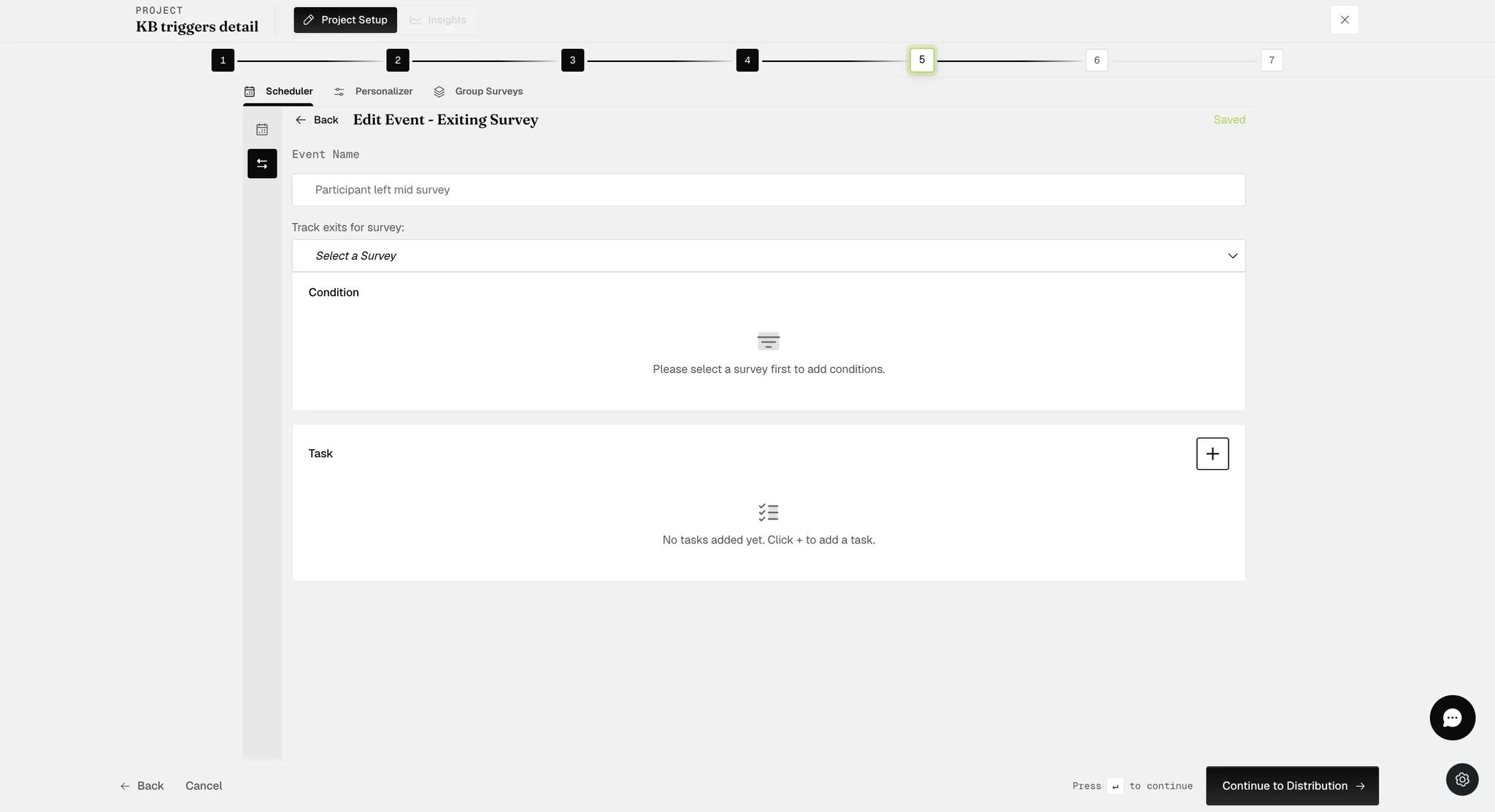
Conditions here still read the survey's questions, so they test answers the participant gave before leaving. A condition on a question they never reached cannot match, which makes early questions the only useful ones to condition on.
Step 6. After setting up all event-triggering series, select the top icon from the vertical menu on the left. Review the basic schedule (note: no changes will be seen here) and proceed to the Distribution and Review steps to complete the project setup.
Mobile View of Triggered Surveys
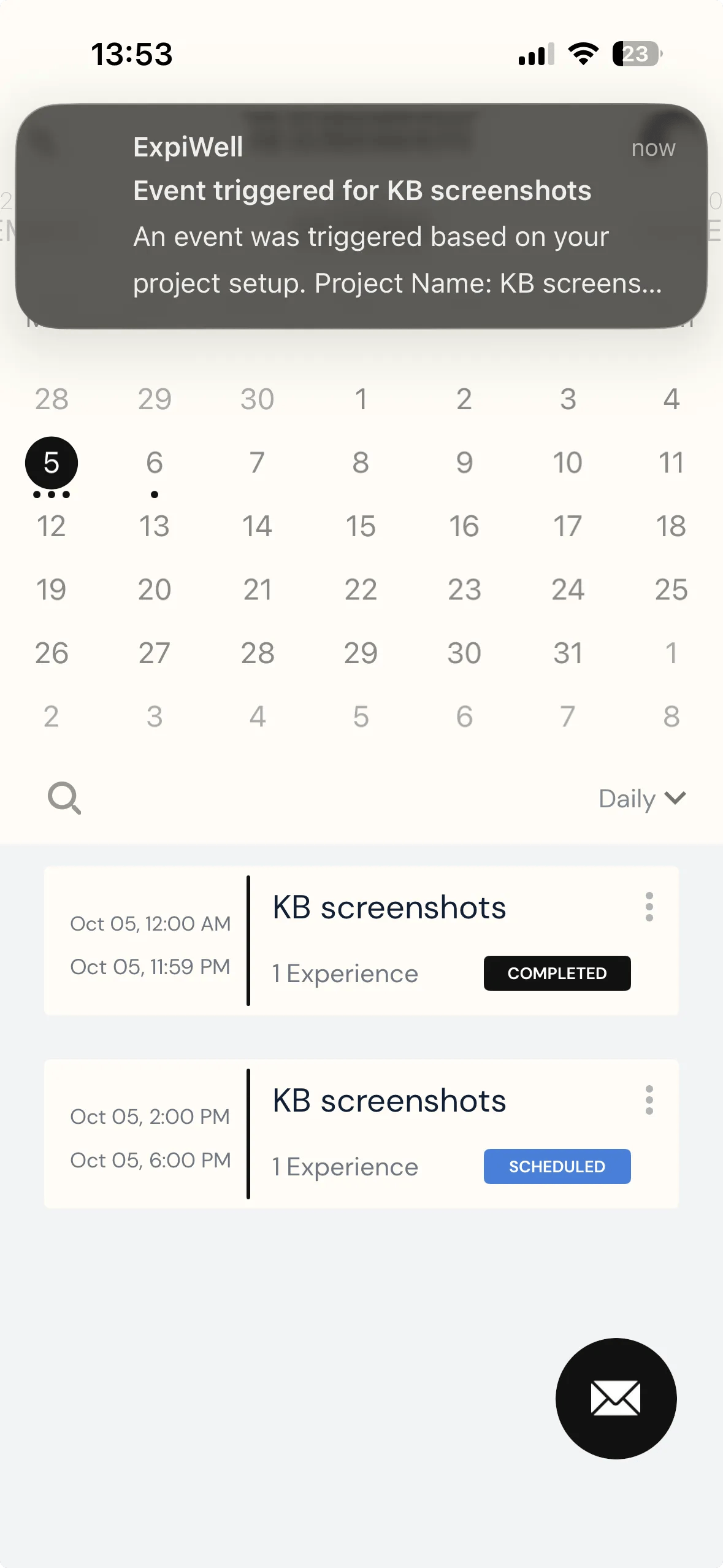
The event above watches a survey for a Low mood answer, and its Adjust Schedule task opens a fresh 2:00 PM to 6:00 PM window when it sees one. Until that happens the participant's calendar holds only what you scheduled — a single all-day window, marked AVAILABLE.
Answering Low and submitting changes three things at once: the window they just answered turns COMPLETED, the 2:00 PM window appears beneath it although no researcher put it there, and a push notification arrives saying an event was triggered.
Both rows name the same survey group, because this task re-opens the same survey the event is watching — the configuration the Identical Surveys warning above describes. The participant sees two windows for one survey: the one they finished, and the one their answer created.
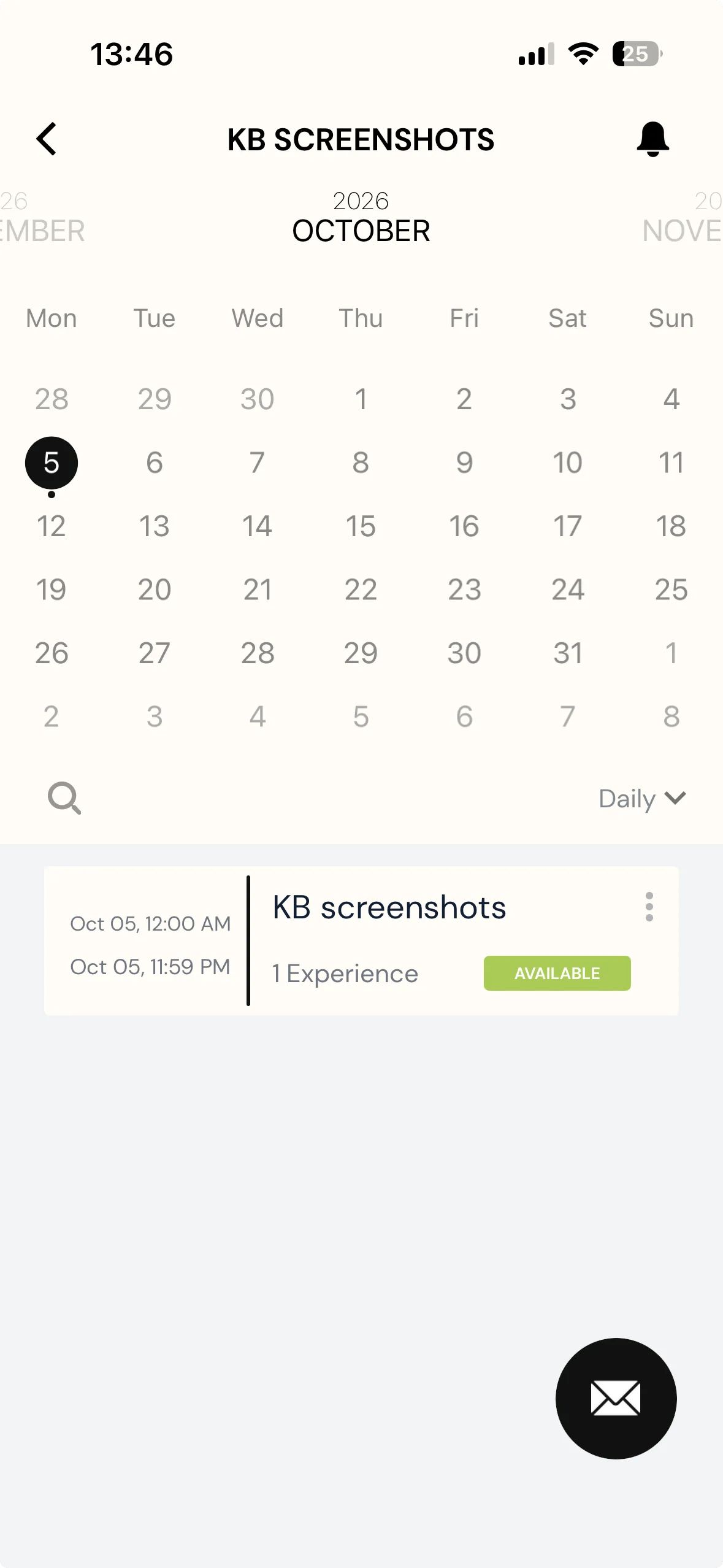
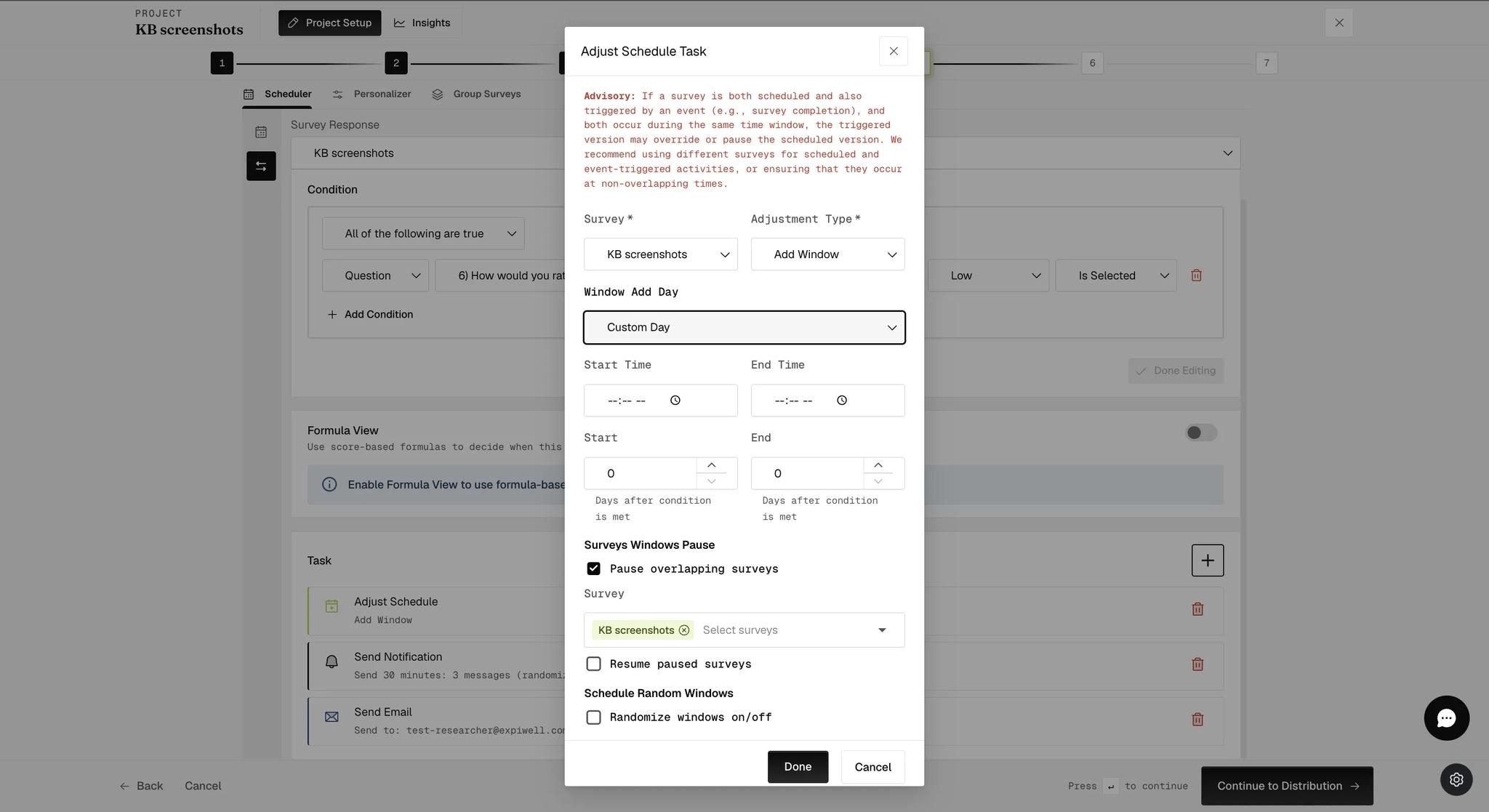
Custom Day replaces the single day with two steppers, each counting days after the condition is met. The first is the day the window opens, the second the day it stops — so a setting of 2 and 5 gives the participant that survey on each of days 3 through 6, counting the day the condition fired as day 1.
A run like that reaches the participant the same way the single window above did — the windows appear on their calendar on each of those days, dated, with no sign that they arrived from a trigger rather than from the schedule.
Setting up Event-Triggered Surveys based on Survey Submission Alone
If you require another survey to be triggered based on survey submission alone (without requiring any specific response choices to be submitted) and the triggered survey timing is fixed at a certain time of the day, you can schedule this using 1) a method similar to the example setup mentioned in the above section (without specifying any conditions), or 2) directly on the 'Schedule' page, which will be described below.
In the example below, the afternoon 'Pain' survey should only be triggered and displayed to participants after they have completed the morning survey. Schedule both the morning and afternoon slots on the Schedule page, then switch on Enable Survey Triggering. A Survey Triggering section appears in the panel on the right.
Click the window you want to gate, and scroll to the bottom of its SURVEY tab. Below Delete there is a Survey Triggering section with a Select Trigger Survey dropdown — pick the survey that must be completed first, and this one stays hidden until it is.
The dropdown identifies each candidate by survey, day and window, so two windows of the same survey on different days are distinguishable.
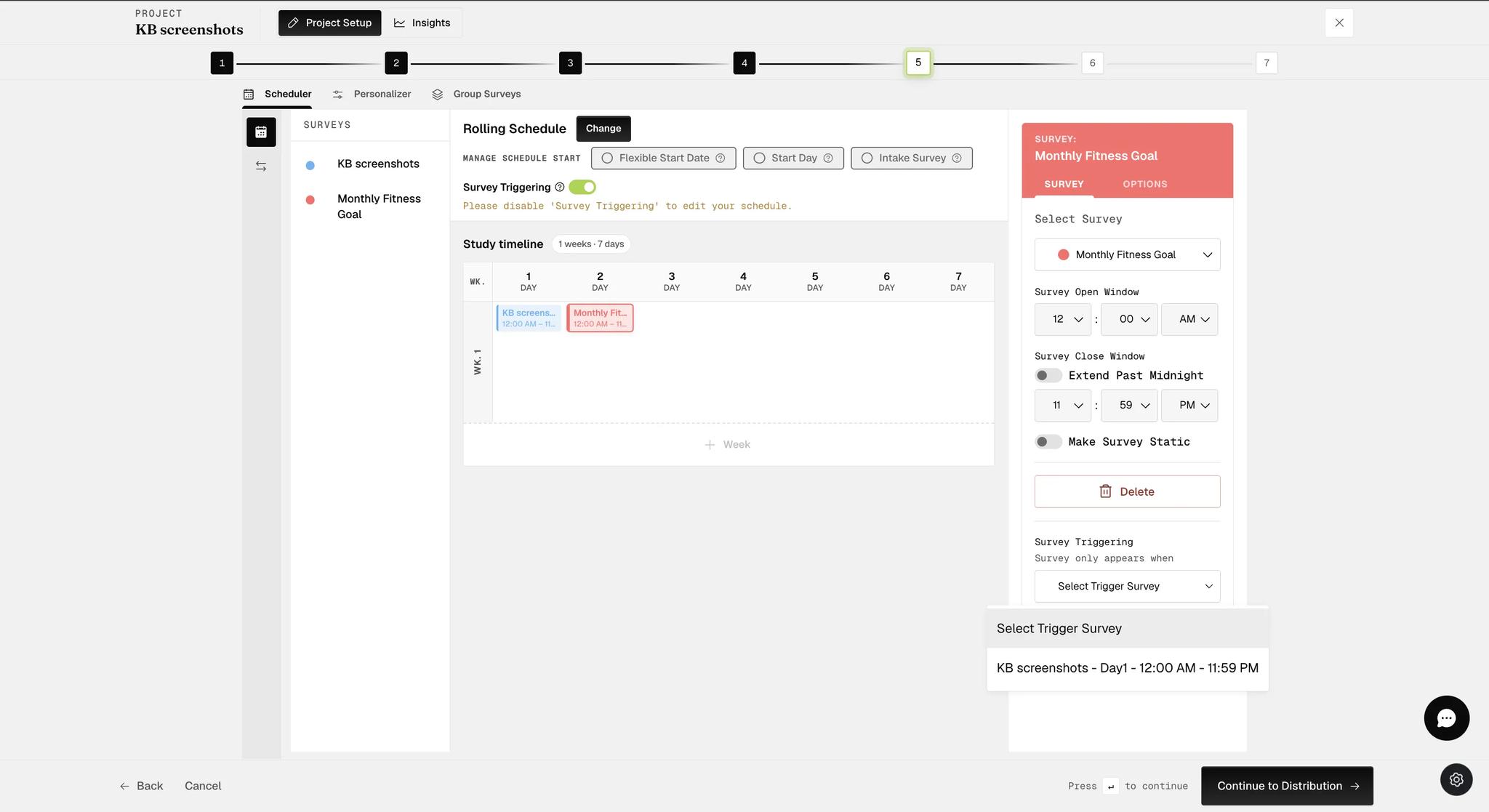
Repeat for the remaining afternoon surveys, picking each day's morning survey as the one that unlocks it.
This works across surveys and across days, not just morning-to-afternoon within one day — Day 3's survey can be gated on Day 2's being completed. The Schedule page shows the whole arrangement in one place, which is what makes a chain of several gated surveys manageable.
Scheduling Event-triggered Randomized Push Notifications
You can schedule randomized event-triggered push notifications to allow for diversity in messaging. This can be helpful for surveys repeated over a more extended period of time, as diversity in messaging can reduce survey fatigue and participant attrition rate.
Create a Survey Submission event and configure its condition as in Setting up Event-Triggering, then add a task.
Choose Schedule Notification as the task. Set Send after to the delay you want, then add a message with + for each variant you want ExpiWell to choose between. One of them is sent when the condition is met.
Randomize with replacement decides whether a message can come up again. Left off, each is used once before any repeats — so a participant works through the whole set before seeing one twice. Switched on, every send draws from all of them, so repeats are possible from the start.
Then click Done.
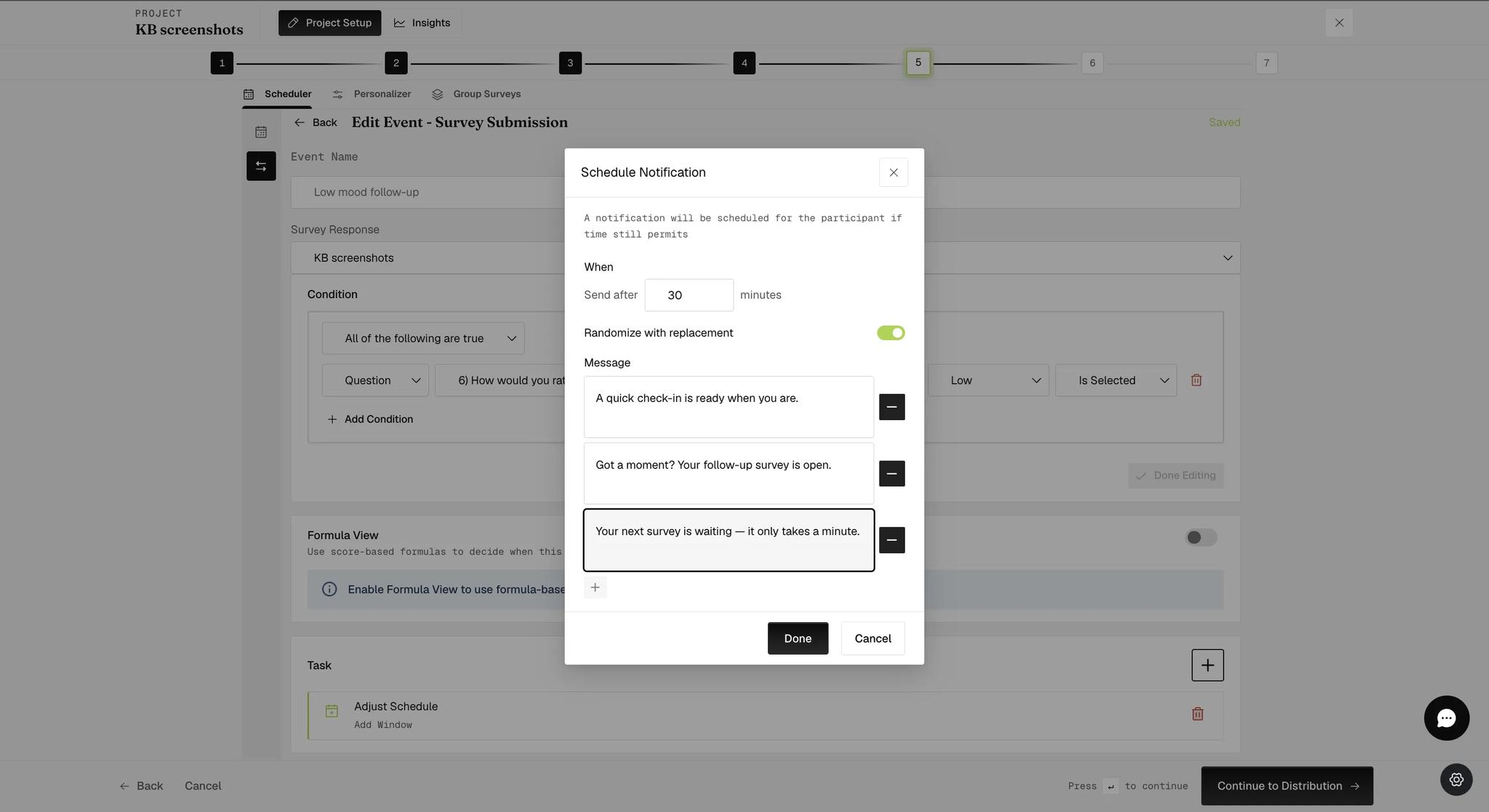
The modal states a condition on all of this: a notification is scheduled "if time still permits". Fire a trigger late in a survey's window with a long send-after delay and the notification simply never goes out, because the window has closed by the time it was due.
Scheduling an Email Notification after a Condition is Met
You can schedule a notification to be sent to whatever email address you assigned based on your participant's response to a question. One example of when this feature would be helpful is if your research participants are exhibiting signs of self-harm or suicidal behavior.
Here are some reasons why it could be helpful:
-
Duty of Care
-
Ethical Obligations
-
Intervention and Support
-
Legal Liability
Set it up as in Setting up Event-Triggering: create a Survey Submission event and configure its condition.
With the condition set, add a task and choose Send Email, then enter the address the notification goes to.
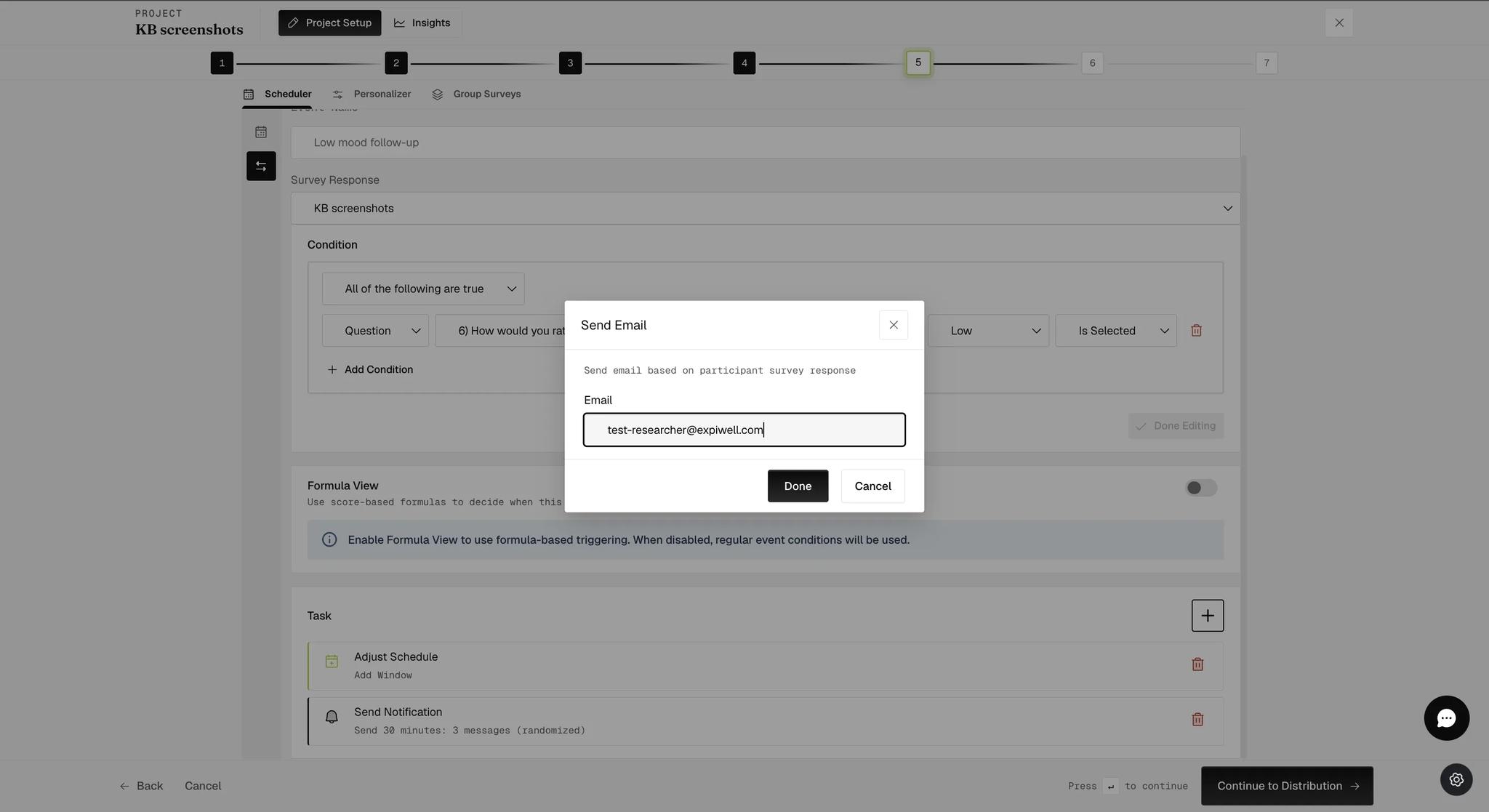
The email goes to the address you type here, not to the participant. It is a way to alert your team, which is why the safeguarding example above matters — the person who needs to know is a researcher, not the person who just answered.
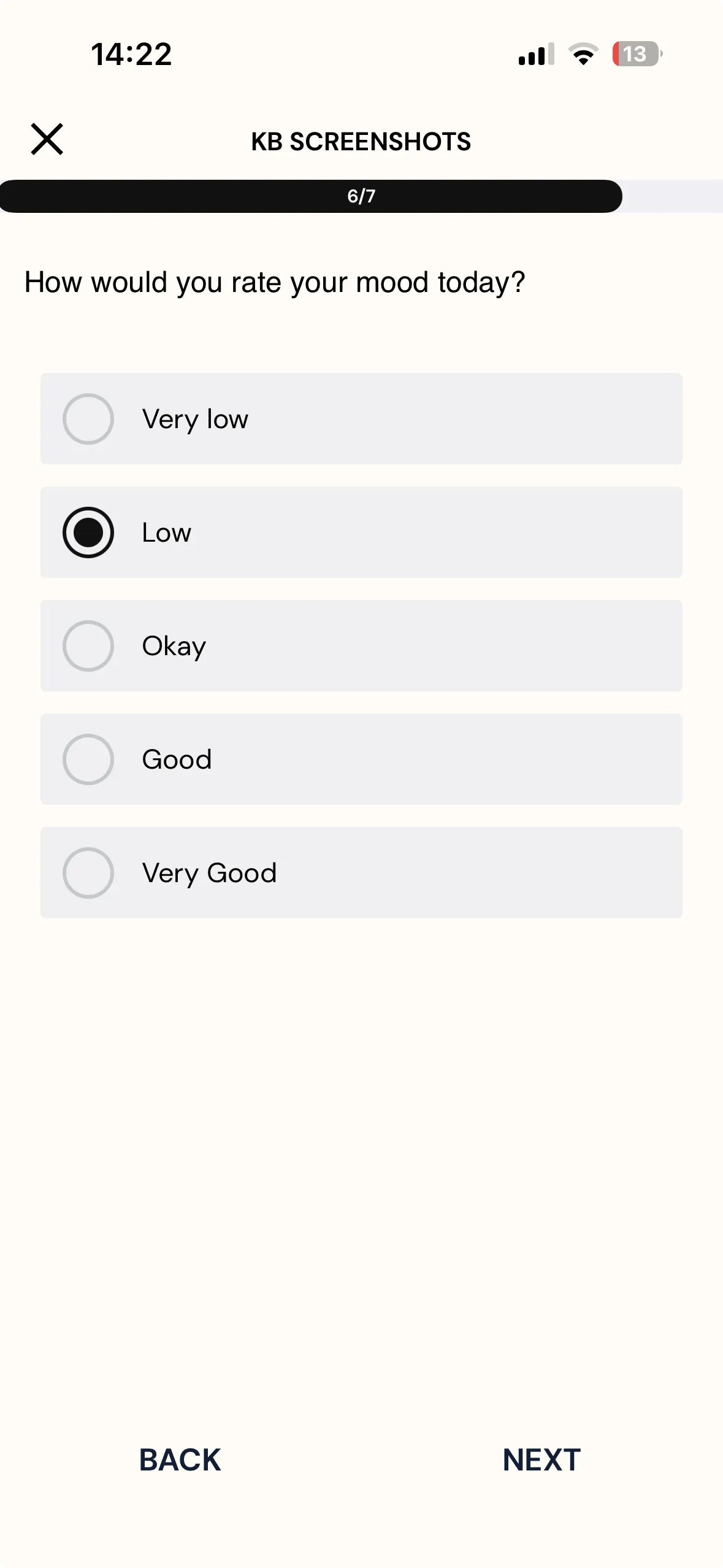
On the participant's side nothing looks unusual — they answer the question the condition is watching, with no sign that an alert is attached to one of the options.
When a participant meets the condition, the email goes out immediately. It is not a bare alert — it names the project, the survey, the participant, and the question and answer that fired it, so whoever reads it can act without opening the dashboard first.
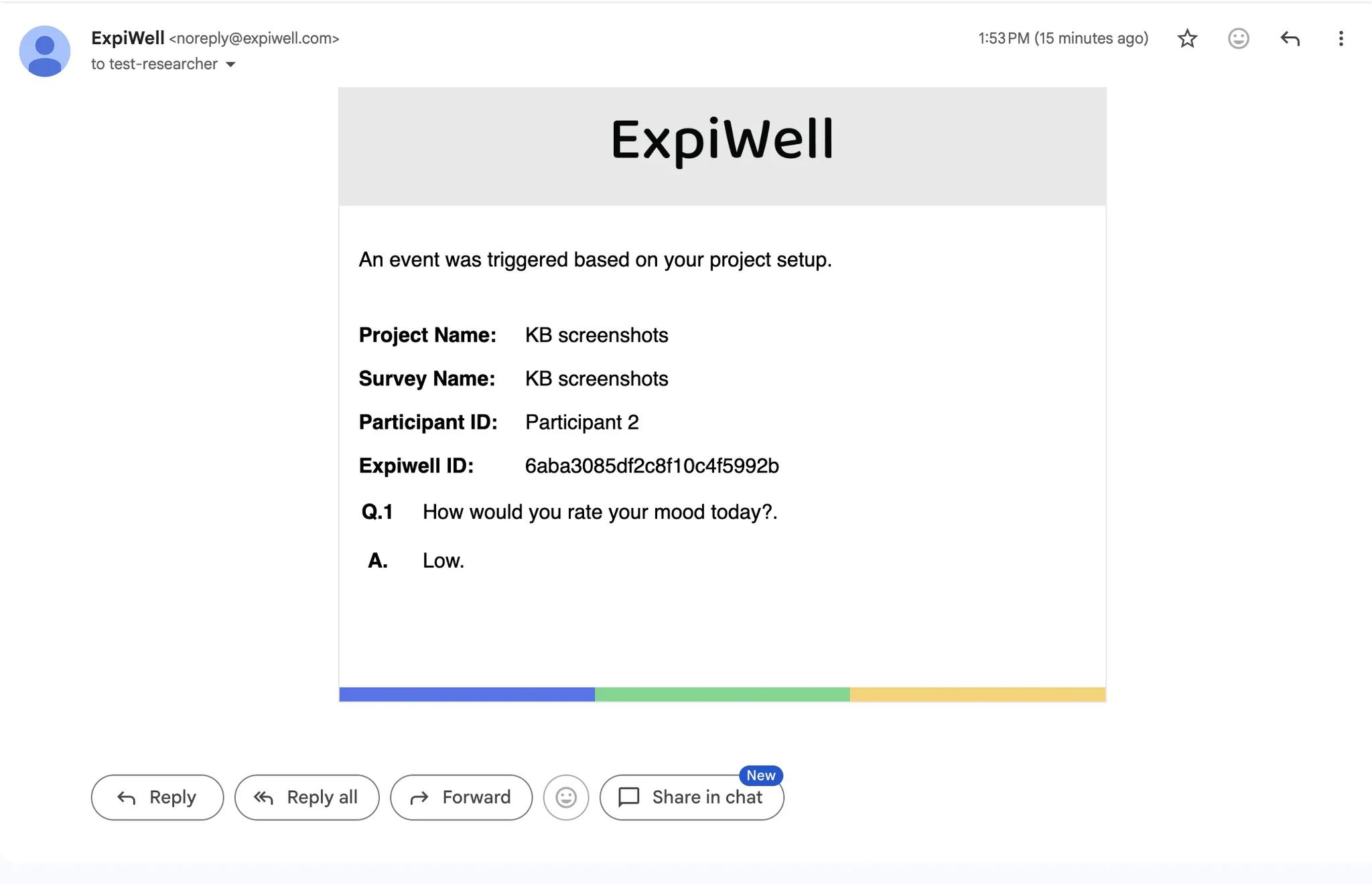
The participant is identified by their Participant ID and ExpiWell ID, not by name or email. If your alert needs to reach a named person, the identifier has to be looked up in the project.
Triggering Multiple Surveys within a Period of Time
A single trigger can open a run of surveys inside a short window, which is how you capture an episode as it unfolds rather than asking about it afterwards.
Eating disorder research is the clearest case: when a participant reports that they are binge eating, five surveys across the next thirty minutes show how the episode develops. Alcohol researchers use the same shape for a drinking episode across an hour.
Schedule Random Windows does this in a single task. Switch it on inside an Adjust Schedule task and a Randomization Configuration appears:
- Amount of Windows — how many surveys in the run.
- Distance Between Windows — the gap between them.
- Distance Type — Exact holds that gap precisely; Minimum treats it as a floor and varies the rest, which is what makes the timing unpredictable.
- Duration of Window — how long each one stays open.
- Display new windows as they become active — whether the participant sees the whole run at once or each as it arrives.
Leave that last one on and each window is invisible until the moment it opens. A researcher who checks the participant's calendar straight after setting the trigger up sees nothing there and concludes it failed, when in fact nothing has started yet. Check again once the first window is due.
Five windows, one minute apart, each open five minutes gives the thirty-minute follow-up described above. An hour-long version is the same figures with a longer gap.
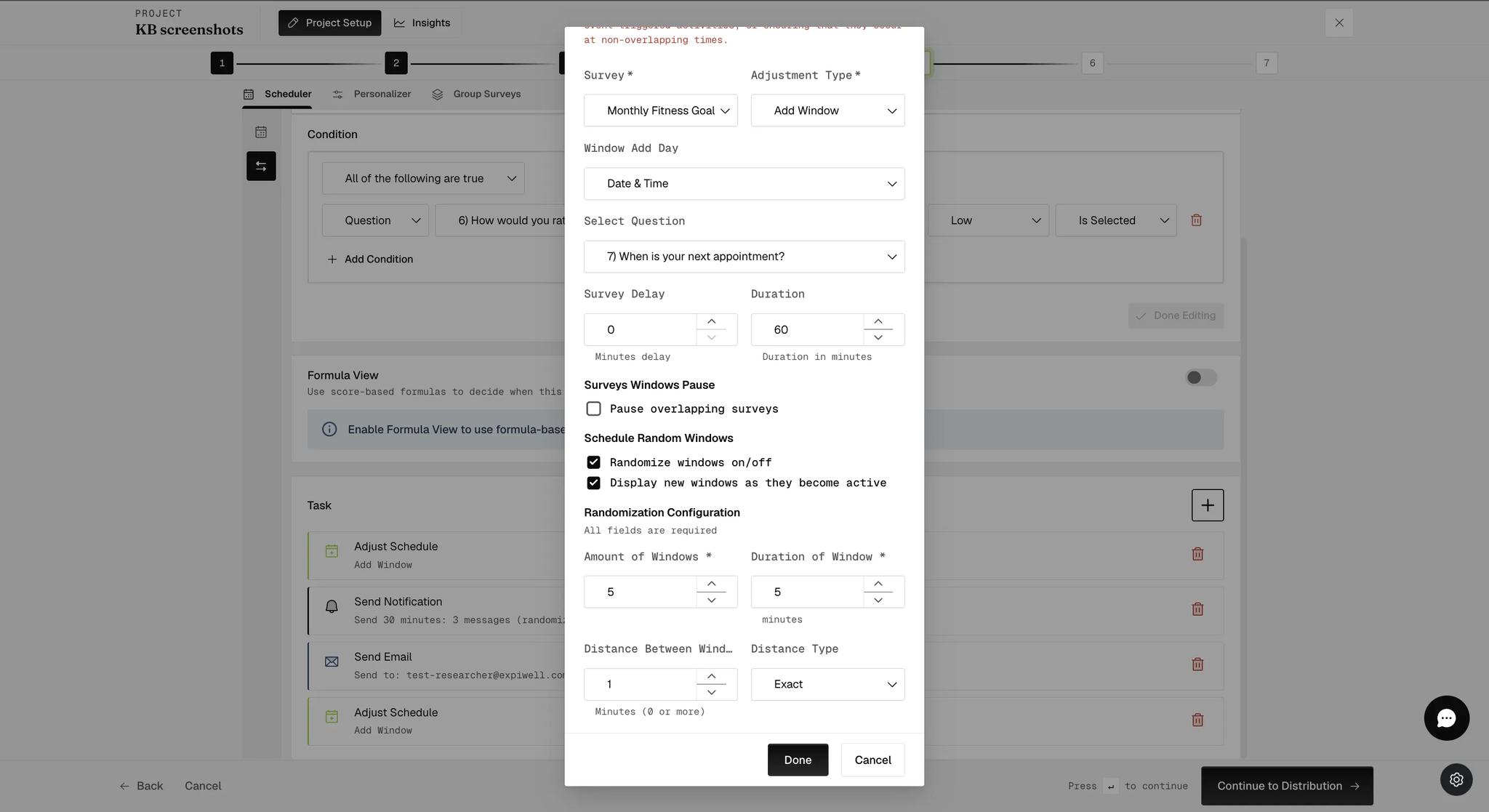
The example above is captured from a task whose Window Add Day is set to Date & Time, so its upper fields differ from a Same Day one. Randomization itself works identically whichever day mode you choose.
You can still build a run by hand — one event per duration, each with its own Adjust Schedule task — if you need the surveys at fixed times rather than spread across a window. The randomization controls are the shorter route when the exact moments do not matter.
Triggering Surveys based on a Date-Time Question
The following provides information on how to set up a trigger to automatically launch surveys based on a participant's response to a date-time question.
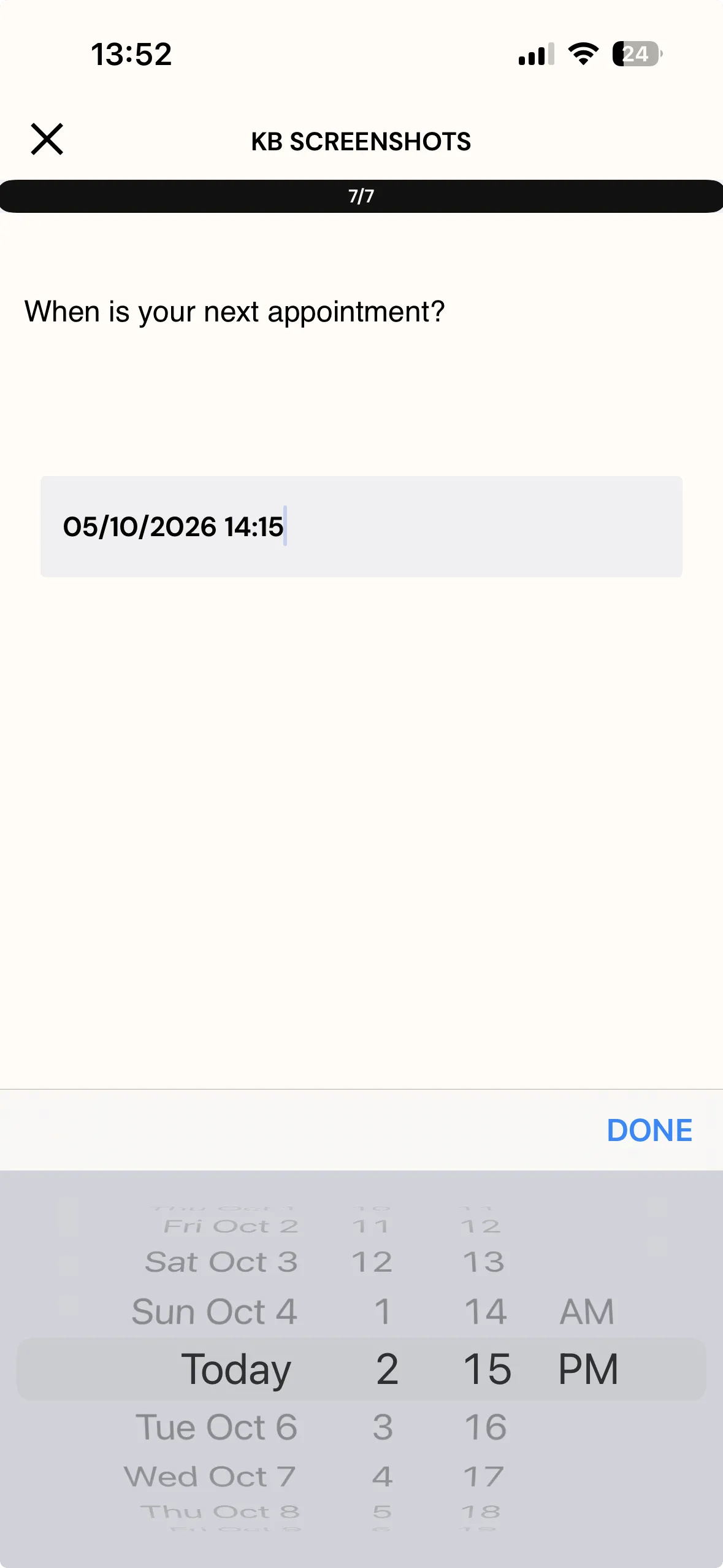
Add a Date question to the survey the event will watch, and set its Input Type to one that captures a date and a time — "Date (DD/MM/YYYY) / Time (AM/PM)" or its 24-hour equivalent.
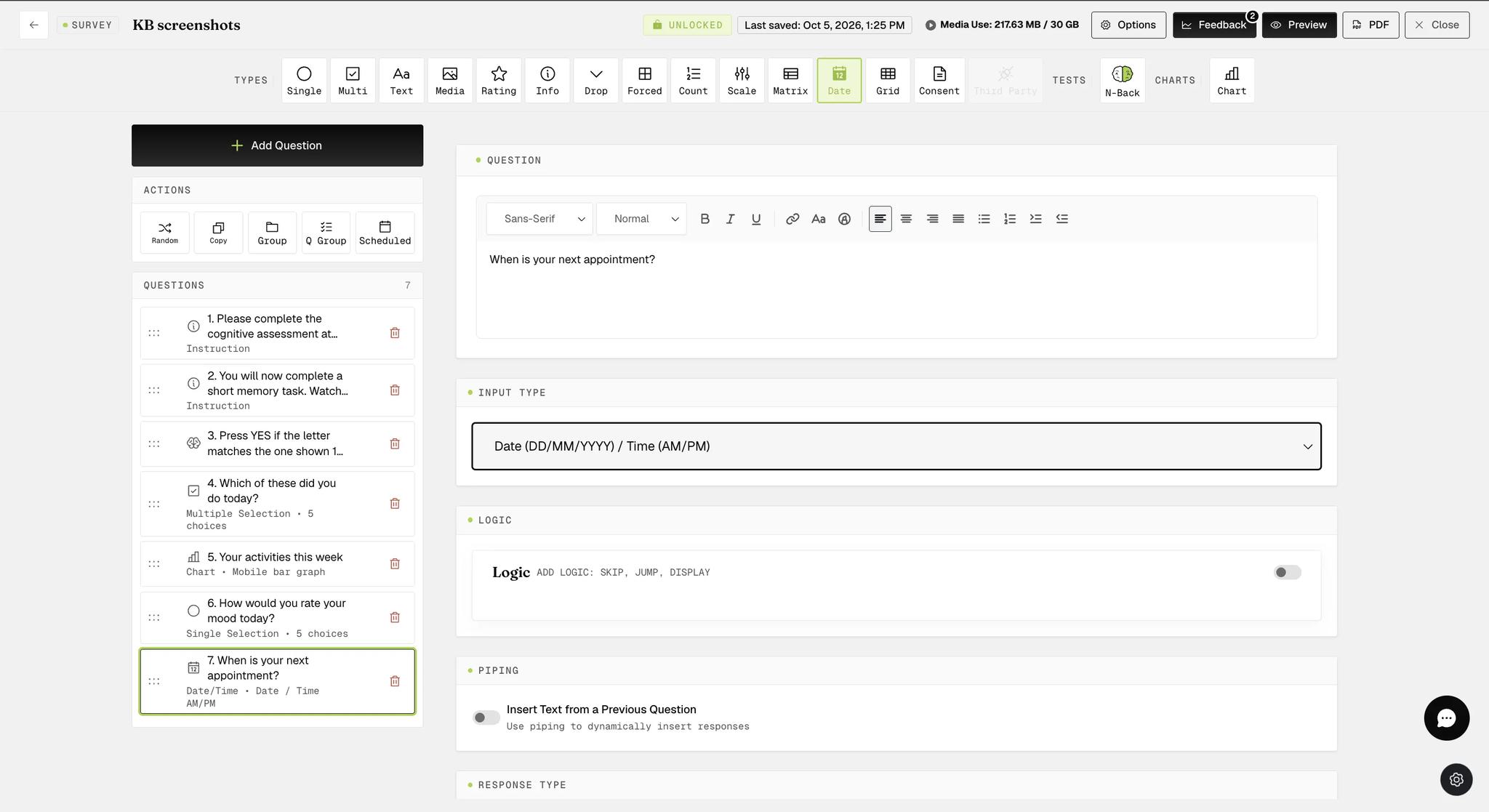
The type offers seven formats and only two of them work here: the two that carry a date and a time together. Time-only, Day/Month, Month/Year and Year cannot drive a trigger — there is nothing for it to schedule against. If you pick one of those, the trigger tells you plainly: "No Date & Time questions available in this survey."
Create a Survey Submission event as in Setting up Event-Triggering above, select the survey under Survey Response, add a task and choose Adjust Schedule.
Then configure it:
-
Survey — the survey to open.
-
Adjustment Type — Add Window.
-
Window Add Day — Date & Time. This is what makes the rest appear.
-
Select Question — the date question whose answer sets the moment. Only Date & Time questions are listed.
-
Survey Delay — how long after that moment the window opens. Leave it at zero to open on the moment itself, or offset it: an hour before an appointment is a delay counted from the answer.
-
Duration — how long the window stays open once it does.
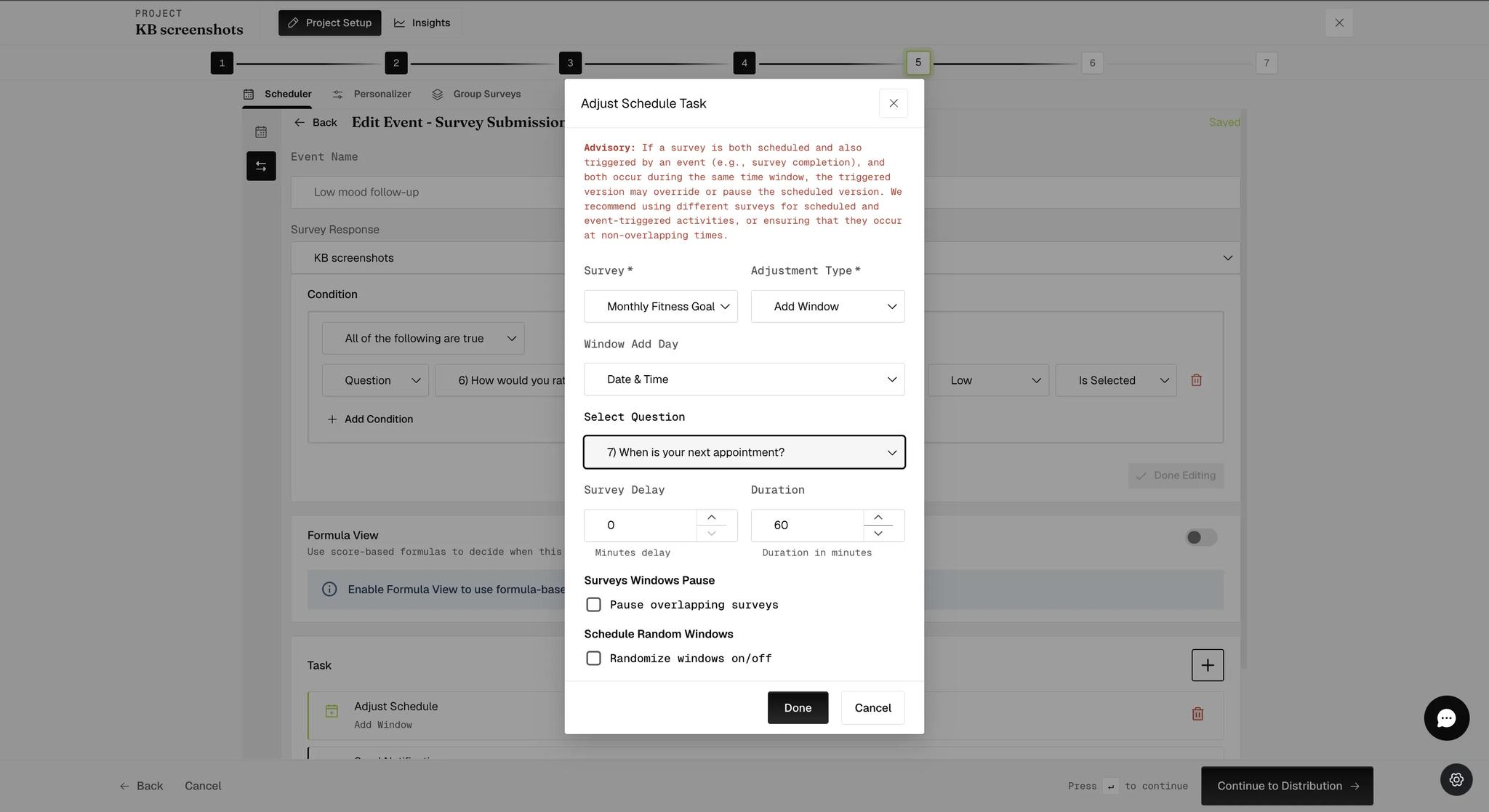
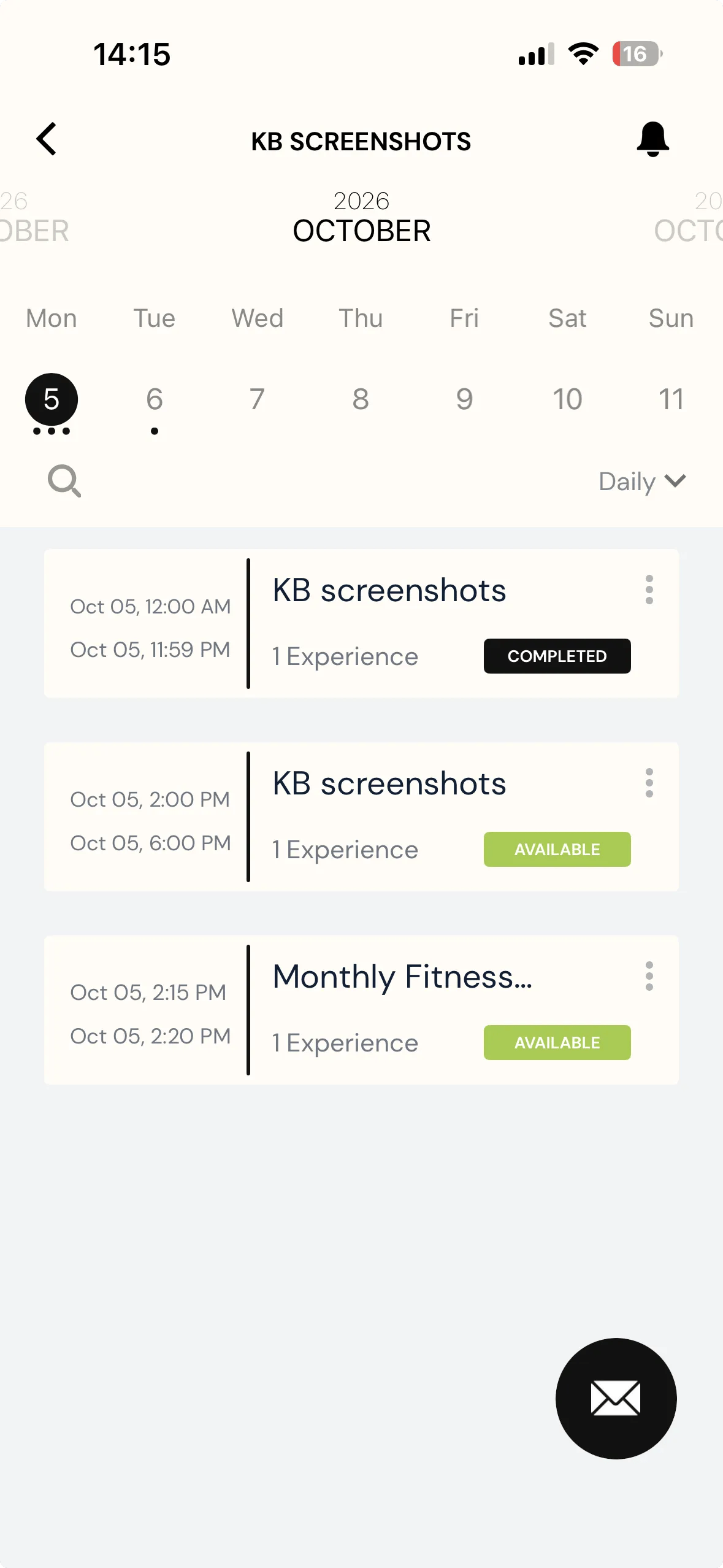
The window then opens on the participant's own calendar at the moment they named. In the example below the participant answered 2:15 PM, and the Monthly Fitness Goal window opens at 2:15 PM — a time no researcher chose and no two participants need share.
The window in the screenshots runs 2:15 to 2:20, five minutes, against a Duration of 60 in the task above. That is because this example also has Schedule Random Windows switched on: Duration then becomes the span the run is scattered across, and Duration of Window sets how long each one lasts. With randomization off, a Duration of 60 would give a single hour-long window.