Answer piping
What is Answer Piping?
Answer Piping allows you to automatically insert (or "pipe") a respondent’s previous answer into a later question. This creates a personalized, conversational flow that makes surveys feel more engaging and relevant to the participant.
Key Capabilities
-
Intra-Survey Piping: Use an answer from Question 1 to customize the text in Question 5 of the same survey.
-
Cross-Survey Piping: Pull responses from a previously completed survey into a brand-new one for the same participant.
Supported Question Types
Answer Piping is compatible with the following question formats:
-
Single Selection
-
Dropdown
-
Text
-
Rating
Example in Practice
-
Question 1: "What is your favorite hobby?" (Respondent types: Rock Climbing)
-
Question 2 (Piped): "How many years have you been practicing Rock Climbing?"
Benefit
Personalizing questions with Answer Piping reduces "survey fatigue" and increases completion rates by making the experience feel like a relevant, one-on-one conversation.
Setting up Answer Piping Within the Same Survey
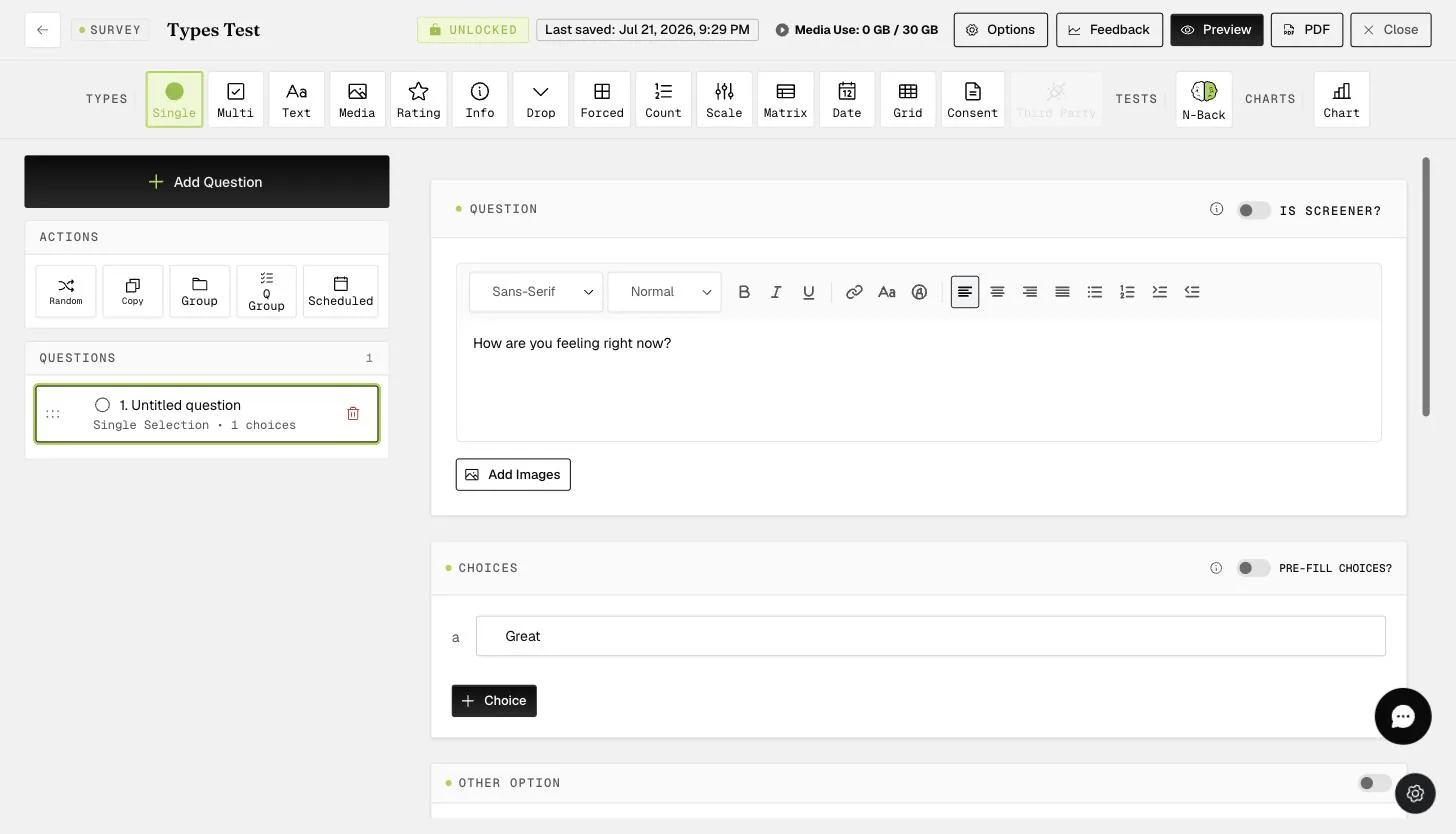
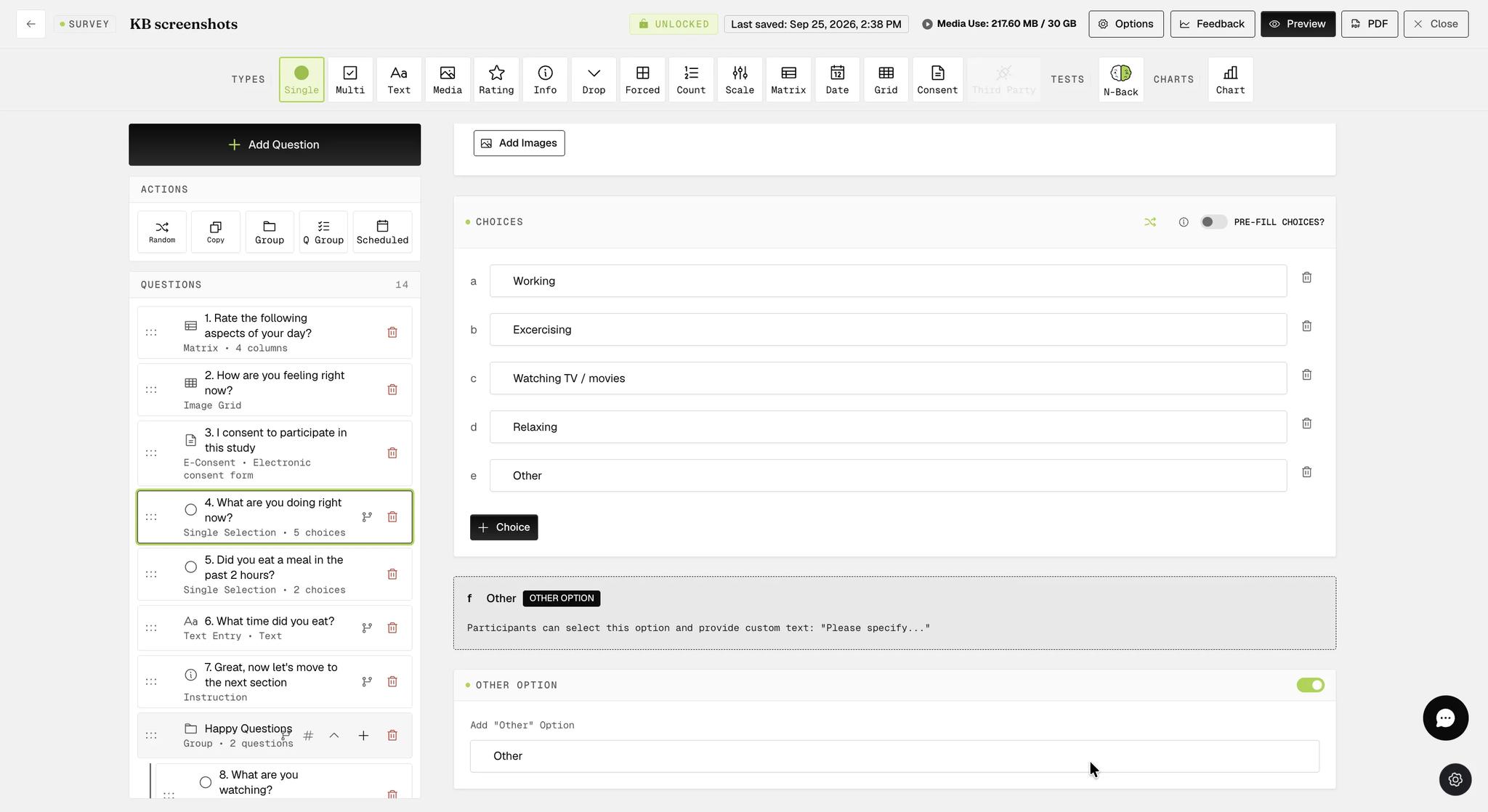
1. Create your source question: Set up a question with predefined options or enable the 'OTHER OPTION' to allow for custom text entries.
Enable the 'OTHER OPTION' toggle so participants can type a custom response. The piped text will include whatever they enter.
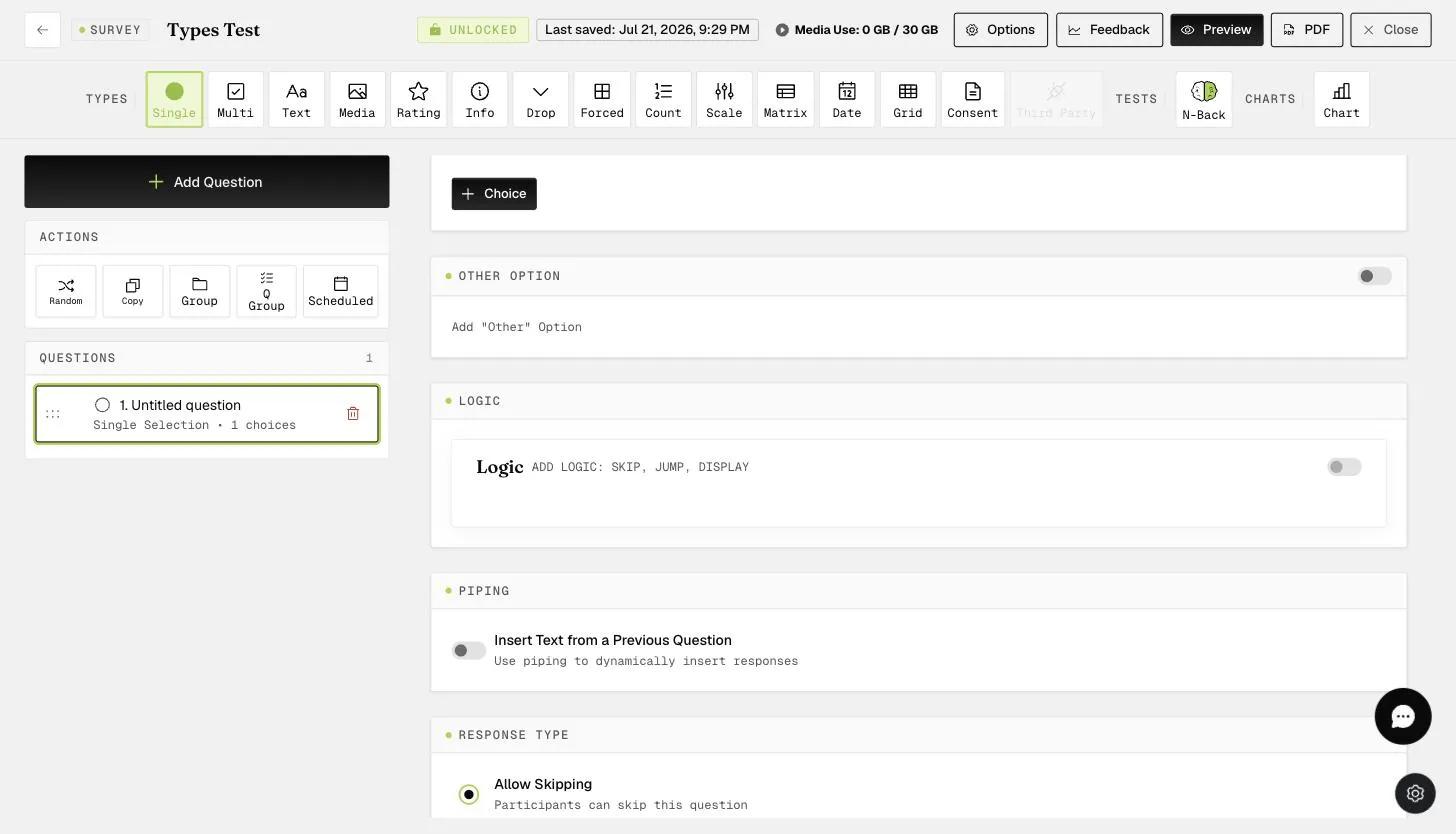
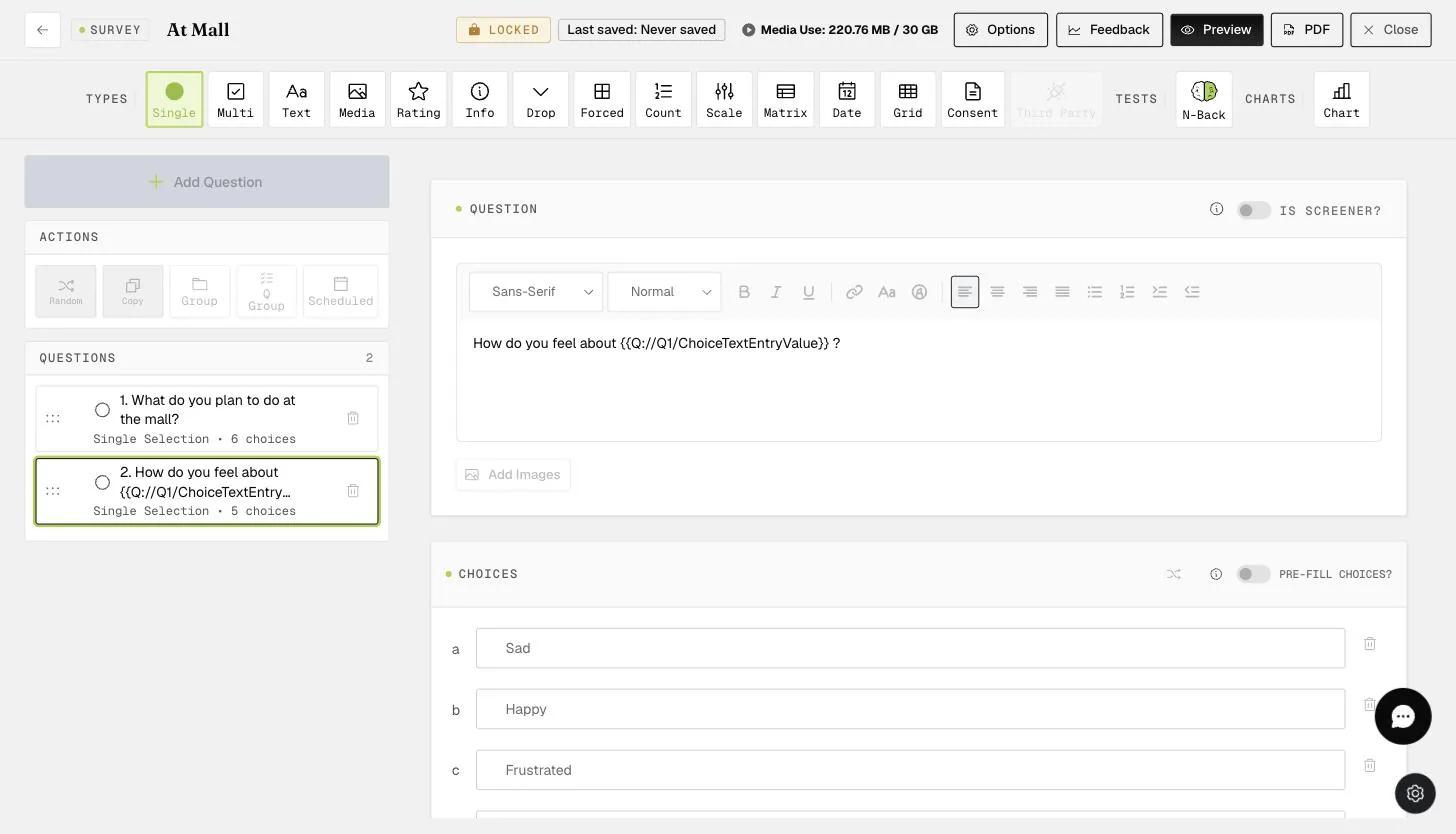
2. Enable Piping: Create the subsequent question where you want the answer to appear. Locate and toggle on the Piping option.
You do not need to leave a manual blank space in your question text for the piped response; the system handles the spacing automatically.
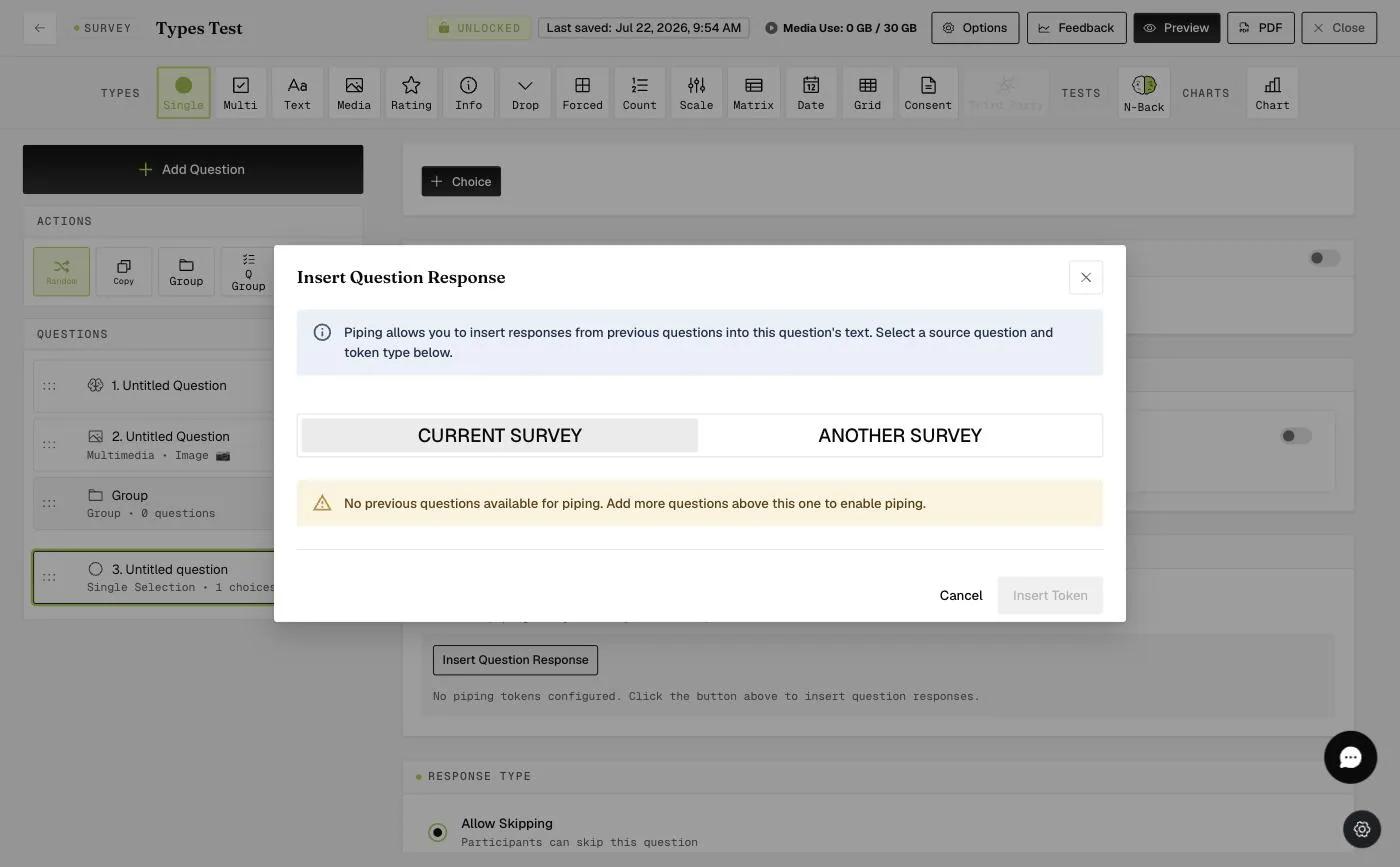
3. Configure the Source: In the Piping modal, select 'Current Survey' and choose the specific question (e.g., Question 4) you wish to pull data from.
4. Verify the Placeholder: A tag like {{Q://Q4/ChoiceTextEntryValue}} will appear in your question editor. This placeholder will be replaced by the participant's actual answer during the live survey.
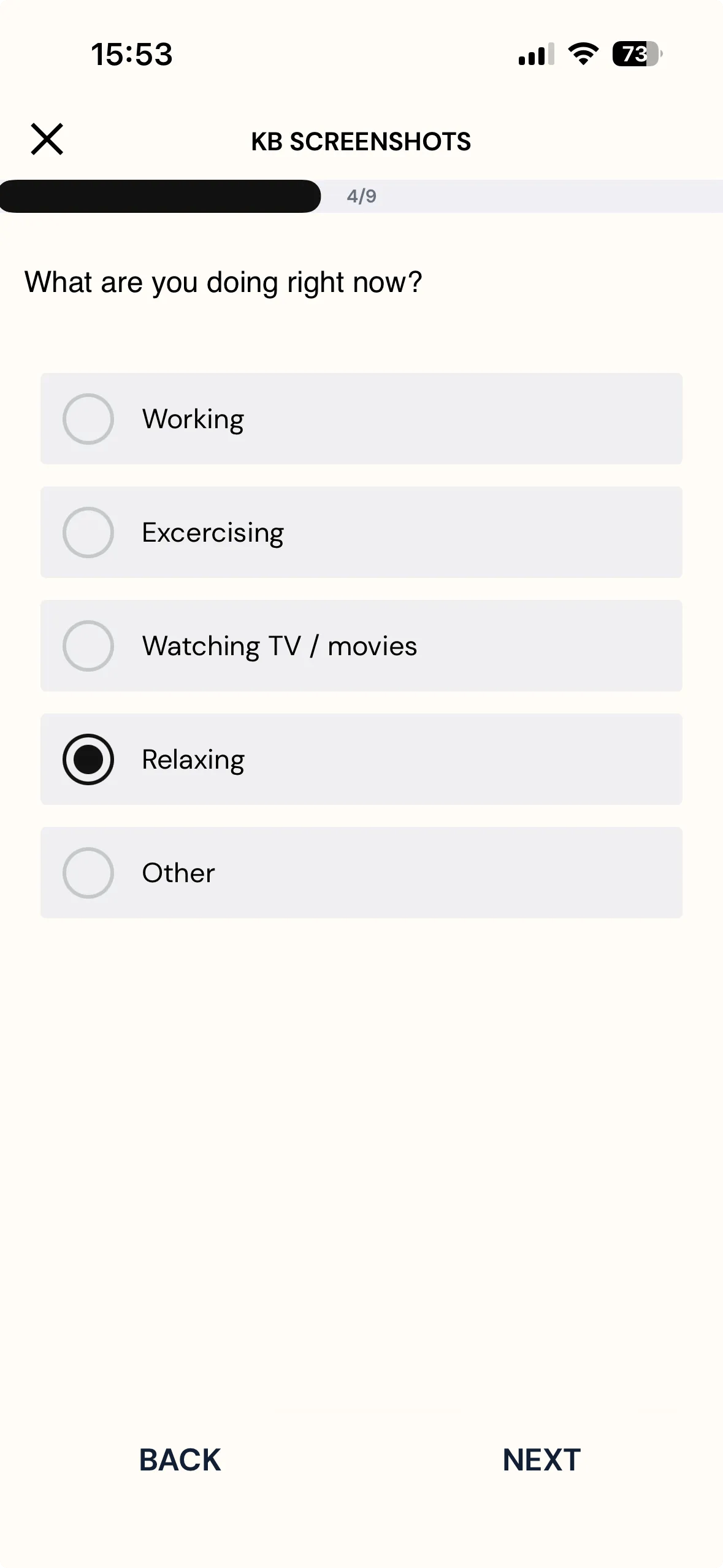
Mobile App View — Same Survey
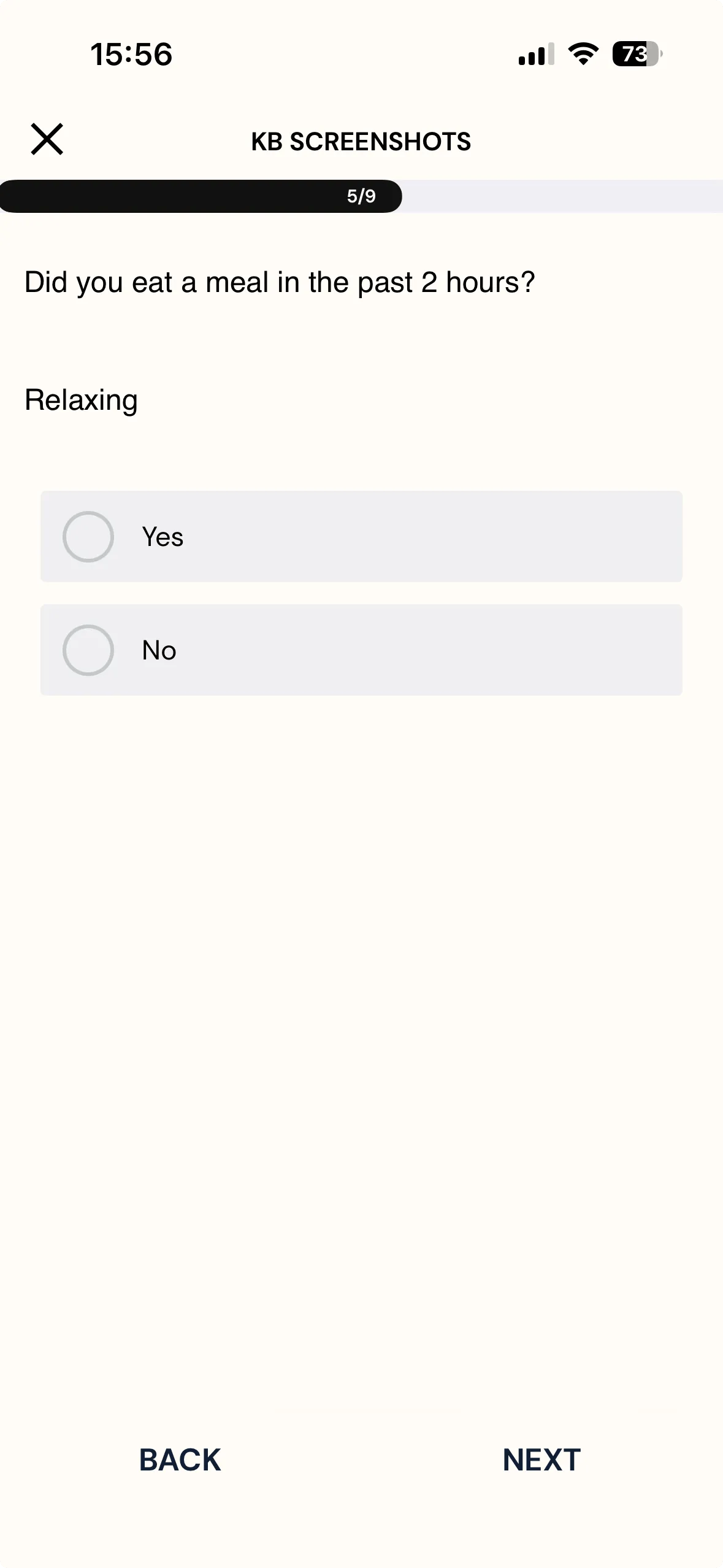
1. Standard Selection: If a participant selects "Relaxing," that specific phrase will appear in the next question.
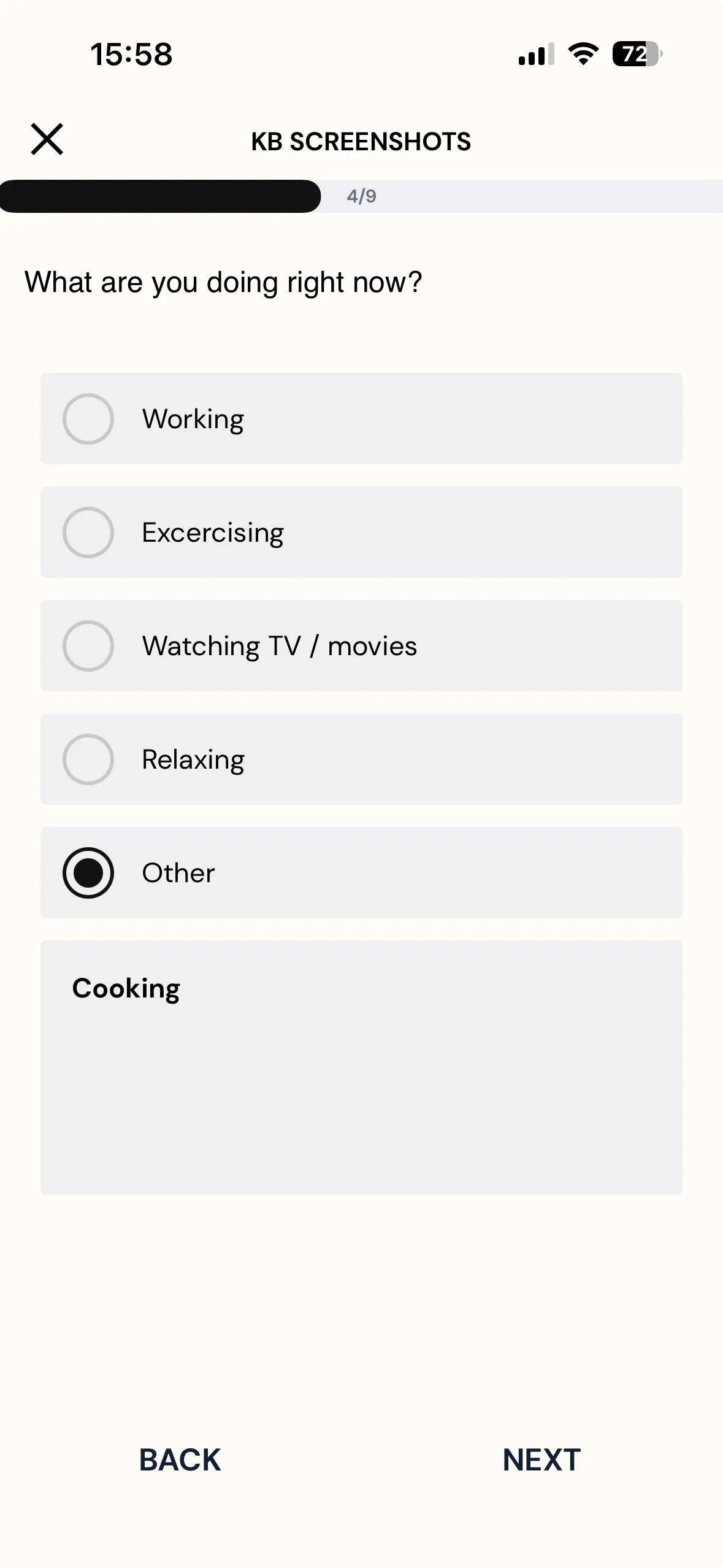
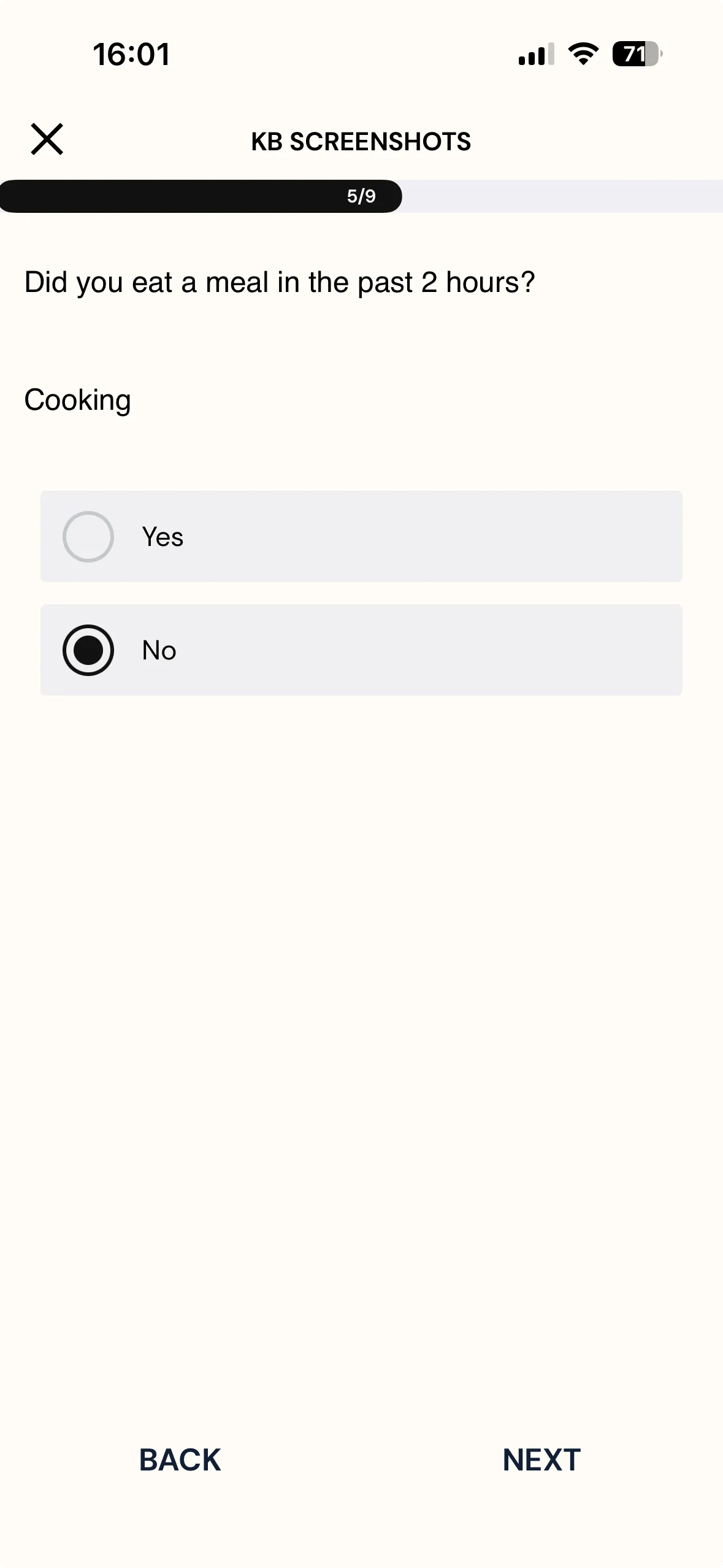
2. Custom "Other" Input: If a participant selects "Other" and types their own response (for example, "Cooking"), the system will seamlessly pipe that custom text into the follow-up question.
Setting up Answer Piping Across Surveys
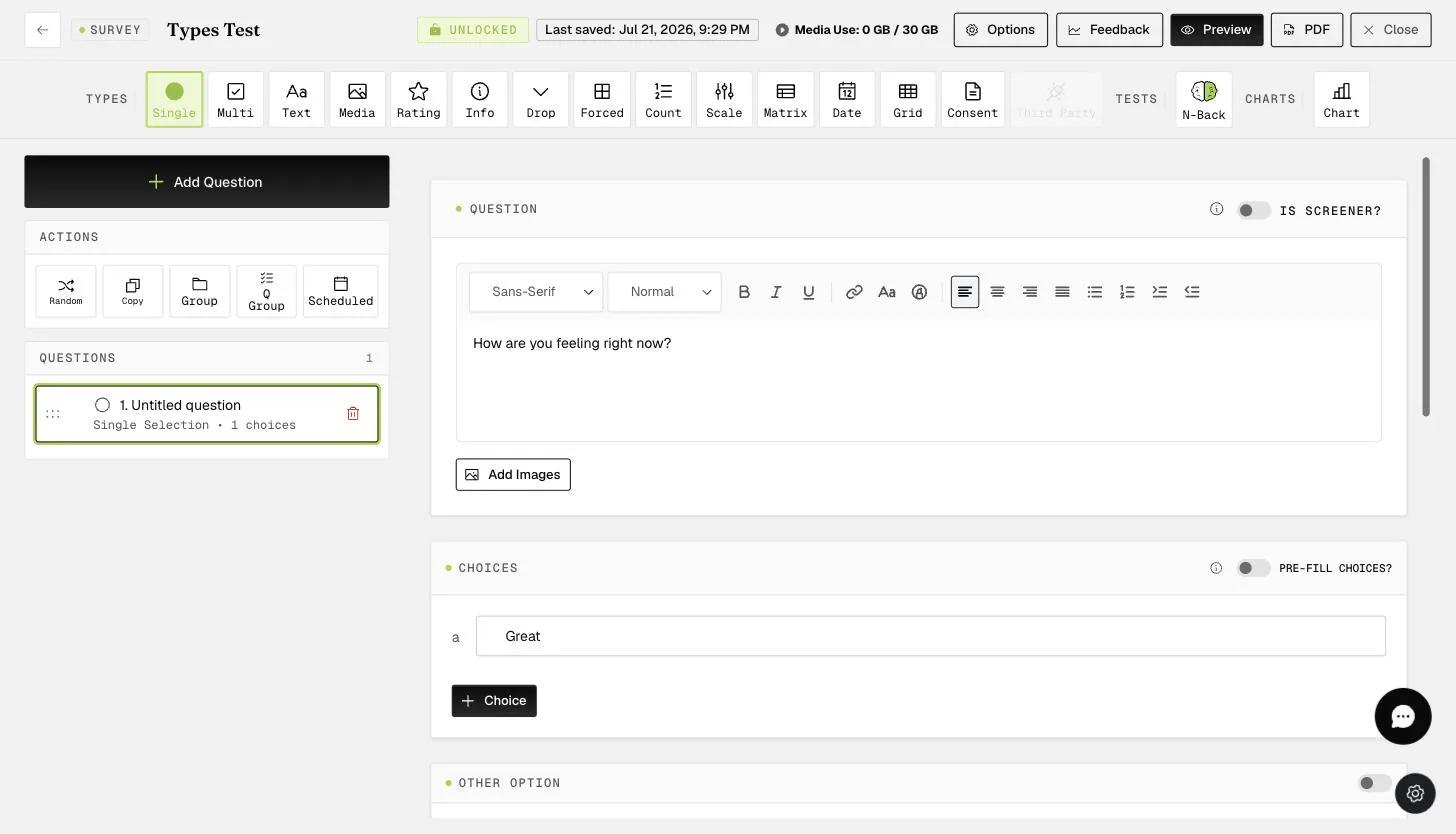
1. Identify the Source Survey: Ensure your initial survey question is one of the four compatible question types (Single Selection, Text, Rating, or Dropdown). In this example, it would be a Text question, Question 1 from the 'Monthly Fitness Goal' survey.
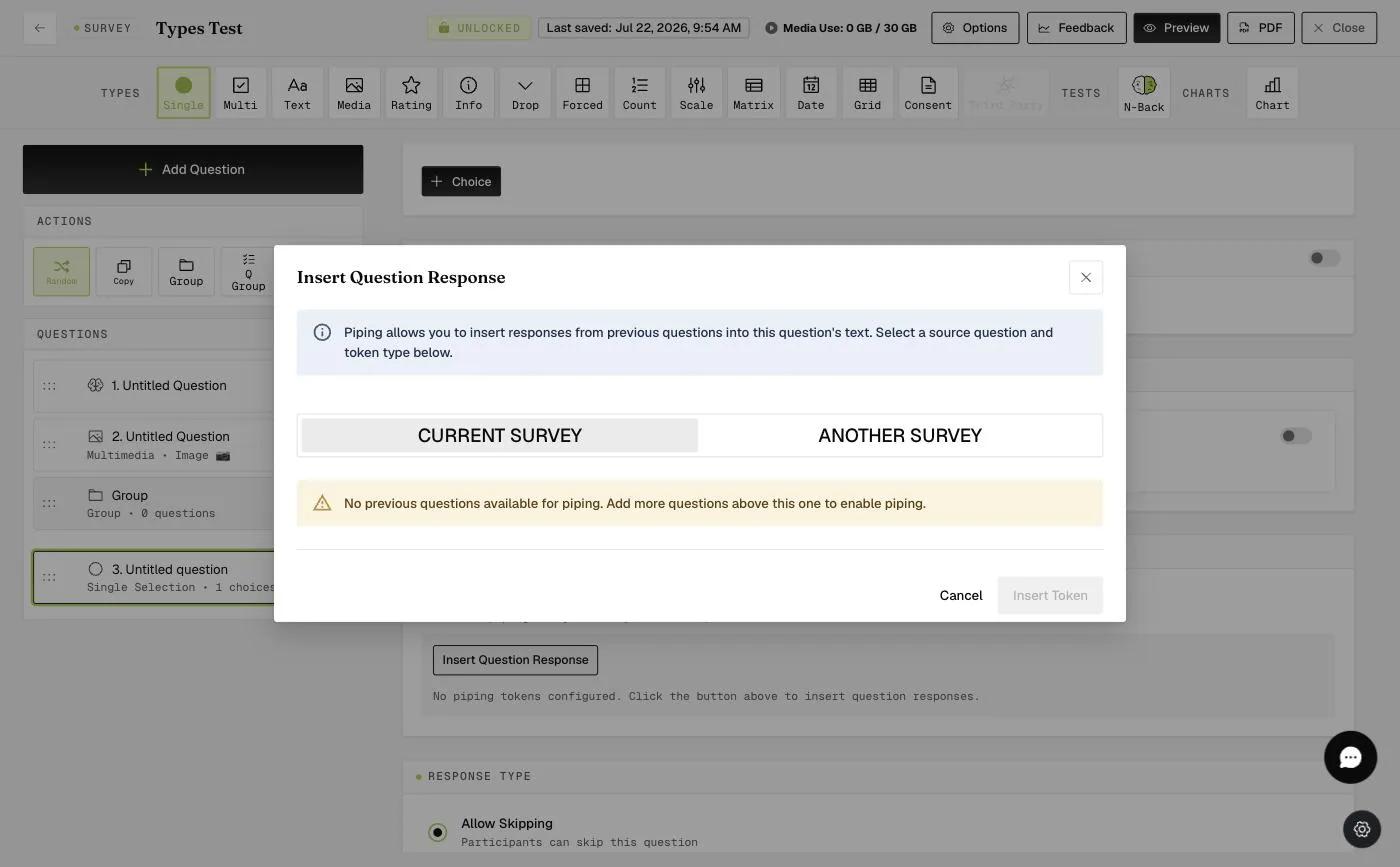
2. Enable Cross-Piping: In your second survey, open the question where you want the earlier answer to appear and toggle on the Piping option, then click Insert Question Response.
3. Connect the Surveys: In the Piping modal, select 'Another Survey.' Choose the source survey and the specific question you want to reference (e.g., Question 1 of the 'Monthly Fitness Goal' survey).
4. Confirm the Connection: The system inserts a placeholder tag into your question text. During the survey, the participant's answer from the first survey automatically populates here.
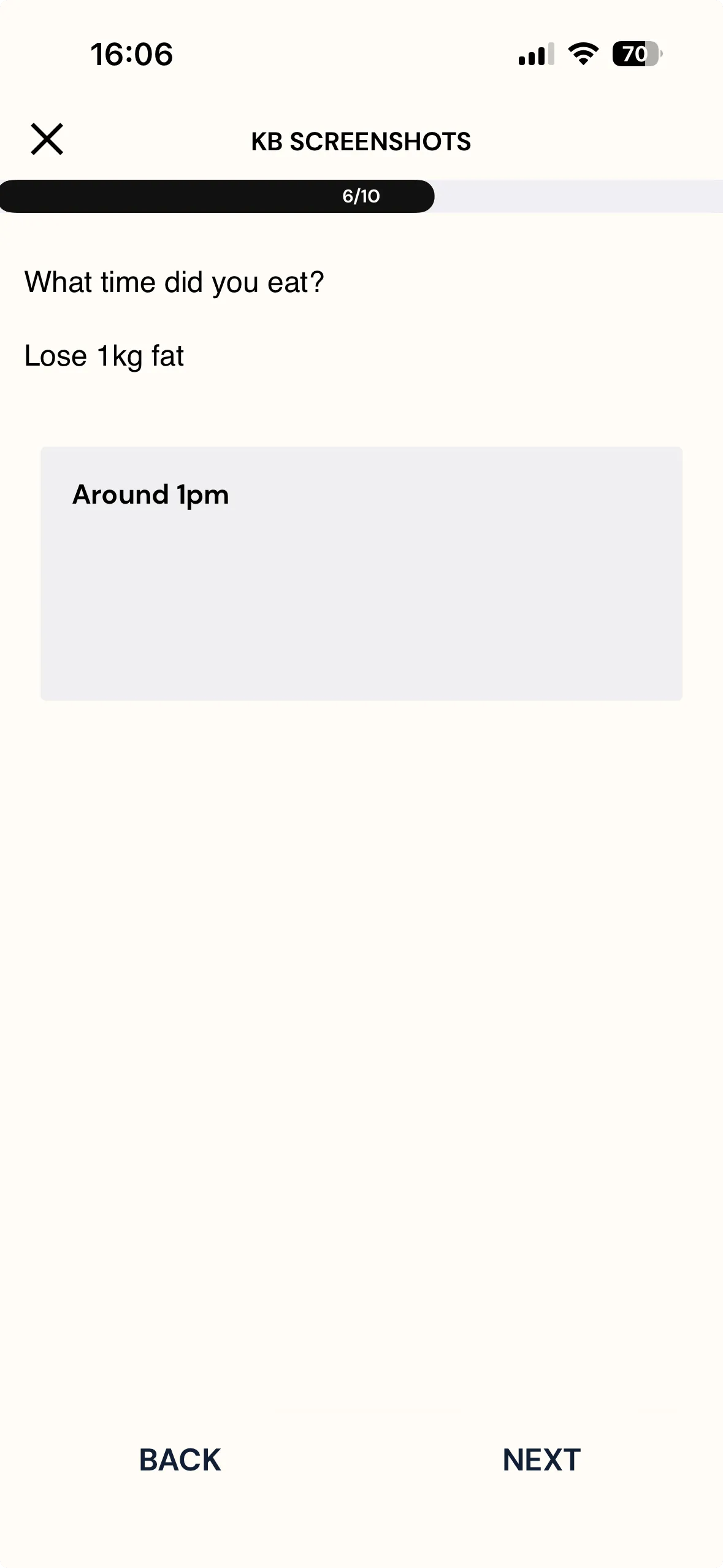
Mobile App View — Across Surveys
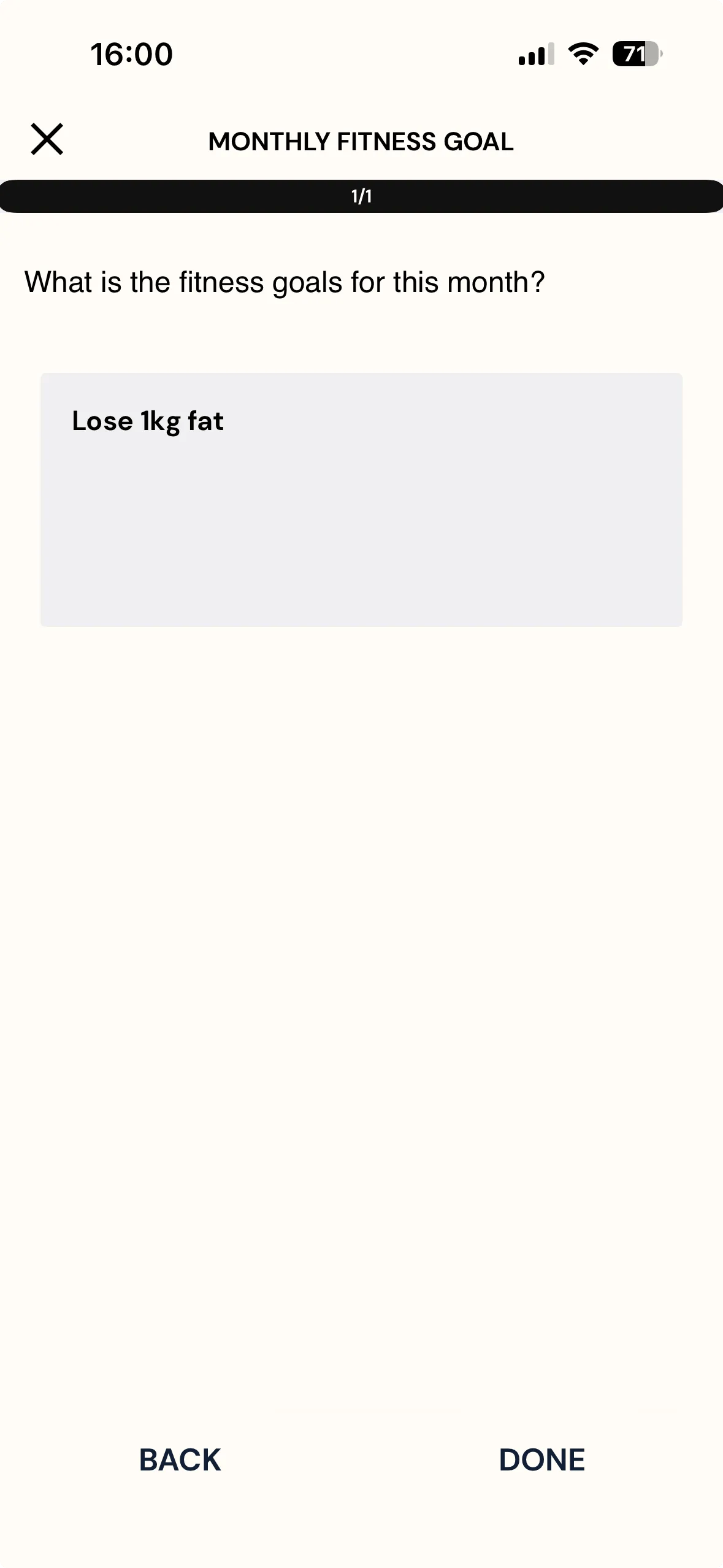
Dynamic Personalization: A goal entered in the 'Monthly Fitness Goal' survey (e.g., "Lose 1kg fat") will appear in the next survey the participant takes, providing context without asking them to repeat themselves.
Handling Empty Responses: If a participant skips the source question, the piped area displays a blank line instead of text.
To avoid awkward phrasing, consider setting your source questions to "Force Response" if you plan to pipe those answers later.
For further inquiries, please reach out to help@expiwell.com