Sharing projects with other ExpiWell users
How to Share Projects with Other ExpiWell Users
Sending a copy gives another researcher their own full copy of your project — surveys, schedule and all. It is a copy, not shared access: their changes do not touch your original, and yours do not reach them.
Sending copies is a paid-subscription feature.
The recipient must already have an ExpiWell account. The address you enter is matched against existing users, and an address with no account is rejected rather than invited — so ask them to sign up first.
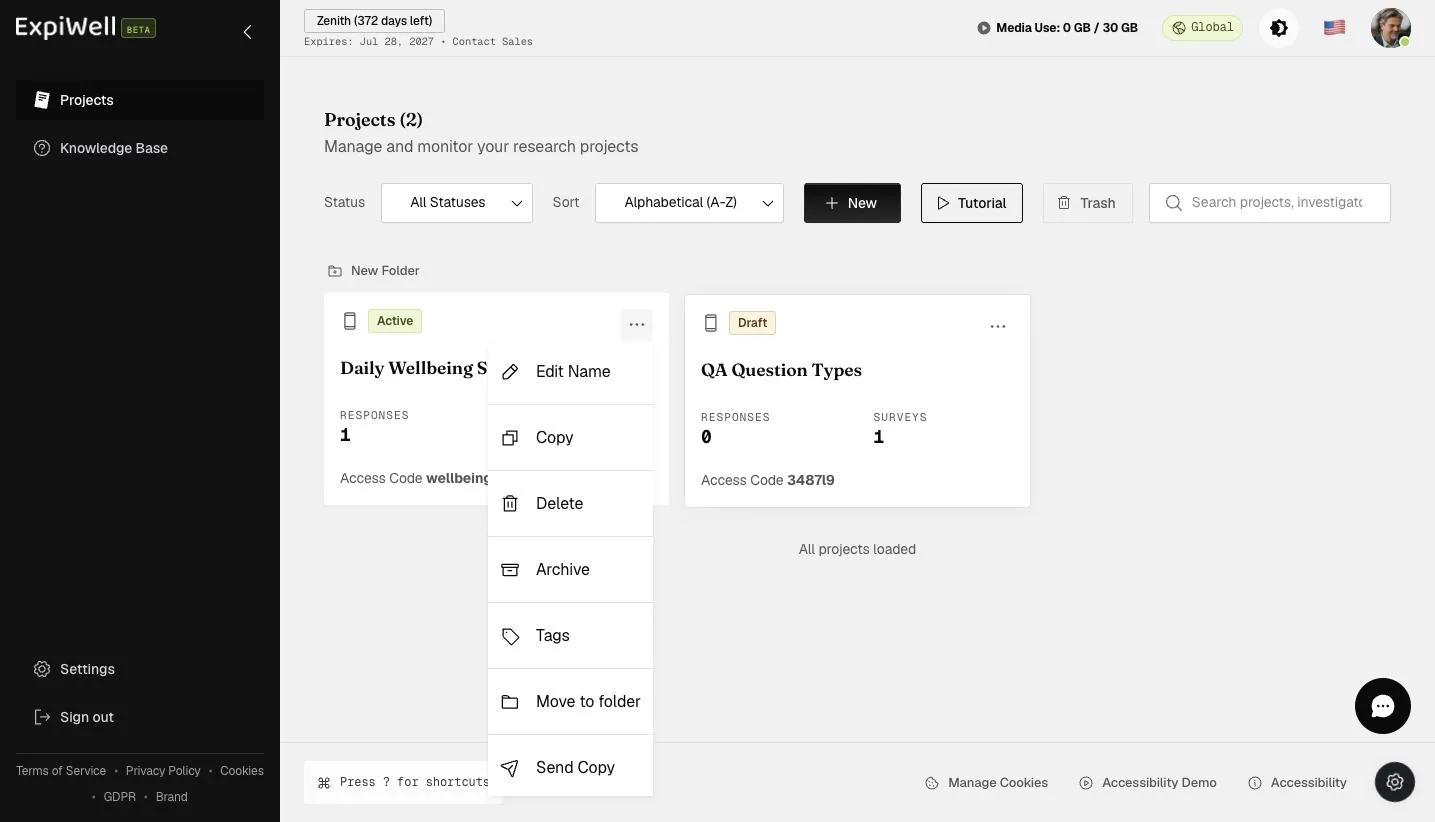
- Click on the "⋮" symbol for the project you would like to send to other users and select "Send Copy" on the dropdown list.
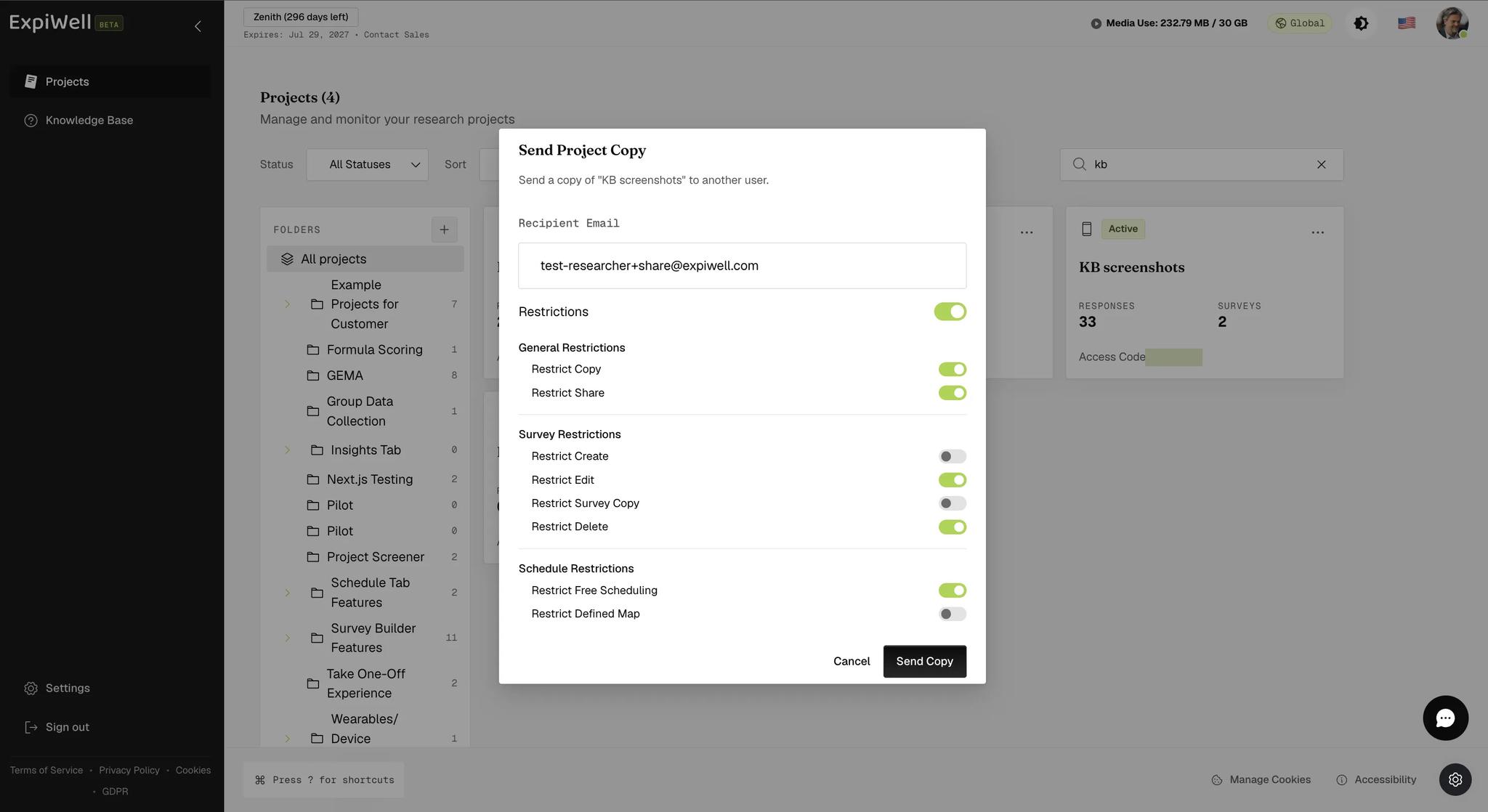
- Enter the recipient's email, then switch Restrictions on if you want to limit what they can do. Click Send Copy.
The eight settings are hidden until you ask for them. The dialog opens with a single Restrictions toggle, off — leave it alone and the recipient can do anything with their copy. Switching it on reveals the three groups below.
- The Projects page confirms with "Project copy sent successfully!"
What the Recipient Gets
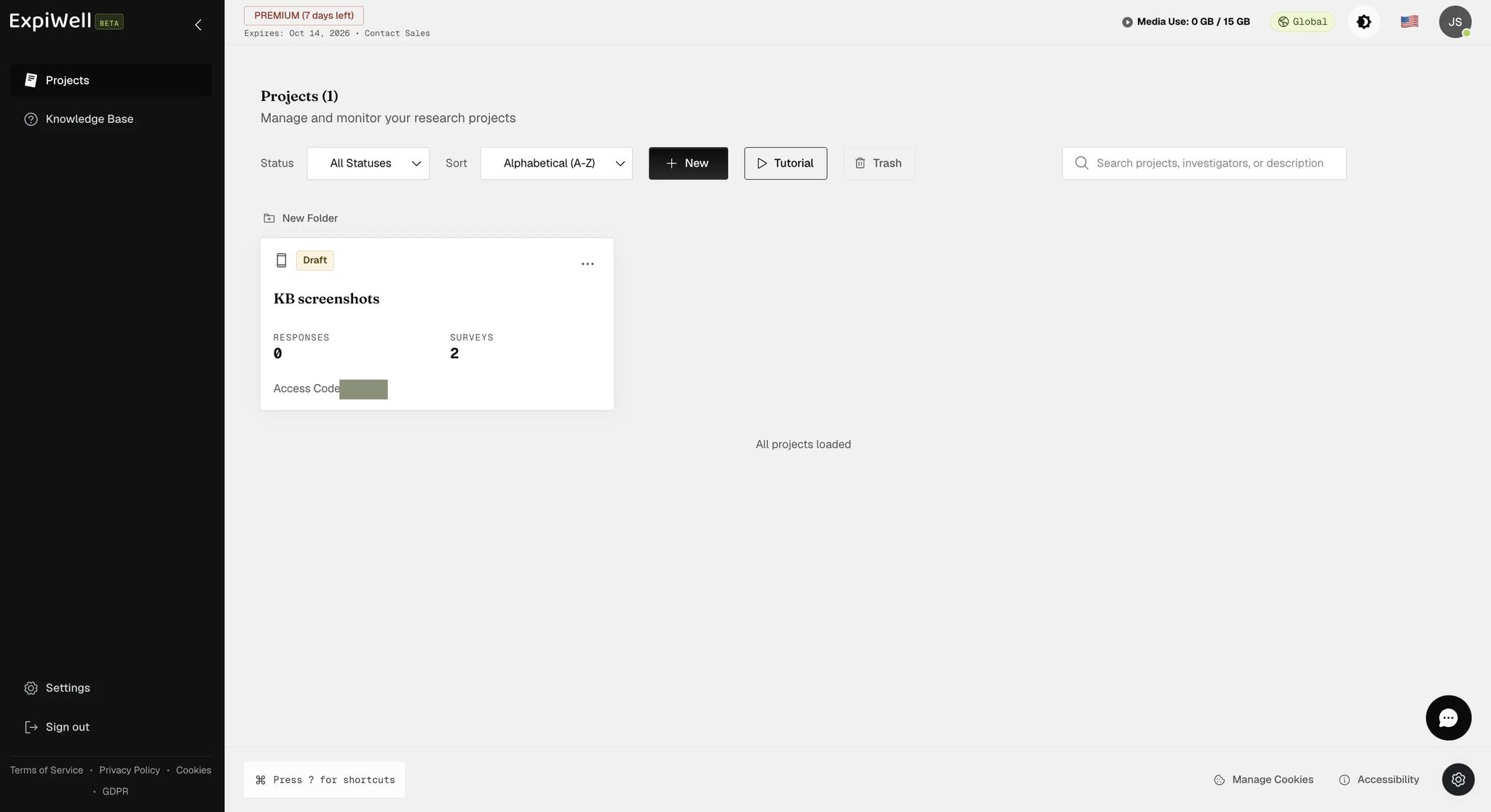
The copy appears on their own Projects page as a Draft, with no responses and an access code of its own — not yours. That is what makes it a copy rather than shared access: their participants are not your participants, and nothing either of you collects reaches the other.
What You Can Restrict
Eight settings in three groups. Each is phrased as Restrict…, so ticking one takes the ability away — leave them all alone and the recipient can do anything with their copy.
General Restrictions
- Restrict Copy — they cannot duplicate the project.
- Restrict Share — they cannot send it on to anyone else. A copy you lock this way is the end of the chain.
Survey Restrictions
- Restrict Create — blocks new surveys and folders.
- Restrict Edit — makes existing surveys read-only.
- Restrict Survey Copy — stops them duplicating a survey.
- Restrict Delete — removes the Delete Survey action.
Schedule Restrictions
- Restrict Free Scheduling — stops them placing windows freely.
- Restrict Defined Map — stops them changing the schedule's defined map.
How the Restrictions Reach Them
There is no list for them to read. The project's ⋮ menu offers Edit Name, Copy, Delete, Archive, Tags, Move to folder and Send Copy — nothing that shows what you restricted. They discover each limit at the point they run into it.
Tell them what you restricted. Since the copy carries no record of it, a recipient who cannot edit a survey has no way to tell a restriction from a bug, and will ask you or support rather than knowing.