Schedule personalization
Some studies let you change when a survey happens, so it fits around when you wake up, sleep or work. You can:
- Retake a survey you missed or already finished.
- Adjust a survey to another time on the same day.
- Move a survey to another day.
- Delete a survey from your schedule.
Your research team decides which of these you get, and for which surveys. If you don't see an option described here, the study doesn't allow it.
Finding the options
- On the Current tab, tap the study's card to open it.
- Switch to the Daily view and pick the day on the calendar.
- Tap the ⋮ icon on the survey's row. The Experience Options menu opens.
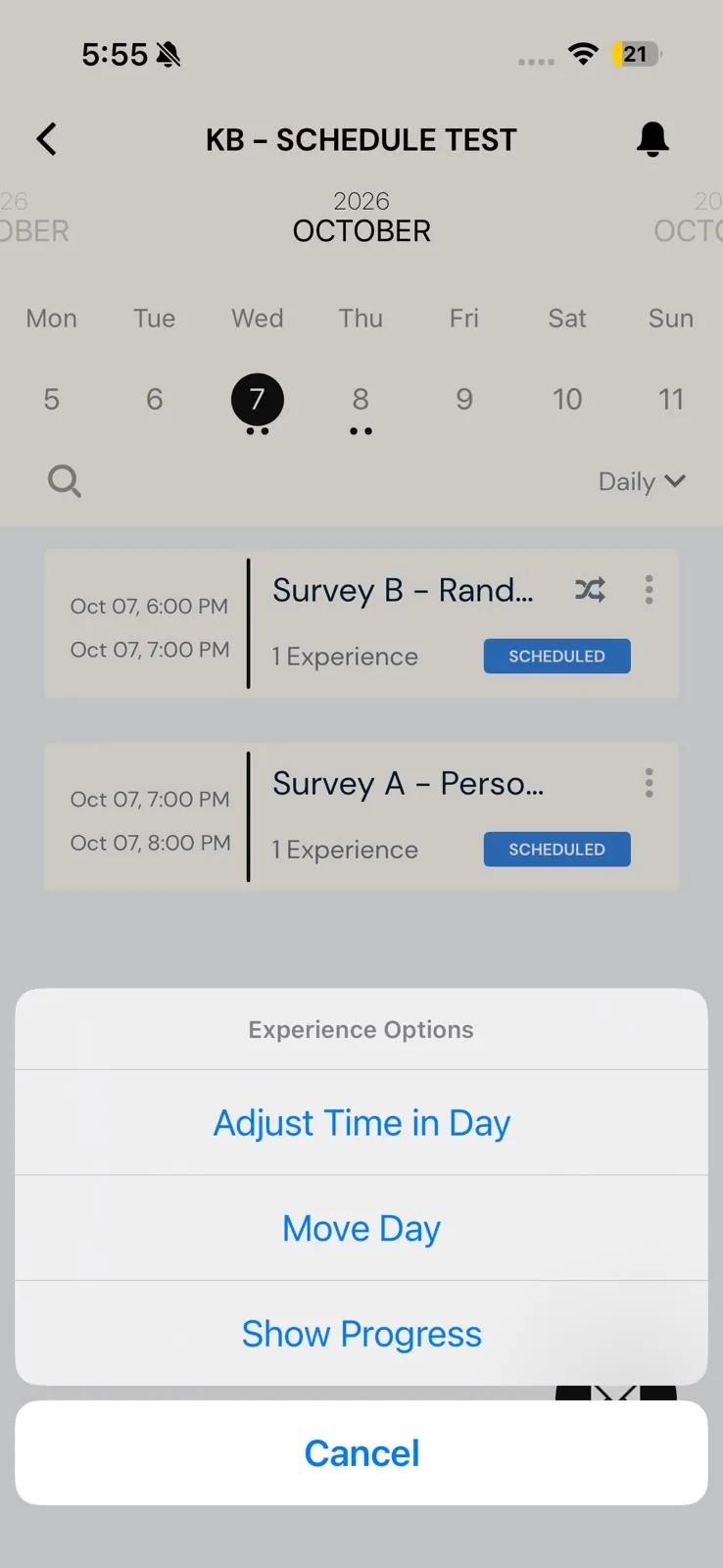
The timing options appear in full only in the Daily view. Which ones you see also depends on the survey:
- Retake Timeslot appears once a survey is completed or missed.
- Adjust Time in Day and Move Day appear until the survey is completed or missed.
- Delete Timeslot appears only in studies set up to allow it. Most studies don't offer it.
The menu also offers Show Progress and, if your study turns them on, Show Previous Responses (see Viewing past responses) and Show Charts (see Mobile charts).
Retake a survey
Use this when you missed a survey's window or want to take it again.
- Tap ⋮ on the survey's row, then Retake Timeslot.
- The app asks Are You Ready to Retake This Experience? Tap Retake.
The survey opens again straight away, for as long as its original window lasted. It closes at midnight at the latest.
If another window of the same survey is open right now, the app says the new timeslot overlaps with a current one. Take the open survey instead.
Adjust a survey to another time
Use this to move a survey to a different time on the same day.
- Tap ⋮ on the survey's row, then Adjust Time in Day.
- The Select a Window screen shows your current timeslot and the windows you can move it to, under Available Windows for Today. Tap one.
- Tap Update Timeslot.
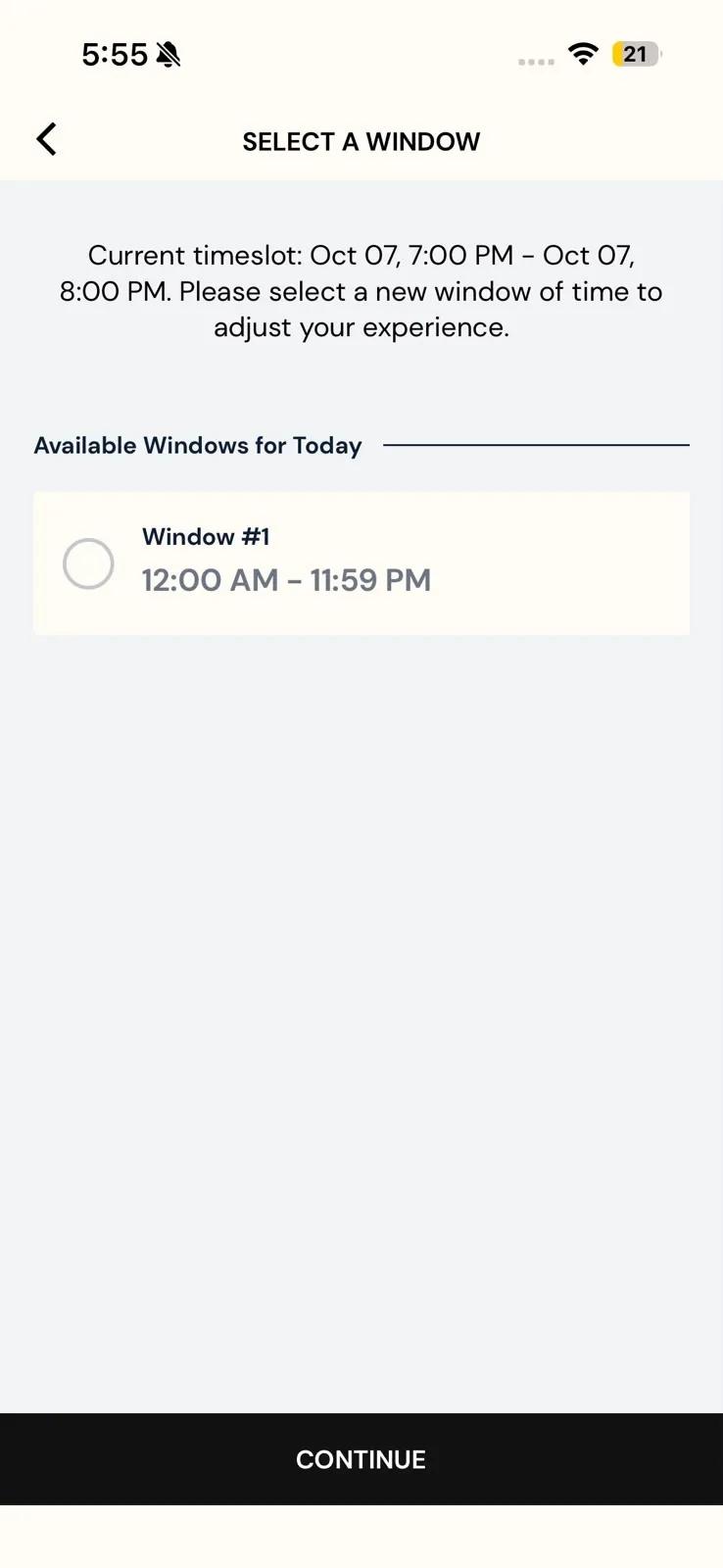
If the window you picked is longer than the survey's own window, the button reads Continue instead. Tap it, pick an Open Time inside that window, check the preview, and tap Update Timeslot. The survey keeps its original length, so the preview shows where it will close.
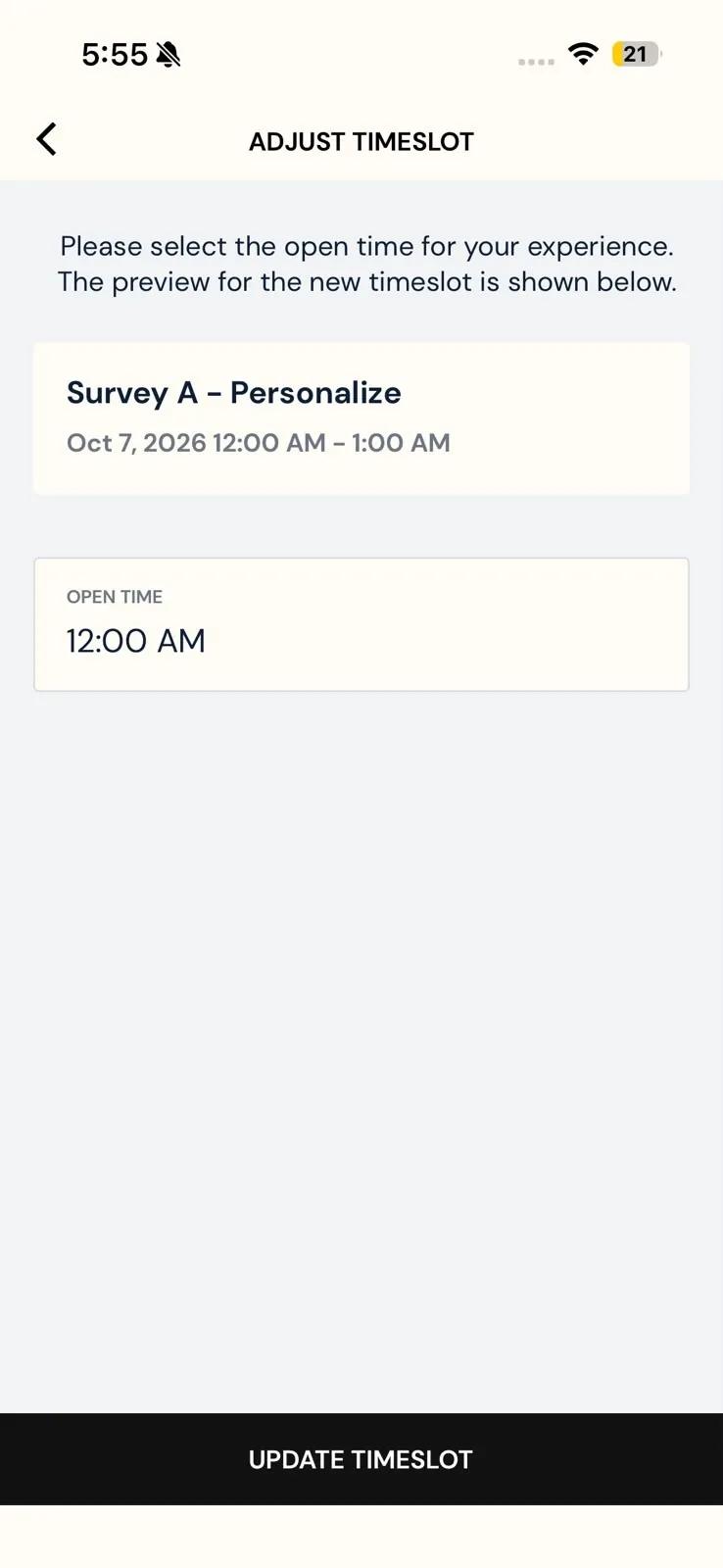
The app accepts an open time earlier today. If the new window has already ended, the survey is marked Missed straight away.
If the survey belongs to a group, the app asks Do You Want To Adjust All Timeslots In This Group?
- Just Adjust This Timeslot changes this survey only.
- Adjust All Timeslots shows a preview of every survey in the group, with its Original and Adjusted time. Tap Update Timeslots to save them all.
When it's done, the app confirms Successfully Updated Timeslot and tells you a notification will arrive when the new window opens.
Move a survey to another day
- Tap ⋮ on the survey's row, then Move Day.
- On the Select a Date screen, tap one of the available dates. Days you can move to are marked with a dot.
- Tap Update Timeslot.
The survey keeps the same hours on its new day.
If your study also lets you adjust times, the screen is called Select a Window instead. Pick a date, then one of the windows listed for it, and carry on as in the previous section.
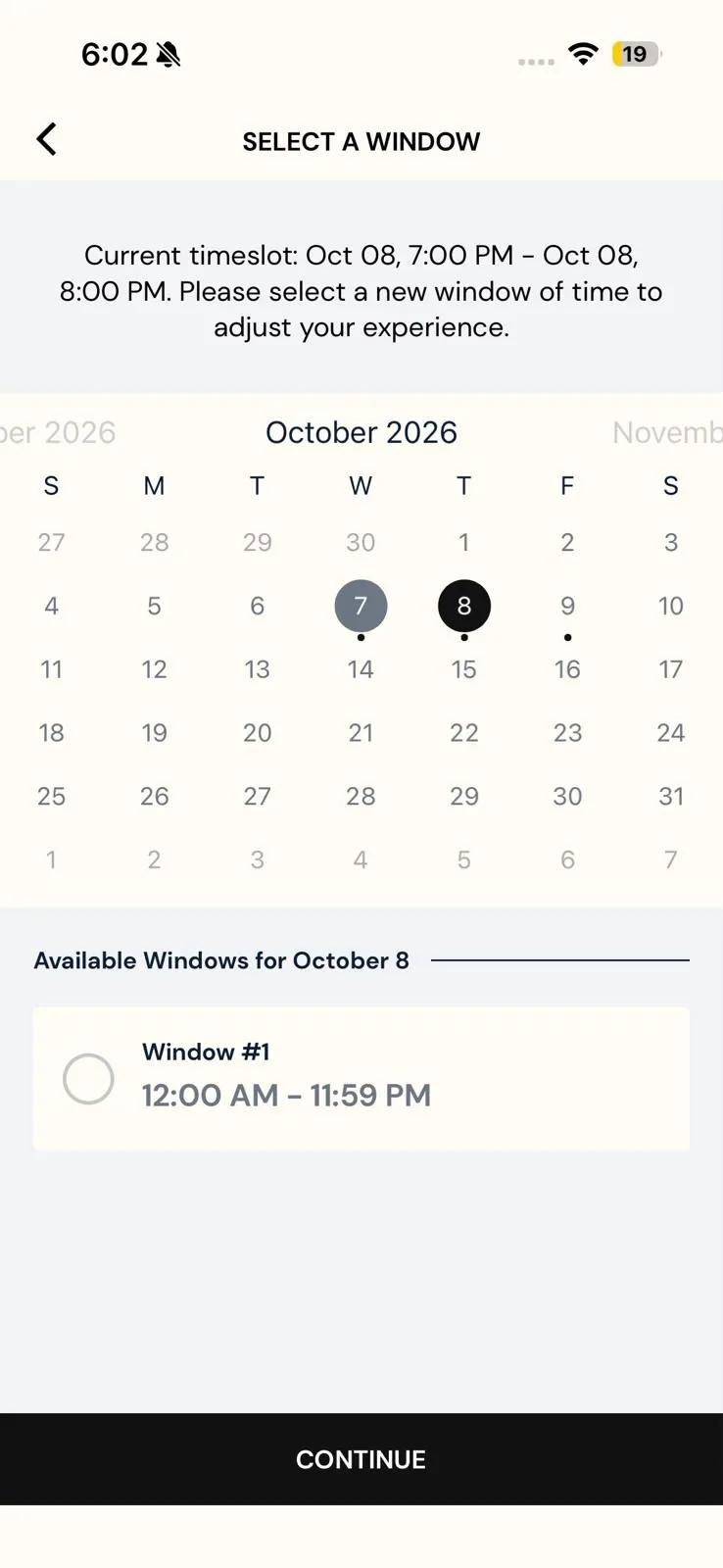
You get a notification when the survey's new window opens. If the survey opens at a random time, the notification arrives at some point during the window instead; see Randomization. Keep notifications turned on for the app; see Notifications.
Delete a survey
- Tap ⋮ on the survey's row, then Delete Timeslot.
- The app asks Are You Sure You Want To Remove This Timeslot? Tap Remove.
The survey comes off your schedule and you won't be reminded about it.
Troubleshooting
- The option I need isn't in the menu. Make sure you're in the Daily view. If it's still missing, your research team hasn't allowed it for that survey. Retake only appears after a survey is completed or missed, and Adjust and Move only appear until then.
- There Aren't Any Available Windows To Adjust Your Experience At This Time. There's nowhere left to move the survey to. Try again on another day, or ask your research team; see Contacting the researchers.
- Surveys arrive at odd hours after you travel. Open Settings → Update Timezone to bring the app in line with your phone's time zone.
Related
- How your research team turns on retakes, adjusting and moving → Personalize timings & retake missed surveys.