The new ExpiWell (beta): FAQ
We're launching a new version of the ExpiWell web dashboard. It's the same account and the same projects, with a new look and new tools. The new app is in beta, and we're inviting customers in phases by plan. You don't have to switch yet: both apps stay available until January 31, 2027 (tentative). Once everyone has moved over, the legacy web app will be retired.
What's new
Yes. The new app is in beta, so you may notice some rough edges while we keep improving it. We'd love your feedback. If something isn't working, click the chat button in the bottom-right corner to open ExpiWell Assist, choose Report a bug, and attach a screenshot so our team sees the issue right away. You can also email technical issues or suggestions to help@expiwell.com.
We're inviting customers in phases by plan, as each one is ready:
- Plus and Basic
- Premium
- Sensor+
- GEMA
- SKYN
When the new app is available for your plan, you'll get an email. You'll also see a banner in the legacy app: "Our new ExpiWell experience is here."
Along with a new look, the new app adds:
- Project folders on the main dashboard, to keep your projects organized.
- ExpiWell Assist, in-app help that answers your questions and lets you report a bug. See Getting help.
- Passkeys and trusted devices for faster, safer sign-in, under Settings → Security, in the Passkeys and Trusted Devices sections.
- Surveys in other languages: set a project's language so your participants get its surveys and study emails in one of 13 languages, not only the one you use.
It means the new app is ready for you. Click Try the new app to open it and sign in with your usual email and password. If you'd rather not see it, click × to close it. You can keep using the legacy app as normal.
If you're a team member or provider, read Team members and providers before using it for your PI's projects.

No. You can start using the new app whenever you're ready. The legacy app stays available too.
Both the legacy and the new web apps stay available until January 31, 2027 (tentative). We'll let you know before the legacy app is retired.
After January 31, 2027 (tentative), the legacy app will be retired and the new app will be the only web app. Your account, projects and data stay as they are.
Yes. Both apps use the same account and the same data, so changes you make in one show up in the other.
To avoid conflicting changes, don't edit the same survey or schedule in both apps at the same time.
Go to app.expiwell.com and sign in as usual.
No setup is needed. To try the new app, sign in with the email and password you already use.
No. Your plan, features and billing stay the same.
Click Try the new app on the banner in the legacy app, or go to app-v2.expiwell.com. If your account is on the Europe (EU/EEA) region, go to app-v2-eu.expiwell.com.
Use Chrome, Edge or Firefox version 111 or later, or Safari 16.4 or later.
Signing in
These answers apply to everyone: PIs, Research Assistants, Dashboard Viewers and providers.
No. Everyone uses their existing email and password, whatever their role.
The sign-in page has an Account Region dropdown with two options: Global and Europe (EU/EEA).
- If you used the legacy ExpiWell app, choose Global, even if you're based in Europe. All accounts from the legacy app are on Global.
- Only choose Europe (EU/EEA) if you created a new account on the EU region.
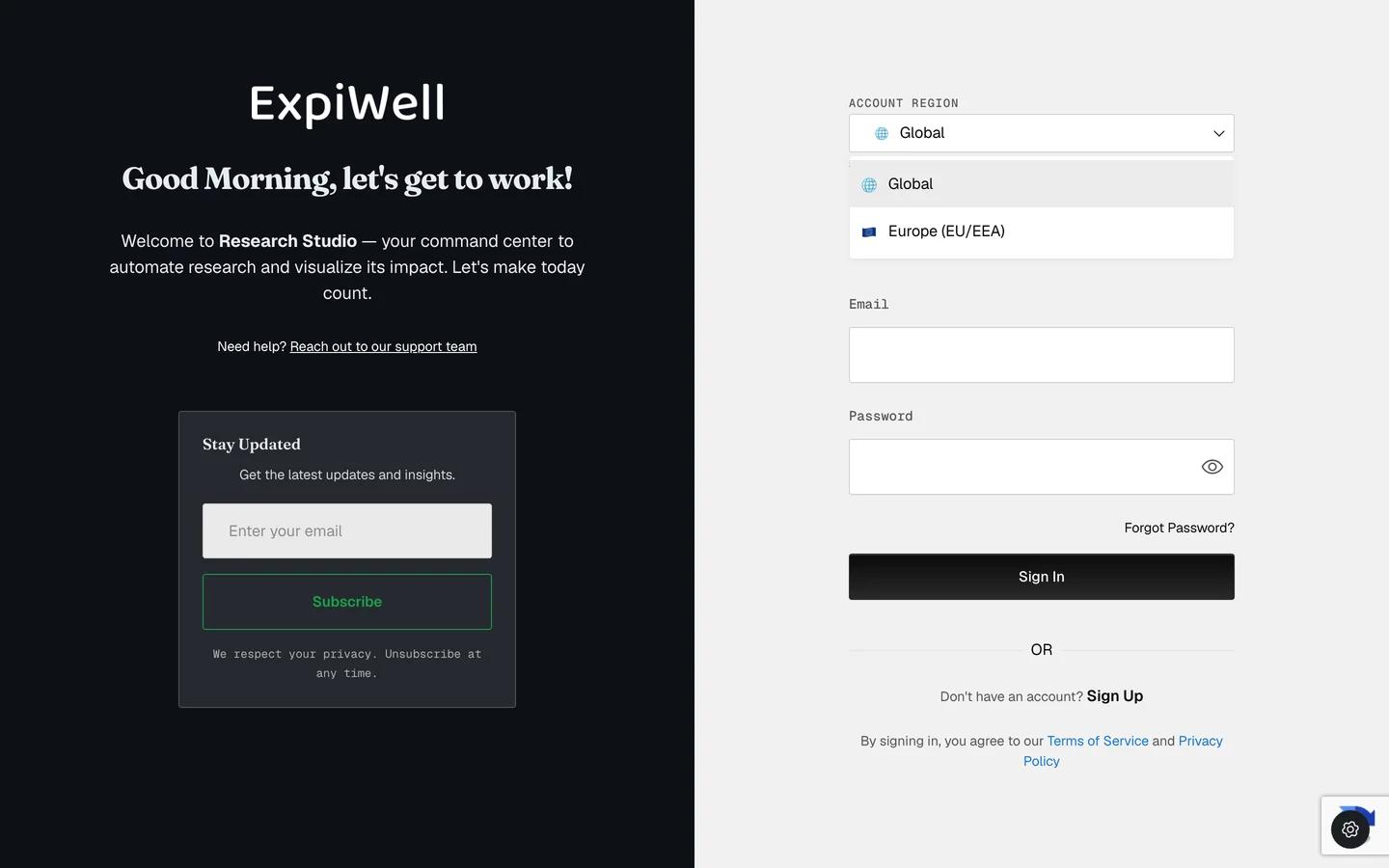
The full message is: "We couldn't sign you in. If you created your account in a different region, your login won't work here — accounts can't move between regions."
It usually means the wrong region is selected. If you used the legacy ExpiWell app, switch the Account Region dropdown to Global and sign in again. If you're on the Europe sign-in page, you can also click Try Global instead. If it still doesn't work, check your password or use Forgot Password?.
For security, we email you a code when you sign in. Check your inbox, and your spam folder, for it. The code expires after 15 minutes, so request a new one if yours has run out.
- If you tick Trust this device for 24 hours, you won't be asked for a code on that browser for 24 hours. We may still ask if a sign-in looks unusual, for example from a new network or location.
- You can manage trusted devices under Settings → Security → Trusted Devices.
- You can also add a passkey under Settings → Security → Passkeys. With a passkey, you can sign in with your device instead of an emailed code.
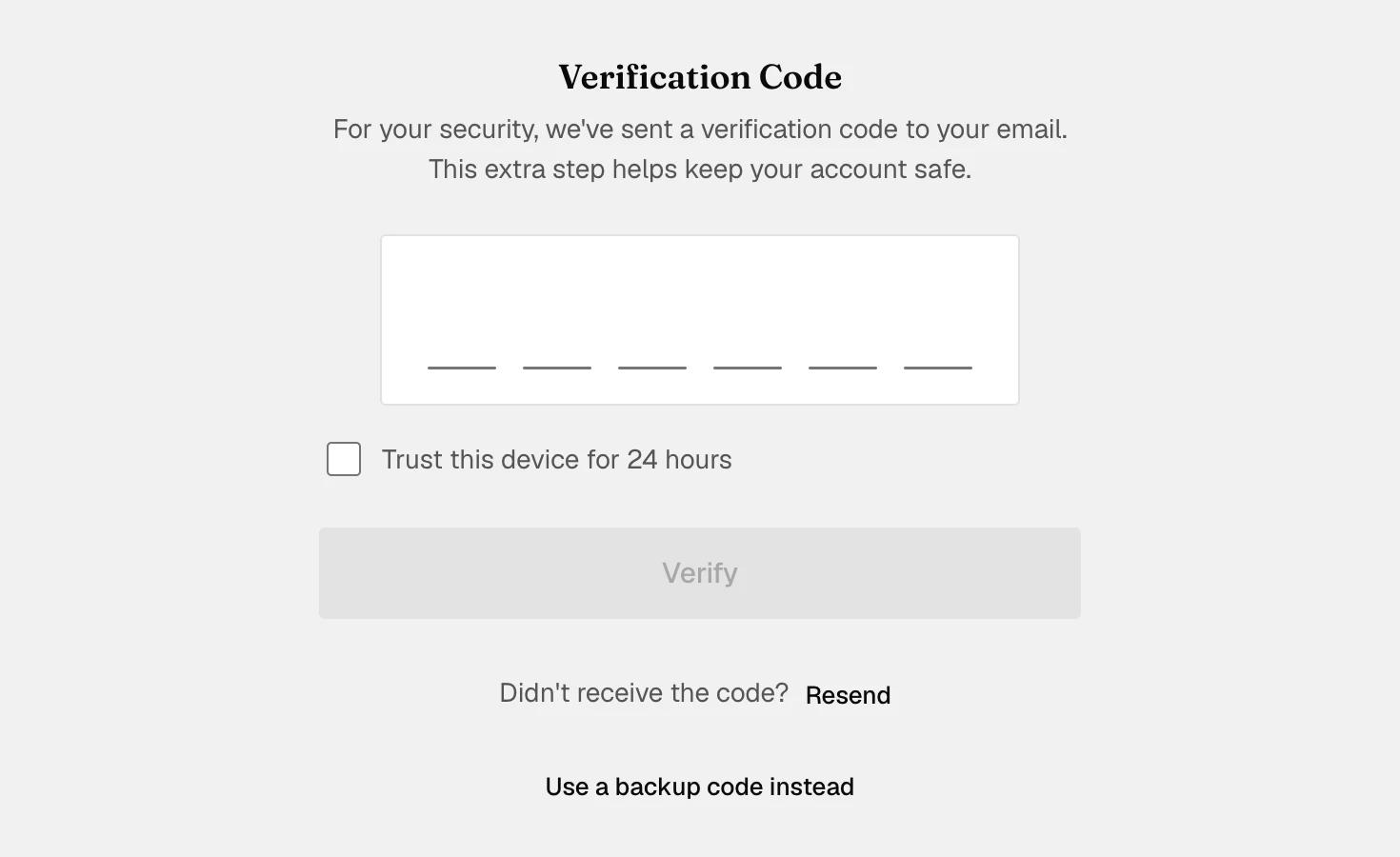
Only one active session is allowed per account at a time. If you're signed in to the new app on another device or browser, you'll see Active Session Detected. To continue here, tick I understand that the other session will be logged out and click Continue and Log Out Other Session.
For security, you're signed out after 15 minutes without activity. You'll see a warning 3 minutes before, so you can stay signed in. You'll also need to sign in again after 4 hours, even if you've been active. The survey builder saves your changes automatically, but some other pages need you to click Save, so save your work before stepping away.
Click Forgot Password? on the sign-in page. Your password is the same in both apps, so a reset applies to both.
Team members and providers
Nothing about your access. What you can do on a project depends on the role the project owner (the Principal Investigator, or PI) gave you and on the PI's plan, not your own plan.
- Research Assistants can view project information, download data, and edit or delete surveys and projects.
- Dashboard Viewers can view project information and download data.
- Providers are added to individual projects. They can view the participants assigned to them, without changing their data.
You can sign in and look around. Please keep working on your PI's projects in the legacy app until your PI has been invited. We invite customers by their own plan, so team members and providers may hear before their PI does.
Ask your PI. They'll get their own email and see the banner when the new app opens for their plan.
Use the new app only for projects whose PI has been invited. Keep using the legacy app for the rest.
No. Once the PI has been invited, team members can each use whichever app they like. Everyone works on the same project and data.
Participants and ongoing studies
No. Participants keep using the same ExpiWell mobile app. They don't need to reinstall, sign in again or re-join your project.
No. Surveys, schedules and notifications keep running as they do today, whichever web app you use.
Using the new web app doesn't change how wearable data is collected (e.g., Fitbit / Google Health).
Yes. All projects, responses and participant data are there. Nothing is deleted, and you can still export your data.
Yes. Participants join through the mobile app as they do today, so nothing changes.
Not if your project was created in the legacy app. Those projects are on Global, so participants use the regular app. Only projects created on the Europe (EU/EEA) region need the EU version of the app.
There's no need. Nothing changes on their side.
What looks different
- The layout and navigation are new. Some pages and settings have moved or been renamed.
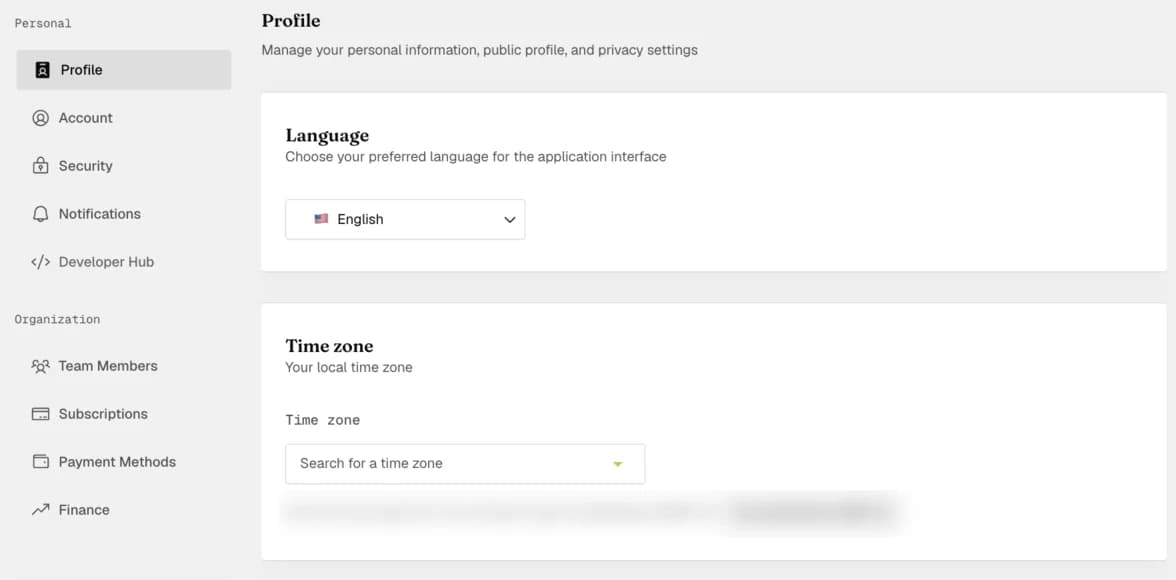
- Account settings are under Settings, in two groups:
- Personal: Profile, Account, Security, Notifications and Developer Hub
- Organization: Team Members, Subscriptions, Payment Methods and Finance
Your subscription stays the same in both apps. To change your plan, email our sales team at sales@expiwell.com. Payment Methods in the new app is only for adding funds to pay participants or for demographics, which most projects don't use.
Yes. Click the flag button in the top bar, on the right, and choose from 13 languages. If yours isn't there, use Request Translation in the same menu.
Getting help, reporting issues and sharing feedback
After signing in, click the chat button in the bottom-right corner of any page. This opens ExpiWell Assist, our in-app assistant. Ask it how to do something, such as inviting participants, scheduling surveys or exporting data. Check important answers, and if something doesn't look right, email us.
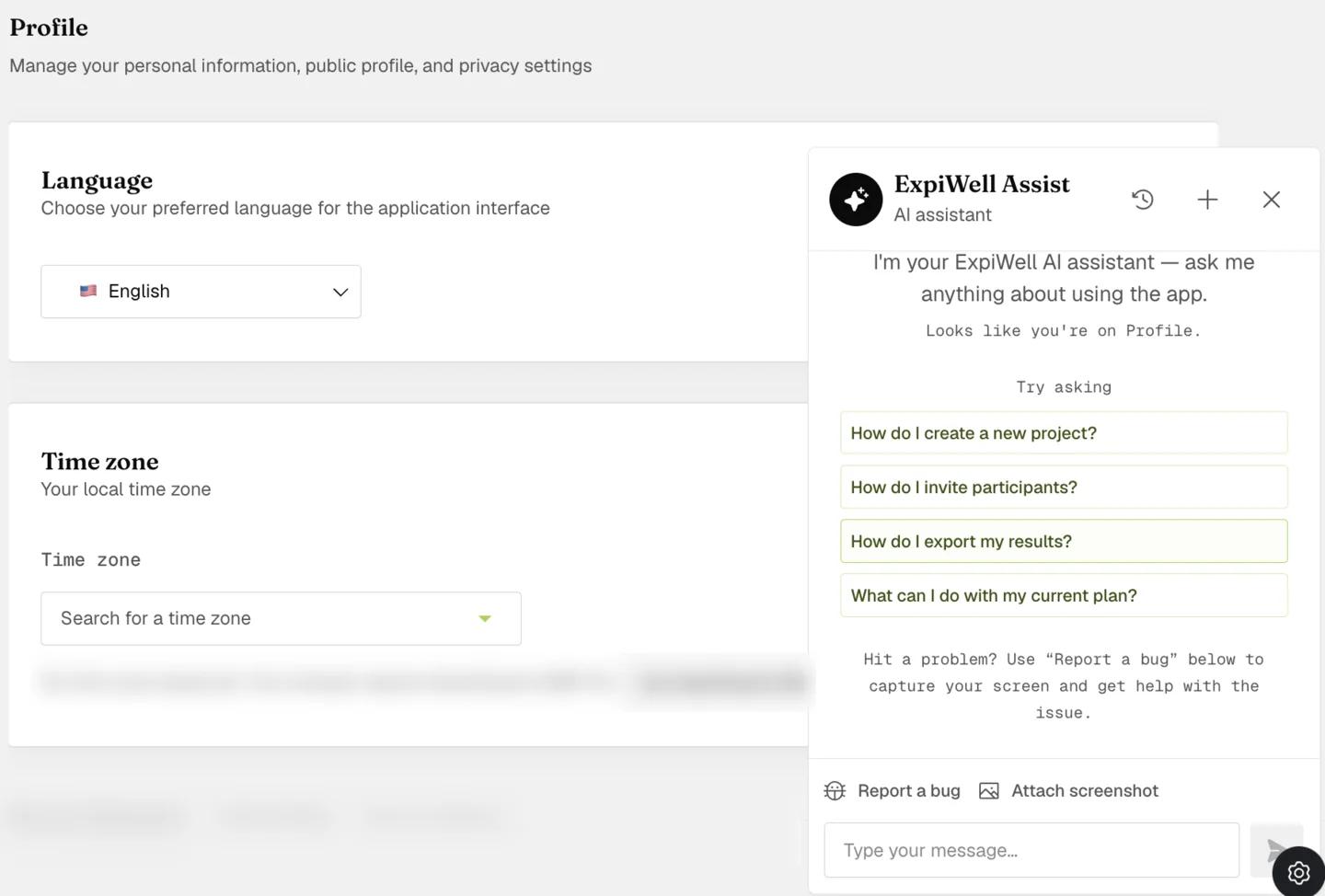
In ExpiWell Assist, click Report a bug and describe what happened. Click Attach screenshot to capture your screen and add it. Your report goes straight to our team. To find your past chats, open Previous chats from the button at the top of the chat panel.
ExpiWell Assist uses an AI model to read your screenshot, and the screenshot is saved with your report so our team can investigate. Please avoid capturing participant names or other identifying details.
Email help@expiwell.com. Since the app is in beta, we especially want to hear what's working, what isn't and what you'd like to see.
What you were trying to do, what happened instead, which project it affected, your account region, and a screenshot.
First check that the right Account Region is selected (Global if you used the legacy app), and look for the verification code in your inbox and spam folder. If that doesn't fix it, email help@expiwell.com. In the meantime, you can keep working in the legacy app.
Privacy and security
Yes. Using the new app doesn't move your data, and the same privacy and compliance standards apply.
The new app adds stronger account protection: emailed verification codes, trusted devices, optional passkeys, automatic sign-out after inactivity, and one active session at a time.