Exporting participants' responses
How to Export Participants' Responses
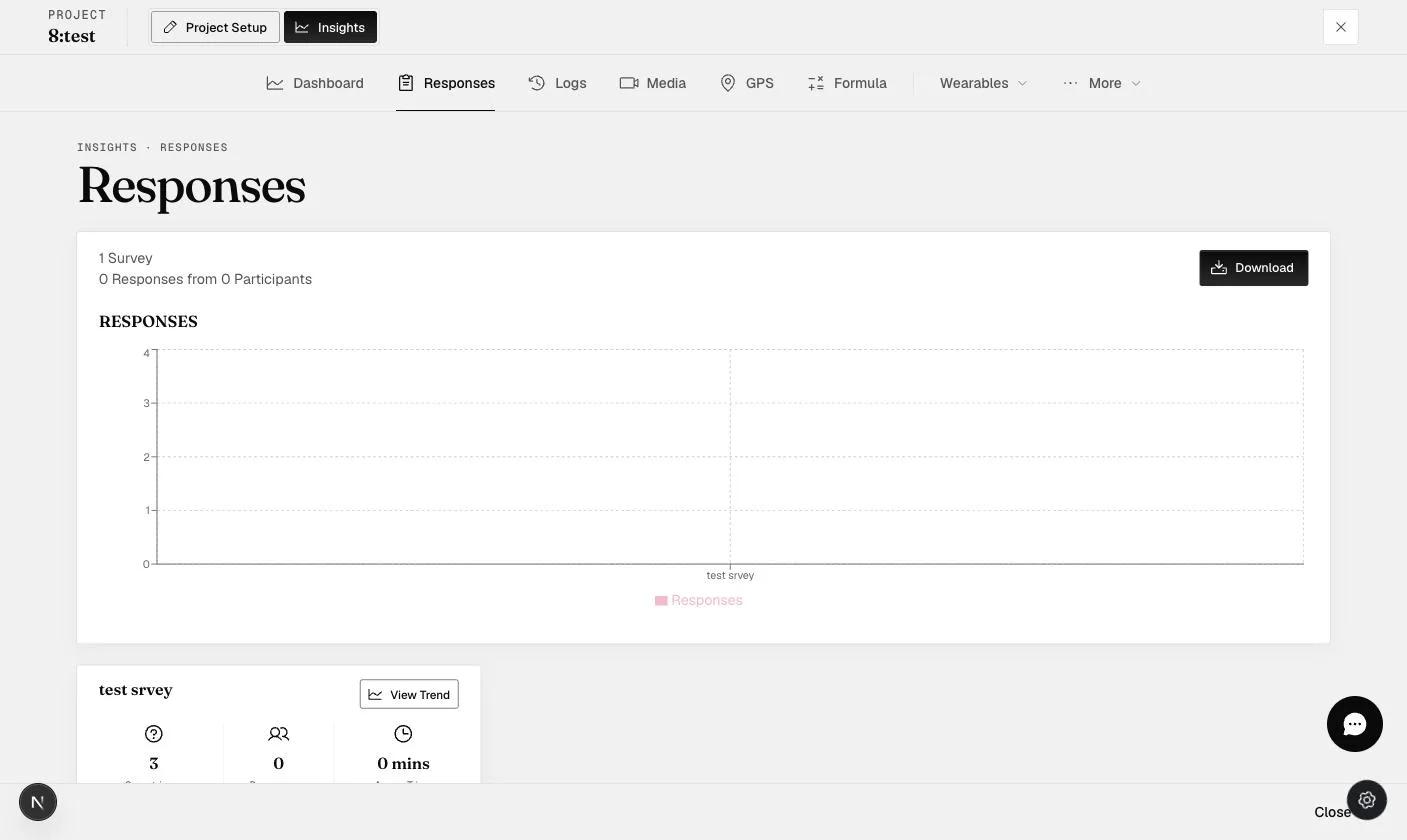
You can download your data at any time, while the project is running or after it has finished, as many times as you like. The export always arrives as a zip folder with one file per survey — the modal says so at the top: Options are applied to all surveys and a zip folder will be created.
Where it is
Insights → Responses → Download.
Choosing a format
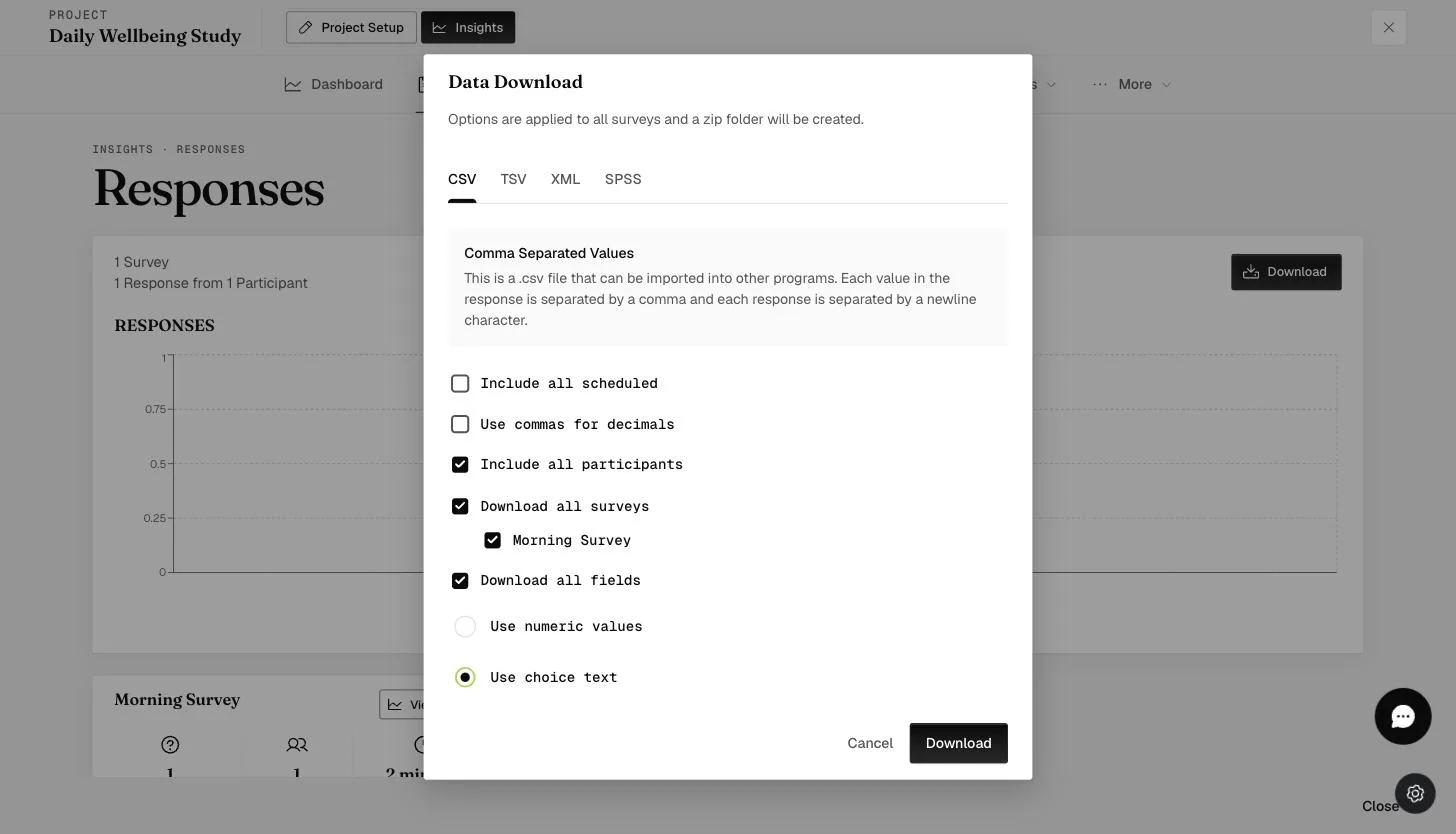
The modal opens on four tabs — CSV, TSV, XML and SPSS — and each describes itself when selected. CSV is the default and the one most analysis tools accept.
What to include
Five checkboxes, three of them ticked by default. The capture above has Include all scheduled turned on as well, which is not its default.
- Include all scheduled — off by default. Turn it on to get a row for every survey that was sent, not just the ones answered. This is how you see missed surveys; see the Finished column below.
- Use commas for decimals — off by default. Turn it on if your locale reads
3,14rather than3.14, or your spreadsheet will misread the numbers. - Include all participants — on by default. Untick it and a picker opens: a search box, a checkbox per participant, a Select range shortcut, and a count of how many you have chosen.
- Download all surveys — on by default, with each survey listed beneath it so you can take one and leave the rest.
- Download all fields — on by default.
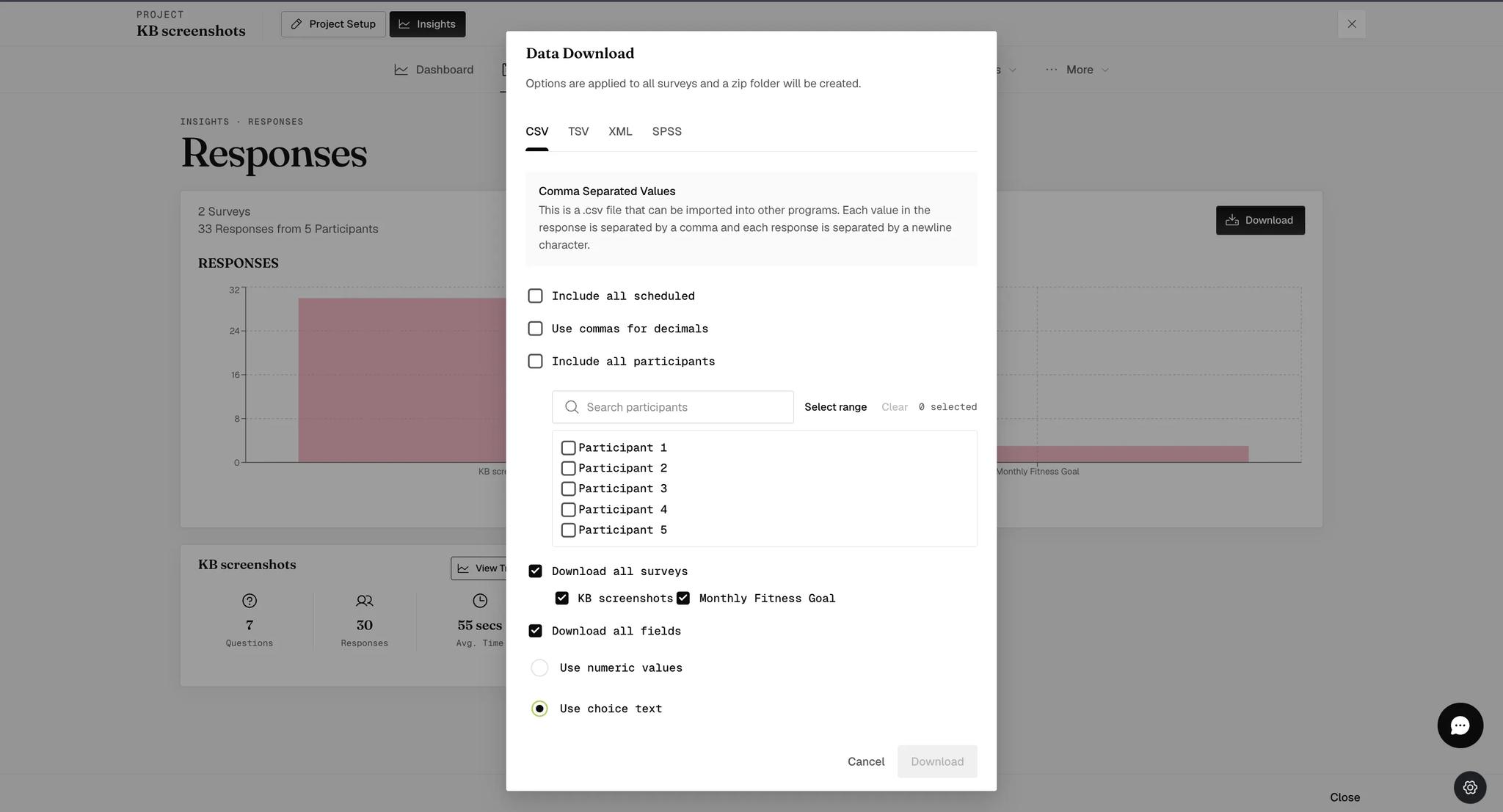
Nothing selected means nothing to download. The count reads 0 selected
until you tick someone, and the Download button stays grayed out — the dialog
will not quietly export everyone instead.
A range that overshoots is not an error. Using Select range to ask for participants 201–400 when you have 385 gives you 201–385. You do not need to know the exact count to take the last batch.
Values or text — one or the other
Use numeric values and Use choice text are a radio pair, not two checkboxes. Picking one turns the other off, and Use choice text is selected to begin with.
- Choice text writes the answer the participant saw —
Very Good. - Numeric values writes the code behind it —
4.
Take numeric for analysis, text for reading. If you want both, download twice.
Reading the Finished column
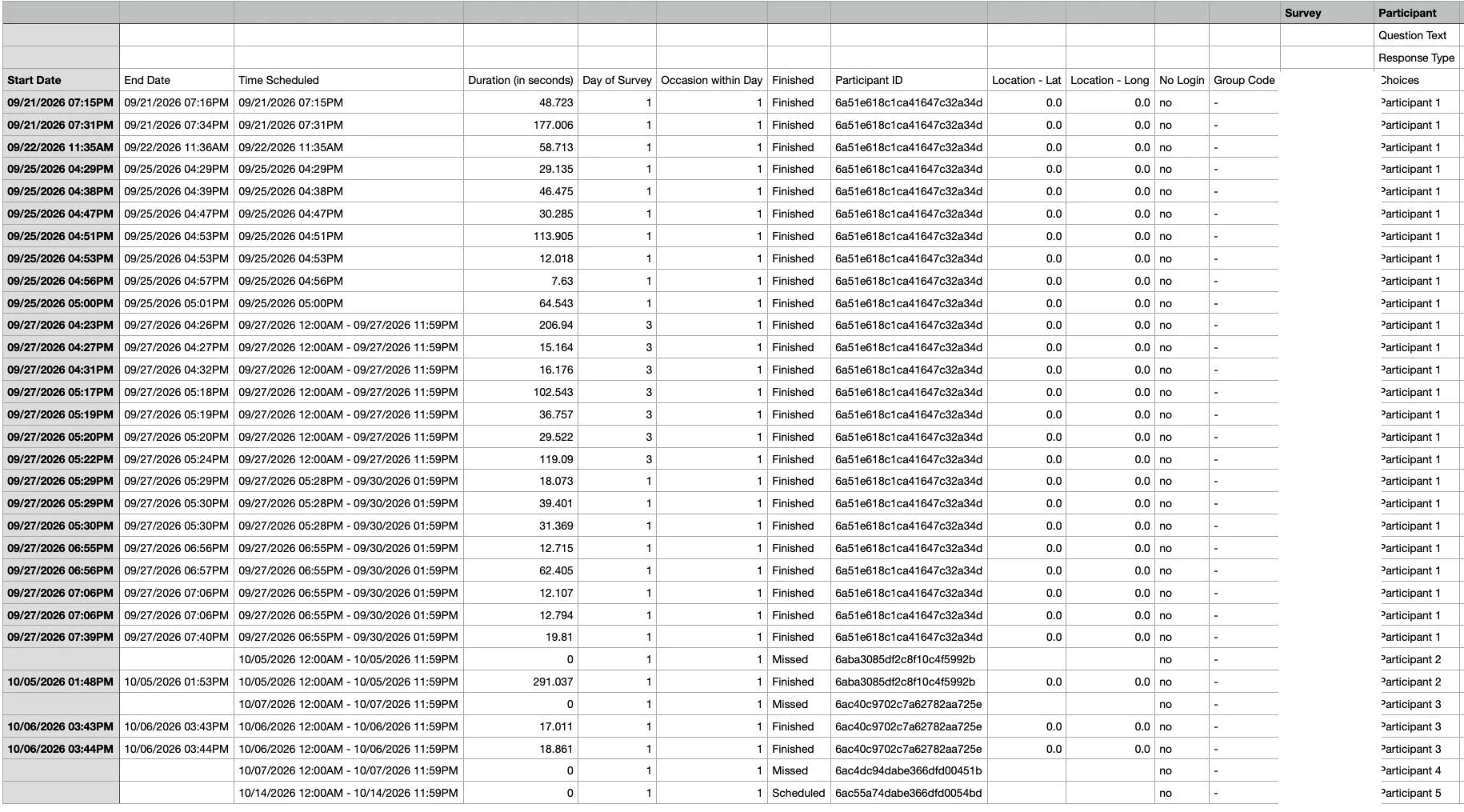
Every response file carries a Finished column. It is the quickest way to tell an answered survey from one that was sent and ignored.
| Value | What happened |
|---|---|
Finished | The participant submitted it themselves. |
Missed | It was sent, the window closed, and they never answered. |
Scheduled | Still to come — the window has not closed yet. |
Auto Submitted | The time window ran out and the system submitted what there was. |
Missed and Scheduled rows only appear if you ticked Include all
scheduled. They carry no Start Date, no End Date and a duration of 0, which
is how you spot them at a glance.
IP addresses
If your project collects them, the file carries a column of participant IP addresses.
An IP address is personal data under GDPR, and it is the one column in this export most likely to identify someone on its own. Store the file accordingly, and strip the column before sharing the data or putting it in a paper's supplementary material.
What you get
A zip, one file per survey, each in long format — one row per response, with the participant and the time of the survey on it.
The link between files is the Participant ID, an alphanumeric code ExpiWell assigns. Merging the surveys into one table is a join on that column; the export does not do it for you.
Common questions
Can I download while the project is still running? Yes, and as often as you like. There is no limit.
Can I get all my surveys in a single file? No. Each survey exports as its own file inside the zip. Merge them on Participant ID if you need one table.
Can I download only some participants? Yes — untick Include all participants and give a range.
For anything else, contact help@expiwell.com.
This walkthrough was recorded in the earlier ExpiWell interface — an updated video for the new dashboard is coming.