Under construction

You've sampled us mid-build.

These guides cover the new ExpiWell platform (v2) and are still being written, checked, and rearranged — pardon the scaffolding: pages may move or change between visits. Still on the legacy app? Its documentation remains on the old support portal.

Open the legacy support portal
Knowledge base  /  From the ExpiWell team

How can we help?

Guides for every step of your study — from your first project to your final data export. The ExpiWell knowledge base for the researcher web platform and the participant mobile app.

102 guides across 29 categories · Updated by the ExpiWell team
Help CenterBuildProject Creation

Duplicating projects & editing project name

Build · Project Creation
Updated September 17, 2026

A Guide to Duplicating Existing Projects & Editing Project Name

You can duplicate an existing project — along with its surveys, schedules, and settings — for piloting or distributing to a different participant group. Project names can also be edited at any time.

Duplicating a Project

To duplicate an existing project, go to the main projects dashboard, click the three-dot menu on the project card you would like to duplicate, and select 'Copy'.
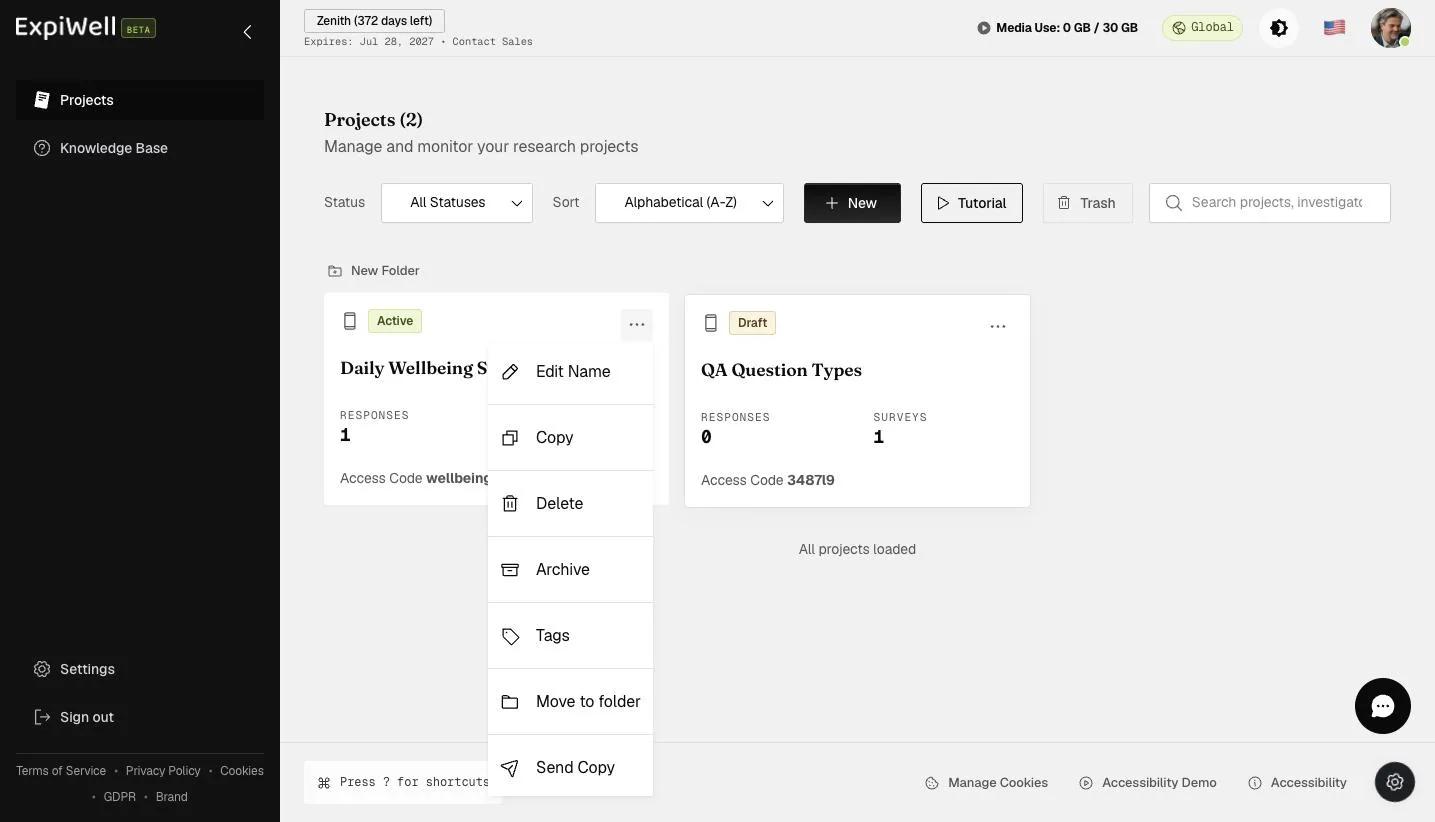
The project card three-dot menu with Edit Name, Copy, Delete, Archive, Tags, Move to folder, and Send Copy

A popup will allow you to edit the name of the duplicated project. You can also tick Use Custom Access Code to set your own code instead of letting the system generate one. Provide a name and click Duplicate.
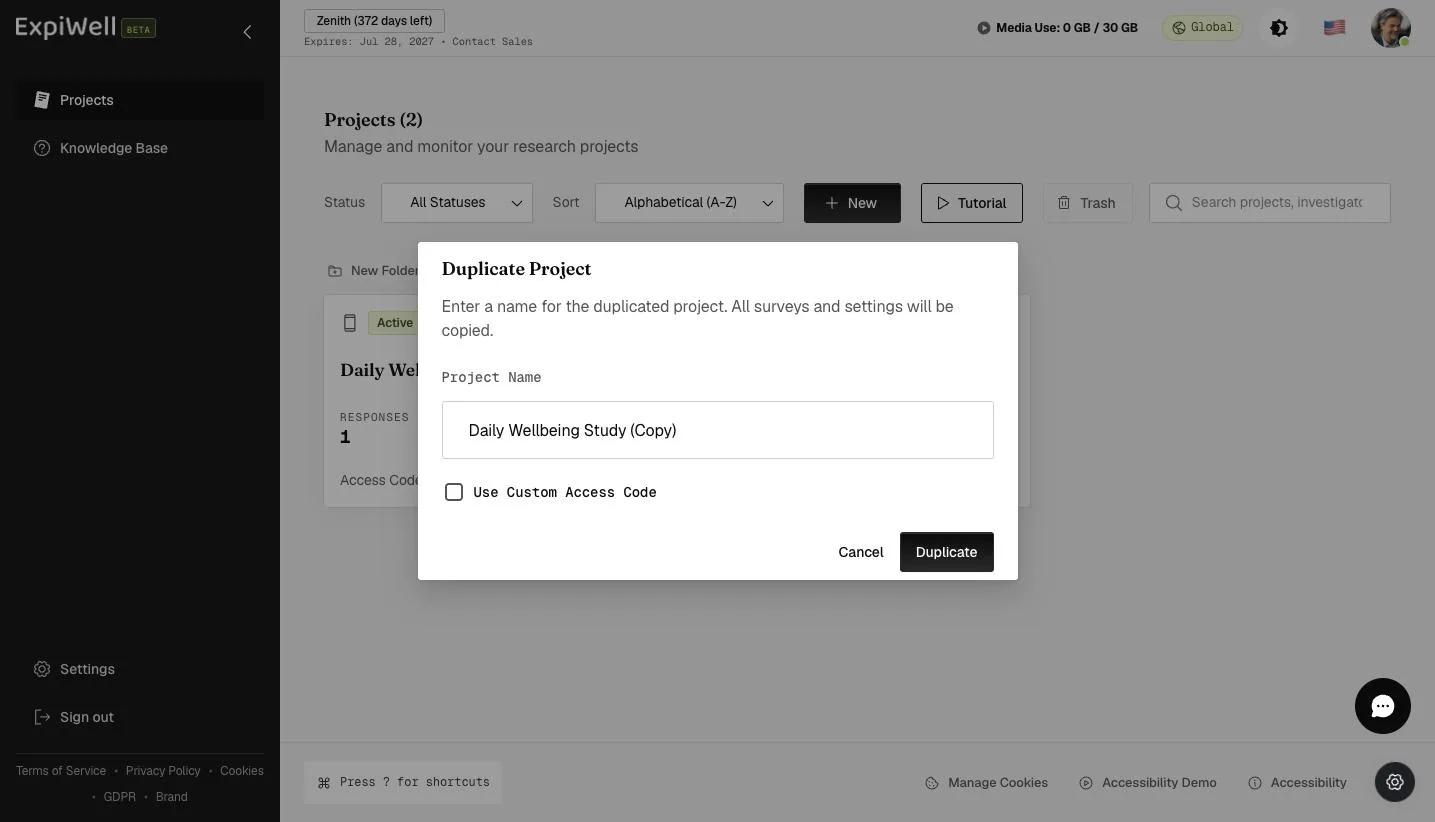
The Duplicate Project dialog with a pre-filled project name and a Use Custom Access Code checkbox

Review the duplicated project setup and make the changes according to your research needs.
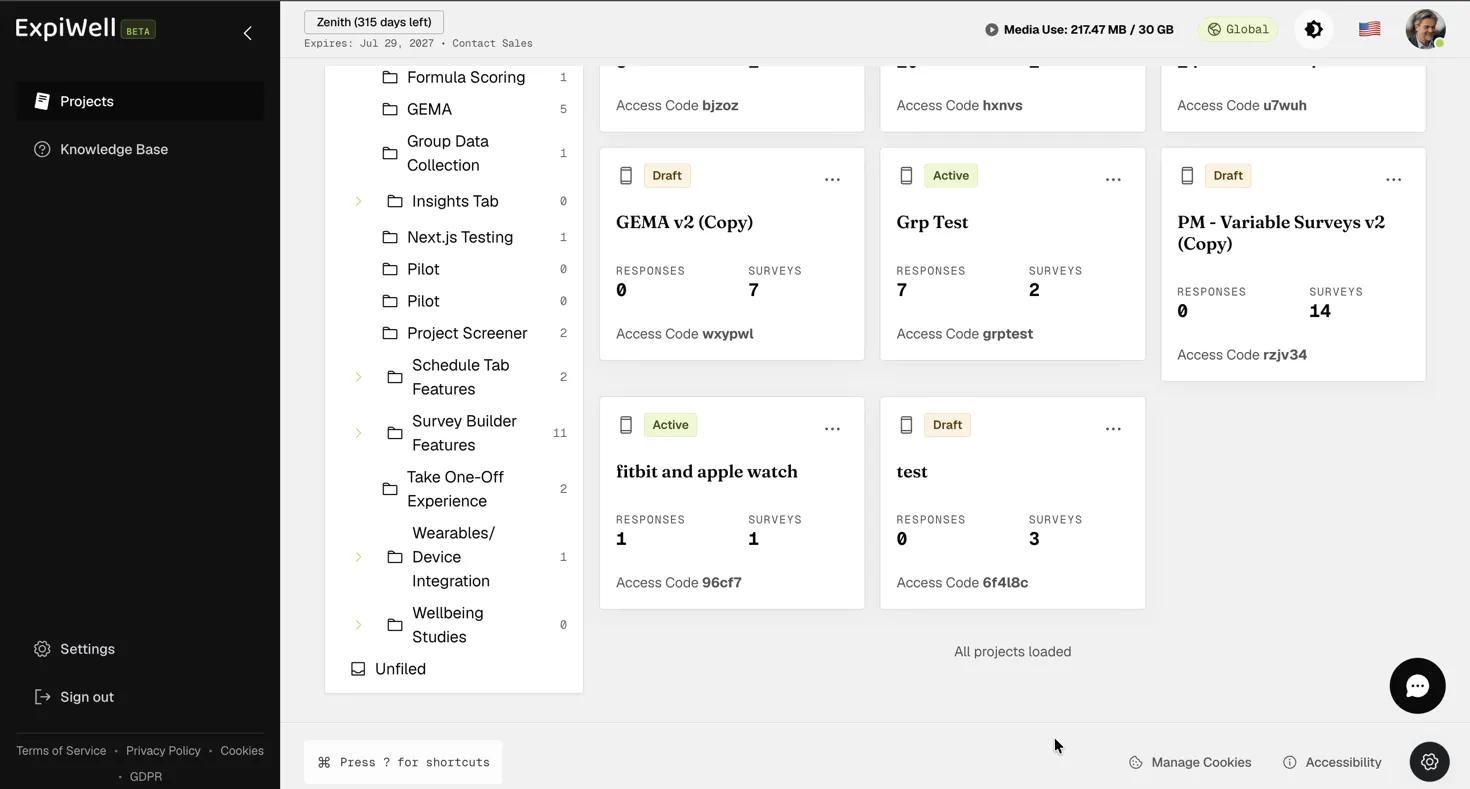
The projects dashboard showing the duplicated project GEMA v2 (Copy) in Draft status with 0 responses and 7 surveys copied

Editing Project Name

To edit an existing project name, go to the main projects dashboard, click the three-dot menu on the project card you would like to edit, and select 'Edit Name'.

The project card three-dot menu with the Edit Name option

A popup will appear, allowing you to edit the project's name as needed. Click 'Confirm' to update the project name on the main projects dashboard. Note that the project's access code will remain unchanged, even after the name is updated.
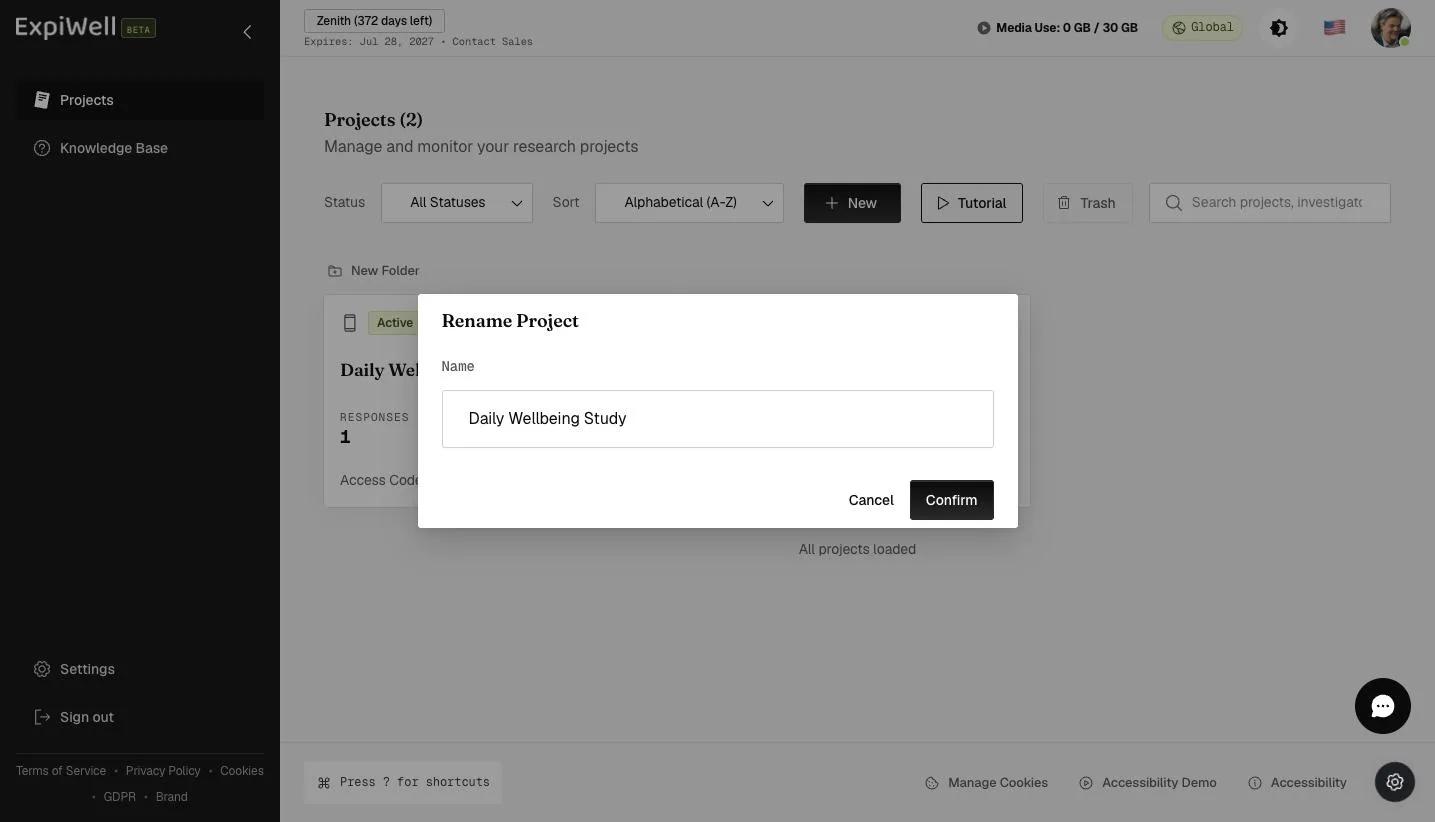
The Rename Project dialog with the project Name field and Confirm button
Was this helpful?
Start today

Talk to a human on the ExpiWell team.

Still stuck? Our team of researchers answers technical and study-design questions alike.