Creating quotas for screened participants
What Quotas Are For
Screening decides whether someone qualifies. Quotas decide how many of each kind you take. You might want 100 participants aged 40–60 and 100 aged 61 and over, and no more of either — for balance, or simply because the budget stops there.
Quotas are optional. The panel says so itself: "Without any quotas, every participant qualifies." Add them only when you need to cap a group.
Creating a Quota
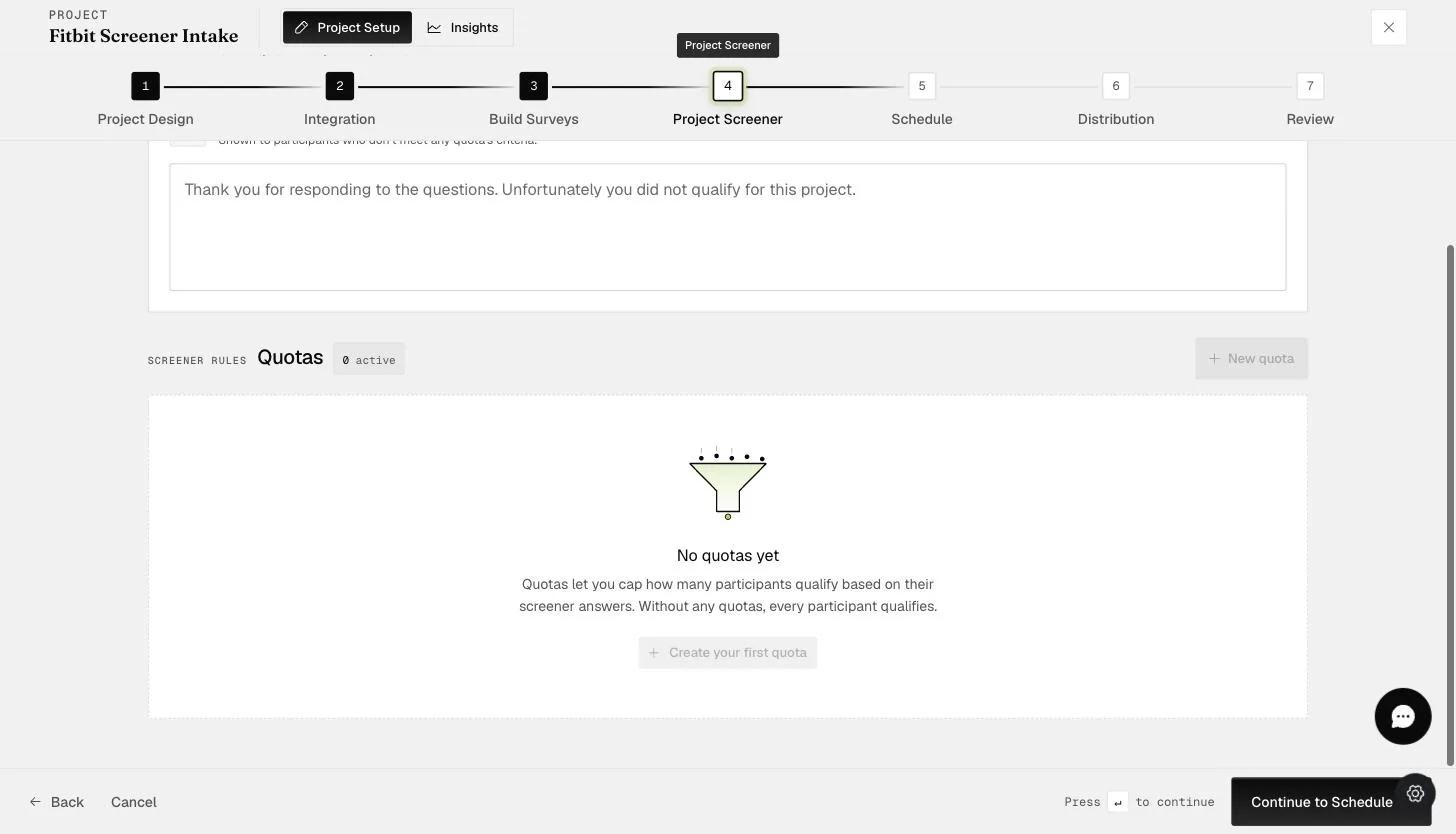
Quotas live on the Project Screener step, and they only appear there once a screener survey exists — see Project screener. With one in place, start a quota from + New quota at the top right, or + Create your first quota in the empty panel.
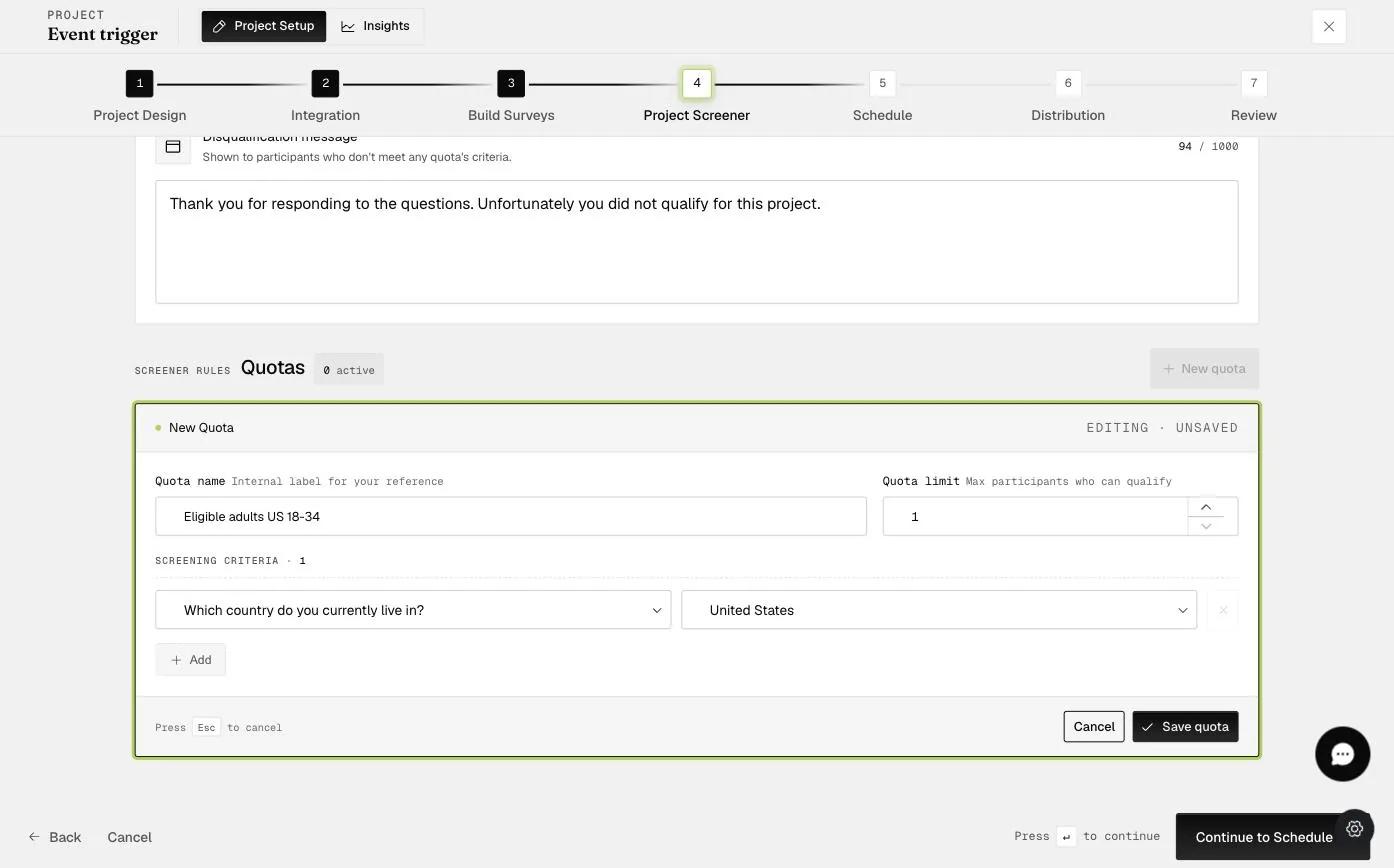
The form takes three things:
-
Quota name — an internal label, for your reference only. Participants never see it.
-
Quota limit — the maximum number of participants who can qualify under this quota.
-
Screening criteria — a screener question paired with the answer that puts someone into this quota. + Add takes more than one, so a quota can require several answers at once.
Click Save quota.
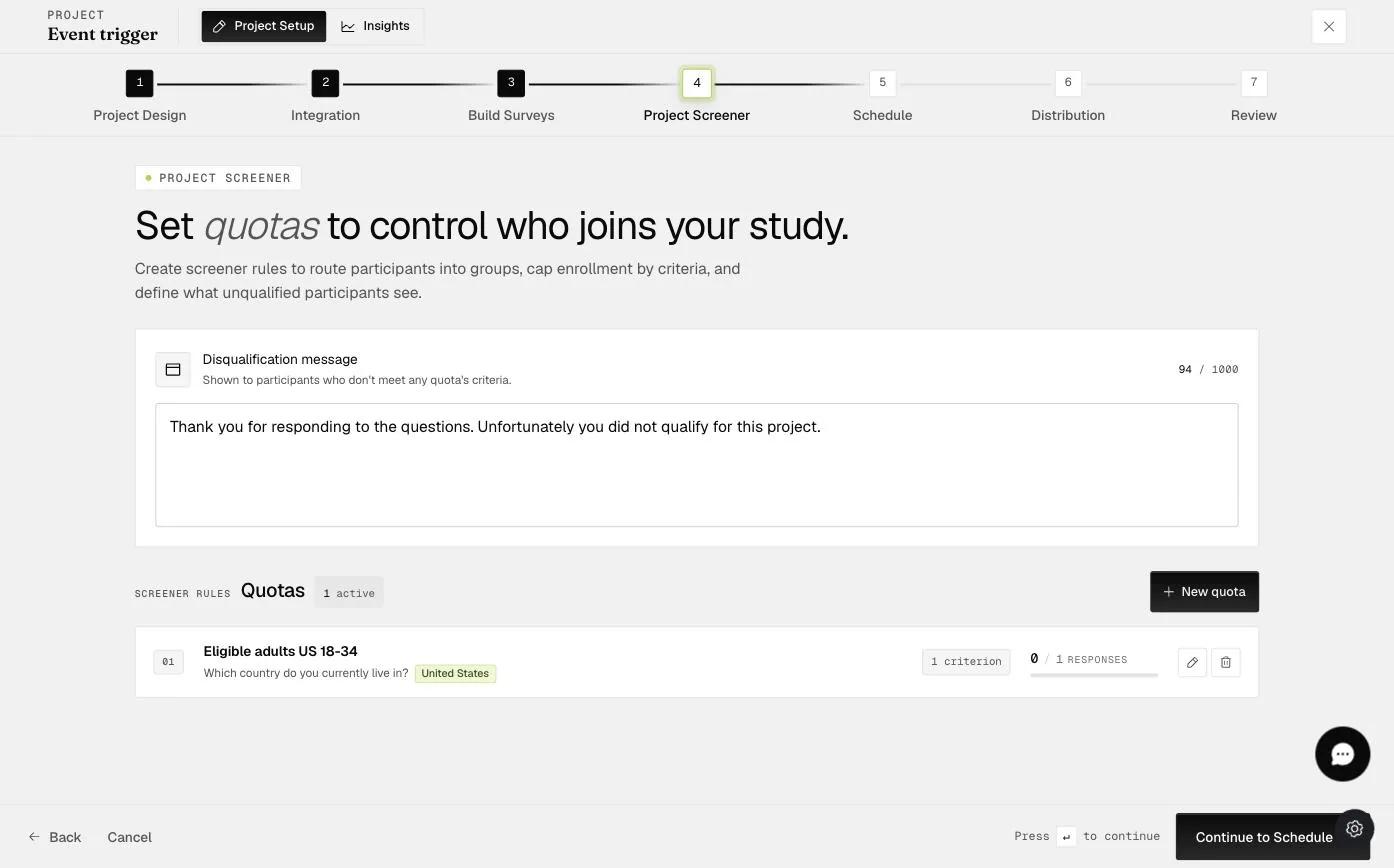
The saved quota then appears in the list, with its criterion and a count of how many participants have filled it.
Once a quota is full the Project Screener stops accepting participants who match it — they are turned away even though they passed the screener questions, because the places for people like them have gone. What they see at that point is the disqualification message, which you can write yourself: see Providing feedback to screened out participants.