Project review for EMA & ESM
Review the Settings of Your EMA and ESM Project
The project review page is the final step before launching your ecological momentary assessment (EMA) and experience sampling method (ESM) project. On this page, you will be able to review the settings of your project.
General
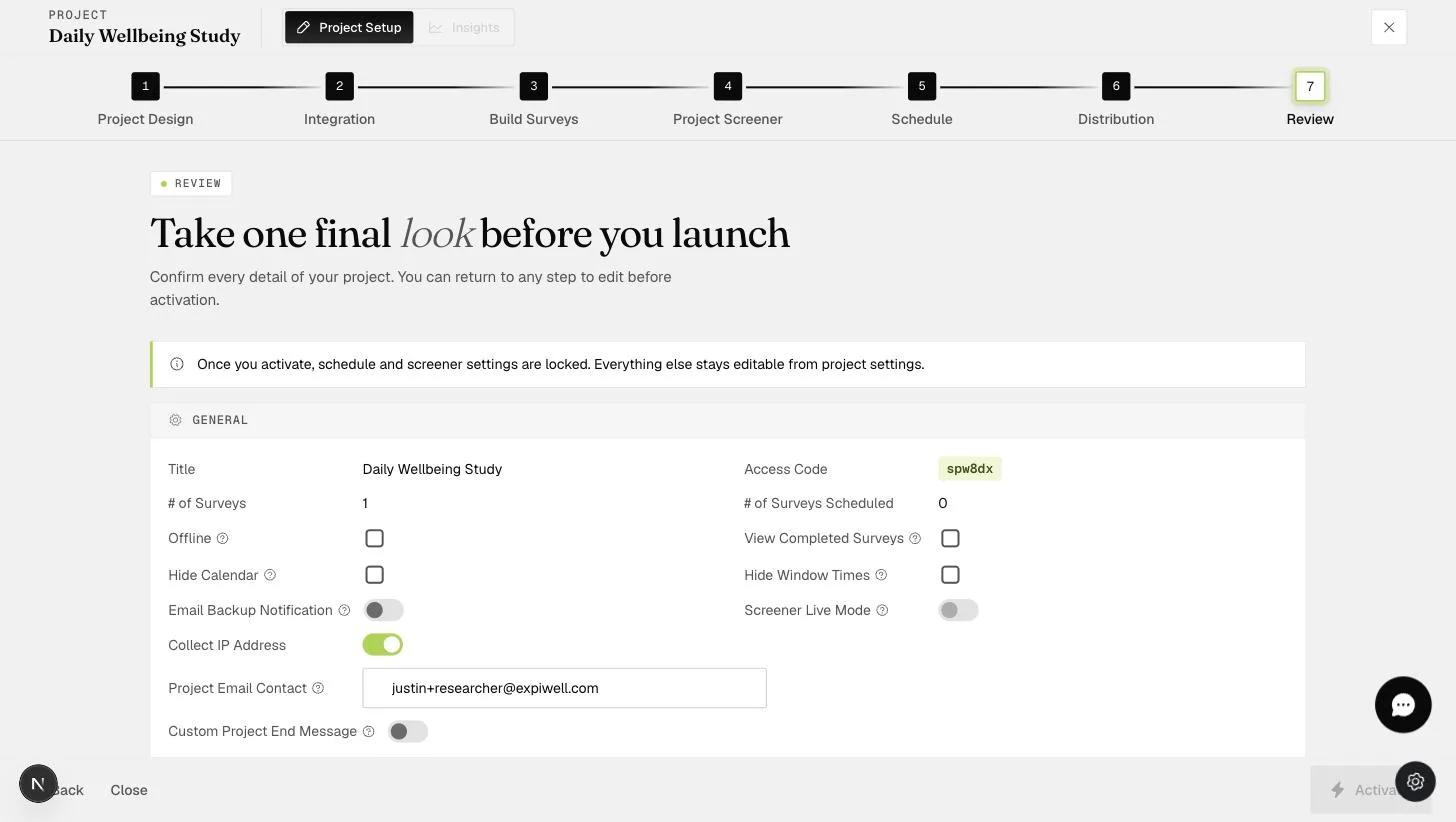
The information displayed in the general section is below.
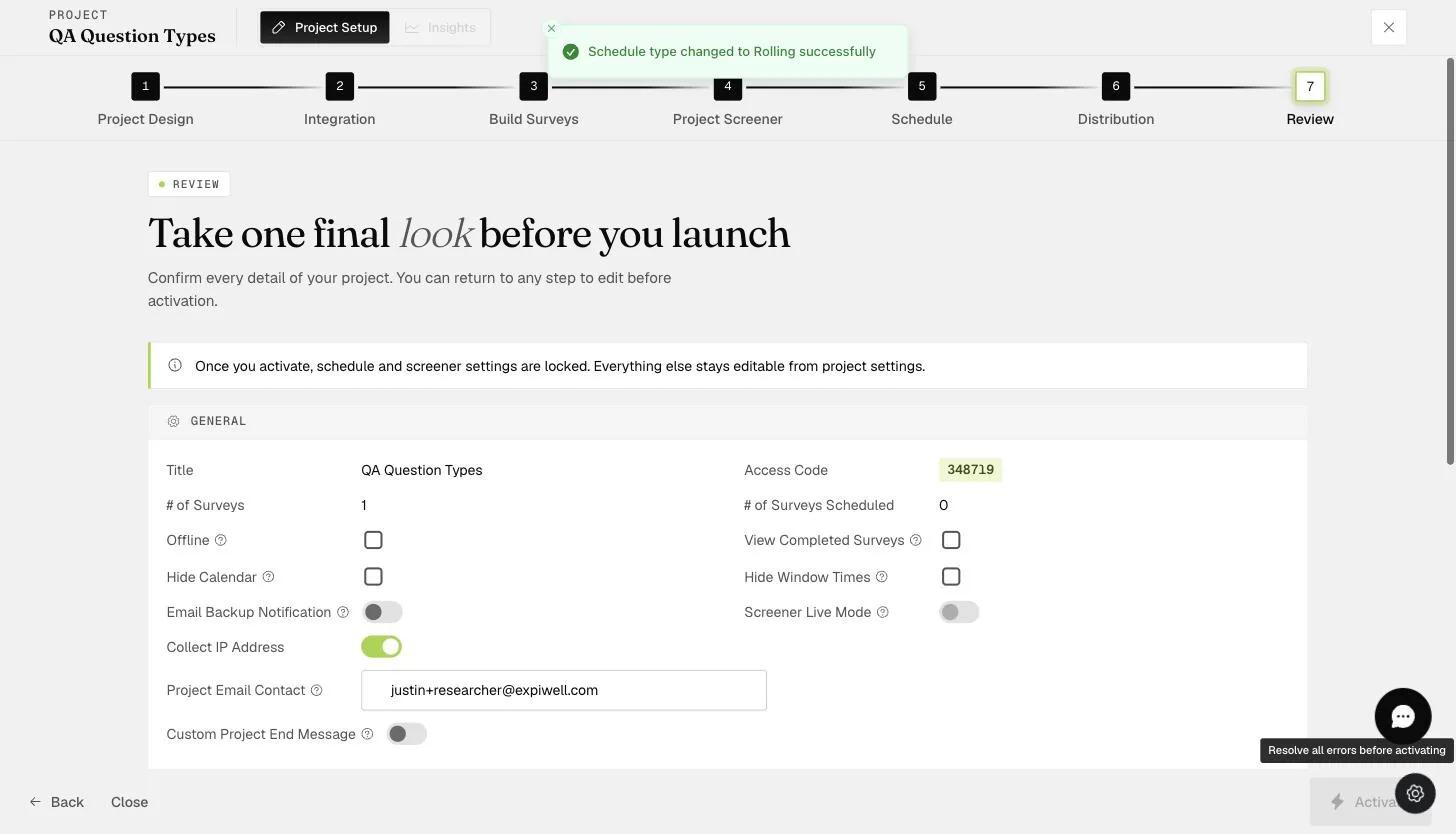
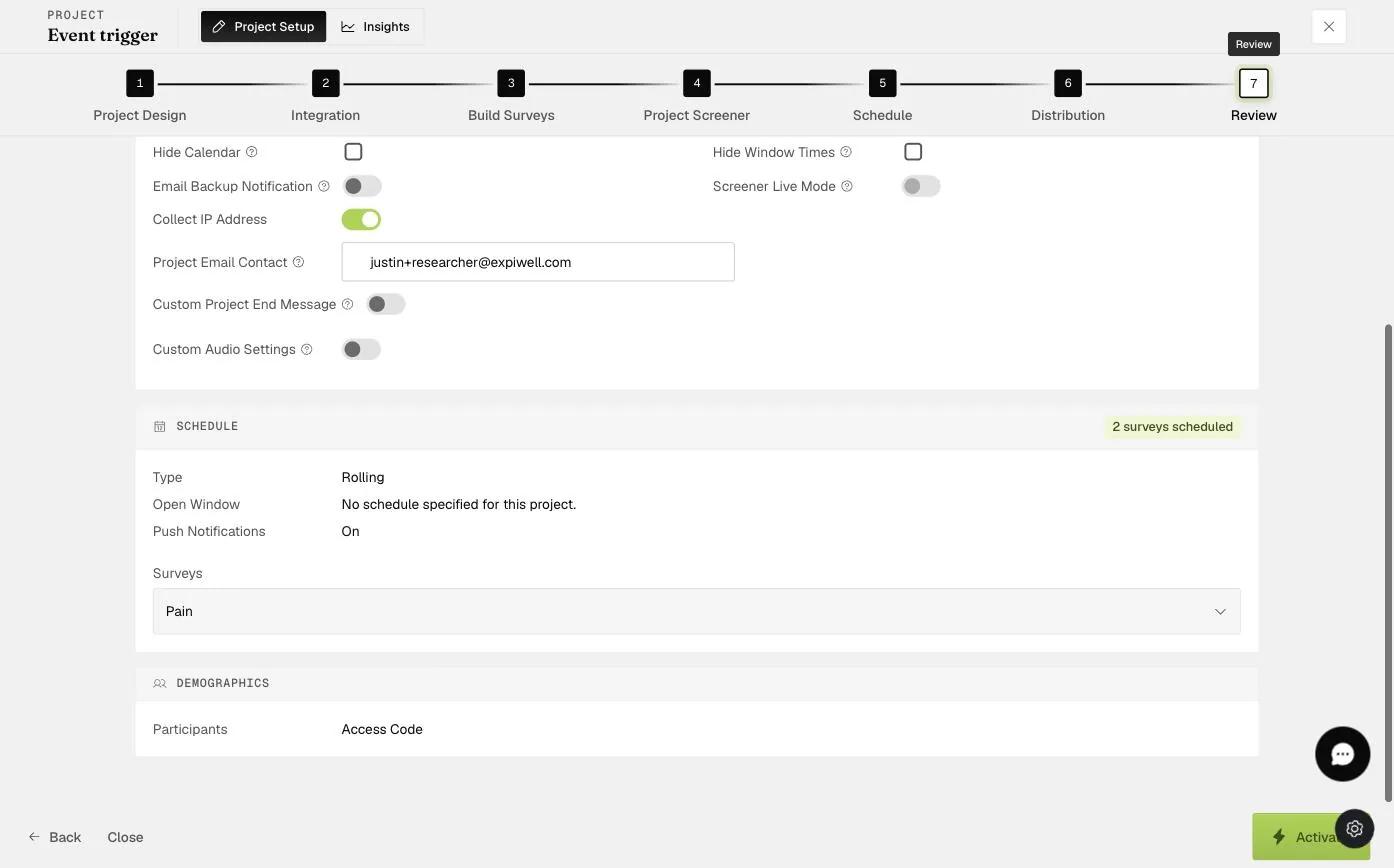
General settings include:
-
Title: Project Name
-
Access Code: The access code for your project that participants can use to join the project (provided you have enabled access code in "Distribution")
-
# of Surveys: The number of surveys in your project
-
# of Surveys Scheduled: The number of surveys that you have included in your schedule
-
Offline: Whether you have enabled offline mode so participants can take the project without access to the internet. See caveats here.
-
View Completed Surveys: By default, participants cannot see their responses to completed surveys on the ExpiWell mobile app. However, when this is toggled on, participants can view their past responses to completed surveys.
-
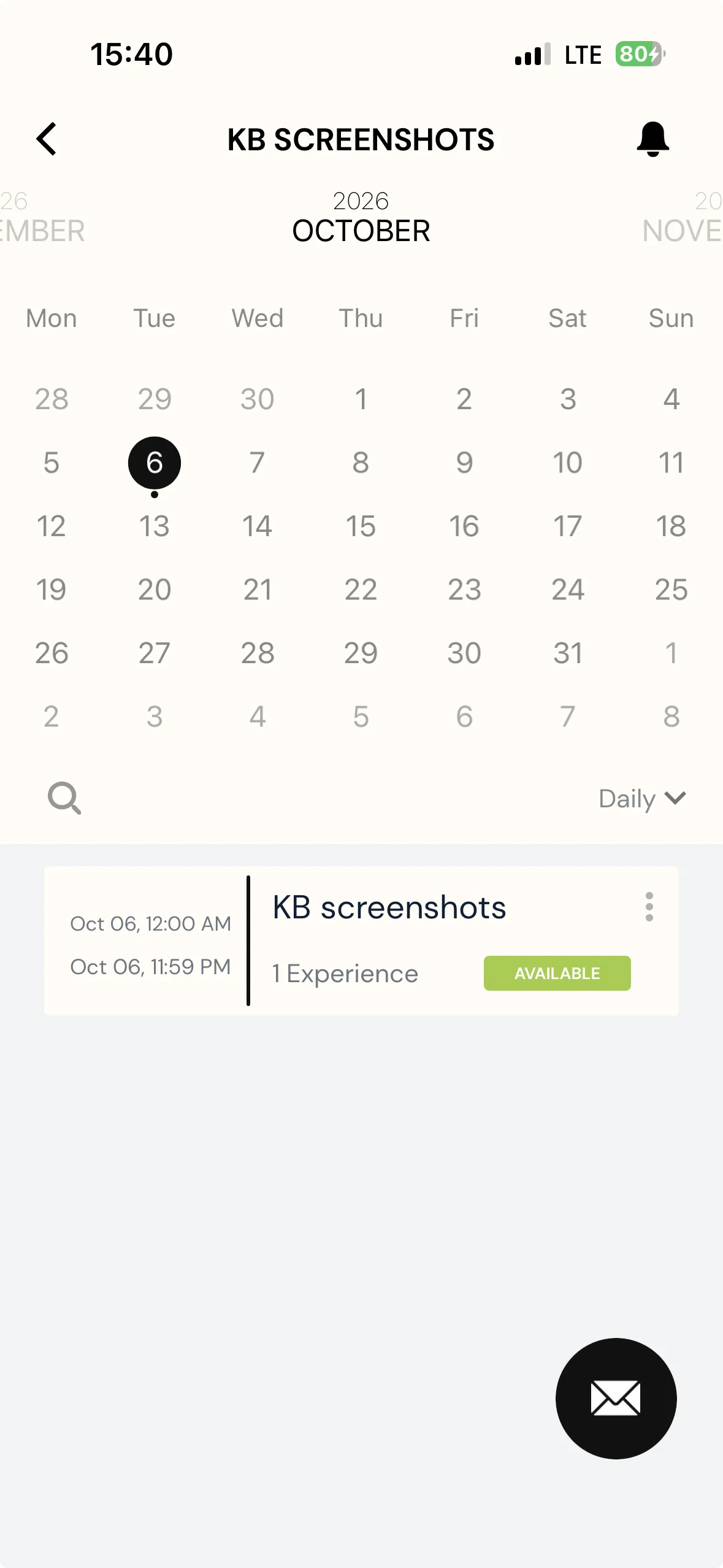
Hide Calendar: By default, participants will be able to see the calendar of surveys scheduled, as shown below. This is helpful for knowing which days surveys occur. When this is toggled on, participants will not see the calendar for surveys.
-
Hide Window Times: By default, participants will be able to see the window times of the scheduled surveys, as shown above. This is helpful to know what timeslots the surveys occur in. However, participants will not see the survey window times when this is toggled on. They will only know when to take the surveys when they receive a push notification.
-
Email Backup Notification: By toggling this, participants will receive a backup email notification if the Firebase notification fails.
-
Screener Live Mode: By default, researchers can take the project screener multiple times to test it. However, in "Live Mode," any given participant can only take the project screener once. If they fail, they will not be able to retake it.
-
Collect IP Address: On by default — participants' IP addresses are recorded with their responses. Switch it off if your ethics approval or privacy notice does not cover collecting them.
-
Project Email Contact: This is the default email the participants can use to contact the researcher, as shown in the bottom right of the mobile app screen. You can change the email contact on any plan. Click here for more information.
-
Custom Project End Message: participants get a message when they finish the project. Switching this on reveals the text, already filled with the default — "If you have any questions about compensation for your participation, please contact the researcher who invited you to participate in this project." Type over it to say something of your own, up to 250 characters, with a counter below the box.
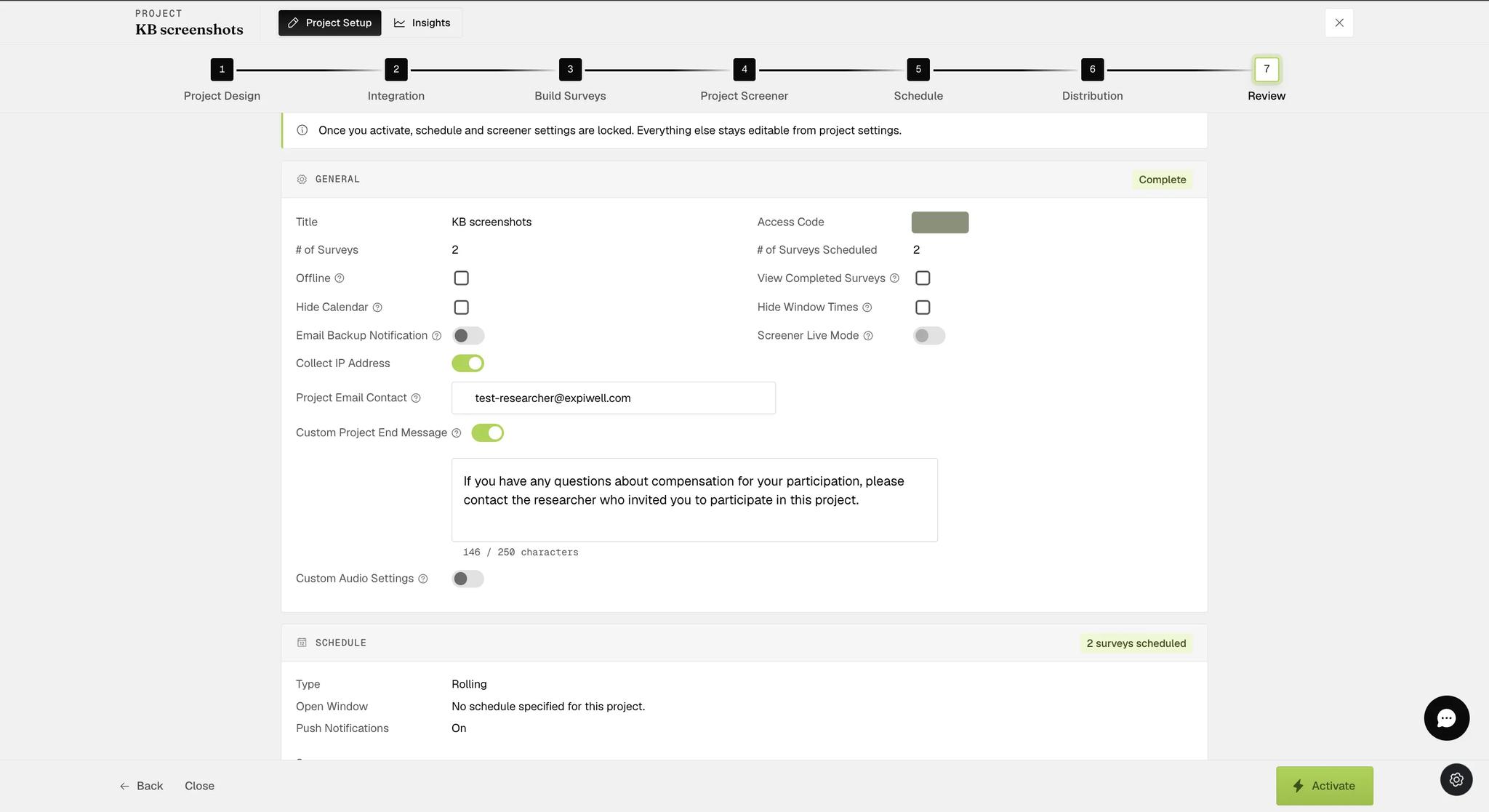
The default talks about compensation, which will read oddly in a study that does not pay anyone. Worth replacing even if you have nothing else to say.
- Custom Audio Settings: By default, the settings for collected audio files are device-specific and depend on the operating system or phone model. To specify a format, sampling rate, or bit rate for collected audio files, toggle the option to display the available settings. Then, select the desired settings.
Audio Formats: WAV, MP3, AAC, or FLAC
Sampling Rates: 16 kHz, 44.1 kHz, and 48 kHz
Bit Rates: 64 kbps, 128 kbps, 256 kbps, or 320 kbps
The bit rate you actually get depends on the format and sampling rate you chose alongside it, so the three settings constrain each other rather than applying independently.
Schedule
With the schedule information, you will be able to check through the settings of your surveys and schedules.
You can determine whether you are using the right schedule type: "Calendar," "Rolling," or "Static."
You can also check that your surveys are scheduled for the correct number of times. See below for an example.