The “Me” section
Everything about you — your profile, language, payments, privacy, and account — lives under Settings. Tap the ExpiWell logo (the hot-air-balloon icon) in the top-left of the home screen to open the menu, then tap Settings.
Older versions of the app had a Me tab for your profile and completed experiences. In the current app your profile and account options are under Settings, and completed studies are listed under Completed Experiences on the home screen's Current tab; see Available & completed experiences.
Opening the menu
The menu slides in from the left. It lists Experiences (your home screen), + (add a study with an access code), and any communities you belong to, with Settings and Logout at the bottom.
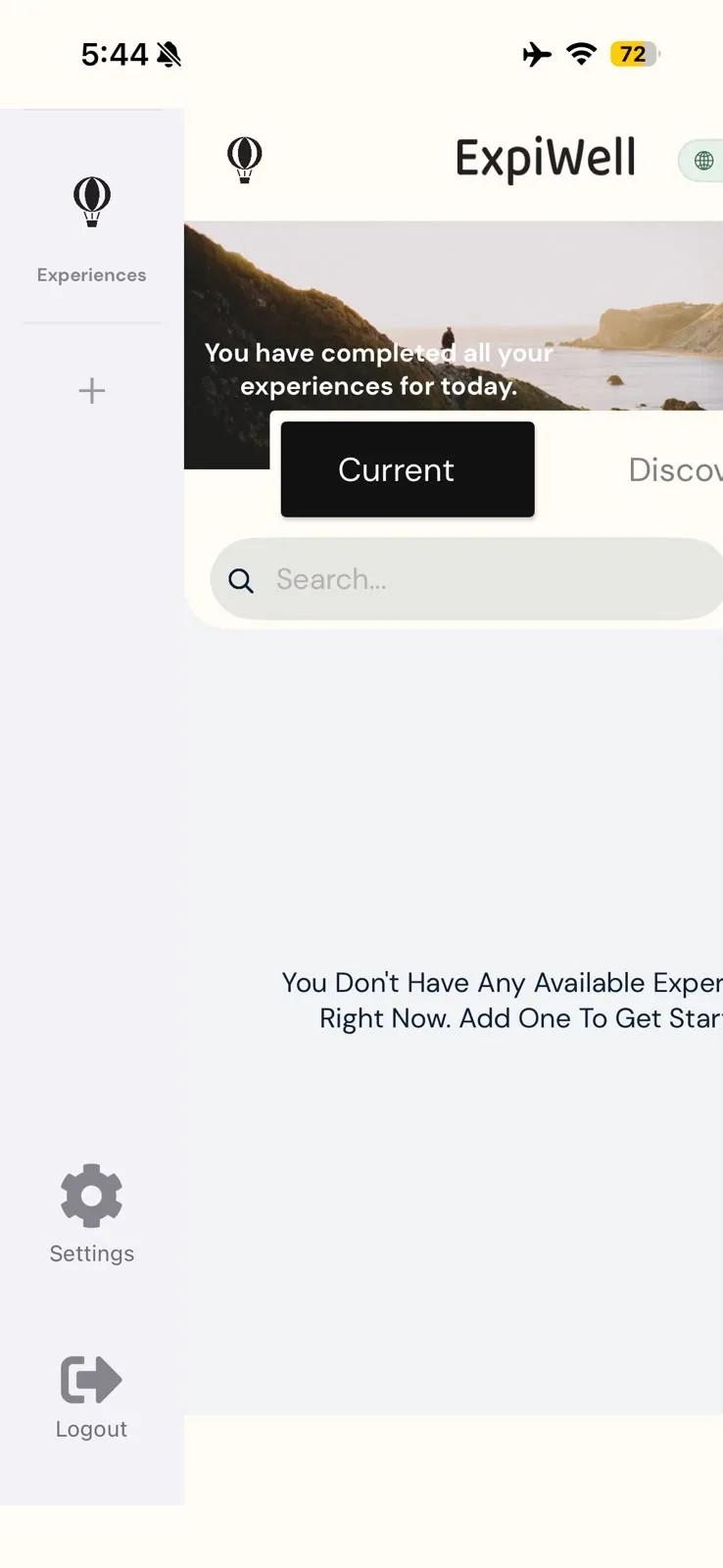
Tap Settings to see everything below.
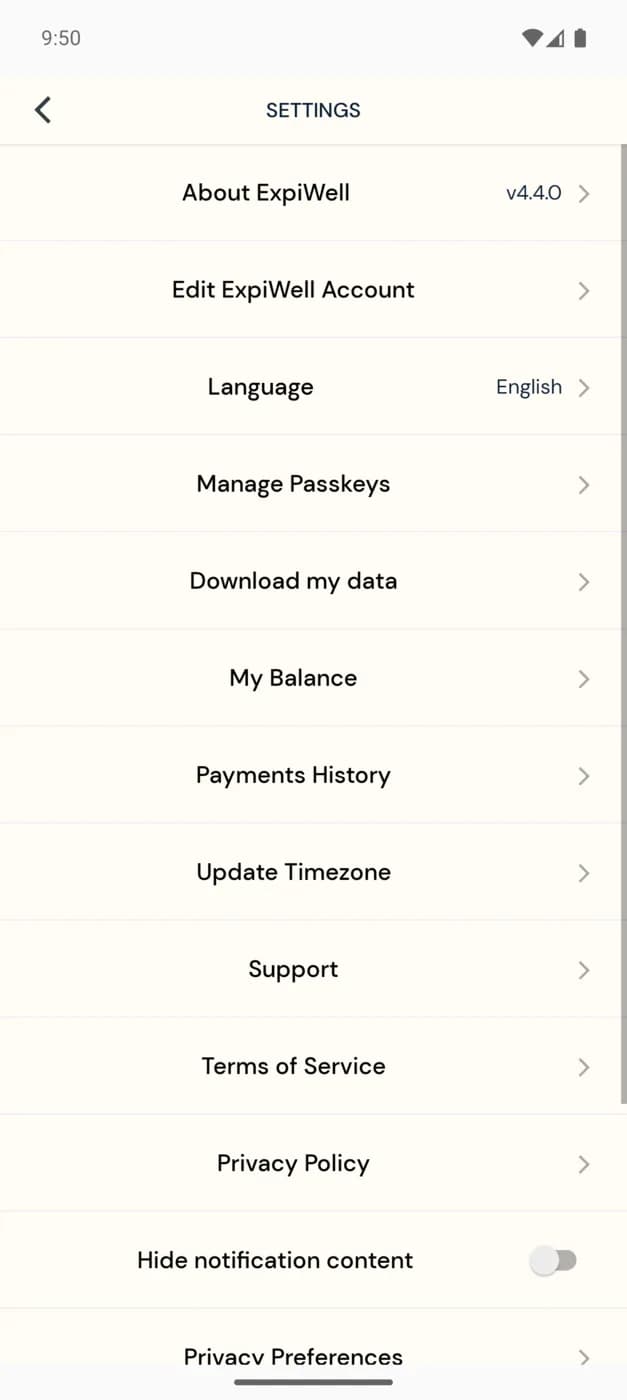
Your profile and sign-in
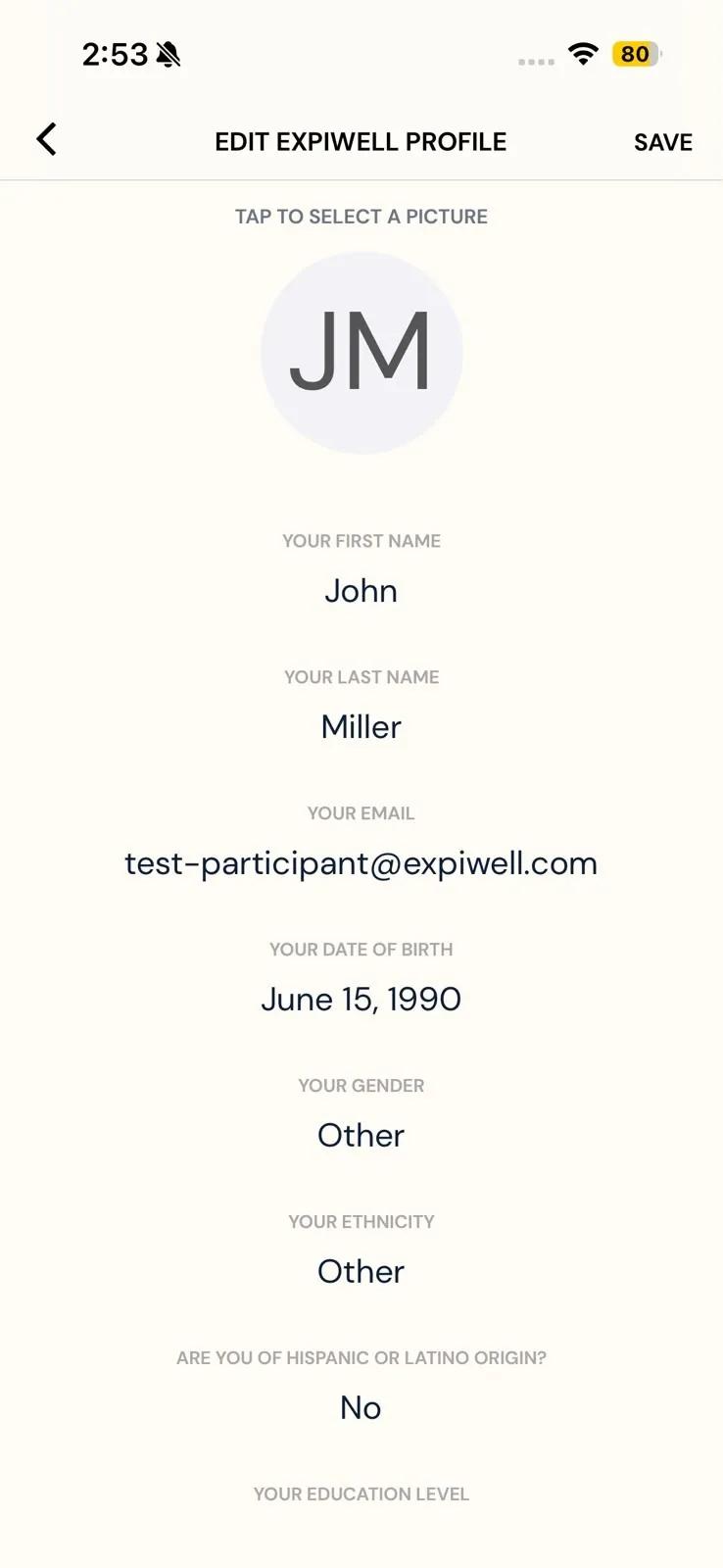
- Edit ExpiWell Account — opens Edit ExpiWell Profile, where you can change your name and profile picture, and fill in optional details such as your date of birth, gender, education, and home country. On iPhone you can also change your email here; on Android the email can't be edited. Tap SAVE when you're done.
- Language — switch the app between its 13 languages: English, Arabic, Bulgarian, Chinese (Simplified), Chinese (Traditional), Chinese (Hong Kong), French, German, Hebrew, Korean, Polish, Portuguese (Portugal), and Spanish. Choose System to follow your phone's setting instead. You may need to restart the app for the change to apply everywhere.
- Manage Passkeys — register a passkey to sign in without a password, or delete one you no longer use. On iPhone this needs iOS 16 or later.
Payments
My Balance shows the compensation you've earned, and Payments History lists what you've been paid. See Receiving payments.
Surveys and notifications
- Update Timezone — if you've traveled to a different time zone, tap it so your survey notifications still arrive at their usual times. See Manually updating the time zone.
- Hide notification content — a switch that hides survey details on your lock screen.
- Wearables — connect or disconnect a fitness tracker. This row only appears when wearables are available to you.
Privacy and your data
- Download my data — request a copy of your own data.
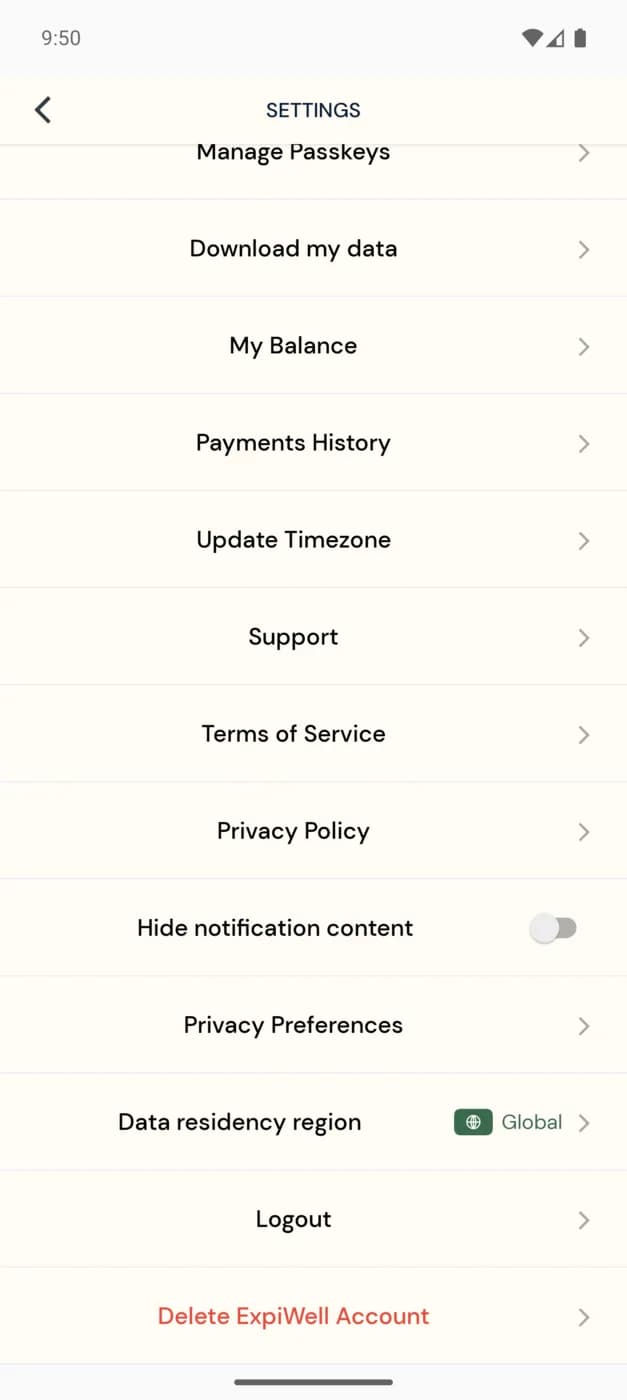
- Data Region — shows where your data is stored: Global or Europe, and lets you create a separate account in the other region. Doing so signs you out and takes you to sign up there. Your current account and its data stay where they are, and the two accounts don't share data.
- Privacy Preferences — review and change your consent choices.
- Privacy Policy and Terms of Service — ExpiWell's policies.
Logging out or leaving
- Logout — signs you out. While you're signed out you won't get notifications for your studies.
- Delete ExpiWell Account — deletes your ExpiWell account. The app asks you to confirm, and this can't be undone. If you want a copy of your data, use Download my data first. For responses you've already submitted to a study, ask that study's research team.
To stop taking part in a single study without deleting your account, remove that study from your home screen instead; see Experience options.
Help and app information
- About ExpiWell — shows the app version you're running.
- Support — opens ExpiWell's older help site. To reach the ExpiWell team, email help@expiwell.com; to contact your study team, see Contacting the researchers.