Update your email address
Set up · Account Settings
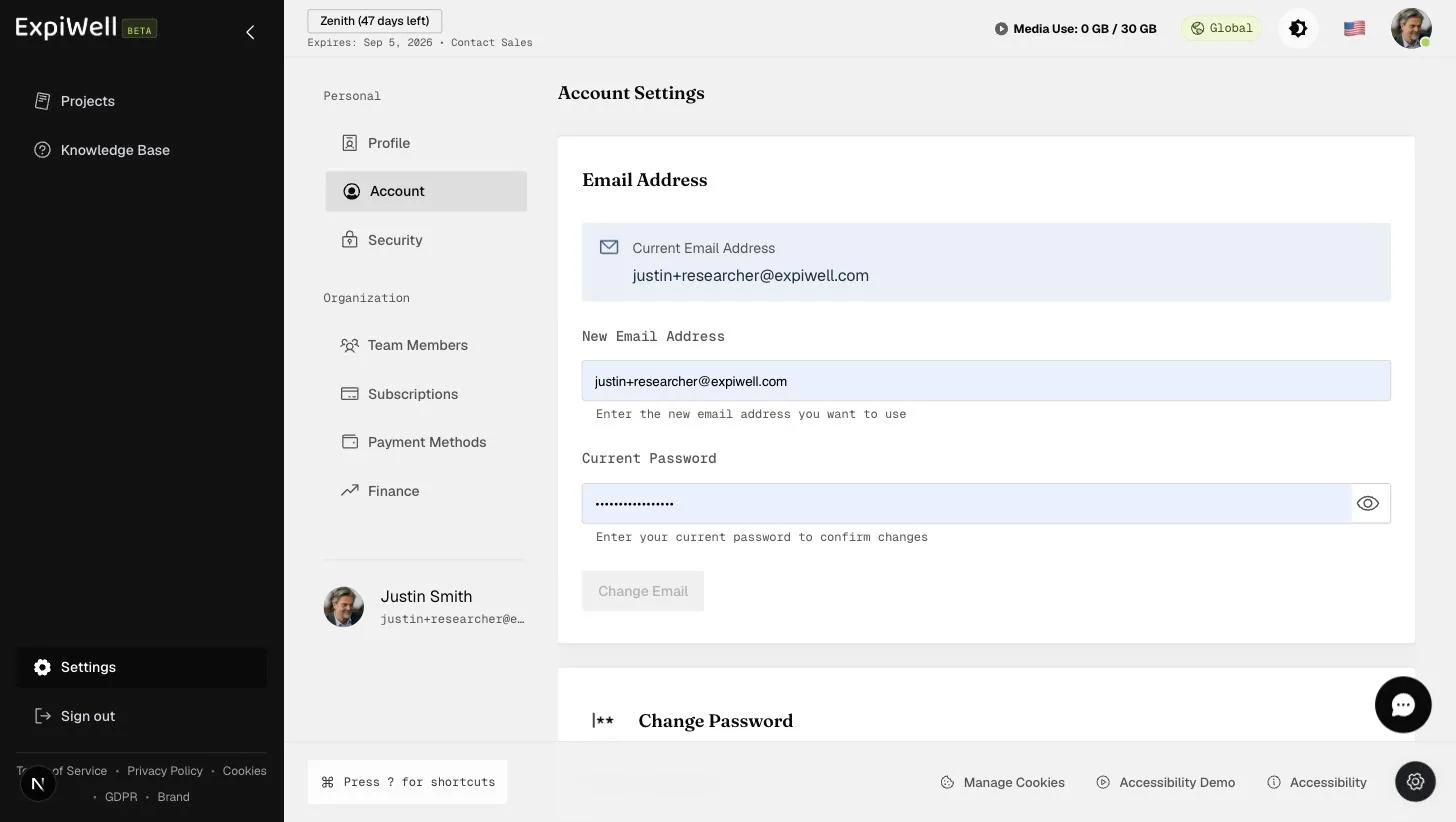
Updated 2026年9月7日You can change your account's email address at Settings → Account (under Personal). The change is password-confirmed, so have your current password ready.
Step by step
- Open Settings → Account. The Email Address card shows your current address.
- Enter the New Email Address you want to use.
- Enter your Current Password to confirm the change.
- Click Change Email.
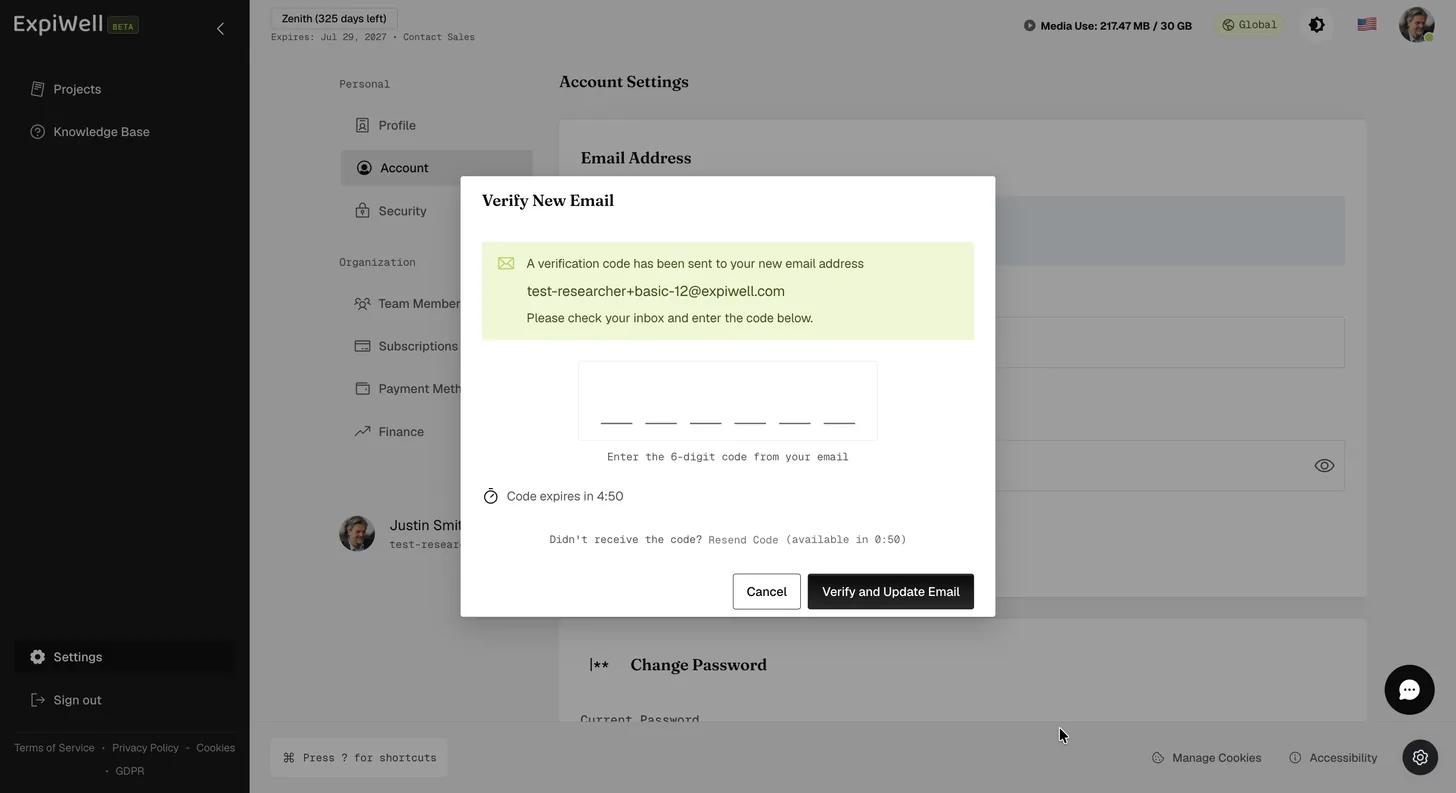
- ExpiWell emails a six-digit code to the new address. Enter it to confirm the change.
- The code expires after five minutes. If it doesn't arrive, Resend Code becomes available after about a minute.
Until you enter the code, nothing changes: the new address is held as pending and your account keeps the old one. Once verified, the new address becomes both your account email and the address you sign in with.
Good to know
- Your login and the address that receives verification codes (if you use email-based 2FA) change together — see Enabling 2FA for your account.
- If you can't complete the change, check that the new address isn't already in use on another ExpiWell account.
The code goes to the new address
Verification is sent to the address you're moving to, not the one you're moving from — so you need to be able to read mail there before you start. Mistyped it? Nothing is lost. Start the change again with the correct address and a fresh code is sent.
Watch it in action
Was this helpful?