Creating an EMA & ESM project
How to Create Your EMA and ESM Project
Signed in on the web, click + New on the Projects page.
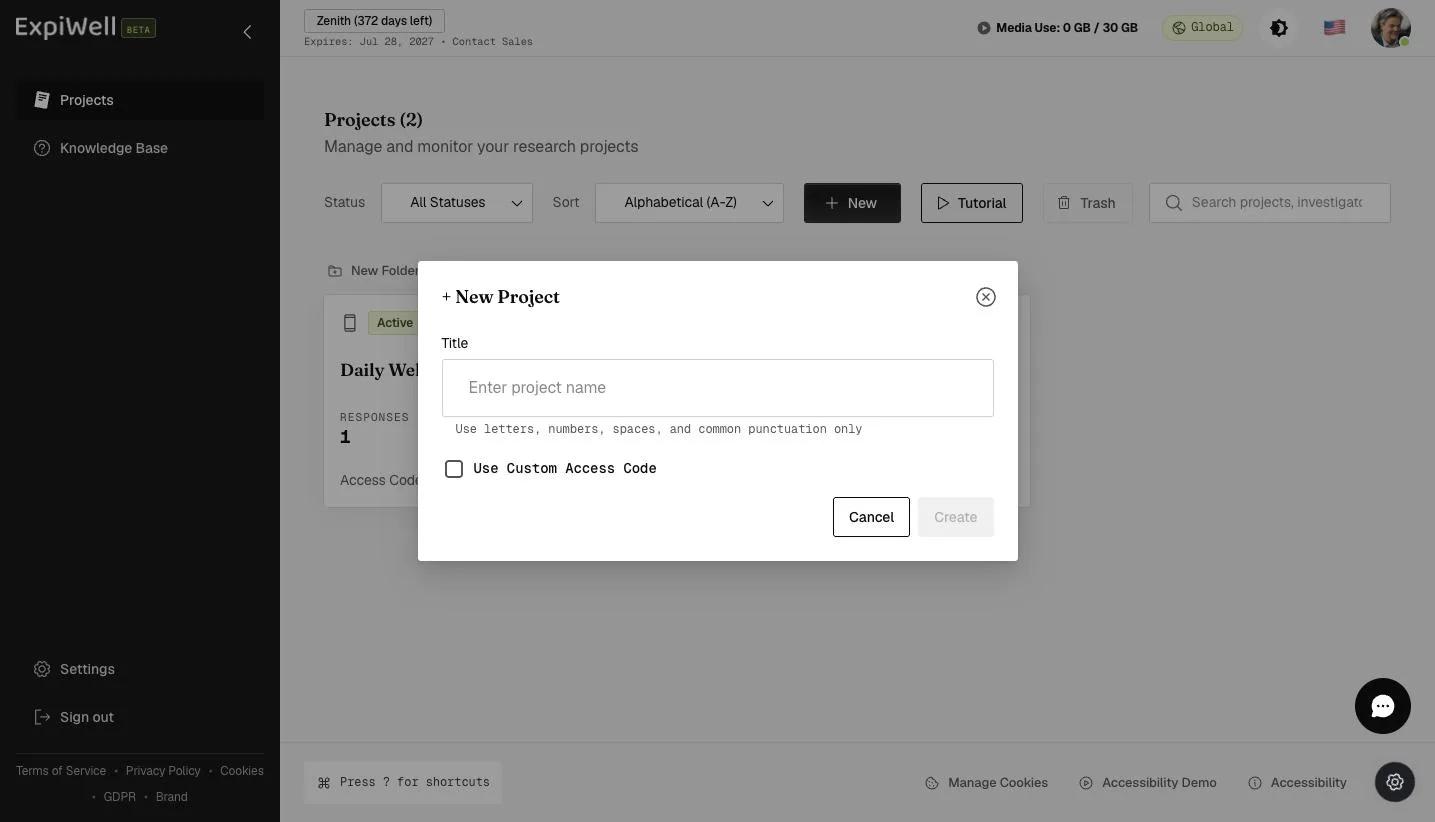
Naming it and setting the access code
Give the project a Title. Letters, numbers, spaces and common punctuation only.
The access code is what participants type into the ExpiWell mobile app to join. Leave Use Custom Access Code unticked and one is generated for you; tick it to choose your own.
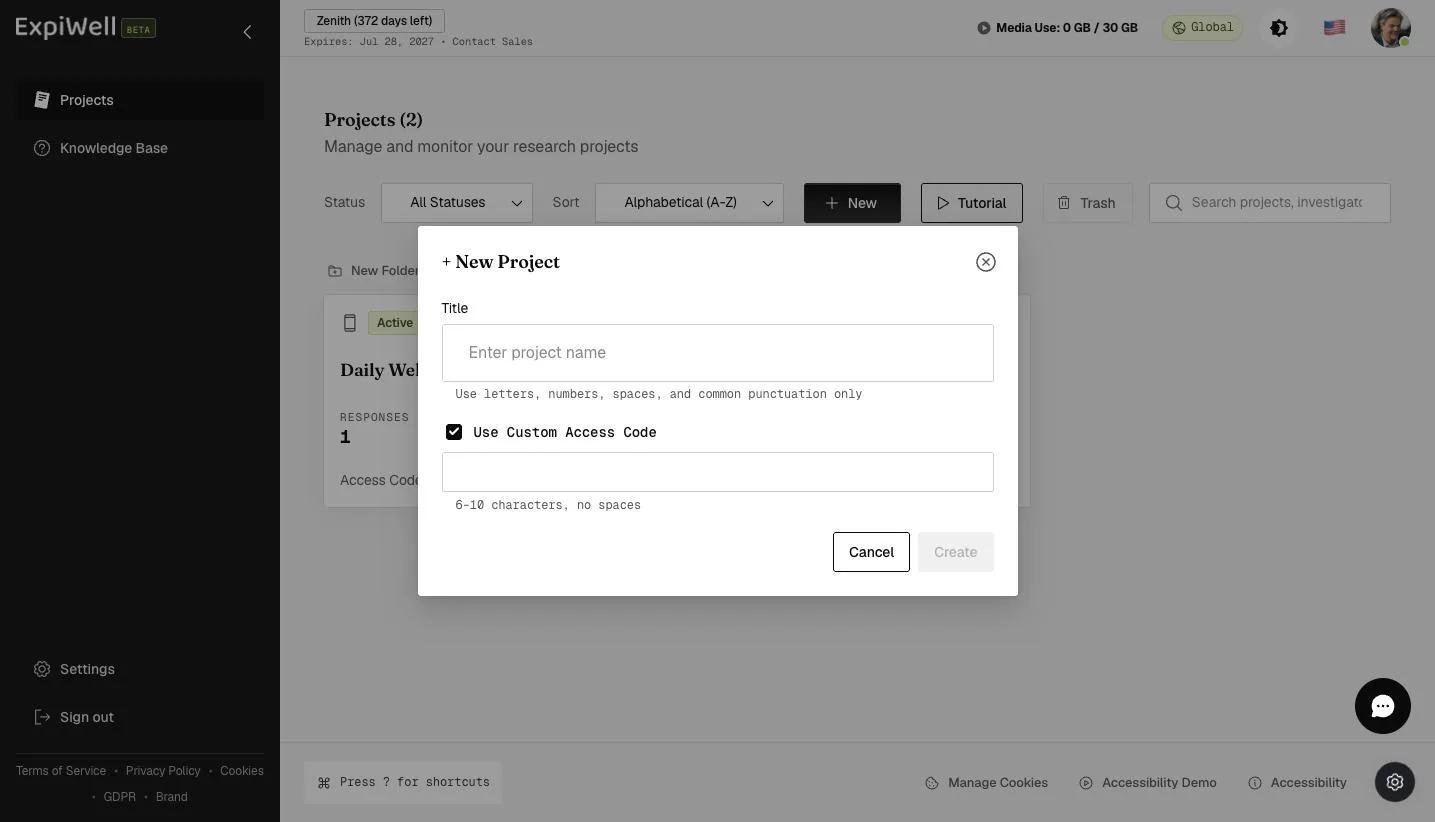
A custom code must be 6 to 10 characters with no spaces.
Codes are unique across all of ExpiWell, not just across your own projects. A code someone else already has is refused, and the project is not created until you pick a different one.
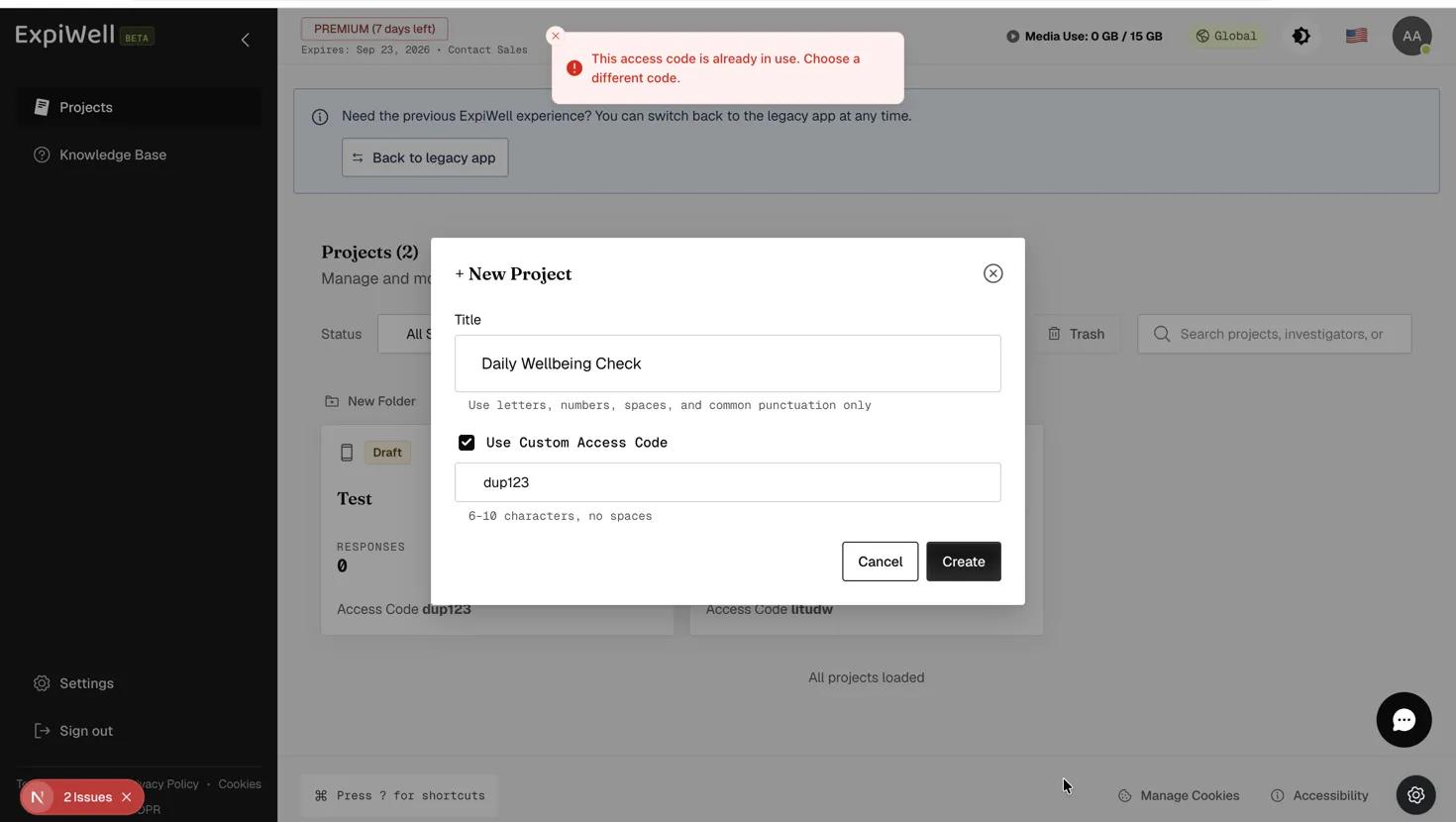
Pick the code carefully — it cannot be changed later. The project name can, but the access code is fixed once the project exists. Your options then are to delete it and start again, or duplicate the project and give the copy the code you wanted.
What happens next
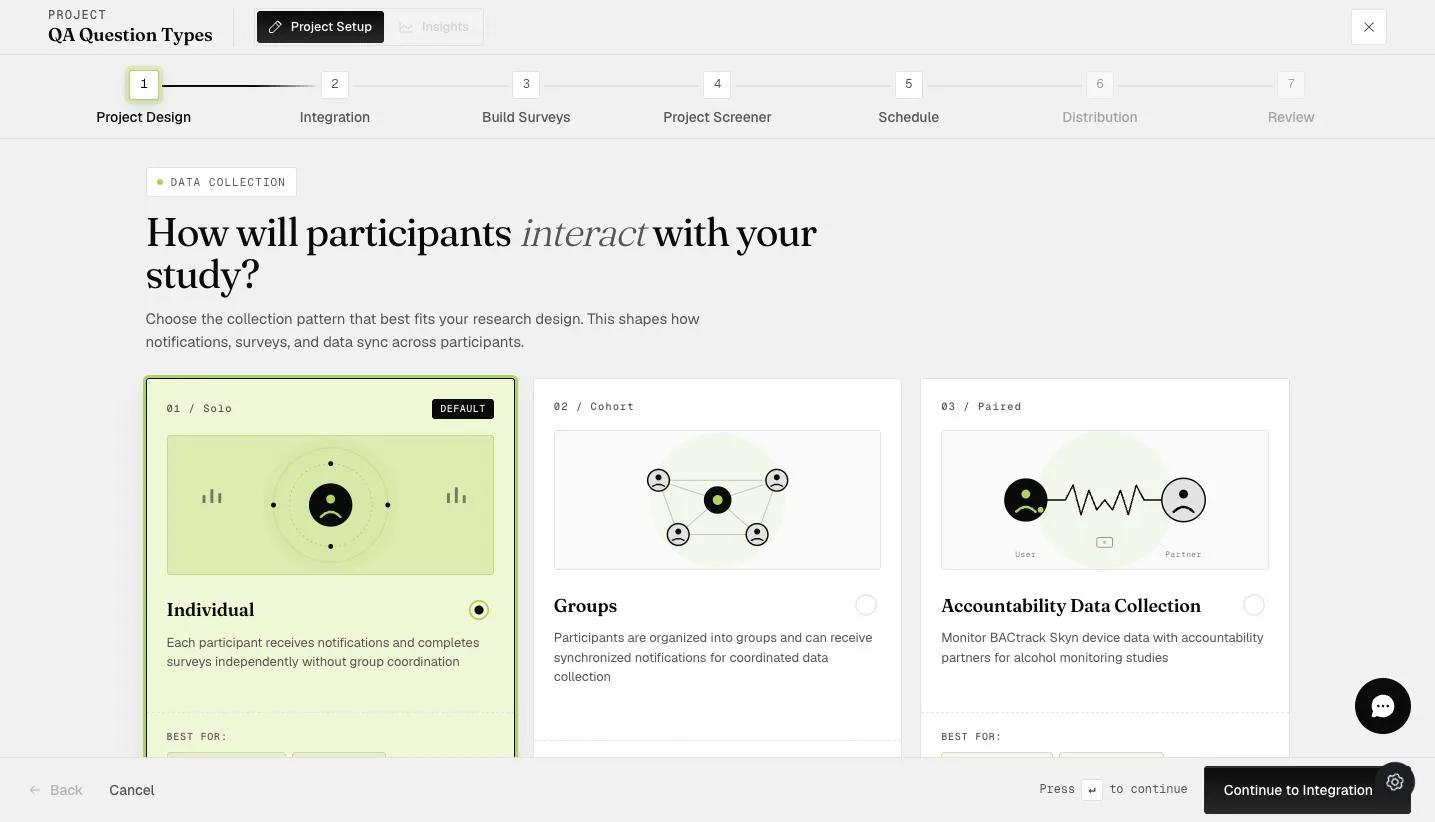
Creating the project opens the setup wizard at step 1 of seven: Project Design, Integration, Build Surveys, Project Screener, Schedule, Distribution, and Review, where you activate the project.
Project Design asks two things.
Study language sets the language participants experience the study in — surveys, notifications and emails.
Then the collection pattern, which decides how participants are treated:
- Individual (the default) — each participant answers independently, with no group coordination.
- Groups — participants are organized into groups and can receive synchronized notifications.
- Accountability Data Collection — pairs a participant with a partner, for BACtrack Skyn alcohol monitoring studies.
Individual needs nothing further; the panel underneath says so and points you at the Schedule step for timing.
Next: Types of question formats.
Common questions
Can I change the access code after creating a project?
No. The project name can be changed; the access code cannot. Delete the project and create it again, or duplicate it and give the duplicate the code you want.
How long can an access code be?
6 to 10 characters, with no spaces.
If you have any questions, please reach out to help@expiwell.com