قيد الإنشاء

لقد أخذتَ عيّنة منا في منتصف البناء.

تغطي هذه الأدلة منصة ExpiWell الجديدة (v2) وما زالت قيد الكتابة والمراجعة وإعادة الترتيب — نعتذر عن السقالات: قد تنتقل الصفحات أو تتغيّر بين زيارة وأخرى. ما زلت تستخدم التطبيق السابق؟ تبقى وثائقه على بوابة الدعم القديمة.

فتح بوابة الدعم القديمة
قاعدة المعرفة  /  من فريق ExpiWell

كيف يمكننا مساعدتك؟

أدلة لكل خطوة في دراستك — من مشروعك الأول إلى تصدير بياناتك النهائي. قاعدة معارف ExpiWell لمنصة الباحث على الويب وتطبيق المشاركين للهاتف.

97 دليلاً في 28 فئة · يُحدّثها فريق ExpiWell
Help CenterSet upAccount Settings

Set up a passkey

Set up · Account Settings
Updated 20 يوليو 2026

Passkeys let you verify sign-ins with your device's biometrics — Touch ID, Face ID, or Windows Hello — instead of typing a code. On ExpiWell, passkeys are used as a second factor after your password.

Step by step

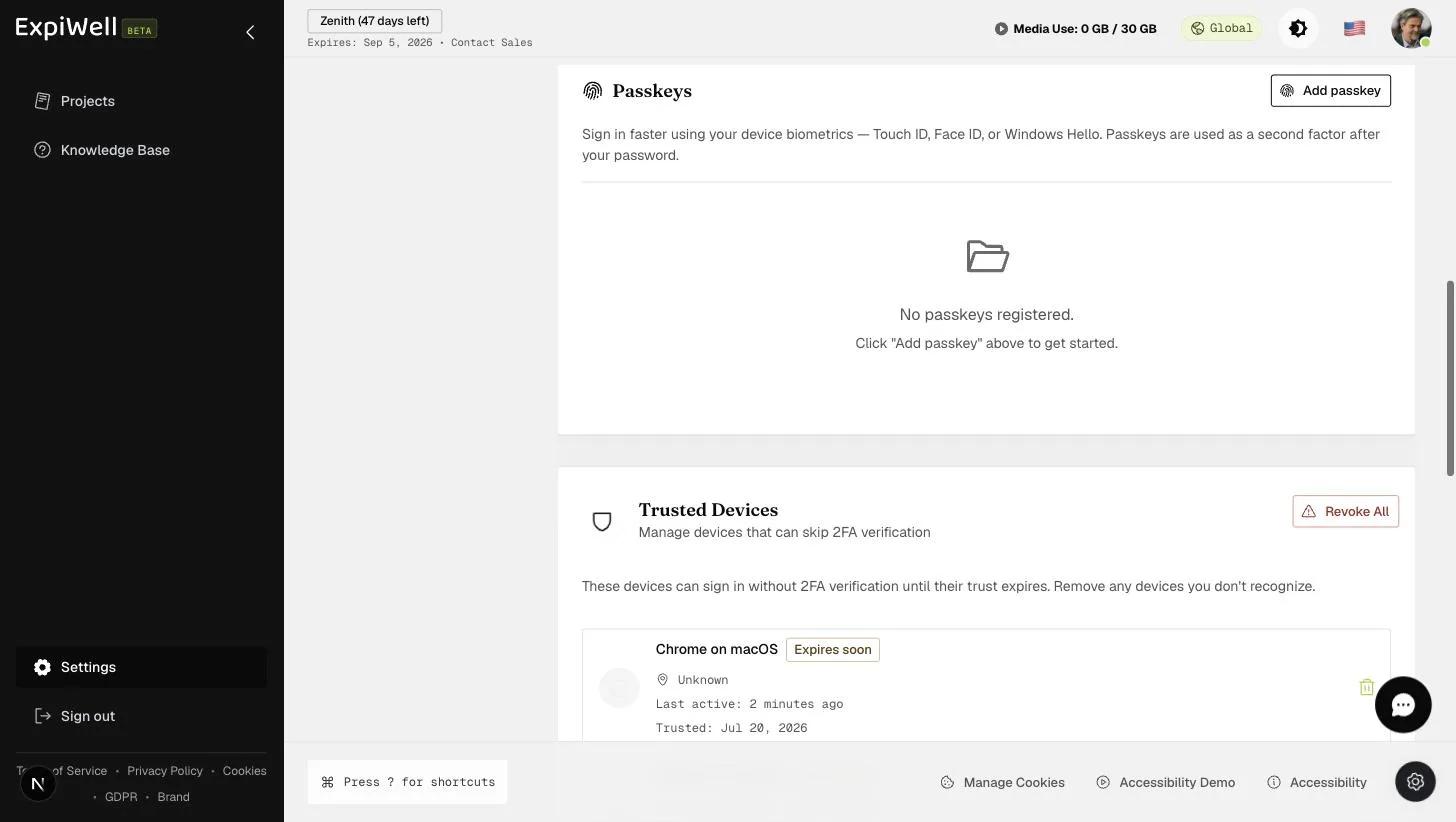
  1. Open Settings → Security (under Personal) and scroll to the Passkeys card.
  2. Click Add passkey.
  3. Follow your browser's prompt — it will ask for your device biometric (or device PIN) to register the passkey.
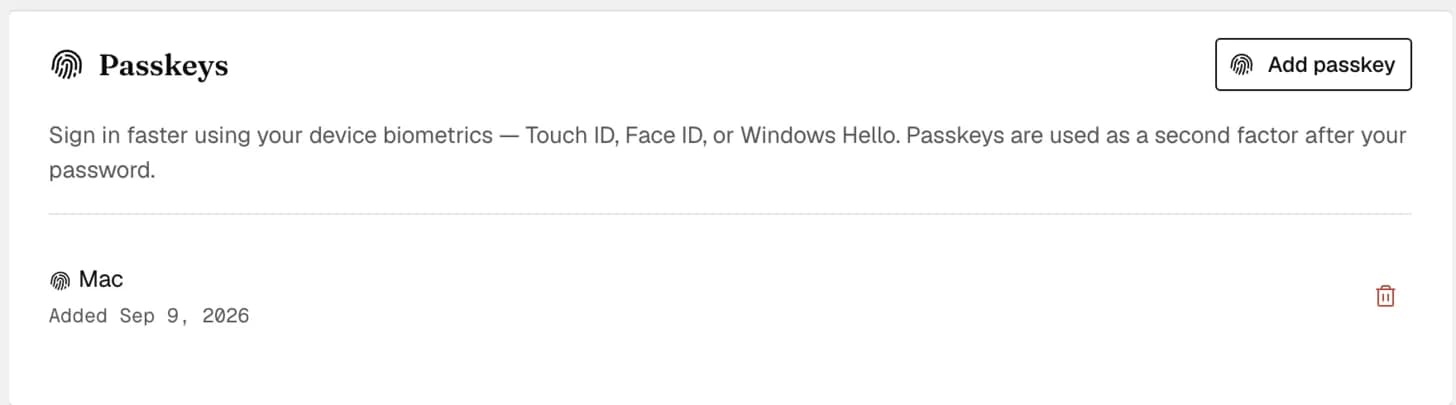
  4. The passkey appears in the list; you can register one per device you sign in from.
The Passkeys card in Security settings with an Add passkey button, explaining sign-in via Touch ID, Face ID, or Windows Hello, above the Trusted Devices card

Good to know

  • Passkeys complement, not replace, your password — you'll still enter your password first.
  • Combined with Device Trust, a trusted device can skip repeated 2FA checks entirely.

Watch it in action

Video demo — Setting up a passkey (coming soon)
Was this helpful?
Start today

تحدّث إلى إنسان من فريق ExpiWell.

ما زلت عالقاً؟ فريقنا من الباحثين يجيب عن الأسئلة التقنية وأسئلة تصميم الدراسات على السواء.