Manage trusted devices
Set up · Account Settings
Updated 7 سبتمبر 2026Device Trust reduces 2FA friction on devices you use regularly: a trusted device isn't asked for two-factor verification for 24 hours. The window is stated on the Trust this device checkbox when you sign in.
The trade-off is that anyone with that unlocked device can sign in without a second factor — so review the list periodically.
Managing the list
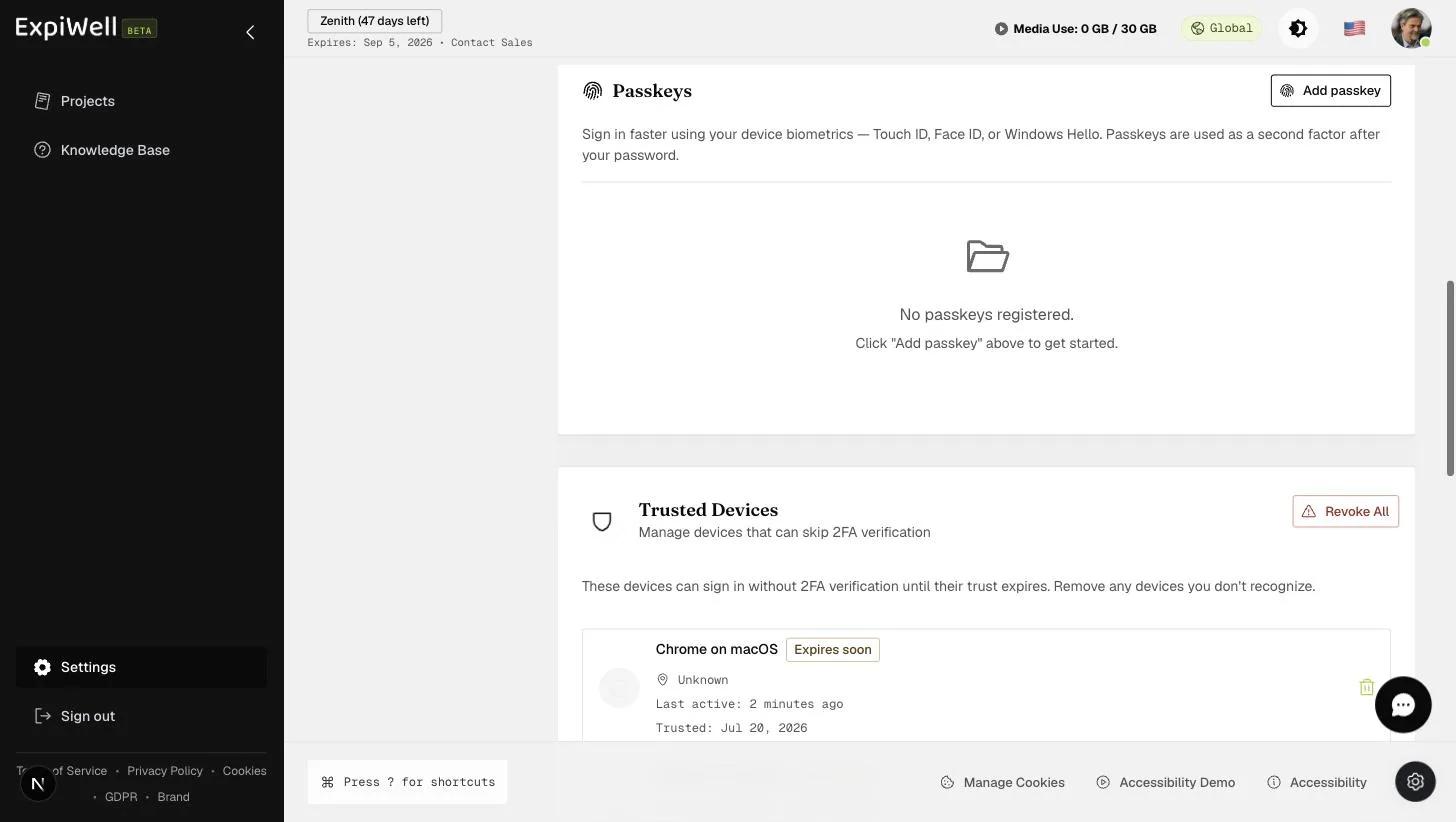
- Open Settings → Security (under Personal) and scroll to Trusted Devices.
- The list shows every device currently allowed to skip 2FA, until its trust expires.
- Remove any device you don't recognize, or use Revoke All to clear the whole list. Removing a device clears its entry here — see the note below before you rely on that alone.
If a device is lost, stolen, or you don't recognize it
Change your password first — see Change your password. Device Trust only skips the second factor; your password is still required to sign in, so a new password locks the device out immediately and signs out every other active session. Clear the trusted list as well, but the password is what does the work.
Watch it in action
Related
Was this helpful?