قيد الإنشاء

لقد أخذتَ عيّنة منا في منتصف البناء.

تغطي هذه الأدلة منصة ExpiWell الجديدة (v2) وما زالت قيد الكتابة والمراجعة وإعادة الترتيب — نعتذر عن السقالات: قد تنتقل الصفحات أو تتغيّر بين زيارة وأخرى. ما زلت تستخدم التطبيق السابق؟ تبقى وثائقه على بوابة الدعم القديمة.

فتح بوابة الدعم القديمة
قاعدة المعرفة  /  من فريق ExpiWell

كيف يمكننا مساعدتك؟

أدلة لكل خطوة في دراستك — من مشروعك الأول إلى تصدير بياناتك النهائي. قاعدة معارف ExpiWell لمنصة الباحث على الويب وتطبيق المشاركين للهاتف.

101 دليلاً في 29 فئة · يُحدّثها فريق ExpiWell
Help CenterMobile appExperiences

Project overview

Mobile app · Experiences
Updated 2 أكتوبر 2026

The project overview shows a study's schedule as a calendar, with the surveys you can take listed below it.

Opening the project overview

On the Current tab, tap a study's card.
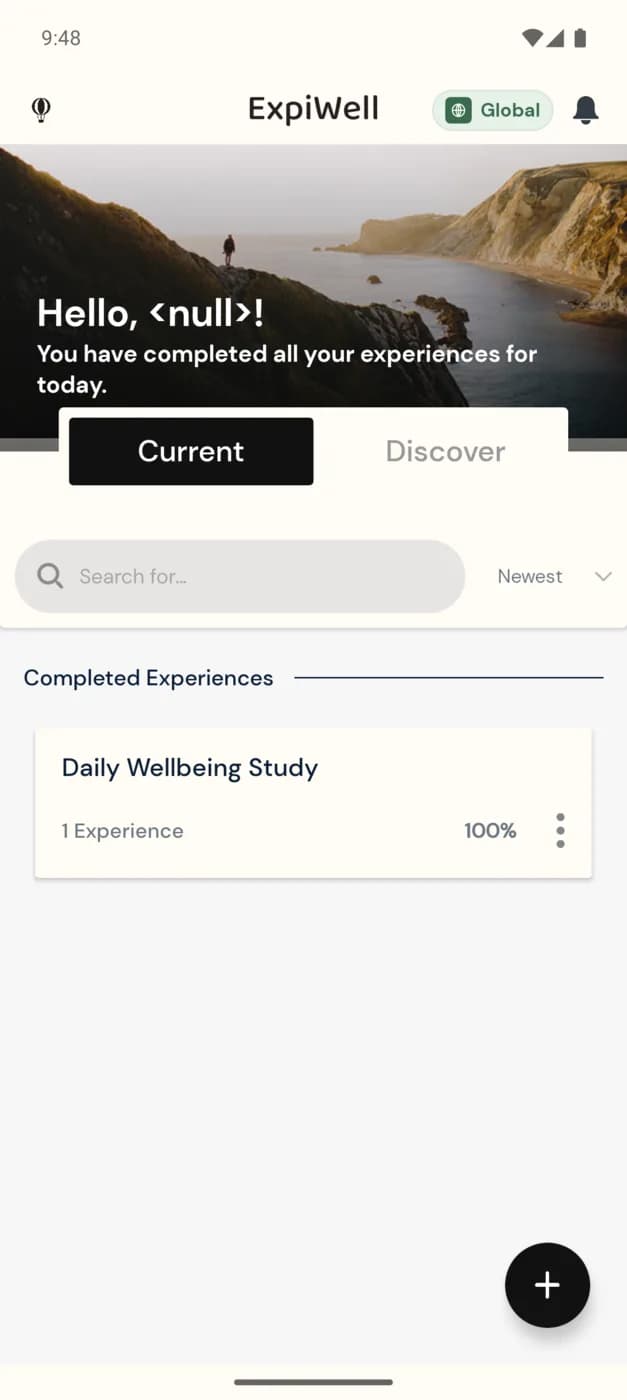
The Current tab of the ExpiWell app with one study card under Completed Experiences: Mood Survey, 1 Experience, Static Schedule, 100%, and a three-dot options icon

The calendar

A dot under a date marks a day that has a survey. Tap a date to see its surveys below the calendar. A survey you can take now is marked Available: tap it, then tap Start.
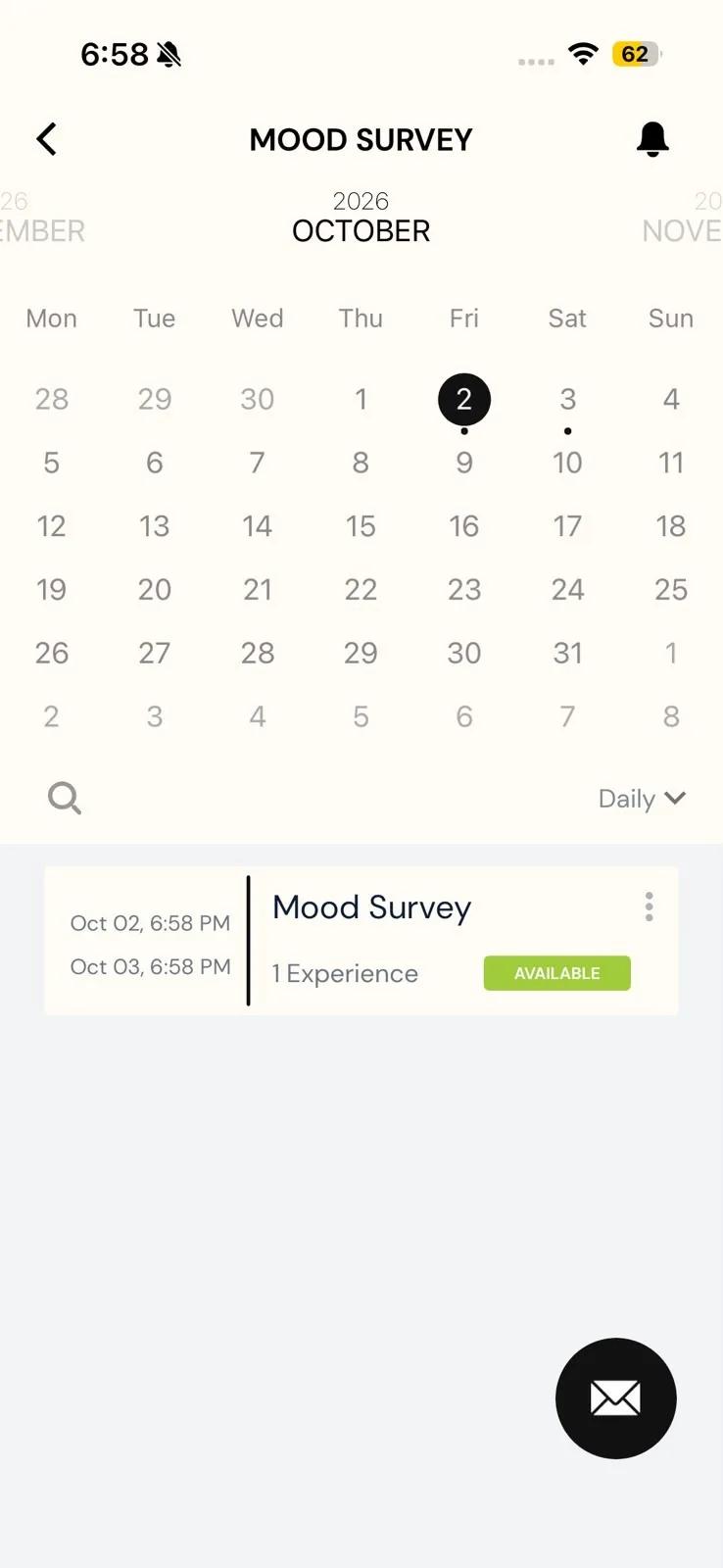
The Mood Survey overview in the Daily view: an October calendar with today circled and dots under the 2nd and 3rd, and a survey row with its window from Oct 02 to Oct 03 and an Available badge

Switching views

On iPhone, tap the view menu beside the search icon (it shows Daily by default) and choose Daily, All Experiences or Modules.

On Android, there's no menu. Each tap on the view button moves to the next view: Daily, then All Experiences, then Modules. A study with no end date opens on All Experiences and switches only between All Experiences and Modules.
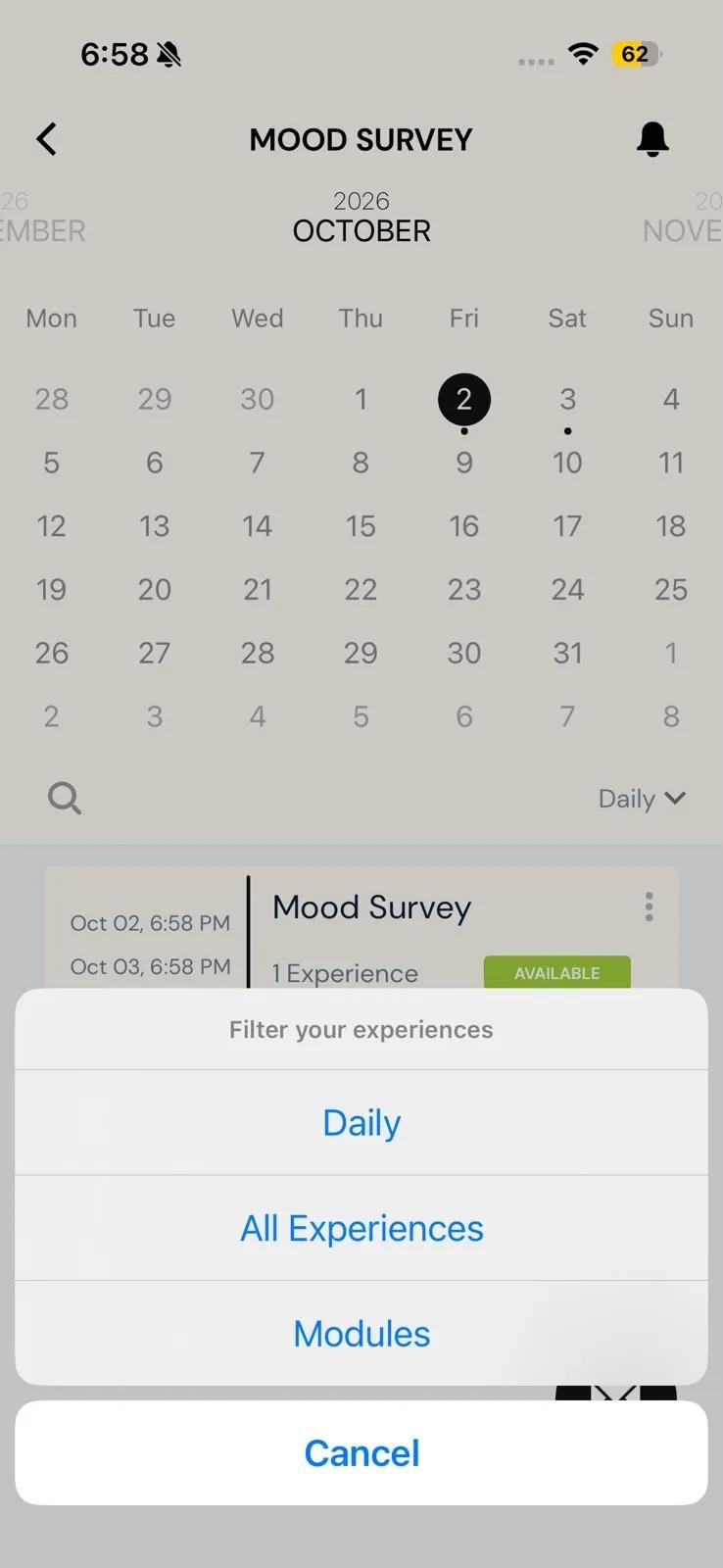
A study's overview with the Filter your experiences menu open, offering Daily, All Experiences and Modules
Was this helpful?
Start today

تحدّث إلى إنسان من فريق ExpiWell.

ما زلت عالقاً؟ فريقنا من الباحثين يجيب عن الأسئلة التقنية وأسئلة تصميم الدراسات على السواء.