How to add experiences
To take part in a study, you add its experience to your app using the access code your research team gave you. Codes come from the study's research team, often in an email sent through ExpiWell. You can join as many studies as you're invited to, and each one appears on your home screen.
Adding an experience
- On the home screen, tap the + button (bottom right). You can also tap the balloon icon (top left) to open the menu, then tap +.
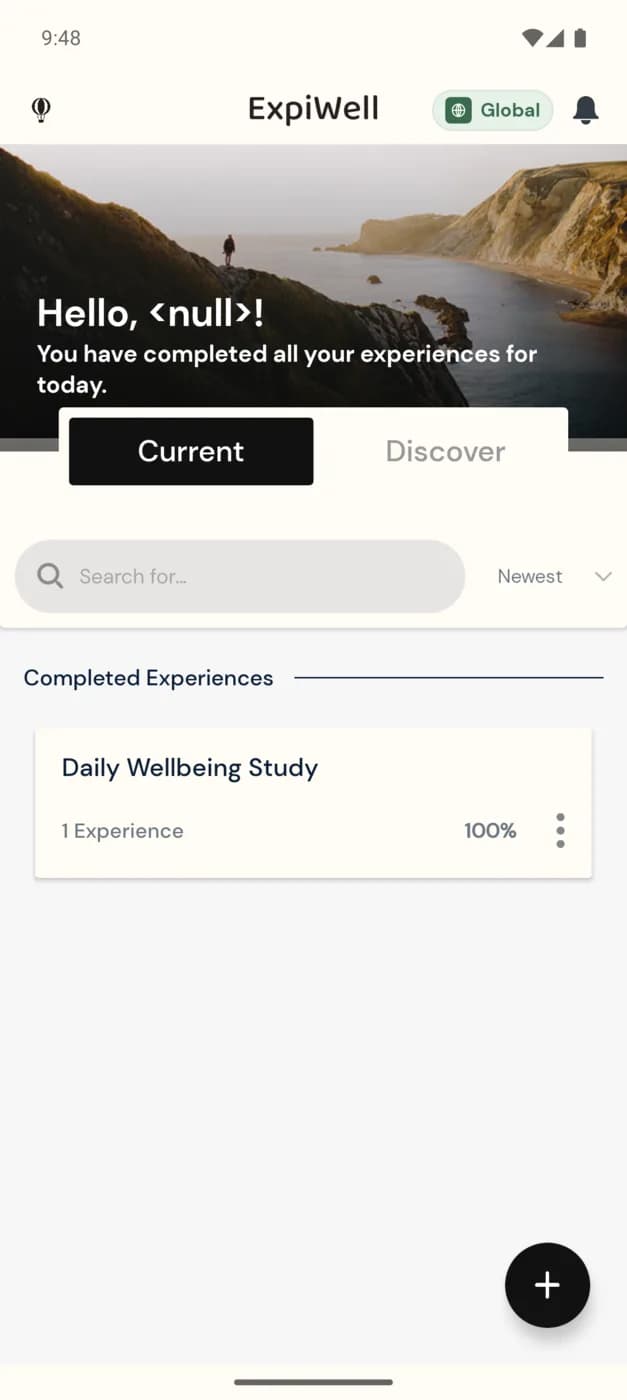
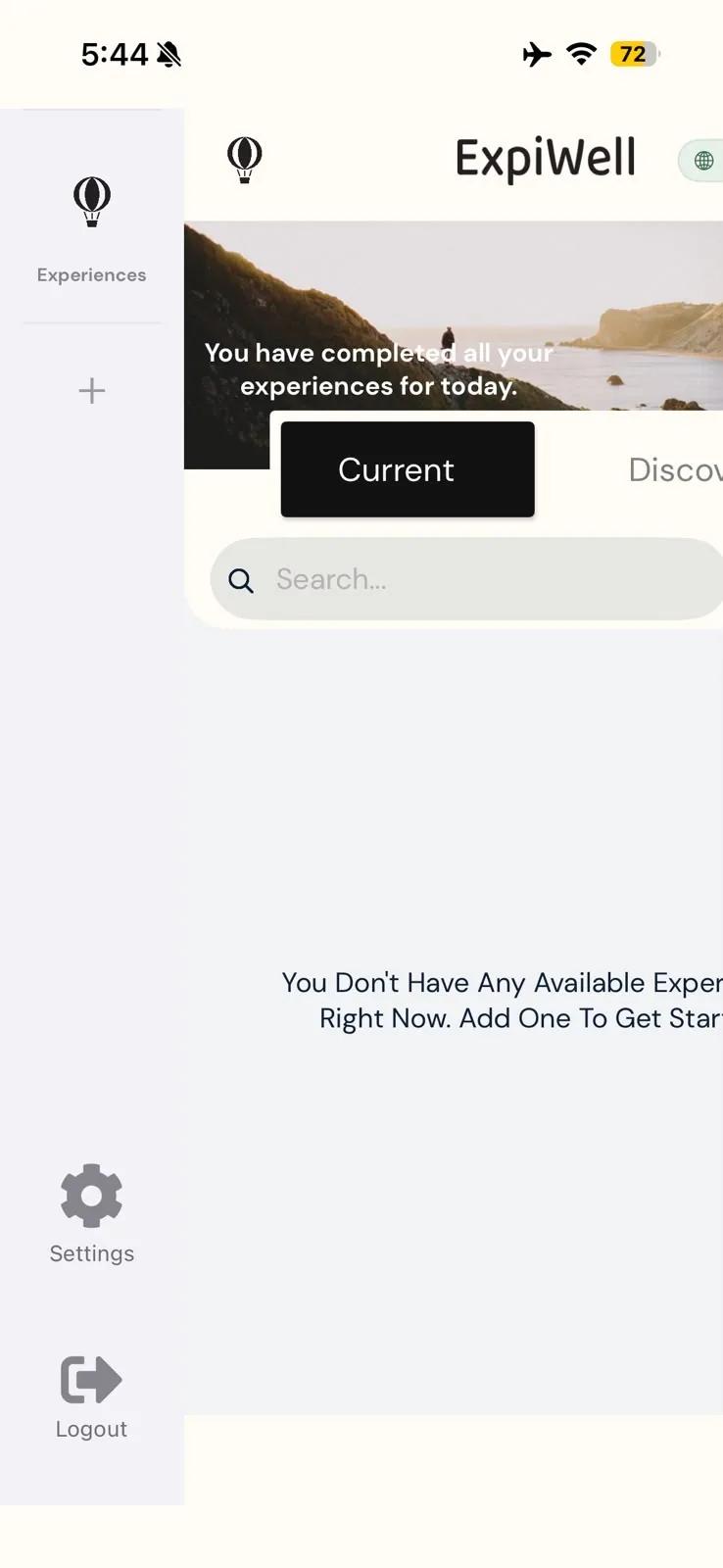
- Type your access code and confirm. On iOS, tap Find Experience. On Android, the dialog is titled Begin An Experience and the button is Add Experience.
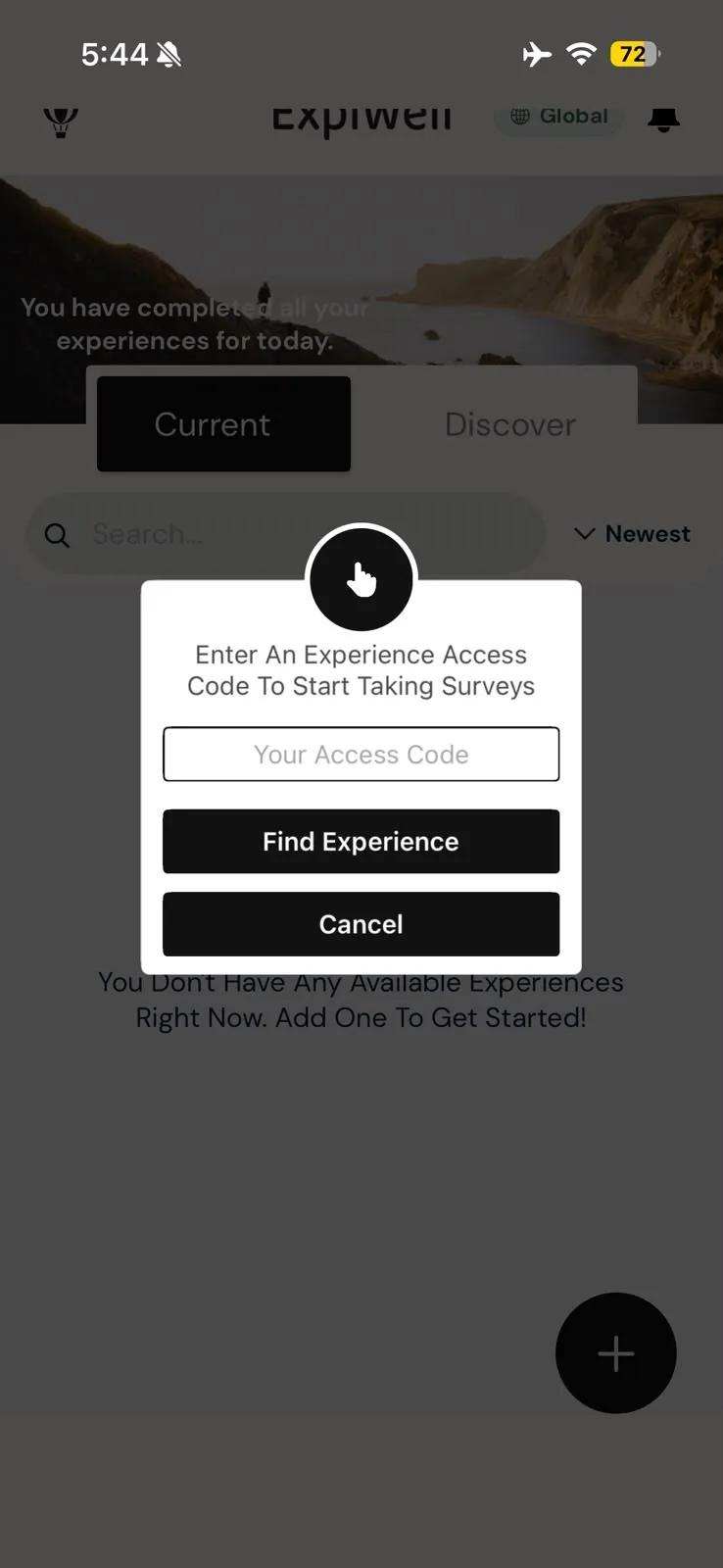
- Answer any setup questions the study asks (see the next section). Most studies ask none.
The study is added to your Current experiences, and any surveys it schedules will start arriving as notifications. You only need to enter the access code once per study.
Access codes are not case-sensitive, and spaces are ignored. You can type
ABC123, abc123 or abc 123.
Setup questions some studies ask
Depending on how your research team set up the study, the app may ask one or more of these before it adds the experience. Each depends on the study, not your phone.
- Group code. If the study puts participants in groups, enter the group code your research team gave you.
- Online or offline. Some studies can be taken without an internet connection. Choose Take Experience Offline if your connection is unreliable, or Take Experience Online otherwise.
- Start date. Some studies let you choose when to begin. Pick a date and tap Continue. The study needs a start date to be added, so canceling stops the join.
- Location. Studies that use your location ask for permission to track it continuously. Allow location access when your phone asks. On Android, tap Continue first. If you turned location access off earlier, the app asks you to turn it back on in your phone's Settings.
- Notifications. A study that sends survey reminders can't be joined while ExpiWell's notifications are turned off. If you see Notifications are required to join this experience, tap Settings, turn notifications on, and return to ExpiWell. The join finishes on its own. If you tapped Cancel instead, turn notifications on and add the code again. See Notifications.
- A device or health app. Studies that collect data from a wearable or a health app ask you to connect it before you join.
If a code isn't accepted
- Invalid Access Code. Check the code for typos. If it still isn't accepted, confirm it with your research team. See Contacting the researchers.
- The study may belong to another region. ExpiWell keeps the EU and Global regions separate, so a code from one region can't be used in an account from the other. Log out, and on the Log In screen choose the study's region under Where are you based? (In the EU or Outside the EU). Then log in, or sign up if you don't have an account in that region yet, and add the code again. Ask your research team if you're not sure which region the study uses.
- This project you entered is already in your current projects. You've already joined this study. Look for it on your Current list.
Other ways in
Some studies invite you a different way instead of an access code: by inviting your email address, or by handing you a ready-made account with login credentials. See Create an account for all three options. For a project you take once, you may not need an account at all. See One-off survey projects.