Available & completed experiences
Mobile app · Experiences
Updated 15 أكتوبر 2026The Current tab on your home screen lists every study you've joined, in two groups: Available Experiences and Completed Experiences. Each study's card shows how far through it you are.
Reading your home screen
The line at the top counts the surveys you can take today across all your studies, such as You have 2 experiences to complete today. When there are none left, it reads You have completed all your experiences for today.
Below it, two tabs switch your view:
- Current: the studies you've joined.
- Discover: studies you've been invited to but haven't joined yet. See New experiences.
On the Current tab, your studies are split into two groups:
- Available Experiences: studies that are still running, including ones with surveys still to come on later days, even when you've done everything for today.
- Completed Experiences: studies you've finished, or whose last survey window has passed, even if you missed some surveys. A study your research team has deleted moves here too. The app moves a study here by itself, so there's nothing for you to do.
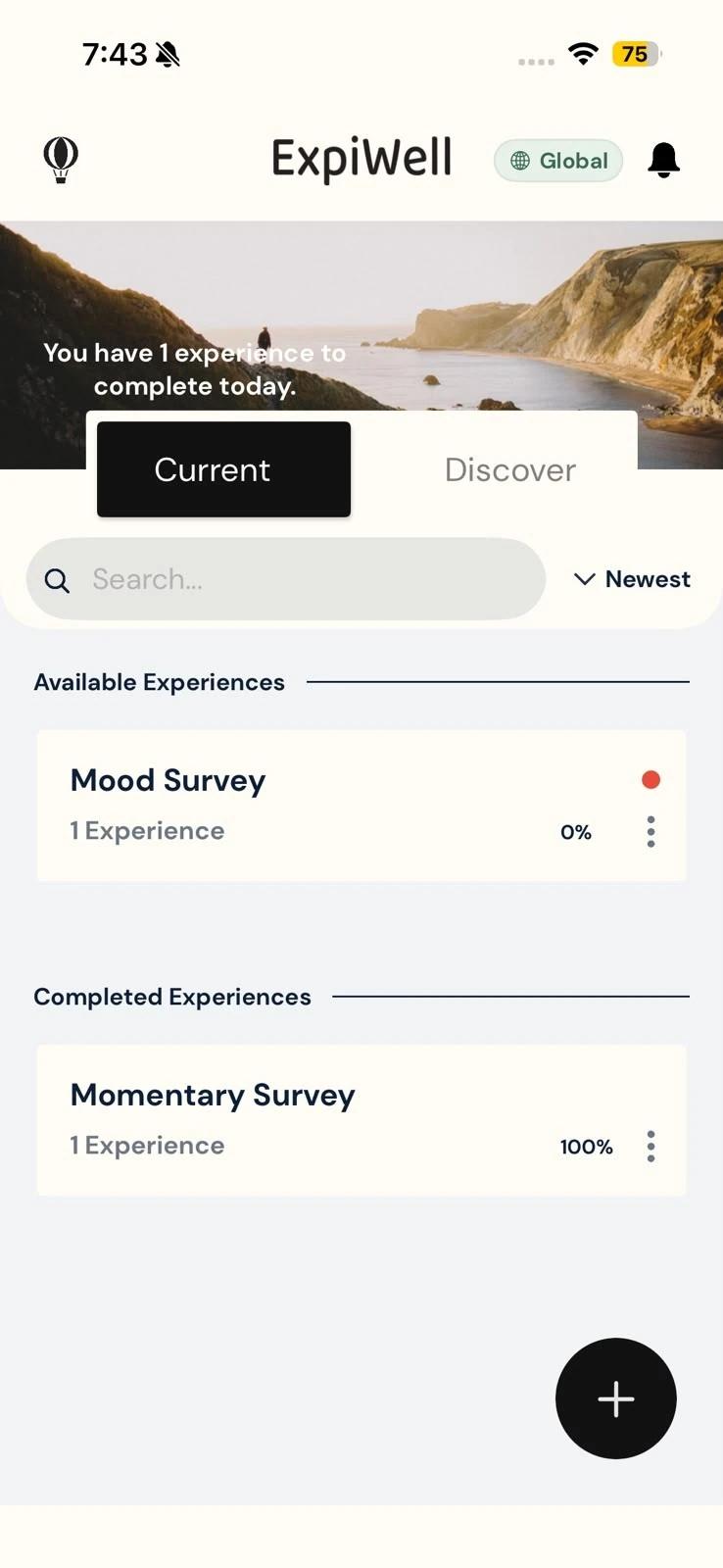
What a study card shows
- The study's name.
- How many surveys it has, such as 1 Experience. If the study pays participants, the payment amount follows.
- A completion percentage, from 0% when you start to 100%. A study can end below 100% if you missed some of its surveys.
- A red dot, when one of the study's surveys is ready to take now.
- A ⋮ icon, which opens the study's options. See Experience options.
Opening a study
- Available Experiences: tap the card to open the study and see its surveys. See Project overview.
- Completed Experiences: tapping the card expands it to show the study's description, its schedule type and how long it takes, if the research team set that. Tap it again to collapse it.
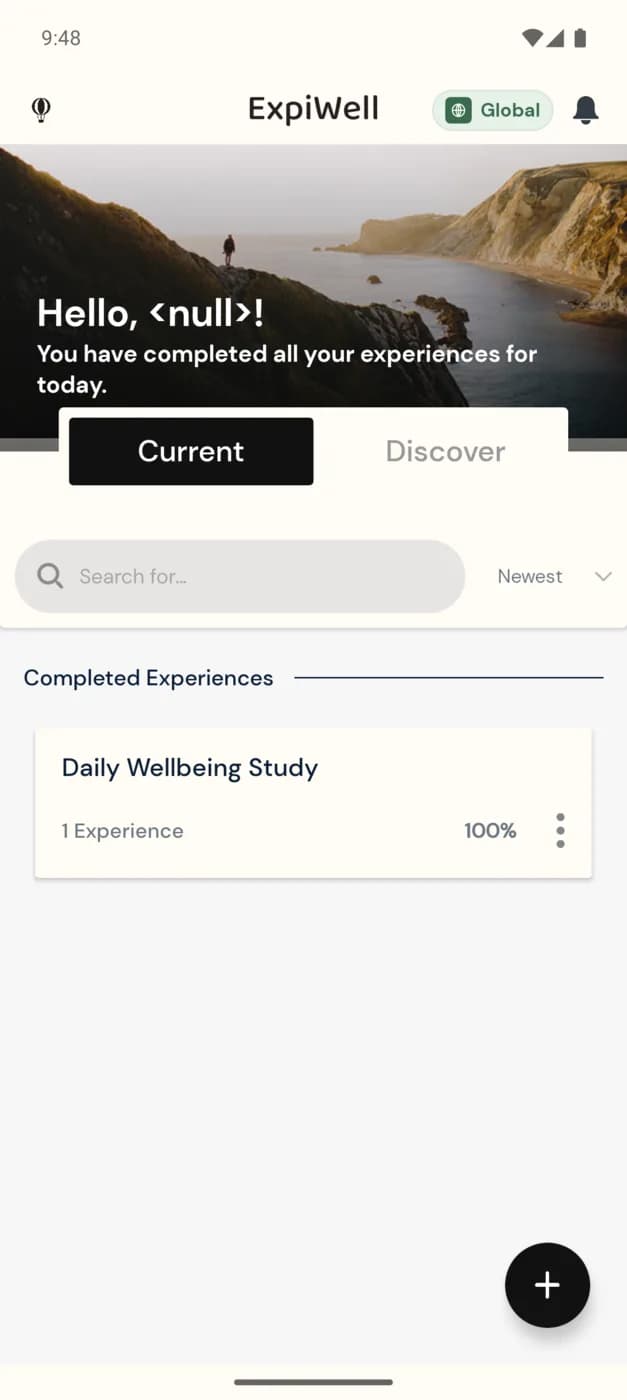
Finding a study
When you've joined several studies:
- Type in the search box to show only studies whose names match.
- Tap Newest to list the oldest studies first. The button then reads Oldest; tap it again to switch back.
- Pull the list down to refresh it.
To join another study, tap the + button. See How to add experiences.
Note
A completed study stays on your home screen for reference. To remove it, tap its ⋮ icon, then Remove Experience.
Was this helpful?