Invite by user account email
When to Invite by Email
Invite by email when you already know who your participants are and want only those people in the study. Anyone not on your list cannot join, which is the difference from an access code — a code can be passed on to anyone.
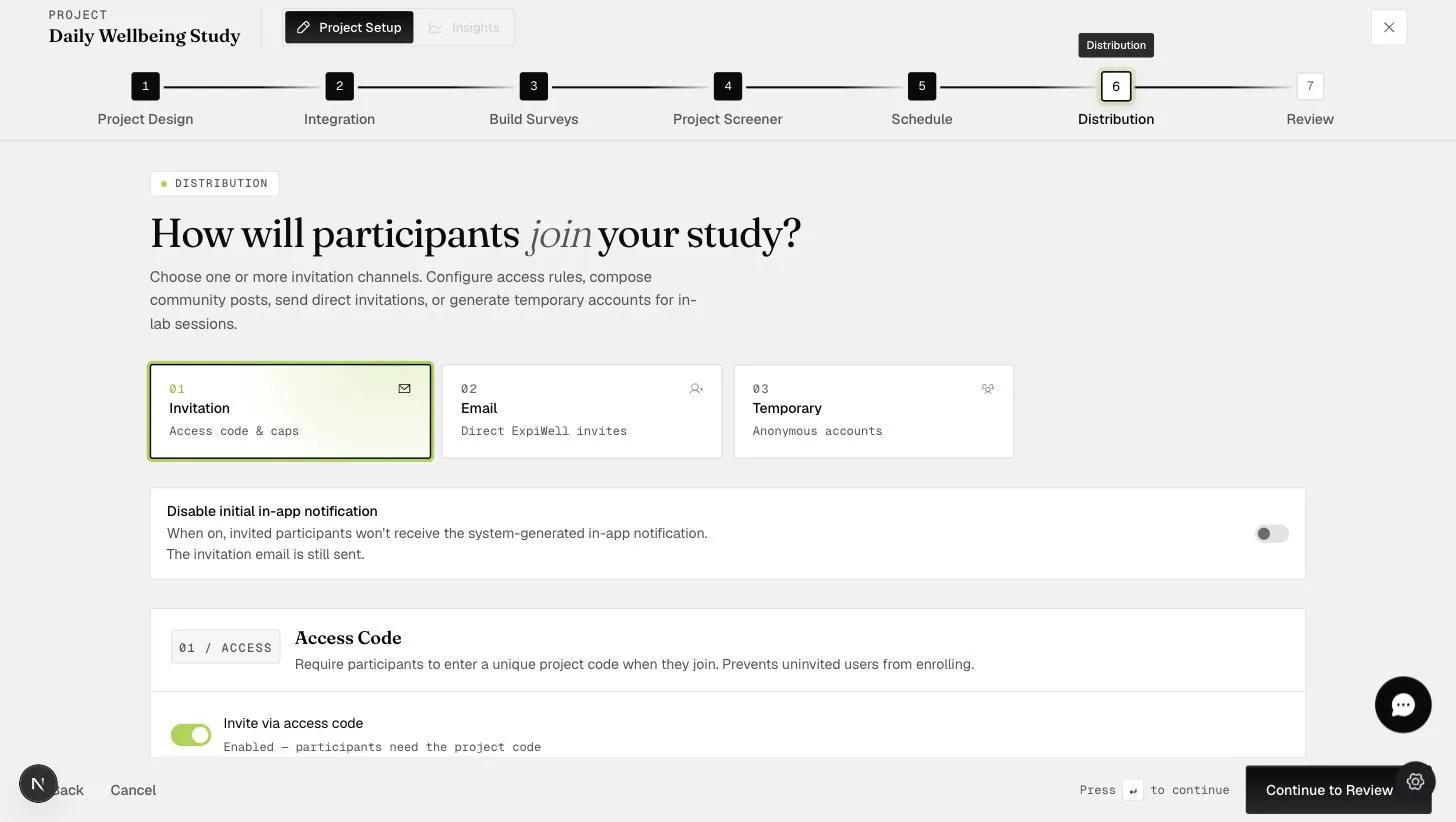
You do not need an access code as well. But you can have both: leave Invite via access code switched on and the project has two ways in — the named list you invited, plus anyone you later give the code to.
Sending the Invitations
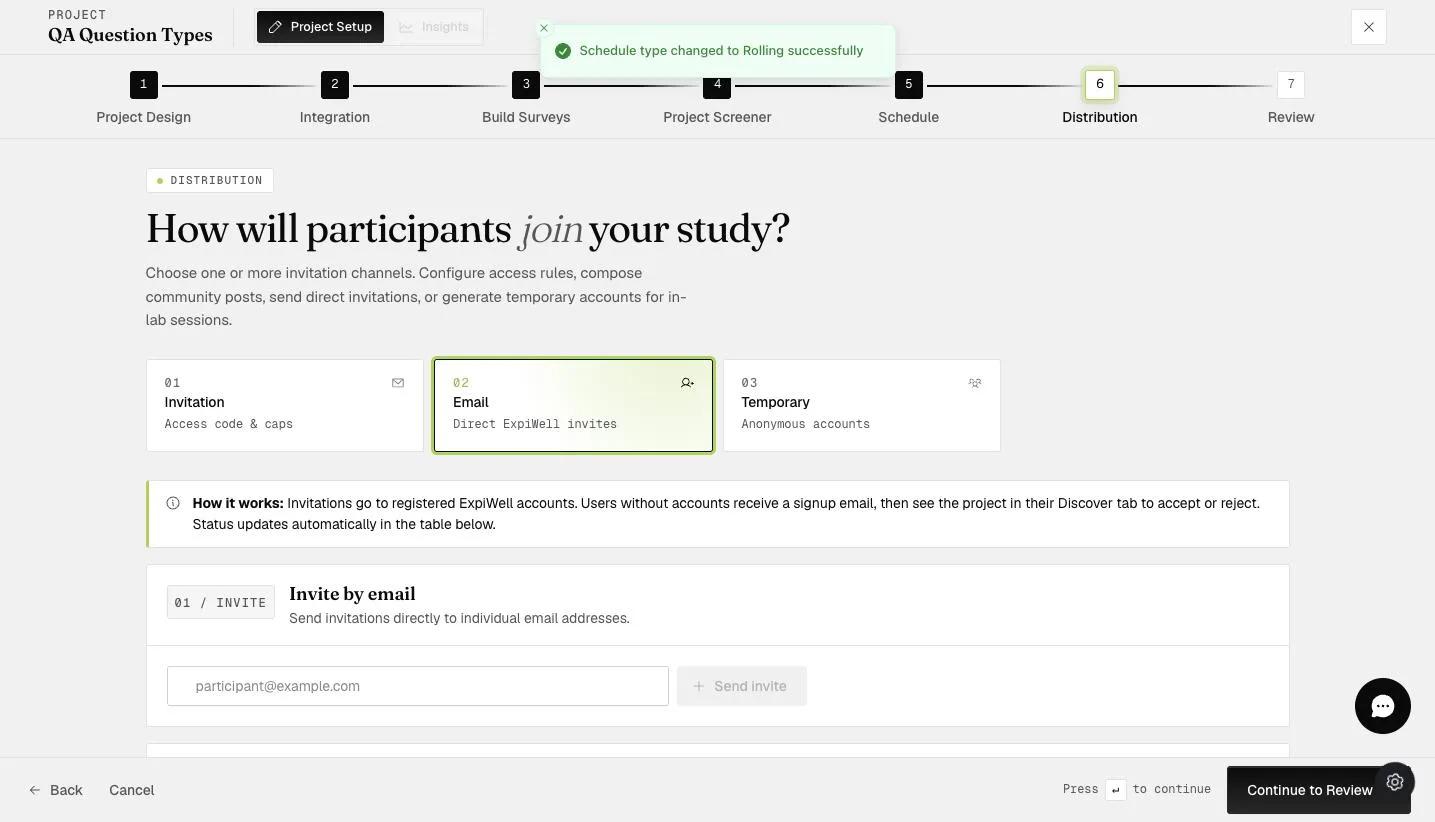
Open the Email channel and add addresses one at a time, or upload a list.
The step's own How it works note says people without an account "receive a signup email". They do not — everyone receives the same invitation, described under What the invitee receives below. Trust the behavior, not the note.
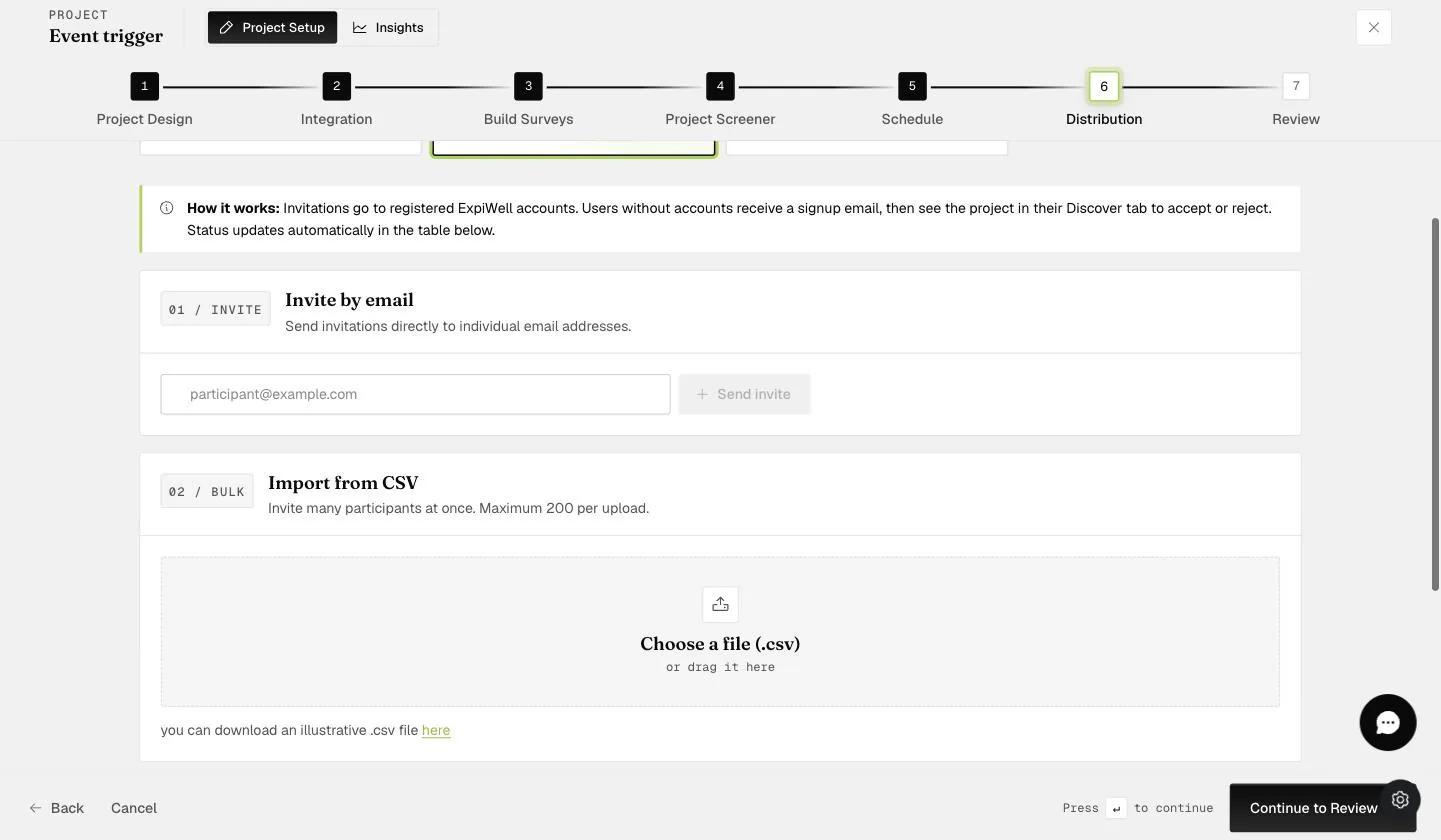
The CSV route takes up to 200 participants at a time. Temporary accounts use a different limit — 100 per upload — so the two are not interchangeable numbers.
Invitation Status
Added addresses appear in a table carrying one of five statuses.
Awaiting Activation — the project is not live yet.
Awaiting account creation — ExpiWell found no account for that address when you added it.
Sent — the invitation has gone out. Both of the statuses above become Sent when you activate the project, not when the person signs up.
Accepted / Rejected — what they did with it in the app.
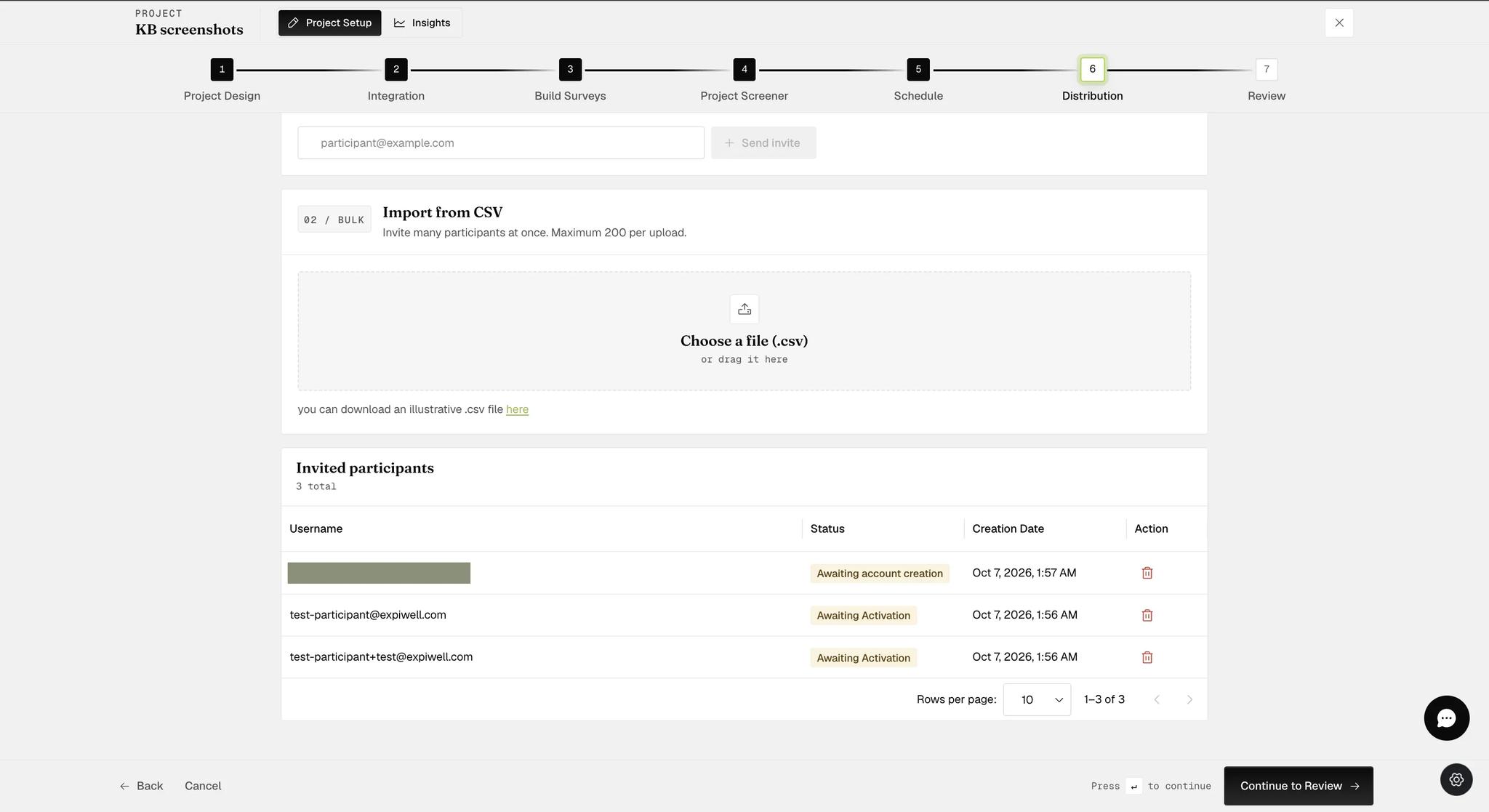
Once the project is active, the list is add-only. The step says so across the top — "you can still add new participants, but existing entries can't be edited or removed" — so an address typed wrongly has to be fixed before you activate, or by deactivating the project.
The table maintains itself. Creating an account, accepting the invitation or rejecting it all show up here without you doing anything, so it is where to look to see who has actually started.
What the Invitee Receives
An email from ExpiWell Research (noreply@expiwell.com) telling them they have been invited, carrying a download link for the app, and pointing them to the Discover tab to accept the project once they are signed up. Everyone on your list gets it when you activate the project — both people who already have an ExpiWell account and people who do not.
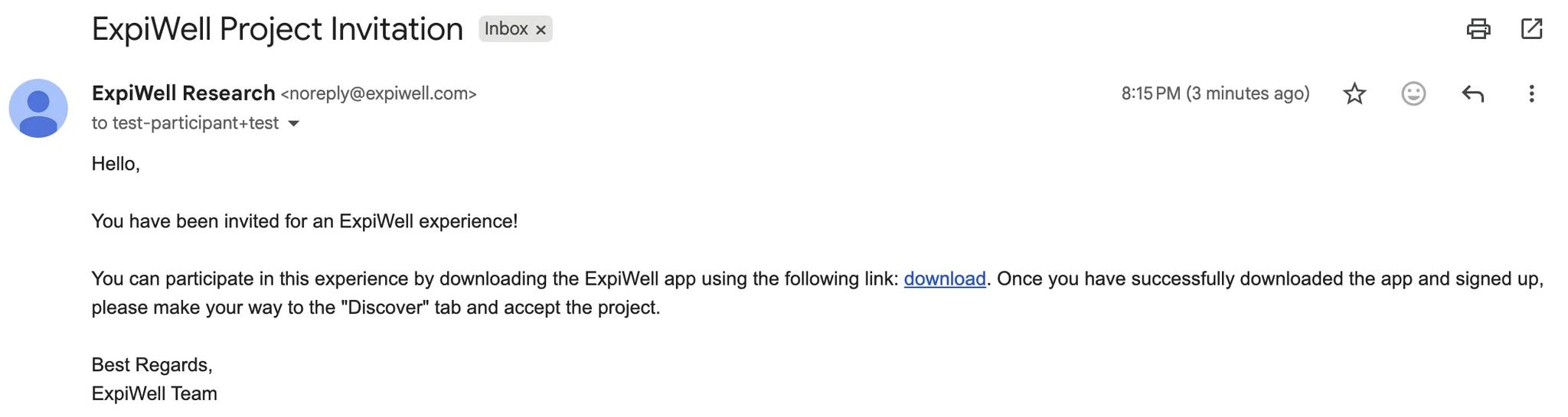
The email does not name your project. It says only that they have been invited to an ExpiWell experience, so someone taking part in more than one study cannot tell from the email which this is — tell them separately what they are being invited to.
Once they have an account the project is waiting in their Discover tab, exactly as for everyone with one already — the two paths converge here.
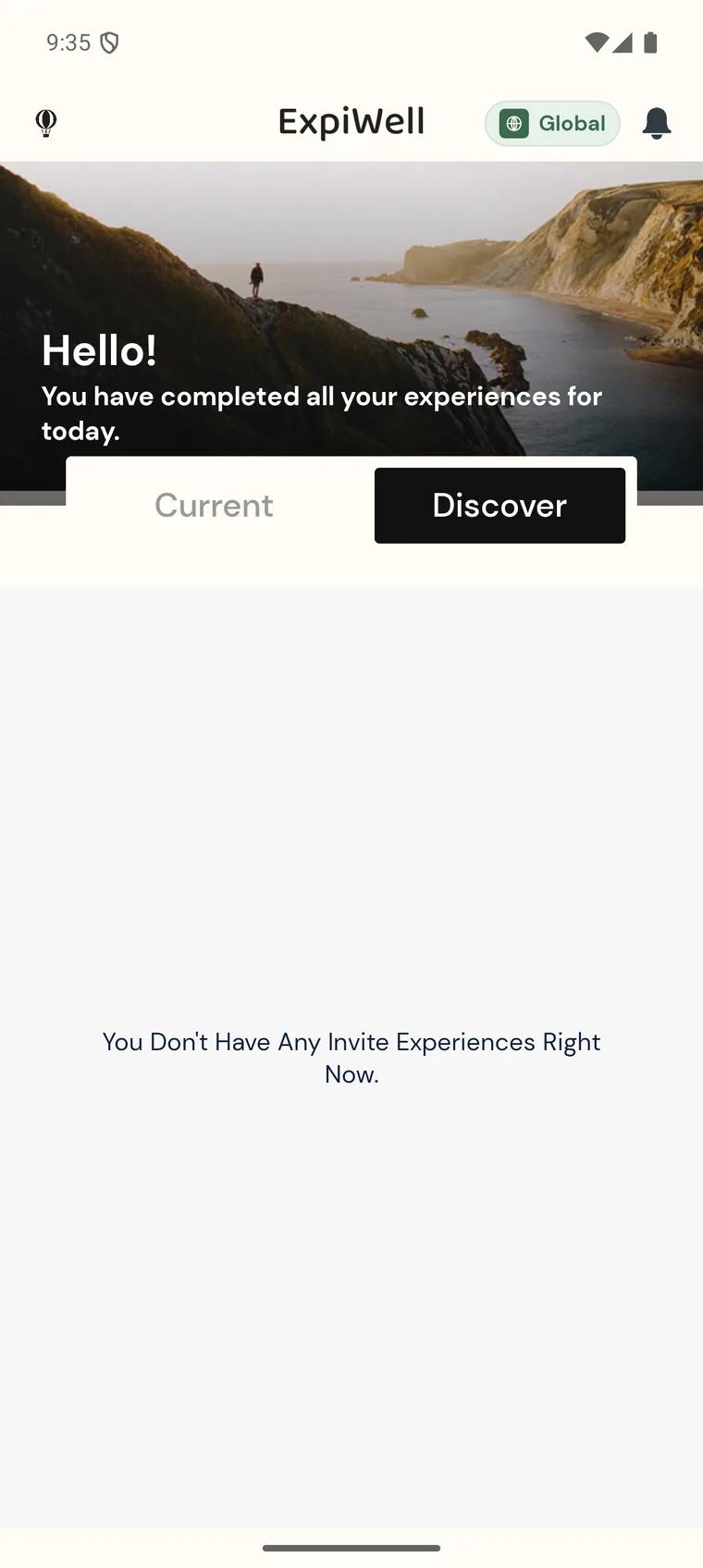
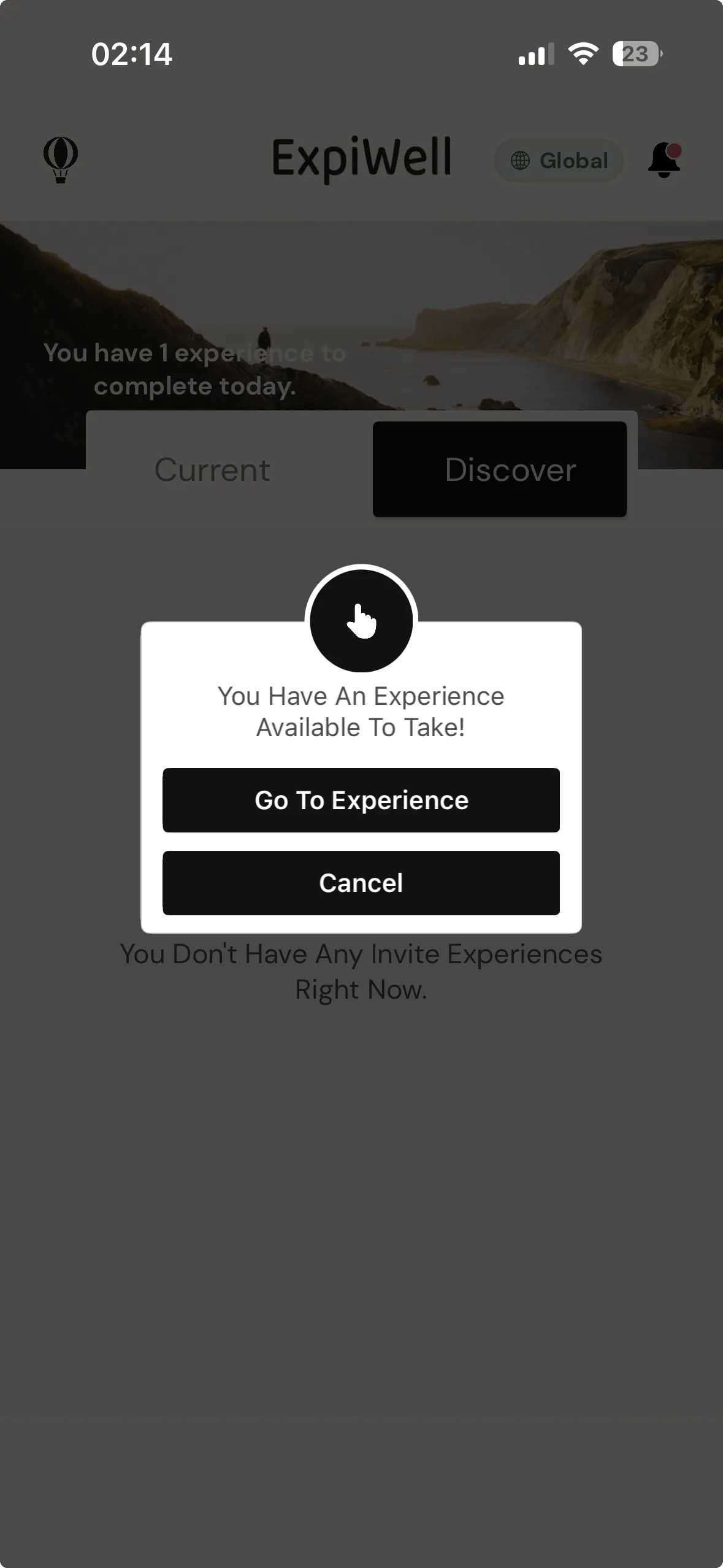
Accepting moves the project out of Discover and into Current, where their surveys appear.
Finding Them Again in Your Data
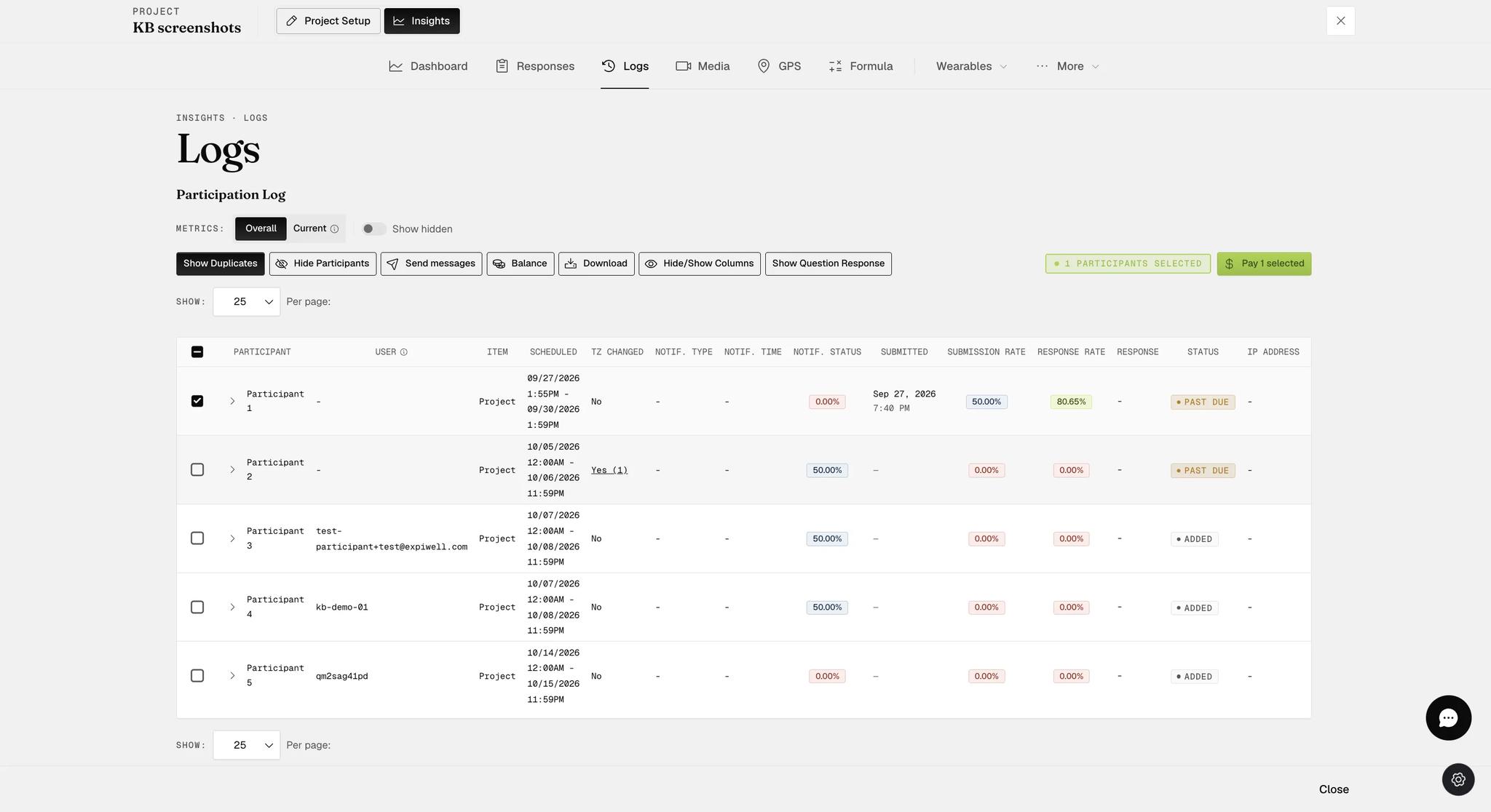
This is the one channel that tells you who your participants are: the address shows against them in the User column on the Logs page, so a response traces back to a person. Useful for paying participants or chasing non-responders, and the thing you trade the other channels' anonymity for.
The column is not empty for the other channels — a temporary account shows its username there — but a username is a label you invented, not a person. Only an invited address identifies someone.