Creating temporary participant accounts
How to Create Temporary Participant Accounts
With your ecological momentary assessment (EMA) and experience sampling method (ESM) projects, you may want to create temporary participant accounts.
A temporary account is a username and password you hand to someone, so they never create an ExpiWell account of their own. That suits three situations:
-
You own the devices. Lab tablets or loaned phones, where accounts belong to the study rather than to a person.
-
Your participants should not have to sign up. Walk-in sessions, or anyone who would struggle with creating an account and verifying an email.
-
You still want to tell responses apart. The username appears in your downloaded data, so a response can be traced to the account that gave it without anyone handing over an email address.
System-Generated Temporary Accounts
Open the Distribution step and choose the Temporary channel. Before you generate anything it holds an empty accounts table, a Generate [n] accounts field, and an Import CSV button.
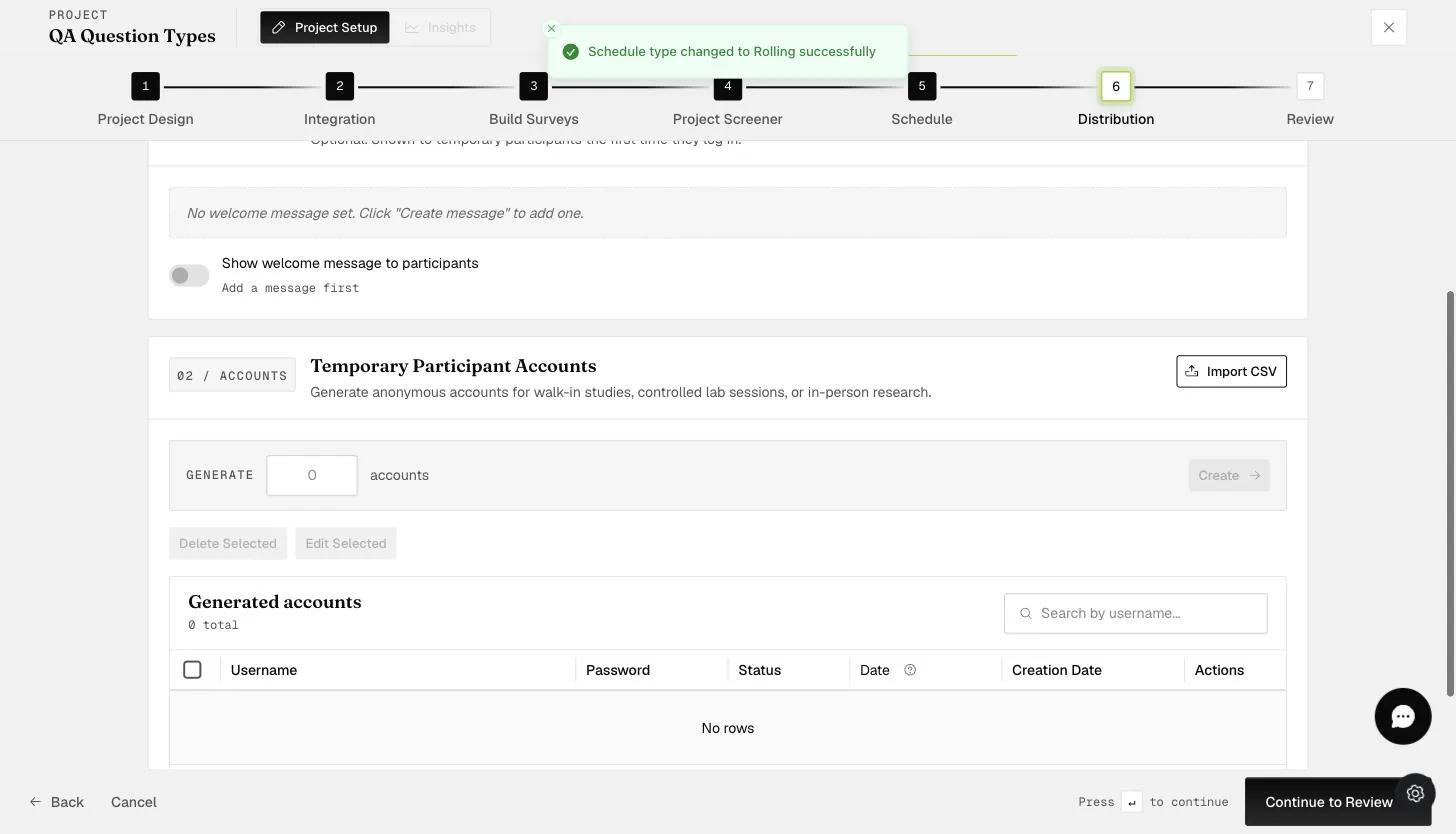
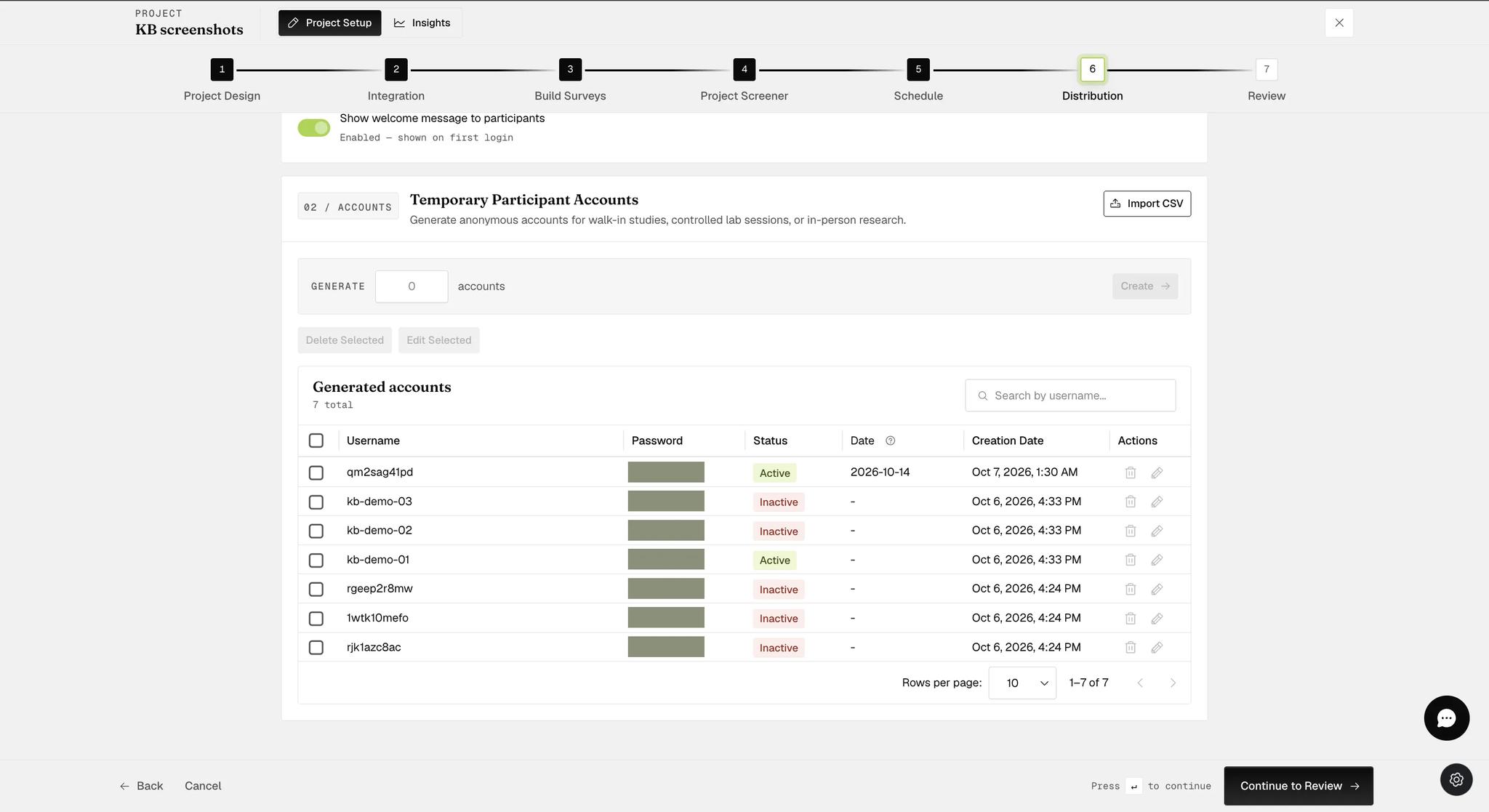
Type how many accounts you need and click Create. Each row is a working login: a generated username and password, a Status of Inactive until someone uses it, an optional start Date, and the time it was created.
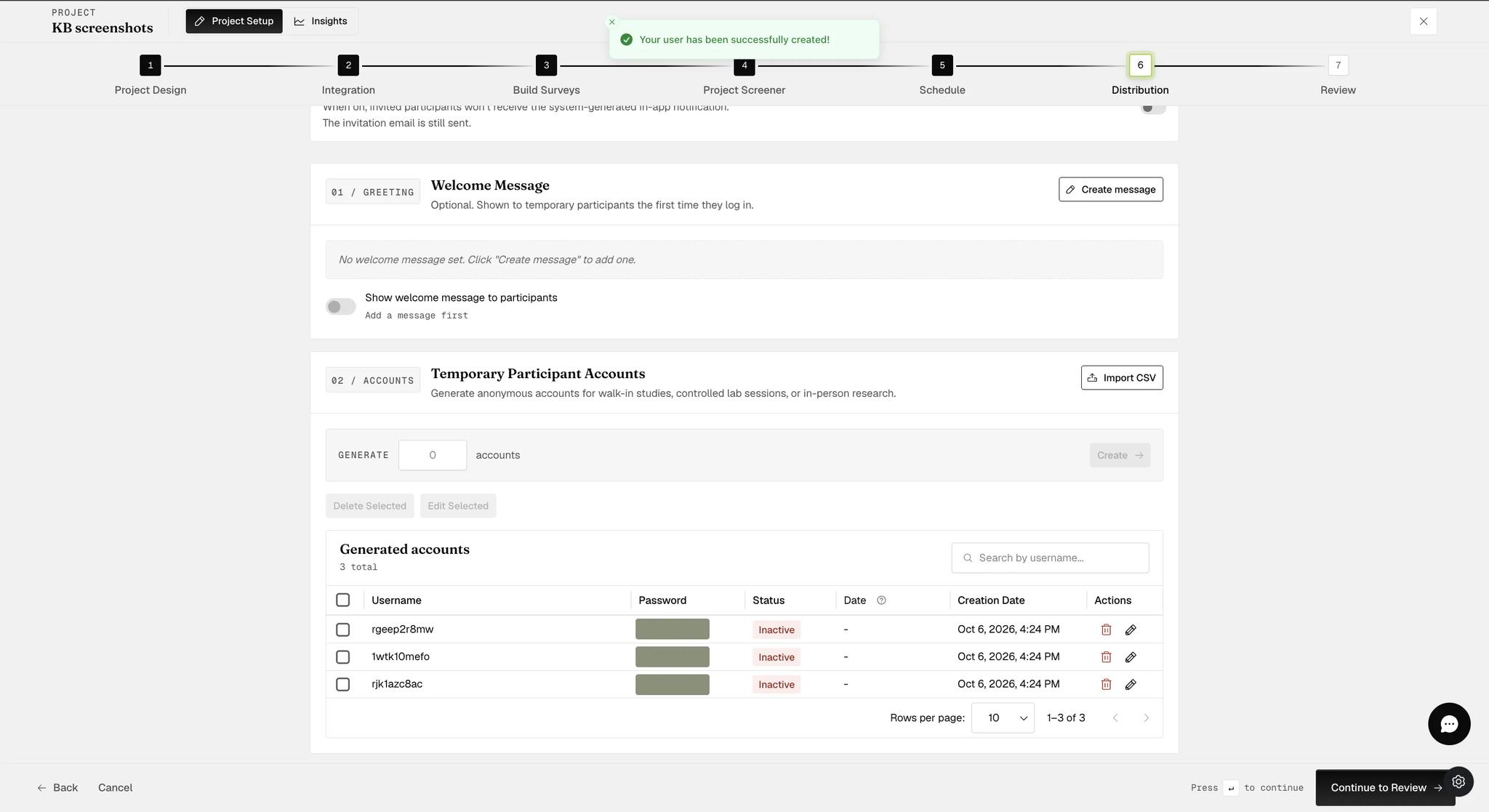
These are real credentials, and anyone holding a pair can take your study as that participant. Distribute them the way you would distribute any password — not in a shared spreadsheet, not in a screenshot. The passwords above are obscured for that reason.
Disable initial in-app notification, the switch above this panel, belongs to the Email channel rather than this one — it suppresses the in-app announcement sent to people you invite, and the invitation email still goes out. Temporary accounts are neither invited nor emailed, so it does nothing for them.
Importing Your Own Usernames
To import your own usernames and passwords for your temporary participant accounts, click on the 'Import CSV' button.
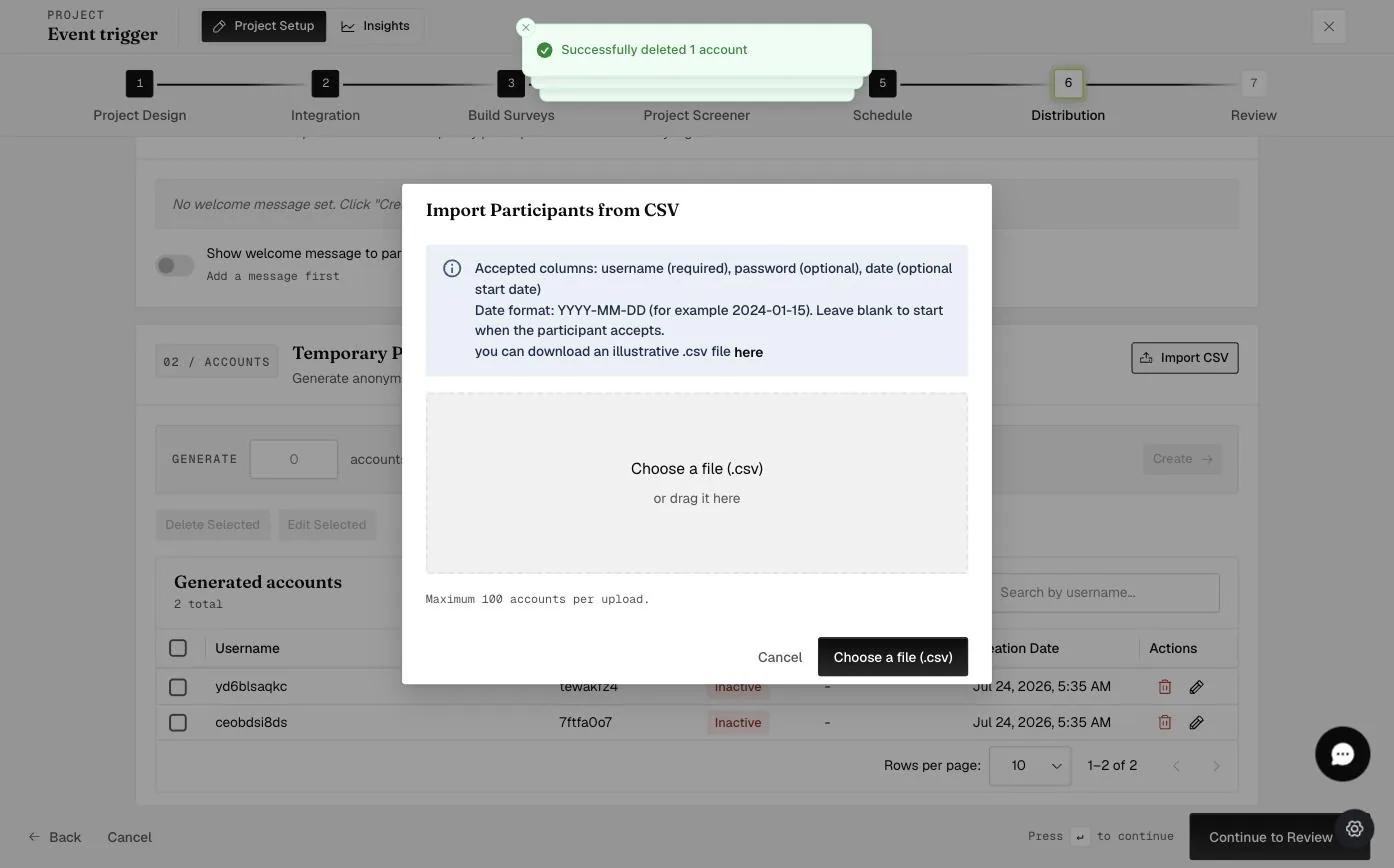
The dialog states the format it accepts: username (required), password (optional) and date (optional start date). It also offers a downloadable example file — the quickest way to get the columns right is to take that and fill it in.
100 accounts per upload. A larger cohort has to go up in batches.
A few rules worth knowing before you build the file:
- Leave Password blank and a password is generated for that username.
- Date must be
YYYY-MM-DD. Leave it blank and the project starts when the participant does. - Date only works on a Rolling schedule. Calendar and Static schedules start everyone on fixed dates, so a per-participant start date has nothing to attach to.
After the upload you can distribute the usernames and passwords.
Editing and Deleting Accounts
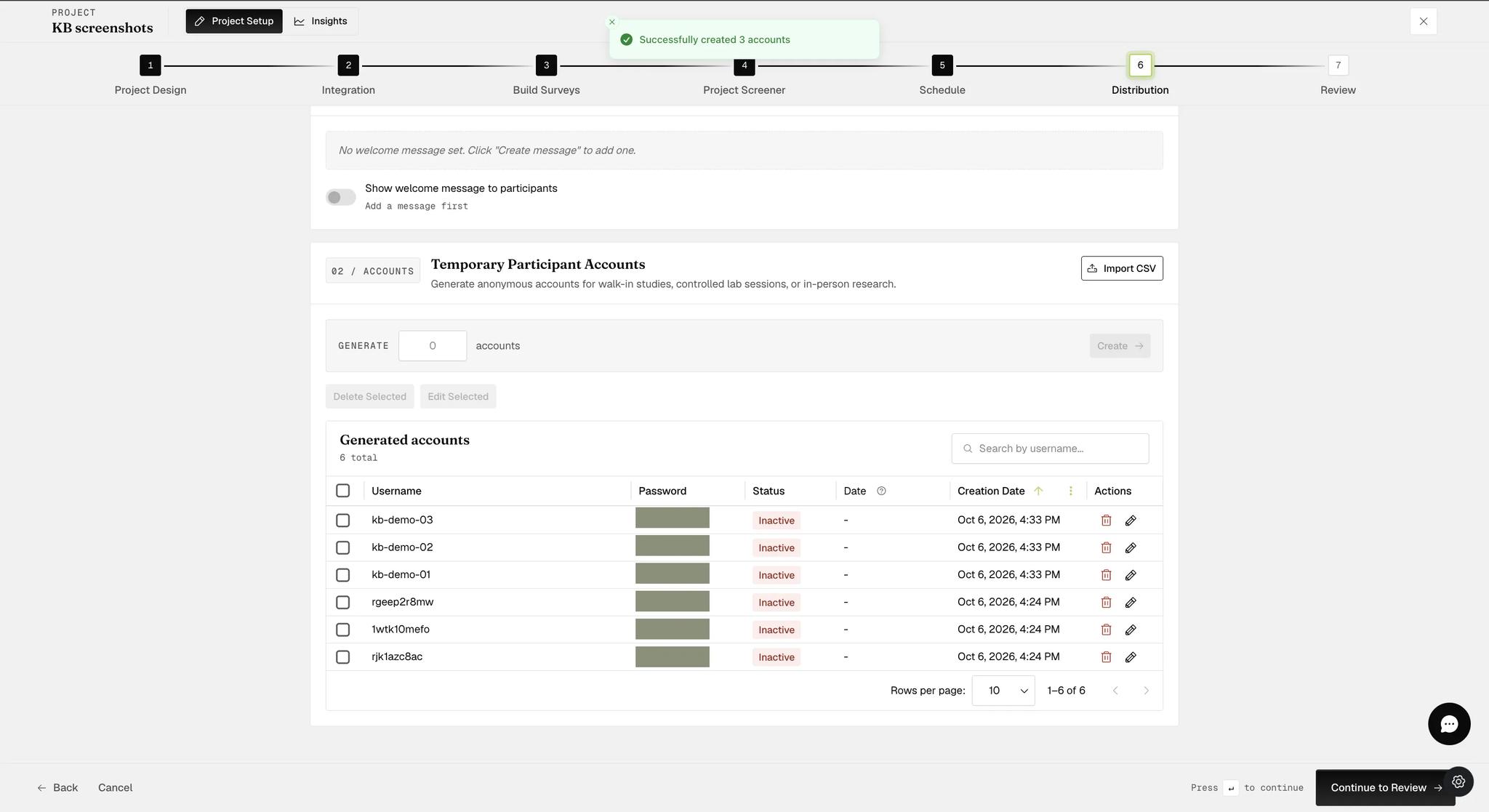
Each row in the accounts table carries its own Edit and Delete icons under Actions. To act on several at once, tick their checkboxes and use Edit Selected or Delete Selected above the table.
An active project locks this panel. Once the project is activated the Actions icons gray out — hovering one says "Settings cannot be changed while the project is Active. Deactivate the project to make changes." So create your accounts and set their start dates before you activate, or you will have to take the project down to correct them.
Setting a Start Date
To set or edit the Start Date, click the Edit (pencil) icon in that row's Actions column. A popup modal appears.
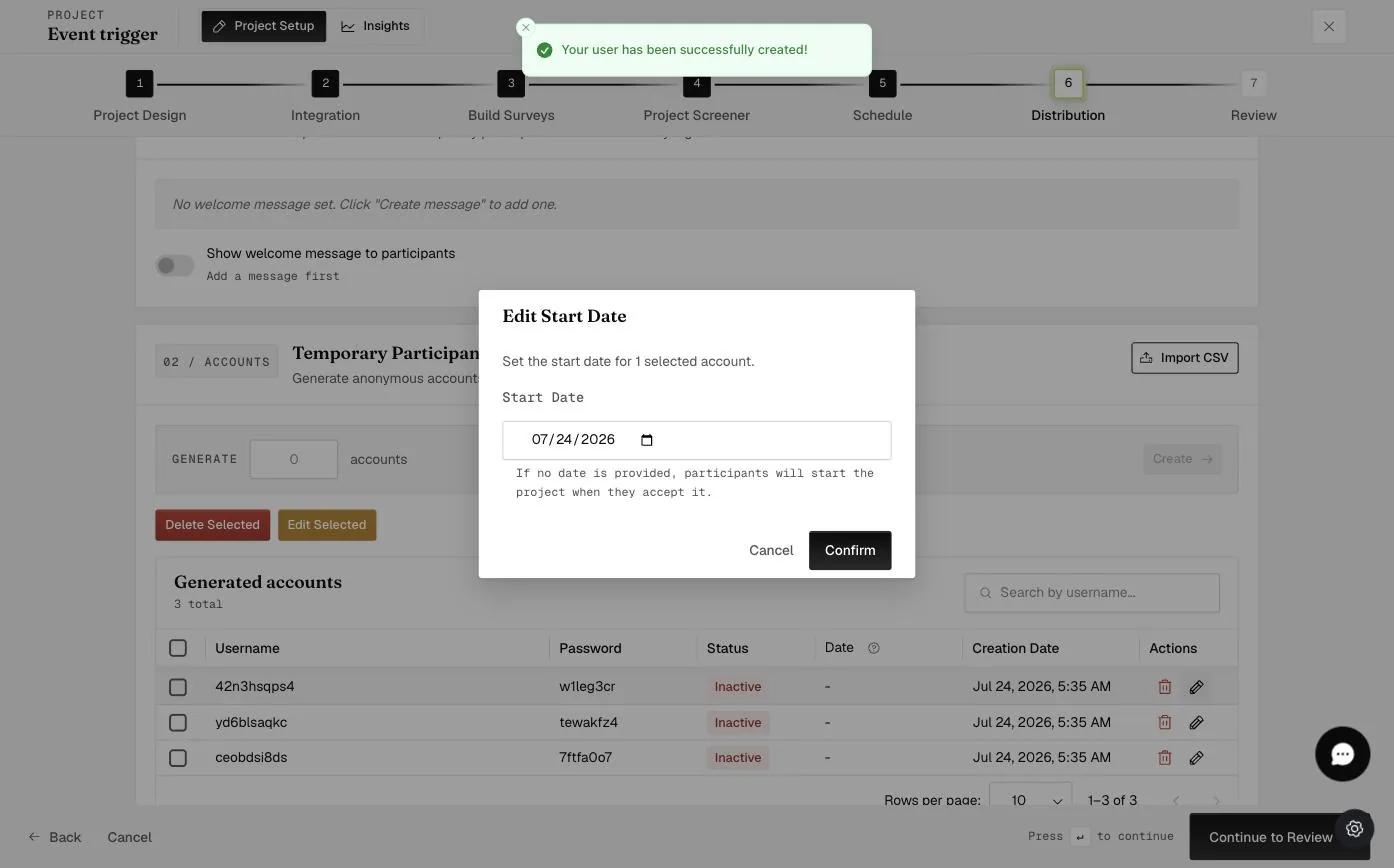
Select the Start Date and click 'Confirm'.
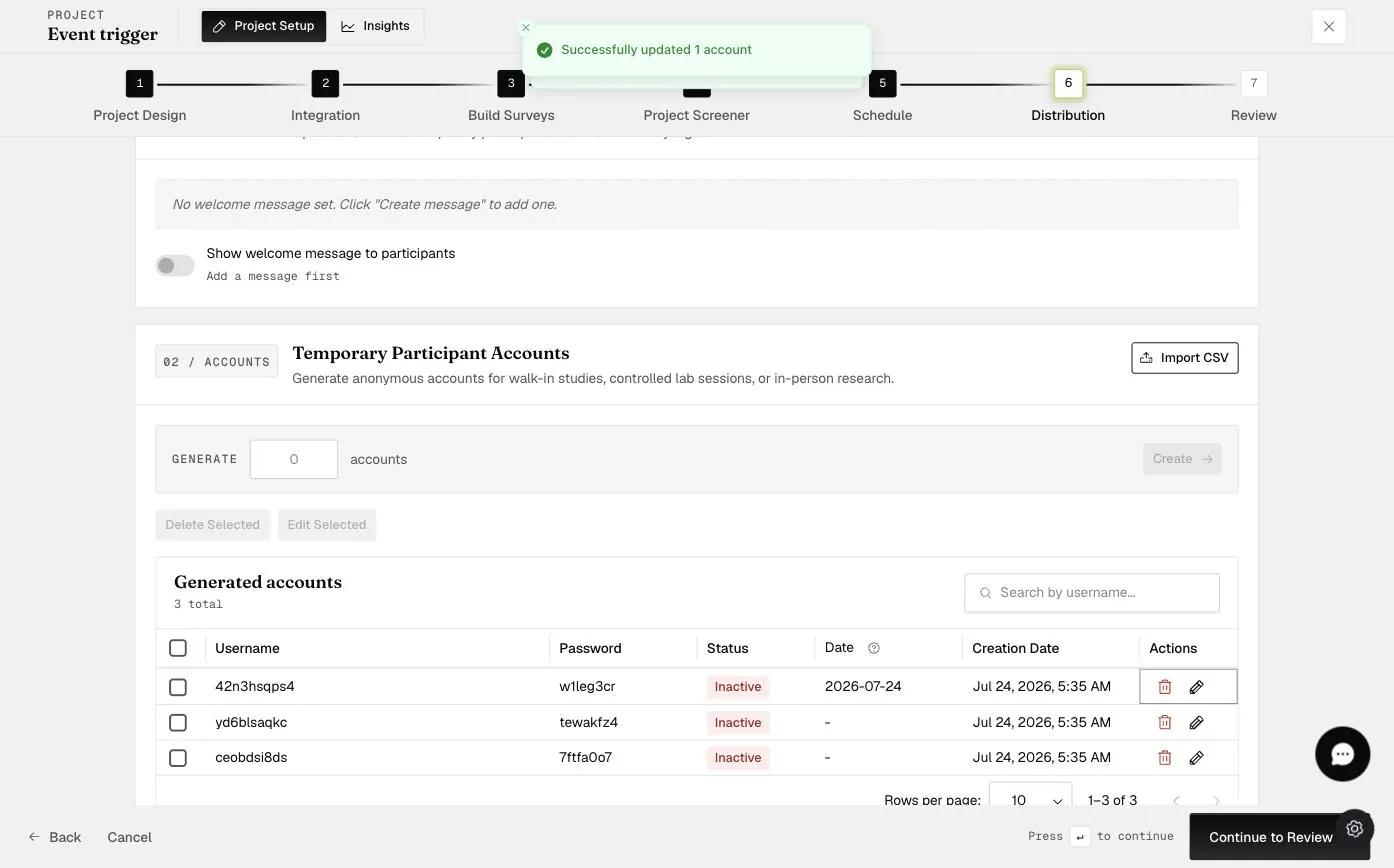
The updated Start Date will be shown after that.
Deleting Accounts
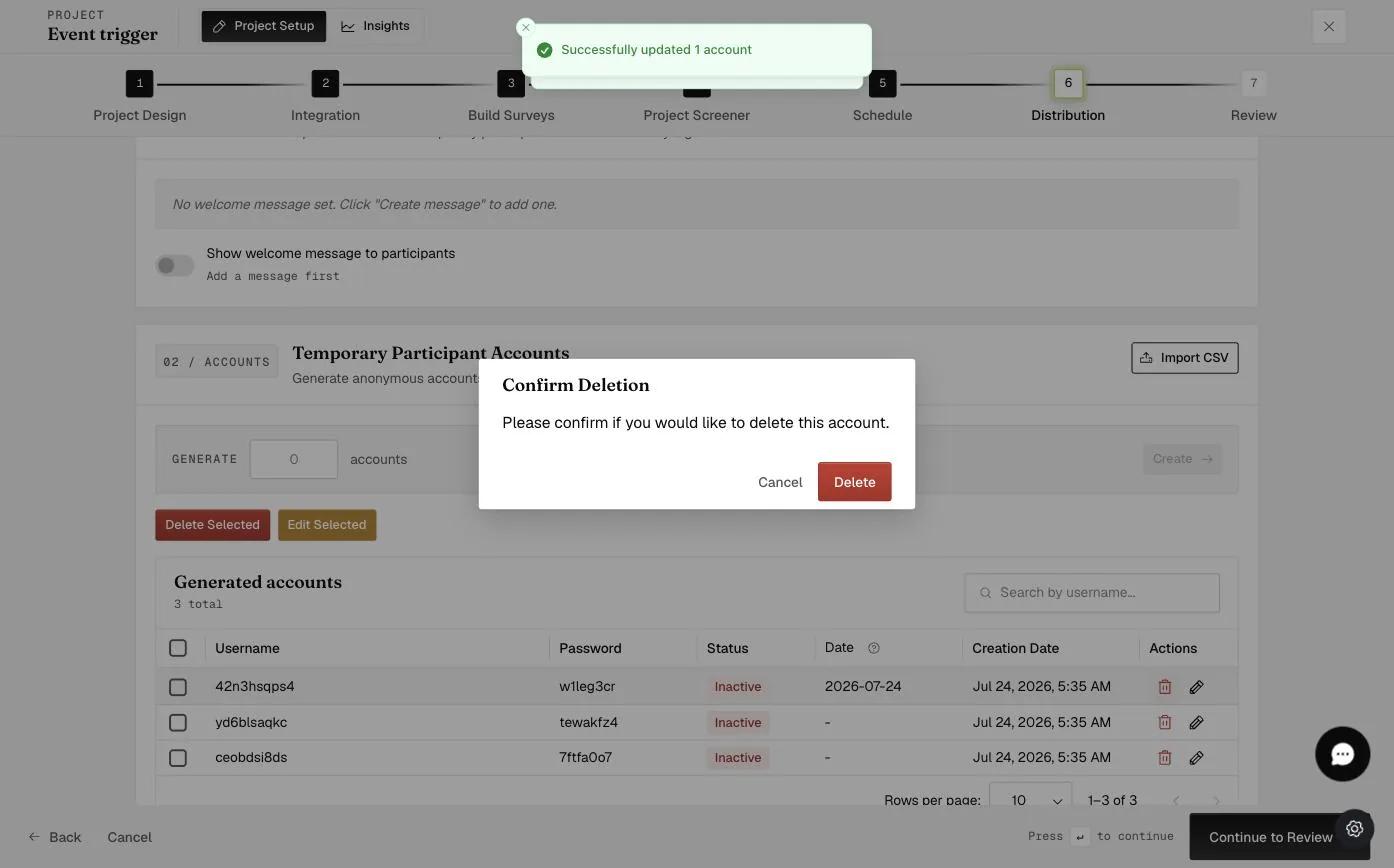
To delete temporary accounts, click the Delete (bin) icon in that row's Actions column. A popup modal appears to confirm.
Welcome Message
The Temporary channel can show a message the first time someone logs in — and only the first time. Click Create message (or Edit message if one exists), write up to 250 characters, then switch Show welcome message to participants on.
The toggle will not turn on until a message exists — it reads "Add a message first" until you write one. So the order is write, then enable.
The greeting is written for you. The message is shown under a fixed Welcome [username] line, with the participant's own username substituted — so your 250 characters are what comes after the hello, not the hello itself.
![The Welcome Message dialog, explaining that temporary participants see this the first time they log in, with a Welcome [username] heading above a text box holding a short message and a counter reading 167 of 250 characters](/cdn-cgi/image/width=2048,quality=75,format=auto/images/help/creating-temporary-accounts/11-welcome-message.webp)
What the Participant Sees
They sign in with the username and password you gave them. No access code is needed — the project attaches itself to the account automatically.
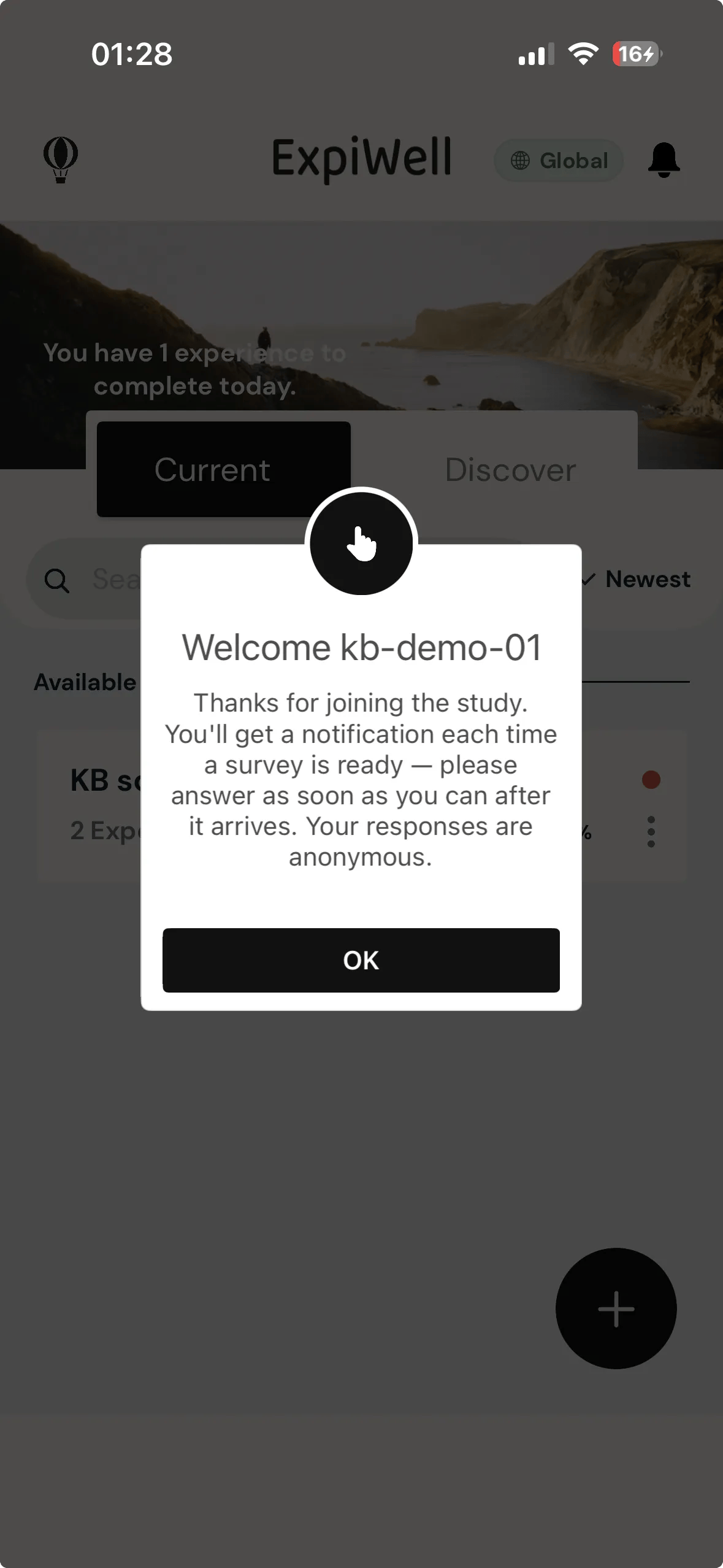
If you wrote a welcome message, it appears now and never again — under the automatic Welcome username line.
What happens next depends on the Start Date:
- No start date — the project is available the day they log in.
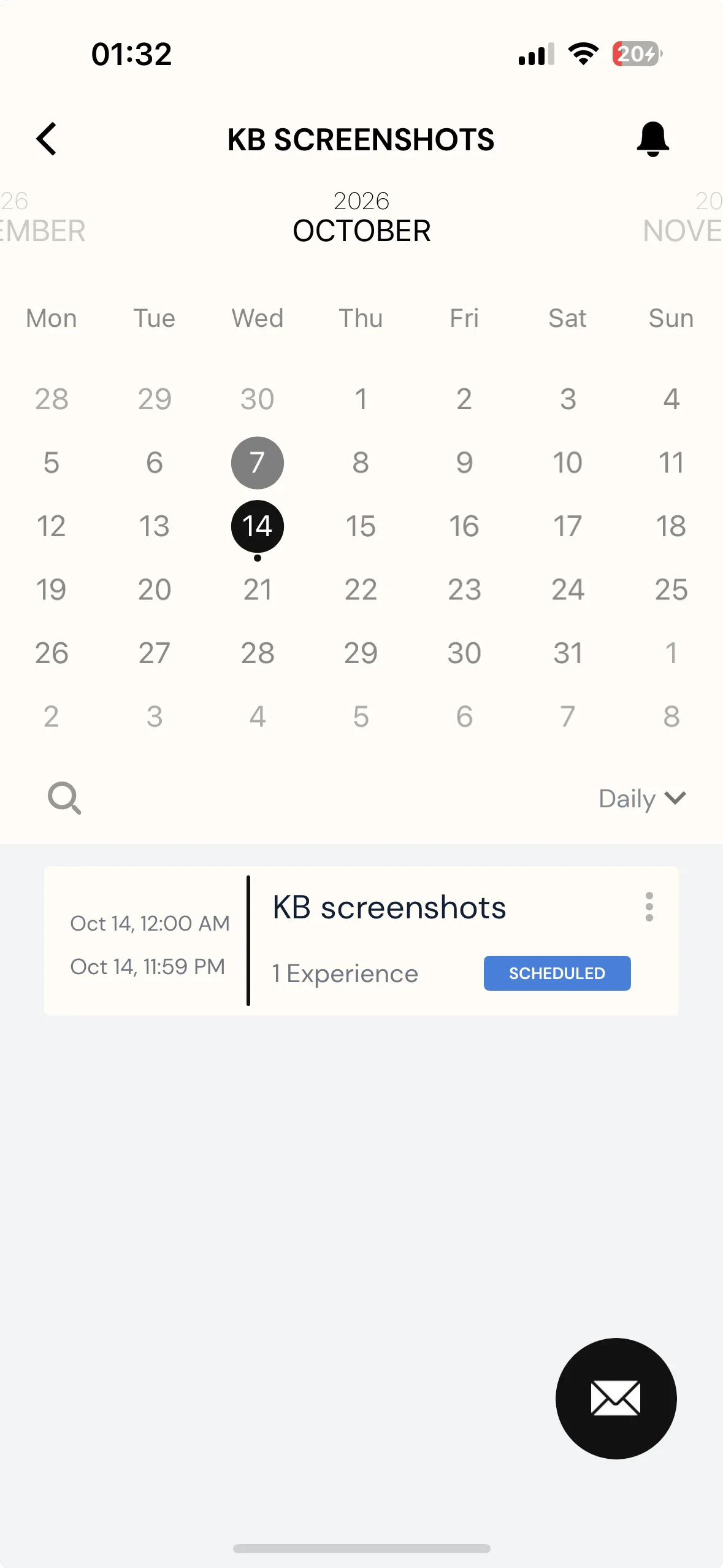
- A future start date — the project is in their account but its surveys read as Scheduled until that date arrives.
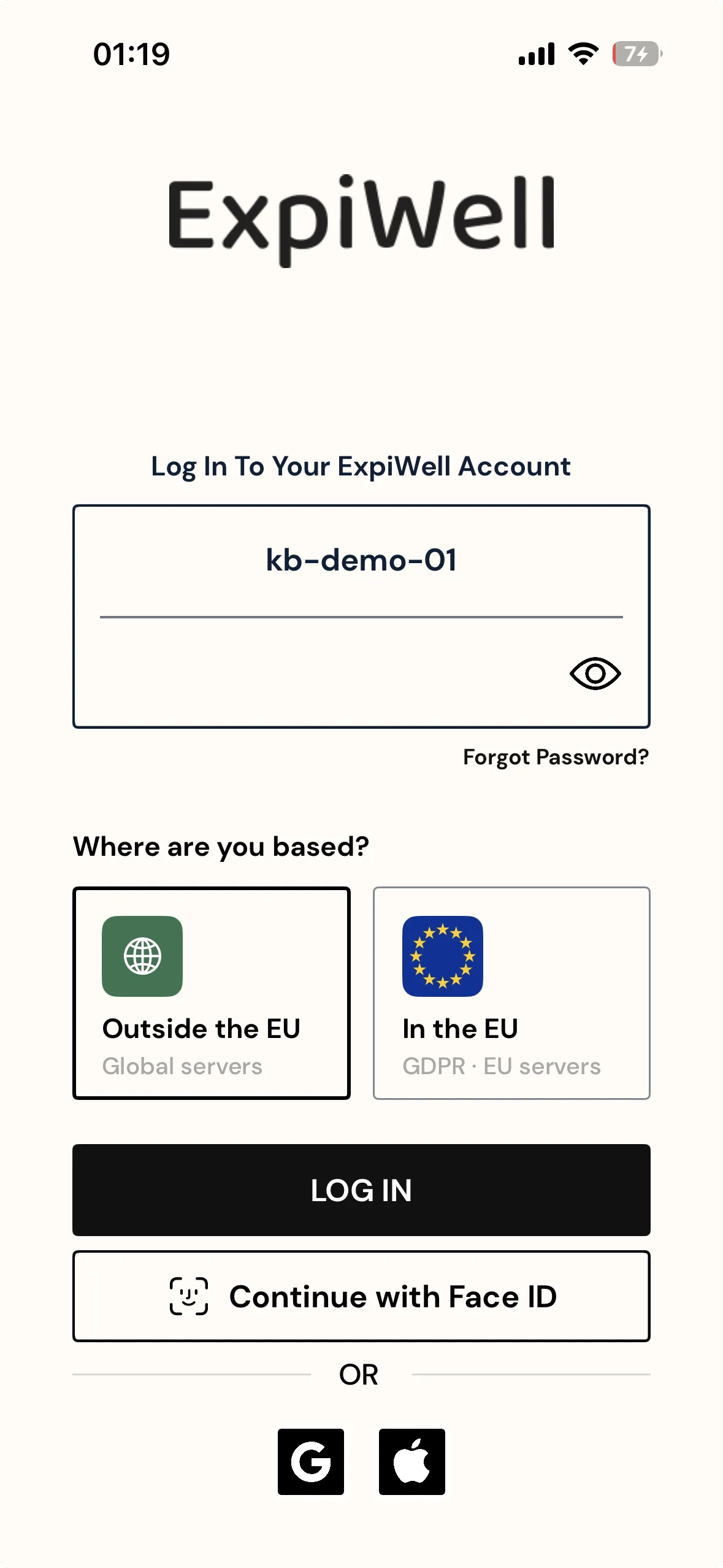
The sign-in screen asks where they are based, and the two regions are separate systems — an account exists in one of them, not both. A participant who picks the wrong one meets a Wrong Region message rather than your project, so tell them which to choose along with their username and password.
Back on your side, an account that has been used changes status from Inactive to Active, so the table tells you who has actually signed in.
FAQs
What Happens When You Delete the TEMPORARY ACCOUNT:
When you delete an account, participants will be automatically logged out of their ExpiWell mobile app and will no longer have access to the project.
What Happens If You Don't Set a Start Date for TEMPORARY ACCOUNTS:
If you don't set a Start Date, participants' Start Date will default to the day they log in to the account.
What Happens If Participants Use TEMPORARY ACCOUNTS When the Project Isn't Active Yet:
Participants can still use TEMPORARY ACCOUNTS but will ONLY see available content inside the app once the project becomes active. After you have activated the project, participants will have to log in again to see the project(s).
Do Participants Need to Add the Access Code:
No, participants don't need to add an access code. Using the TEMPORARY ACCOUNTS username and password will automatically add the project to the mobile app.
Availability Based on Schedule Types:
A per-participant Start Date only does anything on a Rolling schedule. Calendar and Static schedules start everyone on dates you fix in the schedule itself, so there is nothing for a per-participant date to change.
Can Participants Use TEMPORARY ACCOUNTS Before Their Start Date:
Yes, participants can use TEMPORARY ACCOUNTS in advance. They will see the surveys as 'scheduled' until their Start Date arrives.
Can You Edit the Start Date After Participants Use the TEMPORARY ACCOUNTS:
No. A Start Date can only be set or changed while the account is still Inactive. Once someone has signed in with it, the date is fixed.
If you have any questions, please reach out to help@expiwell.com.