Media download
How to Download Media Content
A Multimedia question collects images, audio or video from participants. Everything they send arrives in one place: Insights → Media.
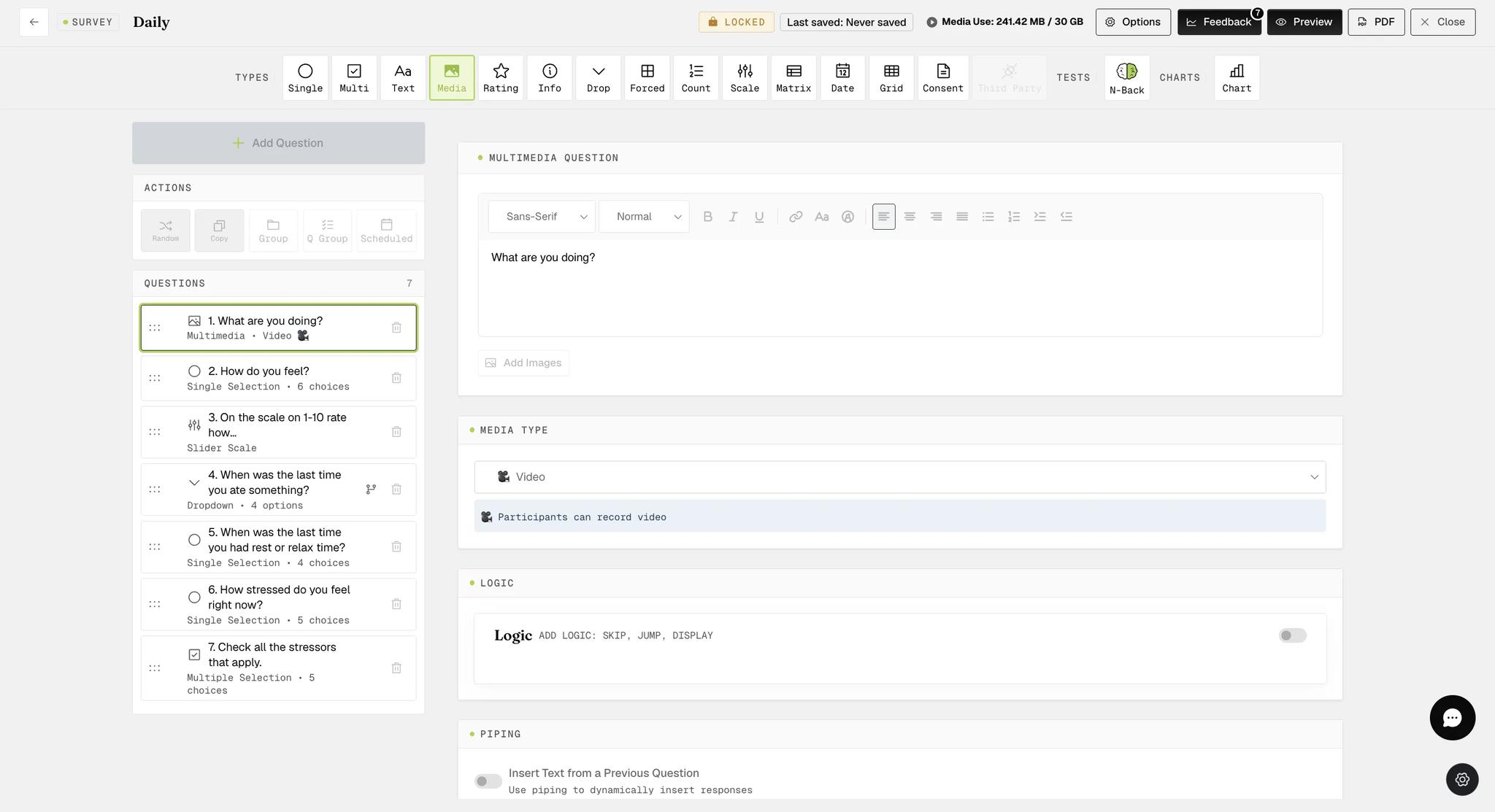
Media Type decides what they can send — set it to Image, Audio or Video, and the builder confirms underneath what the participant will be able to do.
The Media tab
Four cards across the top count what the project has collected — All files, Images, Videos and Audio.
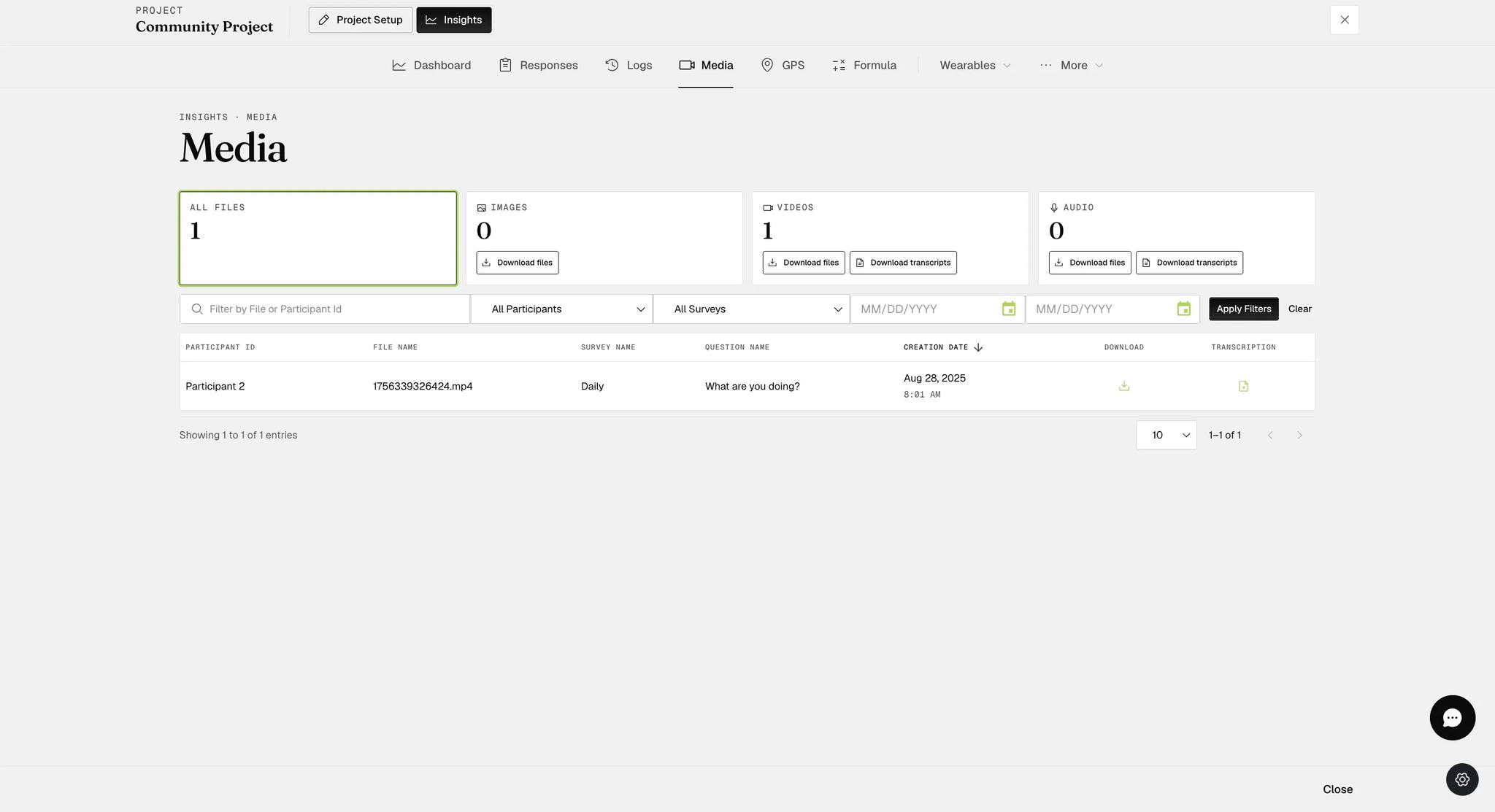
All files is a count only — it has no button. The downloads live on the three type cards.
Download files appears on Images, Videos and Audio. It does not download straight away: it opens a Download Media dialog offering Download All or Download by Individual Participant, and fetches once you pick one and click Ok. Download transcripts opens the same dialog.
Download transcripts appears on Videos and Audio only, since images have nothing to transcribe.
Transcripts need Premium or above. The file downloads are available on any plan that collects media. See Audio & video transcriptions.
Narrowing it down
The filter row under the cards takes four things at once:
- Filter by File or Participant Id — a specific person, or a specific file
- All Participants — pick one
- All Surveys — pick one
- Two date fields — a range
Set what you need and click Apply Filters; Clear resets them. The filters narrow the list you are looking at.
To take one person's files rather than the whole study's, use the dialog's Download by Individual Participant option — that is the control built for it, rather than relying on the filter to carry through.
The table below the filters lists each file with its participant, survey, question and creation date, and carries two icons of its own. The Download icon takes that single file. The Transcription icon does something different — it generates a transcript for that recording, which the card's Download transcripts button can then collect. See Audio & video transcriptions.

Storage limits
Media counts against your plan's storage — 15 GB on Plus, 30 GB on Premium and above.
You do not have to guess where you stand: the survey builder's header shows the
project's usage against the limit, reading something like Media Use: 241.42 MB / 30 GB.
If you are near the limit, contact sales@expiwell.com.