Dashboard charts
Visualize Your Data with ExpiWell Dashboards
A dashboard is a set of charts built from your own response data, updating as participants answer. You compose them yourself: pick a chart type, point it at a survey question, and choose how the numbers are aggregated.
Everything below lives under Insights → Dashboard.
Choosing a chart type
The five types take different question types and aggregate differently. Pick from this before building, because the question types a chart accepts are the real constraint.
| Chart | Question types it accepts | Aggregates | Good for |
|---|---|---|---|
| Vertical bar | Single Selection, Text Numeric, Drop Down, Scale | per day | comparing categories, ranking responses, spotting high and low engagement |
| Horizontal bar | the same four | per day | the same, where long category labels need the room |
| Scatter | the same four | per day | correlations between two variables, clusters, outliers |
| Table | those four plus Text Question | none — one row per response, filtered to all, weekly or daily | reading individual responses in rows, including free text |
| Point-line | Text Numeric only | per week | long-run trends and week-over-week change |
Point-line is the narrow one. It takes a single question type, so a measure you want plotted over weeks has to be captured as Text Numeric from the start. That is a survey-design decision, not a dashboard one.
Bar charts also let you choose what the x-axis runs on — Date (the default), Survey Timestamp, Day Number or Survey Name — from the Customize tab.
Creating a dashboard
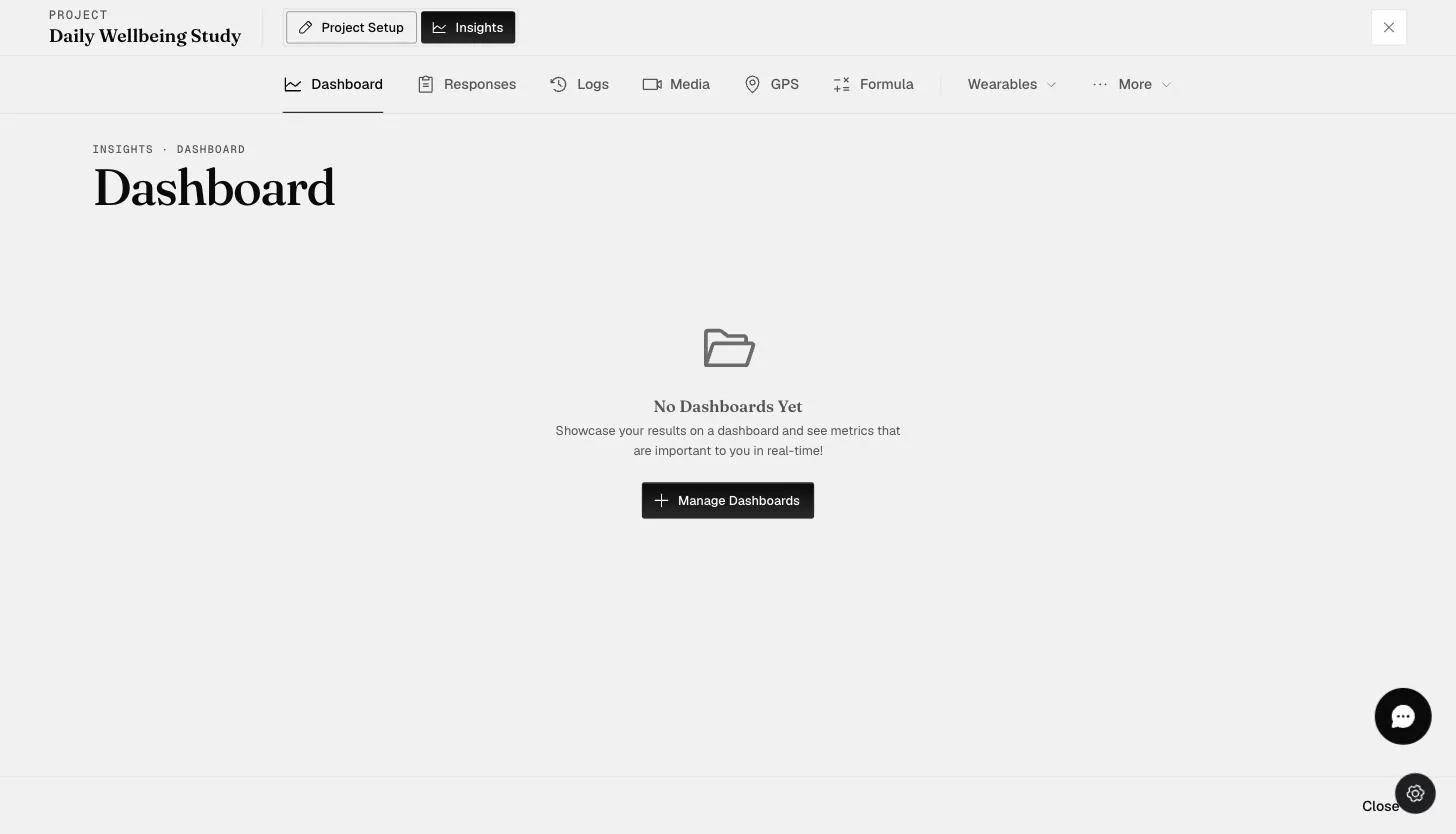
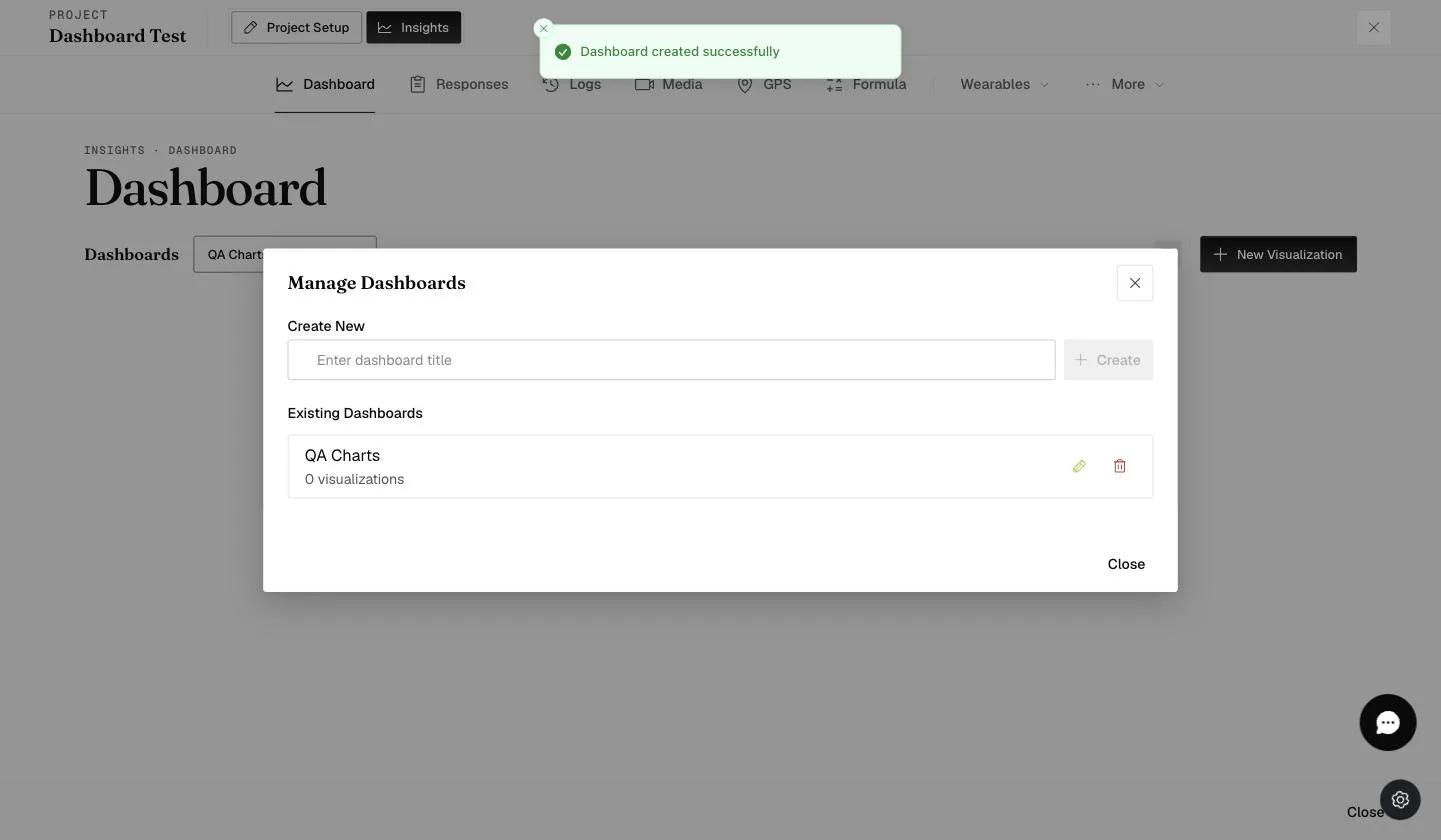
- On Insights → Dashboard, click Manage Dashboards.
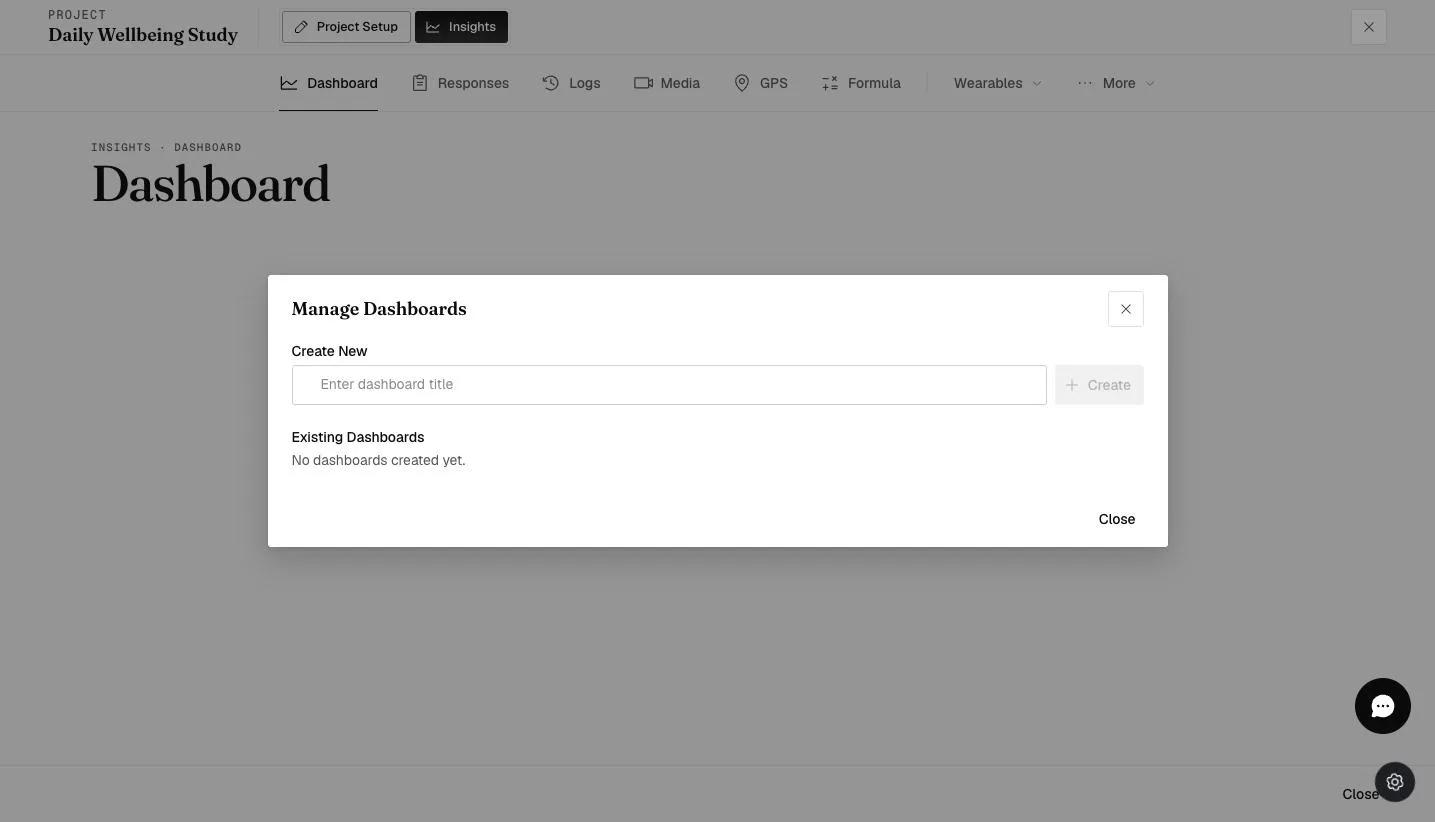
- Enter a title under Create New and click Create. The modal also lists your existing dashboards, with their visualization counts and controls to rename or delete each one.
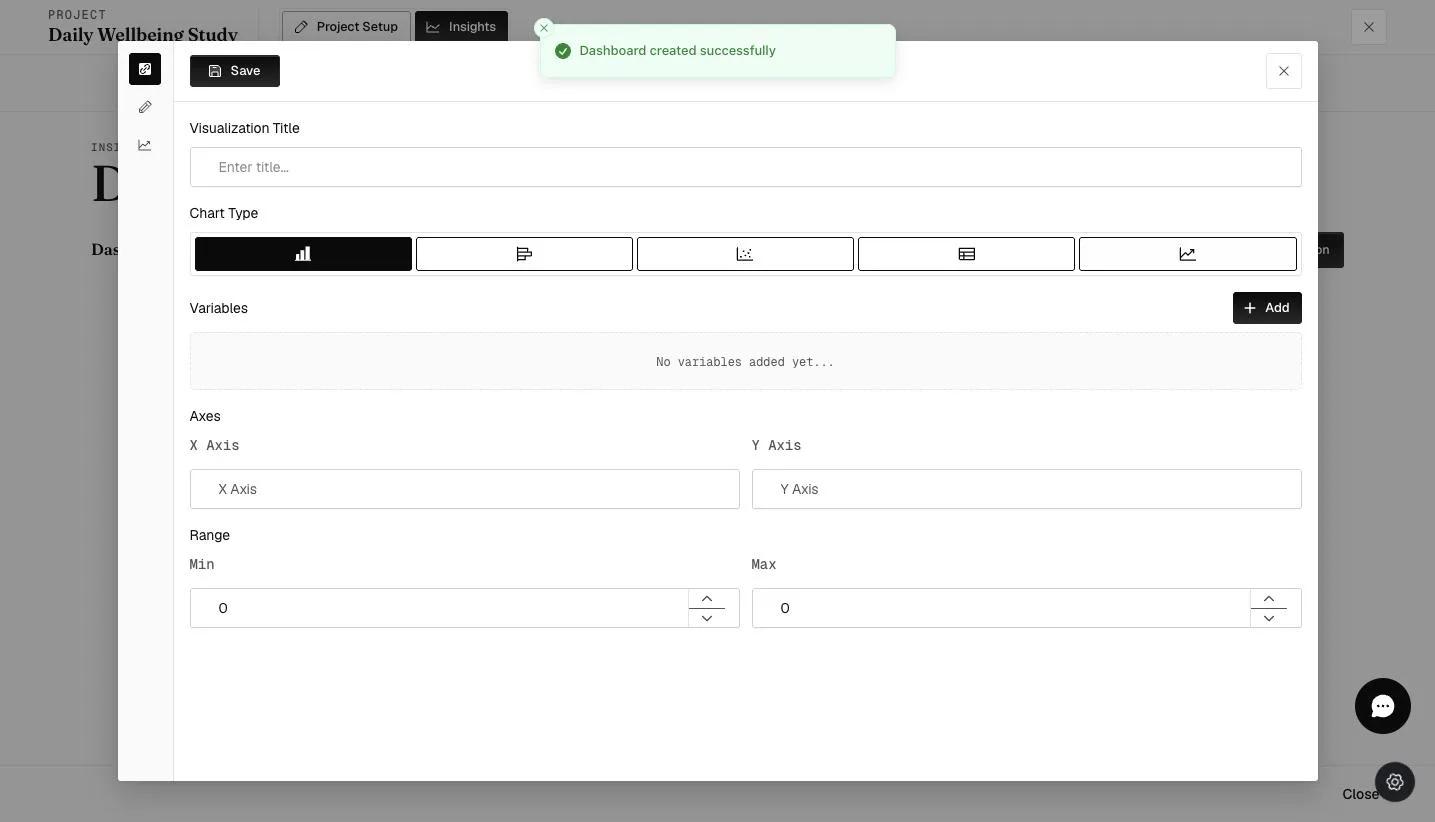
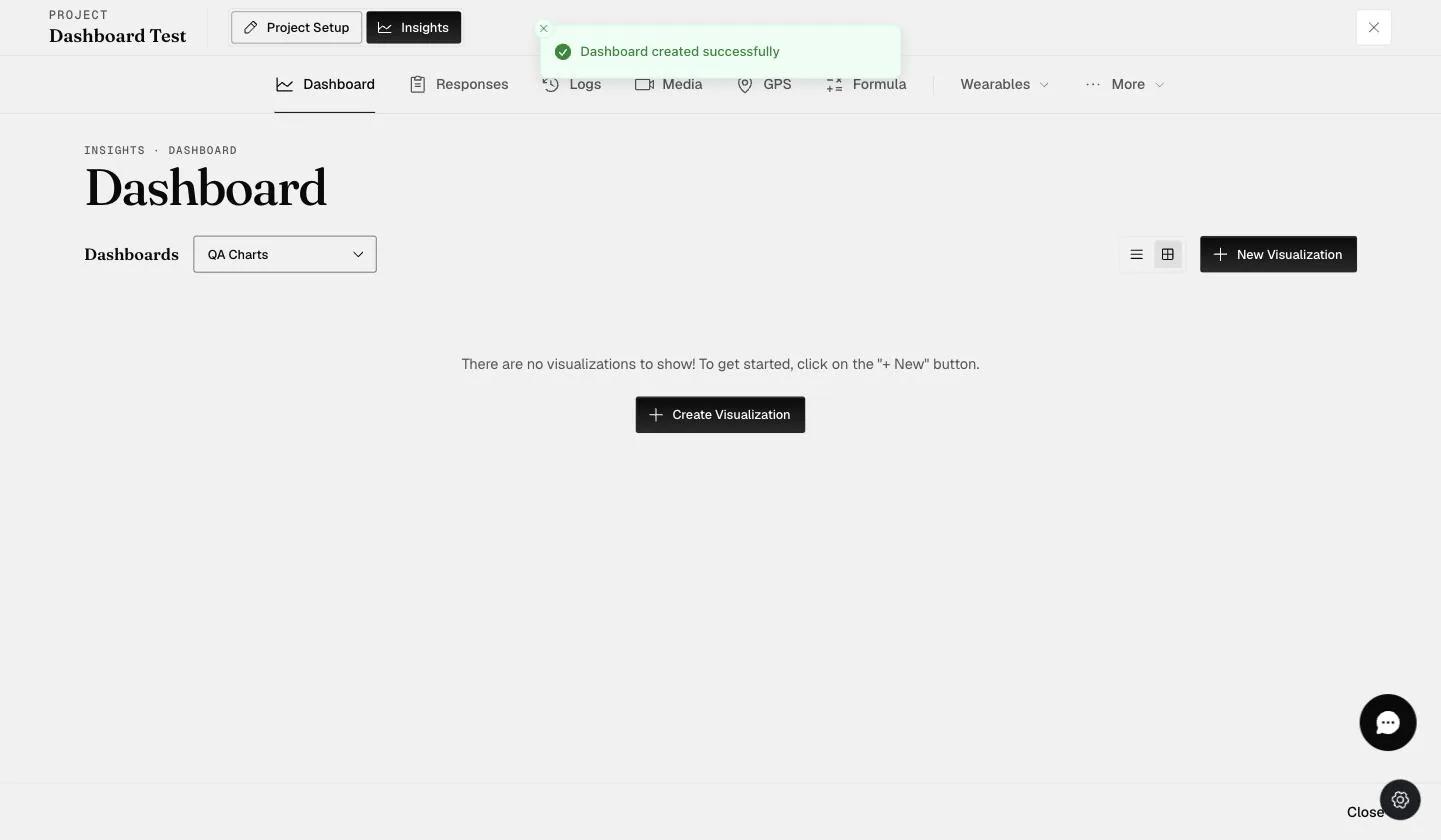
- With a dashboard open, click New Visualization to add a chart to it.
Building the chart
The builder has the same tabs whatever chart type you pick. Only the small differences listed further down vary.
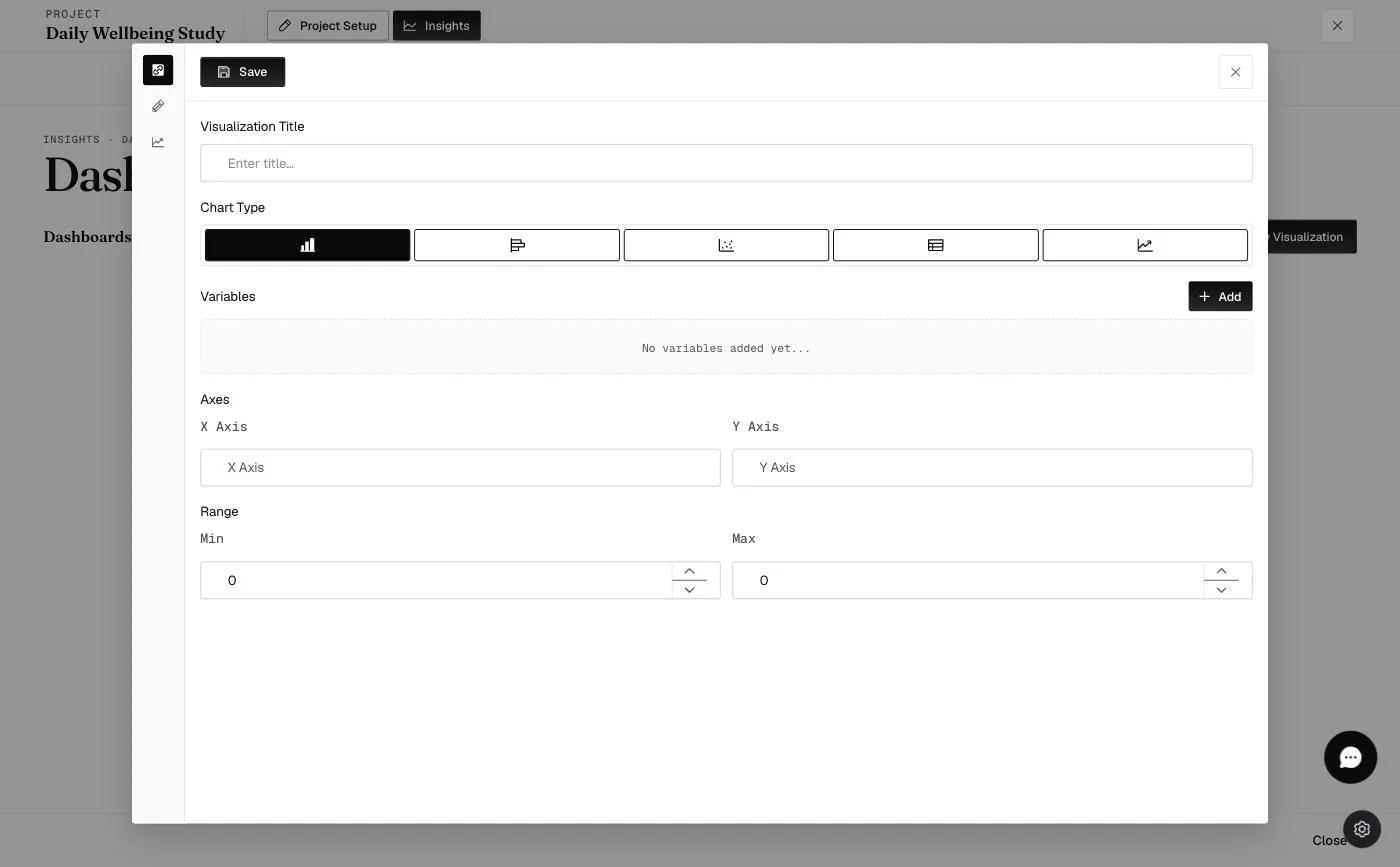
Visualization tab
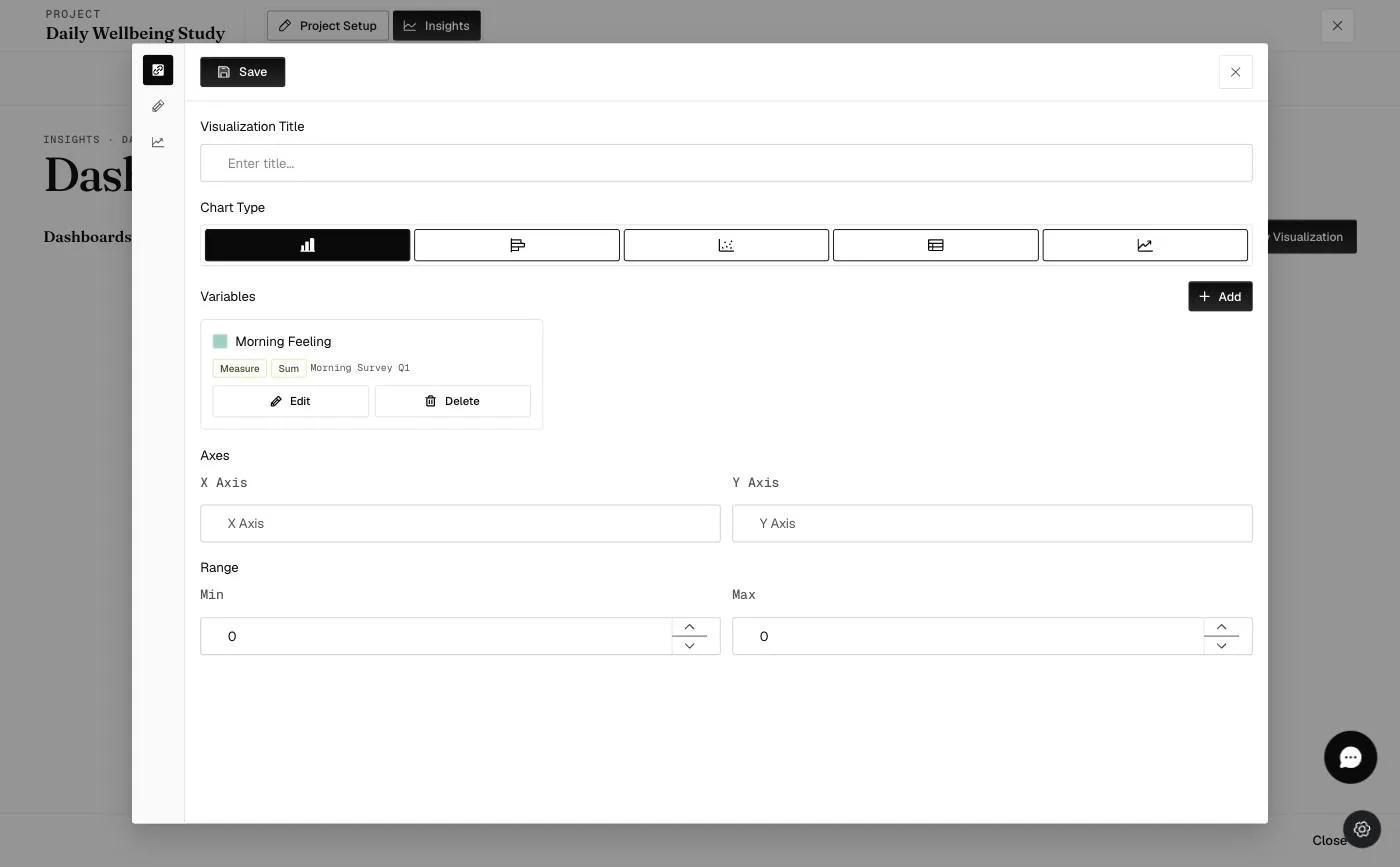
Where the chart is defined.
- Visualization Title — what appears above the chart.
- Visualization Type — which of the five.
- X Axis / Y Axis — the axis labels.
- Color Range — a minimum and maximum to shade a zone of the plot.
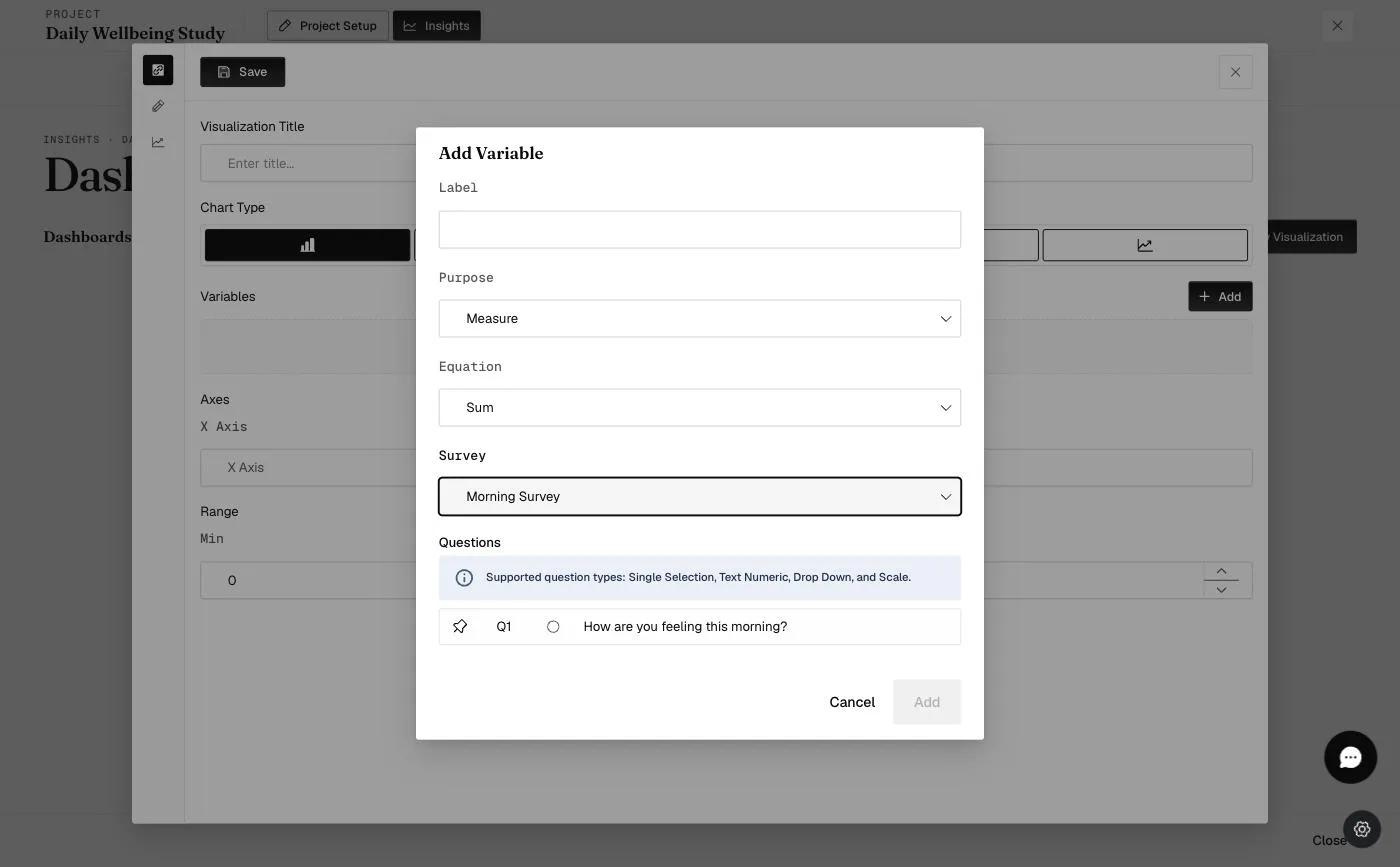
Then Variables — the data itself. Each variable needs:
- Label — what it is called in the chart's variable dropdown.
- Purpose — Measure is the only option.
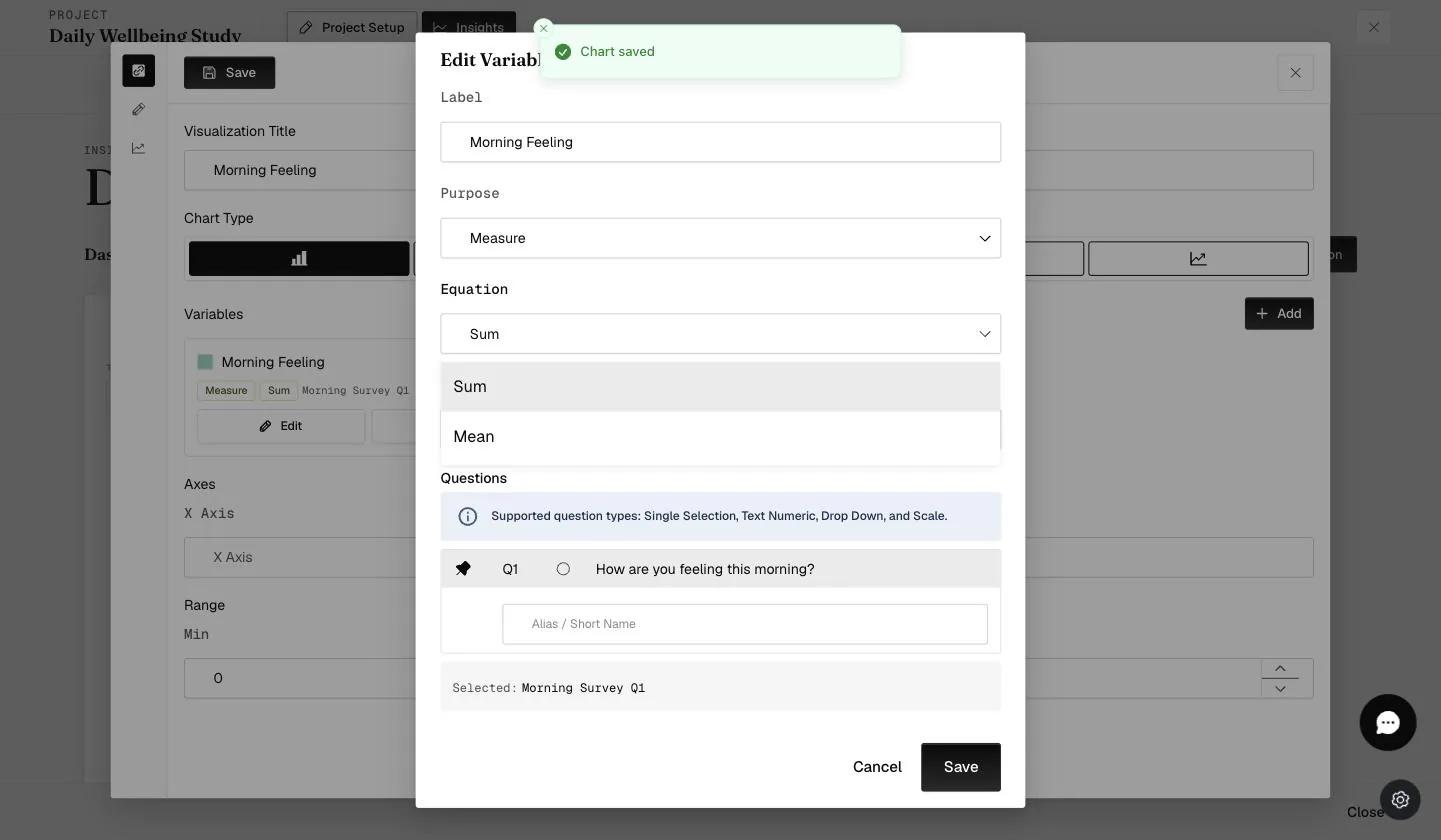
- Equation — Sum adds the day's answers together; Mean averages them.
- Survey, then Questions — which survey, and which of its questions. The list only offers question types the chart accepts.
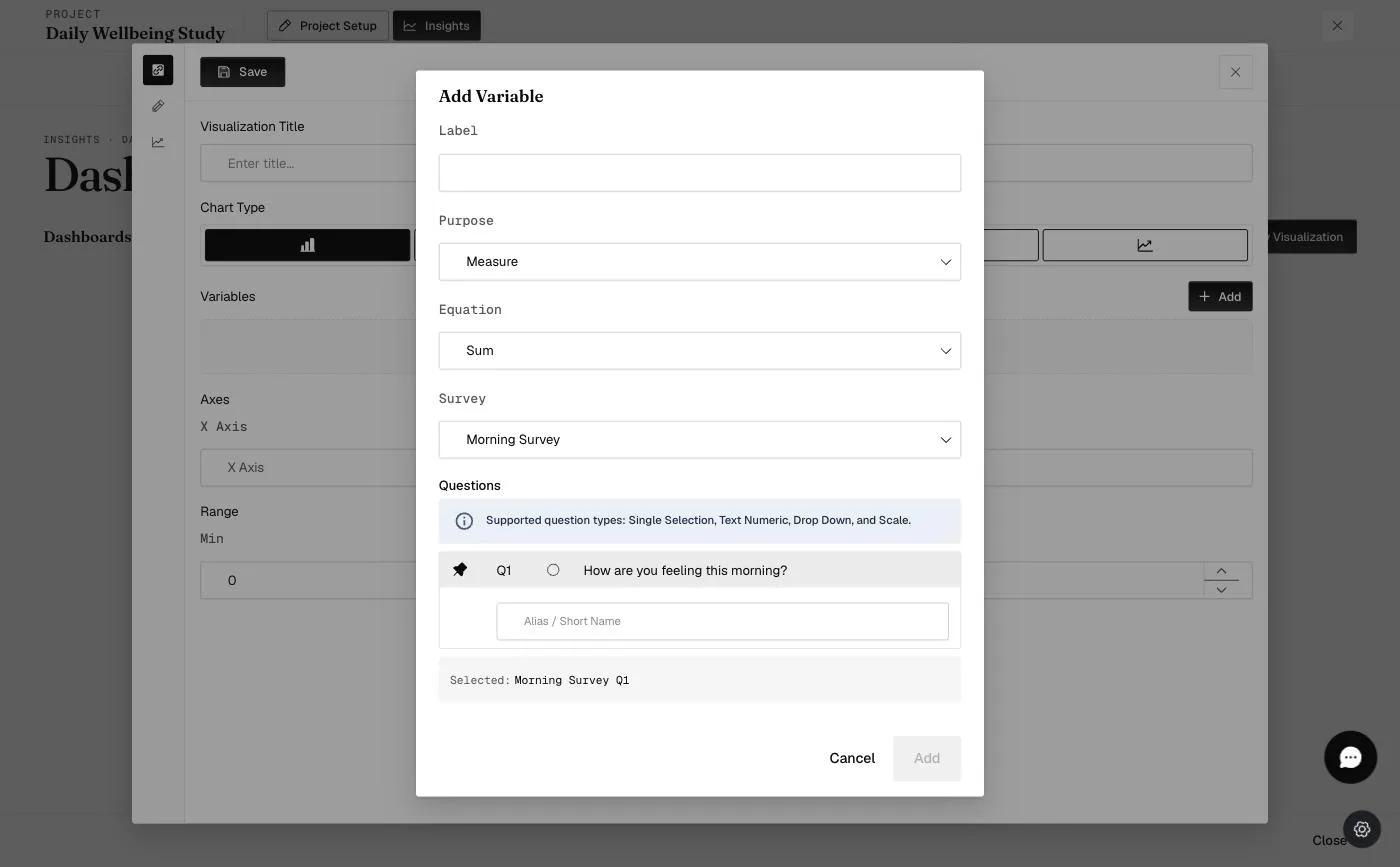
- Alias / Short Name — appears under each question once you pin it, and gives that question a shorter name to display.
A table's variable has no Purpose and no Equation. The dialog shows Label, Survey and Questions only, because a table lists responses rather than aggregating them — see Table charts behave differently.
Customize tab
Appearance, plus one setting that is easy to hunt for elsewhere.
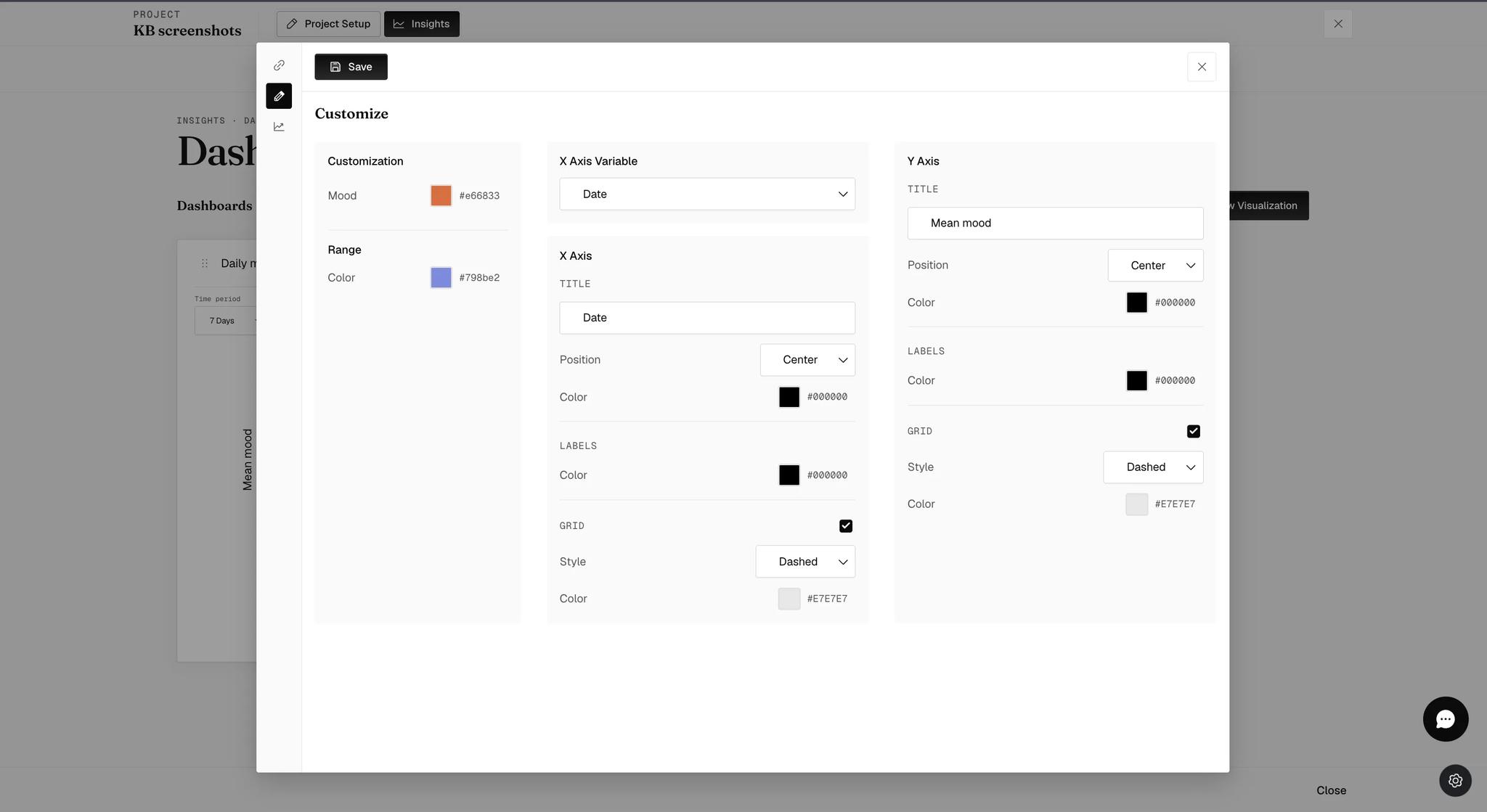
- Customization — the color of each variable on the chart.
- Range — the color of the zone set by Color Range.
- X Axis Variable — what the x-axis runs on: Date, Survey Timestamp, Day Number or Survey Name. This is the only place to change it.
- X Axis and Y Axis, each with a Title, its Position and Color, a Labels color, and a Grid that can be switched off entirely or given a Style and Color.
Actions tab
Only on bar charts.
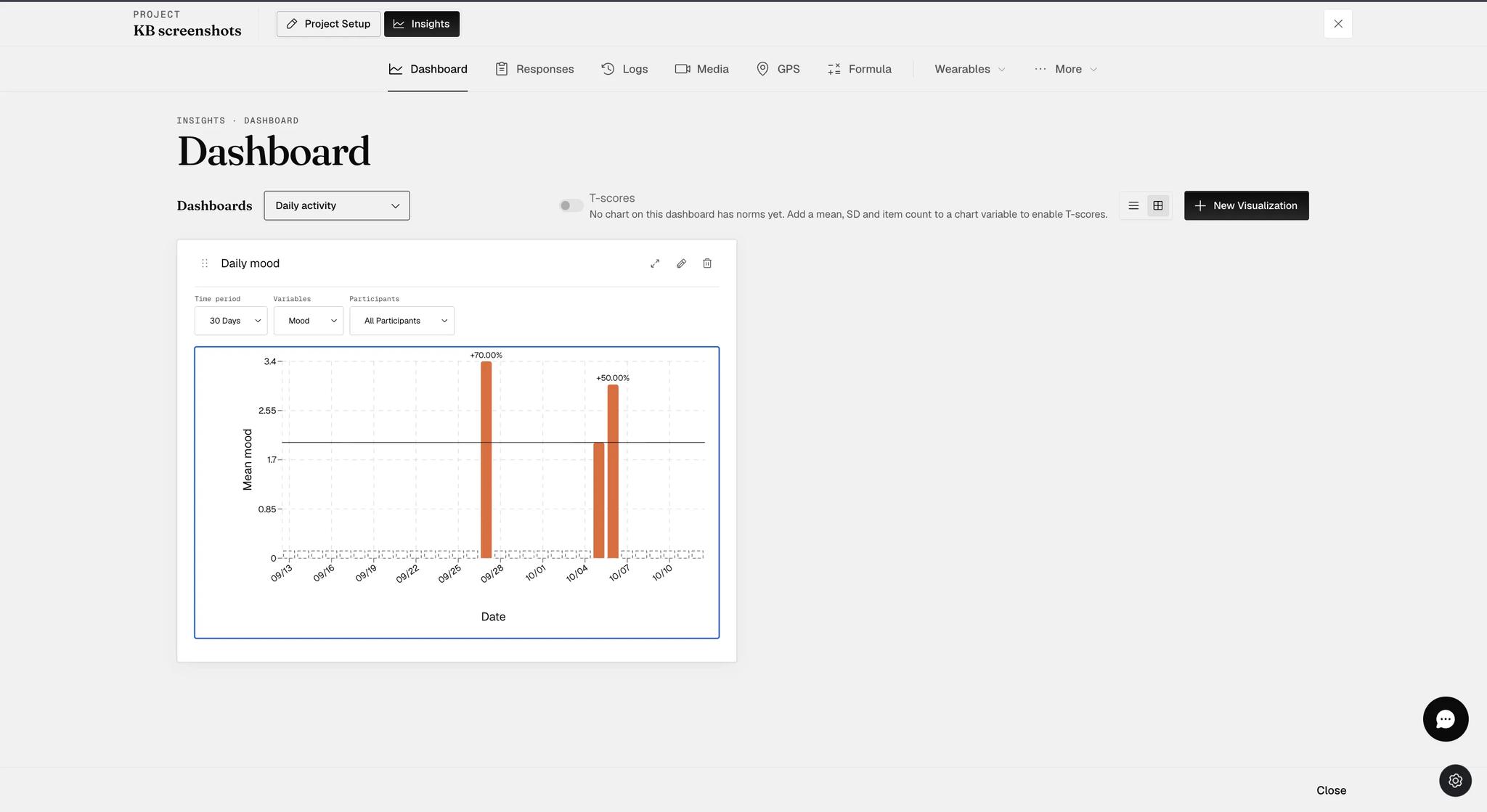
- Divergence — draws a baseline across the plot and labels every bar with its percentage deviation from it, so a bar reading +70.00% sits that far above the line. Vertical and horizontal bar.
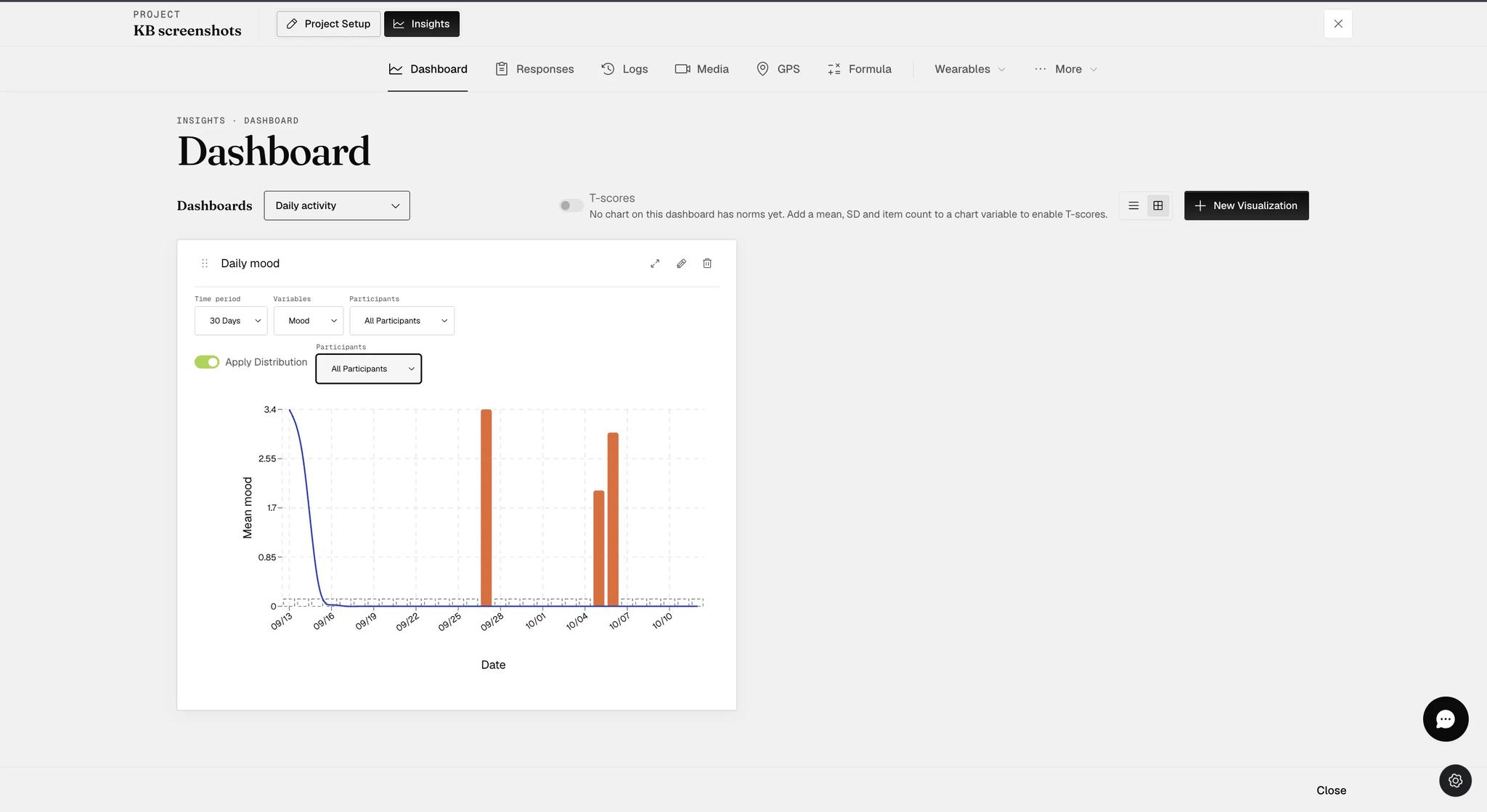
- Normal Distribution — adds a distribution curve, and puts an Apply Distribution switch on the chart card itself with its own Participants selector, so the curve can be drawn for a different group than the bars. Vertical bar only.
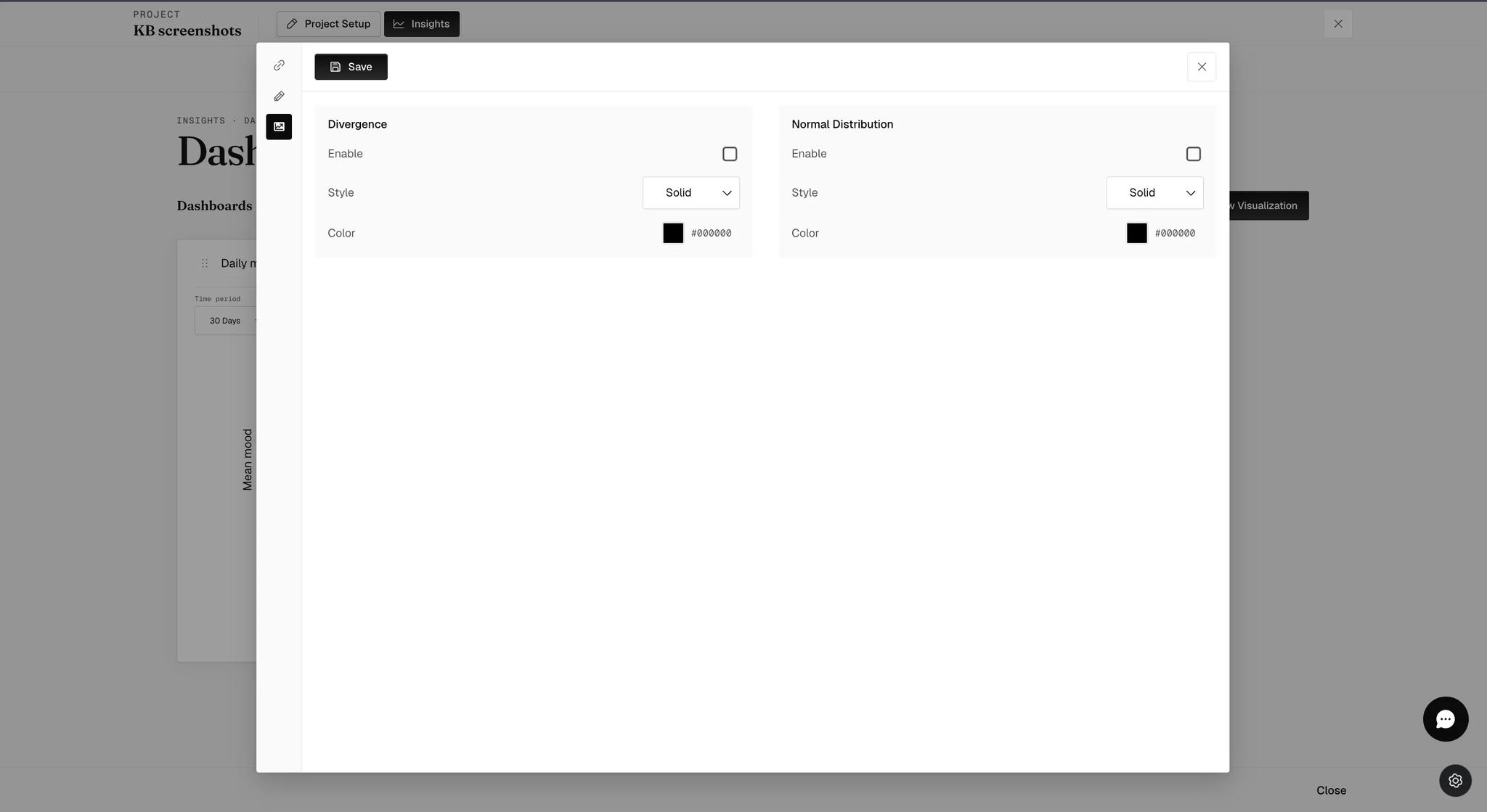
Each is off until you tick Enable, and each takes its own line Style and Color.
Reading a finished chart
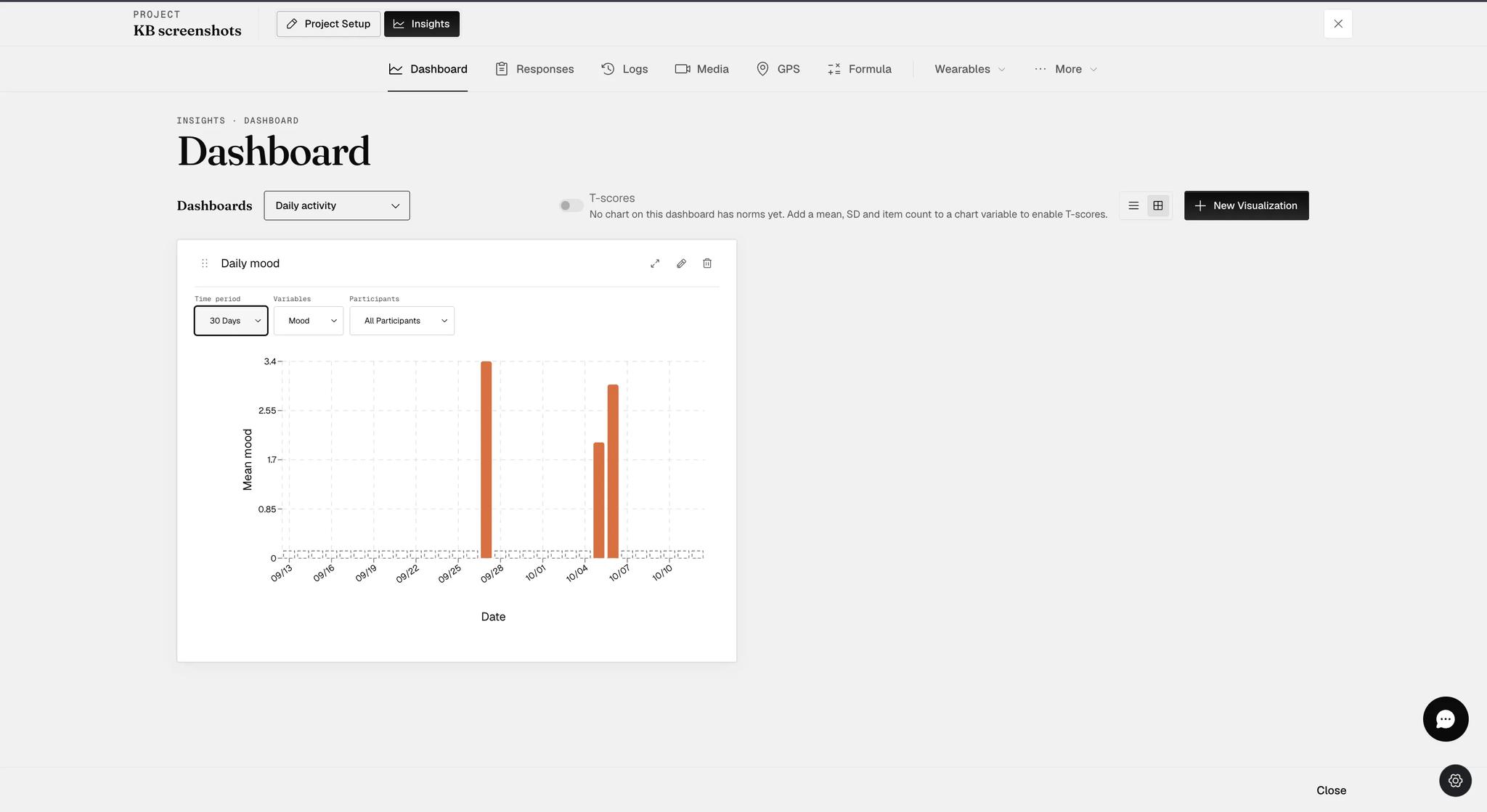
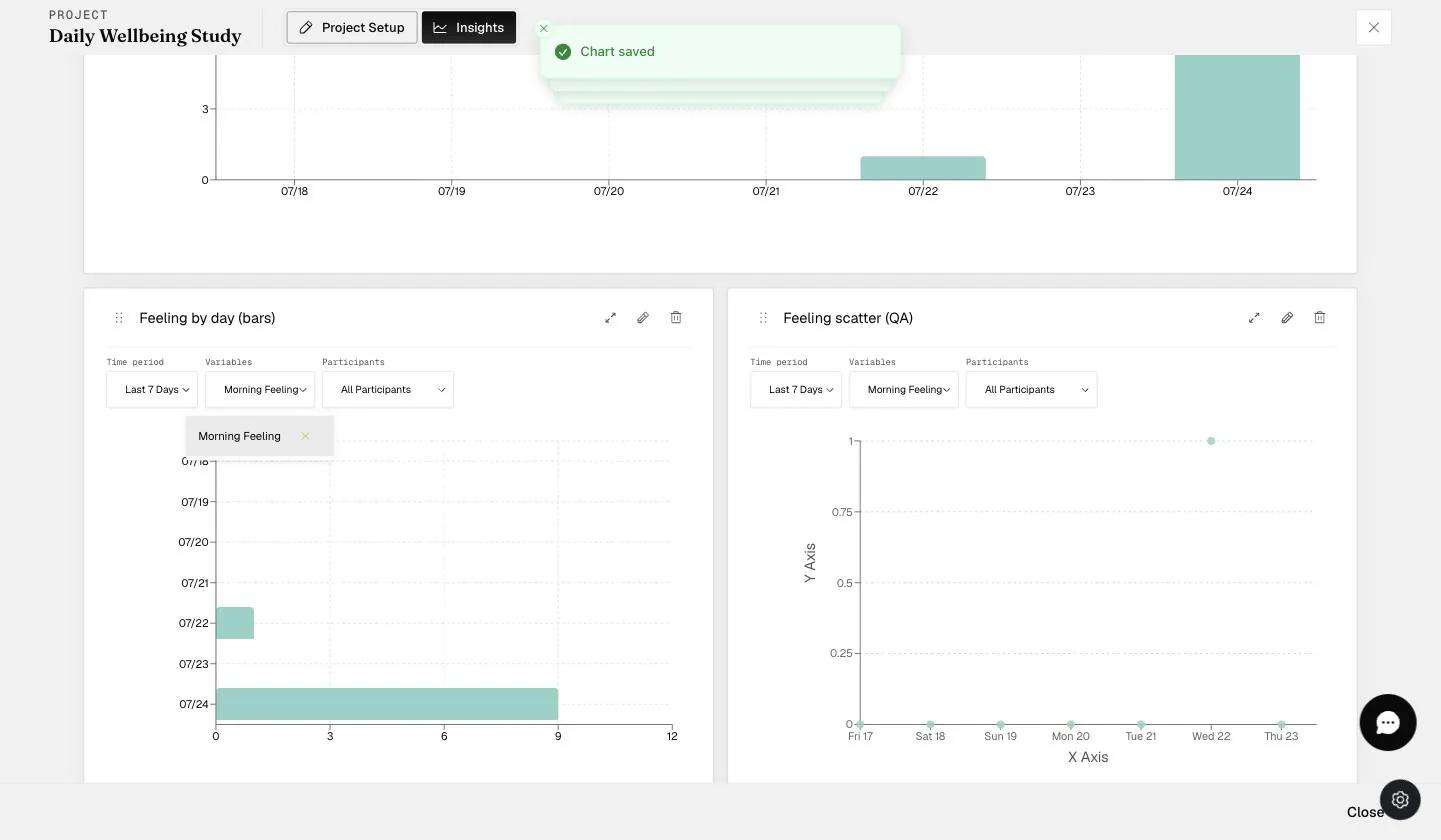
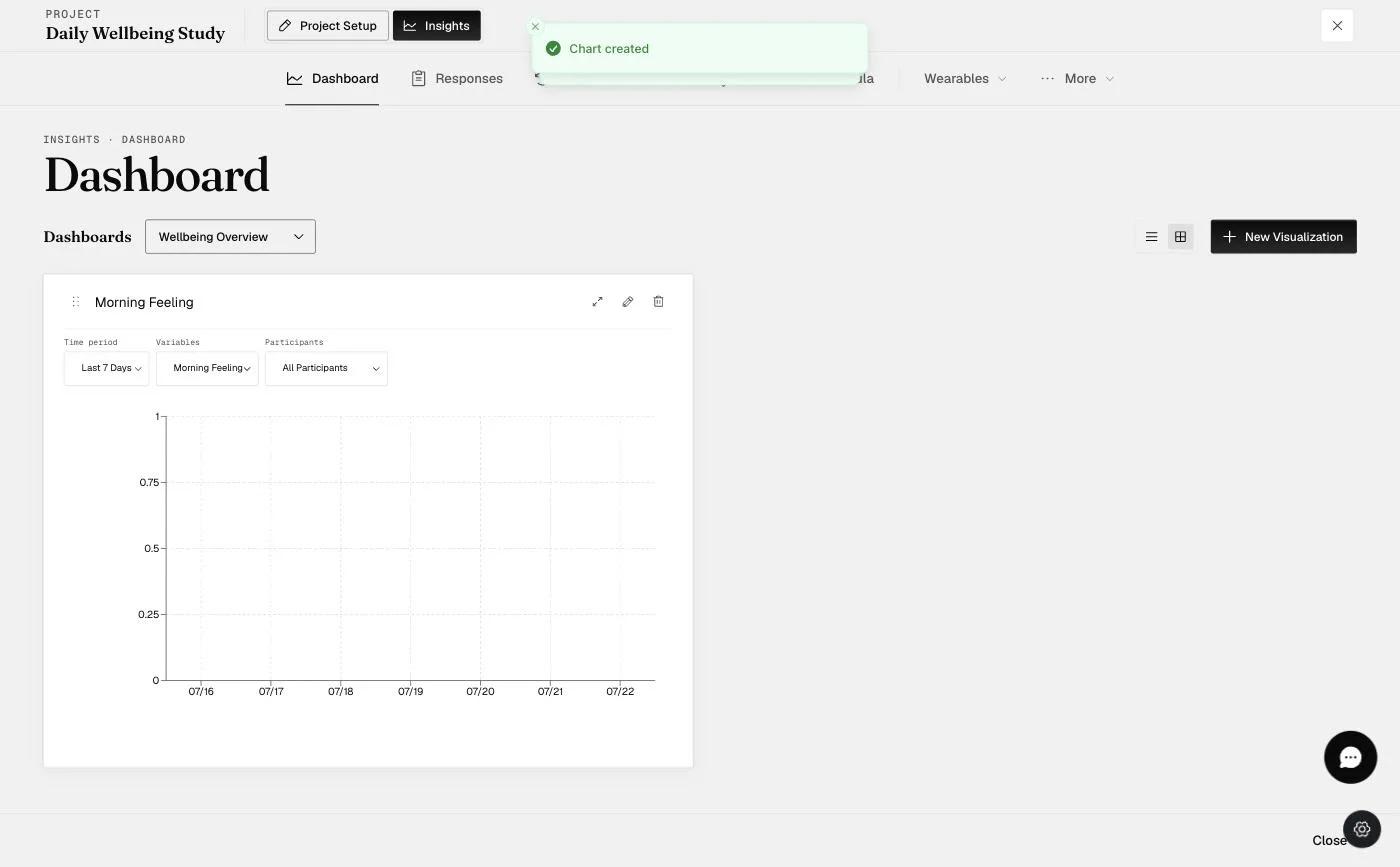
Every chart card carries the same three controls above the plot.
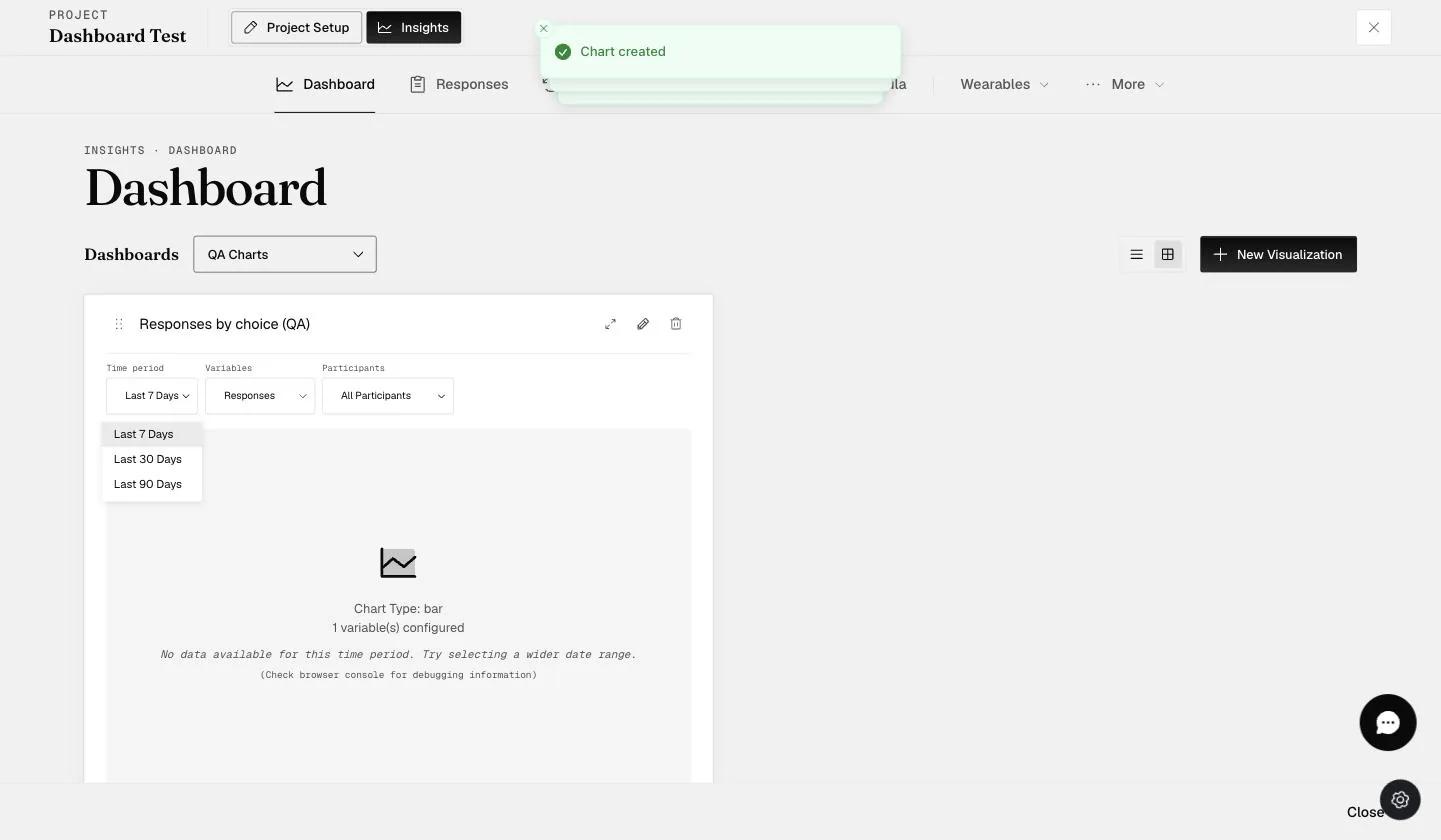
- Time Period — last 7, 30 or 90 days. (Table charts differ; see below.)
- Variables — which of the chart's variables are shown. Each is a chip with an X to drop it.
- Participants — whose data is included.
Question & Response List — click a data point and the questions and answers behind it appear below the chart.
That table used to sit beside the chart. It is underneath it now, so a point that seems to do nothing when clicked is usually just further down the page.
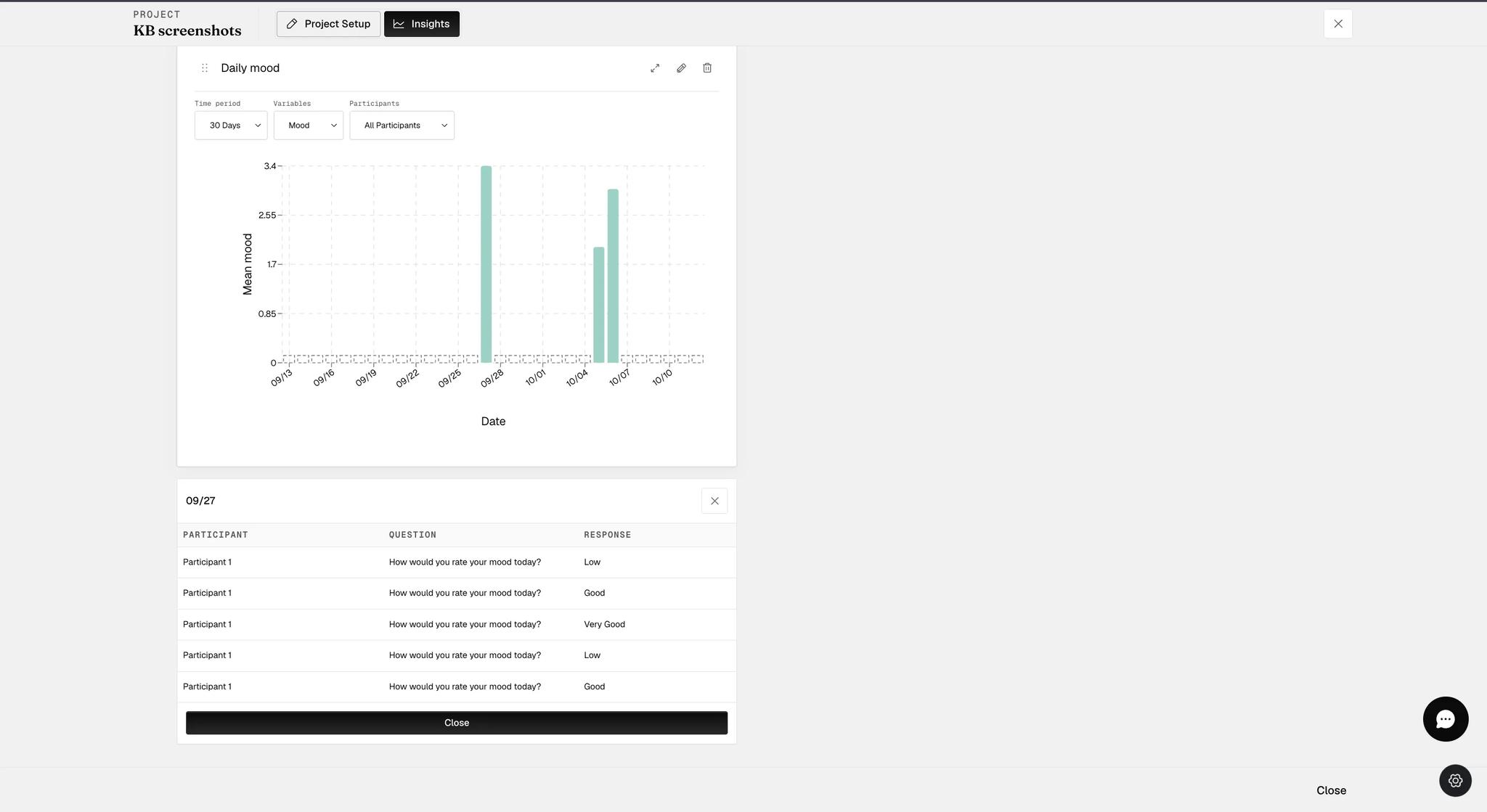
The chart plots numbers, the list shows labels. A scale or single-choice question stores a value behind each option, so the bar can read 3.4 while the responses underneath it read "Low", "Good" and "Very Good". If a mean looks wrong, this panel is where you check what was actually answered.
The five charts rendered
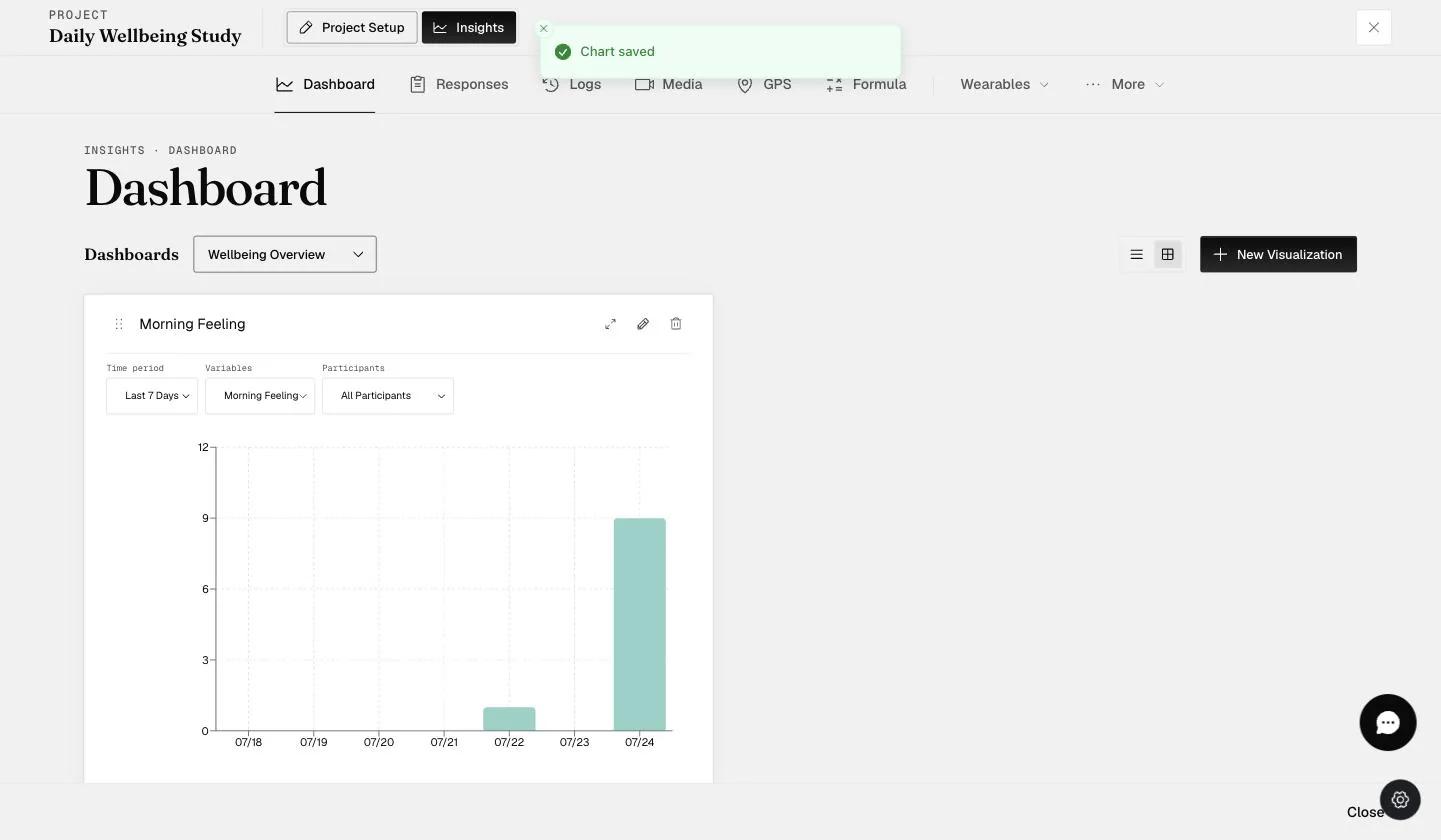
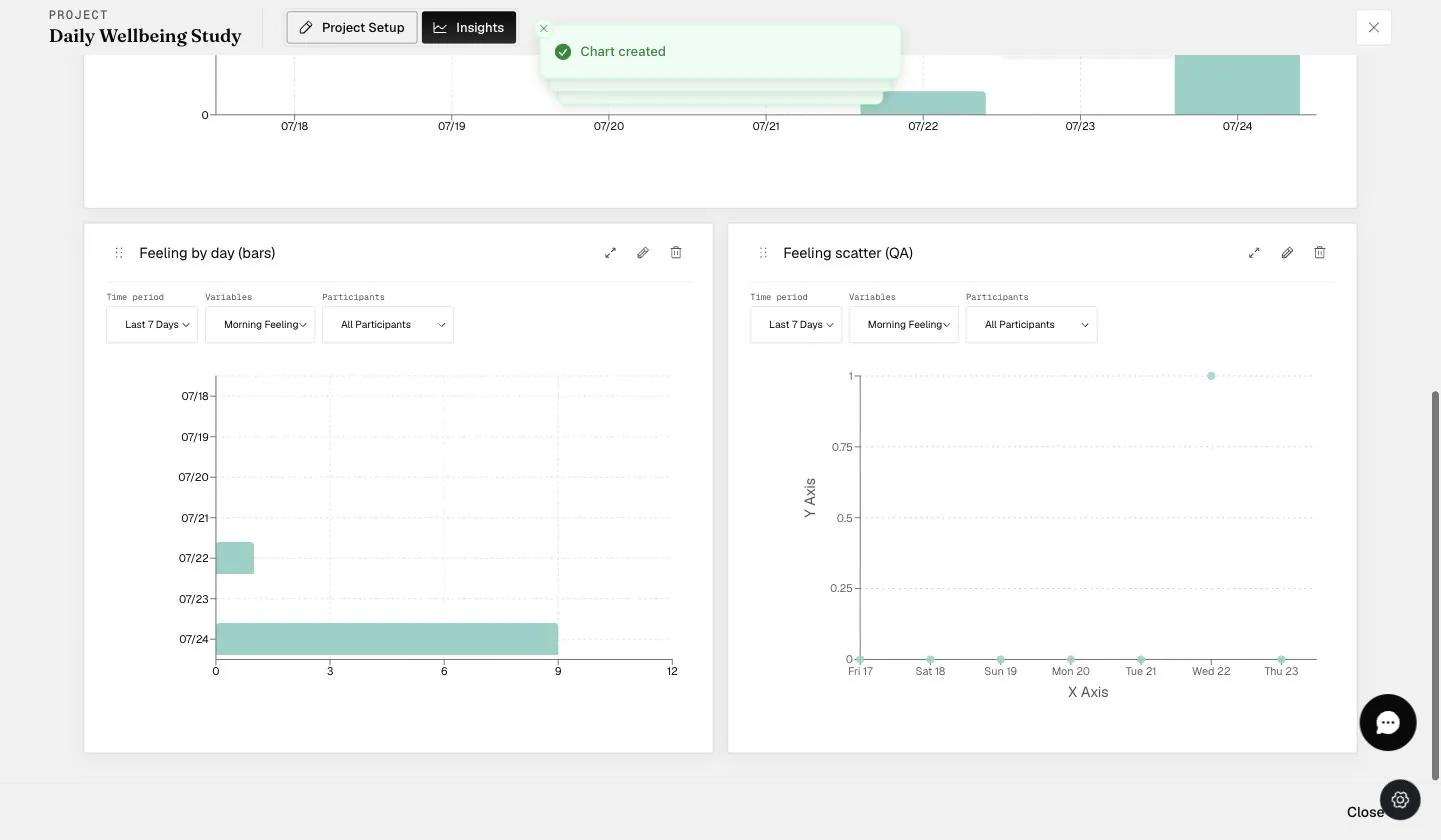
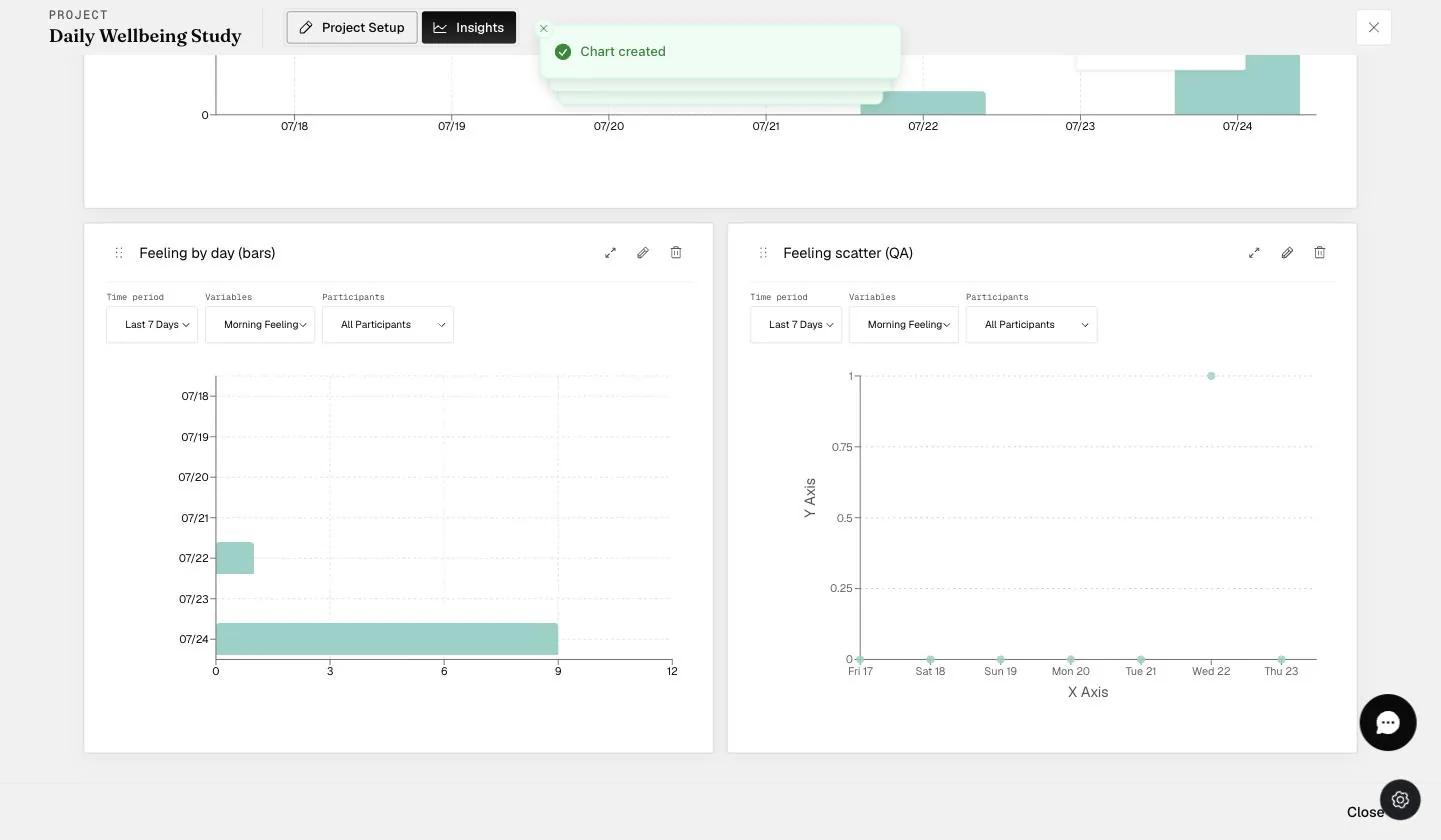
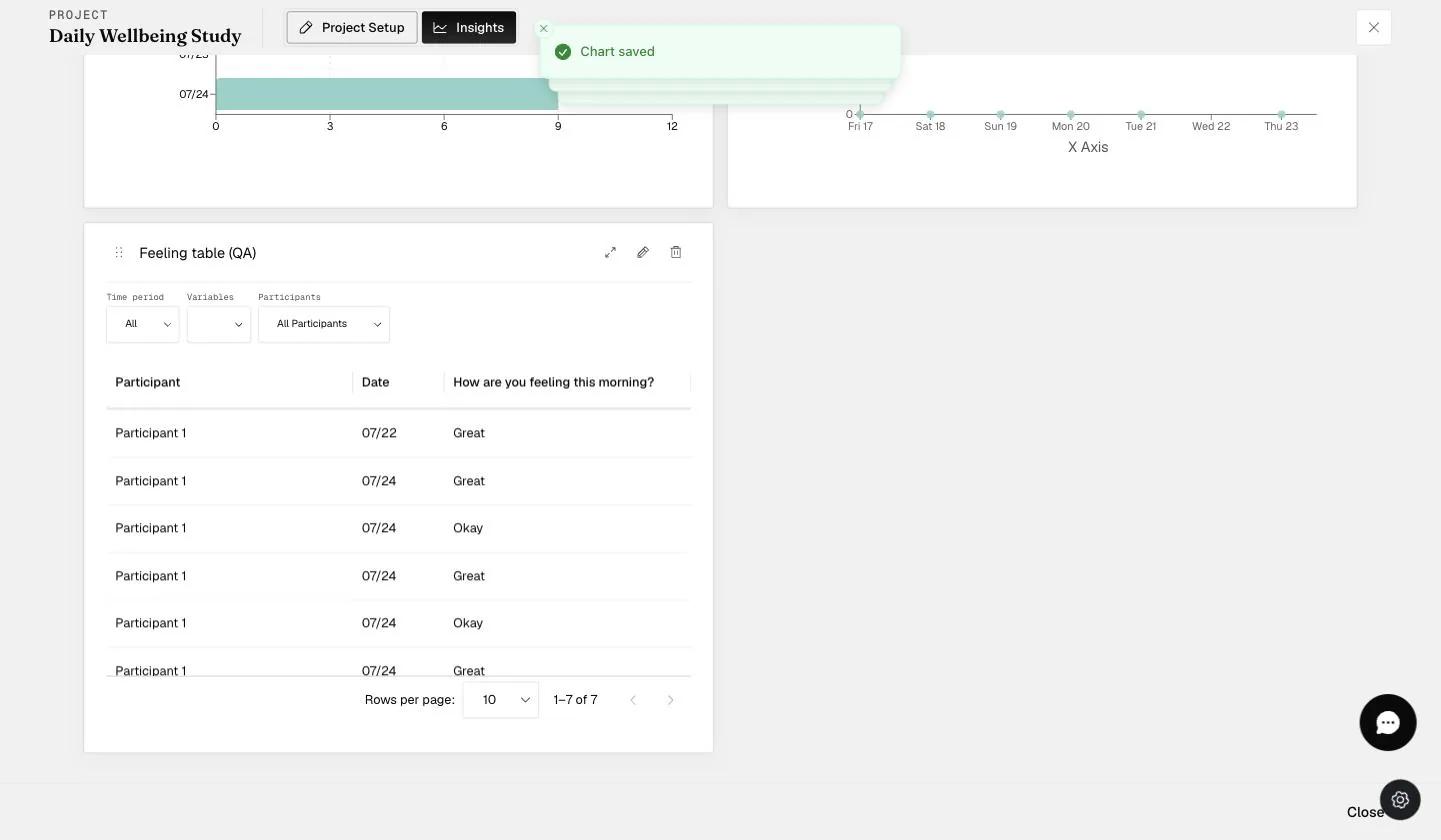
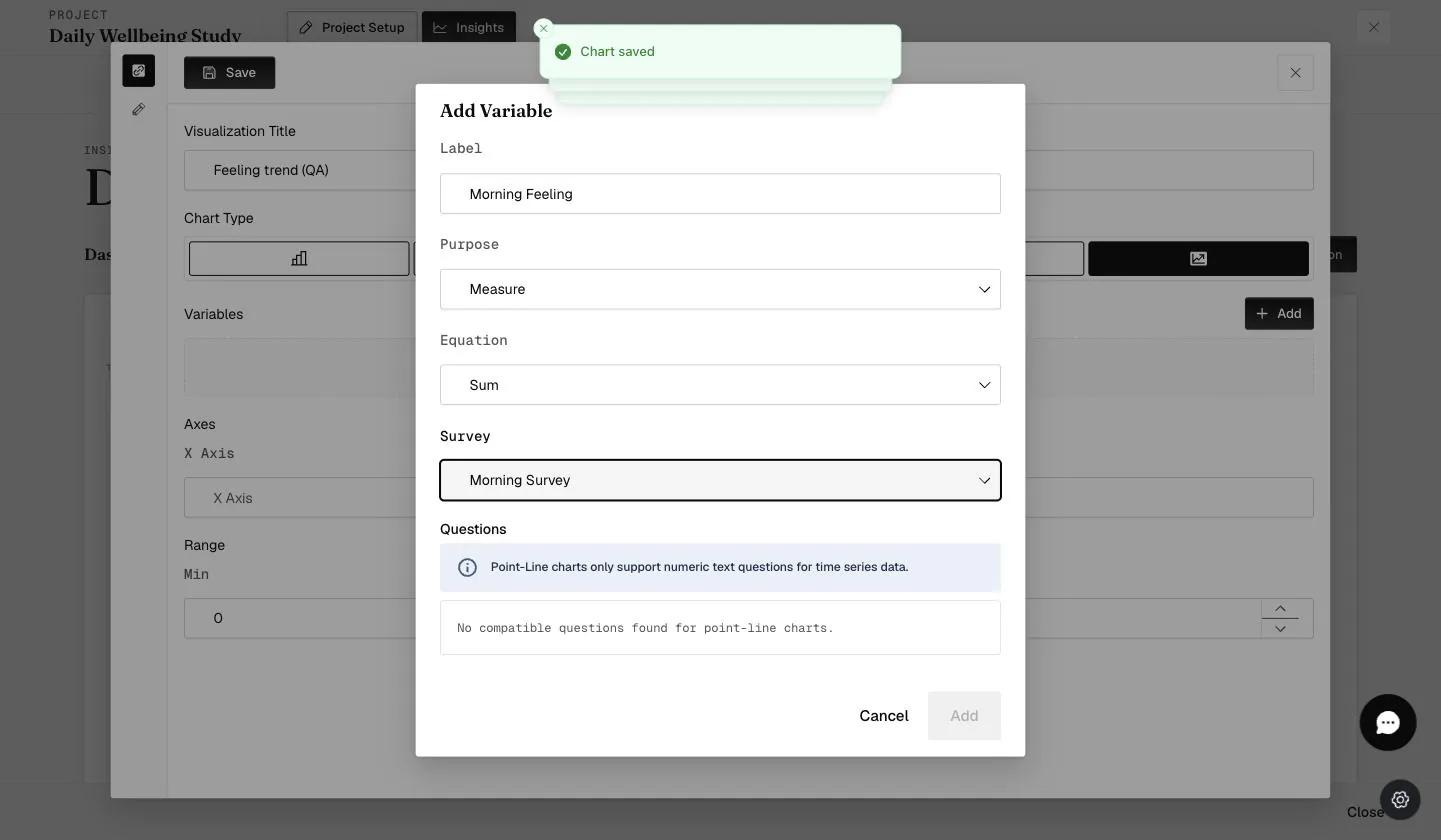
Table charts behave differently
A table does not summarize anything. Where the other four reduce a variable to
one number per day — a sum or a mean — the table lists every response as its
own row, with the answer shown as the participant gave it. Put a bar chart and
a table on the same variable and the bar reads Mean mood; the table reads
Low, Good, Very Good.
Four other things set it apart, beyond accepting Text Question answers.
Its time filter is not the 7/30/90 one. Tables offer All, Weekly and Daily. Choosing Daily adds a Date Calendar to the card — a month grid with arrows to move between months.
The calendar picks a range, not a single day. Click one date and you get that day; click a second and everything between the two is selected and shown together. A long block of filled circles is a range, not a stuck highlight.
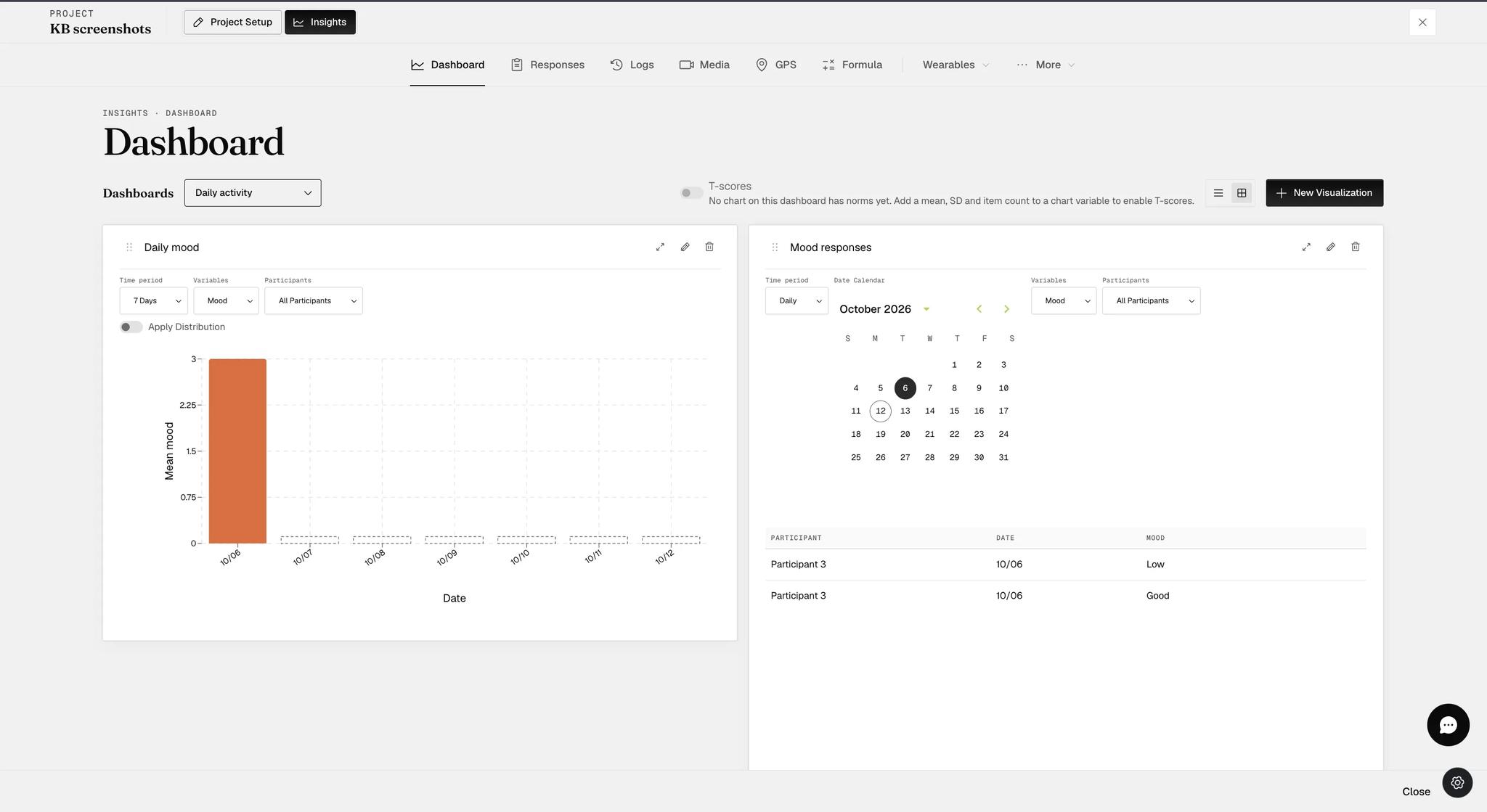
It has no axes and no actions. The Visualization tab drops X Axis, Y Axis and Color Range, and the builder's left rail shows two icons instead of three — there is no Actions tab, so divergence and normal distribution do not apply.
It pages, rather than scrolling forever. A footer under the rows carries
Rows per page and a count reading 1–7 of 7. Check it before concluding a
date is missing — the rows you want may be on the next page.
Long questions wreck the layout. A column headed by a whole question stretches wide and forces horizontal scrolling. The Add Variable dialog gives each question you pin an Alias / Short Name field for exactly this — "Meal" rather than "Select your meal of the day".
Giving a chart the full width
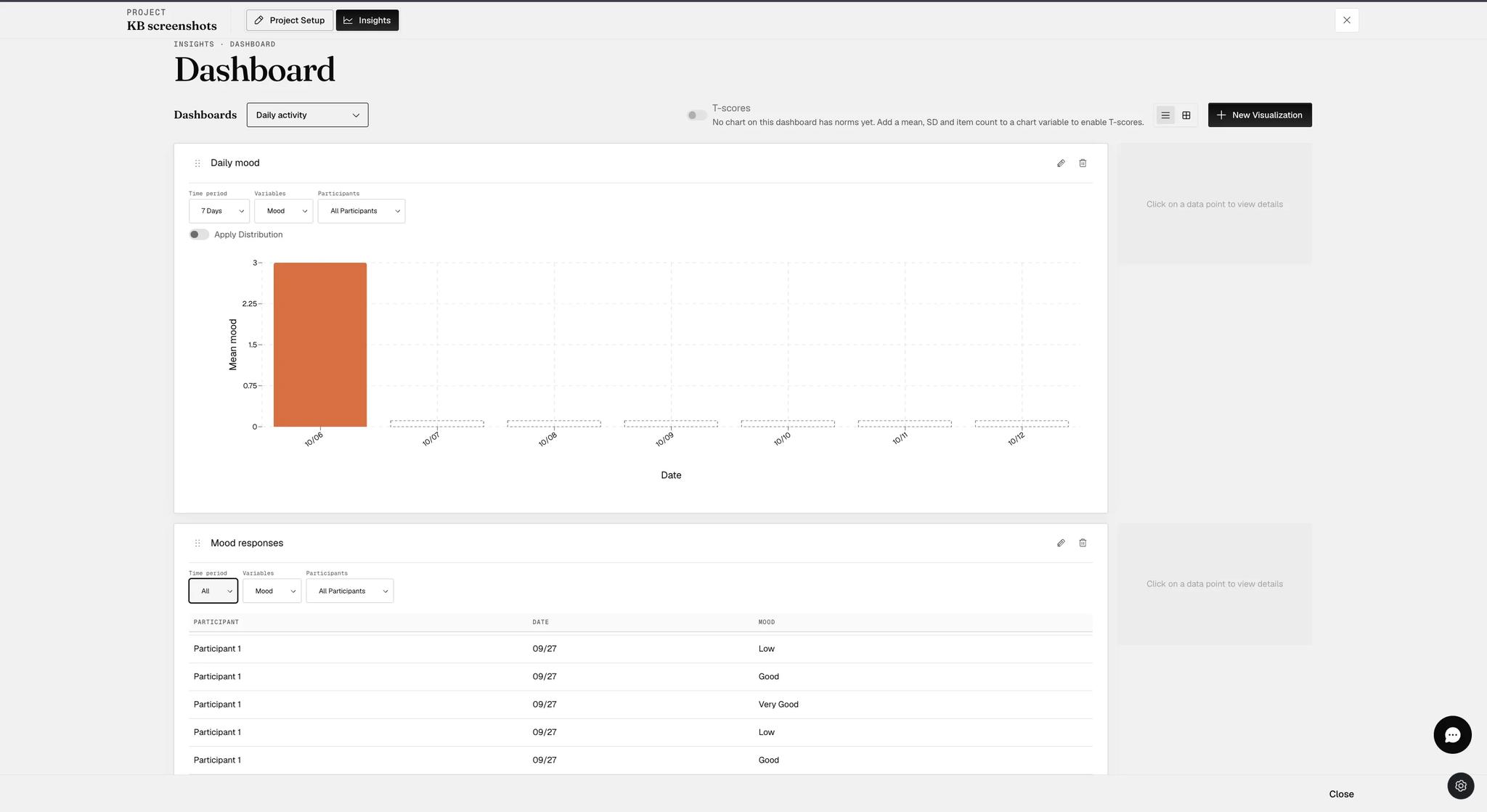
The two icons beside New Visualization switch the whole dashboard between a two-up grid and a single full-width column. It is a dashboard setting, not a per-chart one.
Full width is worth it for tables, which gain room for more columns before they scroll sideways. It also changes the cards themselves: each one grows a right-hand details pane that fills in when you click a data point, and the expand icon disappears, since the card is already as wide as it gets.
Editing and deleting
A dashboard — Manage Dashboards lists them all, each with a rename and a delete.
A chart — each card carries its own controls in the top right: expand it to full width, edit it back into the builder, or delete it. The handle at the left of the title drags the card to reorder the dashboard.
