Project screener survey
Create Your Project Screener
When you are recruiting participants from a panel, from a community, or from an online ad, it is important to create a project screener to screen participants for the right attributes.
The Project Screener is a Premium feature — it is available only on Premium licenses.
A screener does two jobs. It asks questions that decide whether someone qualifies at all, and it can cap how many qualifying people you take in each category — see Creating quotas.
There can only be one project screener for each project and all participants will have to take the project screener when they join the project before they are allowed to see the project and surveys.
A participant who removes the project and adds it back has to take the screener again. They can also answer differently the second time, so a participant who was screened out once is not permanently excluded.
Where the Project Screener Lives
Step 4 of project setup is the Project Screener step — but it is empty until a screener survey exists. Before you build one it holds nothing but a notice telling you to create the screener on the Build Surveys tab.
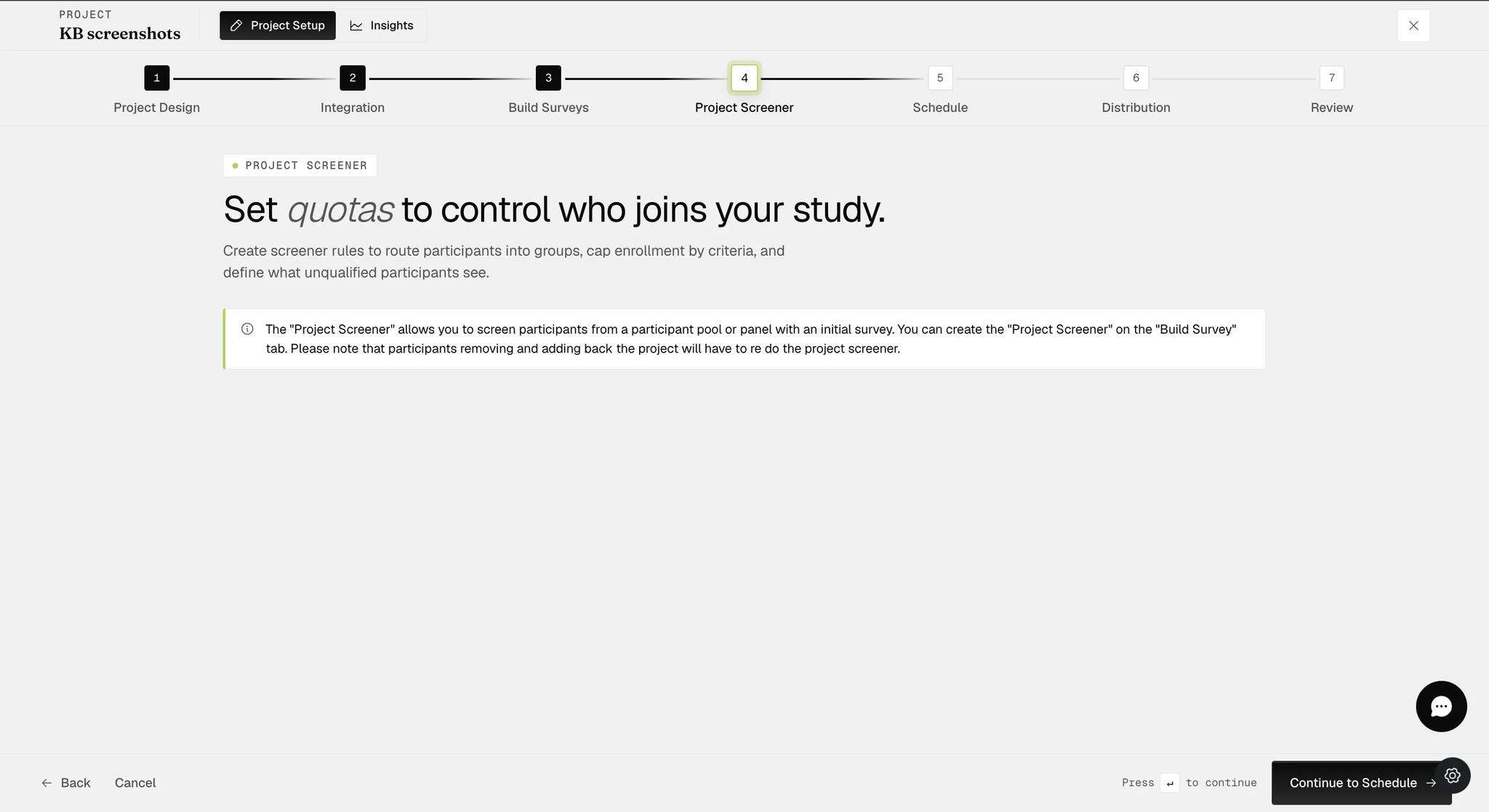
So the order matters: build the screener survey first, and the quotas and disqualification message only appear on this step afterwards. Going looking for them before the survey exists is the usual way people conclude the feature is missing from their plan.
Creating a Project Screener
Go to Build Surveys → + New Survey, switch on Project Screener, give it a title and click Create.
A screener survey offers a reduced set of question types — the editor shows only Single (single selection) and Info (an instruction), where an ordinary survey offers a dozen. So a screener cannot ask for free text, a date, or a multiple selection.
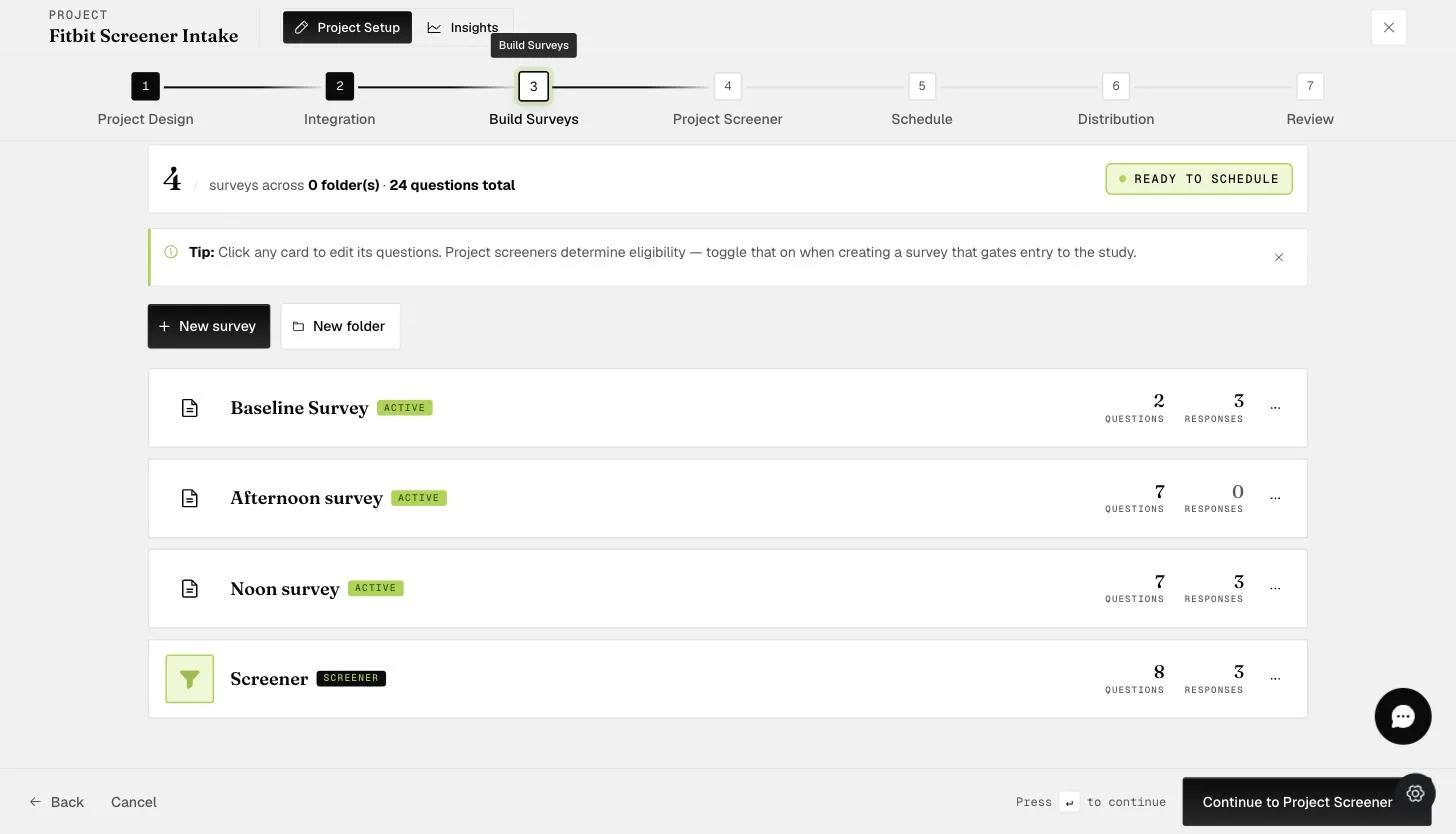
A screener survey sits alongside the others in Build Surveys, marked with a SCREENER badge so it is distinguishable at a glance.
An Instruction question is the usual opening — it introduces the screener before any question is asked. Then add the questions that do the screening. Age makes a straightforward example.
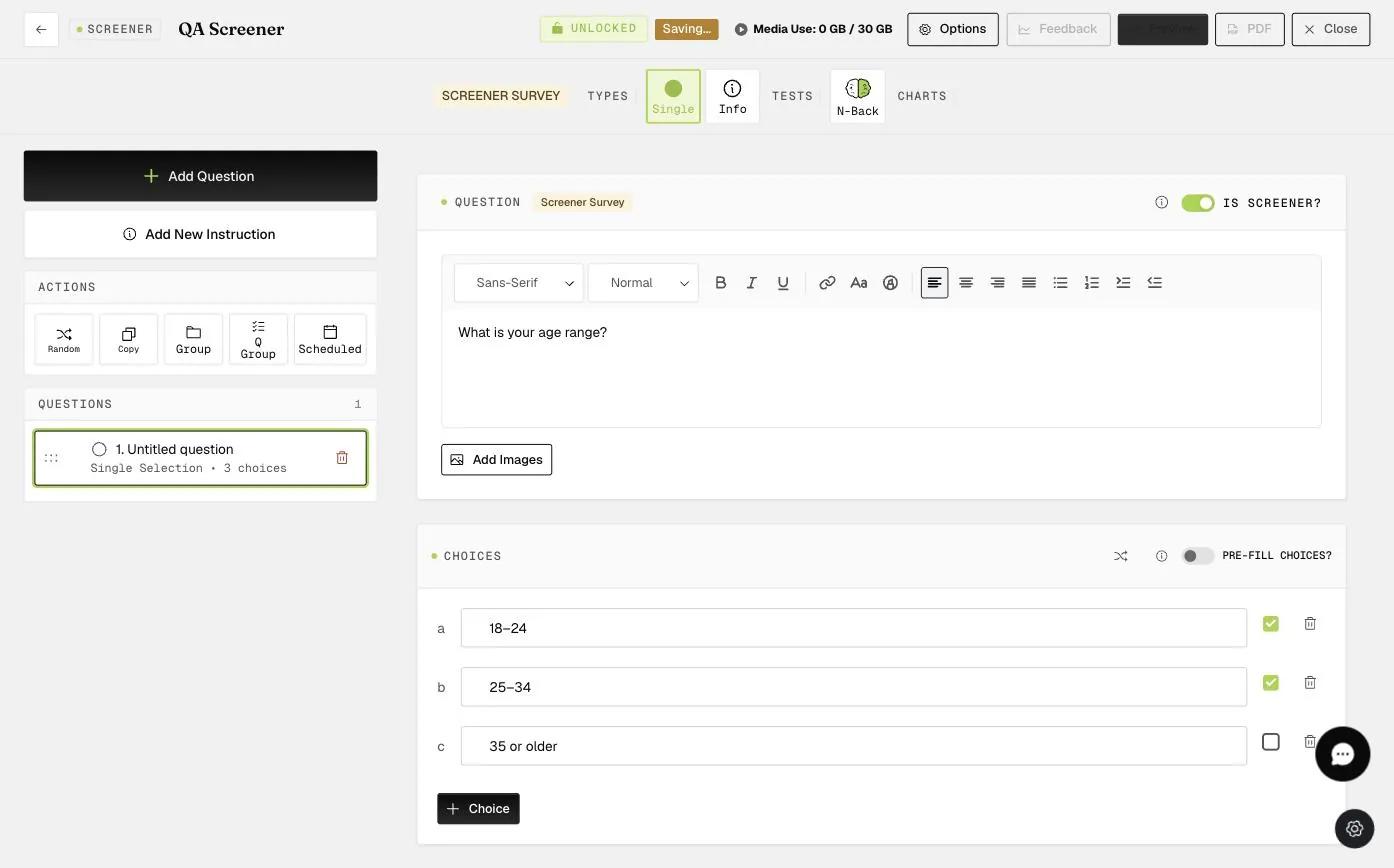
Tick the boxes beside the choices that qualify a participant. In the example above only 18–24 and 25–34 are ticked, so anyone answering "35 or older" is screened out.
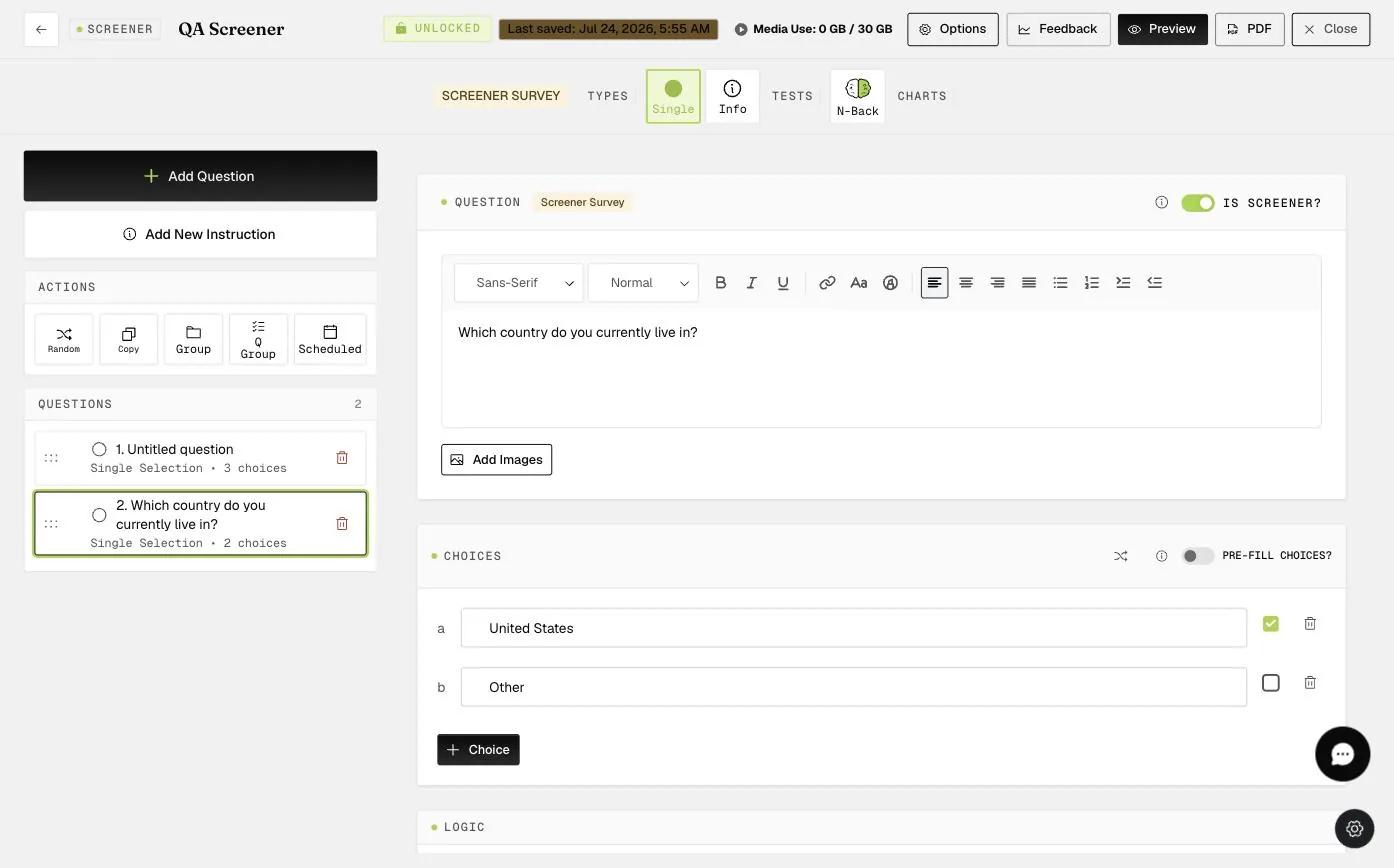
Add as many screener questions as you need. A participant has to pass all of them to start the project, so each one narrows the pool further. Country is a common second question — here only people living in the United States qualify.
Adding an Existing Project Screener
If you have already built a screener in another project, you do not have to rebuild it. Start the same way — Build Surveys → + New Survey, switch on Project Screener, give it a title — but click Add Existing rather than Create.
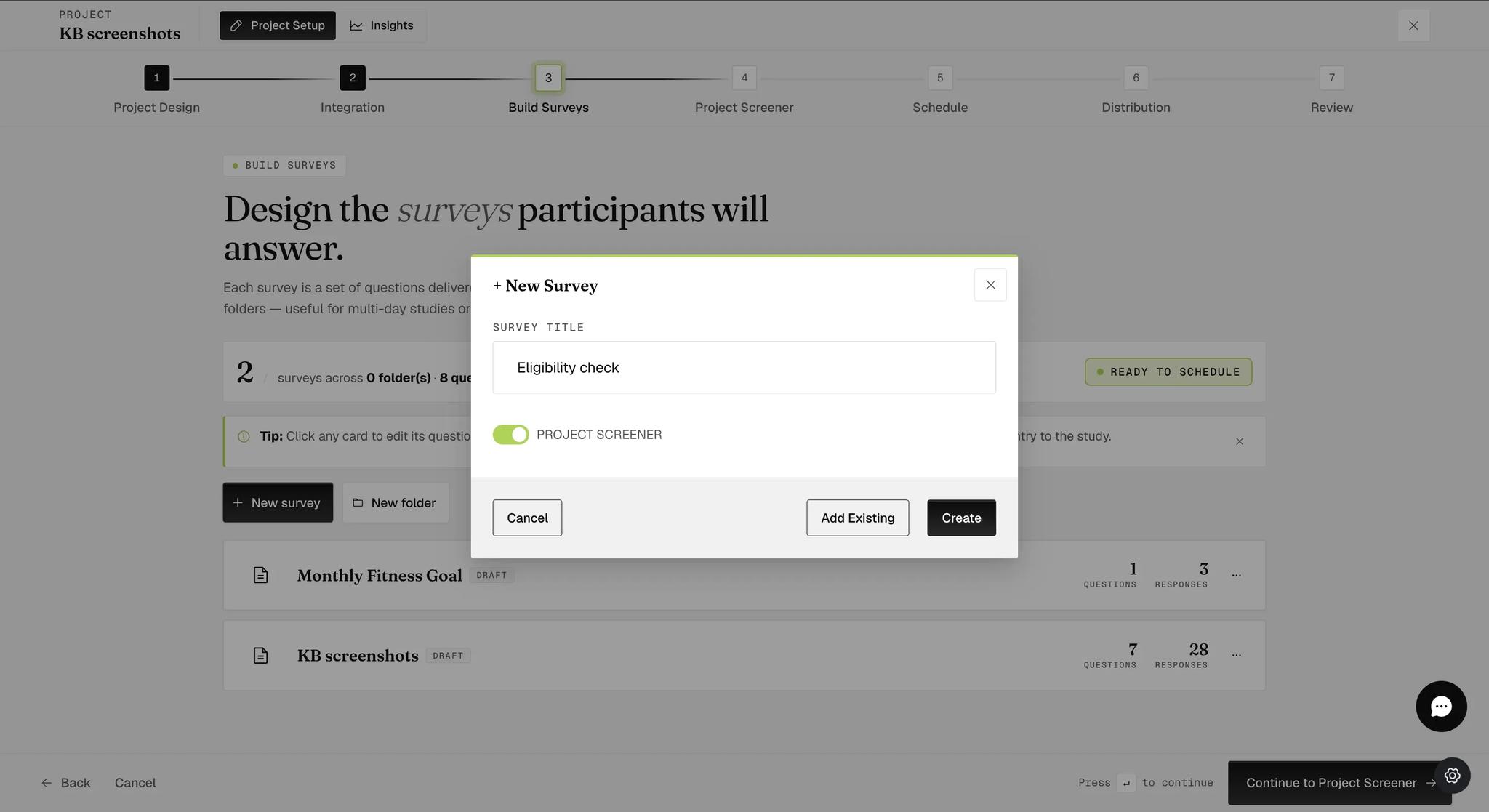
Every screener you can reach is then listed, with the project it belongs to, the survey name, and how many questions it holds. Tick the one you want and click Add.
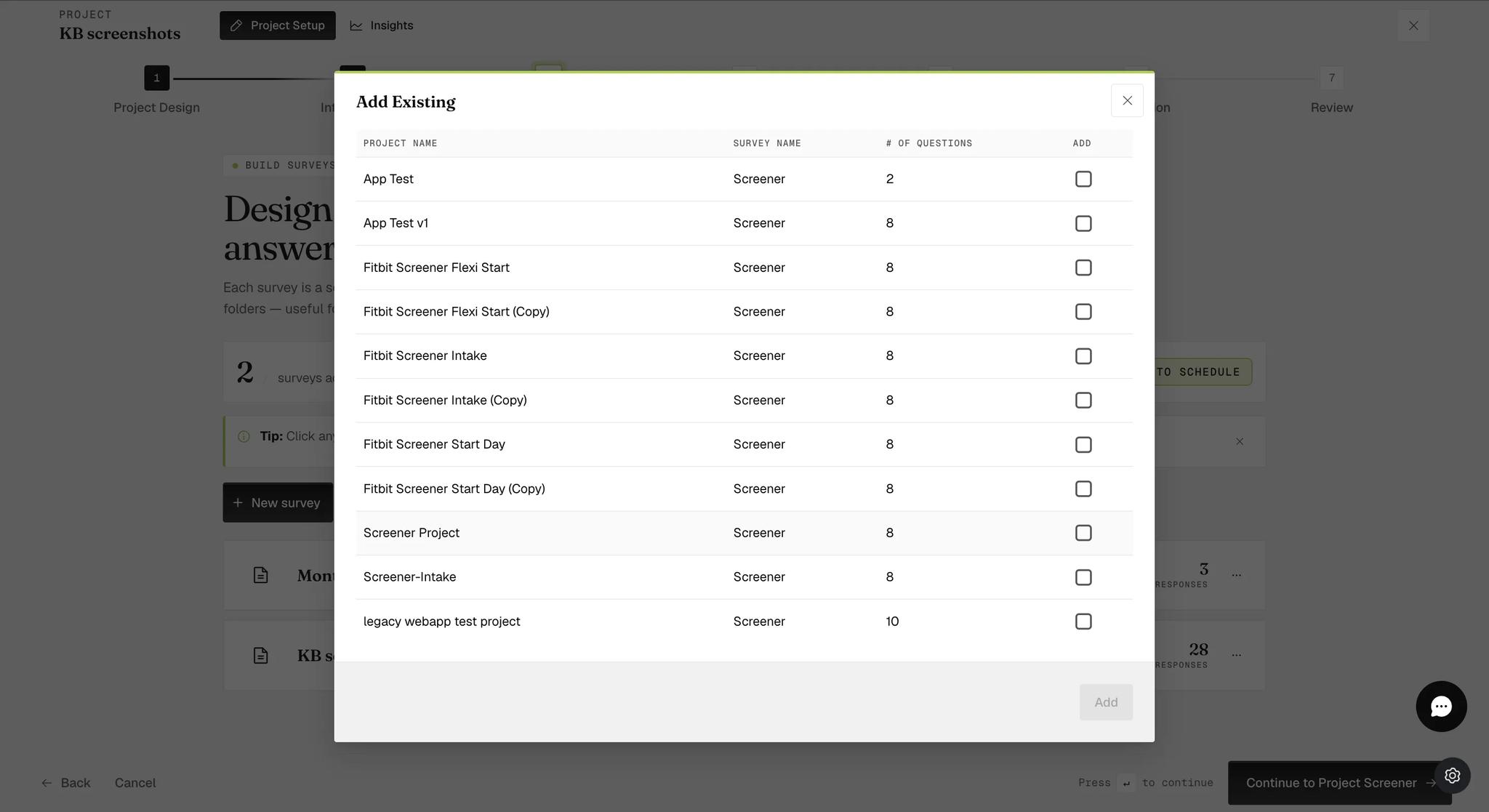
Screener surveys are almost always just called "Screener", so the project name and question count are what tell them apart. Worth knowing if you keep several near-identical screeners across studies — the survey name alone will not identify the one you want.
Who Appears in the Logs
Someone who takes the screener and does not give the qualifying answers has failed it. They see your disqualification message and never join — using the age example above, anyone answering "35 or older" is turned away at that point.
Only participants who passed appear in your Logs. People who were screened out are not listed, so the participant numbering skips them: if the first person to attempt your study failed, the first row in your Logs is Participant 2.
This changed at the end of April 2025. Before then, participants who failed were listed with a status of Failed Screener. Projects running since then show only those who passed, which keeps the Logs to people who are actually in the study.
Their answers are not lost. Everyone who attempted the screener is in the response file for the screener survey, whether they passed or not. That is where to look if you need to know who you turned away and why — recruitment reporting, for instance, or checking a quota is filtering as you intended.