Screener questions
What Screener Questions Do
Screener questions remove participants during a study, while they are answering its surveys. That is what separates them from the Project Screener, which decides who gets in before the study starts.
Their usual job is catching inattentive or careless responding — an attention check buried in a survey — so you find out as it happens rather than discovering it in your data months later.
They are normally placed in the first survey a participant meets, typically a baseline or demographic one.
A participant is judged after they submit, not as they answer. They complete the survey, and only then are they told they cannot continue.
Creating Screener Questions
Open a single-selection question and switch on IS SCREENER?, at the top right of the question. Checkboxes then appear beside the choices: tick the ones that count as a correct answer.
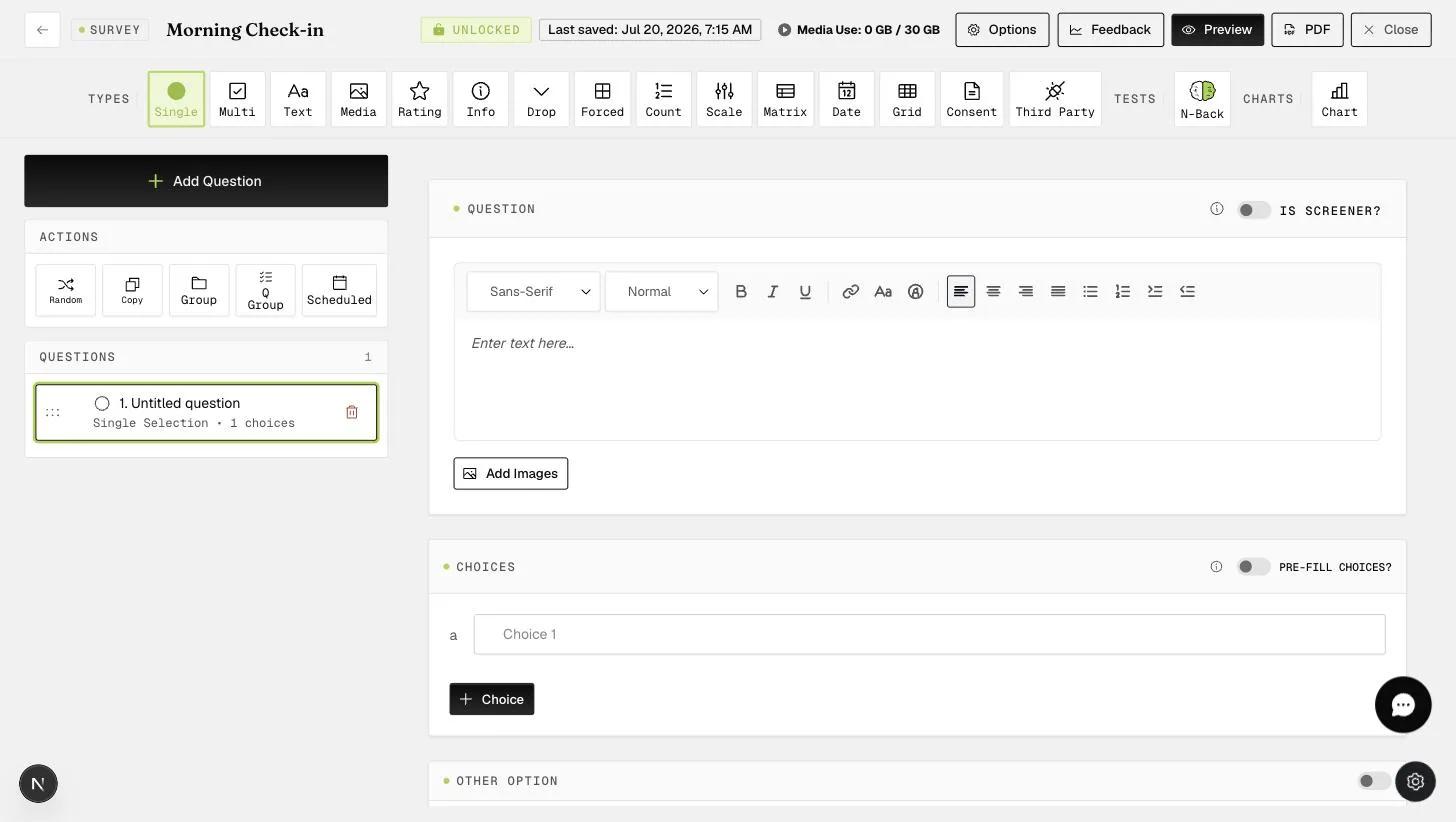
The toggle is for single-selection questions. A screener question has to be judged automatically, which needs one answer that is either right or wrong.
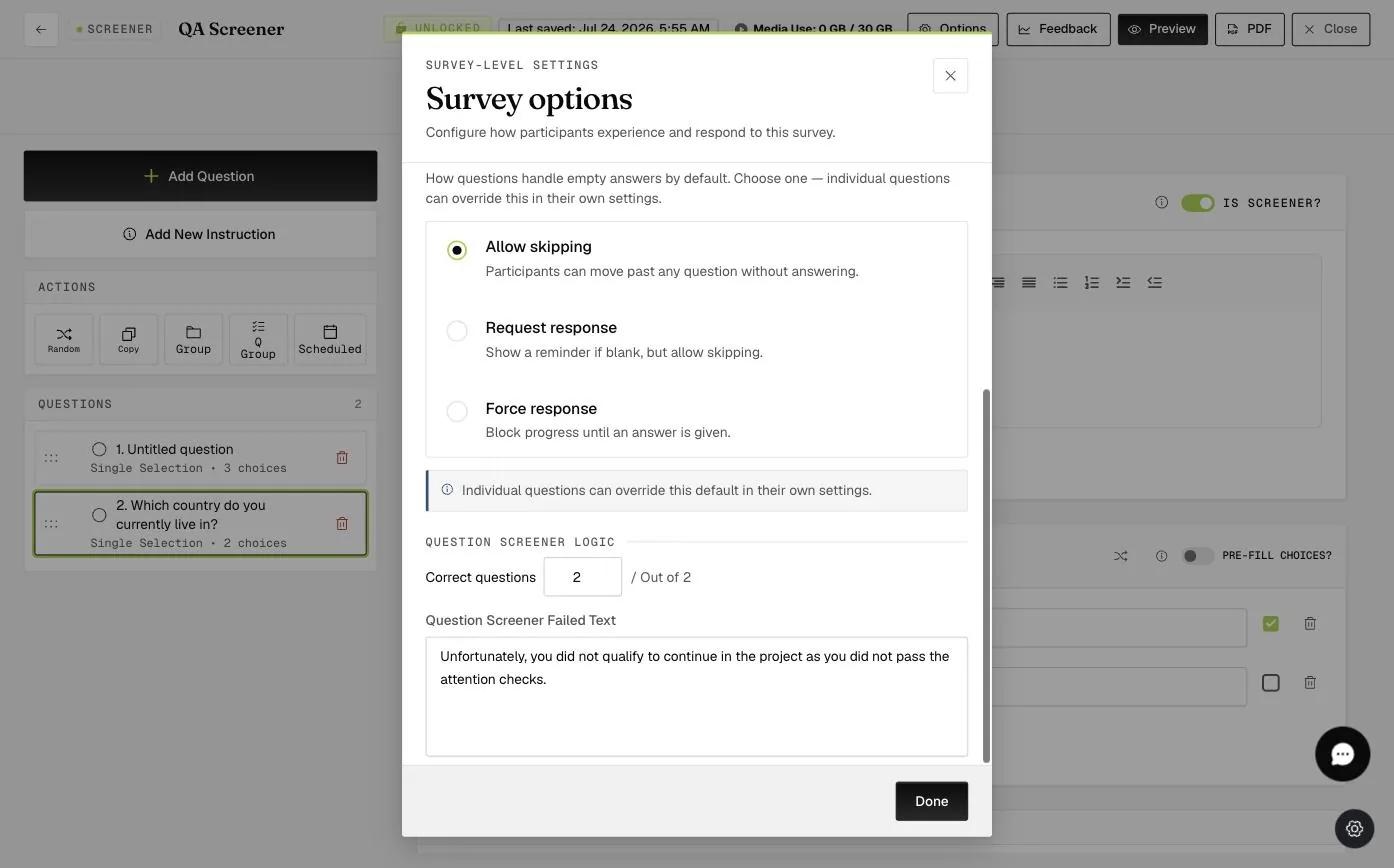
How many of those questions a participant must get right is set per survey, not per question. Options, at the top right of the survey editor, opens the survey-level settings.
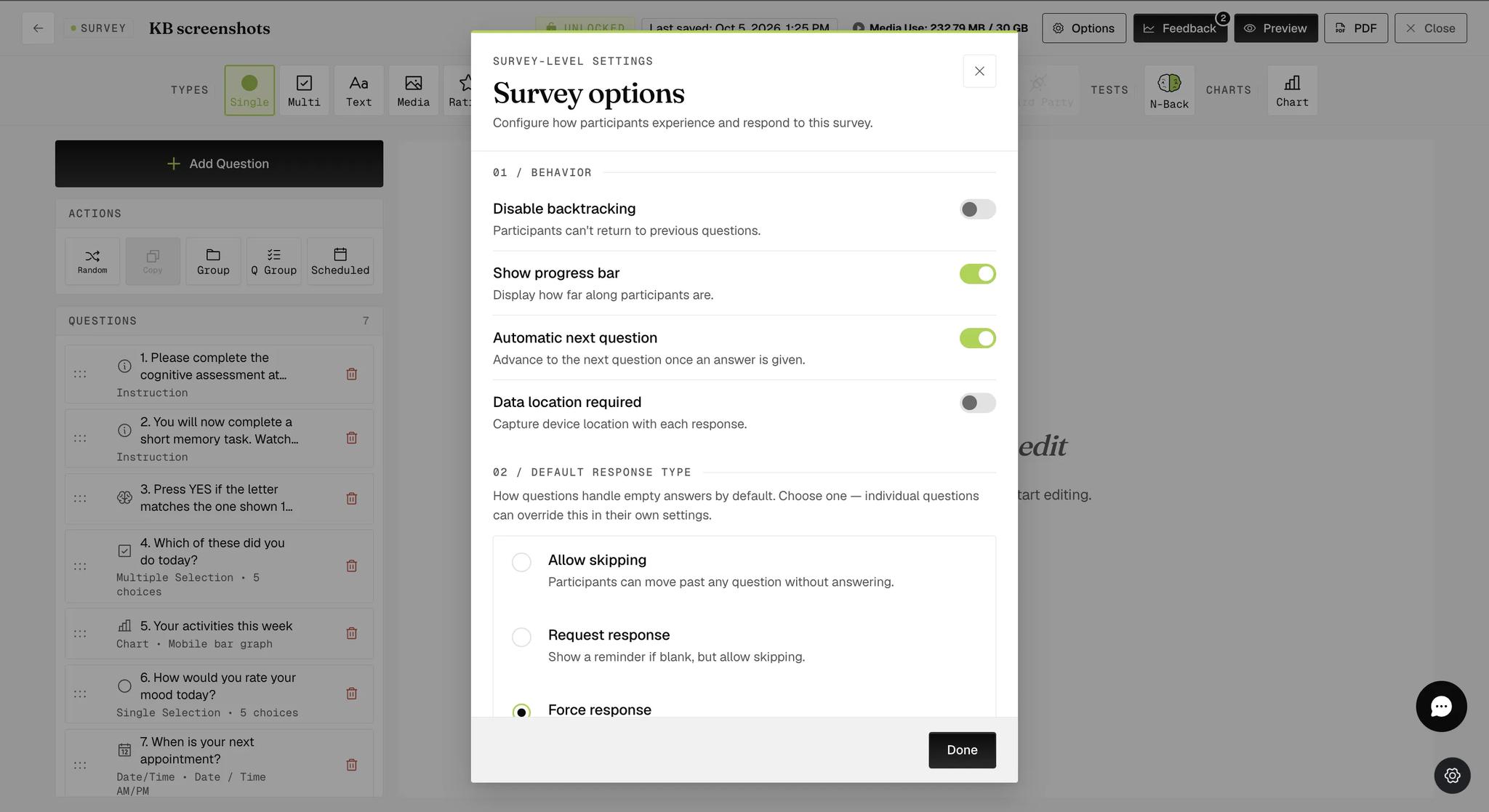
The dialog is long and numbered by section — scroll past Behavior and Default Response Type to reach Question Screener Logic.
Schedule the survey carrying your screener questions with that delay in mind. A participant is only judged once they submit, so they can work through an entire survey before being told they cannot continue. Putting screener questions in a long survey late in the study means someone may contribute a good deal of data and still be removed.