Logs
In ecological momentary assessment and experience sampling research, what matters is knowing how collection is going while it is still going. The Logs page is where that lives: one row per participant, updating as they respond, with everything you might need to do about a participant reachable from the same table.
Open a project, switch to Insights, and choose Logs.
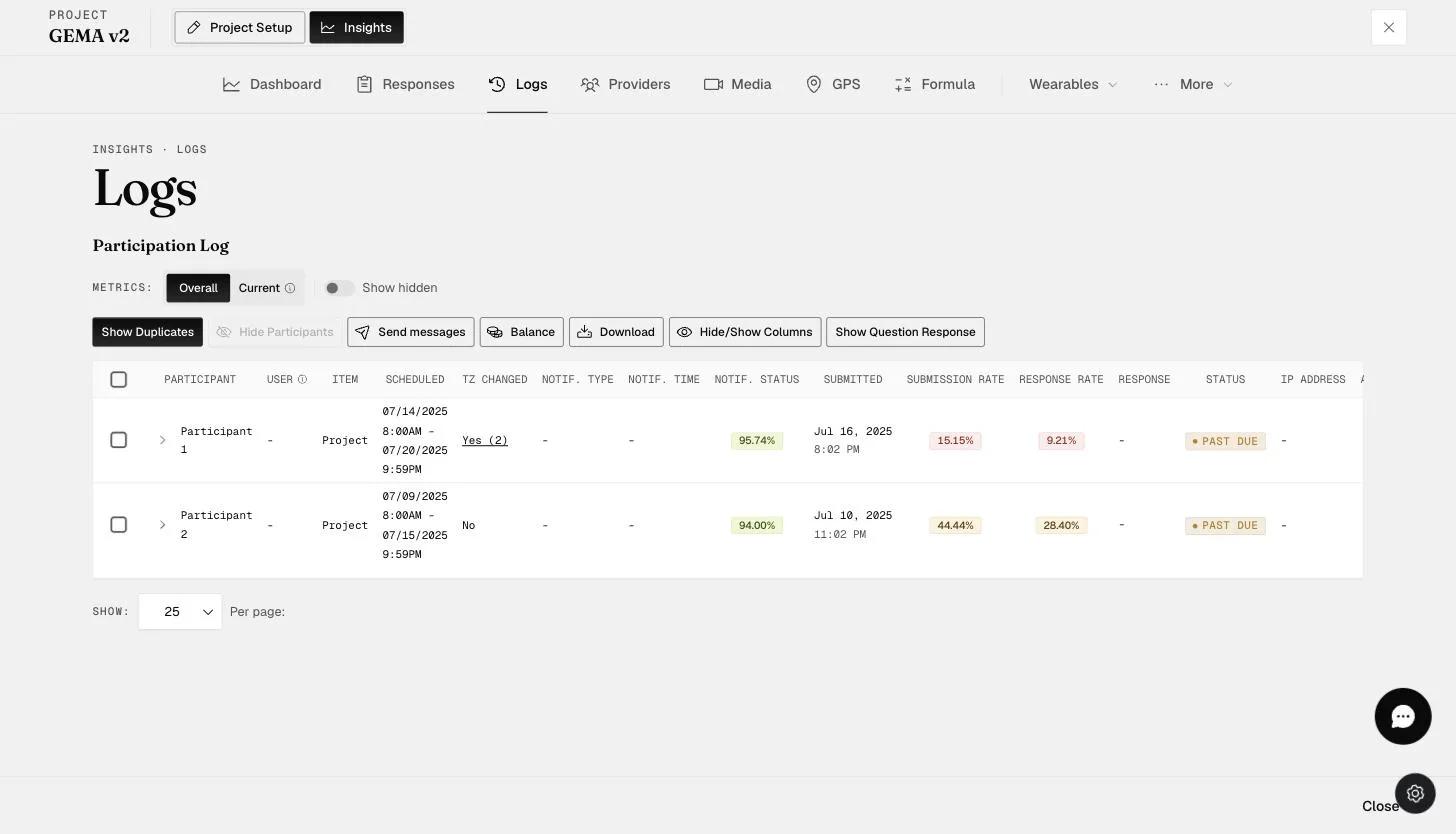
What you can do from here:
- See whether notifications and reminders are arriving
- Track submission and response rates, overall or up to now
- Send extra push notifications to one participant or many
- Pay participants, individually or in bulk
- Remove or block someone who should not be in the study
- Surface an individual question's answers as a column
- Check the date range of Fitbit and Apple Watch data collected
Reading the table
Participant
Each participant gets a number in the order they joined — Participant 1, Participant 2, and so on.
The number is per project. The same person has a different number in a different study. Their alphanumeric ExpiWell Participant ID is the one that stays the same everywhere.
User Account
Shows an address only where the project knows one — a participant invited by email, or signed in on a temporary account. Access-code participants stay anonymous and the column stays empty for them.
Item, and drilling into a participant
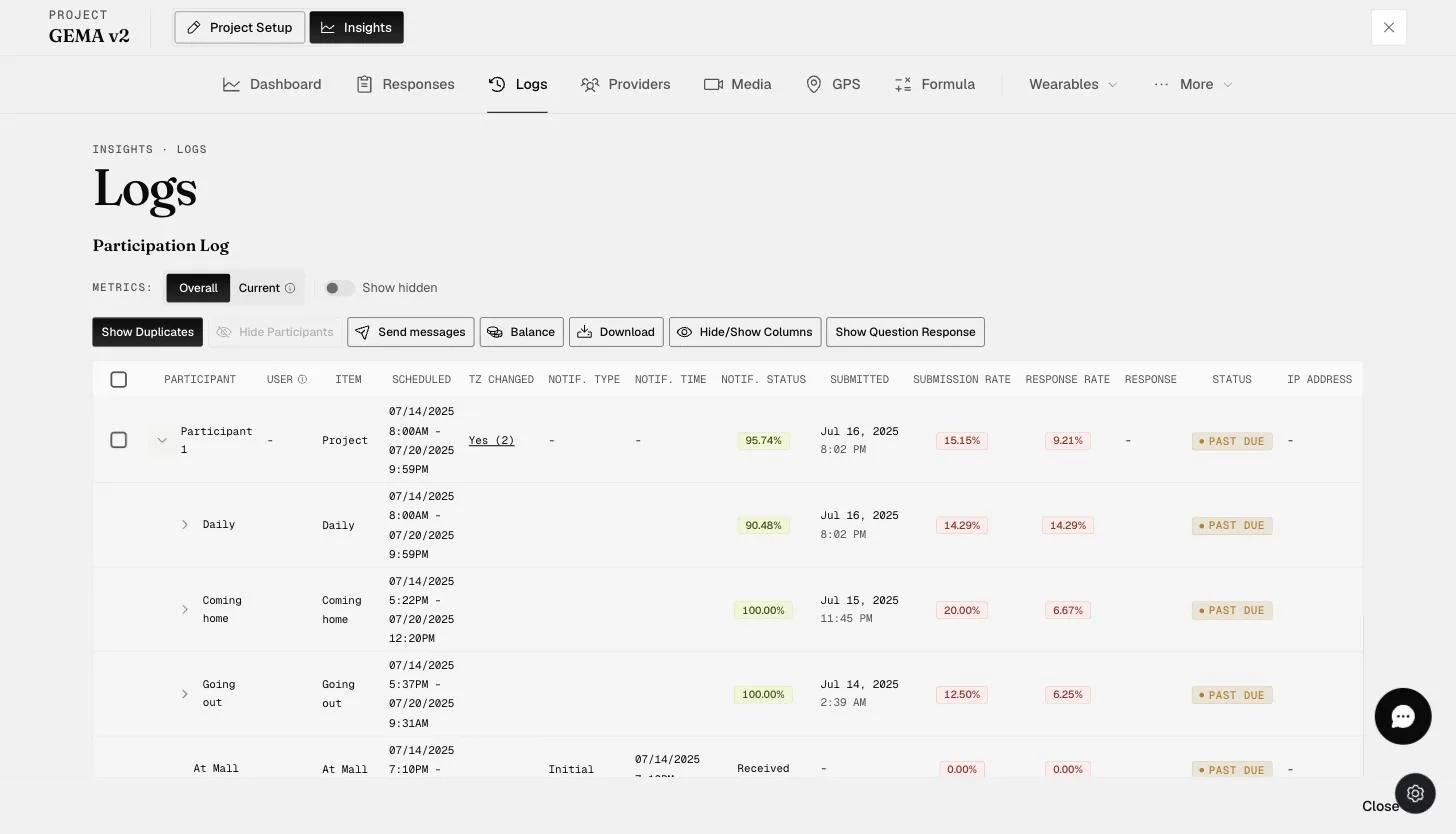
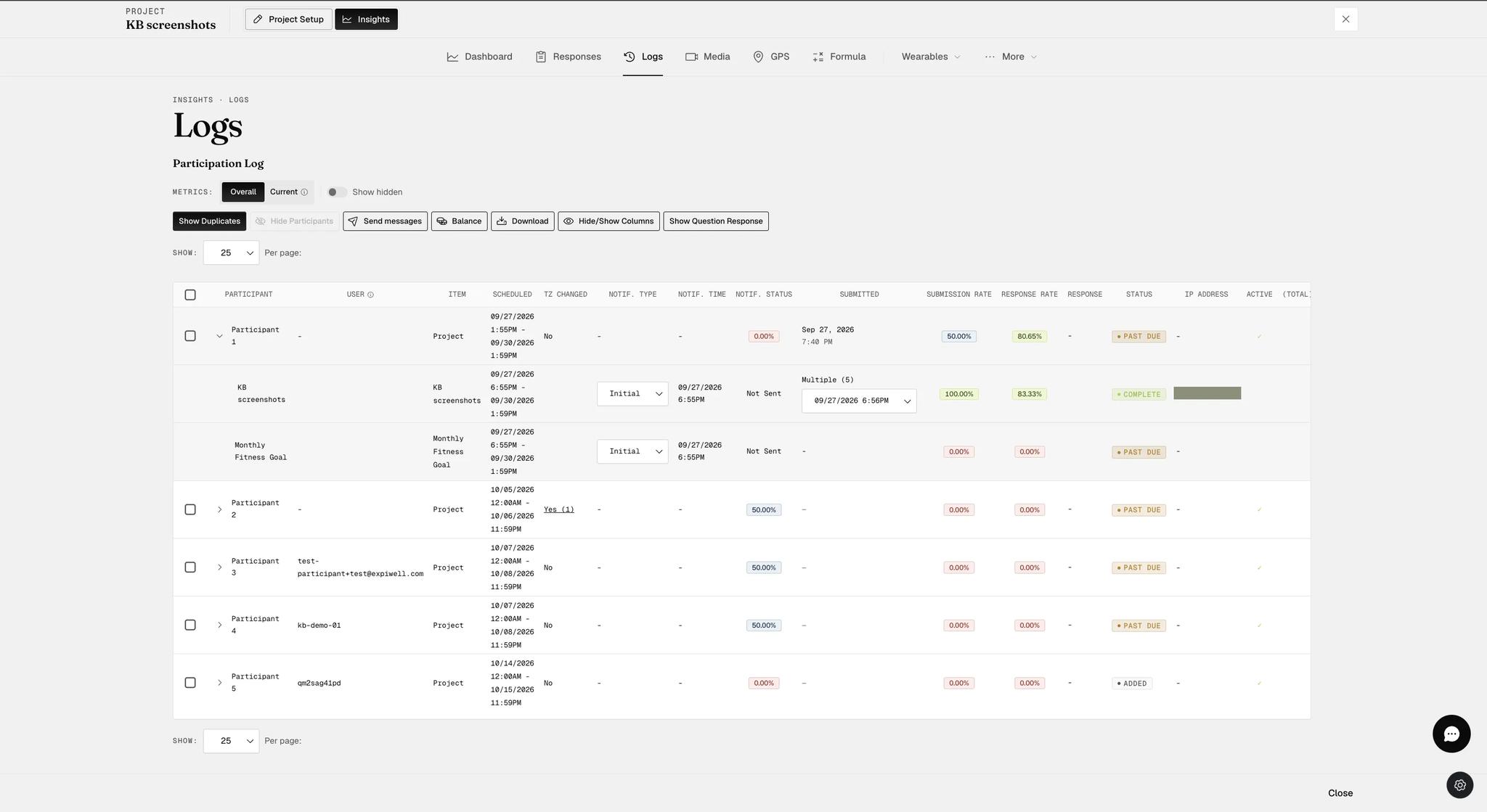
A collapsed row is the project as a whole. Click the arrow at the left of the row and it expands to one line per survey, each with its own schedule, rates and status.
This is the most useful move on the page. A participant whose overall rate looks poor often turns out to be answering everything except one survey, and the expanded view is where that shows.
Scheduled
When the project and each survey were scheduled for that participant.
This column earns its place on a Rolling schedule, where participants start on different dates, and with randomised schedules, where nobody gets their surveys at the same time. It is how you find out what a given participant was actually asked, on a given day.
Timezone Changed
Whether the participant's device changed time zone during the study, and how many times.
Click the Yes link to see each change with its date.
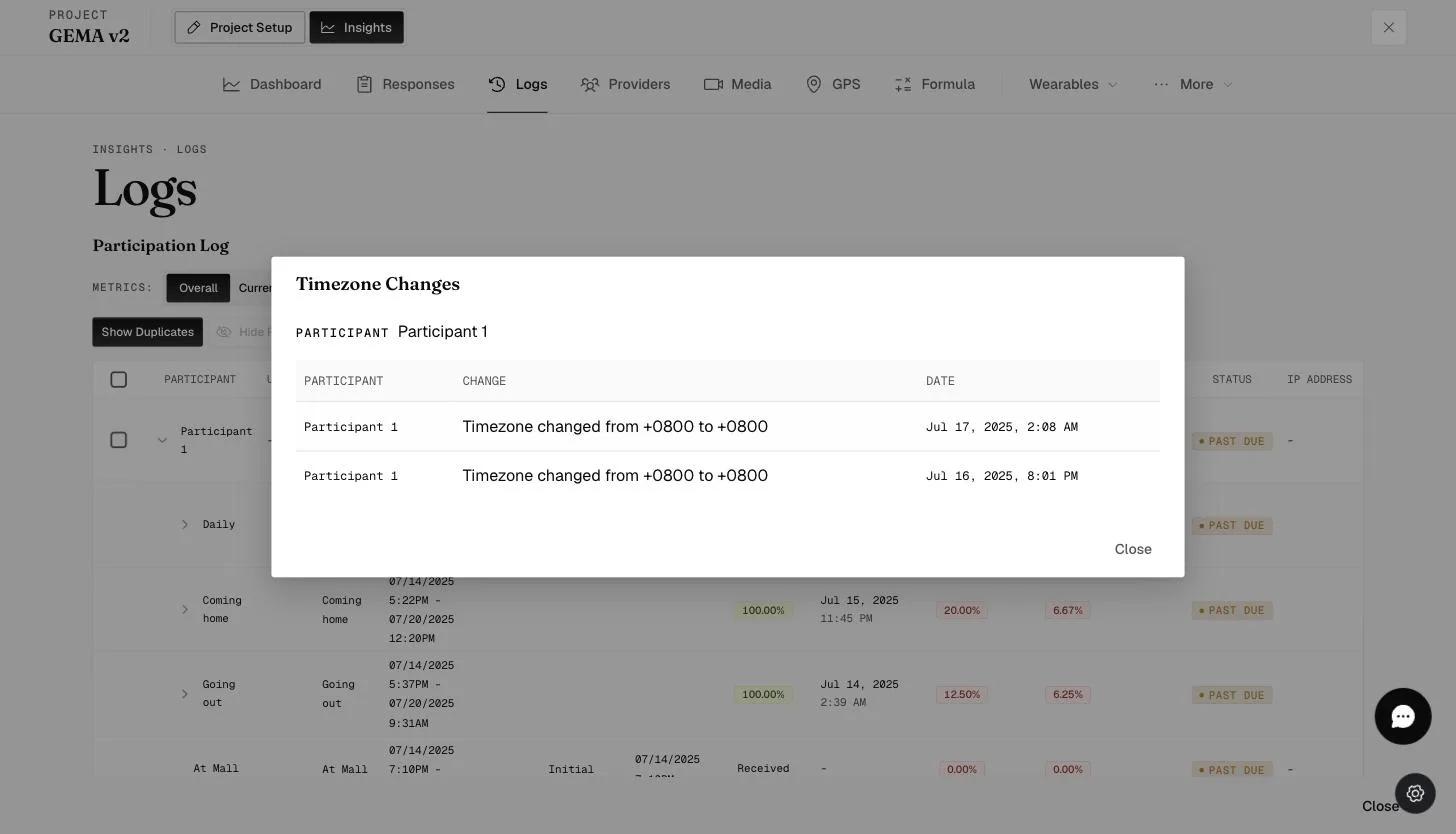
A time zone change mid-survey can push a submission outside its scheduled window, so a survey that looks late may simply have been answered on a moving clock.
Notifications and reminders
ExpiWell pushes a notification to the participant's device when a survey is due. Three columns track it:
- Notif. Type — whether this was the first notification or a later reminder.
- Notif. Time — when it was sent.
- Notif. Status — Received, or Not sent.
"Not sent" is usually not a fault. It commonly means the participant added the project after that day's survey was already scheduled, or that they retook the survey through the personalizer, in which case no notification was due.
Submitted, and the two rates
Submitted is when they last sent a survey in — the quickest read on who has gone quiet.
Submission Rate counts whole surveys: 9 of 10 submitted is 90%.
Response Rate counts questions within them: 9 of 10 answered is 90%.
Auto-submitted surveys do not count toward the submission rate. If someone is still in a survey when its window closes, the system submits what they have, and the submission time carries a red marker. Only a manual submission counts. Occasionally, usually on a bad connection, a recorded time lands after the closing window.
Status
Added — scheduled, nothing submitted yet. In Progress — under way. Complete — everything submitted. Past Due — the period ended with surveys missed.
Individual surveys use Scheduled, Complete and Past Due the same way.
IP Address
The address a submission came from. It sits on the survey row, not the project row above it — expand a participant to see it.
Apple Watch and Fitbit data range
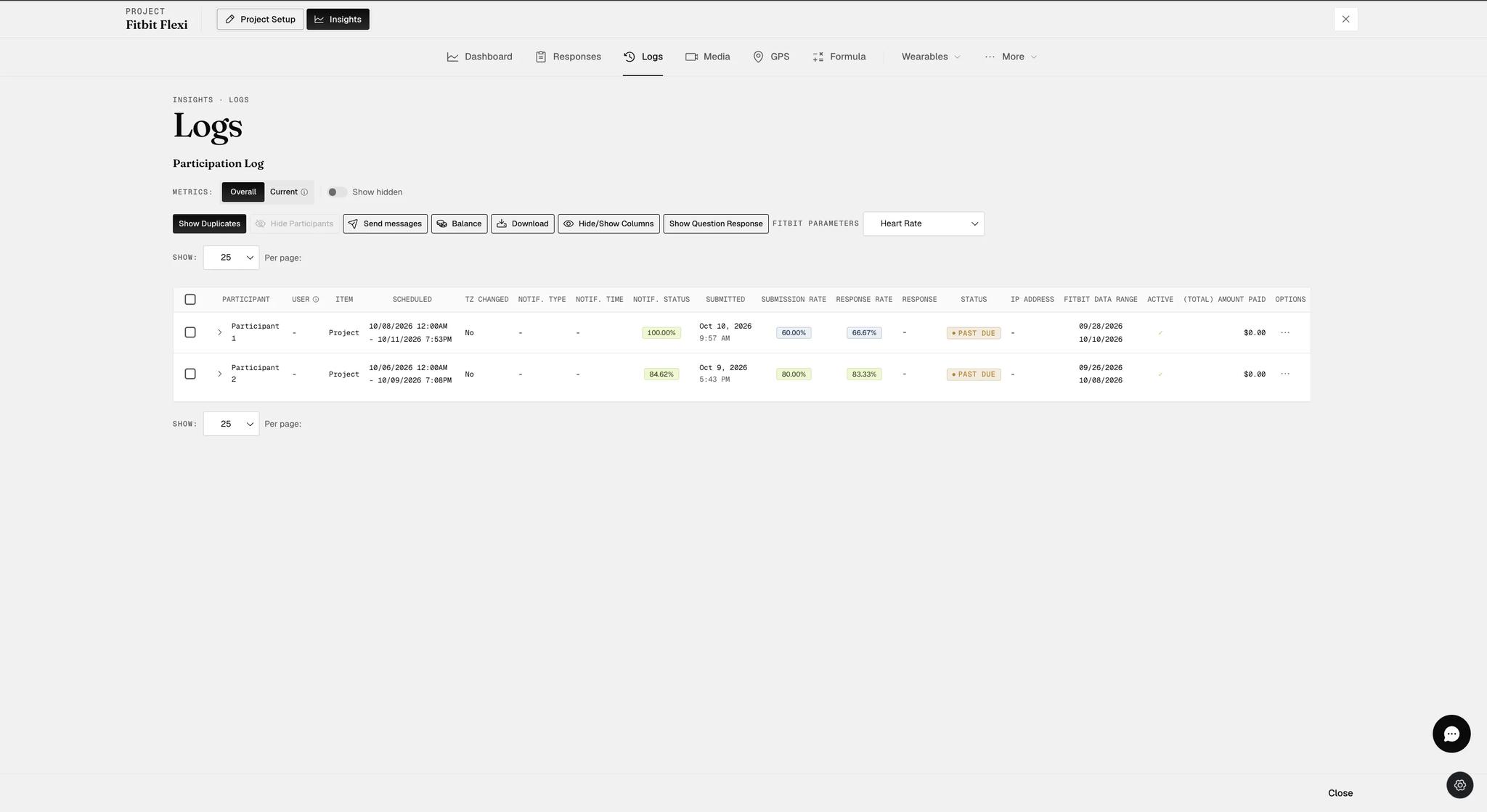
Where a project collects wearable data, a data range column appears — named for the device, so Fitbit Data Range on a Fitbit project — giving the first and most recent date the platform retrieved the selected parameter. Which parameter that is comes from the dropdown beside the toolbar, labeled Fitbit Parameters or Apple Watch Parameters. Change the parameter and the dates change with it.
A range is not a guarantee of continuous data. It is the first and last retrieval, and gaps inside it are possible. Participants should sync their device with its own app before opening ExpiWell, or the platform pulls whatever the app last had.
Active
Whether the participant is still on the project.
- Green tick — joined and engaging.
- Red ✗, with a date — they removed the project, deleted their account, or were invited by email and later removed.
- Blue ✗, with a date — you removed or blocked them from Options → Remove Participant.
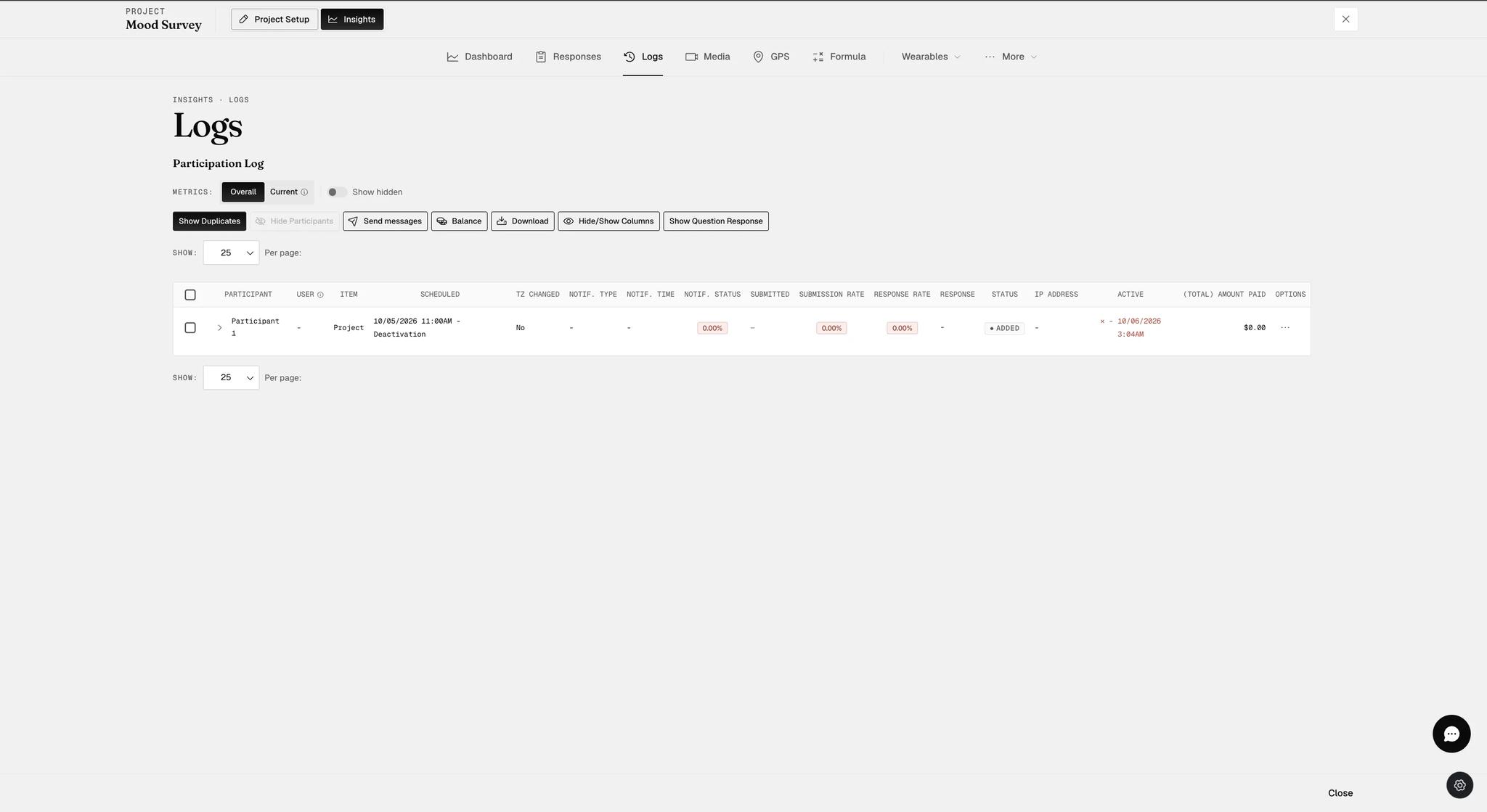
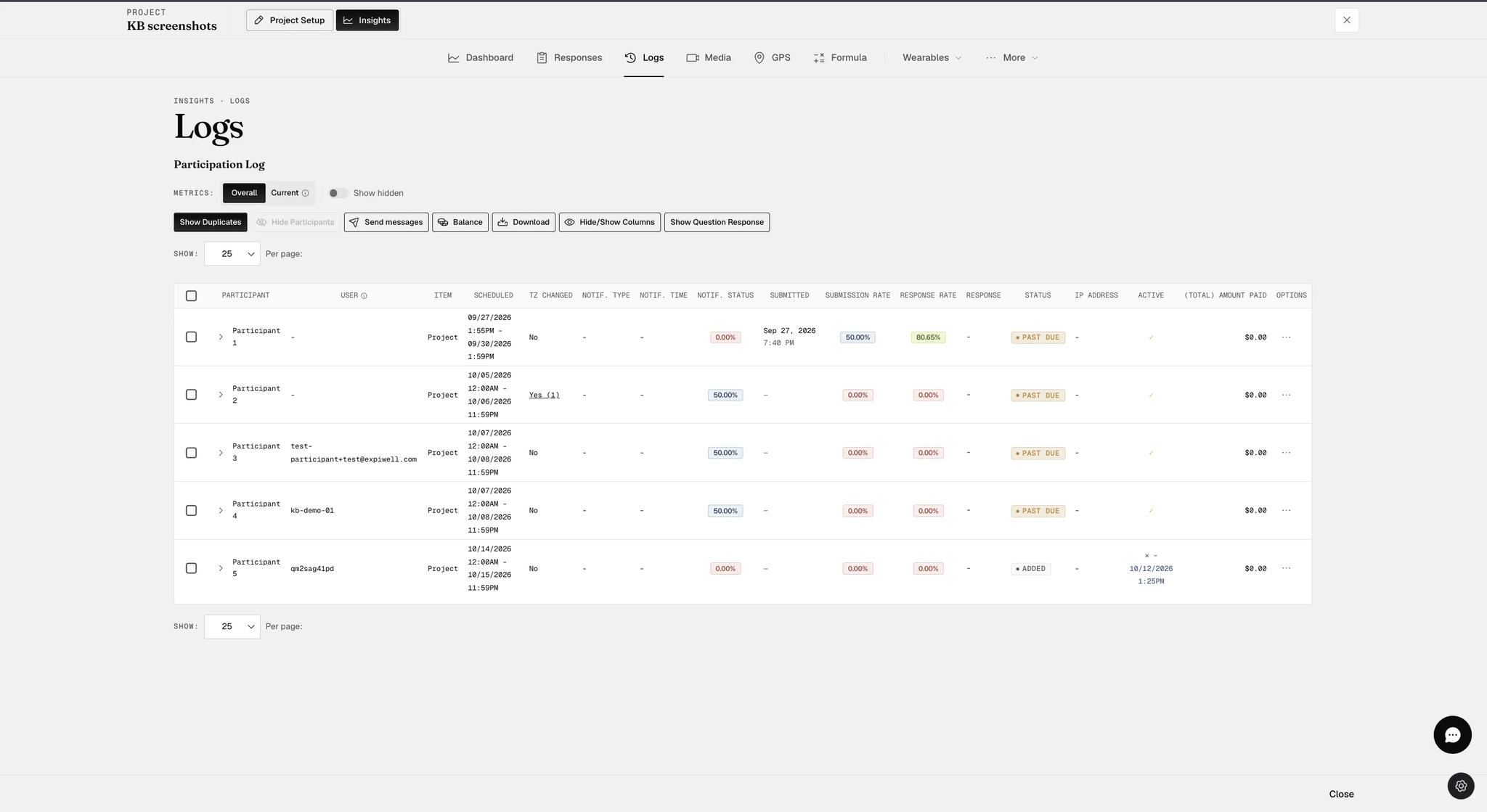
The color is the useful part. Red means it happened at their end; blue means it happened at yours. Both carry the timestamp, so a participant who stopped responding on a particular day can be checked against the date they left.
Acting on a participant
Sending extra push notifications
Two routes: Send messages for several participants at once, and Options → Send Message on a single row. Both open a Personal Messages dialog.
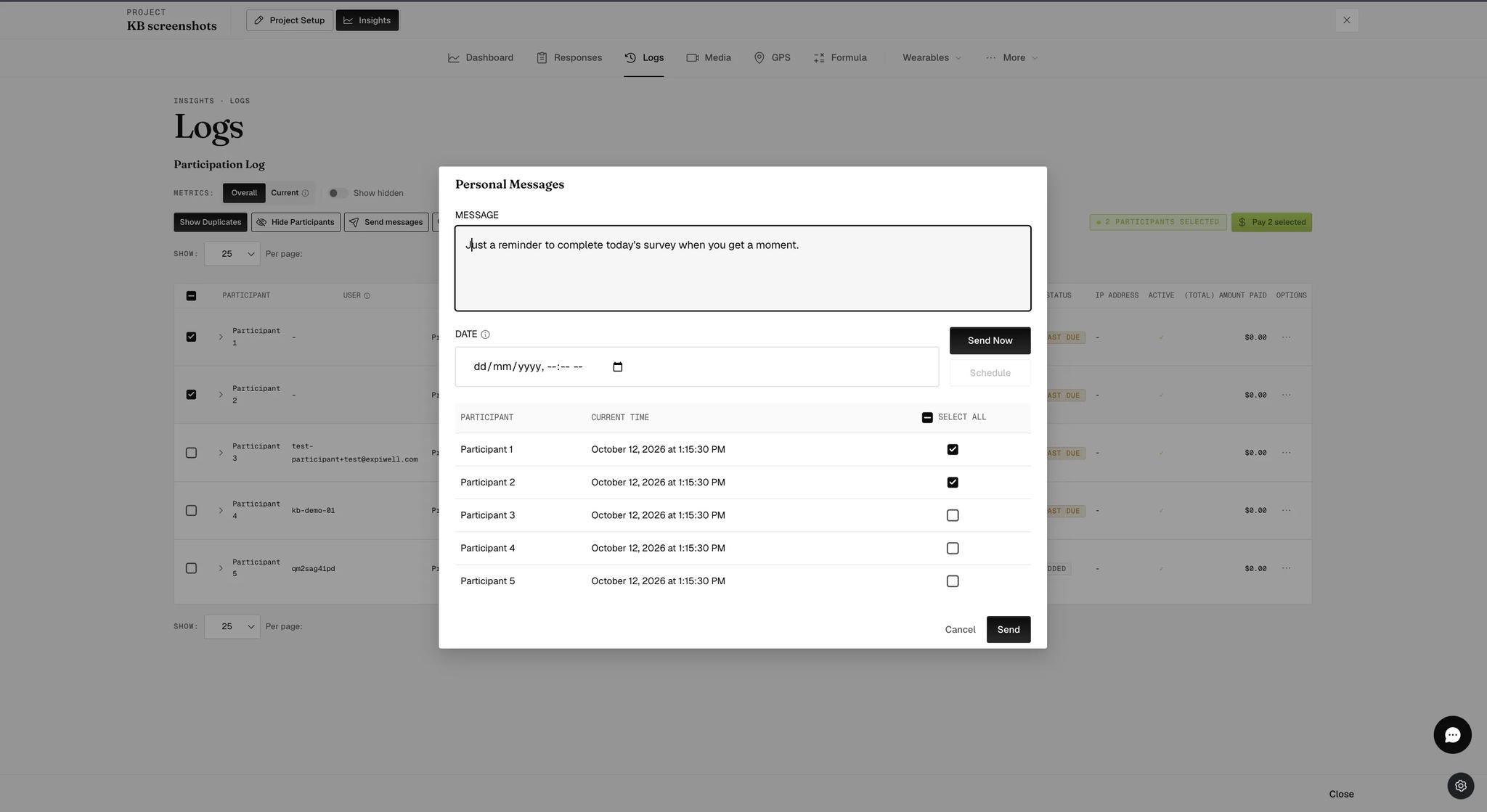
Write the message, then either Send Now or set a date and Schedule.
Check the Current Time column before you send. The dialog lists each participant's own local time, which is the difference between a reminder that arrives over breakfast and one that wakes somebody at three in the morning. It matters most on a study running across time zones.
Every message — bulk or individual — lands afterwards in that participant's own Message History, at the foot of their Options → Send Message dialog, with the time it went and whether it was Sent.
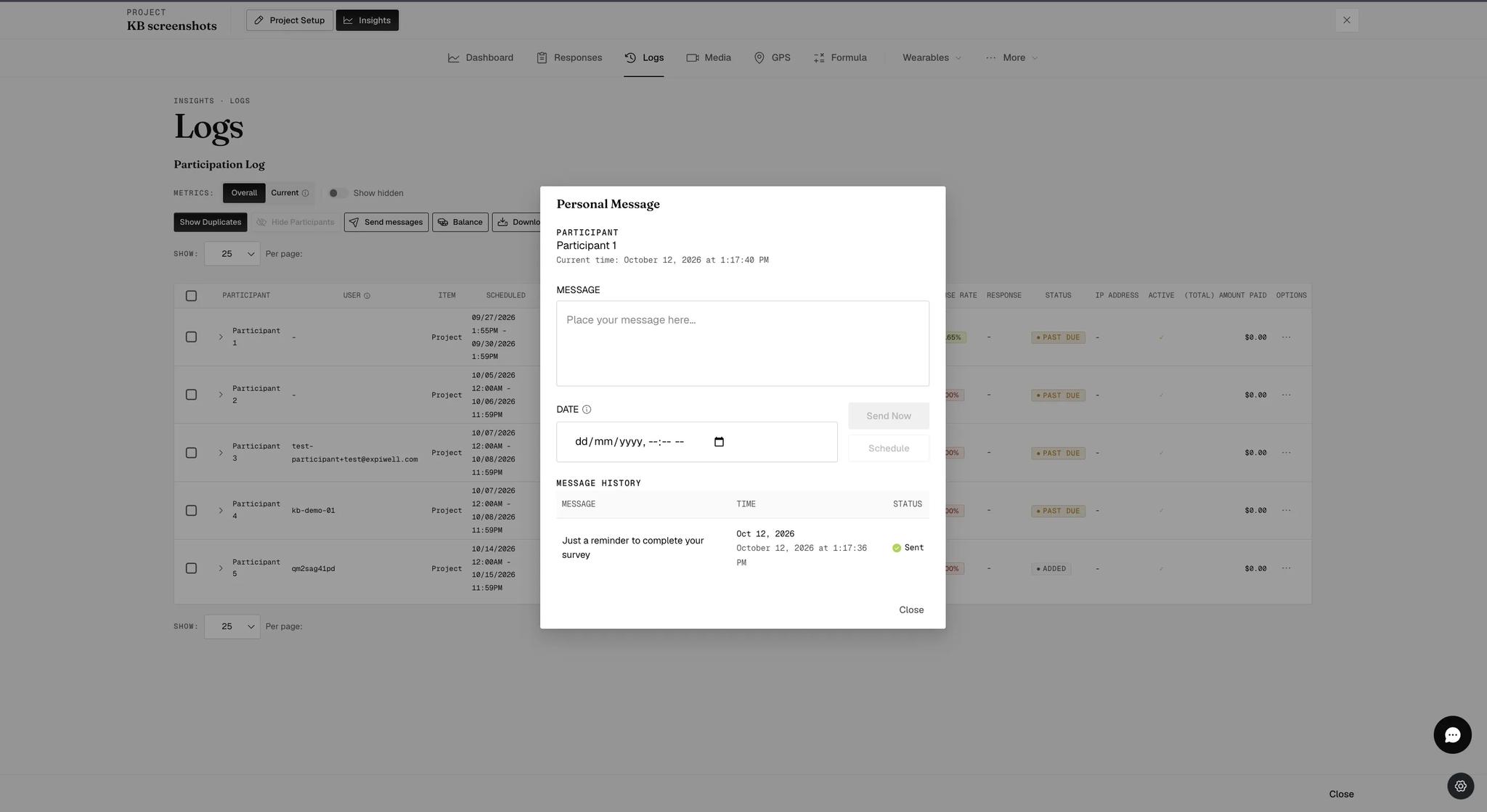
There is no project-wide outbox — history is per participant. A message sent to twenty people is read back twenty times, once in each of their dialogs.
Paying participants
Individually — Options → View Payments opens a window with the amount, an optional message that travels with the payment, the participant's Total Paid so far, and the history beneath it.
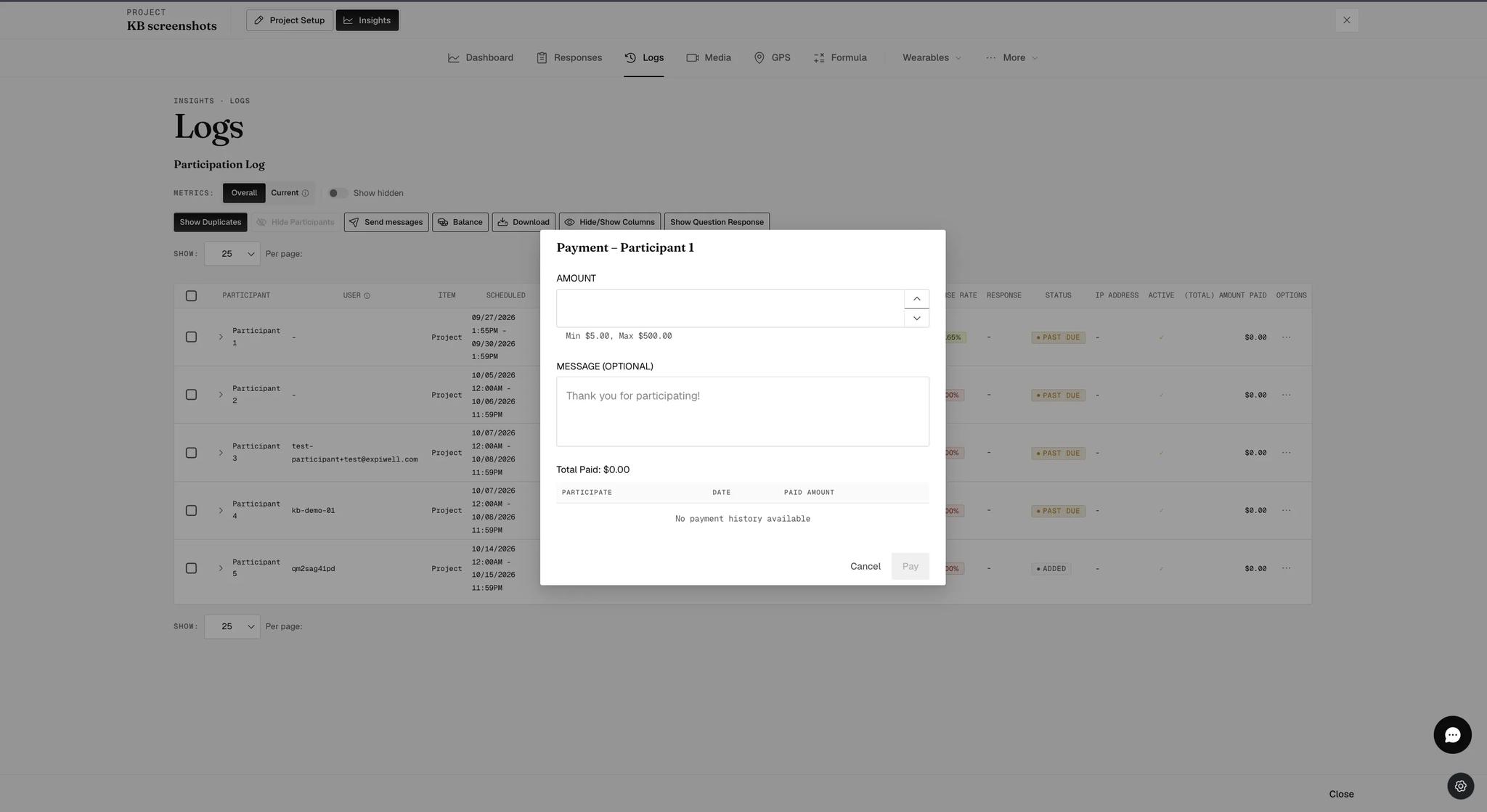
The $5.00 floor applies here too, not only to bulk payments — $5.00 minimum, $500.00 maximum per participant. See Paying participants for survey participation for what that means when you are designing compensation.
In bulk — tick participants in the left-hand column, or the box in the header to take all of them. A count and a Pay n selected button appear above the table.
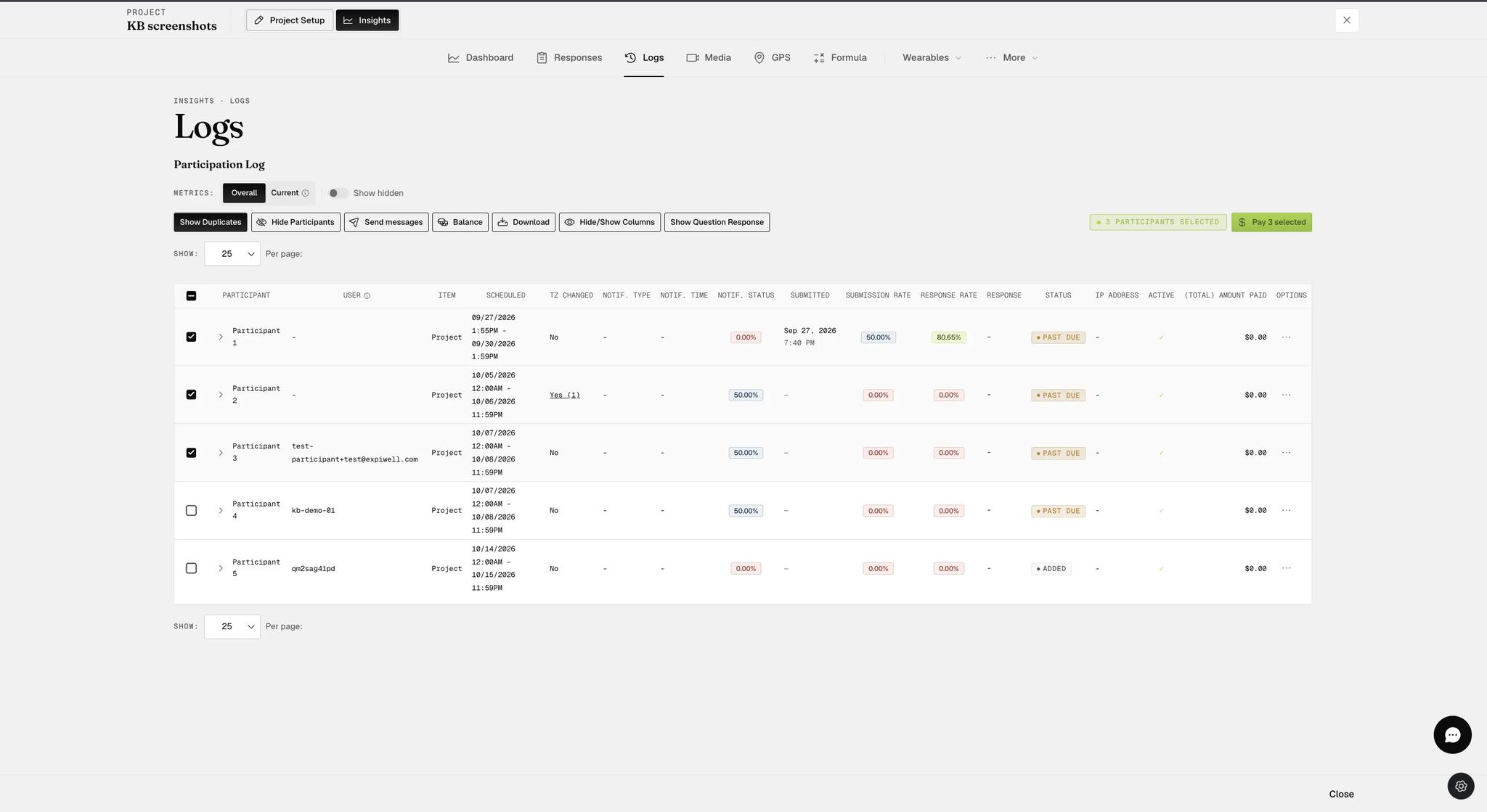
Selecting rows also wakes up Hide Participants, which is grayed out until something is ticked. The same checkboxes drive both.
The window lists who you selected and takes one amount per participant — so three participants at $5.00 is $15.00, not $5.00 split between them — plus an optional message.
It does the arithmetic as you type, against your balance.
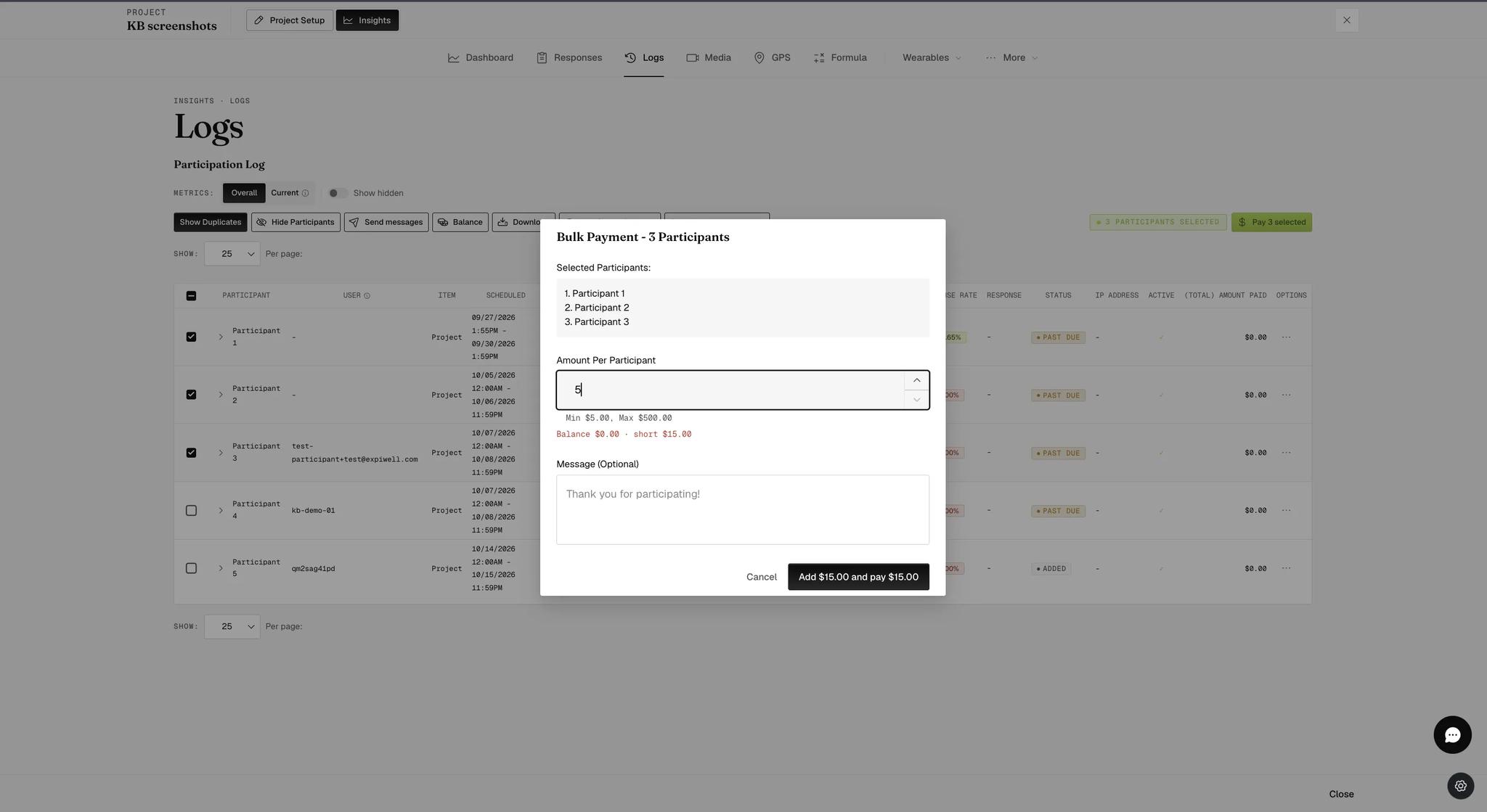
You do not have to leave to top up. Where the balance will not cover it, the window says how far short you are and the button becomes Add n and pay n — funding and paying in one action rather than sending you off to the Finance page and back.
Removing or blocking
Options → Remove Participant, then confirm. The dialog is explicit that this is permanent: they are marked as removed and can no longer take part.
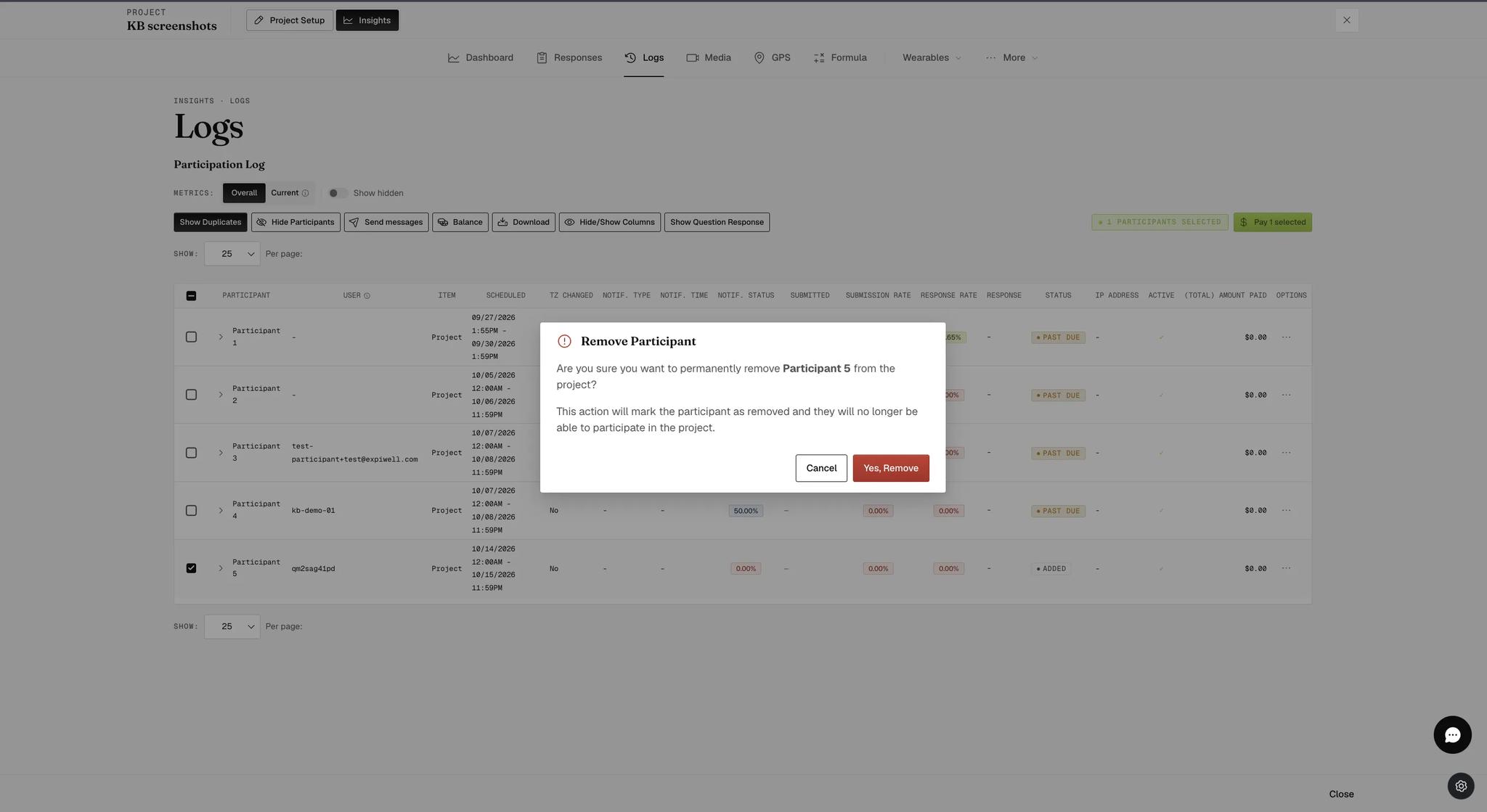
A second prompt then asks whether to block them as well.
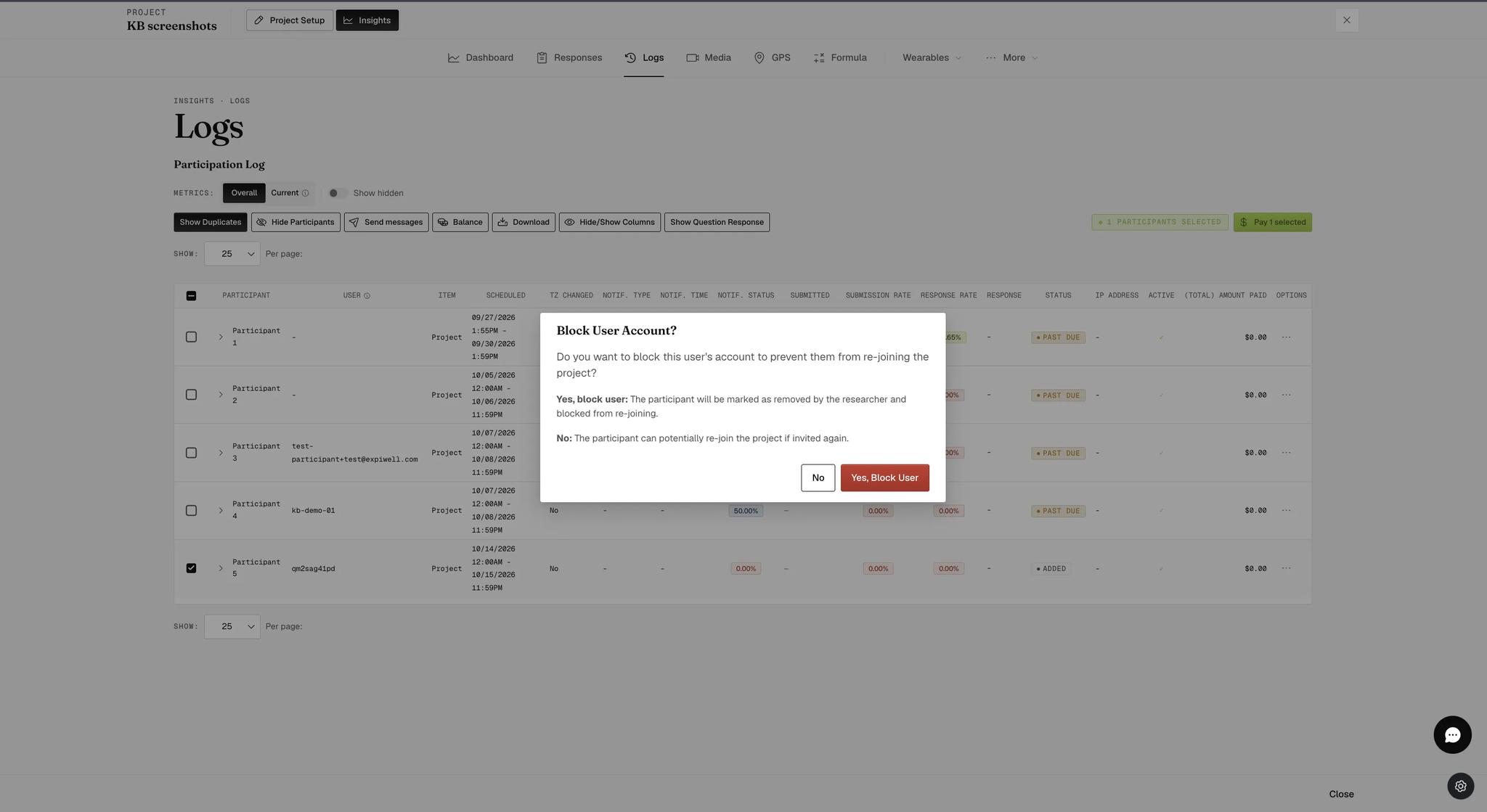
Answering No does not undo the removal. The removal already happened at the first prompt. No only declines the block, which leaves them able to re-join if you invite them again; Yes closes that door too.
Either way the Active column gets a ✗ and the date.
Changing what the table shows
Overall and Current
The Metrics toggle changes what the two rate columns mean.
- Overall — against every survey scheduled, start to finish. The number a participant will end on if they do nothing more.
- Current — against what has been scheduled so far. The number to watch while a study runs.
Show Duplicates
Reveals participants who joined the project more than once. Each join becomes its own row under the same participant number, with its own schedule, its own rates and its own date in the Active column — so you can see when each spell started and ended. The button then reads Hide Duplicates to collapse them again.
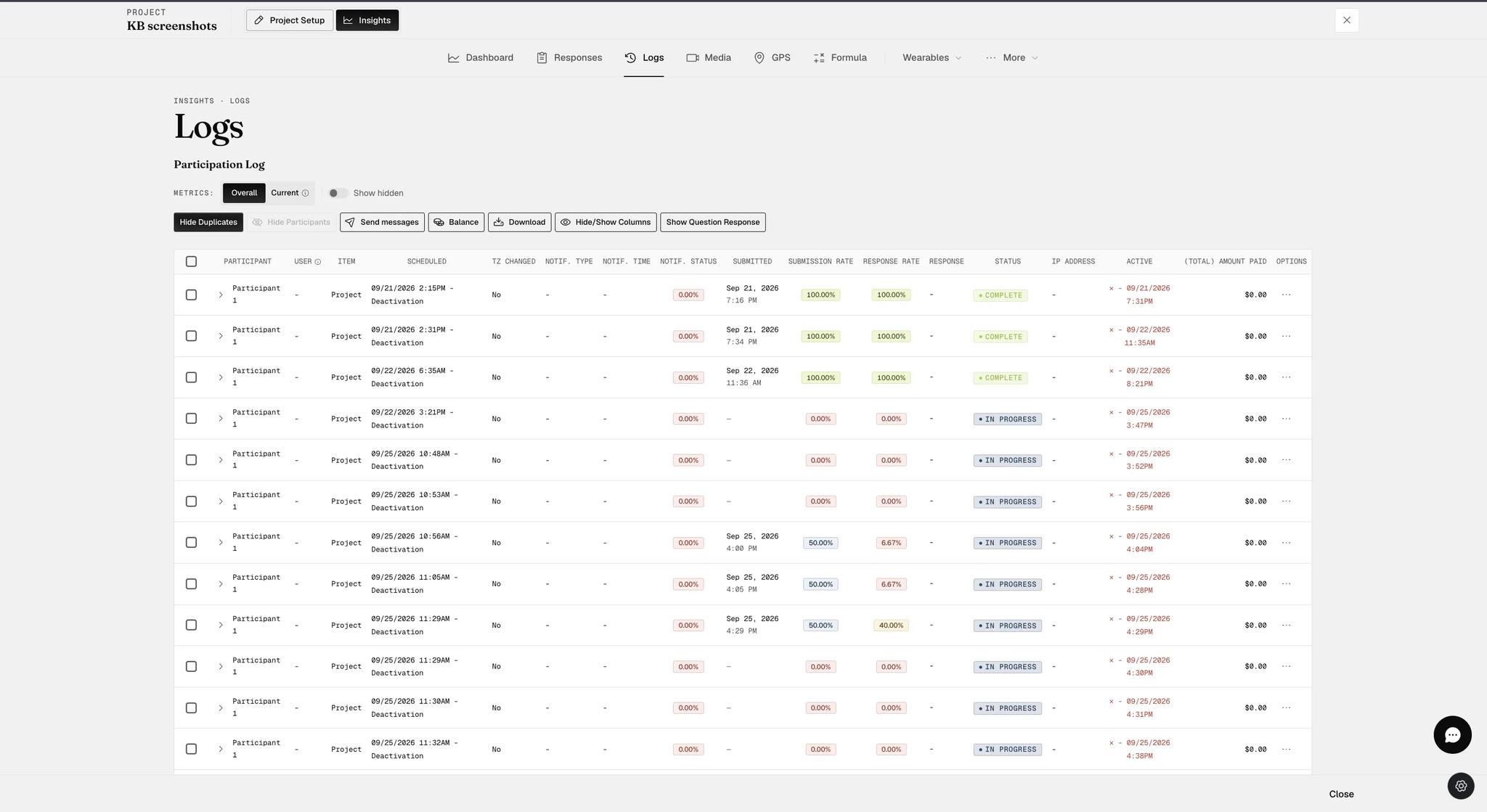
Worth checking before you read anyone's rates. A participant who rejoined five times has their activity split across five rows, and the collapsed view shows only one of them.
Hide Participants
Selecting a participant and clicking Hide Participants drops them from the view — useful once somebody has dropped out and you no longer want them in your daily scan. The Show hidden toggle brings them back.
There is no confirmation step; a toast confirms it immediately.
Hide/Show Columns
Every column is shown by default. Untick any you do not need.
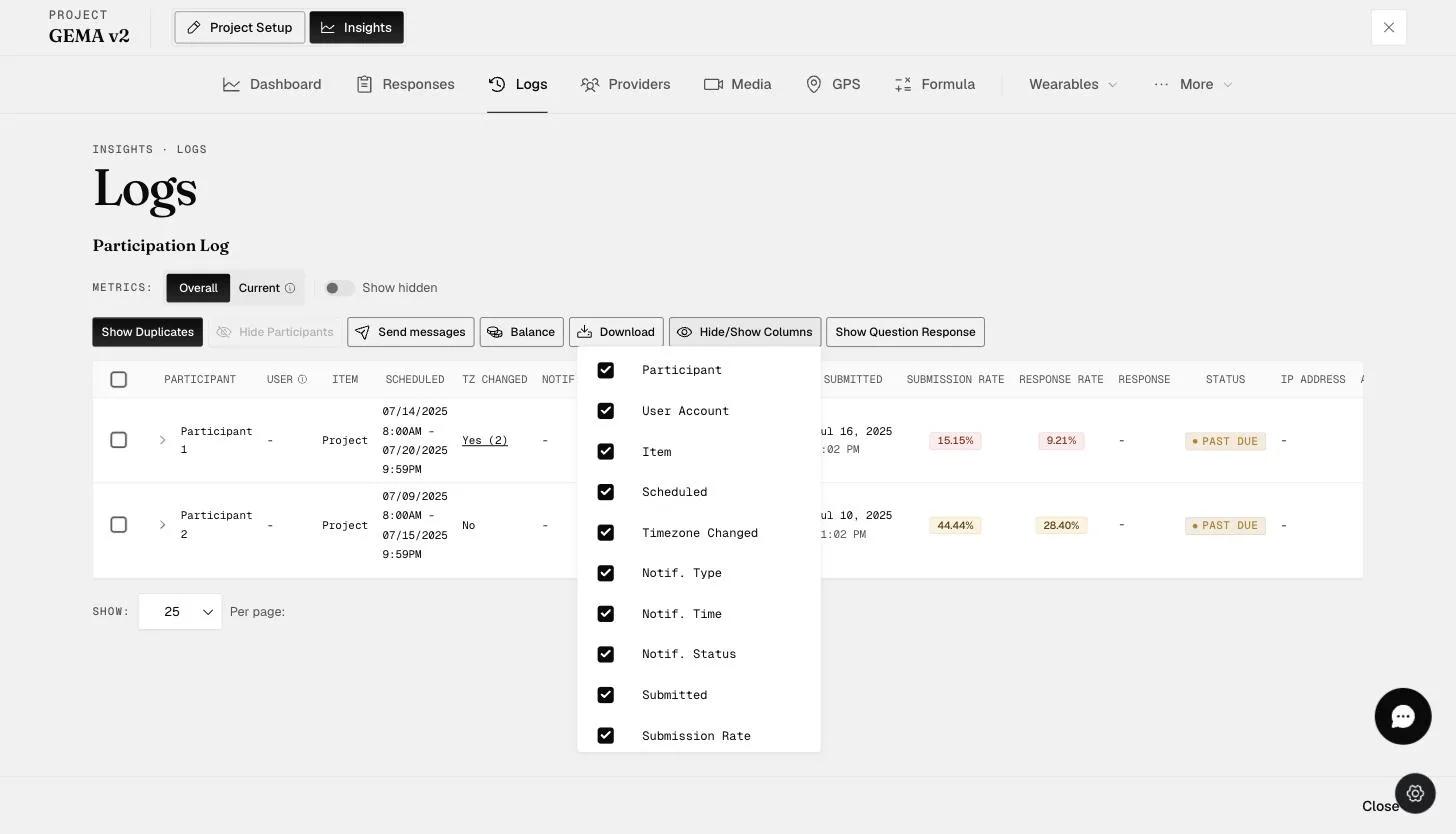
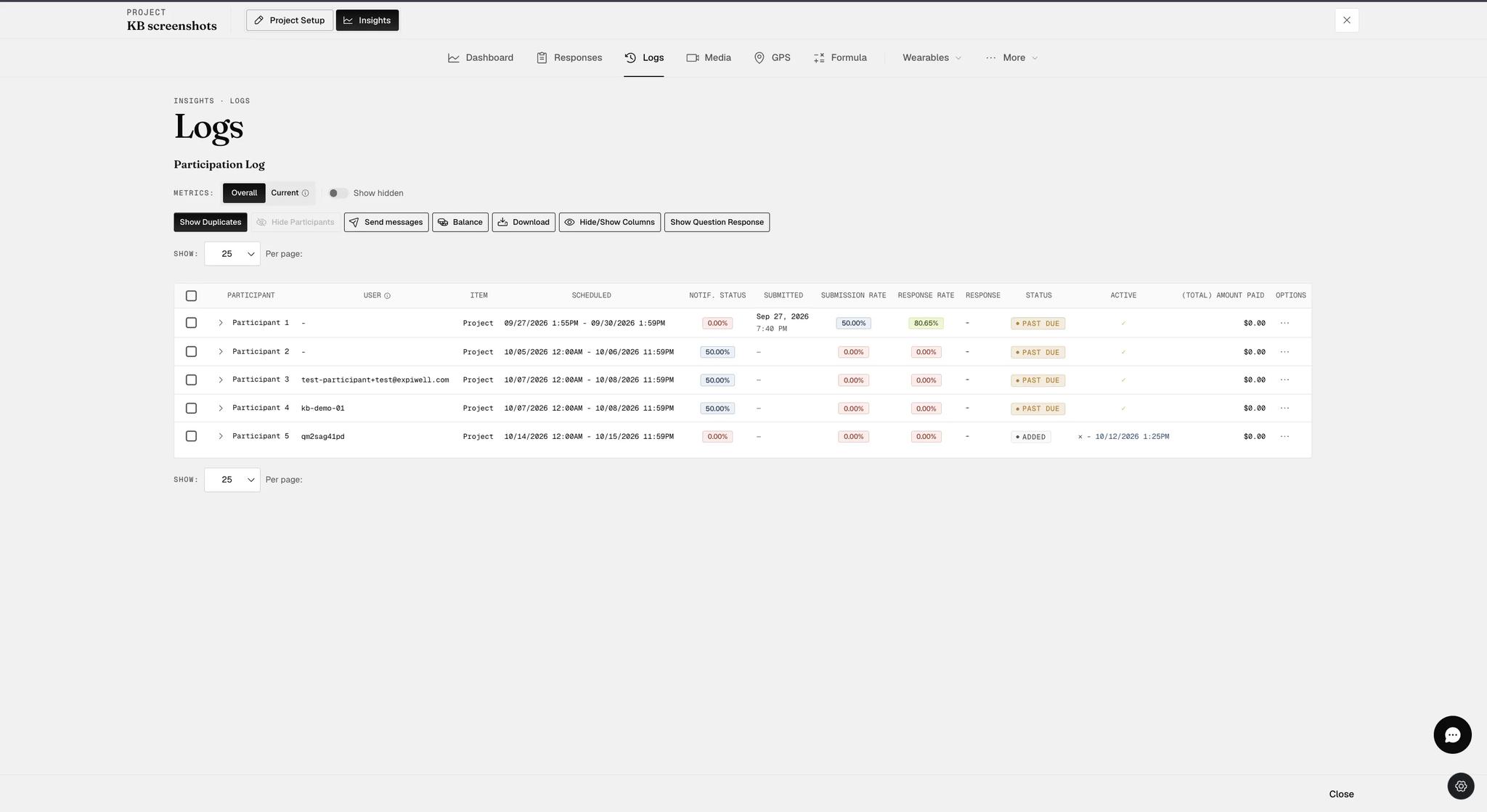
It buys more than width. With the notification and time-zone columns gone, each participant fits on one line rather than wrapping over three, so a cohort you were scrolling through becomes a list you can read at a glance.
Show Question Response
You can pull one survey question's answers into the table as a column. Click Show Question Response and pick the question.
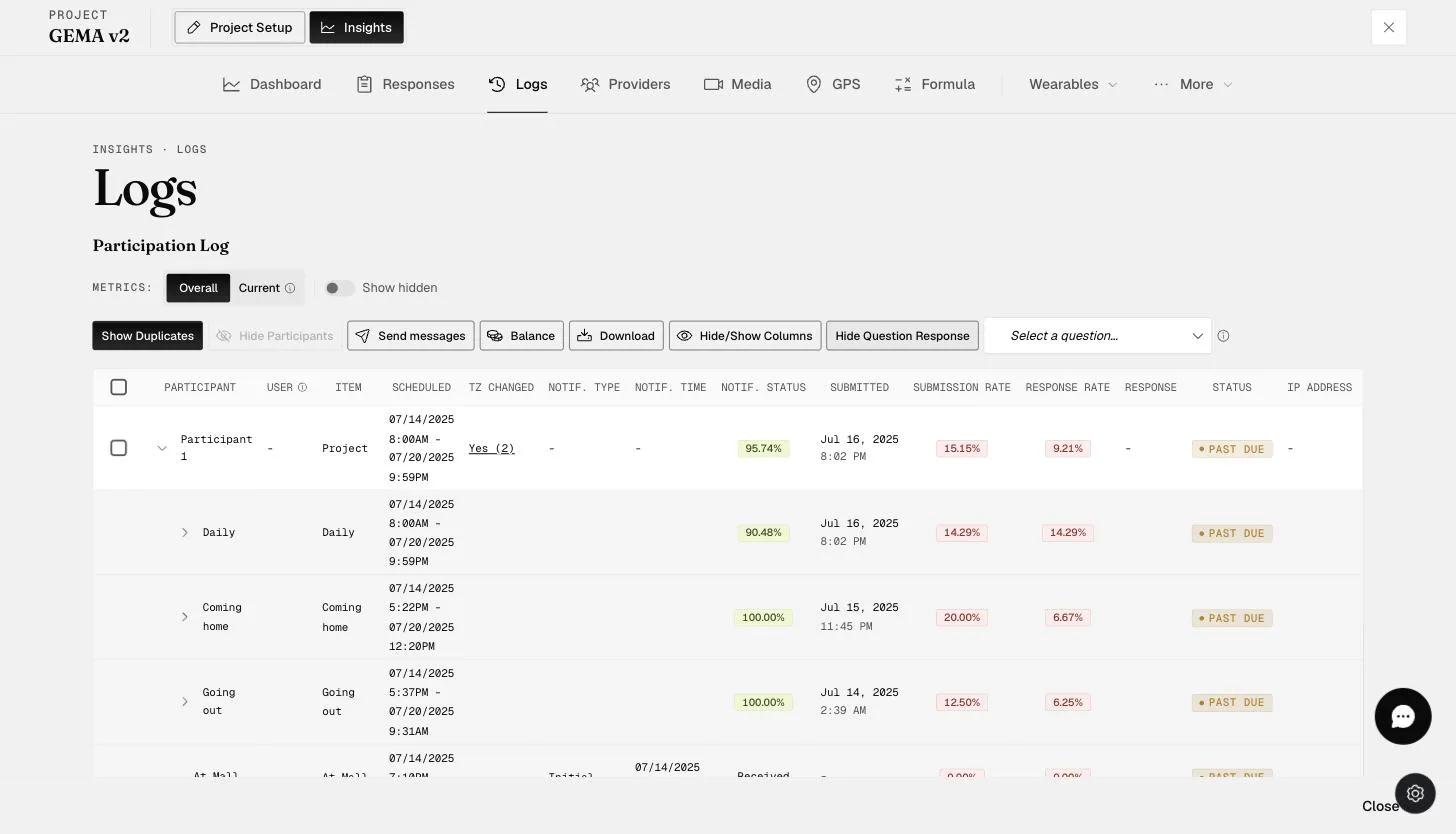
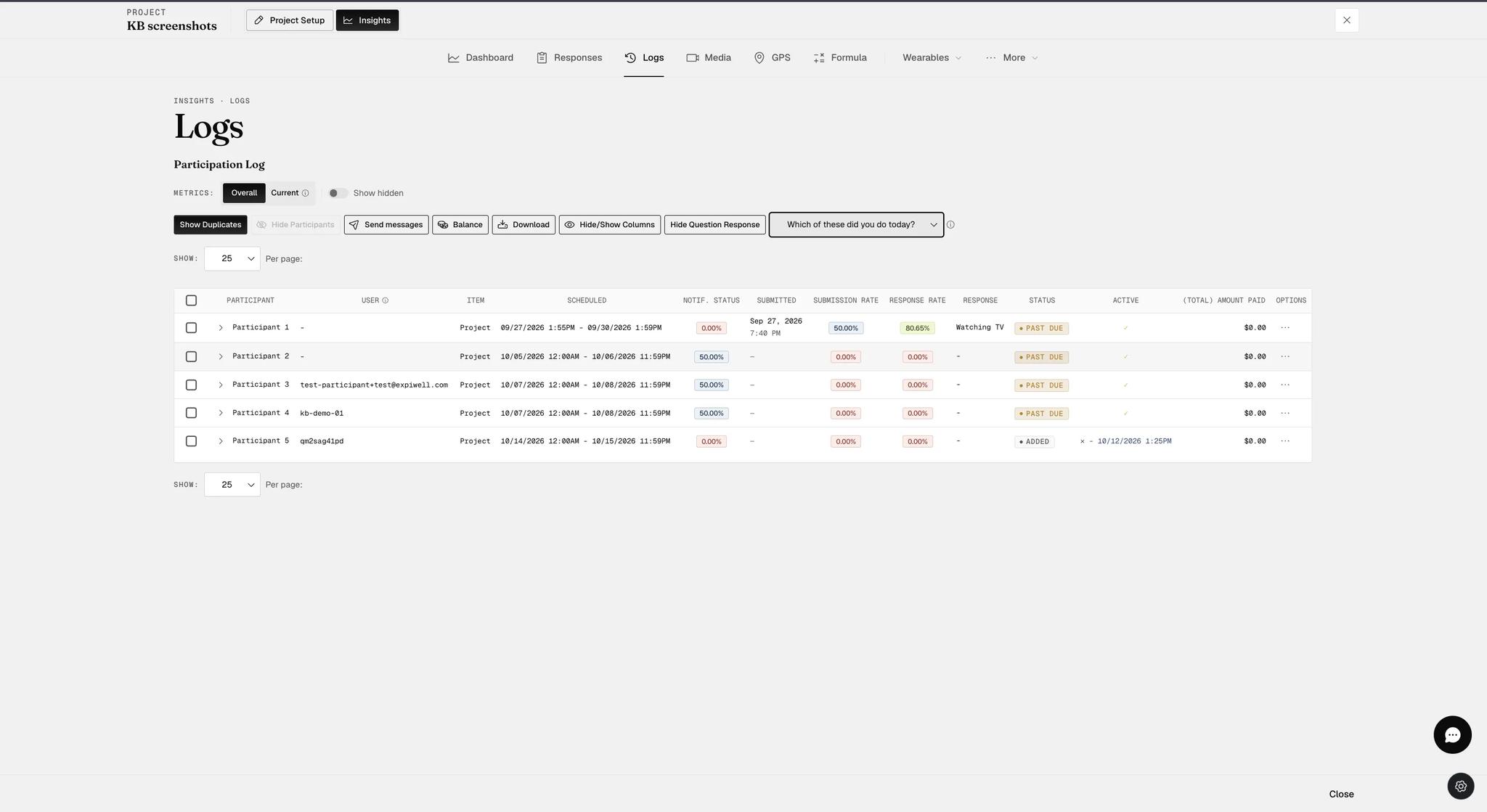
A dash means that participant has not answered that question, which is not the same as not responding at all — read it next to their response rate.
This is worth doing in two situations:
- To identify someone. If a survey asks for an email or an ID, showing that question tells you which invitee a row belongs to.
- To watch a critical answer without opening the response export.
Where a survey ran several times, a gray icon in the Response column opens all of that participant's answers to it.
Three question types stay blank whatever you pick: Instruction, Media and Grid.
Getting data out
Download
Download exports the log as CSV — submission and response rates, notifications, payments. The dialog asks two things.
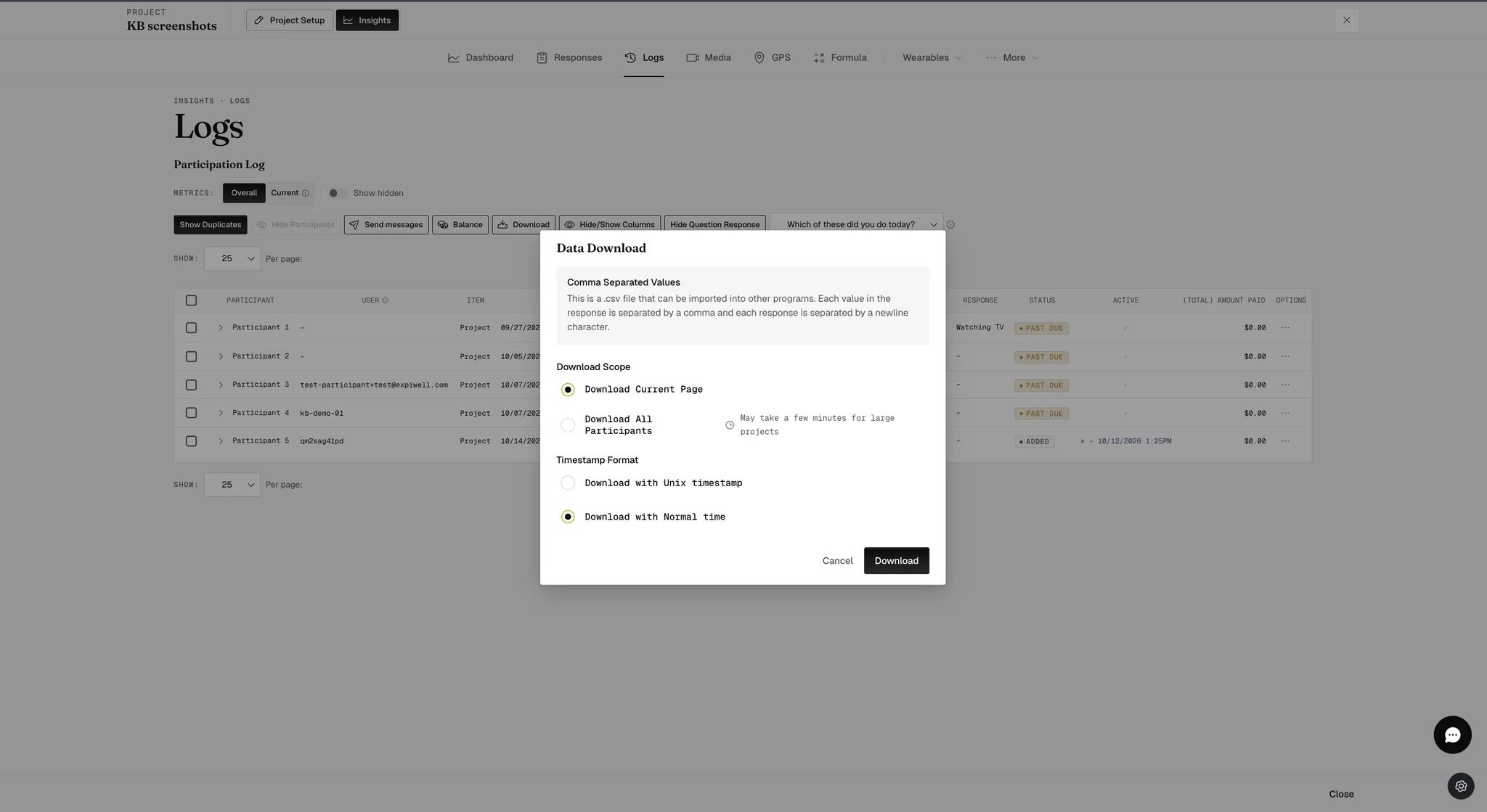
Download Scope defaults to the current page, not the whole study. With 25 rows per page and 200 participants, clicking straight through gives you 25 of them and no warning that the rest are missing. Choose Download All Participants unless you genuinely want what is on screen — it warns it may take a few minutes on a large project, which is the clue that it is doing the real export.
Timestamp Format is the second choice: Normal time, the default, or Unix timestamp. See UNIX timestamps if you are deciding between them.
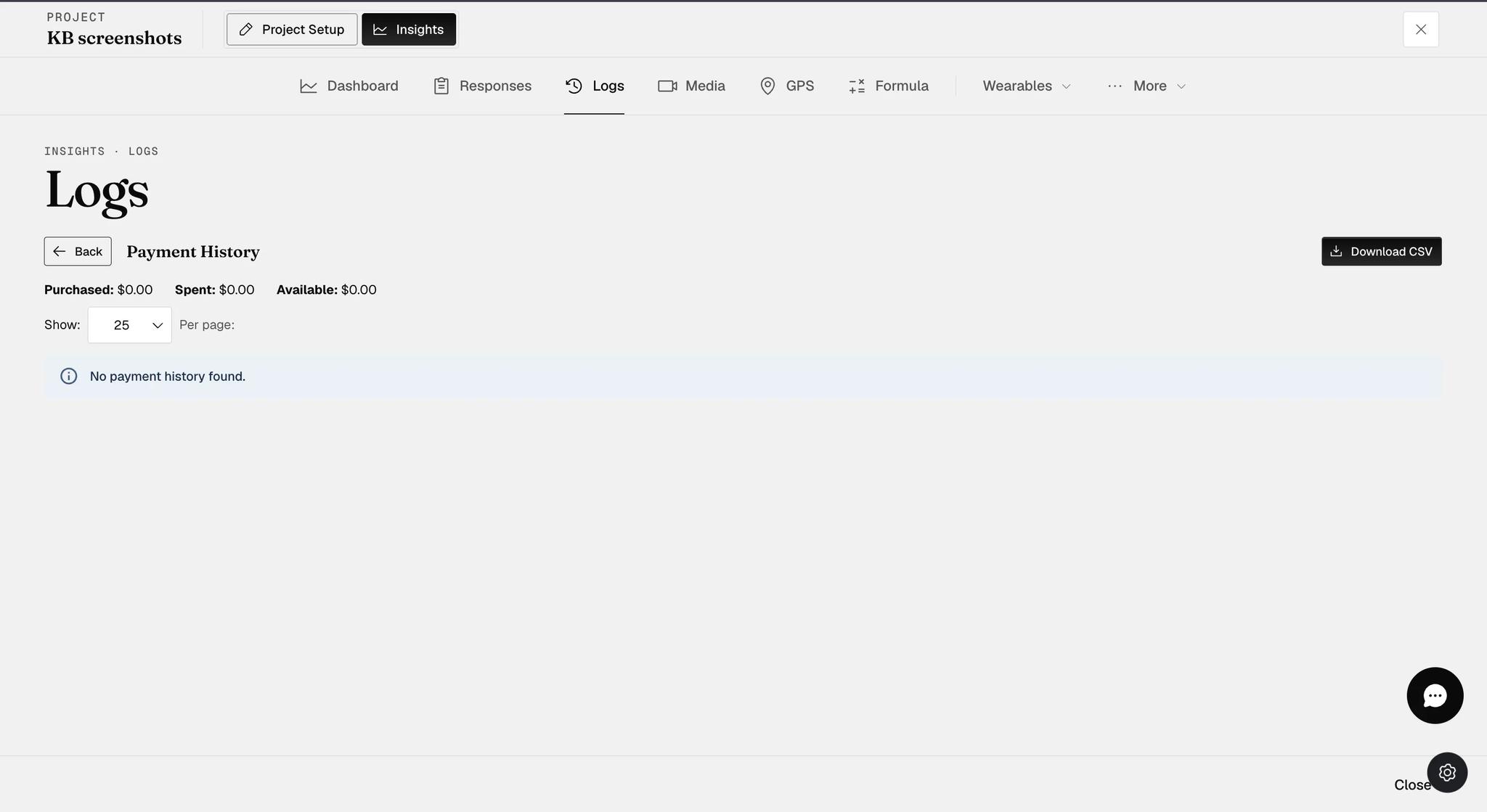
Balance
Balance swaps the table for a Payment History view — Back returns you to the log. It gives three figures and the record behind them:
- Purchased — funds added to the account
- Spent — what has gone out to participants
- Available — what is left to pay with
Download CSV exports the history separately from the participation log.
Two groups that behave differently
'Take One-Off Experience' participants
Anonymous one-off respondents do not appear in Logs at all. Their answers are in the CSV from the Insights Responses tab, with IP address, time zone, and survey start and finish times.
Screener participants
Only participants who pass the screener appear in Logs. Everyone who attempted it, including those who failed, is in the response file for the screener survey itself.
So the first row in Logs is not necessarily Participant 1 — if Participant 1 failed the screener, the list starts at Participant 2.
A screener also affects your participant limit: everyone who attempts it counts toward the cap, including those who fail. See Sending surveys to participants.