Calendar schedule
How a Calendar Schedule Works
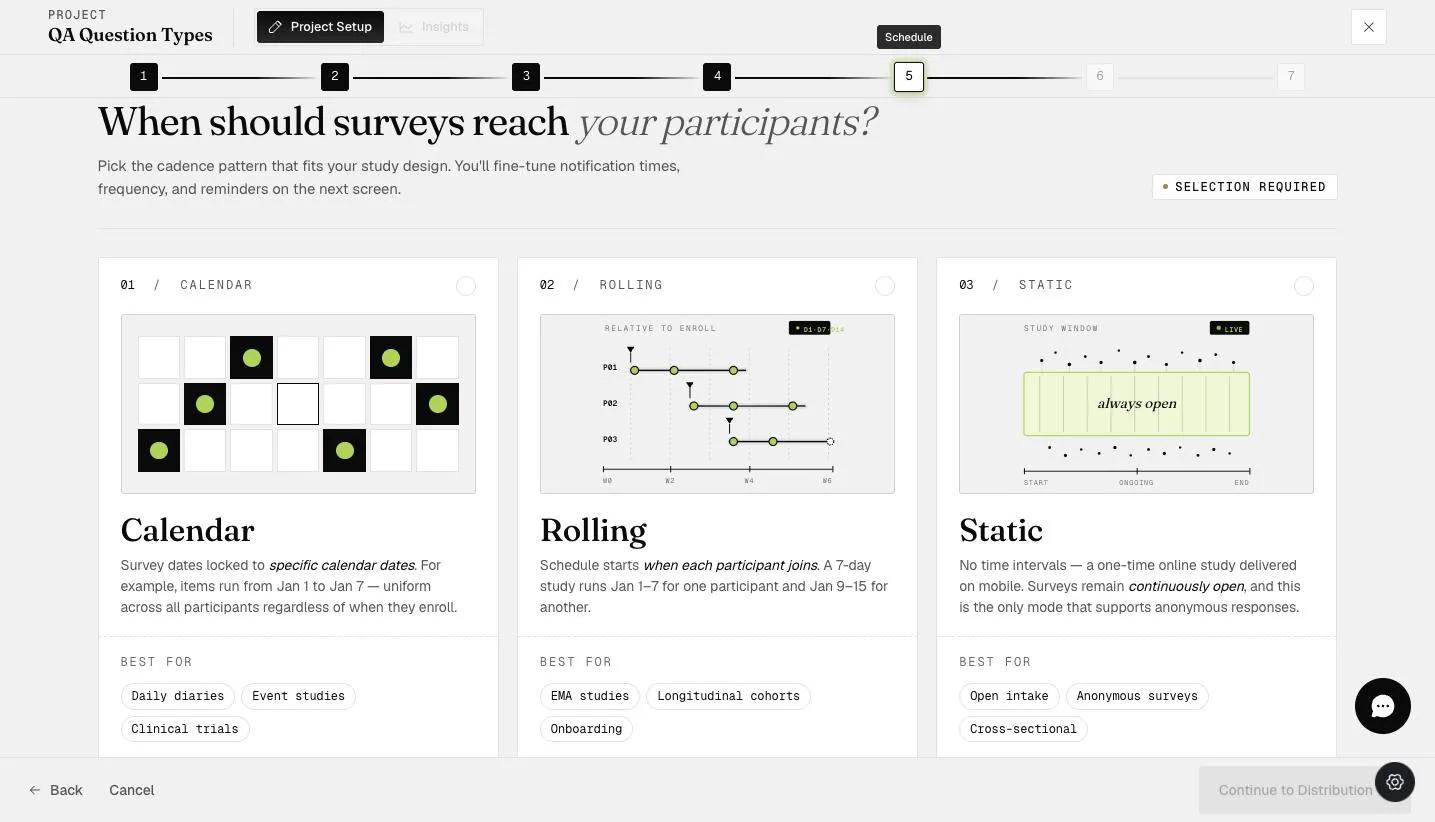
A calendar schedule pins your surveys to specific dates. Everyone is surveyed on the same days, whenever they happen to enrol — so it is the right choice when the date itself matters to the study, and the wrong one when you want each participant measured for the same length of time from their own start. For that, see Rolling schedule.
Placing Surveys on the Calendar
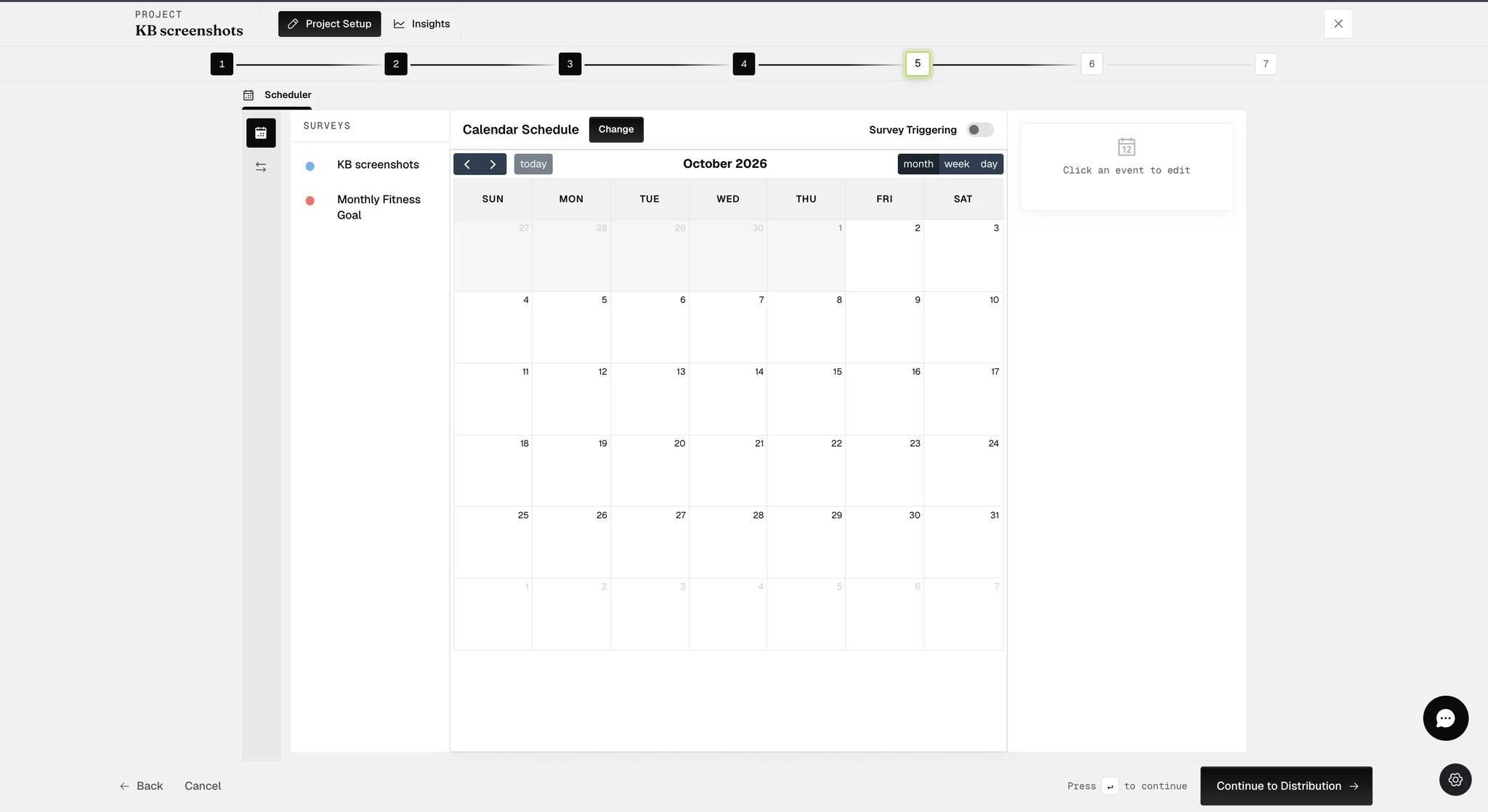
Choosing Calendar opens a month grid, with your surveys listed down the left. Click a survey to pick it up, then click the date you want it on. Use month, week and day at the top right to change the view, and today to jump back to the current date.
Setting a Survey's Start and End
Click a survey you have placed on the calendar and its panel opens on the right, with a Start Date & Time and an End Date & Time. Each carries a month, a day, a year and a time, so a window can run from any moment to any other.
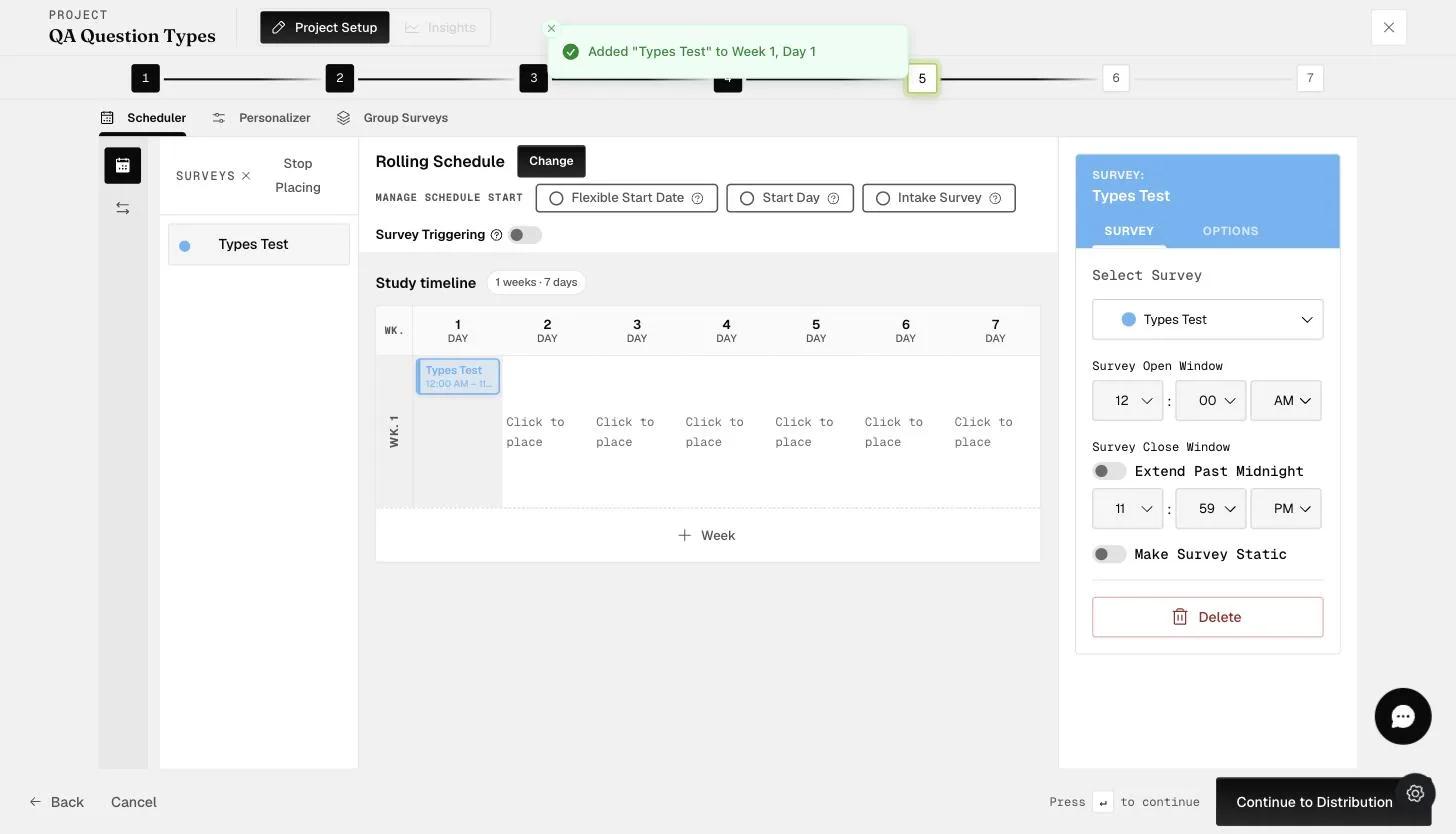
The example below runs from 12:00 AM to 11:59 PM on one day. A notification goes out at the start time telling participants the survey is available, and it stays open until the end time — after that they can no longer take it.
Static Surveys
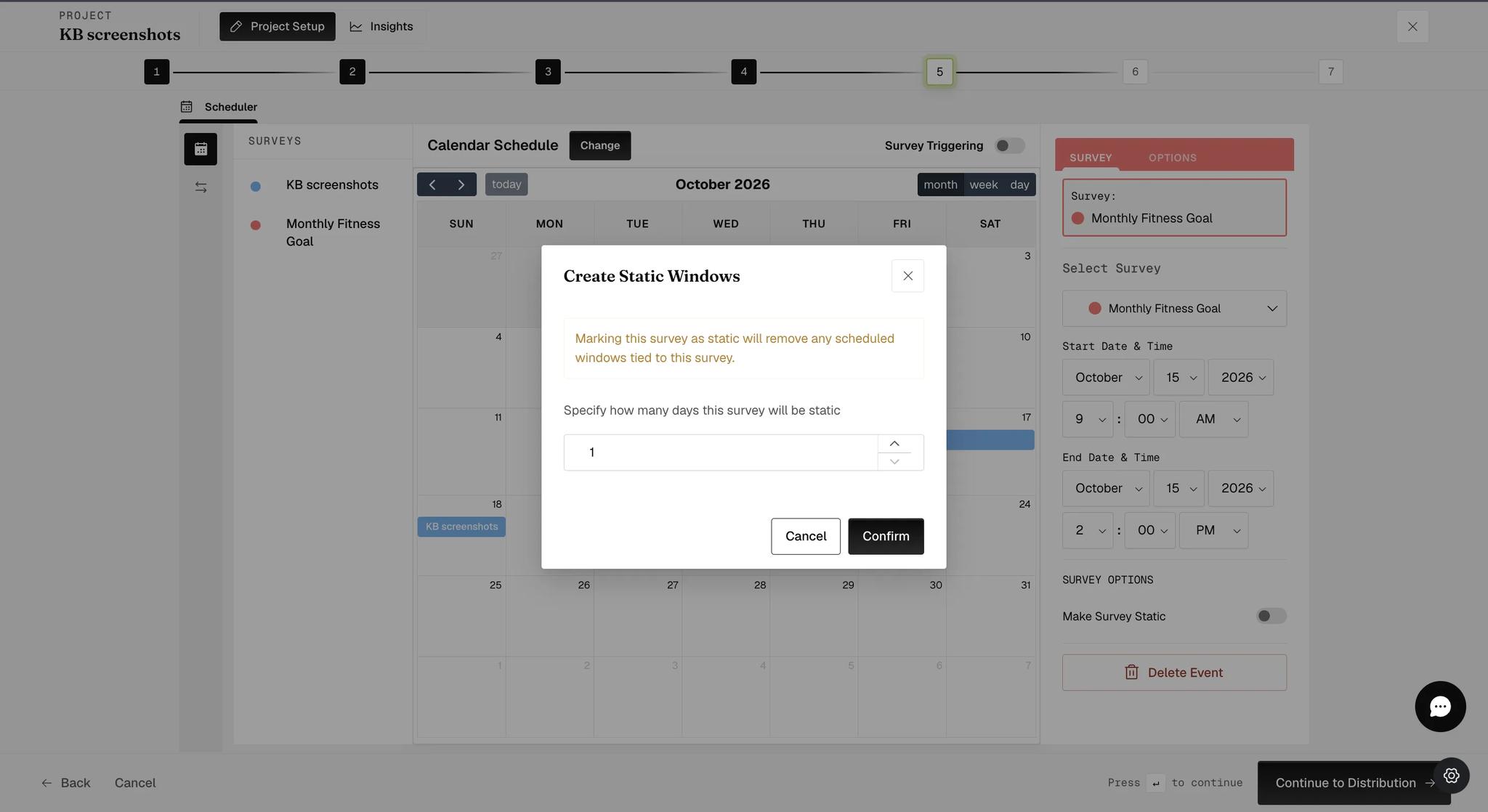
To make a survey static, place it on the first date you want it available, click it, and switch on Make Survey Static in its panel. A Create Static Windows dialog opens and asks how many days it should stay static.
Turning this on removes any scheduled windows already tied to that survey — the dialog warns you before it does. Set a survey static before you build its schedule, not after.
Once it is static, the two date fields are relabelled Survey Open Window and Survey Close Window, and a Submission Frequency setting appears beneath the toggle offering One Time or Multiple. One Time suits a survey asked once — a demographic questionnaire, say. Multiple suits one a participant returns to whenever something happens, such as straight after a conversation they are reporting on.
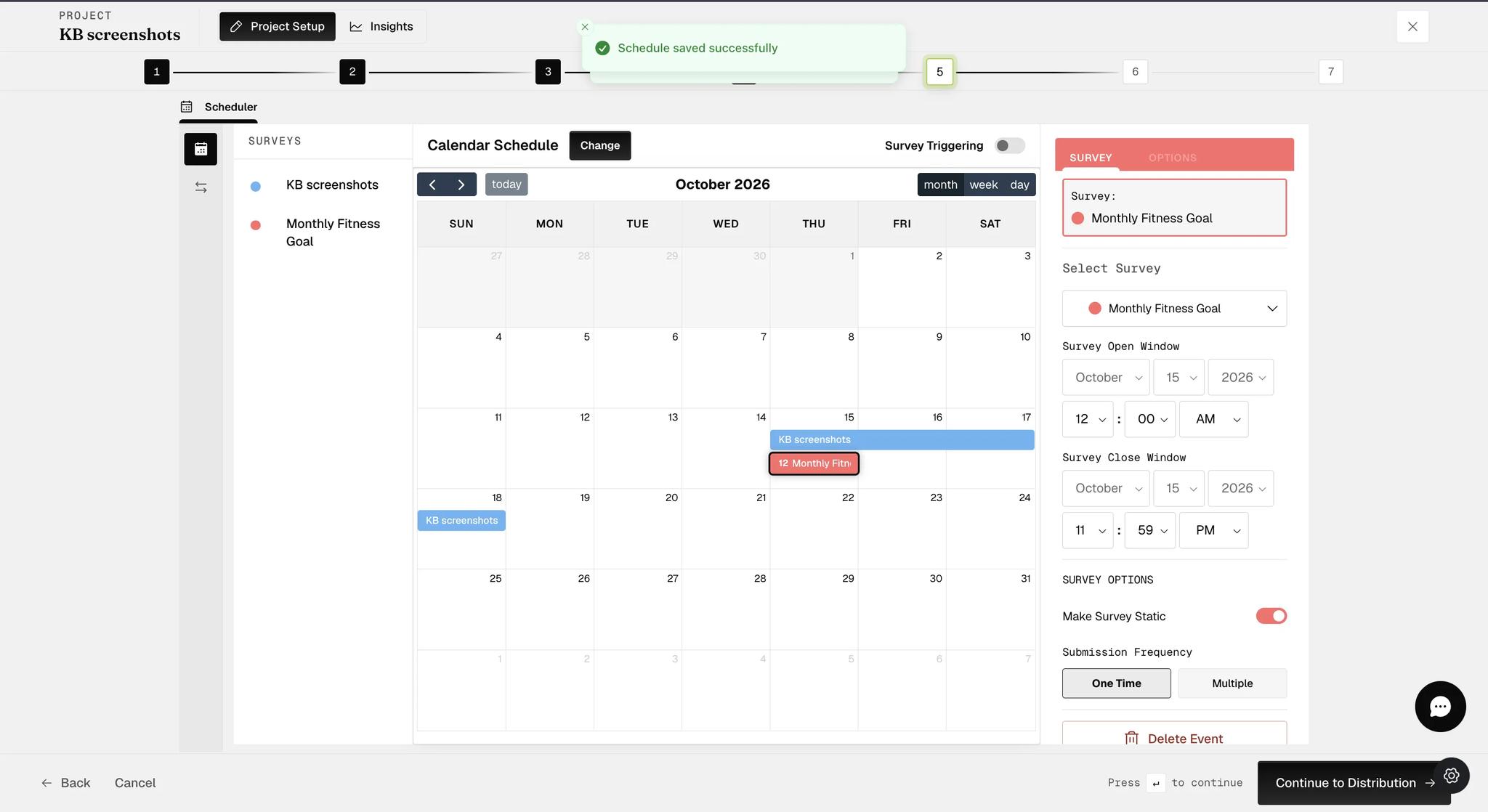
Choosing Multiple opens a further question — How many times a day? — with Once and Multiple beneath it. So a static survey can be answered once in total, once a day, or as often as the participant likes each day.
Single Survey Extended over Days
To leave one survey open across several days, place it on the first day you want it available and then set its End Date & Time to a later date. Nothing else changes — the start and end are simply further apart.
In the example below the window runs from 15 October to 18 October. The survey shows on the calendar across those days, and a participant can answer it at any point in that span — but only once in total, not once a day.
Multiple Surveys Repeated within a Day
To ask the same survey more than once in a day, place it on that date again. Give each copy its own Start and End times so the windows do not overlap.
When a date holds more than the grid can show, the calendar adds a +n more link. Click the date to see everything scheduled on it.
If two windows for the same survey clash, ExpiWell blocks the save and says so — "Highlighted windows of the same survey have the same time or overlap. Please adjust to save changes." The example below is in exactly that state; move one of the windows and it saves.
Multiple Submissions for Scheduled Survey
Click a placed survey and open the OPTIONS tab — the second tab in the right-hand panel, pictured in the next section — then switch on Multiple Submissions.
If that survey is part of a repeated series, ExpiWell asks how far the change should reach — Only this event, This and all following, or All events in series.
The OPTIONS tab is disabled on a static survey. A static window has no scheduled sessions, so there are no notifications, submissions or repeats to configure. Switch Make Survey Static off if you need these settings.
Regular Notification Settings
Every survey window carries its own settings on the OPTIONS tab, beside SURVEY in the right-hand panel. Notification Time at the top reports when the first notification will go out.
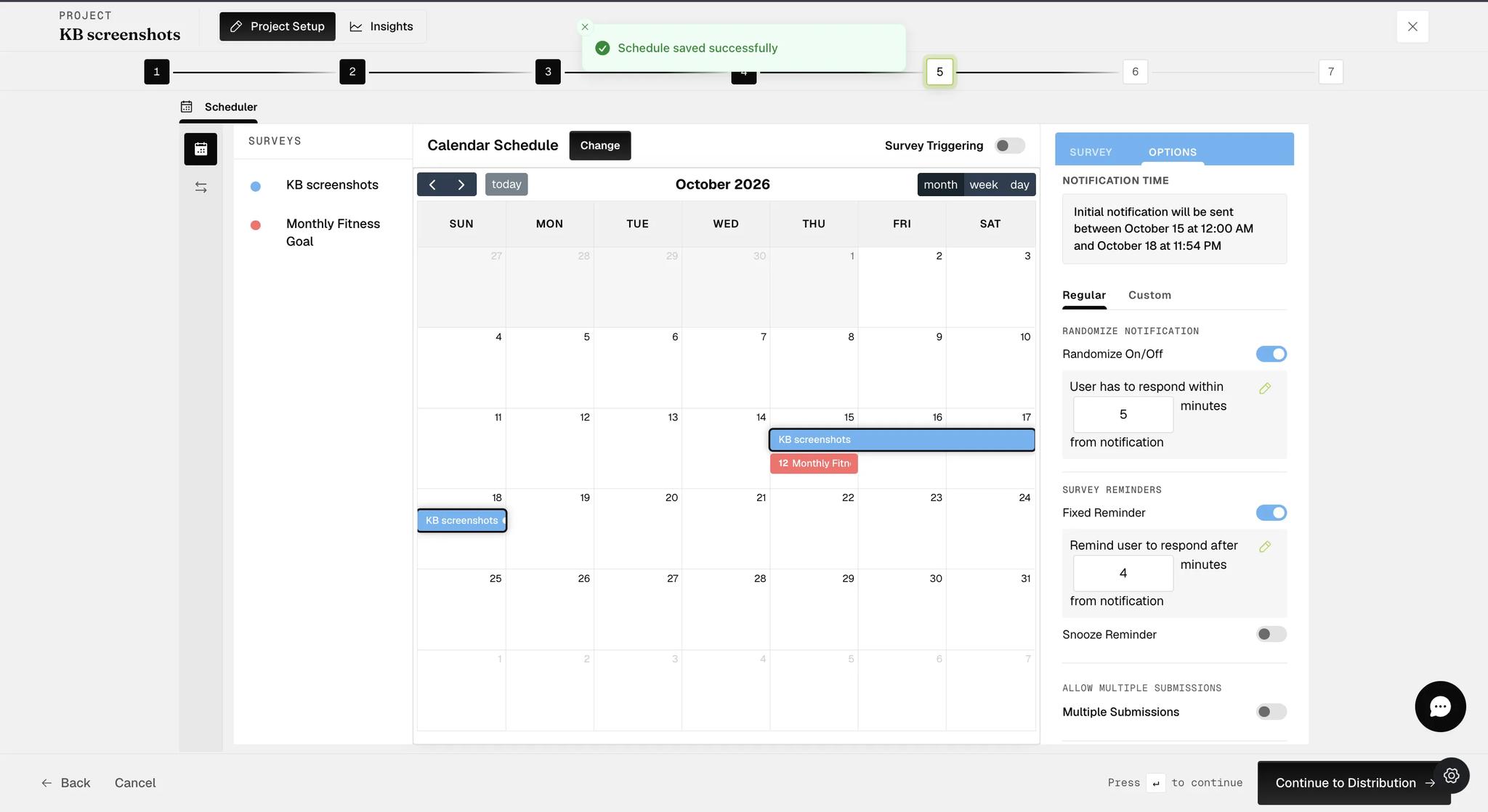
By default the notification goes out the moment the window opens, and that is the only one a participant gets. Two settings change that: one moves when it arrives, the other adds more.
Randomize Notification
Switching this on does three things:
-
The notification fires at a random point inside the window, randomised separately for each participant.
-
A "User has to respond within n minutes from notification" field appears, set to 5 by default. The survey closes that many minutes after the notification arrives, however much of the window is left.
-
The notification is held back far enough from the end of the window that the full response time still fits. A window closing at 11:59 PM with a 5-minute response time will not notify anyone after 11:54.
Survey Reminders
Fixed Reminder sends one extra reminder if the participant has not responded — "Remind user to respond after n minutes from notification".
Snooze Reminder behaves like an alarm clock instead: the participant can push the prompt back and be reminded again.
These two are alternatives, not additions. Switching Snooze on turns Fixed Reminder off, and setting a Fixed Reminder turns Snooze off — silently, with no warning. Pick the one your study needs.
These settings constrain each other, and ExpiWell will not save a combination that cannot work. A reminder has to arrive before the response window closes, so the reminder time must be less than the randomize time — switch Fixed Reminder on and it arrives already set just inside that window, starting at 4 minutes against a randomize time of 5. Neither value may be longer than the survey window itself, and snooze reminders need a window longer than 5 minutes, since there is nothing to snooze into on a shorter one.
Custom Notification Settings
The Custom tab is not available on every plan. Where a subscription does not include custom notifications the tab is not shown at all, and only Regular settings appear.
Customize Notifications replaces the regular reminder settings with your own: a custom message sent at timings you choose within the survey window.
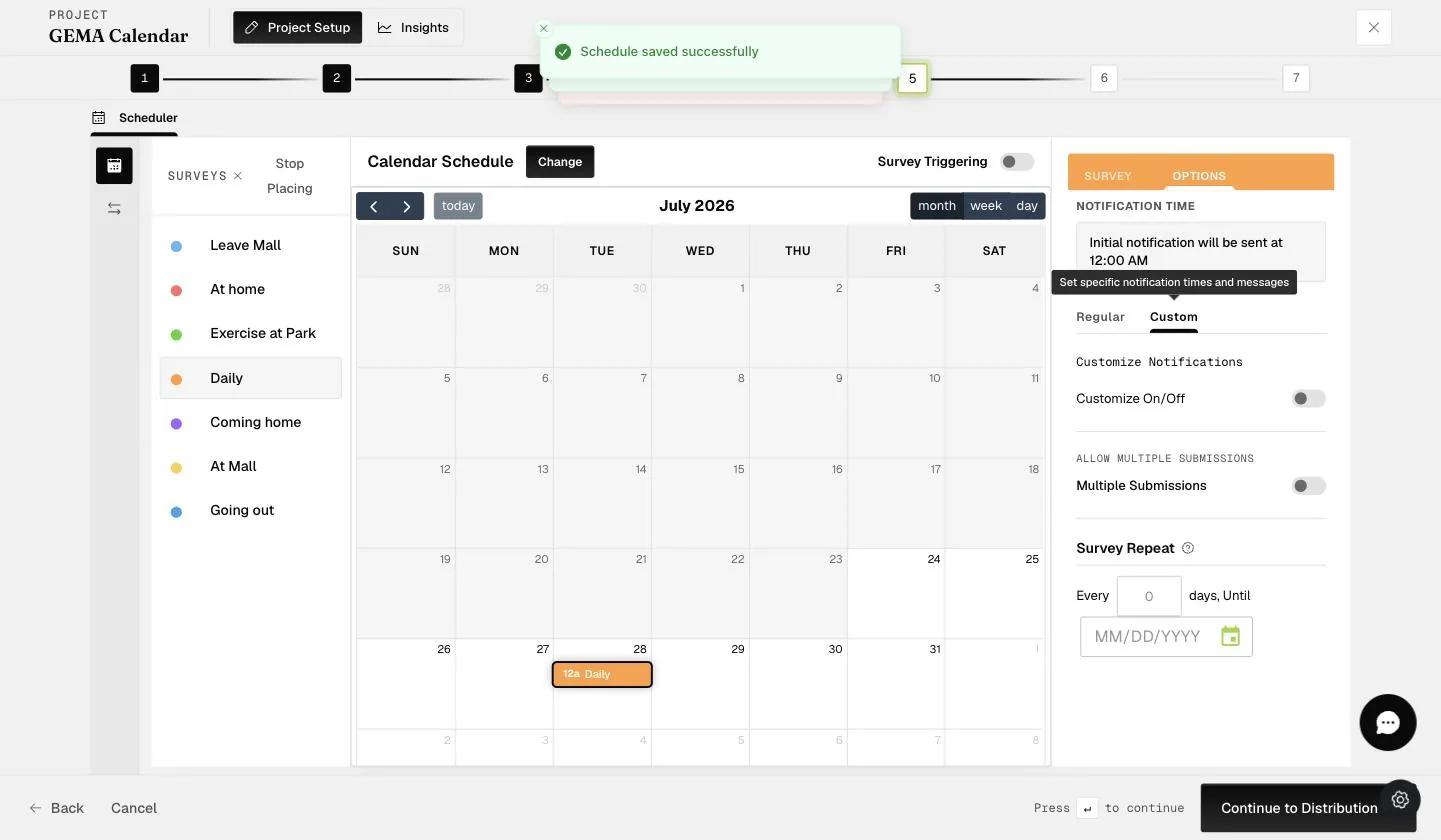
Regular and Custom are alternatives rather than additions — they are two tabs of one setting, so turning one on turns the other off.
Survey Repeat
Survey Repeat, at the bottom of the OPTIONS tab, recurs a survey across days. Enter how often it should repeat, pick the date it should run Until, then click Apply.
This is where a calendar schedule differs from a rolling one: a calendar repeat ends on a fixed date you choose, while a rolling repeat runs for a number of additional days counted from each participant's own start.
To repeat a survey more than once on the same day, place it on that date again instead — Survey Repeat spreads a survey across days, not within one.
For further inquiries, please reach out to help@expiwell.com