建设中

你的这次采样正好赶上我们施工。

这些指南面向新版 ExpiWell 平台(v2),仍在撰写、校对和调整中——请谅解眼前的脚手架:页面可能在两次访问之间移动或更改。仍在使用旧版应用?其文档仍保留在旧的支持门户上。

打开旧版支持门户
知识库  /  来自 ExpiWell 团队

我们能帮你什么?

覆盖研究每一步的指南——从第一个项目到最终的数据导出。ExpiWell 知识库,服务于研究者网页平台与参与者移动应用。

29 个类别下共 101 篇指南 · 由 ExpiWell 团队维护更新
Help CenterMobile appExperiences

Project overview

Mobile app · Experiences
Updated 2026年10月2日

The project overview shows a study's schedule as a calendar, with the surveys you can take listed below it.

Opening the project overview

On the Current tab, tap a study's card.
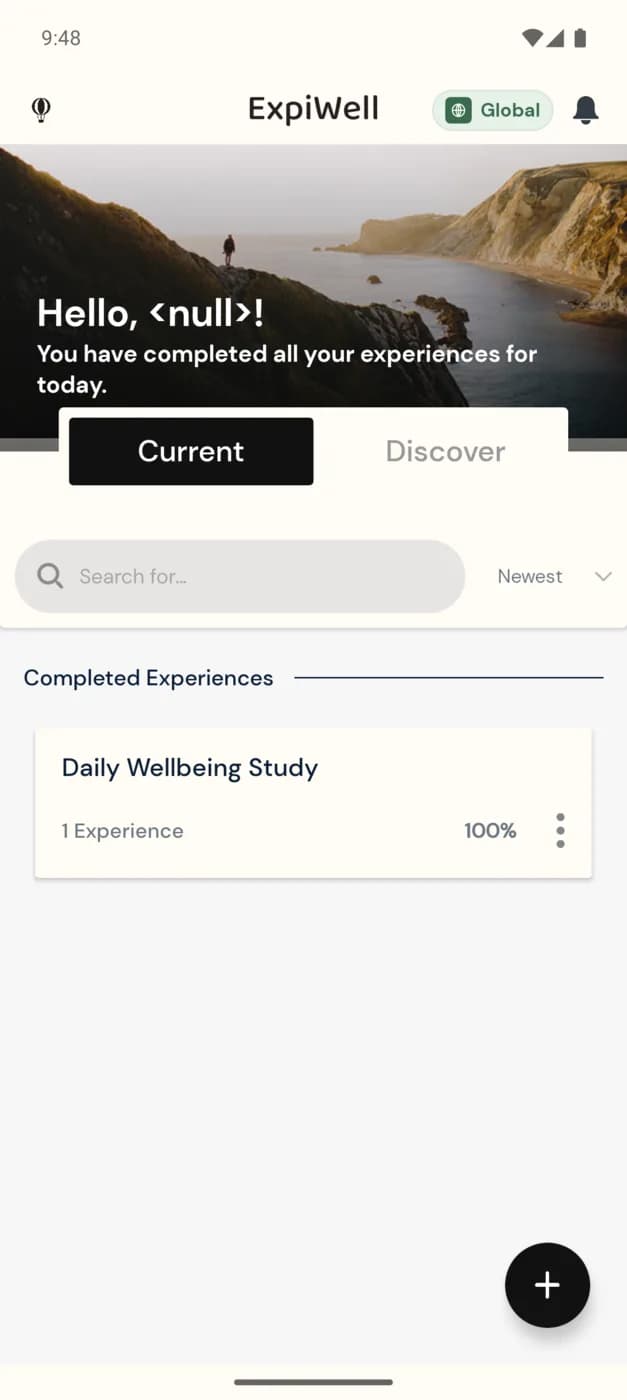
The Current tab of the ExpiWell app with one study card under Completed Experiences: Mood Survey, 1 Experience, Static Schedule, 100%, and a three-dot options icon

The calendar

A dot under a date marks a day that has a survey. Tap a date to see its surveys below the calendar. A survey you can take now is marked Available: tap it, then tap Start.
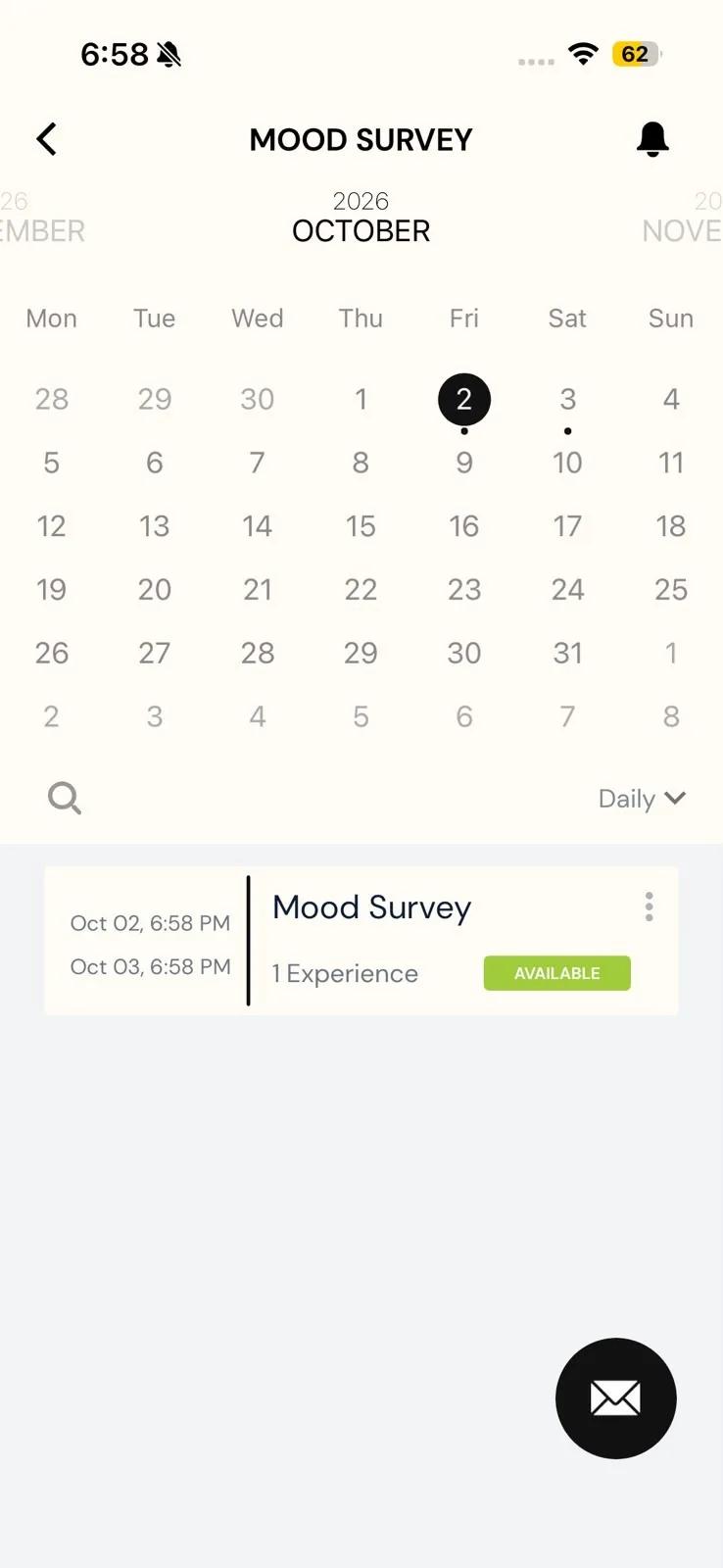
The Mood Survey overview in the Daily view: an October calendar with today circled and dots under the 2nd and 3rd, and a survey row with its window from Oct 02 to Oct 03 and an Available badge

Switching views

On iPhone, tap the view menu beside the search icon (it shows Daily by default) and choose Daily, All Experiences or Modules.

On Android, there's no menu. Each tap on the view button moves to the next view: Daily, then All Experiences, then Modules. A study with no end date opens on All Experiences and switches only between All Experiences and Modules.
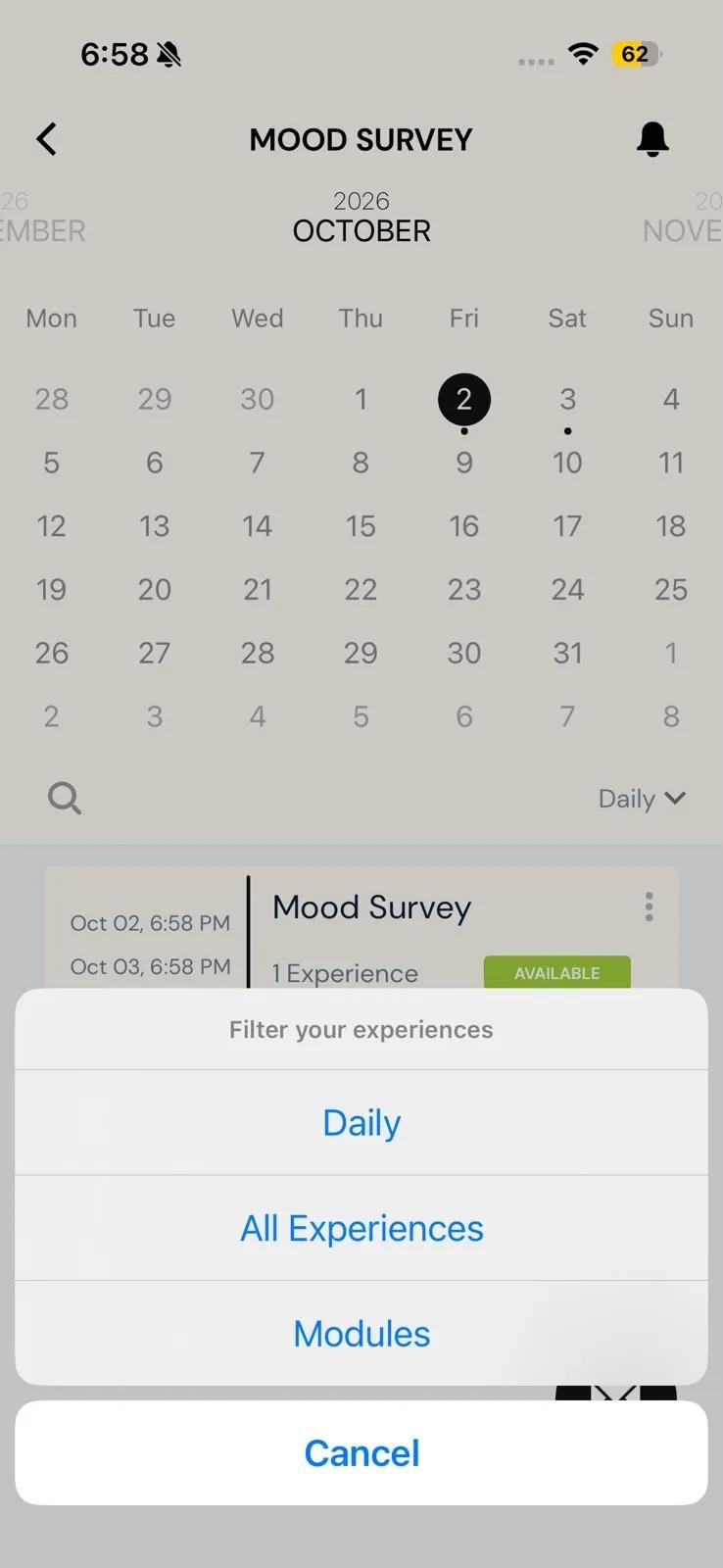
A study's overview with the Filter your experiences menu open, offering Daily, All Experiences and Modules
Was this helpful?
Start today

与 ExpiWell 团队的真人交流。

还没解决?我们的研究者团队既解答技术问题,也解答研究设计问题。