Organize projects with folders
The projects dashboard keeps studies organized with folders and sub-folders — a lab can group projects by study line, grant, or team member, instead of scanning one long list. Projects that aren't in any folder live in Unfiled, so nothing gets lost.
The folders rail
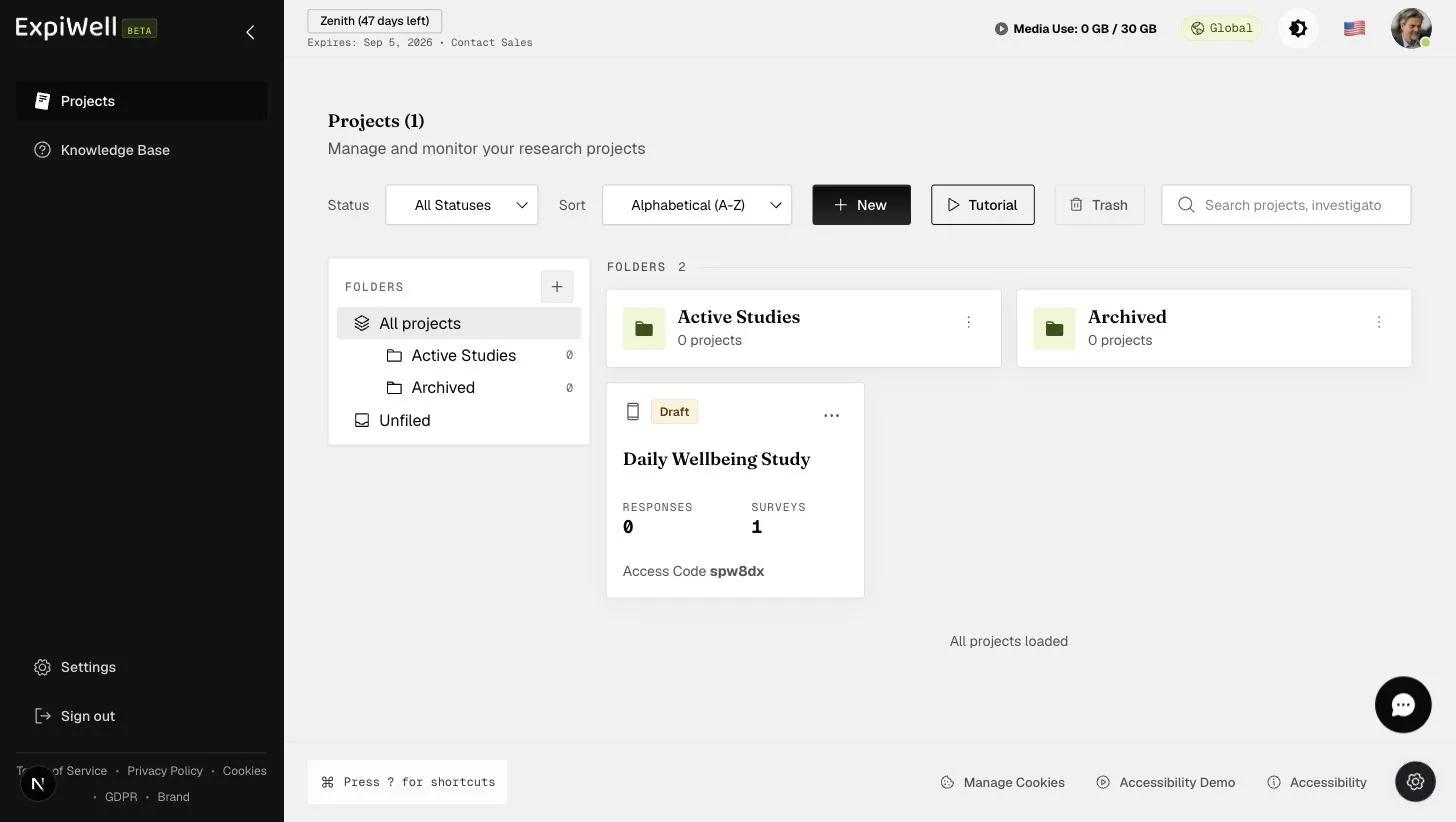
The left rail on the projects dashboard shows your folder tree:
- All projects — everything at once, with folder cards shown first.
- Folders — each folder shows its project count; folders can contain sub-folders (create one with the New sub-folder button inside a folder).
- Unfiled — projects that don't belong to any folder.
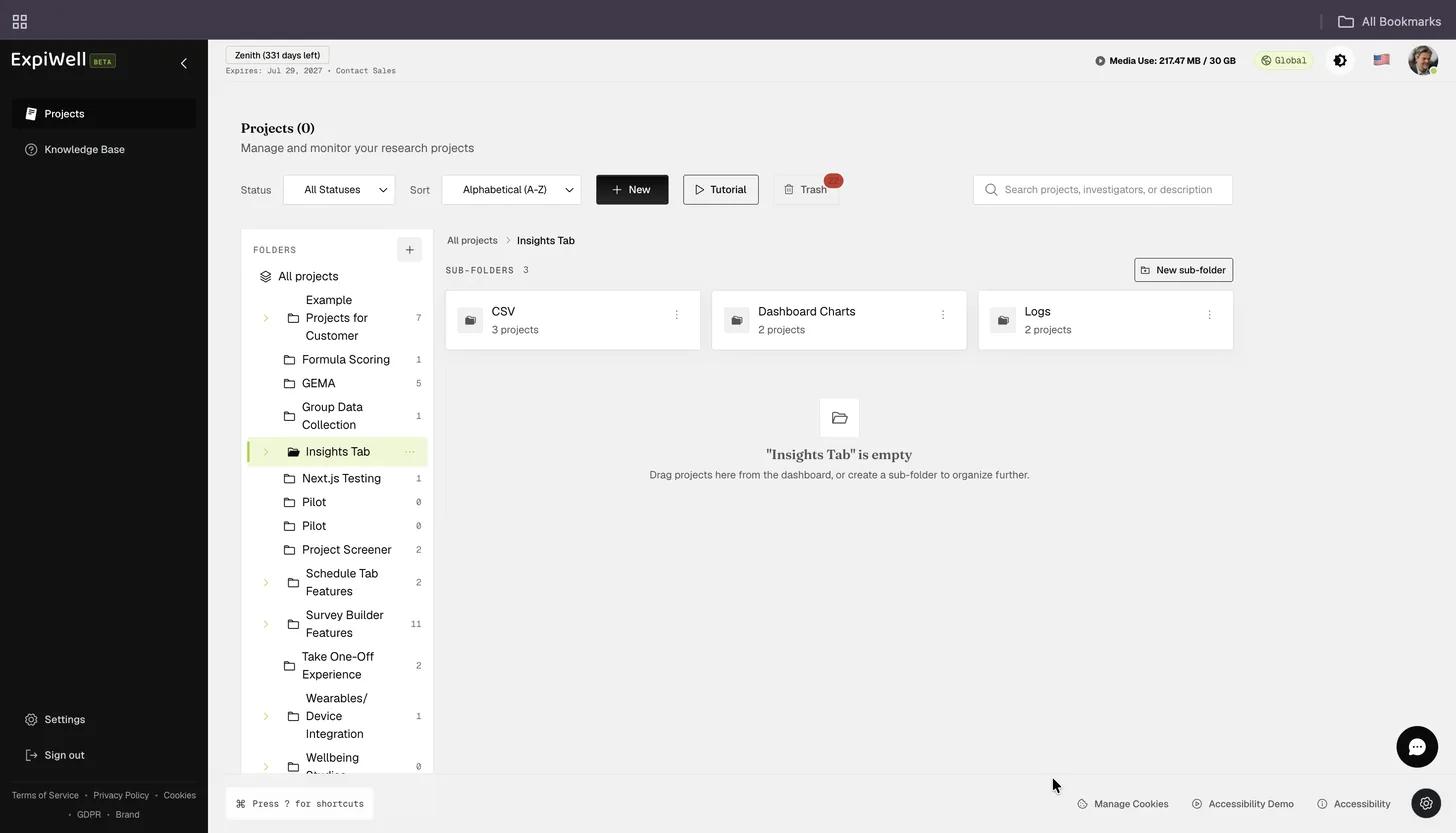
Create a new top-level folder with the + button next to the FOLDERS heading. Opening a folder shows a breadcrumb (e.g. All projects → GEMA Projects) so you always know where you are.
Opening a folder shows its sub-folders first, then the projects filed in it, with a New sub-folder button top right.
Filing a project
A new project starts in Unfiled. To put it in a folder, open the ⋯ (three-dot) menu on its card and choose Move to folder. The product also invites you to drag projects in from the dashboard once a folder is open.
Folders have their own ⋮ (three-dot) menu, with Open, Rename, Add sub-folder, Move folder, and Delete.
Finding projects fast
Above the project grid you can combine:
- Status filter — e.g. show only Draft or Active projects
- Sort — alphabetical and other orders
- Search — searches projects, investigators, and descriptions
- Trash — deleted projects are recoverable from here
Watch it in action
Troubleshooting
If a project seems missing, check Unfiled and the status filter first — a filter set to Active hides Drafts. Deleted projects are in Trash.