Email triggering based on response scoring
This feature enables researchers to automatically send emails to a specific email address based on a formula that calculates the scores of participants' survey responses. This is especially useful for Ecological Momentary Assessment (EMA) and Experience Sampling Method (ESM) projects, where it is necessary to monitor participants’ responses and trigger notifications when their scores meet a specific condition.
Setting up Formula Scoring
First, you'll need to enable scoring for the survey questions you want to monitor.
Formula scoring can only be enabled in single-selection questions, including single-selection questions in a Group or Question Group.
-
In the Build Surveys tab, add a single-selection question with your desired response choices.
-
Open the question and switch on Formula Score, at the bottom of its settings.
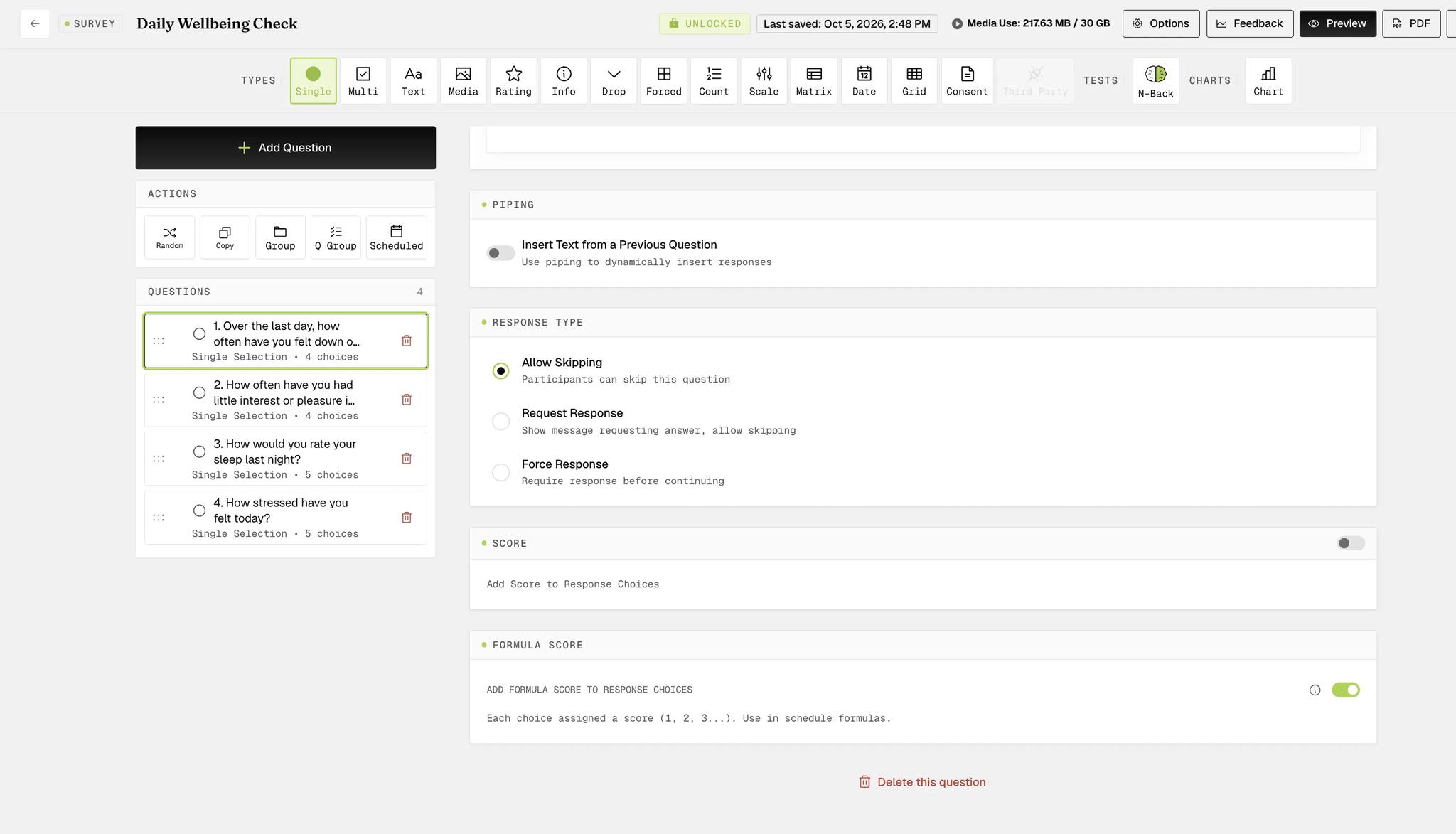
Score and Formula Score are two different switches, one above the other, and only the second one does anything here. Formula Score describes itself as assigning each choice a score to "use in schedule formulas"; Score is a separate feature. Turning on the wrong one leaves the question absent from the formula builder with no error to explain why.
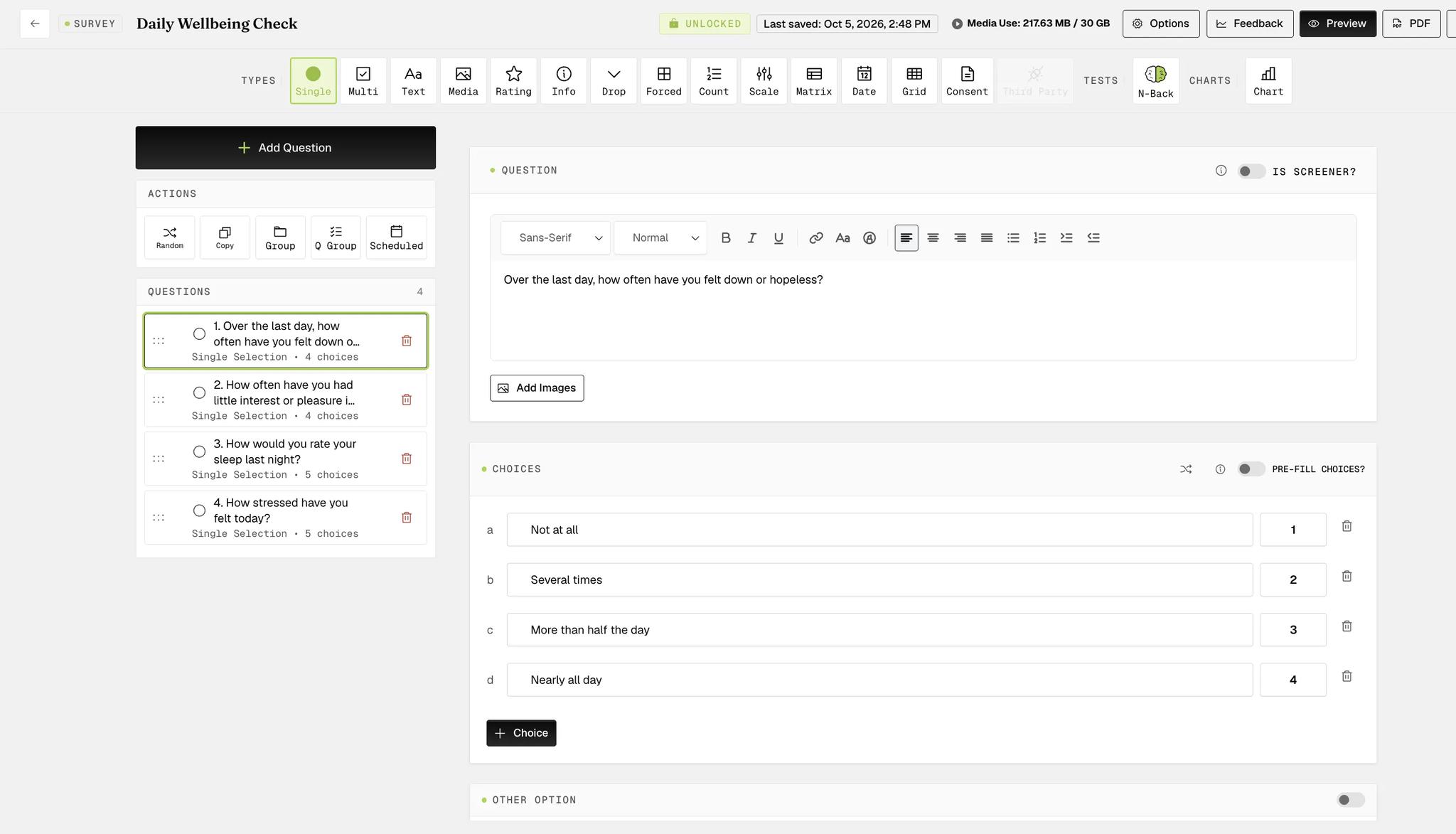
- ExpiWell assigns each response choice a score automatically — 1, 2, 3 and so on, down the list. Each sits in an editable field beside its choice, so you can change any of them.
Formula scores are not carried into the response data files. They exist to drive triggers, not to be exported with the answers.
Setting Up Formulas for Email Triggering
Once you've scheduled your surveys, you can set up the formulas to trigger emails.
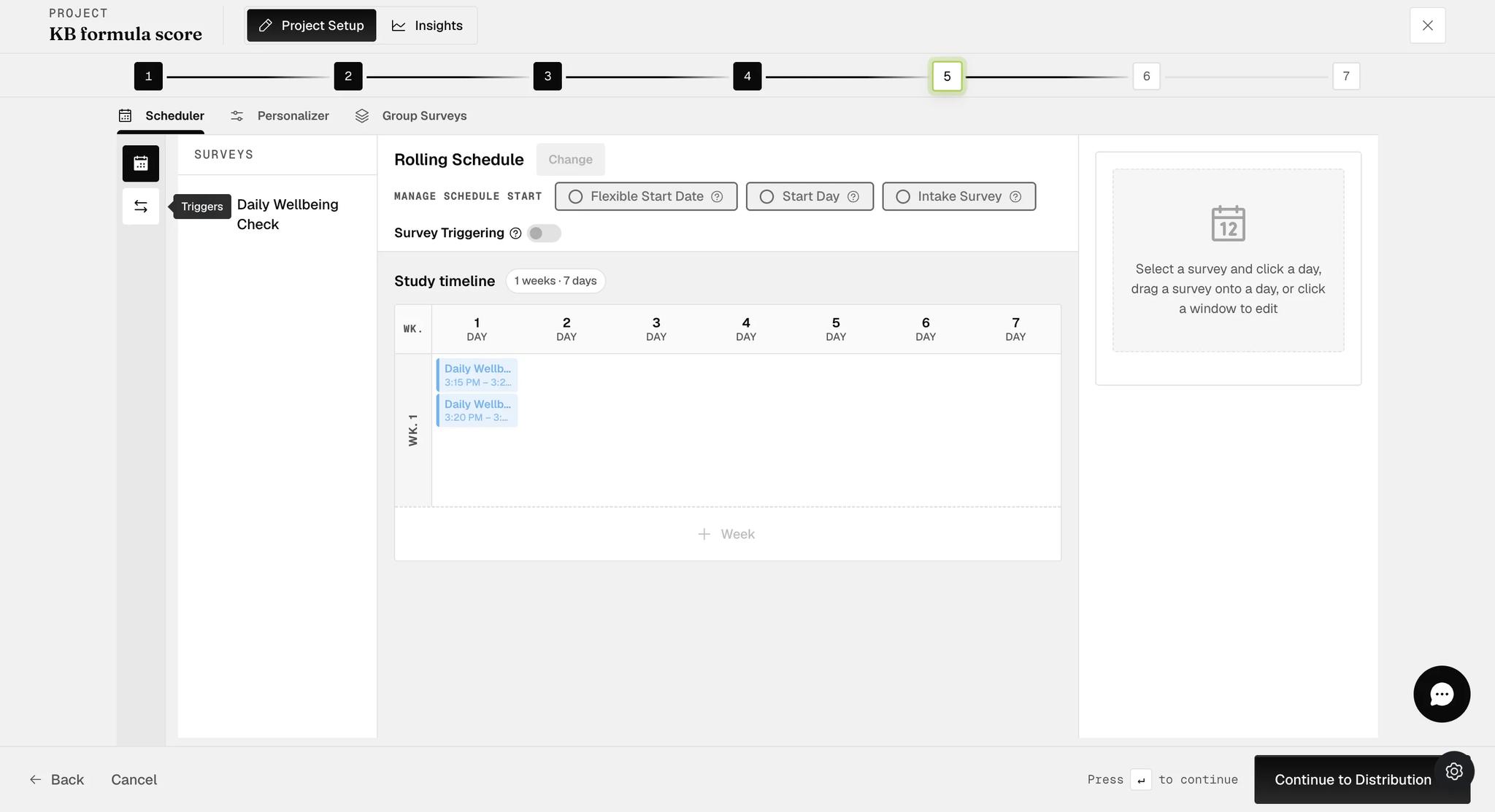
- In the Scheduler, open the second icon on the narrow strip at the far left. Its tooltip reads Triggers.
- Click + New Event and choose Survey Submission as the event type. Creating and naming an event works the same way here as anywhere else — Event triggering covers that screen in full.
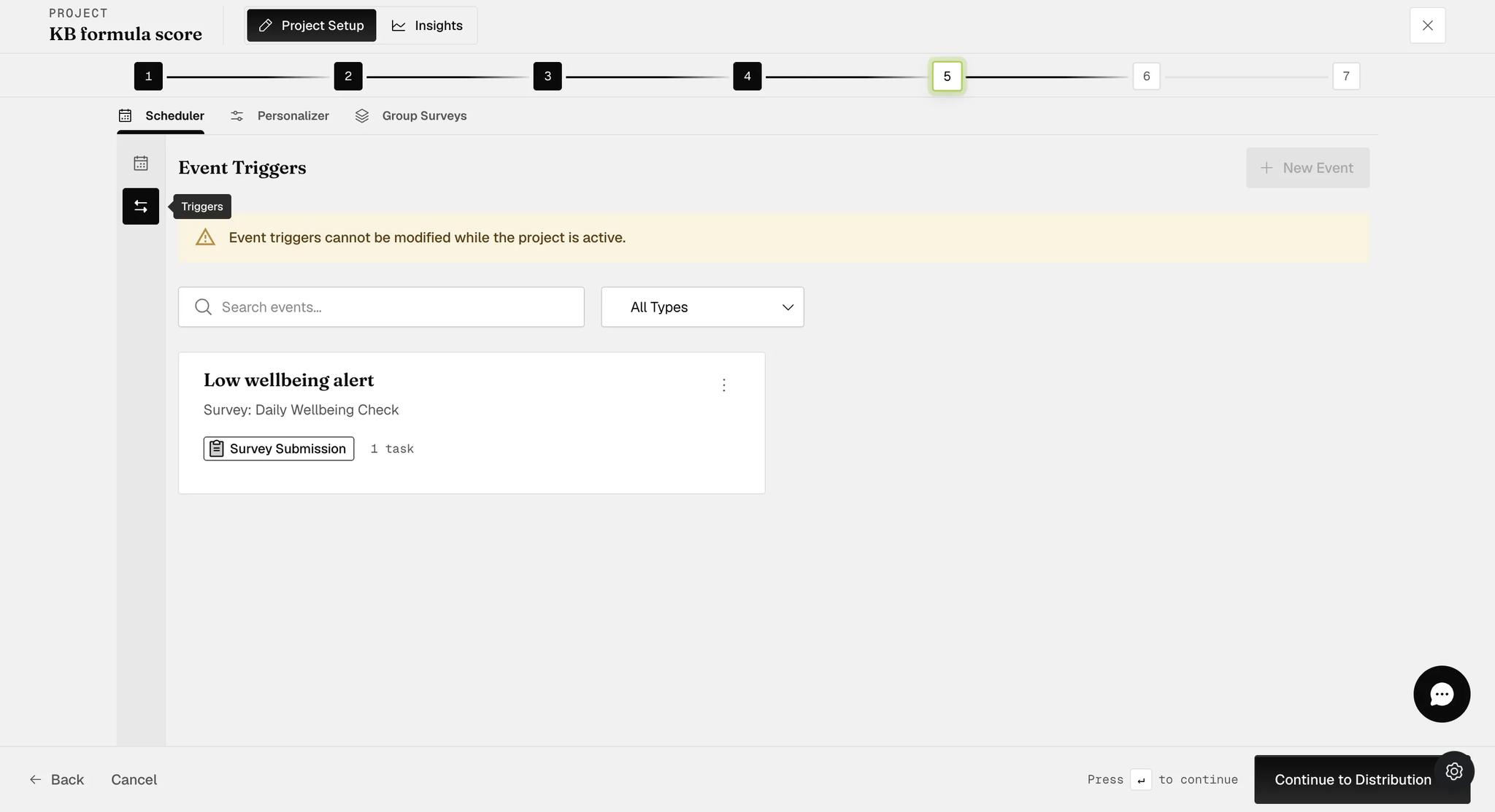
Build your events before you activate the project. Once it is active the warning above appears and + New Event is disabled — no new events can be created. Existing events are not entirely frozen, though: formulas can still be added to one, which is how a formula can be bolted onto a running study.
-
Choose the survey you configured with formula scoring under Survey Response.
-
Switch on Formula View. It sits on the event itself — you do not add a Condition first. Match Logic appears beneath it: Any match fires the trigger as soon as one formula passes, All must match requires every one.
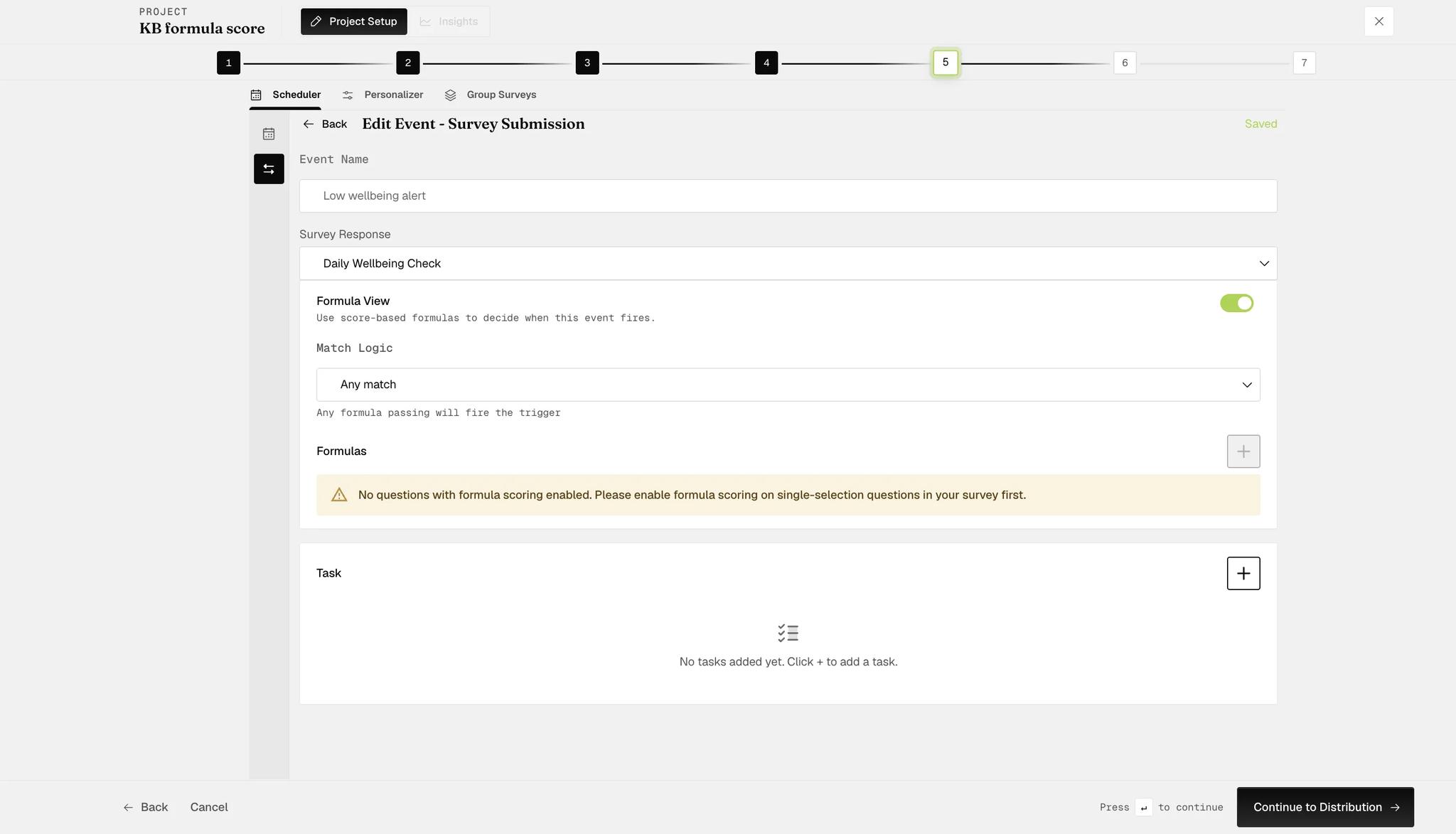
If you have not enabled Formula Score on any question yet, this is where you find out: the Formulas section refuses to open and says so. Enable it on the questions first, then come back.
- Click the Formulas + and set a Variable Label. It prefixes every variable — the label
QgivesQ01,Q02and so on.
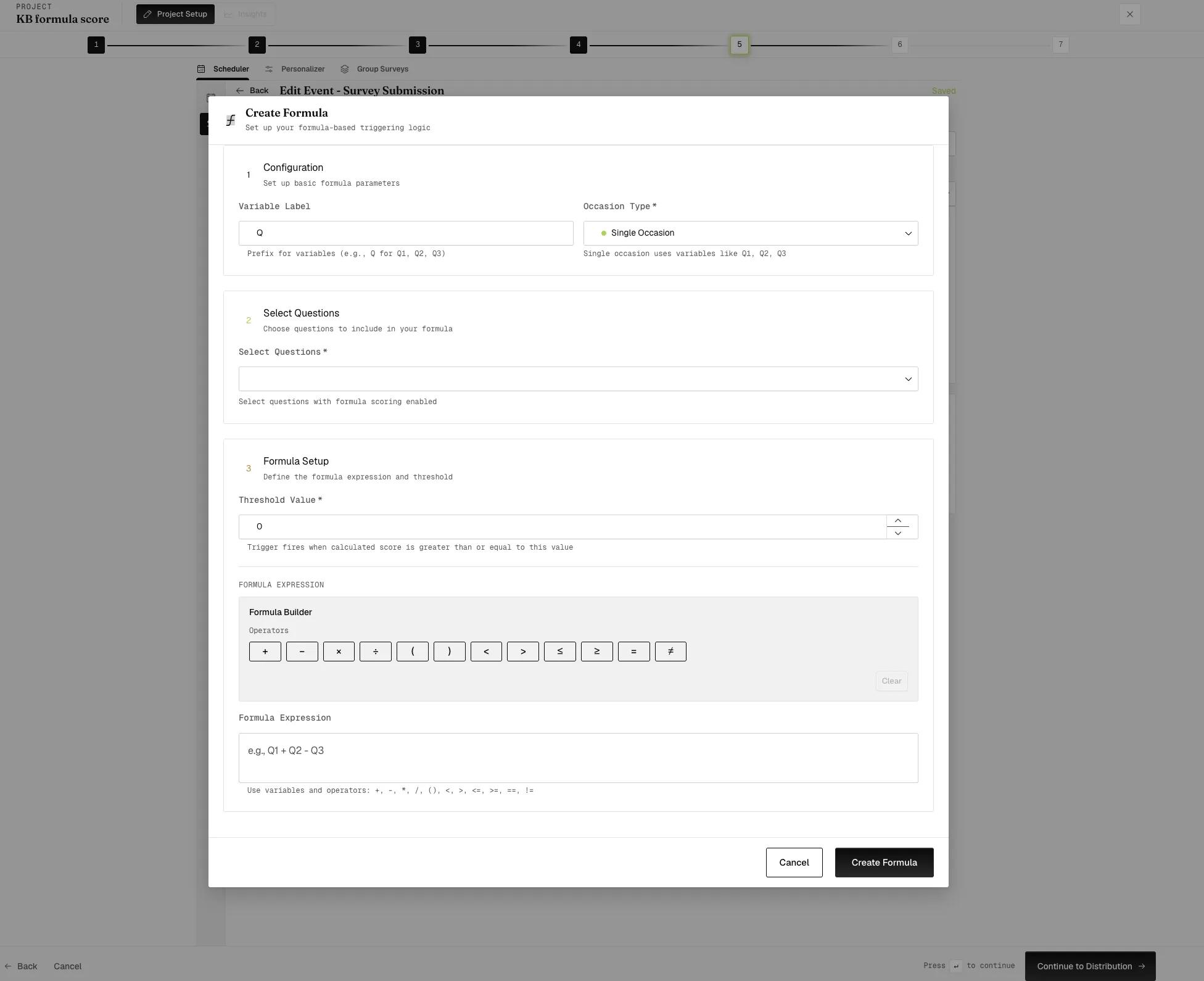
- Next, choose between a Single Occasion and a Multiple Occasions formula.
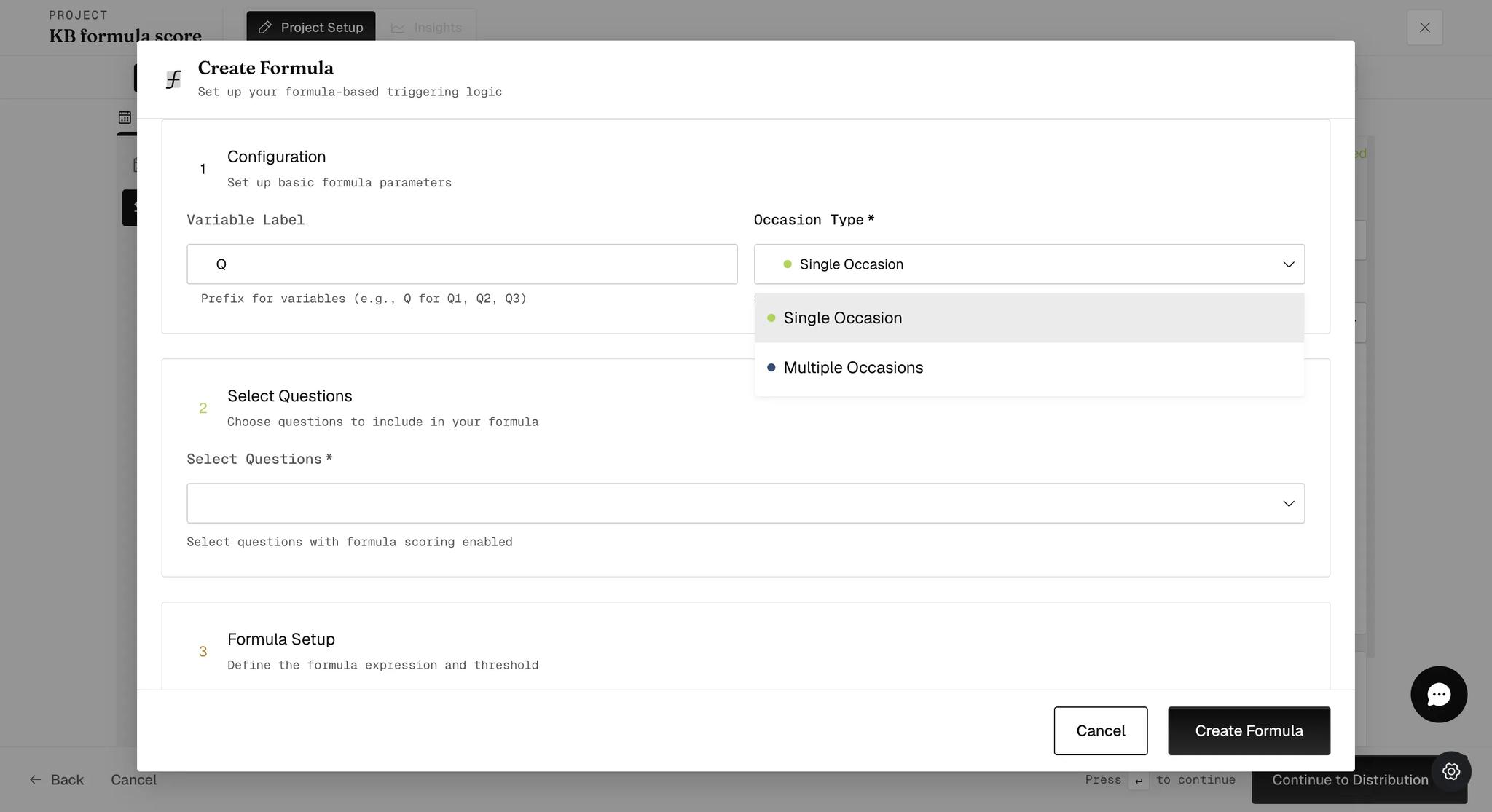
Single Occasion Formulas
Use this option to monitor responses within a single survey submission.
-
Under Occasion Type, select Single Occasion.
-
Under Select Questions, choose the questions you want as variables. Only single-selection questions with formula scoring enabled are listed — if one is missing, that is the reason. Each selection becomes a chip, and the count beneath says how many you have.
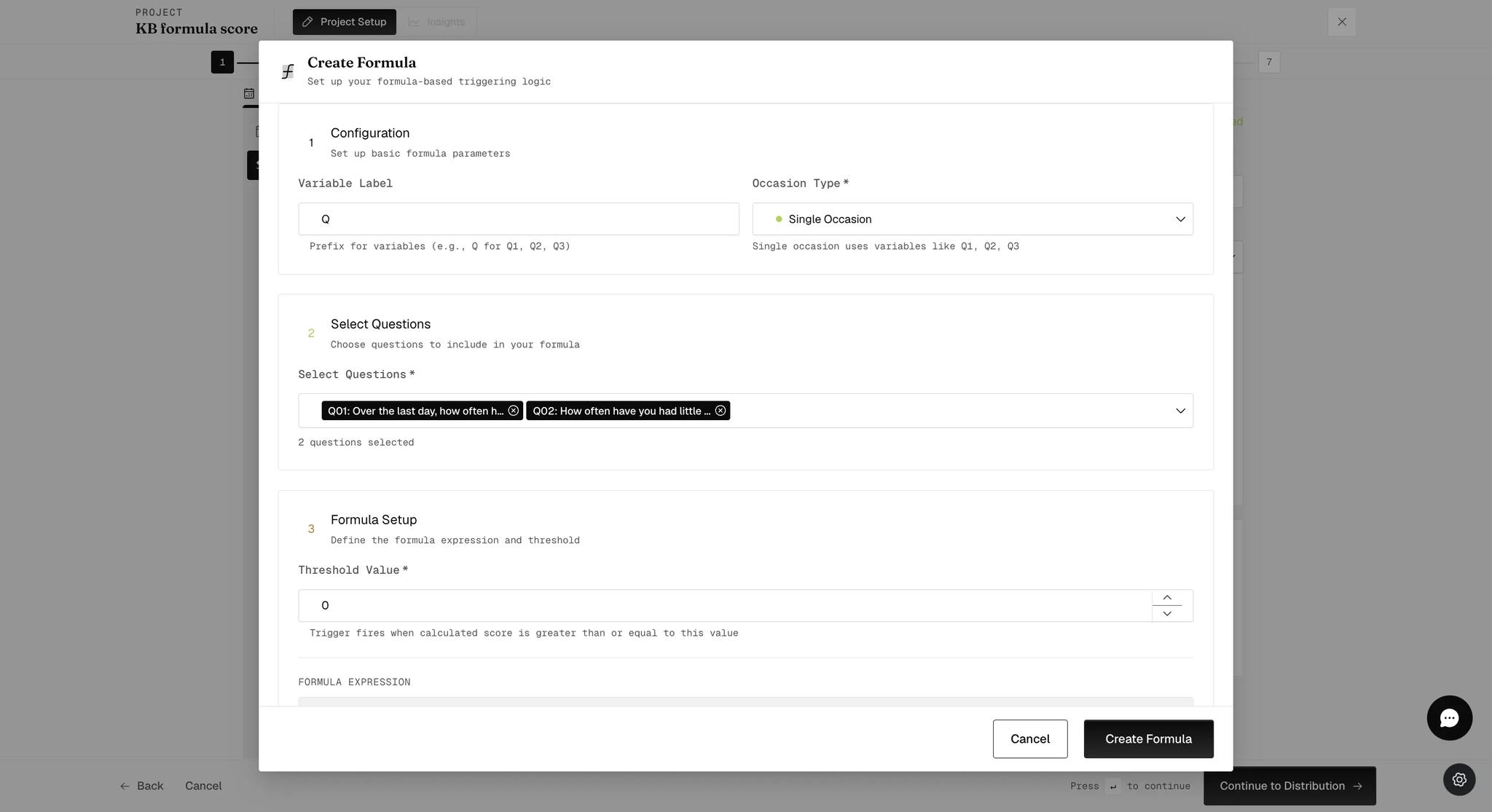
-
Set a Threshold Value. The trigger fires when the calculated score is greater than or equal to it. It can be a decimal, a negative number, or zero.
-
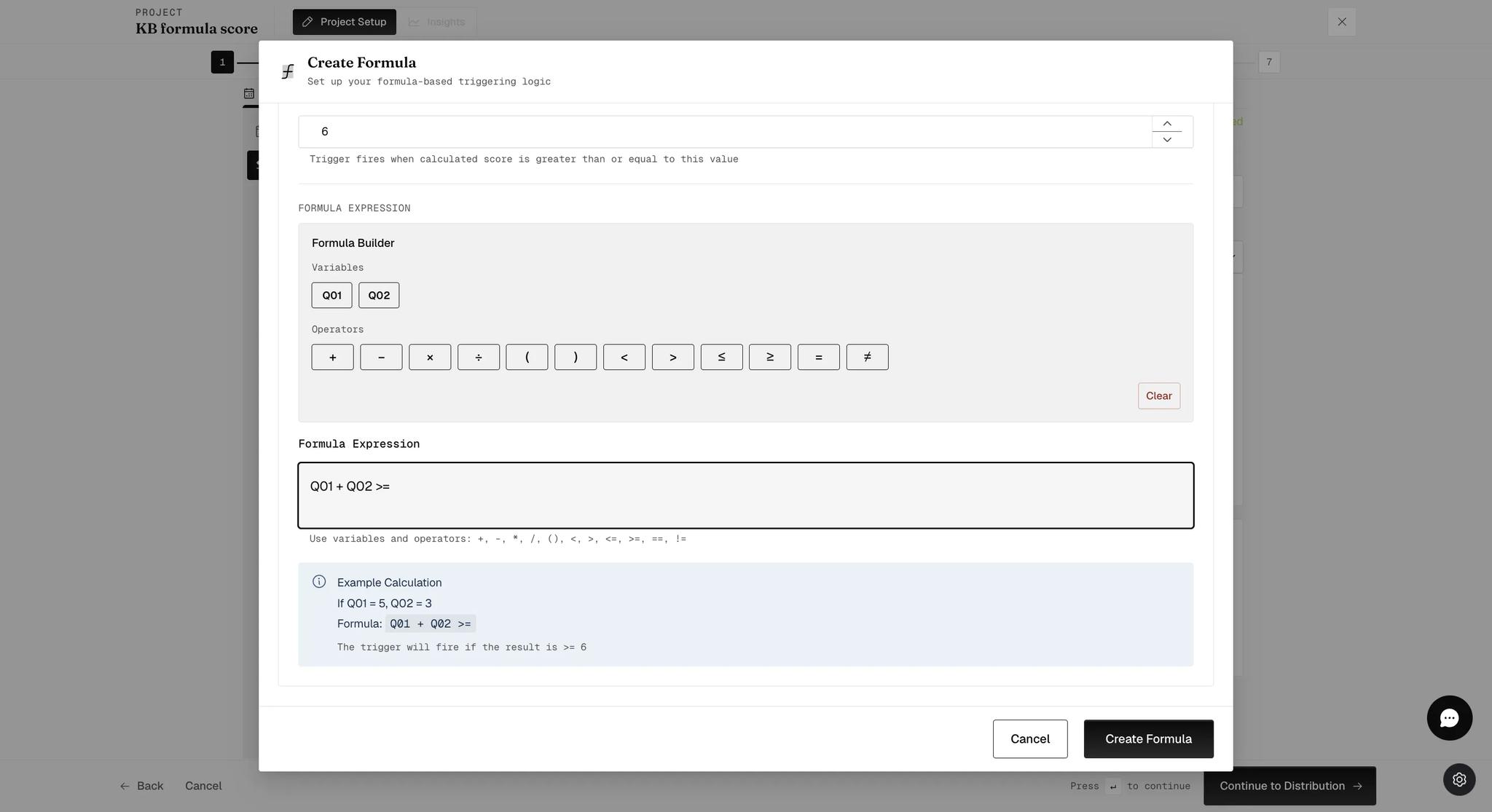
Build the formula in the Formula Builder. Your chosen questions appear as Variables buttons, with the operators beneath them; click a variable, then an operator, then the next variable. The expression builds up in the Formula Expression field as you go.
The expression must end with a comparison operator — >=, <=, >, <,
== or !=. Q01 + Q02 on its own is rejected; Q01 + Q02 >= is accepted,
with the Threshold Value supplying the number on the right. This is easy to
miss, because the threshold field already reads "Trigger fires when calculated
score is greater than or equal to this value", which makes the operator look
redundant.
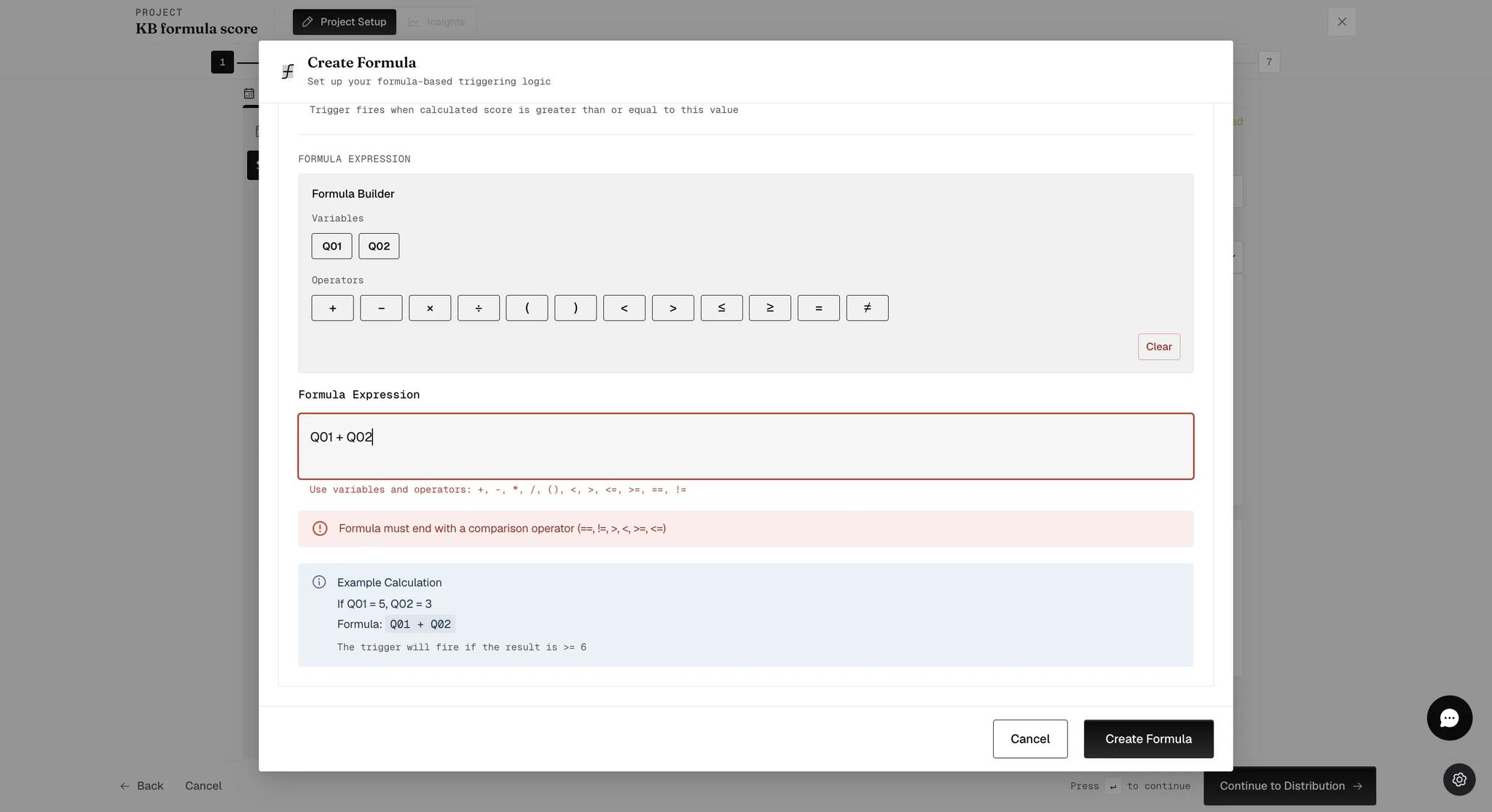
An Example Calculation panel sits beneath the builder throughout, working your formula through with sample values and stating the threshold it will be tested against. It is the quickest way to confirm the formula does what you meant.
- Click Create Formula. Saved formulas are listed on the event with their threshold, expression and variables, and an event can hold several.
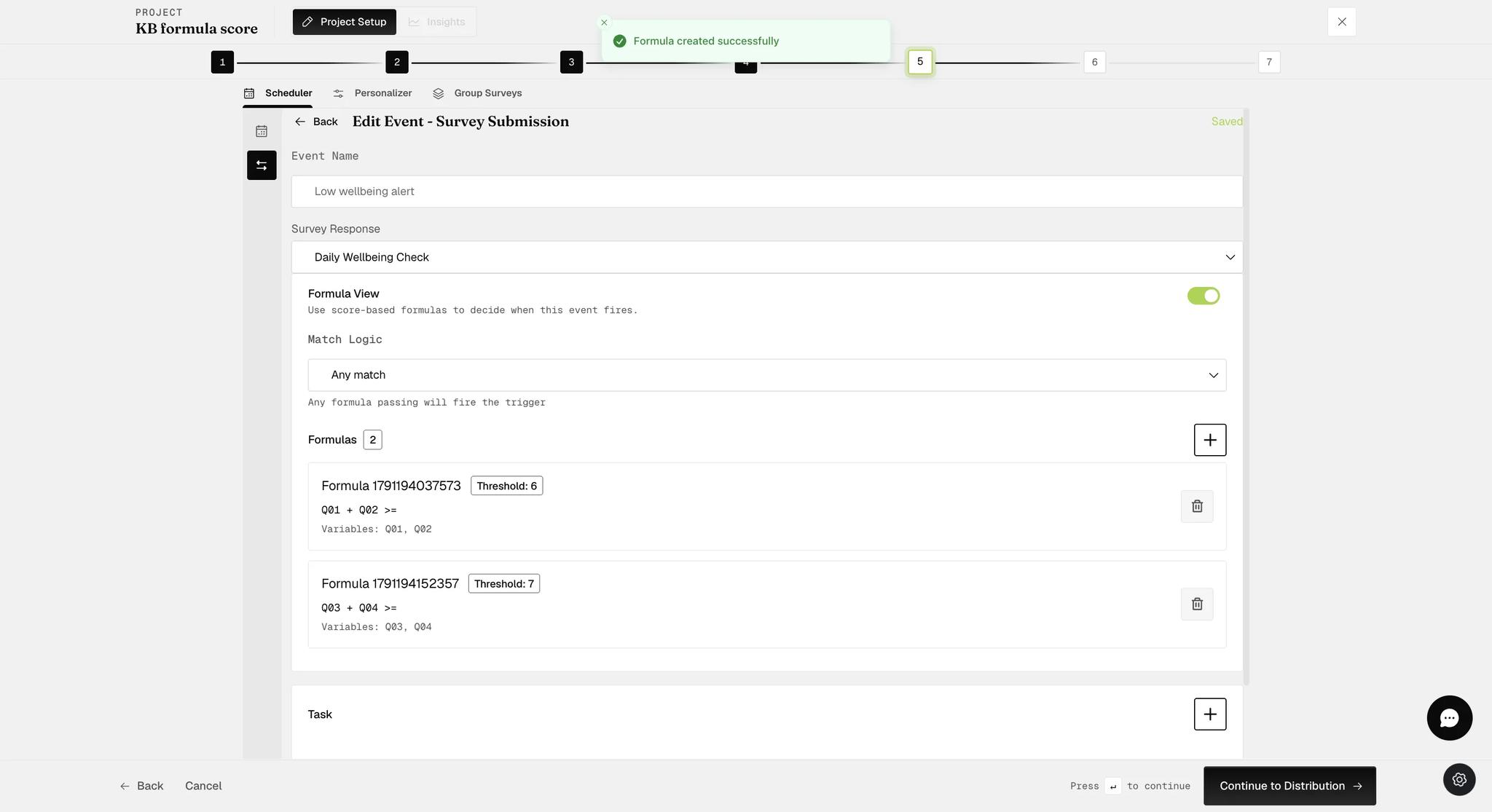
Each formula is named automatically from a timestamp, so the list reads "Formula 1791194037573" rather than anything meaningful. Tell them apart by their expression and threshold, which are both shown.
Multiple Occasions Formulas
Use this to monitor the same scheduled survey across several submissions over time — a score that only matters if it holds for three days running, say.
The flow is the same as Single Occasion — select questions, set a threshold, build the formula — with two extra steps at the start.
- Under Occasion Type, select Multiple Occasions, then enter how many occasions the formula covers — between 2 and 10. A Configure Occasions step appears with one block per occasion and a counter showing how many you have finished.
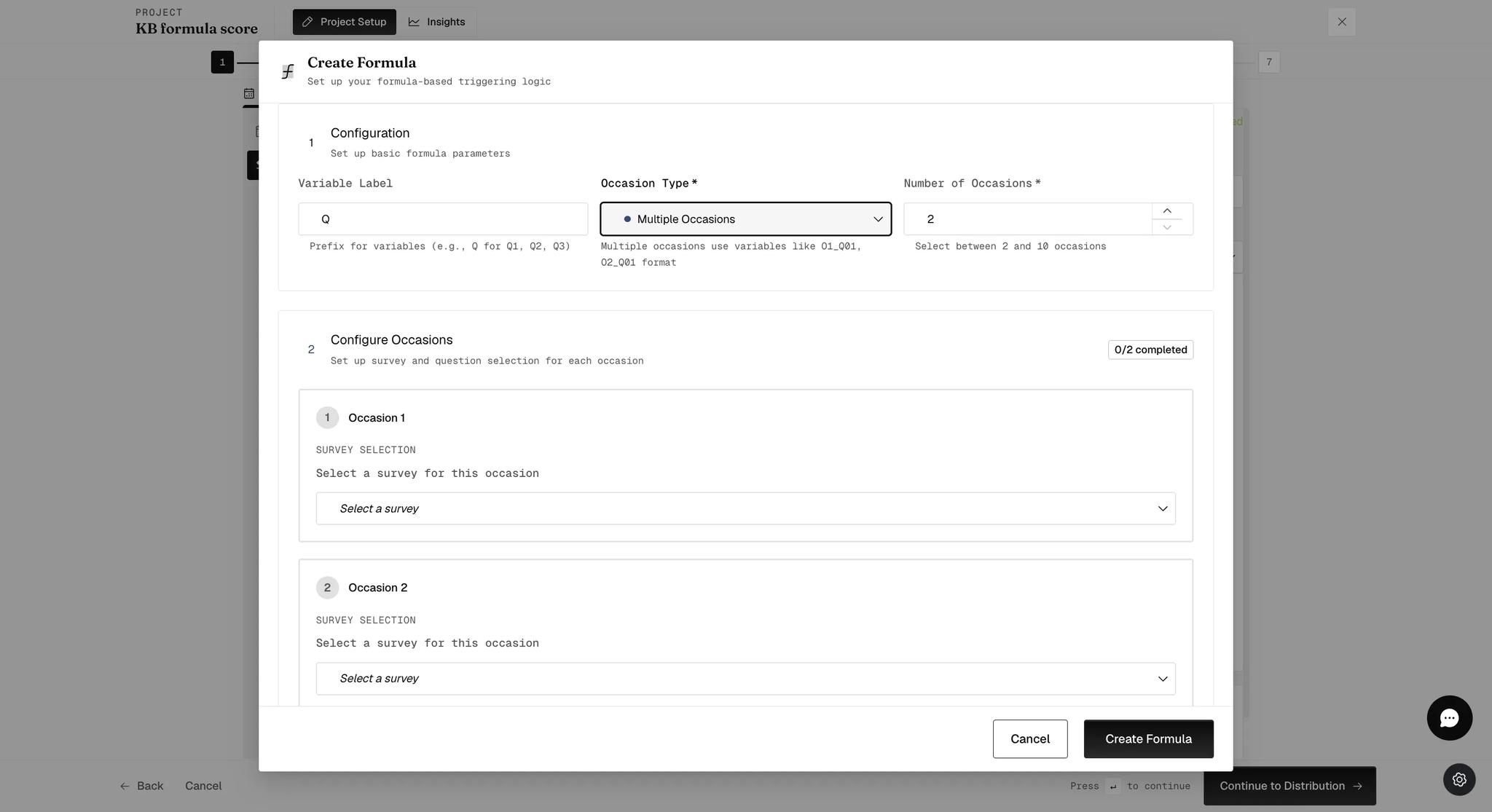
- For each occasion, pick a scheduled survey from Survey Selection, then its questions from Question Selection.
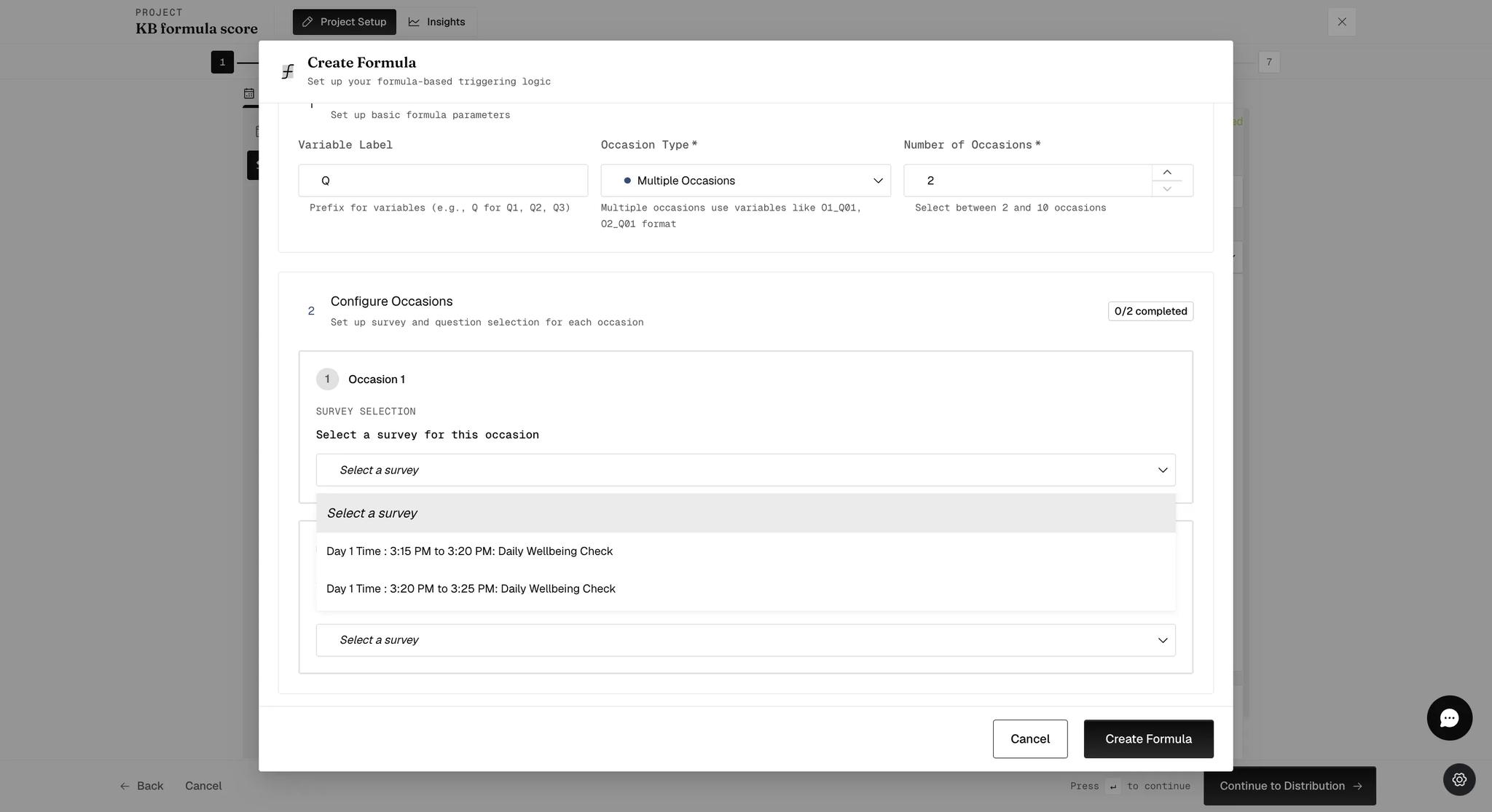
The dropdown lists individual scheduled windows, not surveys — each entry names a day, a time range and the survey. So two occasions can be two windows of the same survey, which is what lets a formula compare a morning answer with an afternoon one rather than only across days.
Each occasion's variables are labeled separately, in O1_Q01 / O2_Q01 form, so the Formula Builder can tell one occasion's answer from another's.
From here it is identical to a single-occasion formula: set the threshold, build the formula from the variables, and click Create Formula.
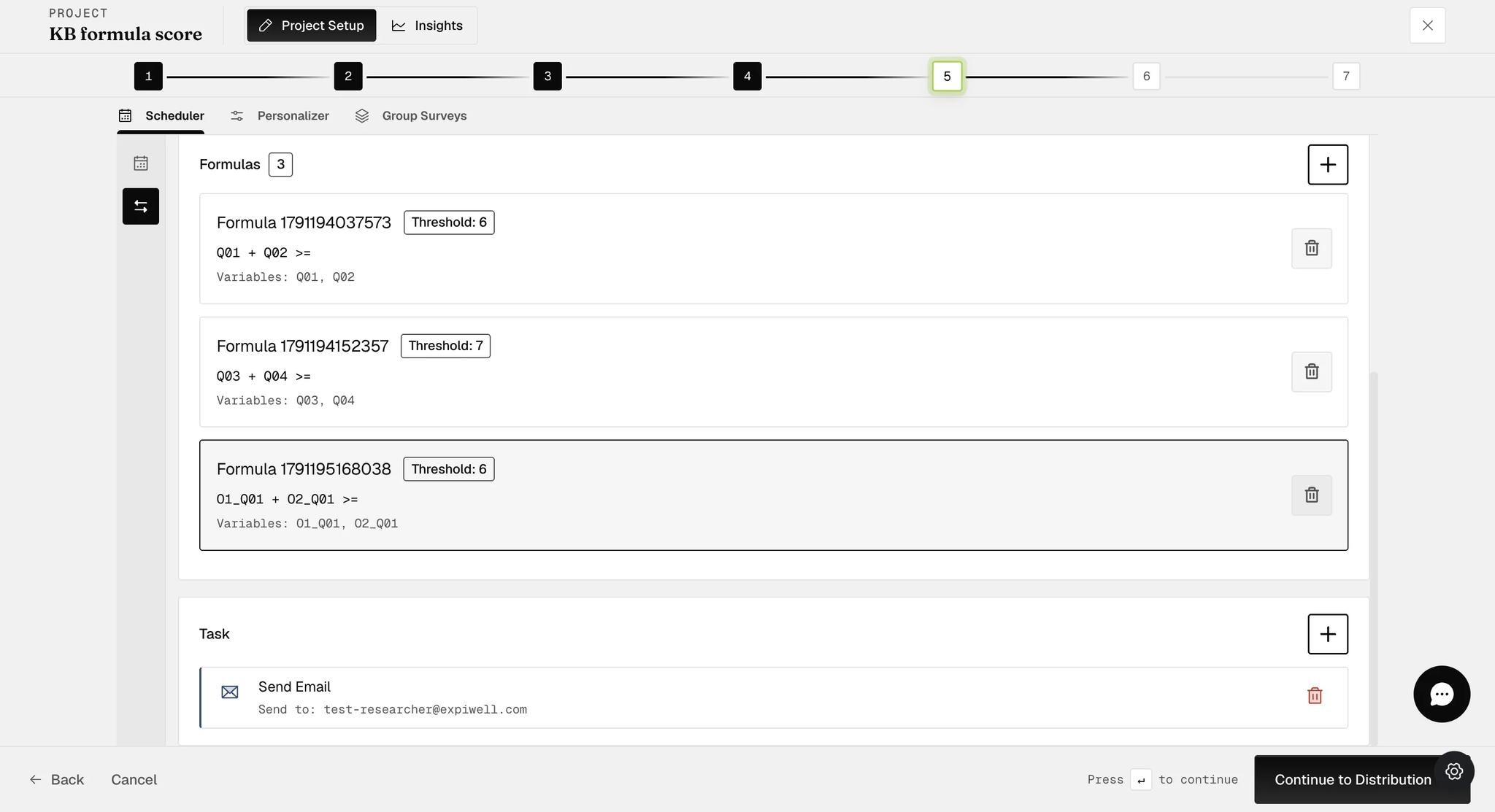
One event can mix the two kinds freely — the list above holds two single-occasion formulas and one multiple-occasion formula, all feeding the same Send Email task.
Setting up Email Triggering
Once your formulas are in place, you can set up the email to send.
- Add the Send Email task and enter the address the alert goes to.
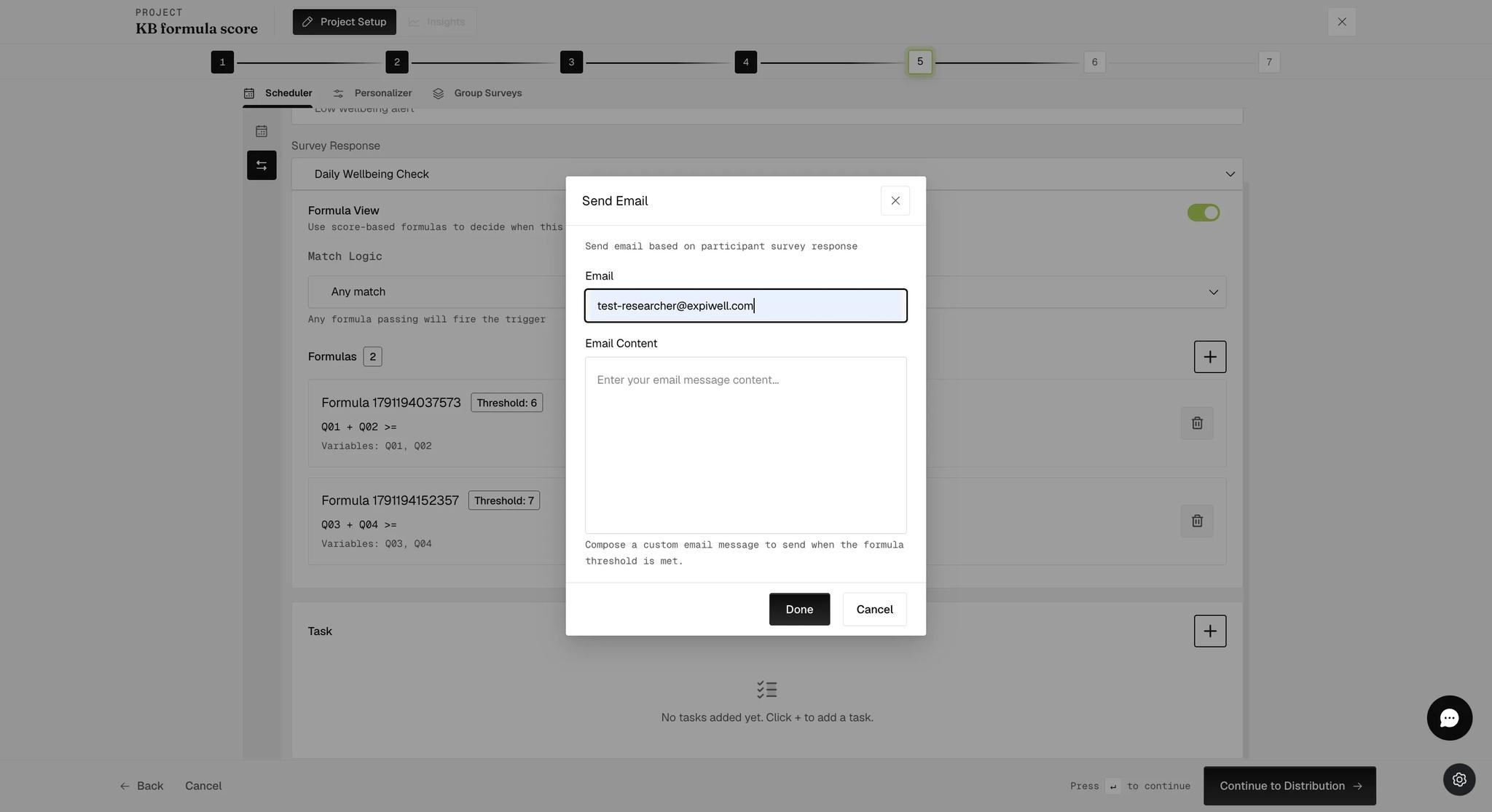
- Write the message in Email Content. This is sent when the formula threshold is met.
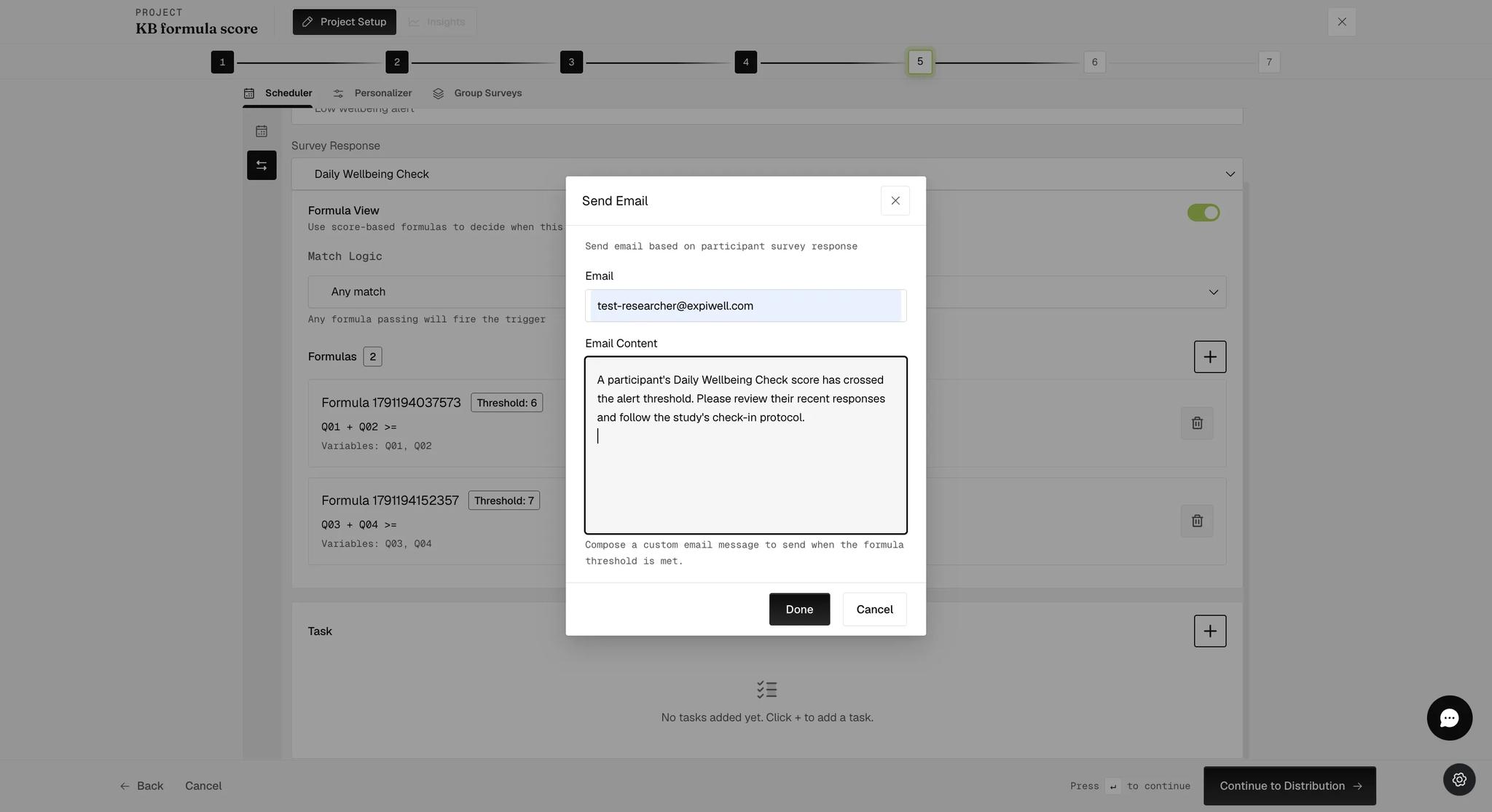
The Email Content box belongs to the formula path. A Send Email task on an ordinary condition-based event takes an address only — see Event triggering.
The email that arrives names the project, the survey, the participant, the trigger, and — the part that matters here — the formula that fired and the arithmetic it did. A reader can see that the score was 8 against a threshold of 6 without opening the dashboard.
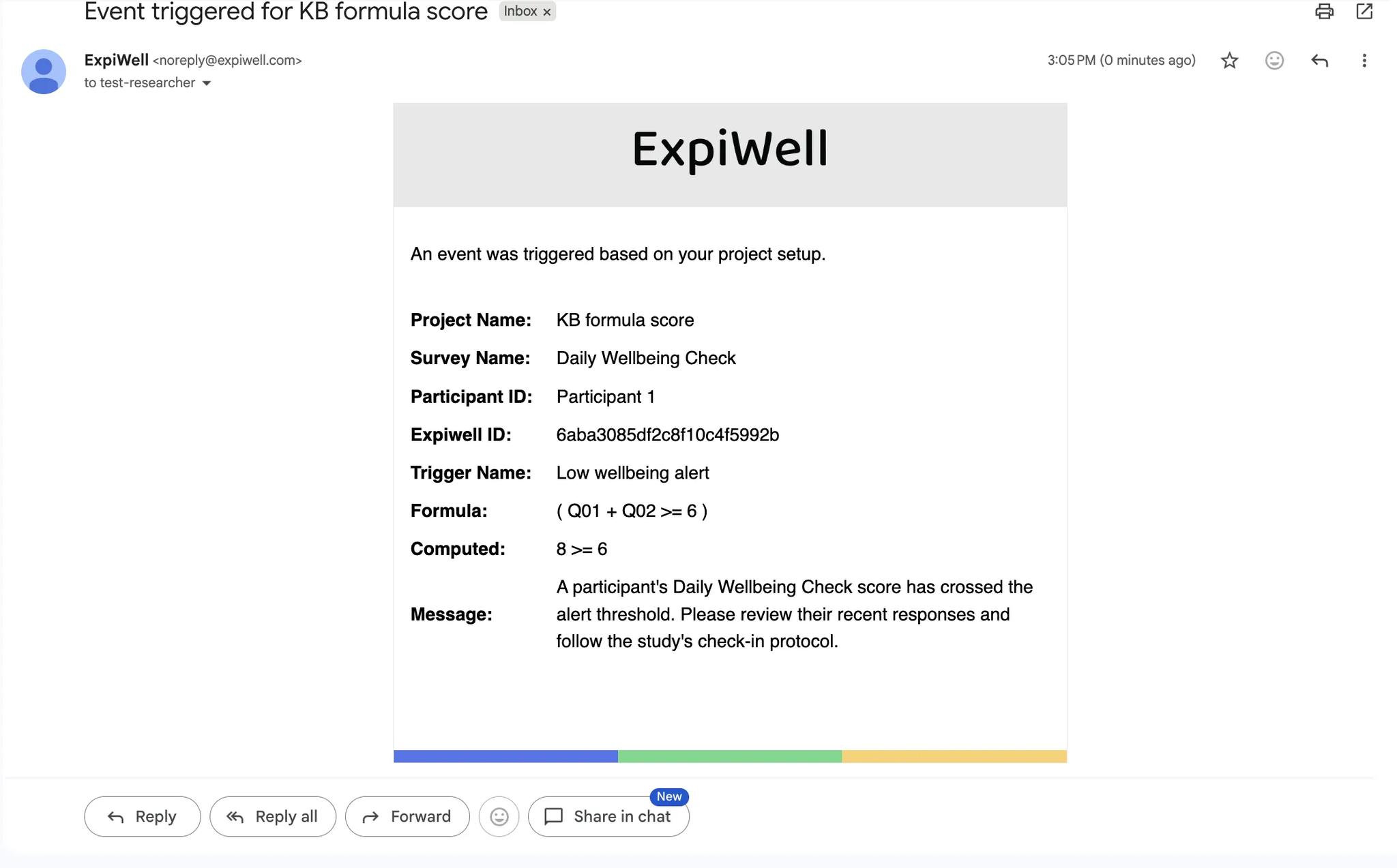
Only the formulas that actually matched are listed. With Match Logic set to Any match one is enough to send the email, so an event carrying several formulas may produce an email naming just one of them.
Monitoring Email Triggering
Open Insights → Formula to see every formula on the project and download its results. Each row names the trigger it belongs to, the formula, and its variable label.
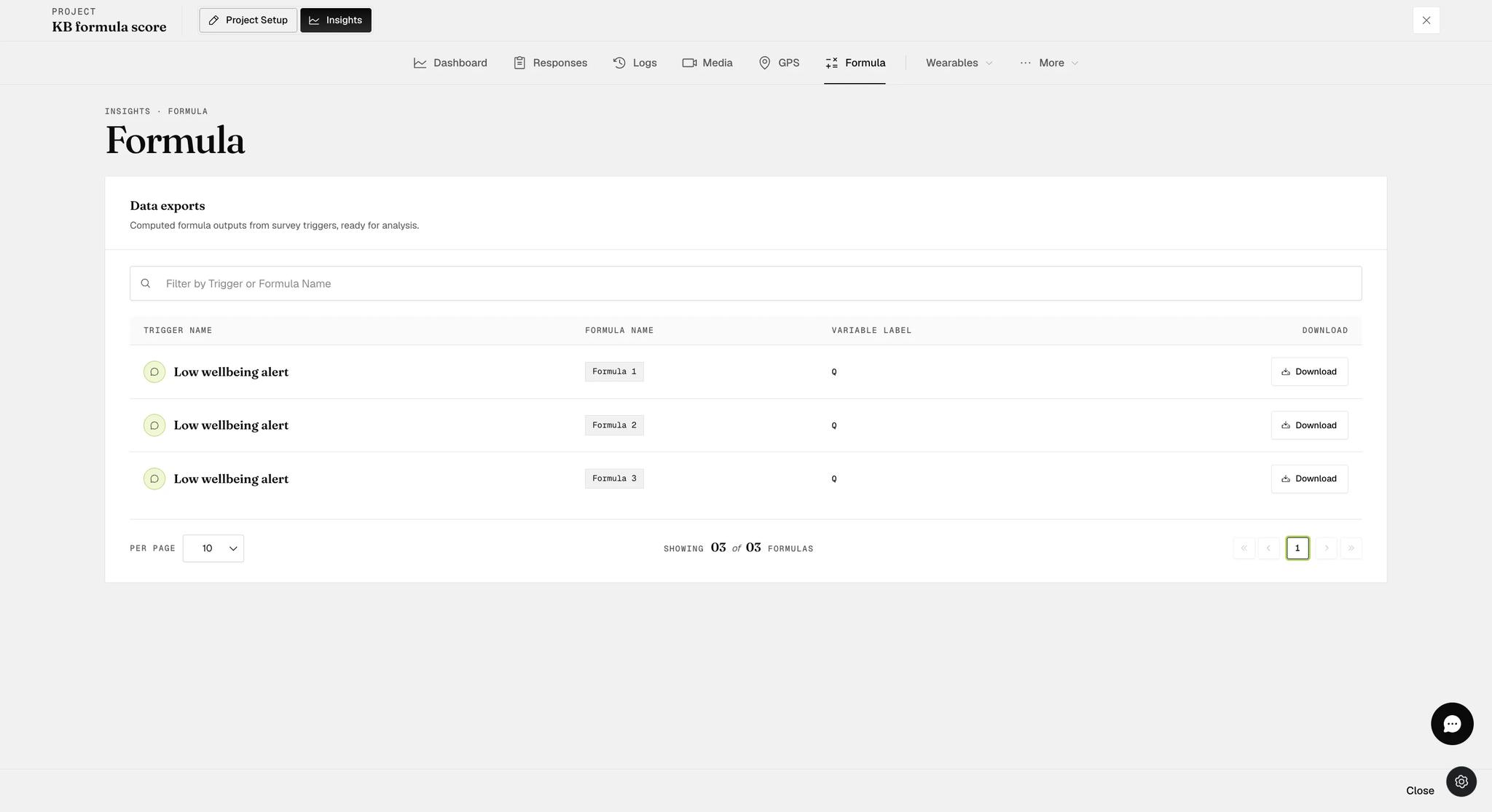
Formulas are numbered here — Formula 1, Formula 2, Formula 3 — in the order they were created. The event editor instead shows the auto-generated name, which is a timestamp, so the same formula reads differently in the two places. Match them by expression rather than by name.
Download asks for a time format first, Local Time or UTC Time. Local is usually what you want, since it lines the timestamps up with the window times you scheduled.
What the export contains
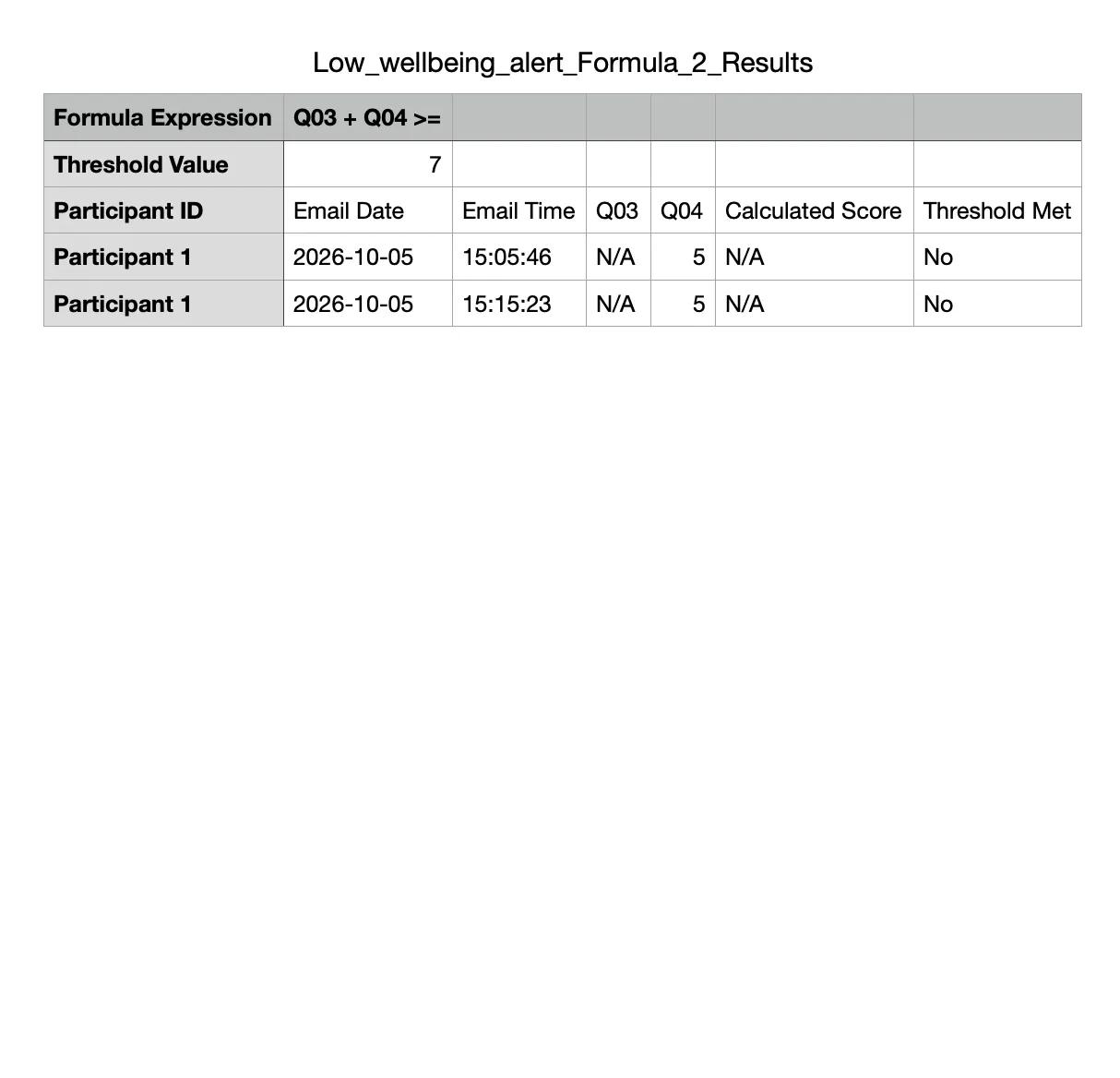
Each file opens with the Formula Expression and the Threshold Value it was tested against, then a row per triggered email: the Participant ID, the Email Date and Email Time, one column per variable, the Calculated Score, and whether the Threshold Met.
A formula needs every variable present to produce a score. If one is missing, the Calculated Score cannot be worked out and the threshold cannot be met, however high the other answers are.
A skipped answer stops the calculation
If a participant skips a question the formula uses, that variable is recorded as N/A — and because it is missing, the Calculated Score is also N/A and Threshold Met reads No.
In the example below the participant answered the second question with a 5, but skipped the first. The formula needed both, so nothing was computed and no email went out for it.
A multiple-occasion file
The shape is the same, with one column per occasion variable in O1_Q01 / O2_Q01 form. Here both occasions were answered, so the scores add up and the threshold is met.
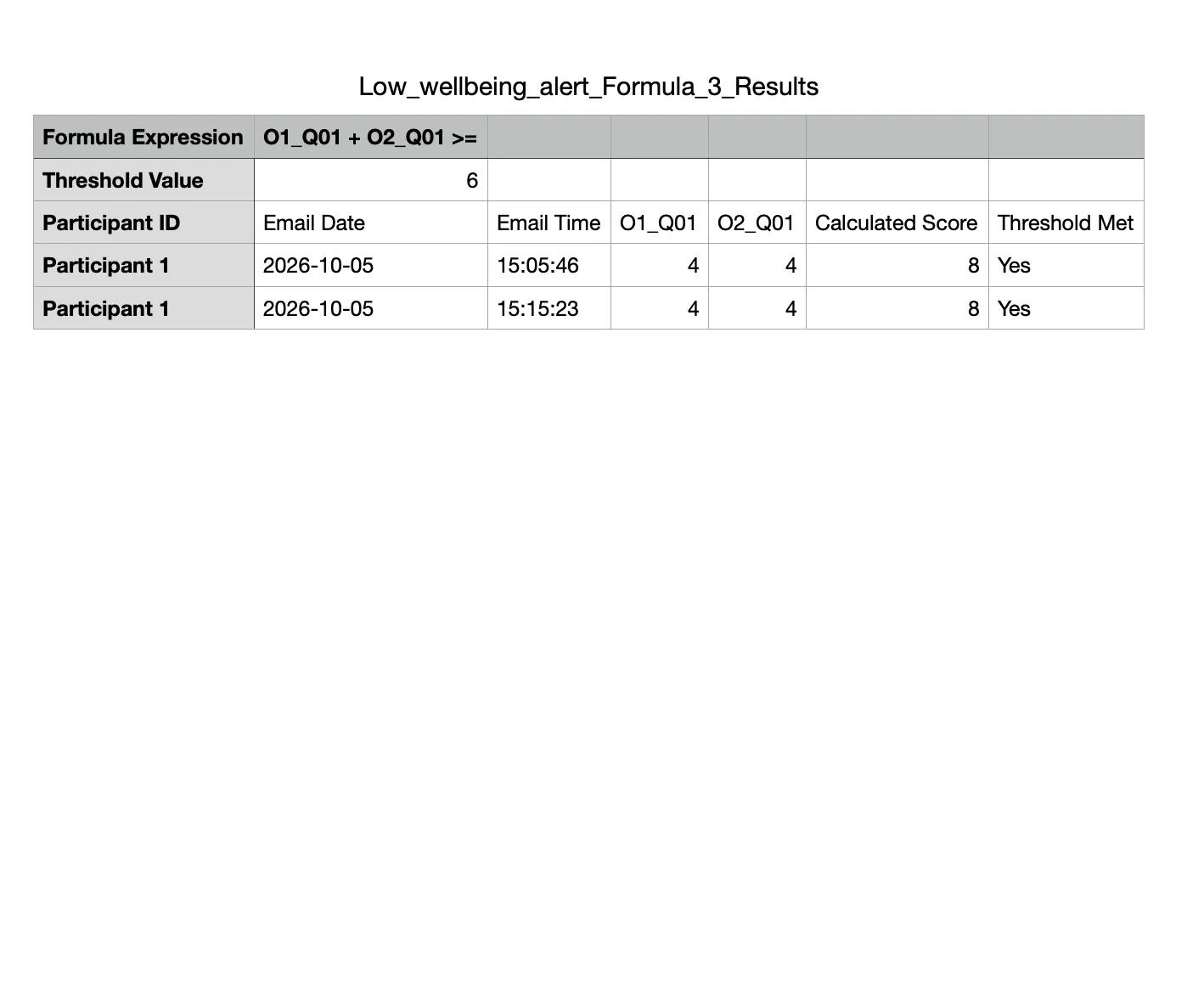
The file records triggered emails, not scheduled windows — a window that produced no email produces no row. So an empty file means nothing met the threshold, which is not the same as nothing having been answered.
If you have further inquiries, please contact help@expiwell.com