Create an account
Taking part in a study runs through the free ExpiWell app: install it from the App Store or Google Play, create your account, then join your project — no payment and no technical setup needed.
Your ExpiWell mobile app account is separate from an ExpiWell web dashboard account. Participants only need the mobile account. Researchers who want to see their project in the app must create a mobile account too — the dashboard login won't work there.
Creating your account
The first time you open the app, choose the language you want to use it in, then tap Continue. The app opens on the Create Account screen. (If you've used ExpiWell on this phone before, it opens on Log In instead — tap Sign up at the bottom.)
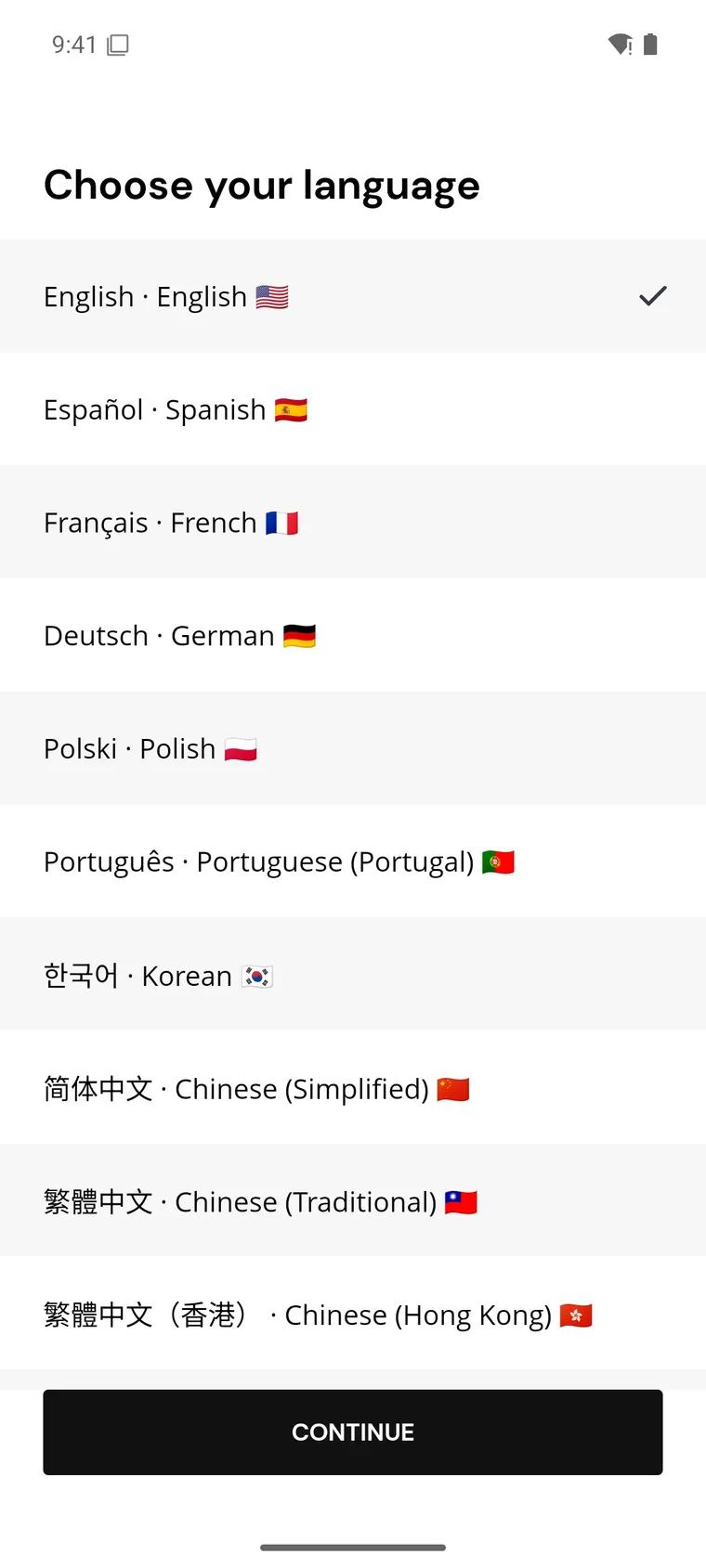
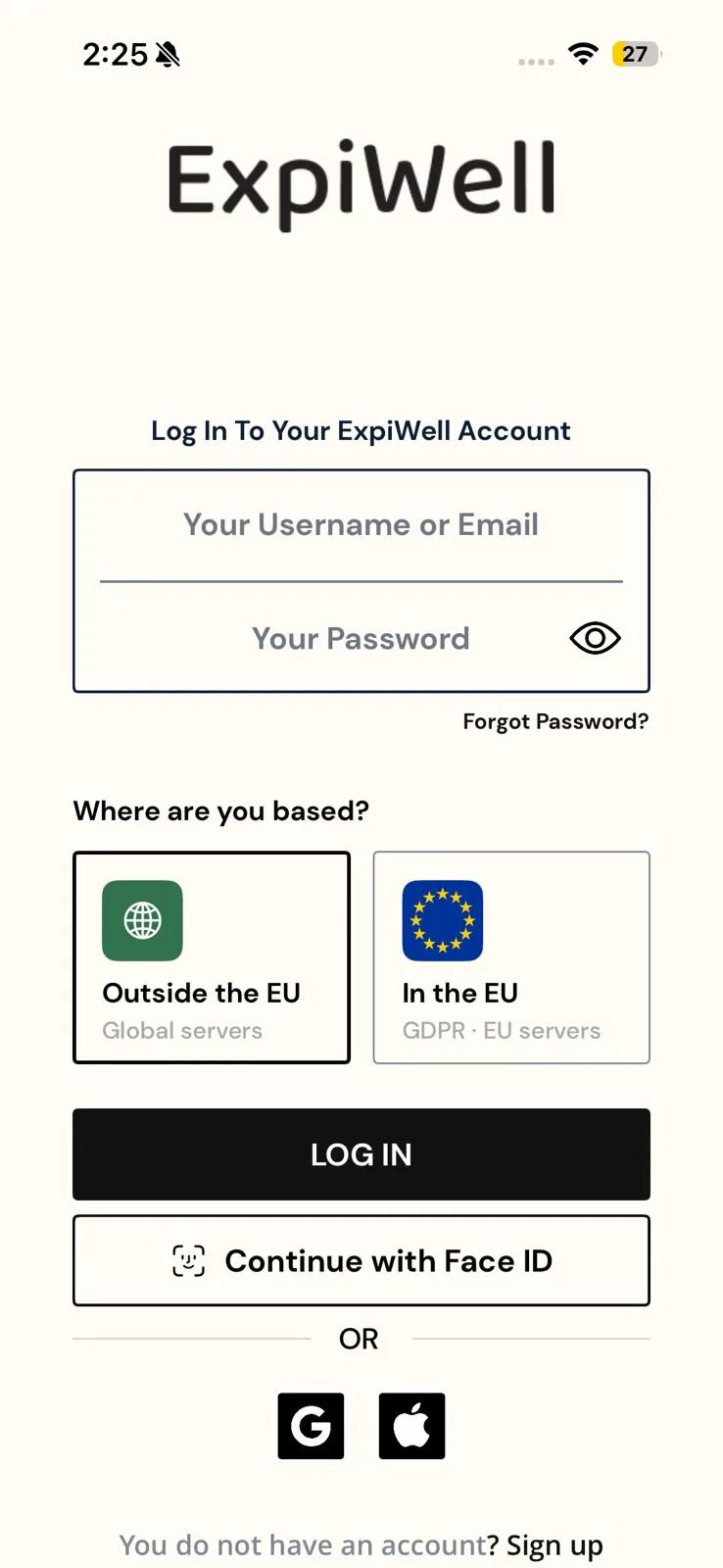
You can then sign up with your email address, or with an existing Google account — or Apple account on iPhone.
Sign up with your email
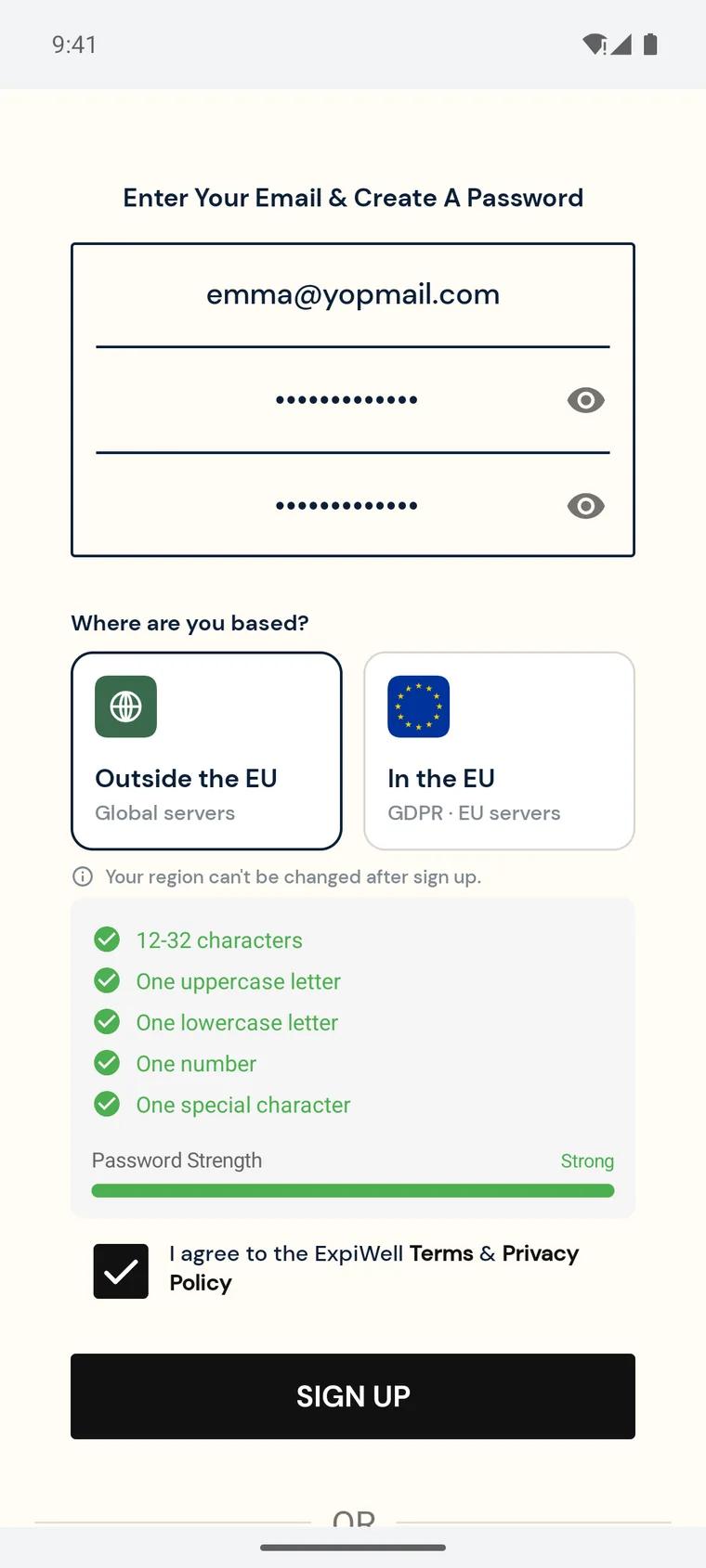
- Under Enter Your Email & Create A Password, type your email, then your password twice — in Your Password and Confirm Password. The password needs 12–32 characters, with at least one uppercase letter, one lowercase letter, one number, and one special character; a checklist ticks each rule off as you type. Tap the eye icon to show what you typed.
- Under Where are you based?, choose Outside the EU (Global servers) or In the EU (EU servers) — the data region your study uses. Ask your research team if you're not sure: your region can't be changed after sign-up.
- Tick I agree to the ExpiWell Terms & Privacy Policy, then tap Sign Up.
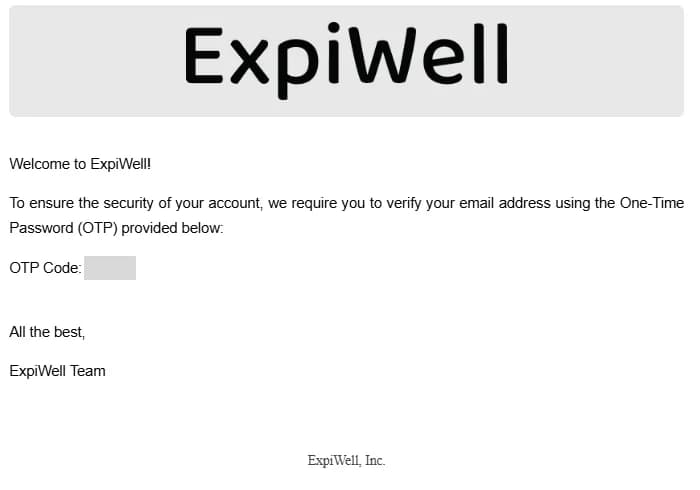
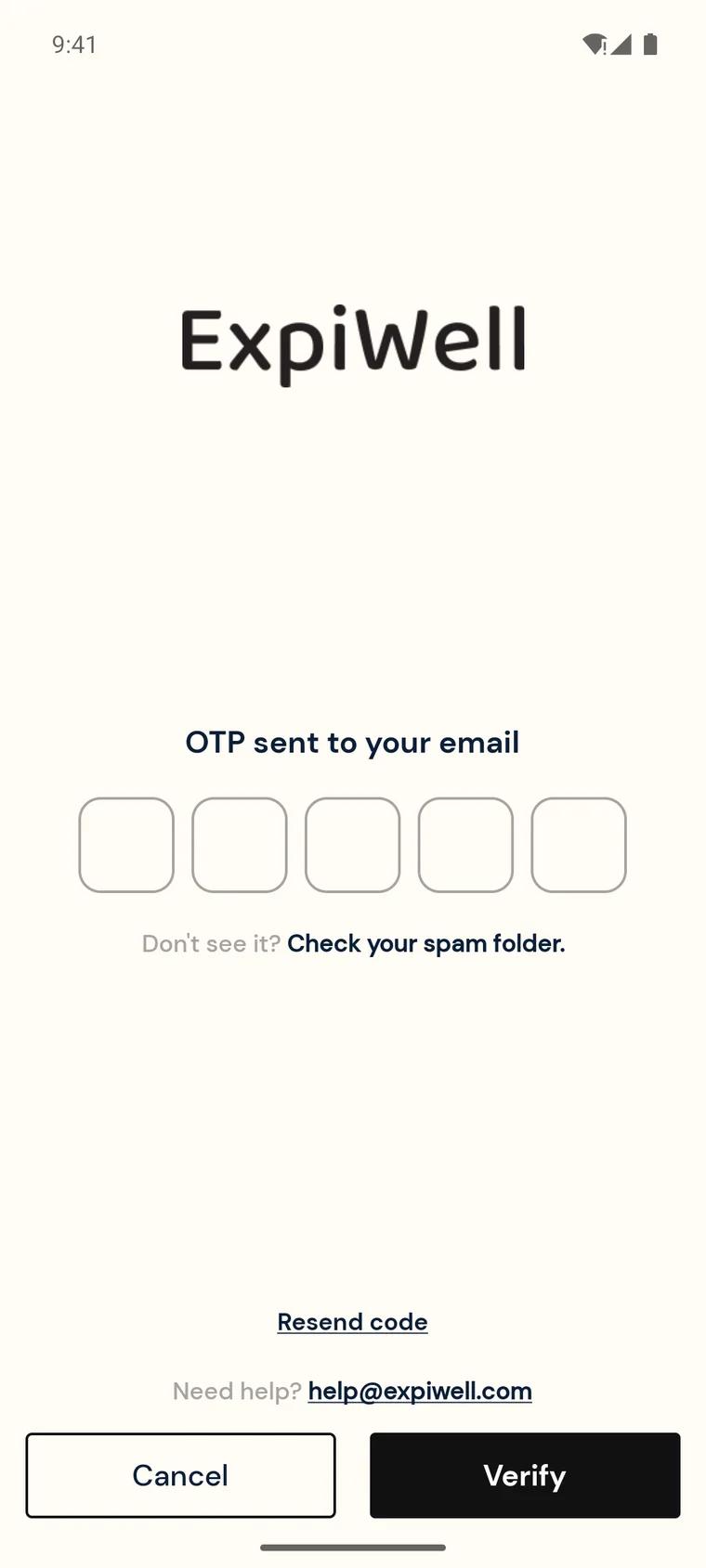
- ExpiWell emails you a one-time password (OTP) — a 5-digit code — and the app shows OTP sent to your email. Check your inbox, and your spam folder if it isn't there. Tap Resend code to get a new one.
- Enter the code in the five boxes and tap Verify.
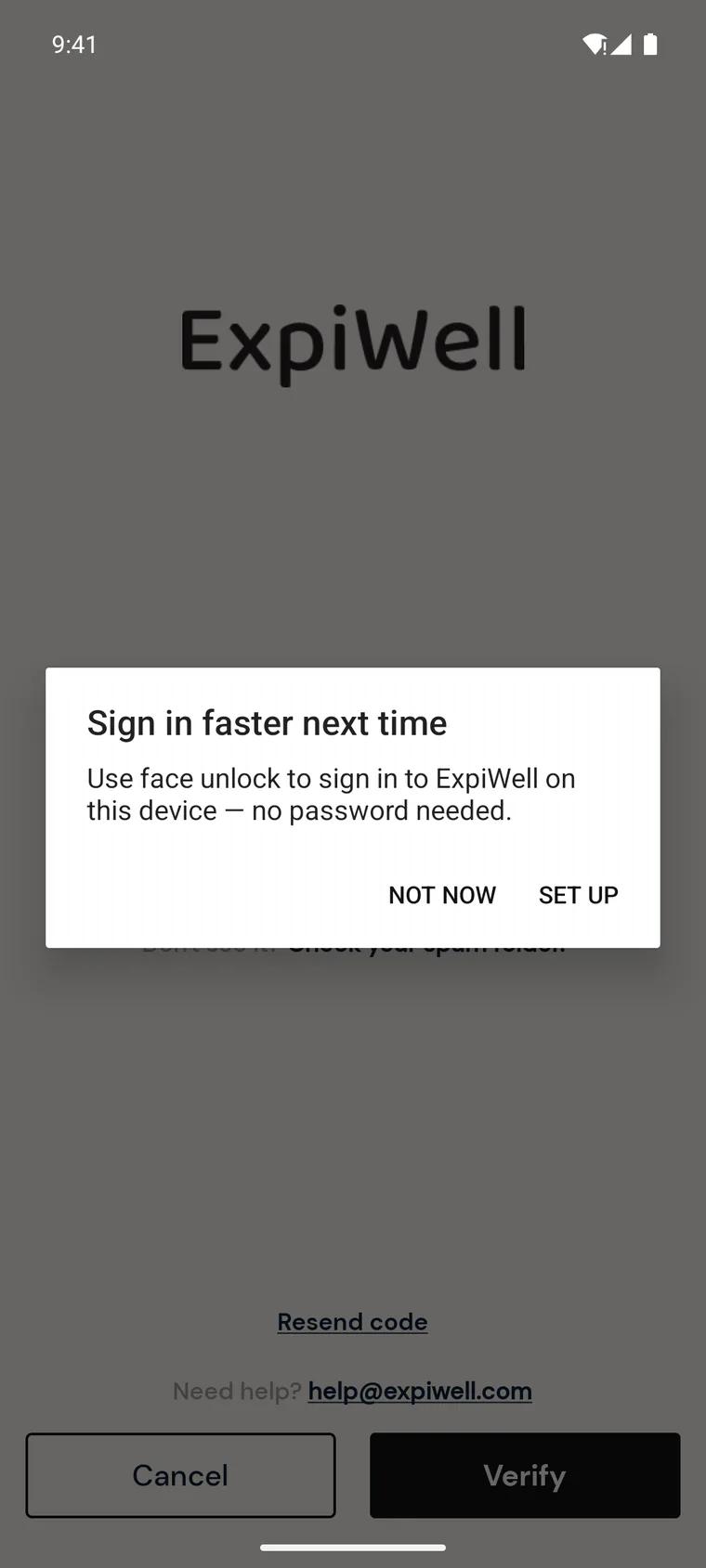
- The app offers to set up a passkey so you can sign in without a password next time. Tap Set up, or Not now to skip it — you can add one later from Settings → Manage Passkeys.
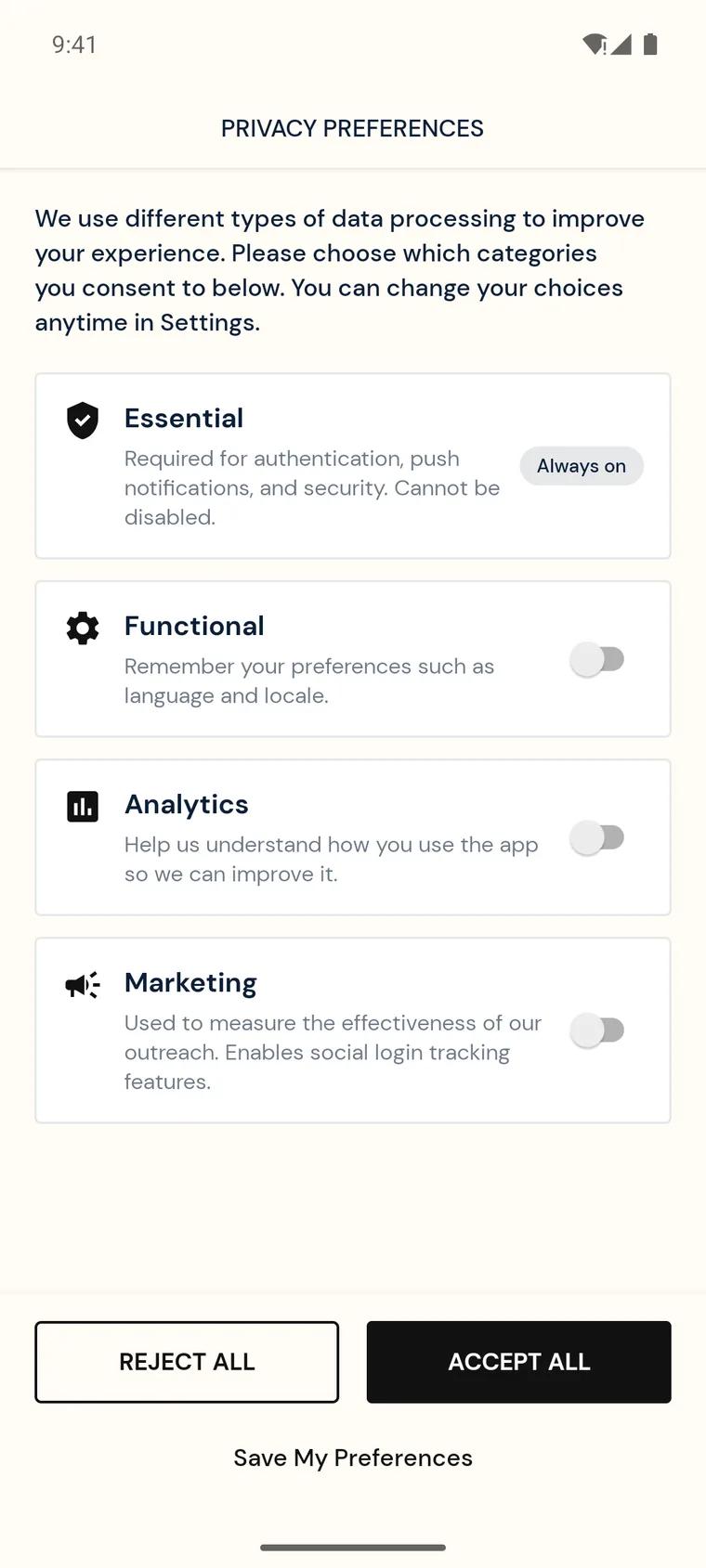
- On Privacy Preferences, choose which kinds of data processing you consent to. Essential is always on; Functional, Analytics, and Marketing are up to you. Tap Save My Preferences, Accept All, or Reject All — you can change this later in Settings.
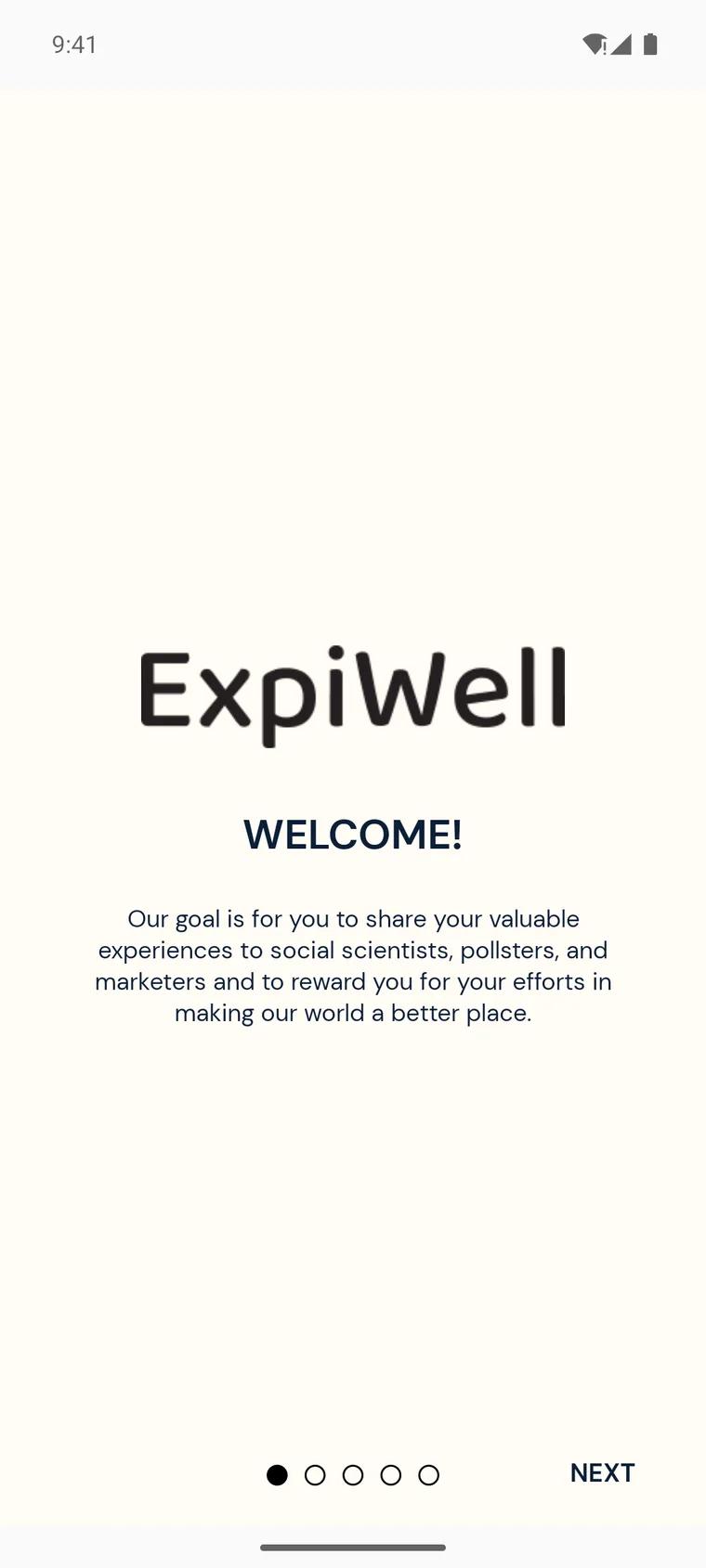
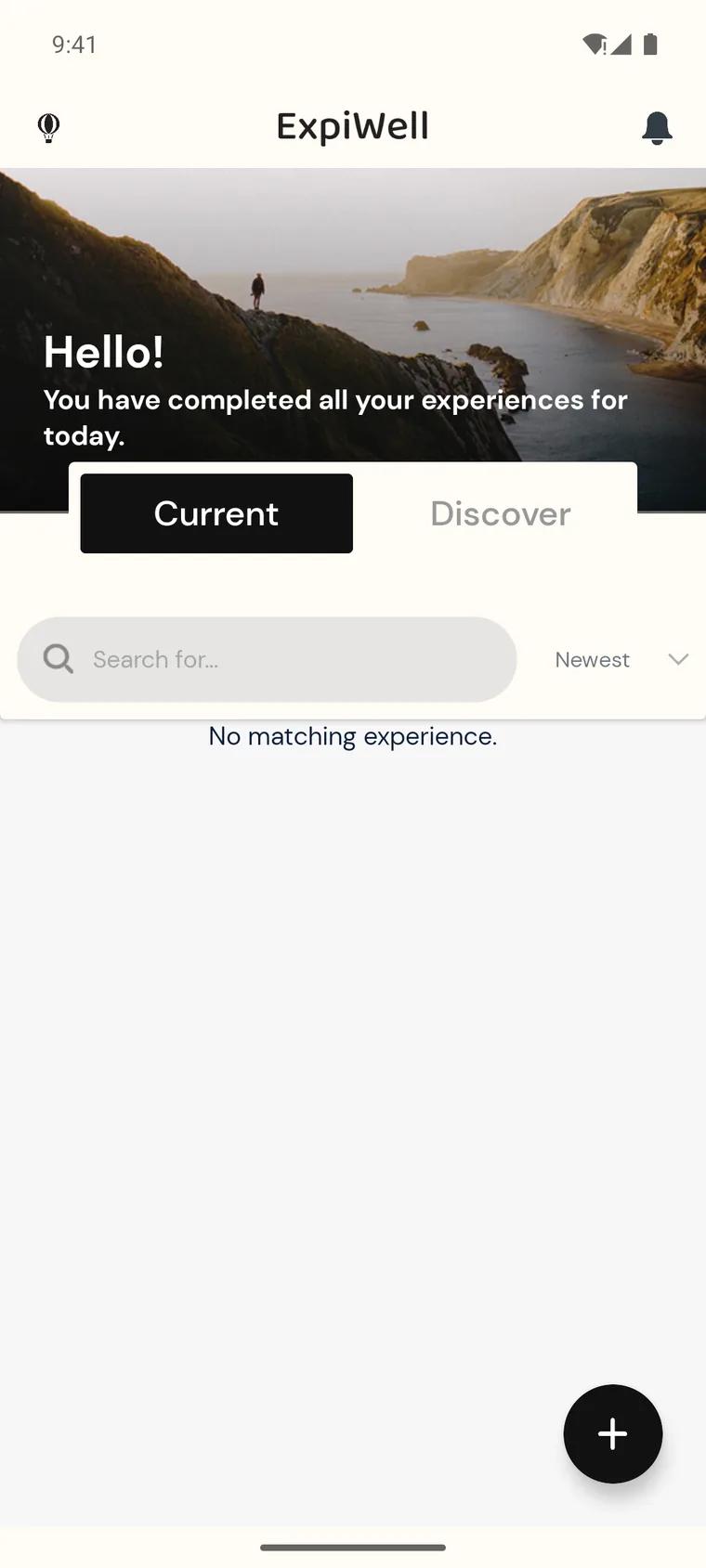
- A short introduction follows — tap Next through it, then Done to reach your home screen. When the app asks to send you notifications, tap Allow. Surveys open only for a set time, and the notification is what tells you one is waiting — they still appear in the app without it, but they are much easier to miss.
Sign up with Google or Apple
- Choose your region under Where are you based? first — it appears on both the Create Account and Log In screens.
- Below OR, tap the Google icon — or the Apple icon on iPhone. Both screens show these icons; signing in this way creates your account if you don't have one yet.
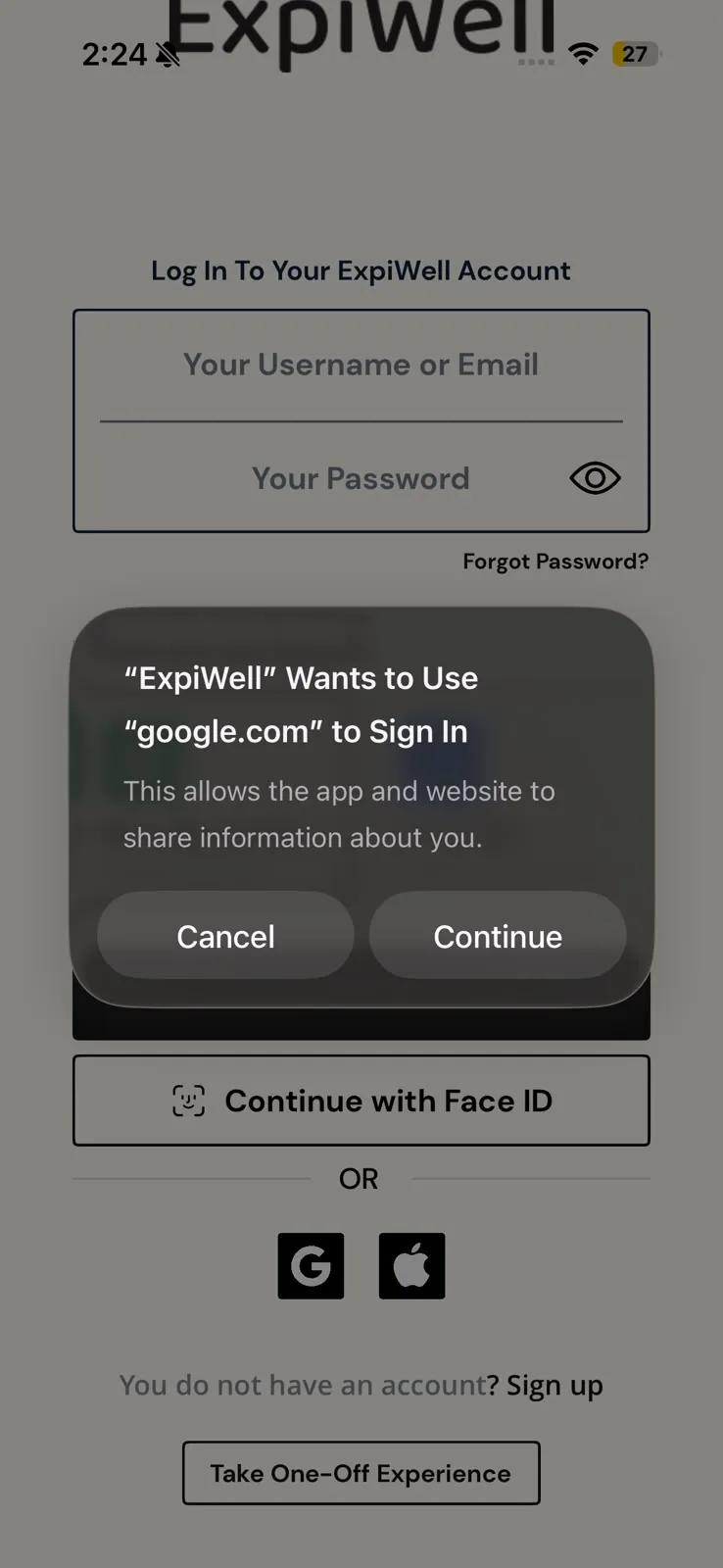
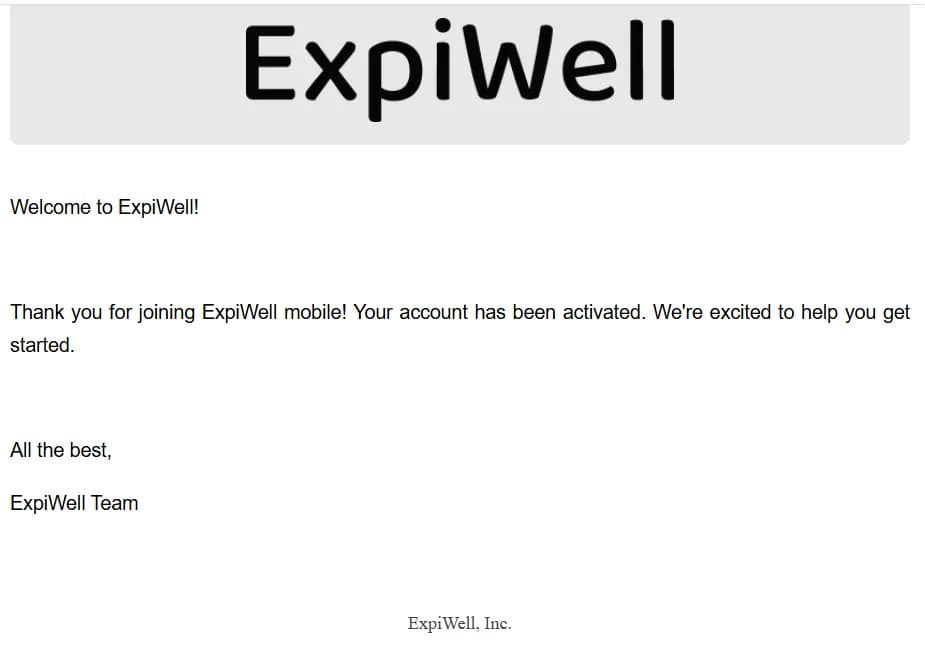
- When your phone asks to use google.com (or Apple) to sign in, tap Continue, then choose the account you want to use. No one-time password is needed, and ExpiWell emails you to confirm your new account. The passkey offer, Privacy Preferences, and introduction then follow as above.
Joining your study
Your research team will give you one of three ways in:
- An access code — enter it in the app to start the project.
- An email invite — join with the email address the researchers invited.
- A ready-made account — some studies hand you temporary login credentials instead, so you never have to create an account yourself.
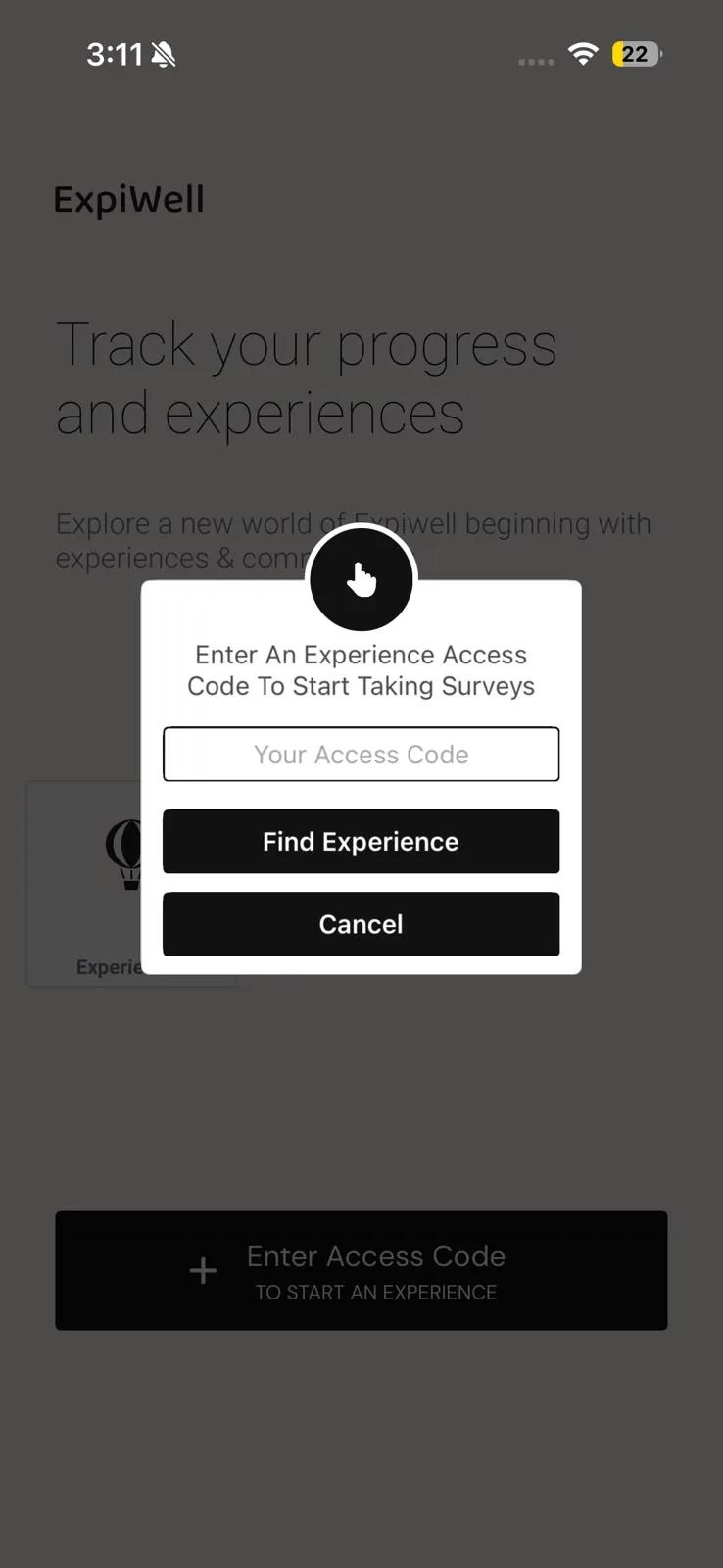
To use an access code, tap Enter Access Code on iPhone (the + button on Android), type the code, and tap Find Experience (Add Experience on Android). Once you've joined, your home screen lists your current and completed experiences — see Available & completed experiences.
What to expect
- Surveys arrive as notifications on the schedule your research team set — times follow your own time zone and adjust automatically if you travel during the study.
- No connection? No problem. You can respond without WiFi or cellular service; answers upload automatically once you're back online.
- Depending on the study, responses can include text, photos, voice, or video, and some projects show you charts of your own progress in the app.
- If your study compensates participants, your earnings collect in the app under My Balance. From $5.00 you can redeem them as an Amazon gift card, and the claim code is emailed to you. See Receiving payments.
Your privacy
You participate anonymized: no identifying information is shared with researchers through the app. The platform is HIPAA and GDPR compliant, with controls monitored continuously.
Troubleshooting
If the one-time password doesn't arrive, check your spam folder, then tap Resend code. If you can't join a project, double-check the access code with your research team — see Contacting the researchers. To use the app in another language, open the menu → Settings → Language.
If you tapped Don't Allow when the app asked about notifications, open your phone's notification settings, find ExpiWell in the list of apps, and switch them on. On Android the app also shows a banner on your experiences screen while notifications are off — tapping that takes you straight to the right setting.