Apple Watch integration
Apple Watch Integration
Apple Watch data sits alongside what participants tell you in surveys, so a reported mood has a step count, a resting heart rate and a night's sleep next to it.
Before you start
Three constraints decide whether this fits your study.
- iOS only. The integration reads Apple HealthKit, so participants on Android cannot contribute. If someone switches from iOS to Android mid-study, their watch data stops there.
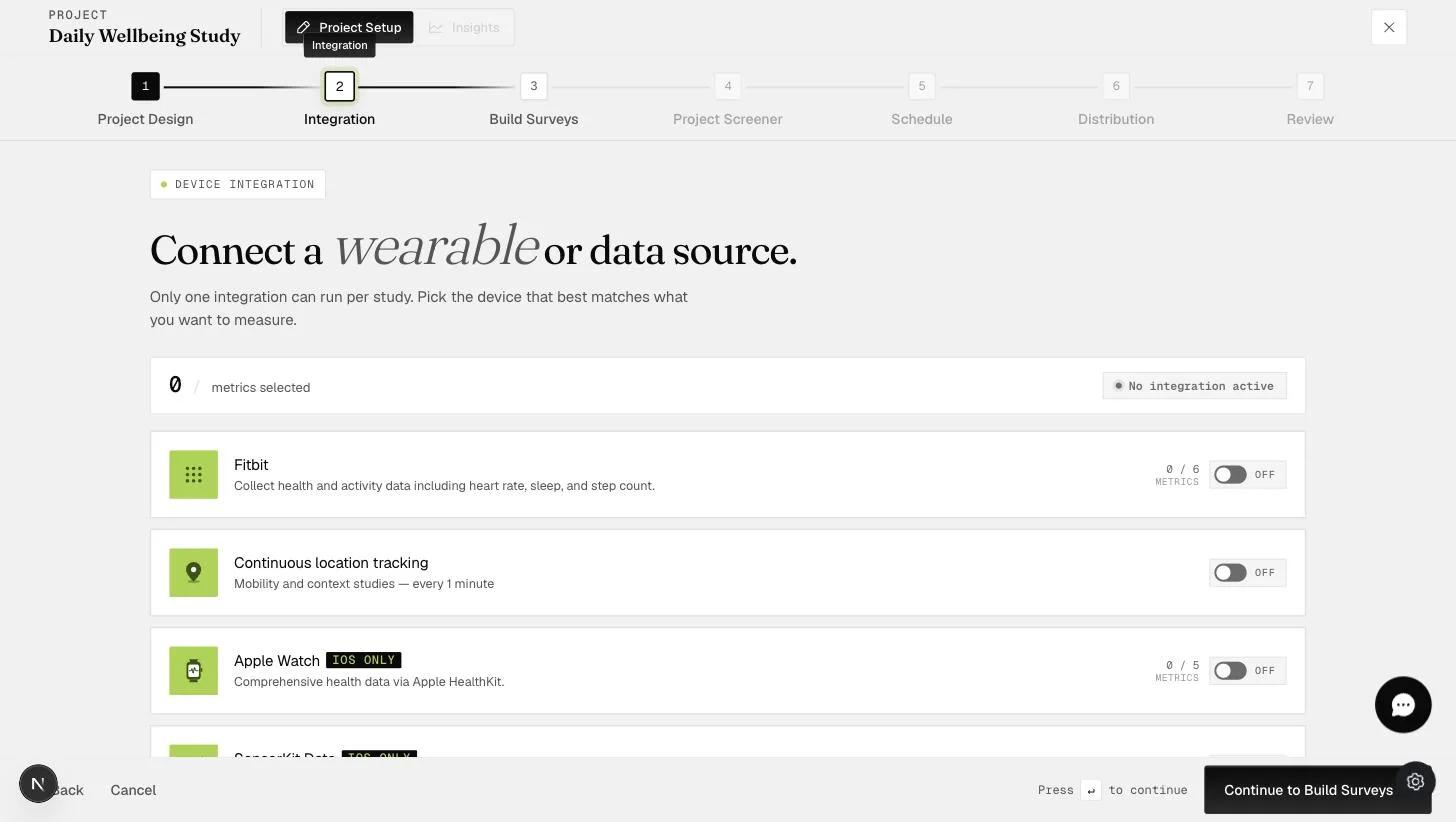
- One integration per study. The Integration step says so plainly: Only one integration can run per study. Apple Watch rules out Fitbit, SensorKit and continuous location tracking for the same project.
- It needs the app opened. Data is pulled when a participant reaches a survey start screen — there is no passive background collection.
Setting it up
In project setup, step 2, Integration, turn on Apple Watch.
Choosing metrics — five at most
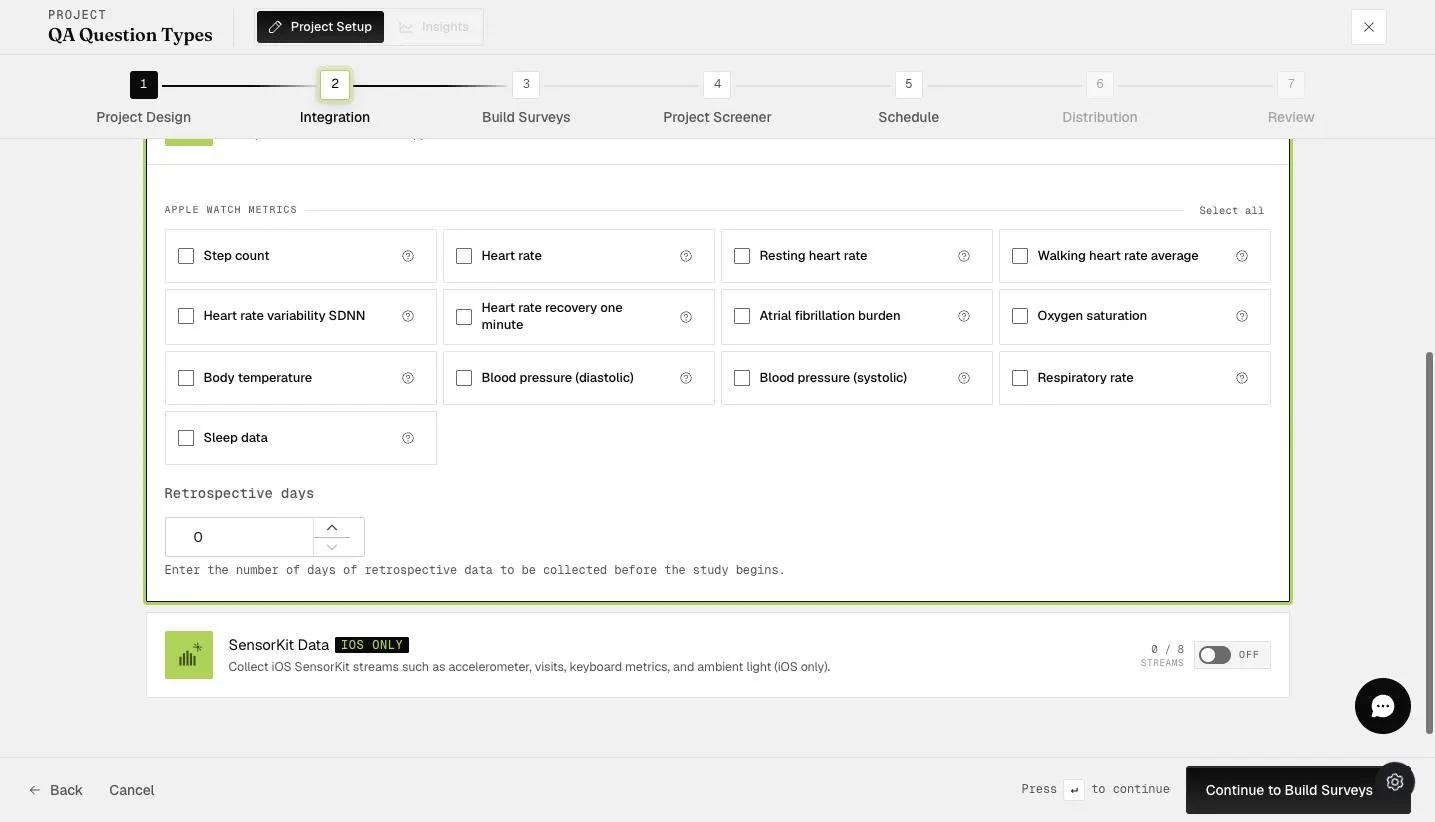
Thirteen metrics are offered and the counter on the card caps at 5: you can collect five of them per study. Once five are ticked the rest gray out, and the link above the grid changes from Select all to Clear all.
Step count · Heart rate · Resting heart rate · Walking heart rate average · Heart rate variability SDNN · Heart rate recovery one minute · Atrial fibrillation burden · Oxygen saturation · Body temperature · Blood pressure (diastolic) · Blood pressure (systolic) · Respiratory rate · Sleep data
What actually arrives depends on what the participant's watch records and syncs to HealthKit. A metric their model does not measure produces no file.
Retrospective days
Retrospective days is a number field, and it defaults to 0. Set it to collect history the participant's watch already recorded before they joined.
It counts back from the moment they join, not from midnight. Ask for 5 days and they join on 14 September at 11:15, and you get data from 11:15 on 9 September onwards. Whatever HealthKit no longer holds cannot be recovered.
When the data actually syncs
This is the part that surprises people. Collection is tied to survey screens, not to a clock.
- When they join — one call, fetching the retrospective window up to the exact minute they joined.
- Each day after — one call, when they reach the survey start screen for that day's first survey. It collects everything since the previous call. Later surveys that day trigger nothing.
- On the final day of scheduled surveys — a second call fires when they reach the start screen of the last scheduled survey, catching the rest of that day.
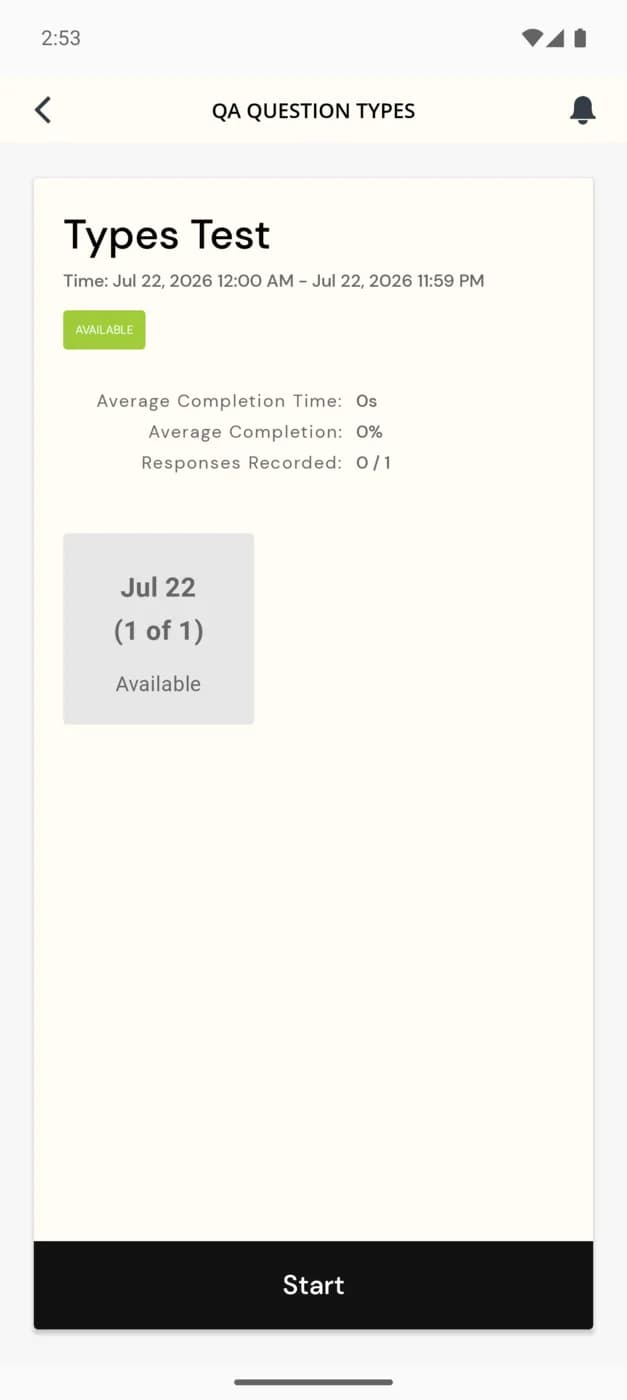
Missed surveys are not missed data. If someone skips days 2 and 3 and answers on day 4, that day-4 call collects days 2, 3 and 4 together. The gap closes as soon as they come back.
What participants do
They wear the watch and let it sync to HealthKit as normal. The only ExpiWell step is granting access.
Starting the experience asks for a start date, then a Start Experience dialog says what the project needs: This project requires Healthkit permission. Do you wish to continue?
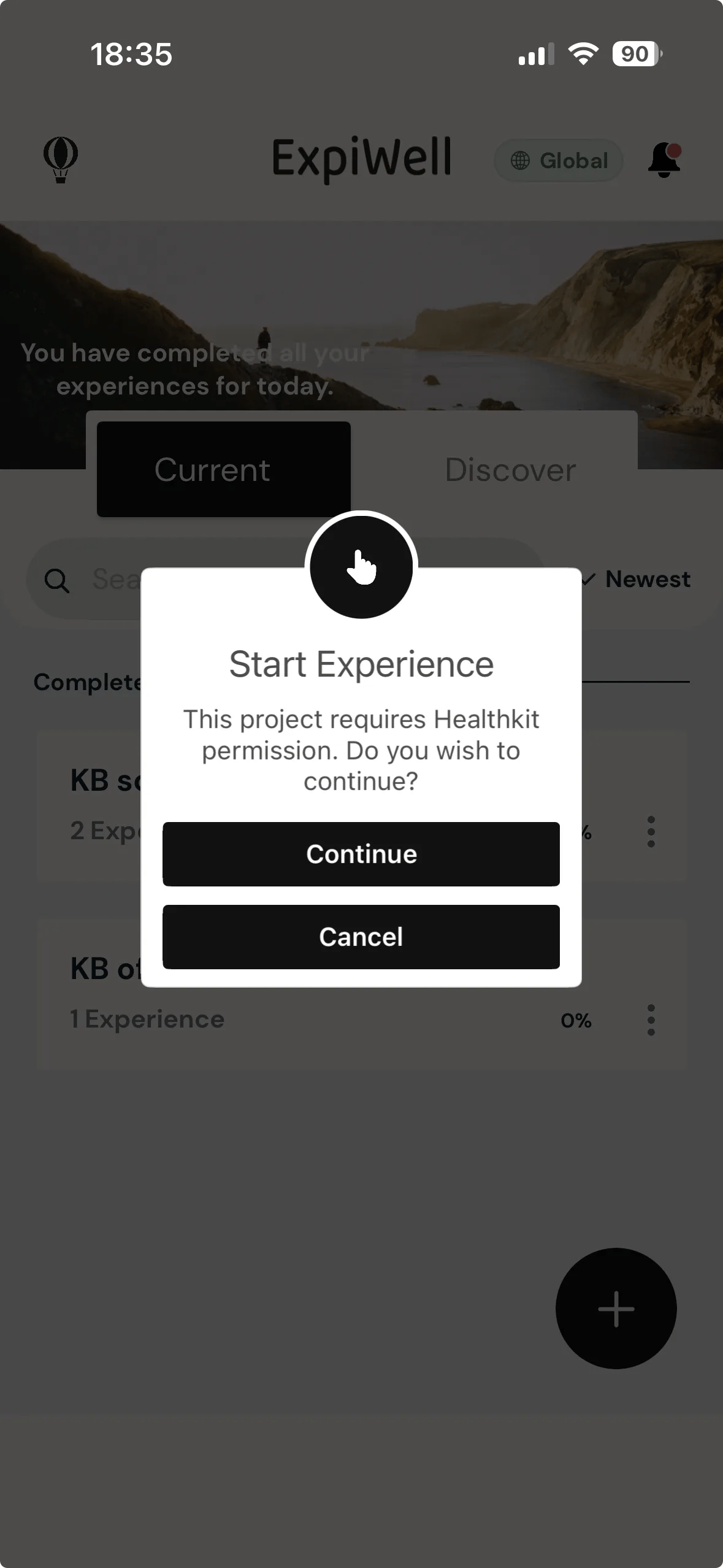
Continuing hands over to Apple's own Health Access sheet, and this is where access is actually granted. Every data type is a separate toggle and they all start off, so Allow is grayed out until at least one is switched on.
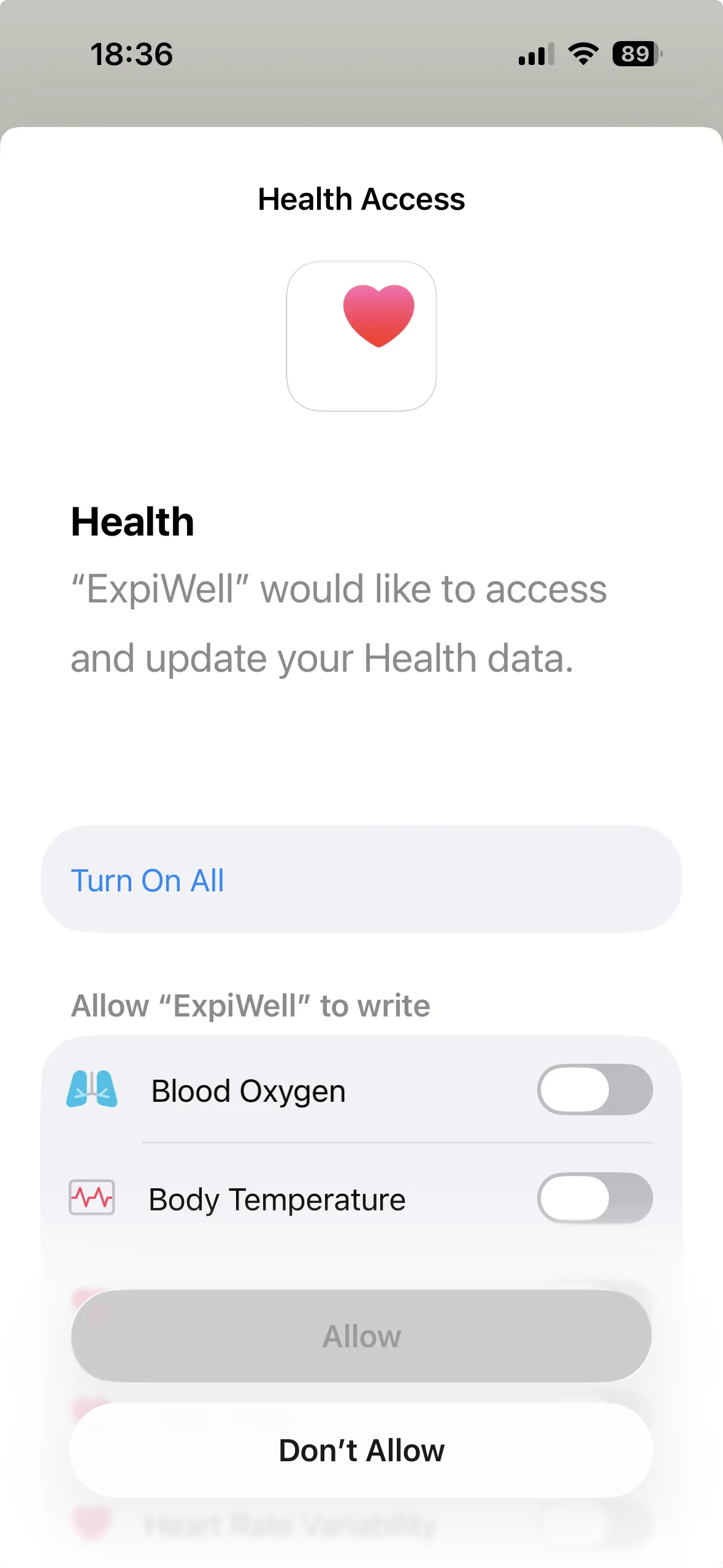
Turn On All switches the lot in one tap — the button then reads Turn Off All, and Allow becomes available.
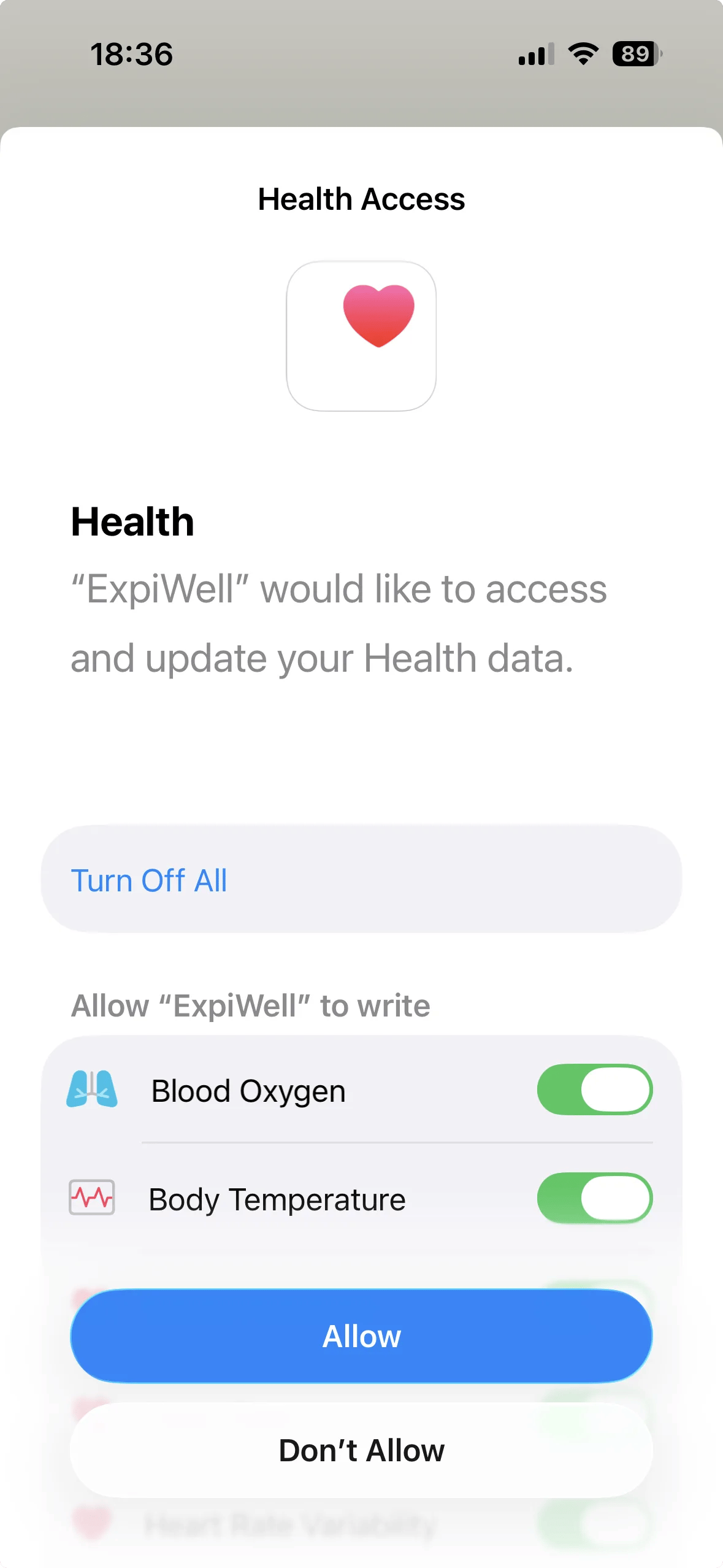
The sheet asks for write access, not only read. Apple's wording is "ExpiWell" would like to access and update your Health data, and the toggles sit under a heading reading Allow "ExpiWell" to write. Worth knowing before you write your participant instructions, and worth mentioning to an ethics board that asks what the app can do with Health data.
A metric left off here produces an empty file, not an error. Nothing in the researcher view distinguishes "the watch never recorded it" from "the participant did not grant it". Worth saying explicitly in your onboarding instructions.
Downloading the data
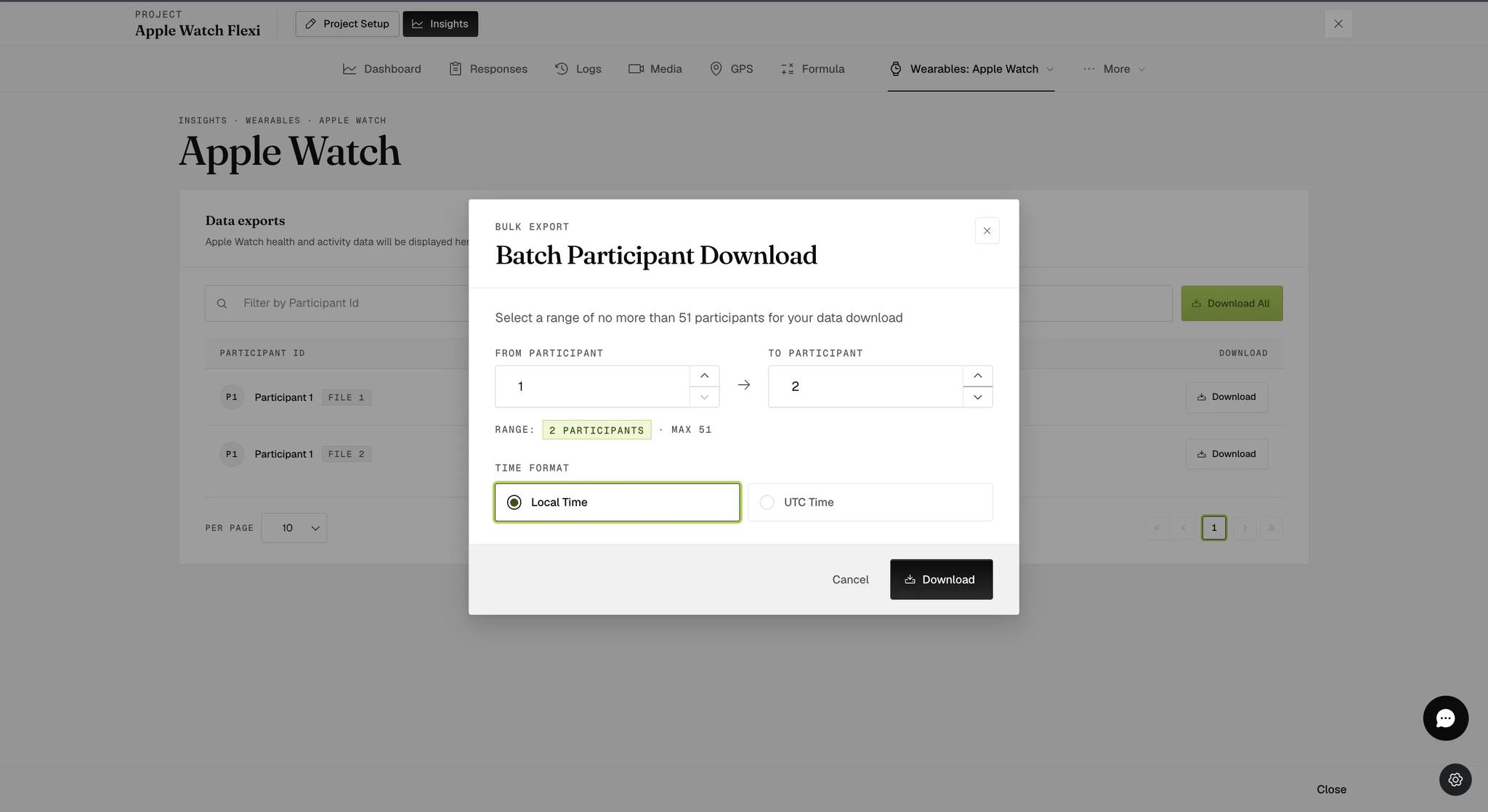
Go to Insights → Wearables → Apple Watch. Each export is a row with its own Download button, and Download All opens a Batch Participant Download dialog.
The dialog takes a range — From participant and To participant — and caps it: Select a range of no more than 51 participants for your data download. It counts your range back to you as you set it.
It also asks for a Time format, Local Time or UTC Time, with Local selected by default. Take UTC if participants span time zones or the data is being joined to something recorded elsewhere.
Each metric comes as its own CSV, named for the participant, their enrolment
number and the metric — Participant_1_1_stepCount.csv.
Rows are time periods, not fixed intervals: a start date and time, an end date and time, and the value measured across that span. A step count row might cover 56 seconds or ten minutes, depending on when the watch recorded. Days are separated by a blank row.
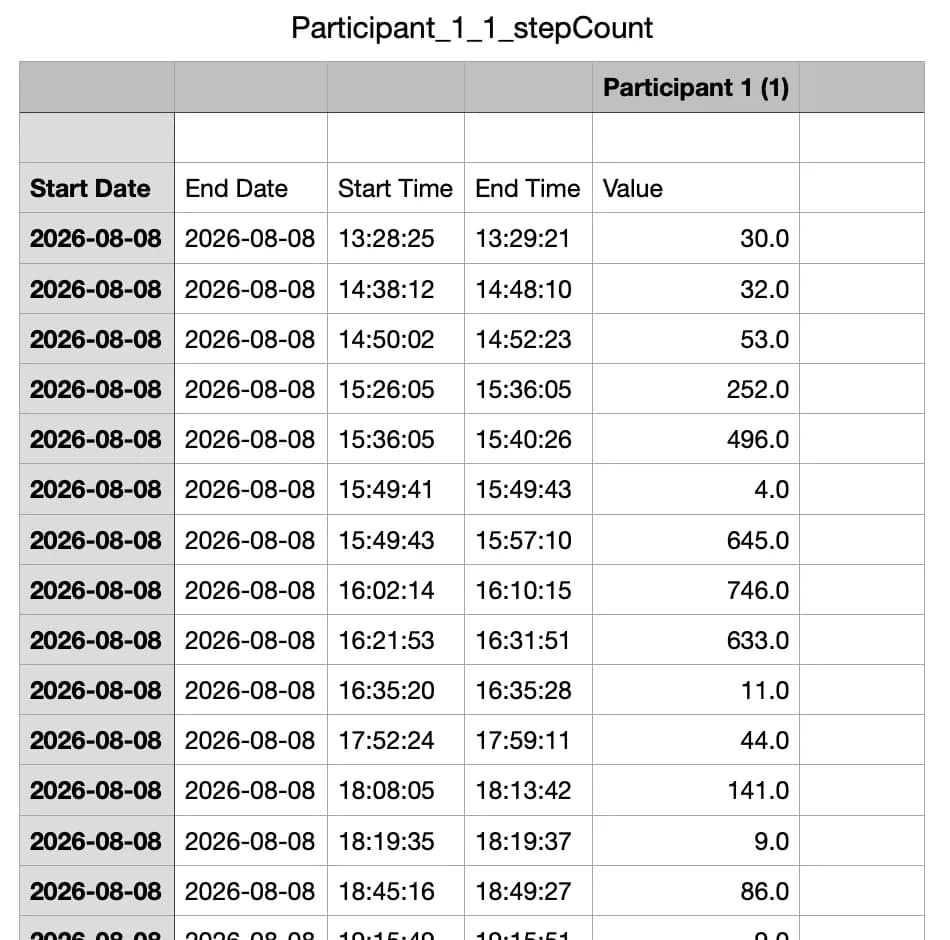
This is a different shape from a Fitbit intraday file. Fitbit gives you a row for every interval whether anything happened or not; Apple Watch gives you a row only where the watch recorded something, and the spans vary. Do not expect a fixed number of rows per day.
Gaps, and why they happen
- A day missing usually means the watch was not worn. Days with no data do not appear as empty rows; they are simply absent.
- No file for a metric means HealthKit held nothing for it.
- Step counts lower than the Health app shows are expected. ExpiWell pulls only the watch's steps; the Health app adds the iPhone's.
- Moving a survey with the Personalizer's "Move to Different Day" does not lose the data.
If a participant rejoins
Nothing is overwritten. Each enrolment becomes its own export, listed as a separate row under the same name with a FILE 1, FILE 2 badge — the highest number being the most recent. Download them one at a time, or take the range with Download All.
The enrolment number follows the data: the file is named
Participant_1_1_stepCount.csv and its header reads Participant 1 (1), so a
file stays identifiable once it is out of the list.
Common questions
Does collection stop when they finish all their surveys? Yes. The project is marked complete and no further calls are made.
Can data be collected passively, without them opening the app? No. The HealthKit APIs used here require app interaction, which is why collection is pinned to the survey start screen.
Can I run Apple Watch and Fitbit in the same study? No — one integration per study.
This walkthrough was recorded in the earlier ExpiWell interface — an updated video for the new dashboard is coming.