בבנייה

דגמתם אותנו באמצע הבנייה.

המדריכים האלה מכסים את פלטפורמת ExpiWell החדשה (v2) ועדיין נכתבים, נבדקים ומאורגנים מחדש — סלחו לנו על הפיגומים: עמודים עשויים לזוז או להשתנות בין ביקור לביקור. עדיין באפליקציה הקודמת? התיעוד שלה נשאר בפורטל התמיכה הישן.

לפורטל התמיכה הישן
מאגר ידע  /  מצוות ExpiWell

איך נוכל לעזור?

מדריכים לכל שלב במחקר — מהפרויקט הראשון ועד ייצוא הנתונים הסופי. מאגר הידע של ExpiWell לפלטפורמת החוקרים באינטרנט ולאפליקציית המשתתפים בנייד.

102 מדריכים ב‑29 קטגוריות · מתעדכן על ידי צוות ExpiWell
Help CenterBuildSurvey Creation

Automatic next question

Build · Survey Creation
Updated 25 בספטמבר 2026

How to Use Automatic Next Question

In Ecological Momentary Assessment and Experience Sampling research, efficiency matters once a survey runs long. Every extra tap is effort a participant has to spend, and reducing that effort helps keep completion rates up.

The Automatic next question setting removes one tap per question: as soon as a participant answers, the survey moves on by itself.

1 - Click the "Options" button in the survey builder.
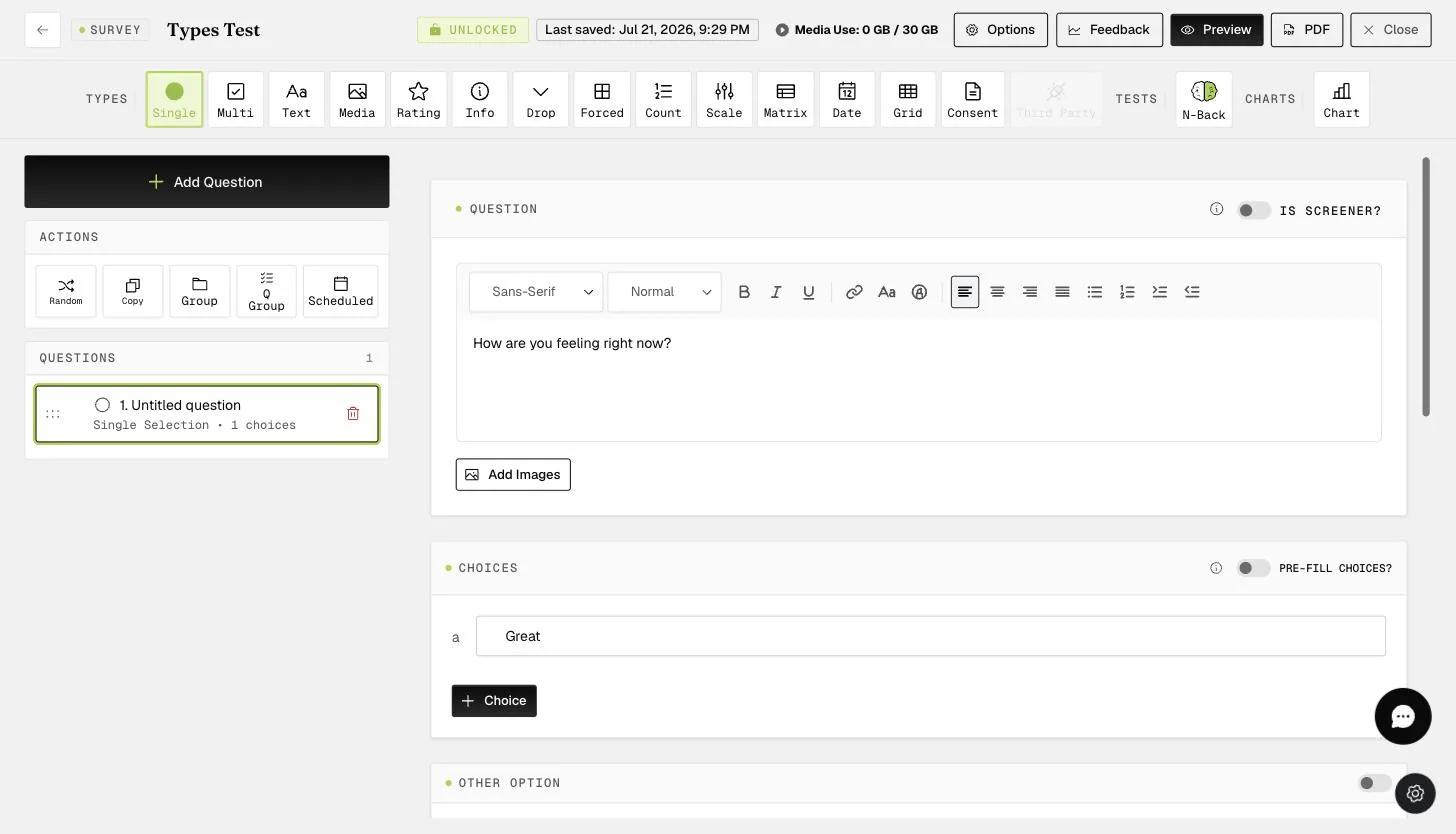
The KB Screenshots survey builder with the question list in the left rail and the Options button in the top bar, which opens the survey-level settings

2 - Toggle "Automatic next question".
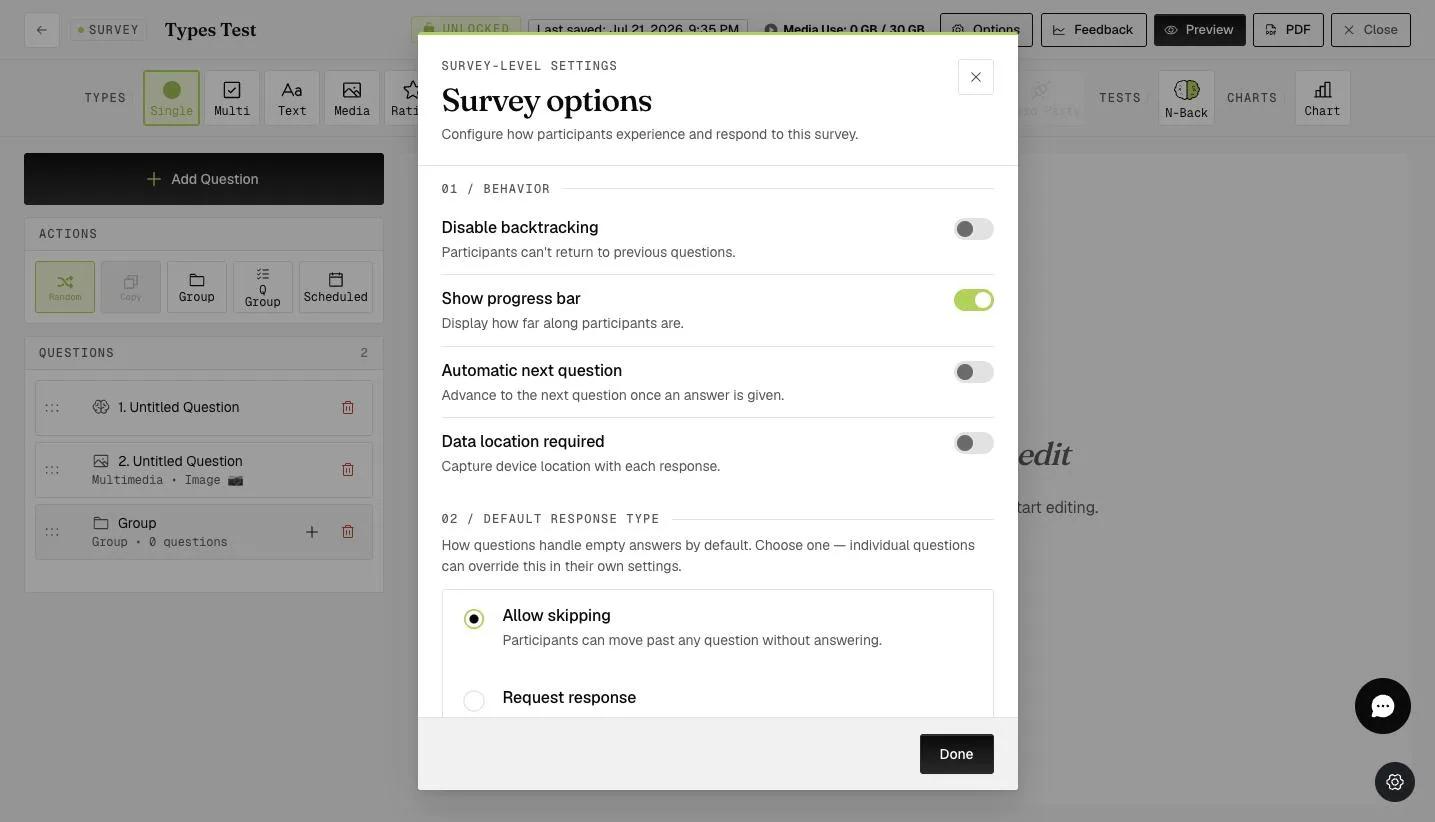
The Survey options modal open on the Behavior section with Automatic next question switched on, described as Advance to the next question once an answer is given
Note

On the mobile app, participants no longer tap "next" to move forward. Once they select a response, the survey advances on its own.

One saved tap per question adds up quickly, which makes this especially worthwhile on surveys running to hundreds of questions.

For further inquiries, please reach out to help@expiwell.com

Was this helpful?
Start today

דברו עם בן אדם מצוות ExpiWell.

עדיין תקועים? צוות החוקרים שלנו עונה גם על שאלות טכניות וגם על שאלות של תכנון מחקר.