En construcción

Nos has muestreado a medio construir.

Estas guías cubren la nueva plataforma ExpiWell (v2) y todavía se están escribiendo, revisando y reorganizando — disculpa el andamiaje: las páginas pueden moverse o cambiar entre visitas. ¿Sigues en la app anterior? Su documentación permanece en el portal de soporte antiguo.

Ir al portal de soporte anterior
Base de conocimiento  /  Del equipo de ExpiWell

¿En qué podemos ayudarle?

Guías para cada paso de su estudio: de su primer proyecto a la exportación final de datos. La base de conocimiento de ExpiWell para la plataforma web del investigador y la app móvil del participante.

97 guías en 28 categorías · Actualizadas por el equipo de ExpiWell
Help CenterSet upAccount Settings

Set up a passkey

Set up · Account Settings
Updated 20 de julio de 2026

Passkeys let you verify sign-ins with your device's biometrics — Touch ID, Face ID, or Windows Hello — instead of typing a code. On ExpiWell, passkeys are used as a second factor after your password.

Step by step

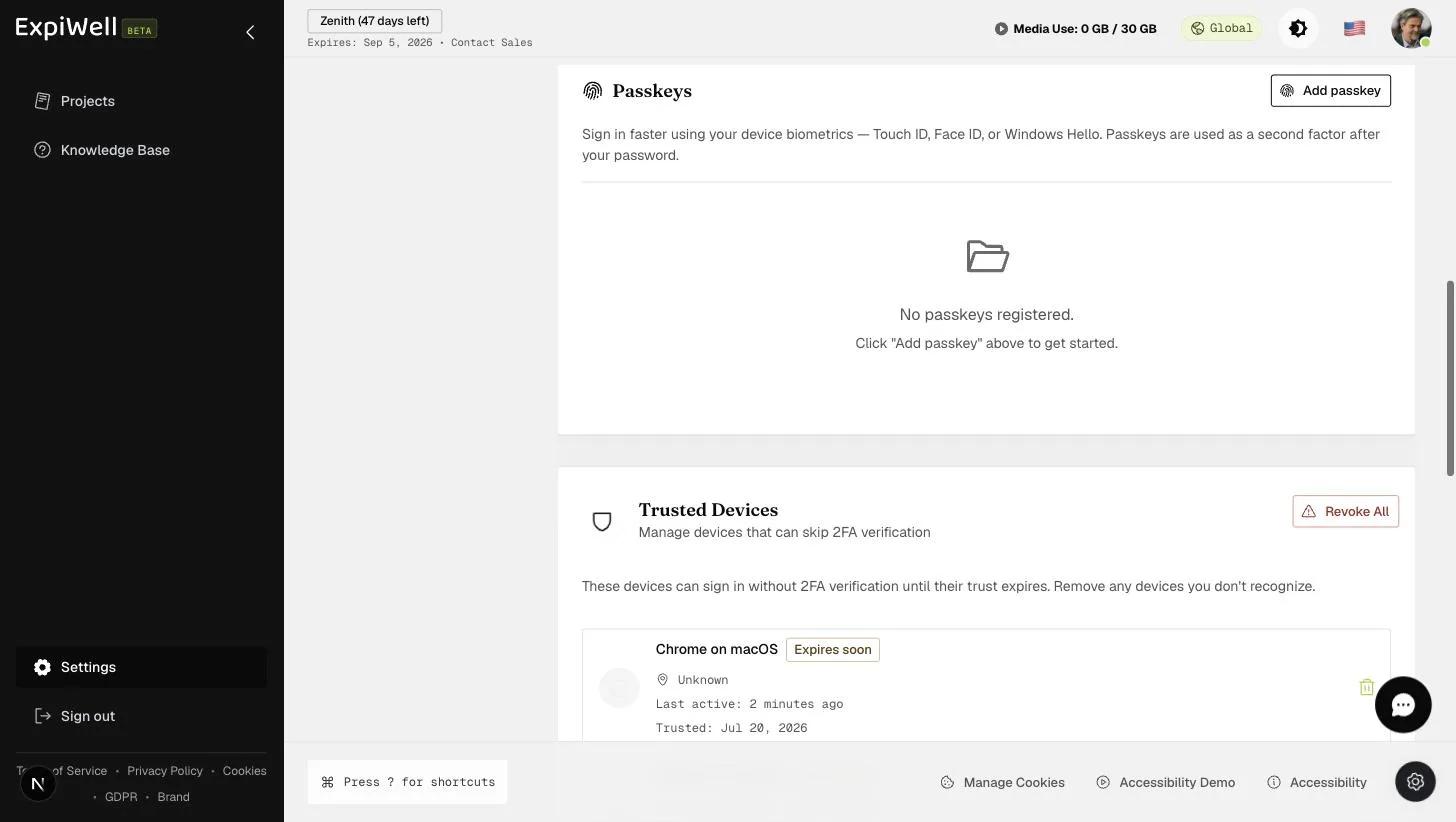
  1. Open Settings → Security (under Personal) and scroll to the Passkeys card.
  2. Click Add passkey.
  3. Follow your browser's prompt — it will ask for your device biometric (or device PIN) to register the passkey.
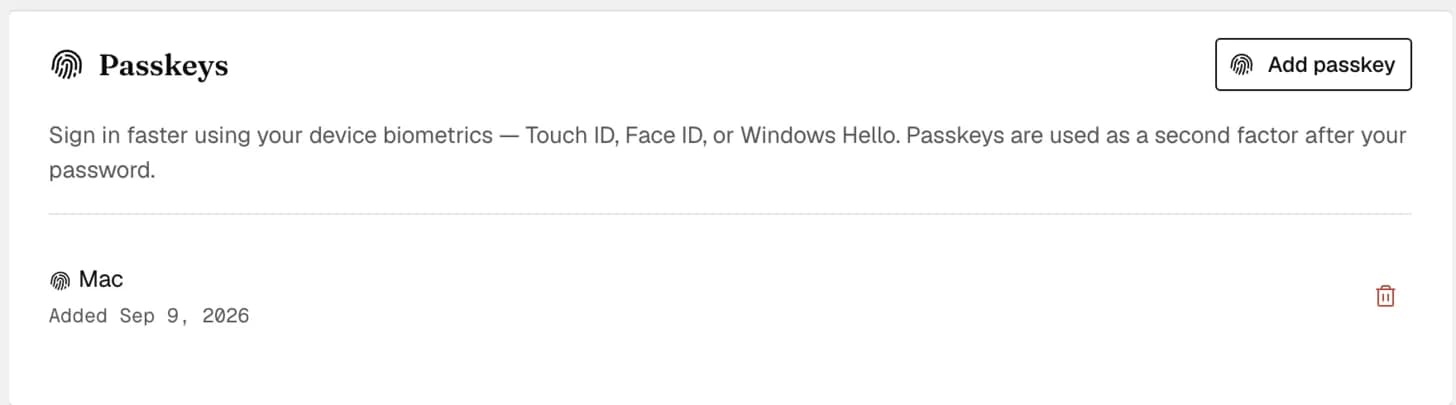
  4. The passkey appears in the list; you can register one per device you sign in from.
The Passkeys card in Security settings with an Add passkey button, explaining sign-in via Touch ID, Face ID, or Windows Hello, above the Trusted Devices card

Good to know

  • Passkeys complement, not replace, your password — you'll still enter your password first.
  • Combined with Device Trust, a trusted device can skip repeated 2FA checks entirely.

Watch it in action

Video demo — Setting up a passkey (coming soon)
Was this helpful?
Start today

Hable con una persona del equipo de ExpiWell.

¿Sigue atascado? Nuestro equipo de investigadores responde tanto dudas técnicas como de diseño del estudio.