Group data collection
How Does Group Data Collection Work?
For experience sampling and ecological momentary assessment projects, the default is to collect data at the individual level. In other words, we care only about individual experiences.
However, there are many instances when one is interested in collecting data from groups of individuals to understand their collective experience.
Group data collection is useful when you are interested in:
-
Romantic relationships
-
Workplace relationships
-
Team dynamics
Setting up Group Data Collection
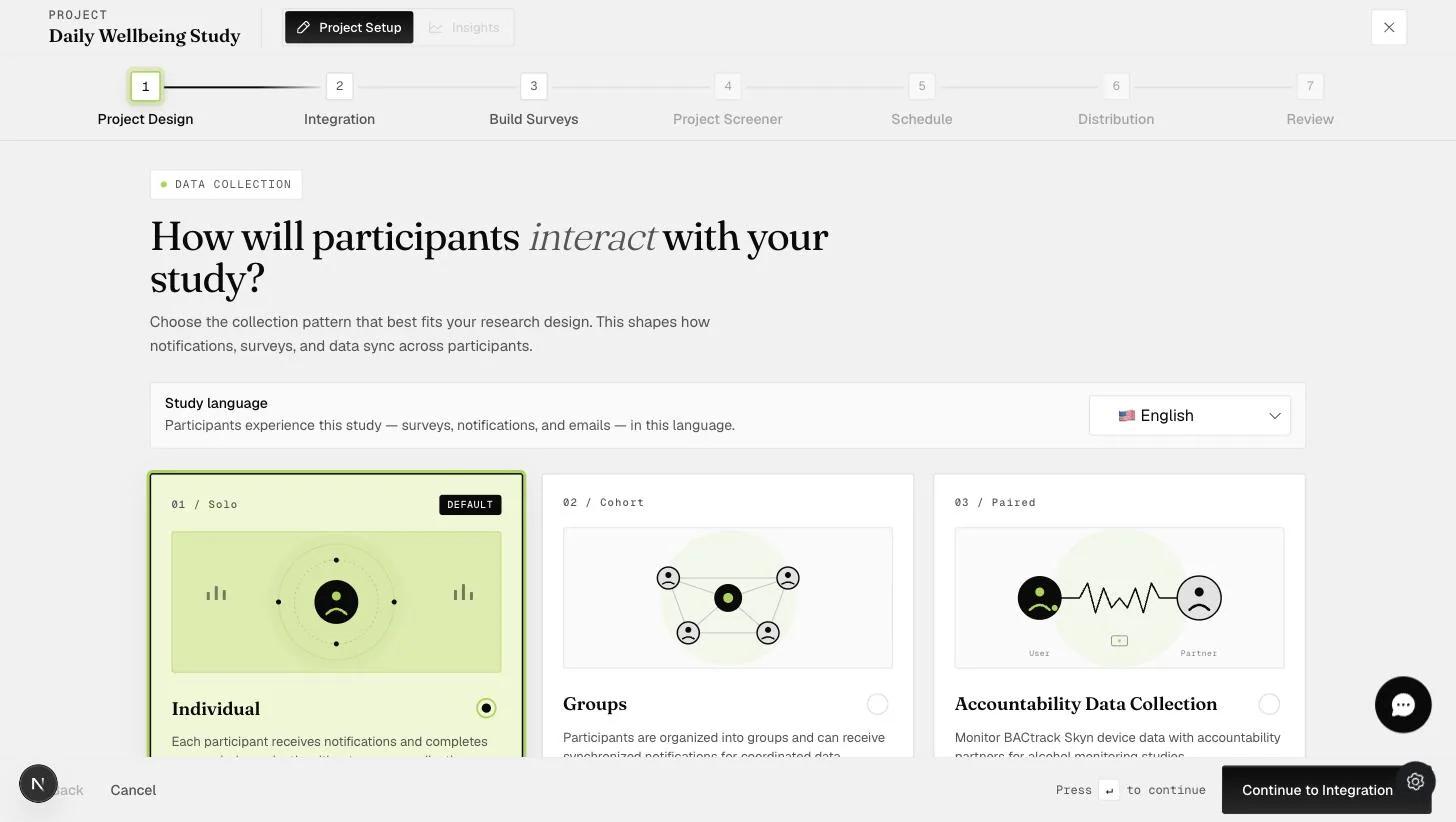
For Premium plans, you will have the option of going into the Project Design tab as shown below.
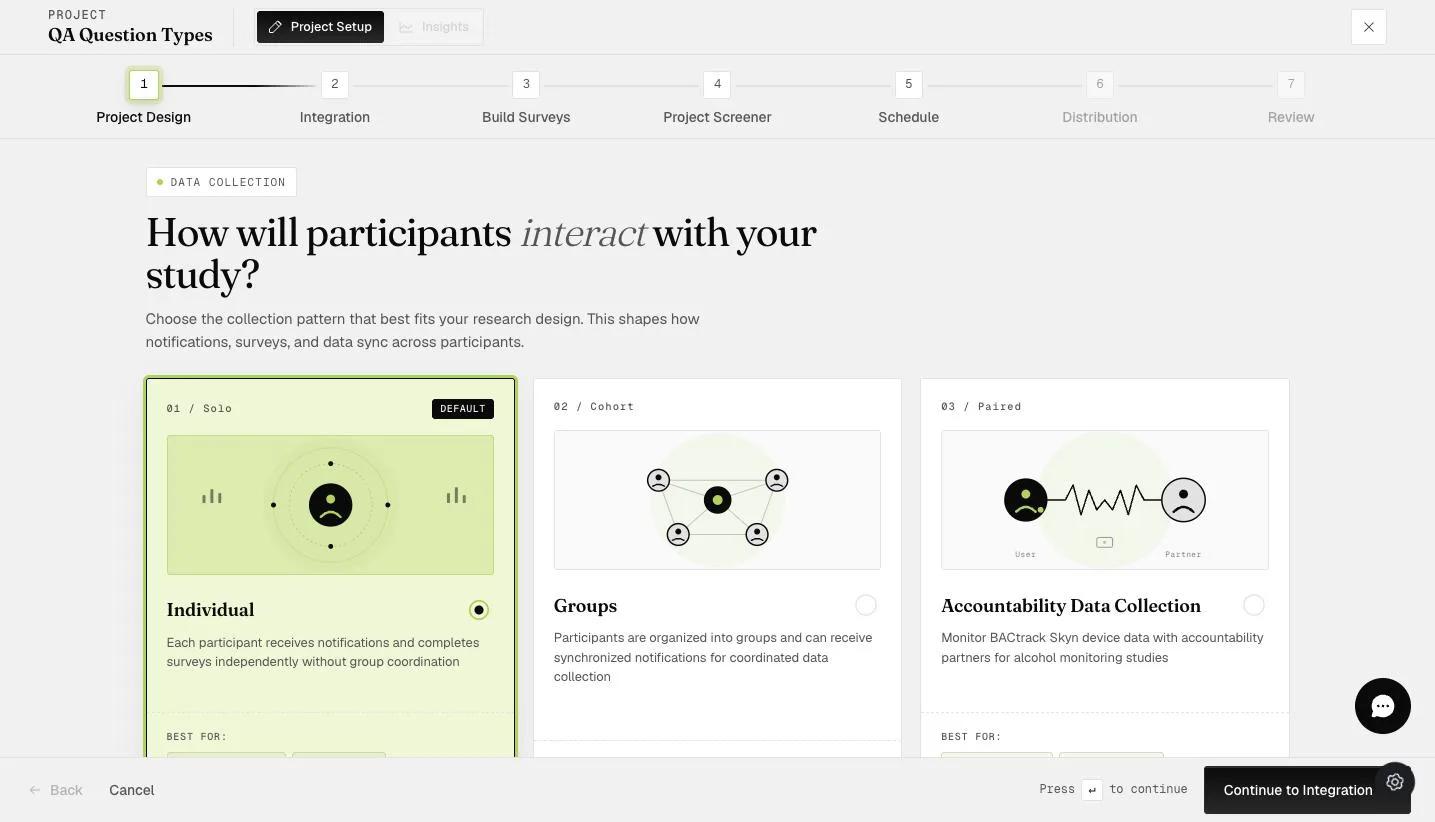
By default, the data collection will be at the individual level. You can select 'Groups' to collect group data.
Number of Members per Group
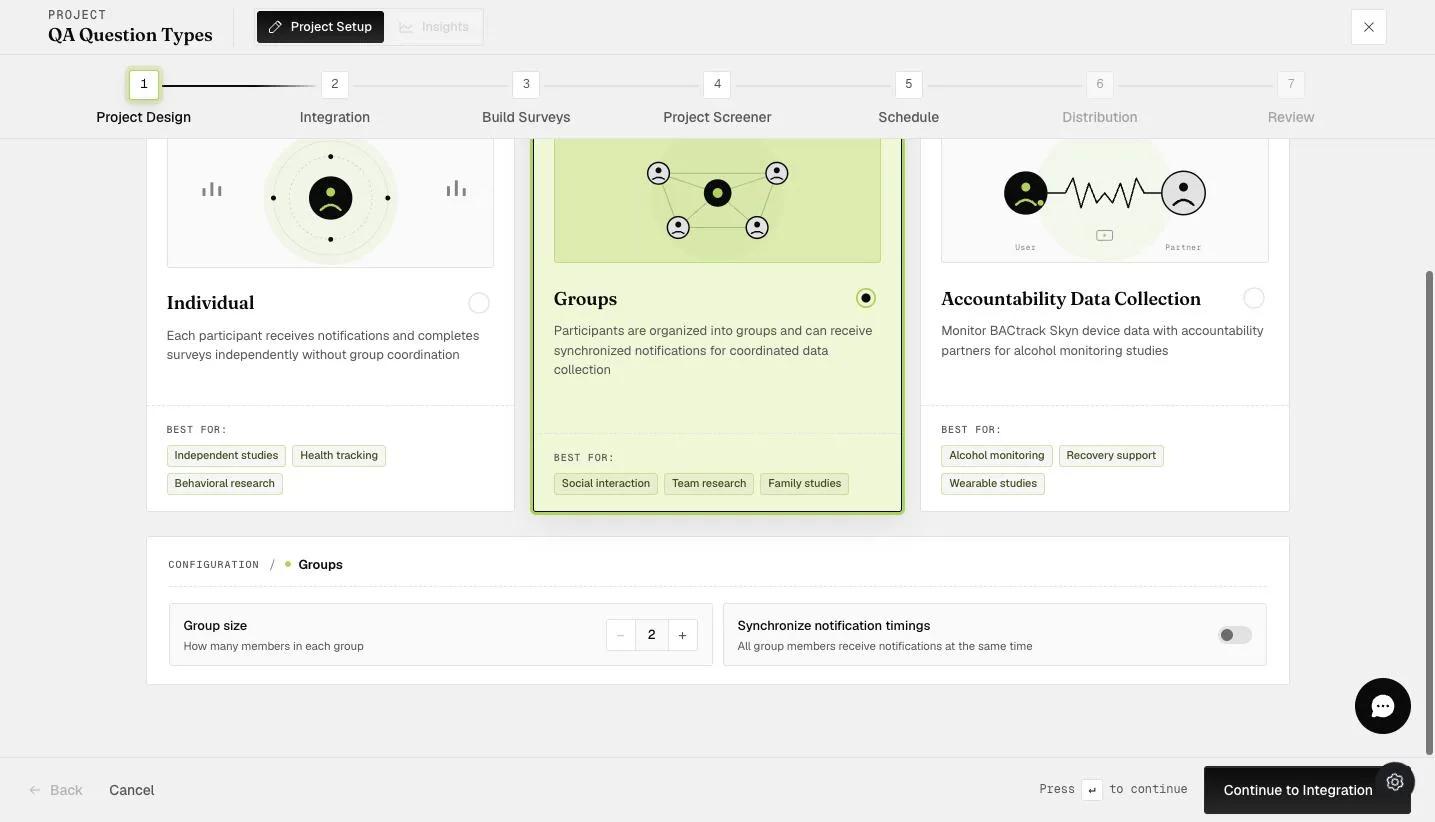
When you turn on group data collection, you can specify the number of members in the group. For example, if you are interested in collecting couple or dyadic data, you will specify "2"; if you are interested in teams of 5 people, you will specify "5".
Setting up the number of individuals will automatically ensure that people who join your ExpiWell projects will need to reach the specified number of members to be able to start the project. For example, if you specify "3" members in each group, the project will not begin for the first two participants until the final group member joins.
In addition, once the number of members in the group reaches the specified number, no more new members can join the same group.
The group access code is separate from the project access code. Participants first enter the project access code to join the project, then enter a group access code to be placed into their specific group. You create a unique group access code of up to 8 alphanumeric characters (case insensitive) for each group. When you download the data, group access codes appear so you know which participant belongs to which group.
If you need an anonymized data collection, you can instruct participants to decide on their own unique group access code and enter it.
Synchronize notification timings / Yoking
Toggling the "synchronize notification timings" or "yoking of timings" ensures that all the scheduled notifications and surveys will occur at the same time for ALL participants in the group. For example, if you have a survey that is scheduled to start randomly from 9am to 12pm, ALL participants will receive the survey and notification at the same "random" time, such as 10:17am EST.
Otherwise, the scheduled notifications and surveys will occur at each participant's own time. For example, if you have a survey that is scheduled to start randomly from 9am to 12pm, Participant 1 may receive it at 9:12 EST, while another participant may receive it at 11:21 EST.
Participants will need to be in the same time zone to start the project. Otherwise, they will not be able to start the project even if the number of participants reaches the specified number. This is because synchronization requires group members to be in the same time zone.
Participant Process in the Mobile App
After participants enter the access code, they will be asked to enter the “Synchronization Code.”
The project will only start after the system receives the codes that are equal to the number of members within the group (e.g., 2).
Members waiting for other members to enter the group code will see this message.
“Thank you. We are waiting for all other members of your group to join before the project begins.”
If all participants have entered the group code and are in the same time zone, then the project will start, and they will receive this notification.
“All members in your group have joined, and your project [NAME] has started.”
If the 'Synchronize notification timings' are enabled, participants have to be in the same time zone; otherwise, the project will not start. They will see this message.
“The project requires synchronization of notification timings. The current group has members in different time zones, so the project cannot continue.”
Data Download
Researchers are able to track the group access code of each group, all the participants who joined the project, and whether the project has already started.