Team and roles
Research is a team effort, so ExpiWell lets multiple people work from the same account, each with a role that controls what they can do. You manage the team from Settings → Team Members (under Organization).
Who you are, and who you can invite
You are the Principal Investigator. That comes from owning the account, not from anyone assigning it, and there is only ever one. It is what lets you manage the team, the subscription and billing.
Everyone you invite gets one of two roles:
- Research Assistant — can view project info, download data, and edit/delete surveys and projects.
- Dashboard Viewer — can only view project information and download data.
Neither can invite, edit or remove team members. That stays with you.
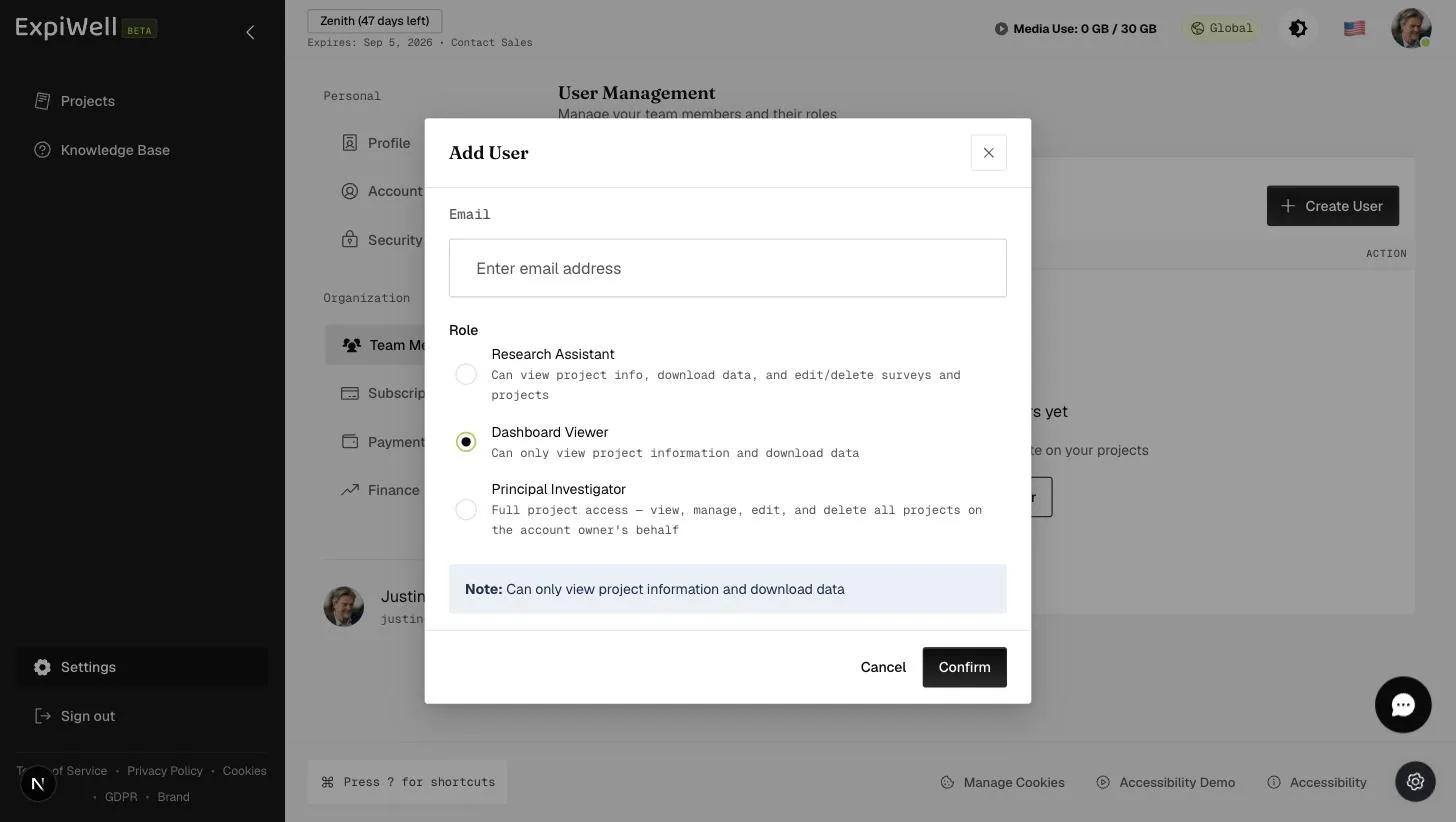
Adding a team member
- Open Settings → Team Members. The header shows how many seats you're using (e.g. 2 / 4).
- Click Create User.
- Enter the person's email address.
- Choose their role — Research Assistant or Dashboard Viewer.
- Click Confirm.
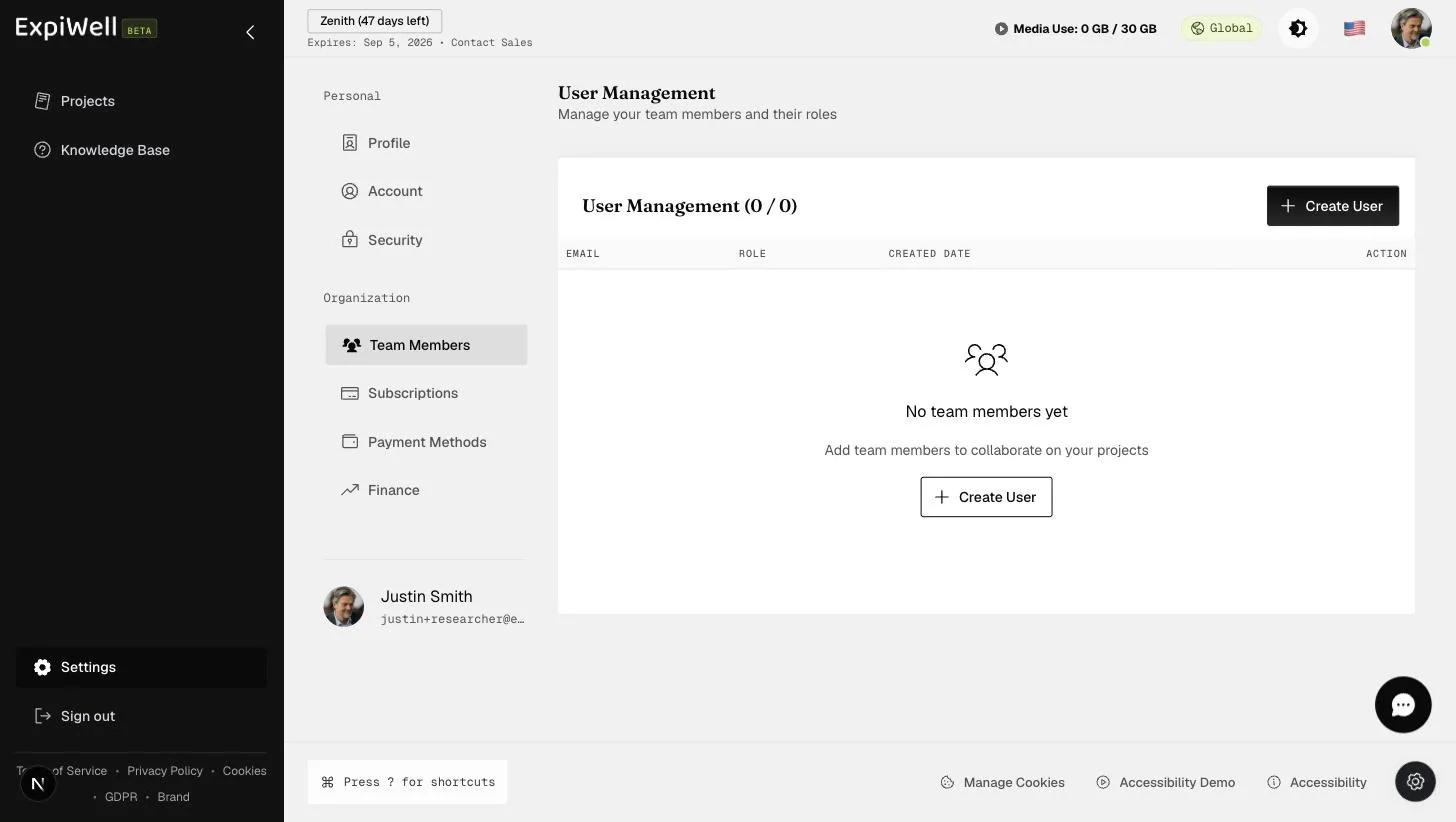
The new user appears in the User Management table with their email, role, and created date, where you can later edit their role or remove them.
What the new member does next
The invited user receives an email from ExpiWell and sets their own password to activate the account (the same password rules apply as everywhere — see Change your password). Once signed in, they can switch between My Projects and Team View to move between their own projects and the ones you've shared with them.
Need more seats?
Your plan includes a set number of team-member seats (shown as the x / y
count on the Team Members page). To add more, contact
sales@expiwell.com.